# Wie formatiere ich meine Festplatte für "Kla.TV-Offline" korrekt? (exFAT)

##### Damit die Festplatte auf jedem System gelesen werden kann, ist es wichtig, dass sie richtig formatiert ist. Dann kann sie auf Mac, Windows und Linux gelesen und beschrieben werden.

<p class="callout danger">**Achtung:** alle Daten auf der Festplatte werden nach diesem Vorgang unwiderruflich gelöscht! Führe diesen Schritt durch, <span style="text-decoration: underline;">bevor</span> du etwas auf die Festplatte kopiert hast!</p>


## [![grafik.png](https://support.elaion.ch/uploads/images/gallery/2023-05/scaled-1680-/OQzkqjRNBQBbZ3N4-grafik.png) ](https://support.elaion.ch/uploads/images/gallery/2023-05/OQzkqjRNBQBbZ3N4-grafik.png)**Anleitung für Windows**

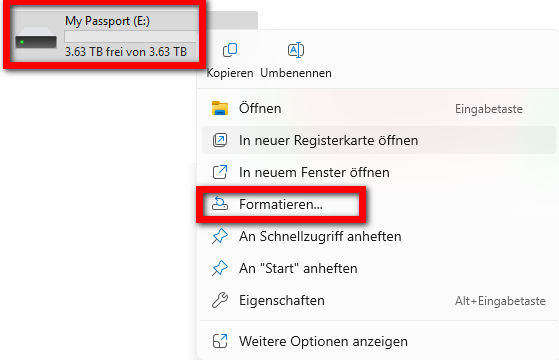
- <span style="background-color: rgb(236, 202, 250);"><span style="background-color: rgb(191, 237, 210);">Mache einen Rechtsklick auf die Festplatte &gt; wähle "Formatieren"</span>  
      
    </span>[![image.png](https://wiki.kla.tv/uploads/images/gallery/2025-03/scaled-1680-/S2J6SAs5mI66IZ2M-image.png)](https://wiki.kla.tv/uploads/images/gallery/2025-03/S2J6SAs5mI66IZ2M-image.png)
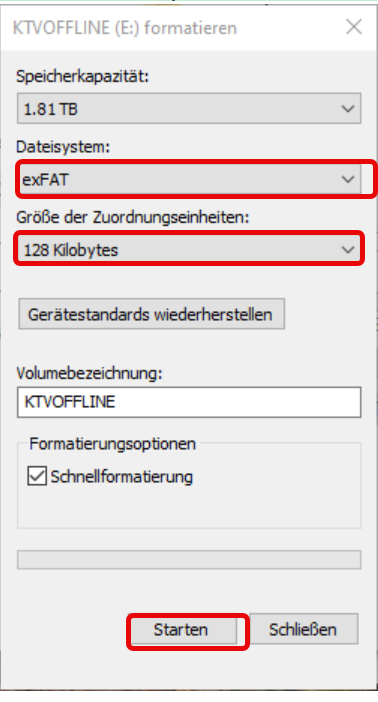
- <span style="background-color: rgb(191, 237, 210);">Wähle beim Dateisystem "exFAT" und drücke "Starten"  
    </span>  
    [![grafik.png](https://wiki.kla.tv/uploads/images/gallery/2025-03/scaled-1680-/8snRkUL8vzYZGtQf-grafik.png)](https://wiki.kla.tv/uploads/images/gallery/2025-03/8snRkUL8vzYZGtQf-grafik.png)

## ![image.png](https://support.elaion.ch/uploads/images/gallery/2022-08/scaled-1680-/n6YA4MHBcekCfTEp-image.png)**Anleitung für MacOS**

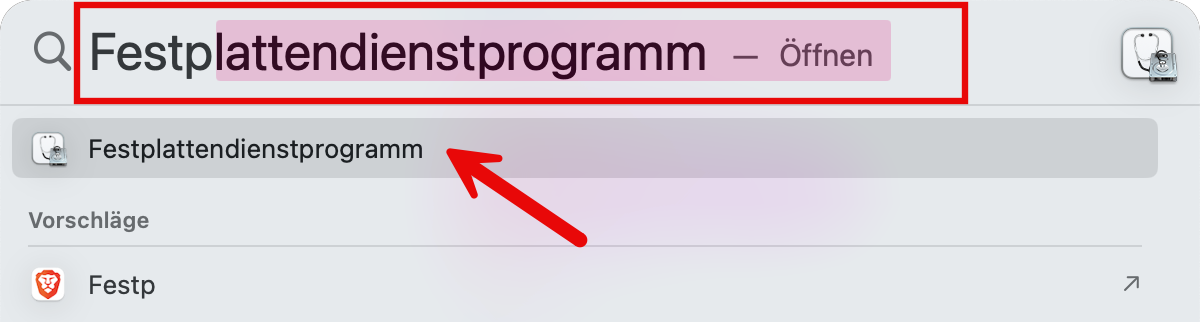
- <span style="background-color: rgb(251, 238, 184);">Navigiere in der Menüleiste des Macs auf die Lupe und gebe in der Suche "Festplattendienstprogramm" ein:  
    </span>[![image.png](https://wiki.kla.tv/uploads/images/gallery/2025-03/scaled-1680-/5ZgzTFAPl9gc1nPO-image.png)](https://wiki.kla.tv/uploads/images/gallery/2025-03/5ZgzTFAPl9gc1nPO-image.png)<span style="background-color: rgb(251, 238, 184);">  
    </span>![image.png](https://wiki.kla.tv/uploads/images/gallery/2025-03/scaled-1680-/RCIzNC6WSof5Qinr-image.png)<span style="background-color: rgb(251, 238, 184);">  
      
    </span>
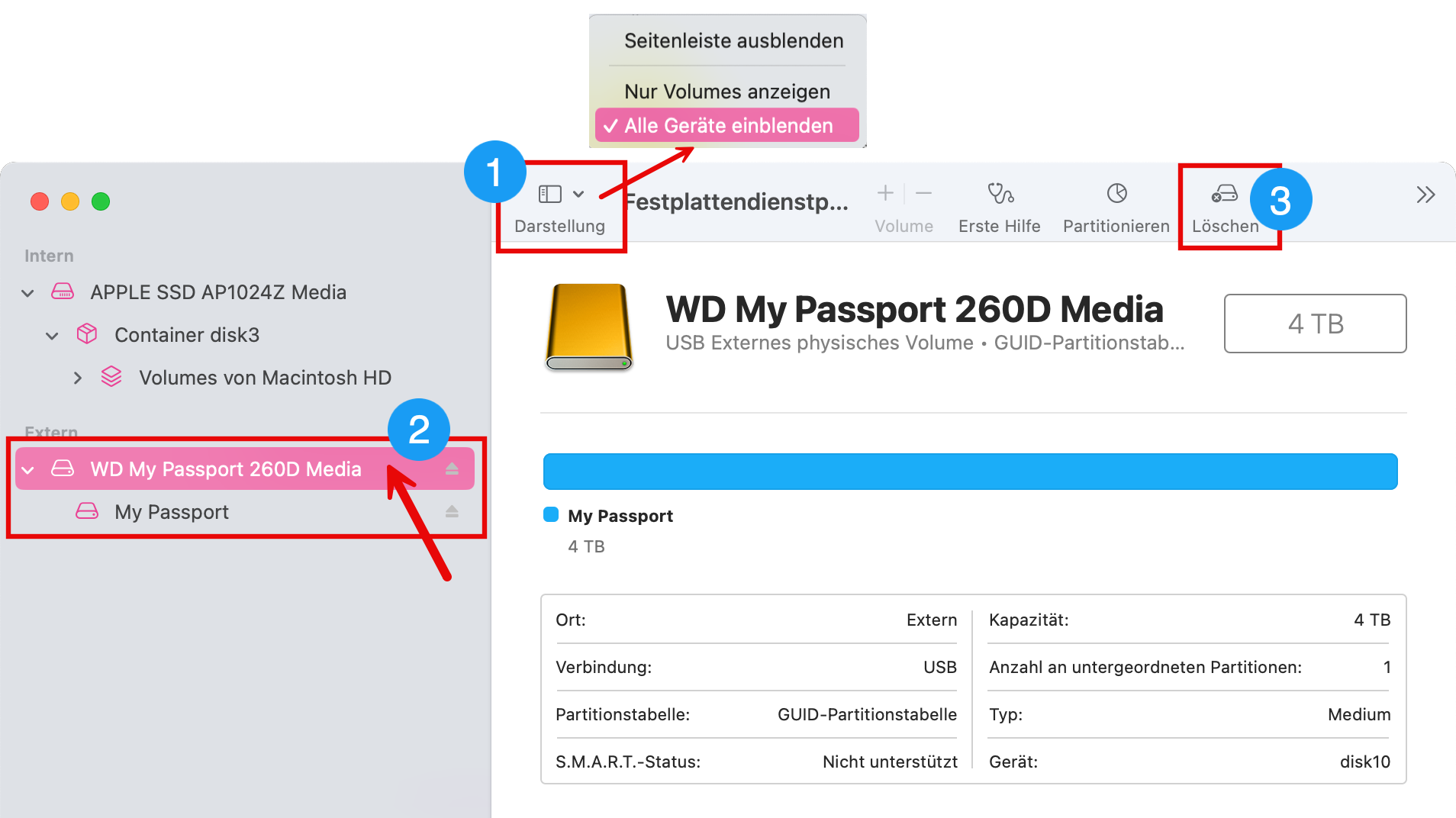
- <span style="background-color: rgb(251, 238, 184);">Wähle ❶ "Darstellung" &gt; "Alle Geräte einblenden"</span>
- <span style="background-color: rgb(251, 238, 184);">Wähle in der ❷ Seitenleiste das Speichermedium aus, das du formatieren möchtest. *ACHTUNG: sei dir gewiss, dass du die richtige Festplatte gewählt hast.* (Klicke oberhalb des Festplattennamens drauf)</span>
- <span style="background-color: rgb(251, 238, 184);">Klicke auf ❸ "Löschen"  
    </span>[![image.png](https://wiki.kla.tv/uploads/images/gallery/2025-03/scaled-1680-/HTzL7ReDnYQ66Gq9-image.png)](https://wiki.kla.tv/uploads/images/gallery/2025-03/HTzL7ReDnYQ66Gq9-image.png)  
    <span style="background-color: rgb(251, 238, 184);">  
    </span>
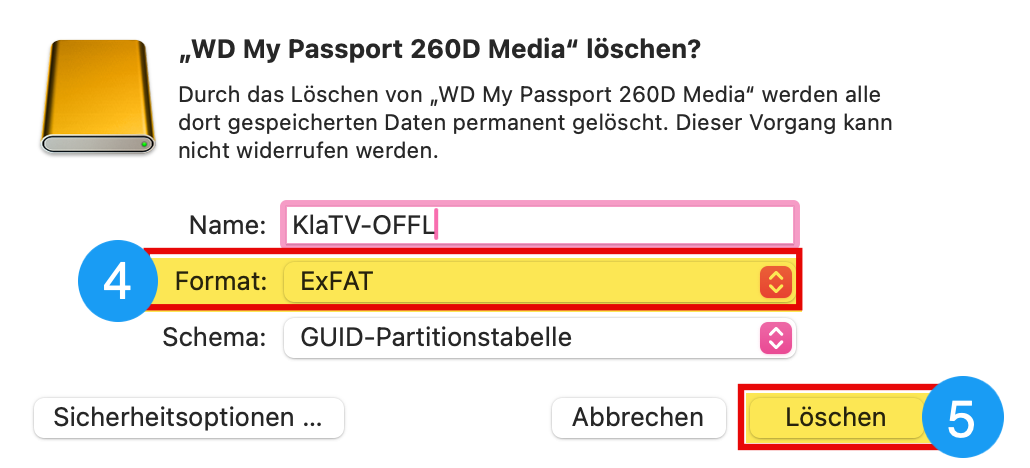
- <span style="background-color: rgb(251, 238, 184);">Wähle bei ❹ Format "ExFAT" und klicke danach auf ❺ "Löschen"</span>  
    [![image.png](https://wiki.kla.tv/uploads/images/gallery/2025-03/scaled-1680-/byaqAmpliNYz43kE-image.png)](https://wiki.kla.tv/uploads/images/gallery/2025-03/byaqAmpliNYz43kE-image.png)

## [![grafik.png](https://support.elaion.ch/uploads/images/gallery/2023-05/scaled-1680-/HAfquWaq0hyk9mn0-grafik.png) ](https://support.elaion.ch/uploads/images/gallery/2023-05/HAfquWaq0hyk9mn0-grafik.png)**Anleitung für Linux**

<div class="Article__Chapter fb-col-md-10 fb-col-lg-10  fb-direction-column-mu fb-order-5" id="bkmrk-starten-den-linux-re"><div class="mt-sm">1. Starte den Linux-Rechner und schließe die externe Festplatte an.
2. Nun benötigst du das Programm "GParted", das unter den meisten Linux-Versionen bereits vorinstalliert ist.
3. Öffne GParted und gebe dein Benutzer-Passwort ein.
4. Klicke auf das Auswahlfeld rechts oben und wählen die zu formatierende Festplatte aus.
5. Wähle wiederum die entsprechenden Partitionen aus, klicke mit der rechten Maustaste darauf und gehen auf "Aushängen".
6. Klicke erneut mit der rechten Maustaste und wähle "Formatieren als" sowie das gewünschte Dateisystem (exFAT) aus.
7. Klicke oberhalb auf das grüne Häkchen und bestätige nochmals. Die Festplatte wird nun formatiert.

</div></div><figure class="Article__Image mt-md fb-col-md-10 fb-col-lg-10 fb-order-5" id="bkmrk-">[<div class="Article__ImageWrapper shadow-2dp">![Festplatte unter Linux formatieren](https://im.contentlounge.net/styles/manual_crop/s3/festplatte-unter-linux-formatieren_54788448.png?im=Resize%3D%281200%2C675%29%2Caspect%3Dfit%2CAspectCrop%2Csize%3D%281200%2C675%29%2Cgravity%3DCenter%2CallowExpansion%2CBackgroundColor%2Ccolor%3Dtransparent&hash=e2a4445da618598921abfb480028c35ee50e7b8026f94e750ff7419c805f2d31)</div>](https://im.contentlounge.net/styles/manual_crop/s3/festplatte-unter-linux-formatieren_54788448.png?im=AspectCrop%2Csize%3D%2816%2C9%29%2Cgravity%3DCenter%2CallowExpansion%2CBackgroundColor%2Ccolor%3Dtransparent&hash=a34a2958e207df09cfc6e665d8377bb0e6ae3951c03e44aca726736eacc0b769)</figure>