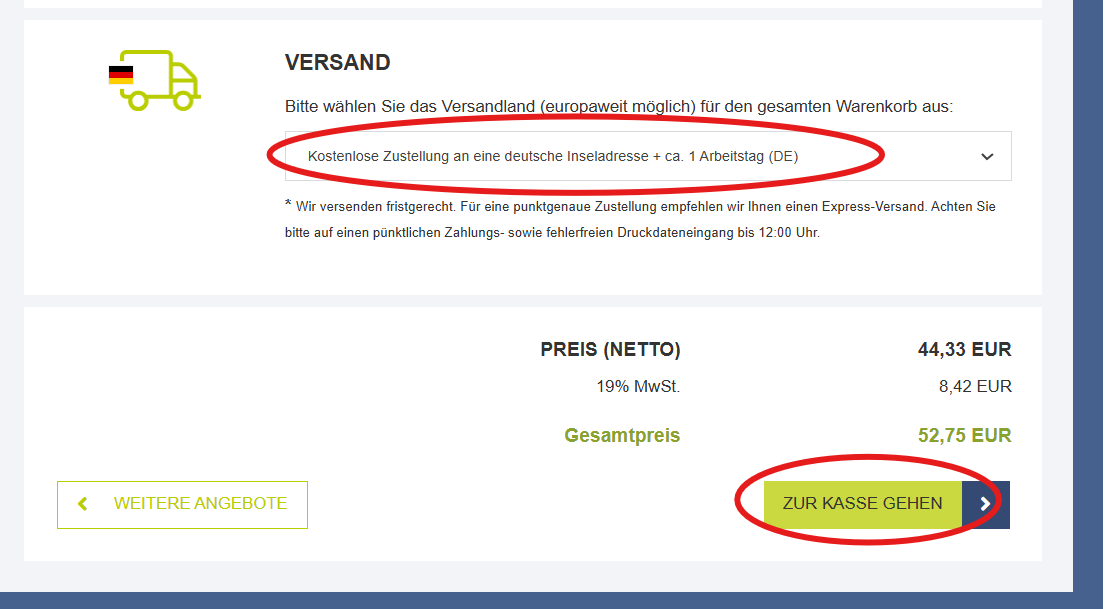
# Kla.TV Werbematerialien

***In diesem Bereich finden sie das Sortiment an Kla.TV Werbeartikeln. Damit sie die Artikel selbstständig bestellen können, ist für jeden Artikel eine ausführliche Anleitung zu finden.***

# Kla.TV-Logos

<span style="background-color: rgb(251, 238, 184);">**Dateien zum Download im Anhang**</span>

### Passende Seiten auf denen T-Shirts und ähnliches bedruckt werden können:

##### Österreich: [https://www.druck.at/produkte/werbeartikel/textilien/bekleidung/t-shirts](https://www.druck.at/produkte/werbeartikel/textilien/bekleidung/t-shirts)

[![Logo2.png](https://wiki.kla.tv/uploads/images/gallery/2026-07/scaled-1680-/zRqSYGBwDZL5TQrX-logo2.png)](https://wiki.kla.tv/uploads/images/gallery/2026-07/zRqSYGBwDZL5TQrX-logo2.png)

![](https://wiki.kla.tv/loading.gif)

[![Kla.TV Logo lang_NICHT Orginaldatei da zu groß.png](https://wiki.kla.tv/uploads/images/gallery/2026-07/scaled-1680-/oj9HUxM2Sf5QfowU-kla-tv-logo-lang-nicht-orginaldatei-da-zu-gross.png)](https://wiki.kla.tv/uploads/images/gallery/2026-07/oj9HUxM2Sf5QfowU-kla-tv-logo-lang-nicht-orginaldatei-da-zu-gross.png)

[![Kla.TV Logo lang 2_NICHT Orginaldatei da zu groß.png](https://wiki.kla.tv/uploads/images/gallery/2026-07/scaled-1680-/aPA08NhamYxPuVyL-kla-tv-logo-lang-2-nicht-orginaldatei-da-zu-gross.png)](https://wiki.kla.tv/uploads/images/gallery/2026-07/aPA08NhamYxPuVyL-kla-tv-logo-lang-2-nicht-orginaldatei-da-zu-gross.png)

[![werbematerial_01_A.png](https://wiki.kla.tv/uploads/images/gallery/2026-07/scaled-1680-/kyYjAcRwhZHzULdL-werbematerial-01-a.png)](https://wiki.kla.tv/uploads/images/gallery/2026-07/kyYjAcRwhZHzULdL-werbematerial-01-a.png)
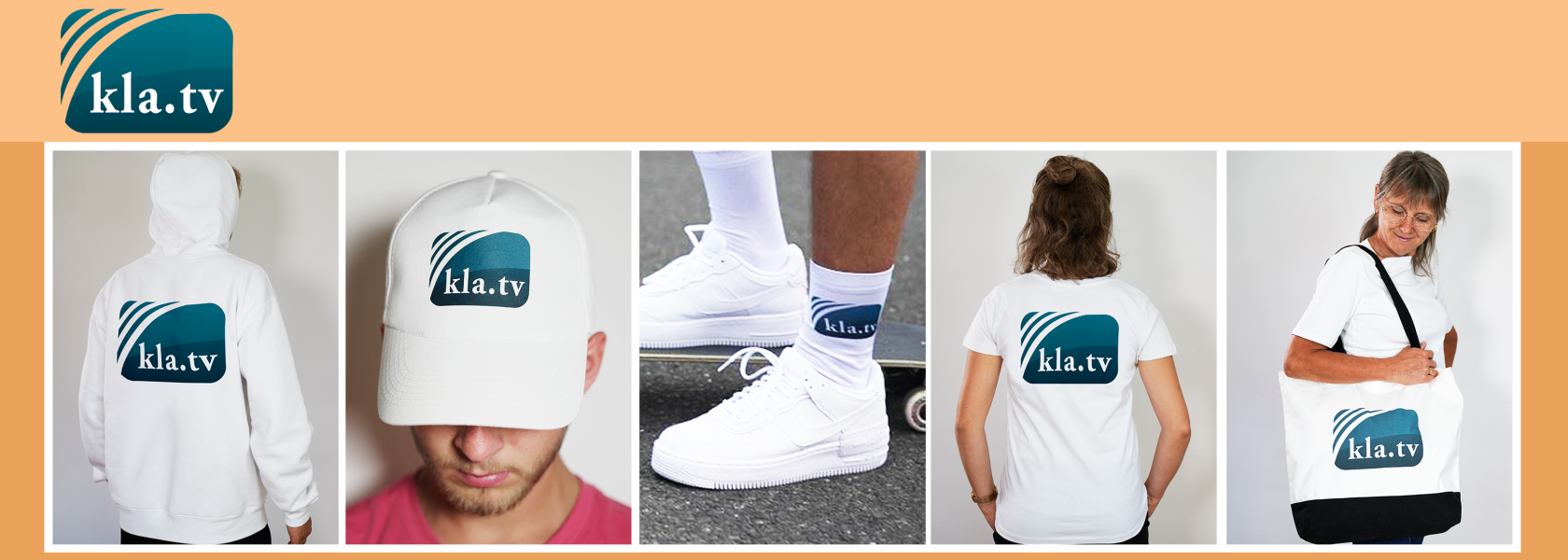
[![Logo3.png](https://wiki.kla.tv/uploads/images/gallery/2026-07/scaled-1680-/LdkCV3ZosUXdMPDg-logo3.png)](https://wiki.kla.tv/uploads/images/gallery/2026-07/LdkCV3ZosUXdMPDg-logo3.png)

[![werbematerial_02_A.png](https://wiki.kla.tv/uploads/images/gallery/2026-07/scaled-1680-/DDm5IuBrts1TSkOu-werbematerial-02-a.png)](https://wiki.kla.tv/uploads/images/gallery/2026-07/DDm5IuBrts1TSkOu-werbematerial-02-a.png)
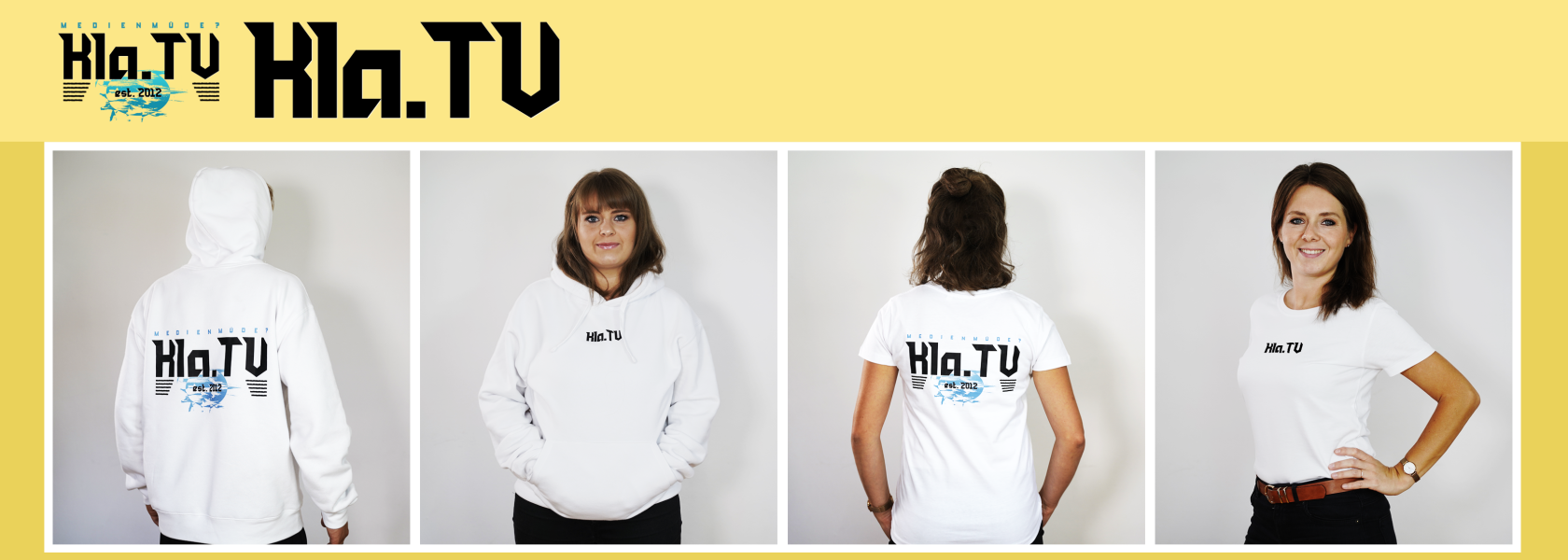
[![werbematerial_04_A.png](https://wiki.kla.tv/uploads/images/gallery/2026-07/scaled-1680-/9PBOe0Gv9yXdw5SU-werbematerial-04-a.png)](https://wiki.kla.tv/uploads/images/gallery/2026-07/9PBOe0Gv9yXdw5SU-werbematerial-04-a.png)

[![werbematerial_05_A.png](https://wiki.kla.tv/uploads/images/gallery/2026-07/scaled-1680-/658rssYZ5N1q0G1a-werbematerial-05-a.png)](https://wiki.kla.tv/uploads/images/gallery/2026-07/658rssYZ5N1q0G1a-werbematerial-05-a.png)
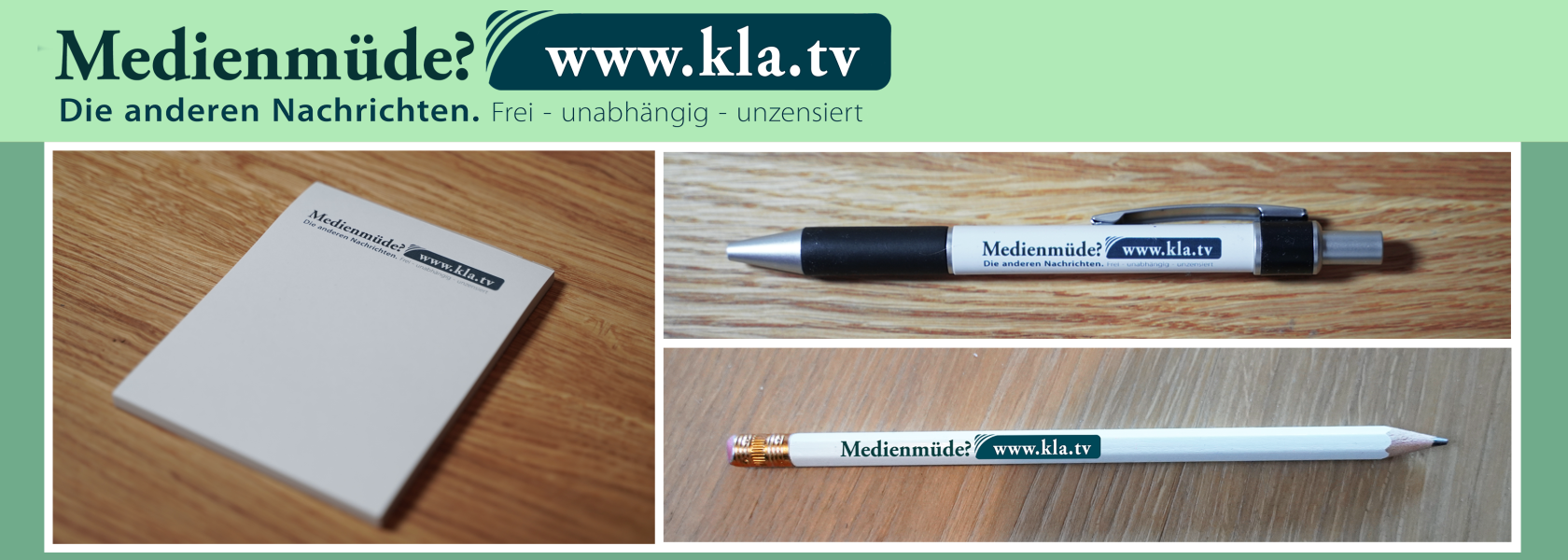
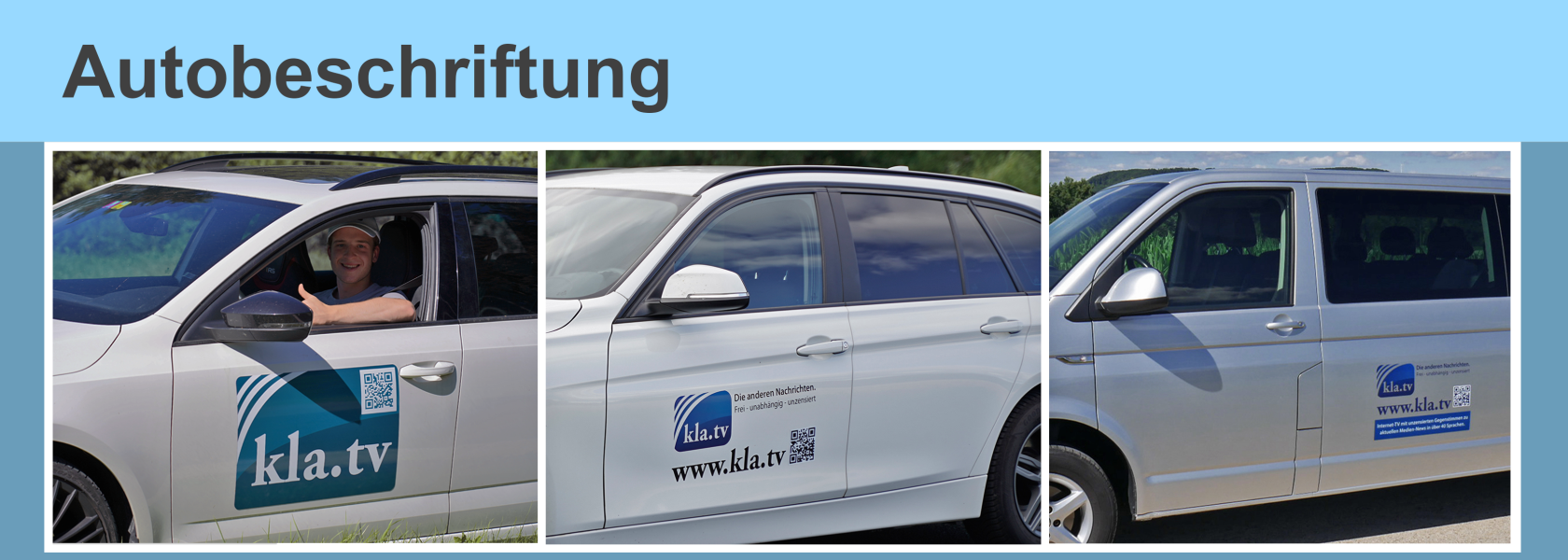
# Anleitung Kla-TV Autobeschriftung drucken lassen

**Dateien zum Download im Anhang**

**[https://www.wir-machen-druck.de/auto-aufkleber-guenstig-drucken,category,30085.html](https://www.wir-machen-druck.de/auto-aufkleber-guenstig-drucken,category,30085.html)**

[![Auto1.png](https://wiki.kla.tv/uploads/images/gallery/2026-07/scaled-1680-/RV5ApKnH850pk2RK-auto1.png)](https://wiki.kla.tv/uploads/images/gallery/2026-07/RV5ApKnH850pk2RK-auto1.png)

[![Auto2.png](https://wiki.kla.tv/uploads/images/gallery/2026-07/scaled-1680-/V43fcraC9qOHBAWu-auto2.png)](https://wiki.kla.tv/uploads/images/gallery/2026-07/V43fcraC9qOHBAWu-auto2.png)

[![kvLZOTKCQ3bHz0Q3-screenshot-autobeschriftung-sehr-grosses-format.png](https://wiki.kla.tv/uploads/images/gallery/2026-07/scaled-1680-/97pPRvyxrBmjGdtH-kvlzotkcq3bhz0q3-screenshot-autobeschriftung-sehr-grosses-format.png)](https://wiki.kla.tv/uploads/images/gallery/2026-07/97pPRvyxrBmjGdtH-kvlzotkcq3bhz0q3-screenshot-autobeschriftung-sehr-grosses-format.png)

[![werbematerial_06_A.png](https://wiki.kla.tv/uploads/images/gallery/2026-07/scaled-1680-/pjQMY6Xniw56SLrs-werbematerial-06-a.png)](https://wiki.kla.tv/uploads/images/gallery/2026-07/pjQMY6Xniw56SLrs-werbematerial-06-a.png)
# Anleitung Kla.TV Visitenkarten bedrucken lassen

### <span style="background-color: rgb(248, 202, 198);">Visitenkarten bestellen</span>

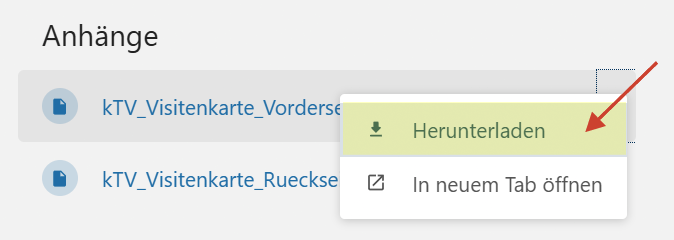
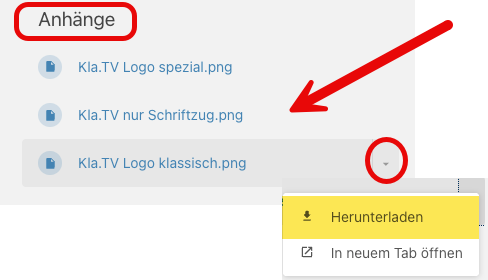
##### **<span style="background-color: rgb(251, 238, 184);">1. Lade die beiden Dateien oben links aus "Anhänge" herunter</span>**

[![1. Schritt Anhang herunterladen.png](https://wiki.kla.tv/uploads/images/gallery/2026-10/scaled-1680-/kX4sYj7tJMQ8A8hF-1-schritt-anhang-herunterladen.png)](https://wiki.kla.tv/uploads/images/gallery/2026-10/kX4sYj7tJMQ8A8hF-1-schritt-anhang-herunterladen.png)

[![1. Schritt Auswahl.png](https://wiki.kla.tv/uploads/images/gallery/2026-10/scaled-1680-/murXX5037bGK3ZZz-1-schritt-auswahl.png)](https://wiki.kla.tv/uploads/images/gallery/2026-10/murXX5037bGK3ZZz-1-schritt-auswahl.png)



##### **<span style="background-color: rgb(251, 238, 184);">2. Öffne die passende Seite um deine Visitenkarten drucken zu lassen:</span>**

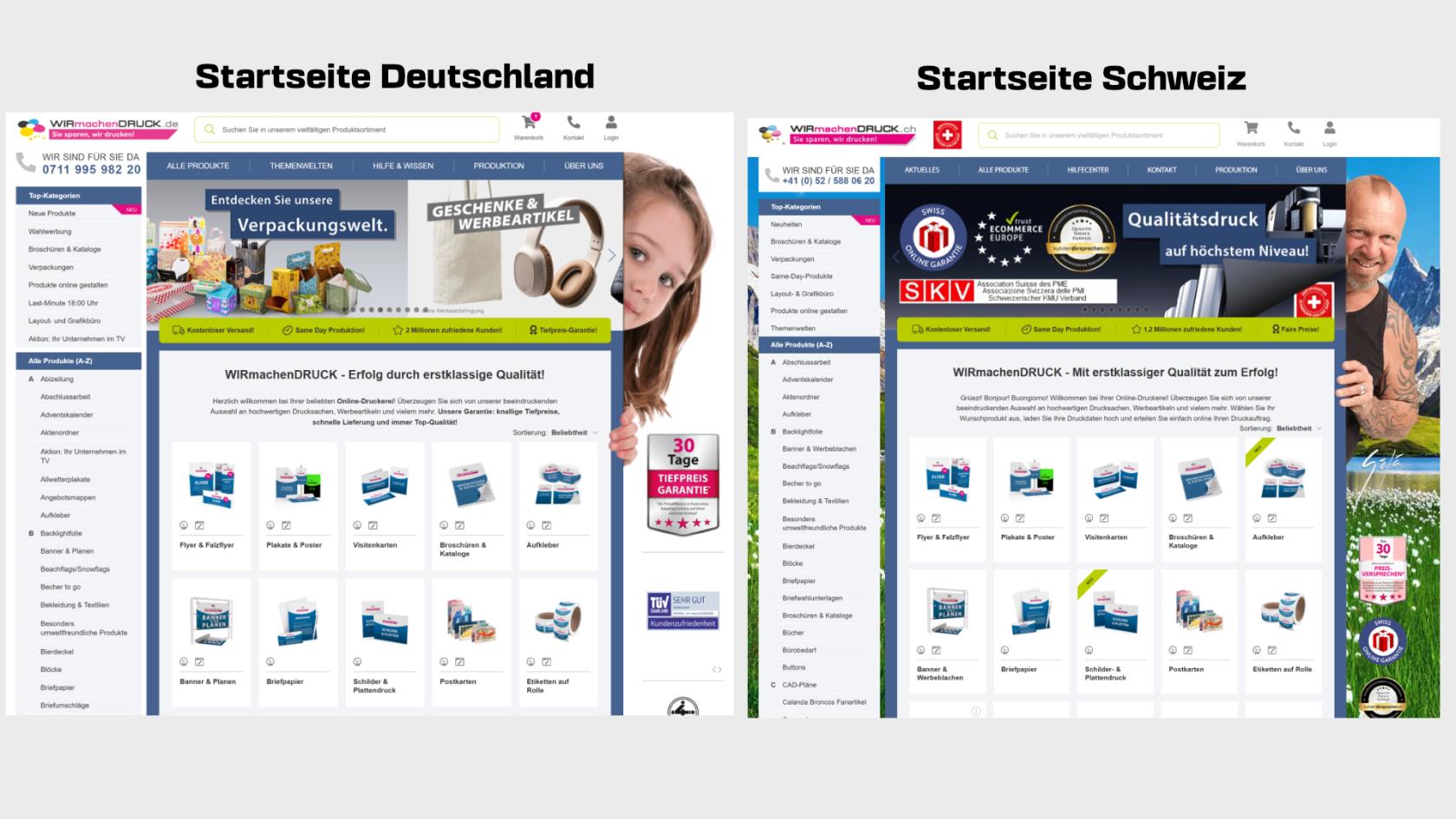
- Wenn du aus der **Schweiz** kommst, öffne diesen Link: [https://www.wir-machen-druck.ch/](https://www.wir-machen-druck.ch/)
- Wenn du aus **Deutschland** kommst, öffne diesen Link: [https://www.wir-machen-druck.de/](https://www.wir-machen-druck.de/)

[![Startseite.jpg](https://wiki.kla.tv/uploads/images/gallery/2026-08/scaled-1680-/i0yq1r2pwmMF4Nw1-startseite.jpg)](https://wiki.kla.tv/uploads/images/gallery/2026-08/i0yq1r2pwmMF4Nw1-startseite.jpg)
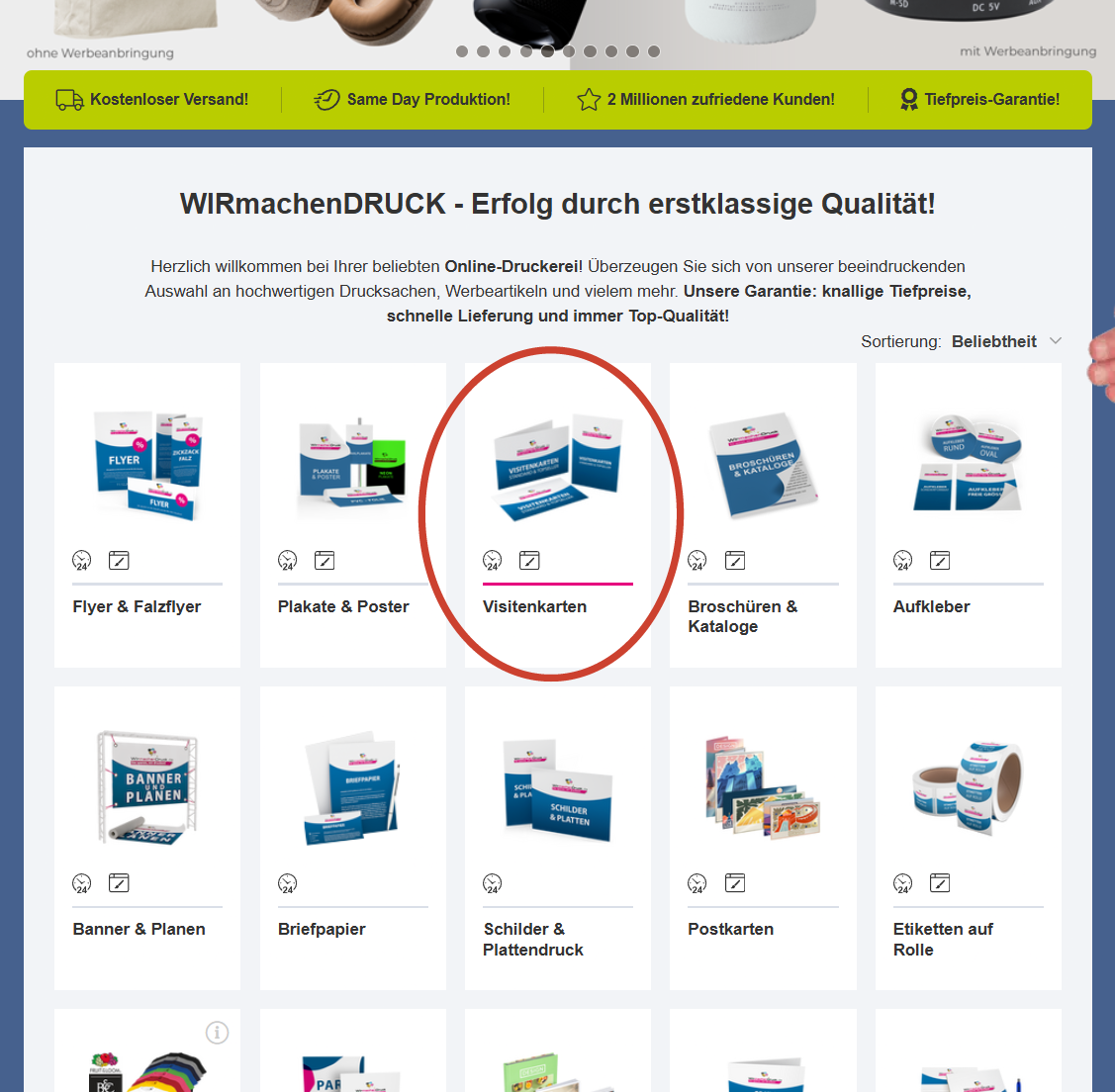
##### <span style="background-color: rgb(251, 238, 184);">**3. Klicke auf den Reiter Visitenkarten**</span>

[![2.Reiter Visitenkarten.png](https://wiki.kla.tv/uploads/images/gallery/2026-10/scaled-1680-/gnNzdDzyZT2xSuus-2-reiter-visitenkarten.png)](https://wiki.kla.tv/uploads/images/gallery/2026-10/gnNzdDzyZT2xSuus-2-reiter-visitenkarten.png)

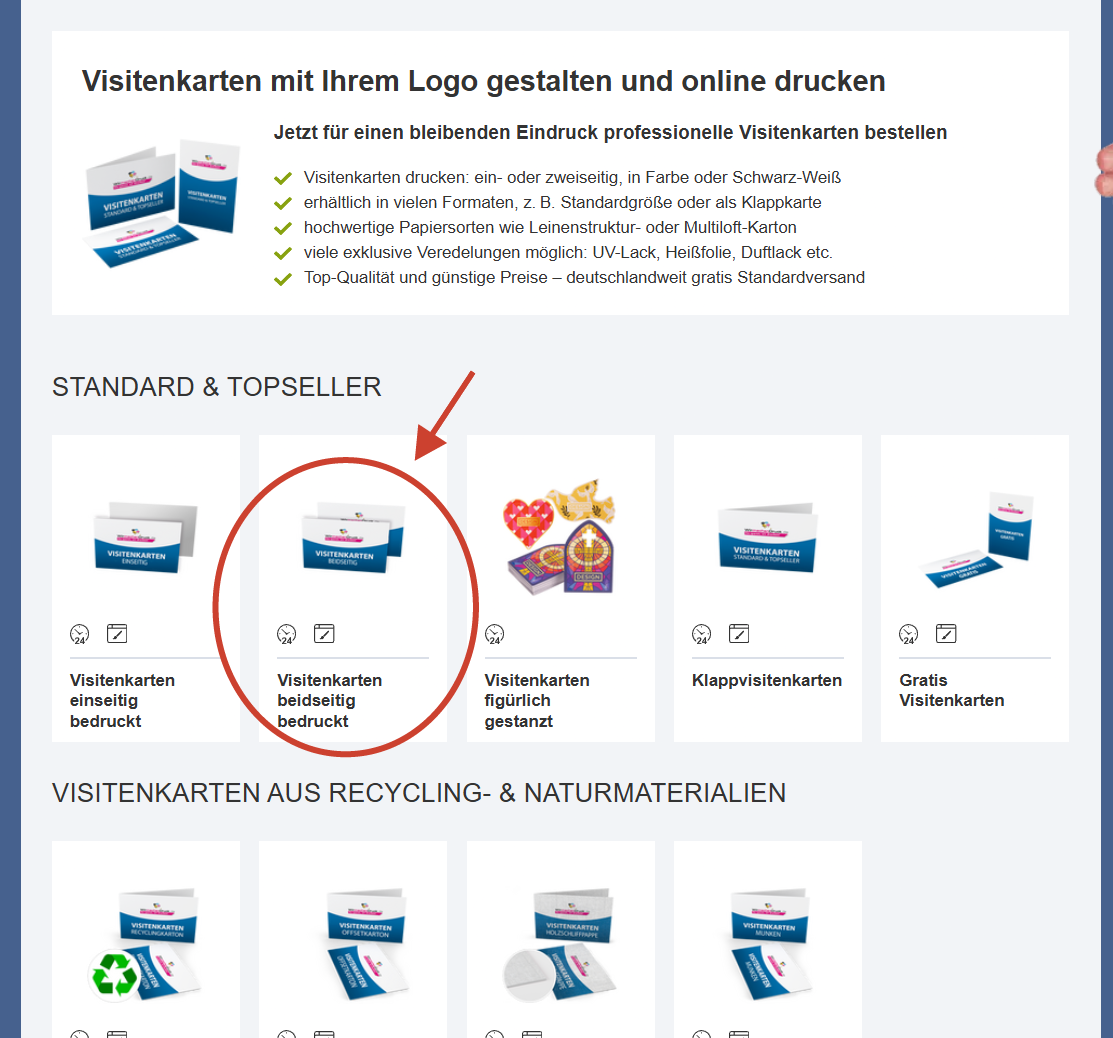
##### <span style="background-color: rgb(251, 238, 184);">**4. Klicke nun auf den Reiter "Visitenkarten beidseitig bedruckt"**</span>

[![3. Schritt beidseitig bedruckt.png](https://wiki.kla.tv/uploads/images/gallery/2026-10/scaled-1680-/36qjseCG9AbzInHL-3-schritt-beidseitig-bedruckt.png)](https://wiki.kla.tv/uploads/images/gallery/2026-10/36qjseCG9AbzInHL-3-schritt-beidseitig-bedruckt.png)

#####  

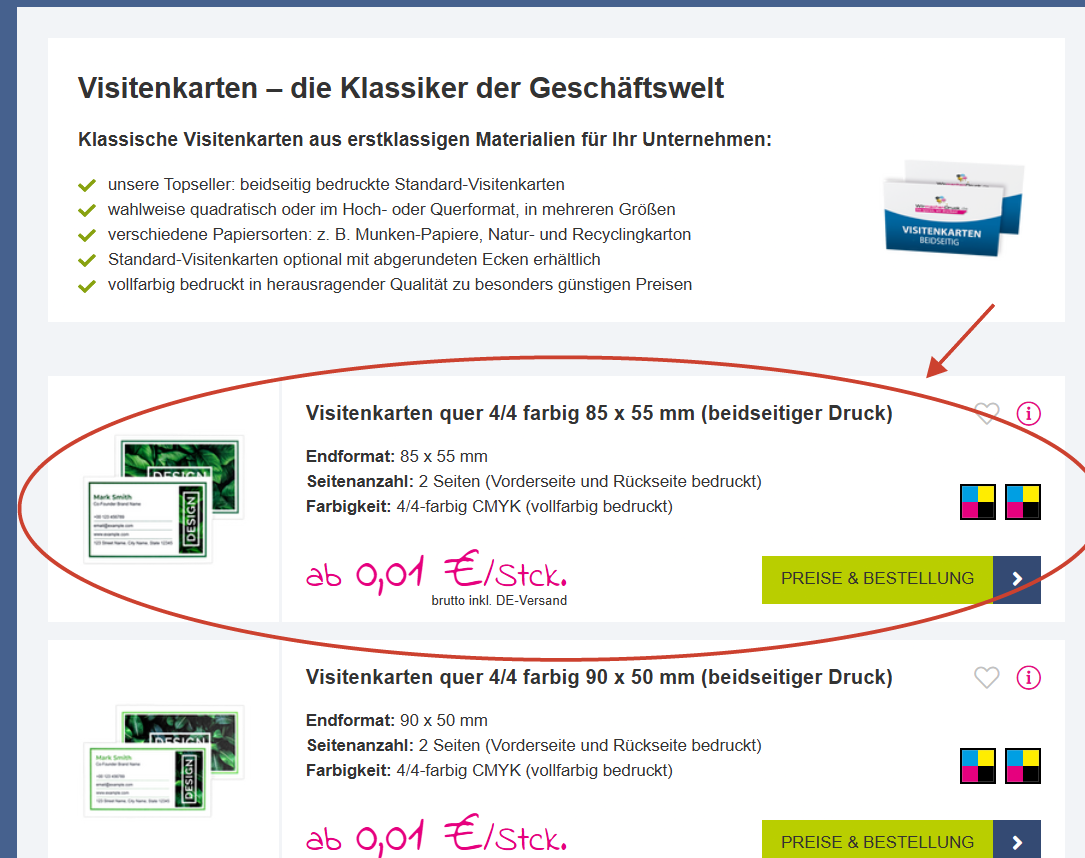
##### **<span style="background-color: rgb(251, 238, 184);">5. Wähle das korrekte Format</span>**

[![5. Schritt Richtiges Format.png](https://wiki.kla.tv/uploads/images/gallery/2026-10/scaled-1680-/HV3ltofrWZyTRIJB-5-schritt-richtiges-format.png)](https://wiki.kla.tv/uploads/images/gallery/2026-10/HV3ltofrWZyTRIJB-5-schritt-richtiges-format.png)

#####  

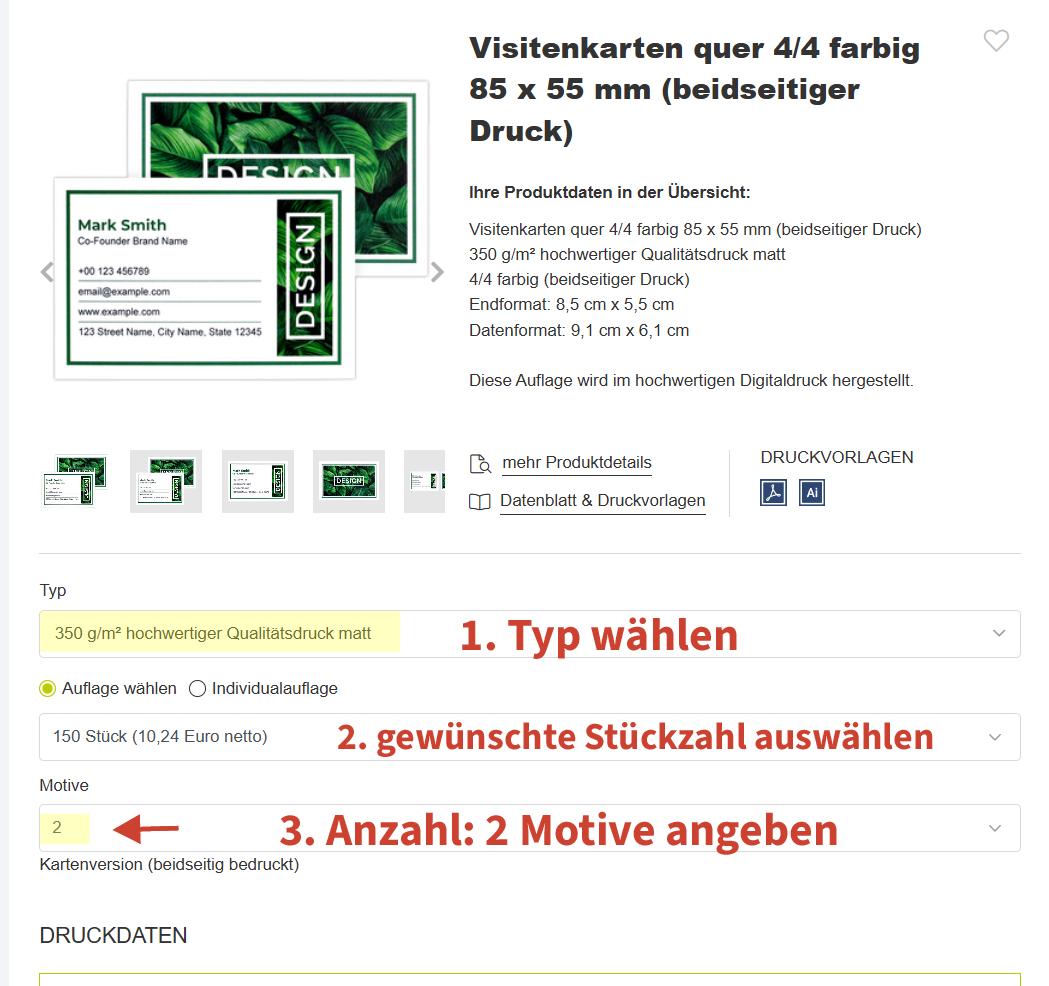
##### <span style="background-color: rgb(251, 238, 184);">**6. Details angeben**</span>

[![6. Schritt Einzelheiten.png](https://wiki.kla.tv/uploads/images/gallery/2026-10/scaled-1680-/Lm92yT0e9ae8fdoU-6-schritt-einzelheiten.png)](https://wiki.kla.tv/uploads/images/gallery/2026-10/Lm92yT0e9ae8fdoU-6-schritt-einzelheiten.png)


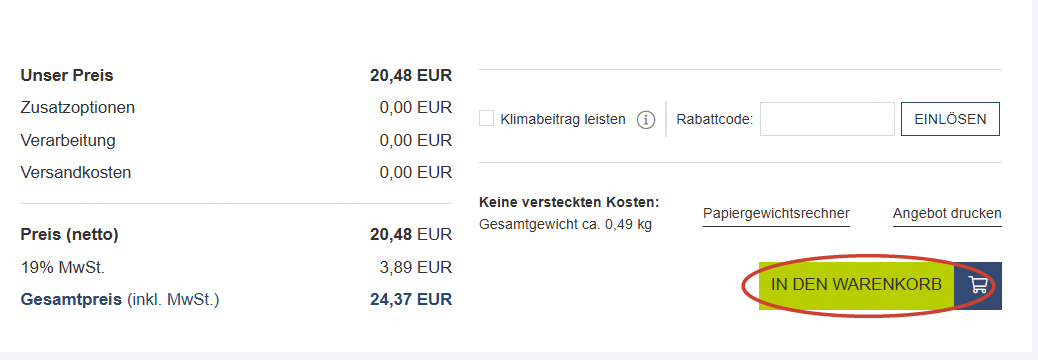
##### **<span style="background-color: rgb(251, 238, 184);">7. Scrolle mit der Maus hinunter und klicke auf "In den Warenkorb"</span>**

[![7. Schritt Warenkorb.png](https://wiki.kla.tv/uploads/images/gallery/2026-10/scaled-1680-/51mulAtjYOKUHu5E-7-schritt-warenkorb.png)](https://wiki.kla.tv/uploads/images/gallery/2026-10/51mulAtjYOKUHu5E-7-schritt-warenkorb.png)

#####  

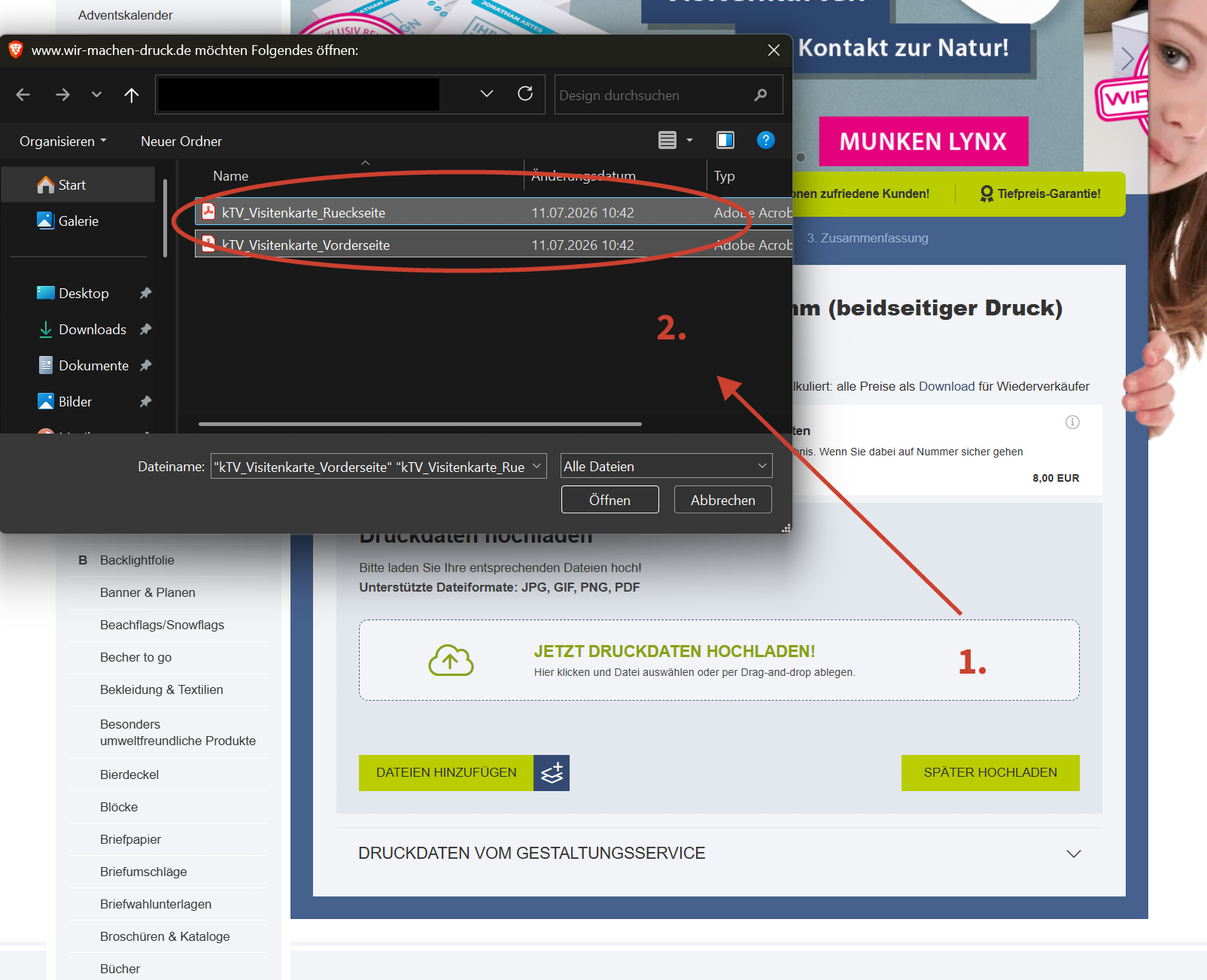
##### <span style="background-color: rgb(251, 238, 184);">**8. Klicke auf "Jetzt Druckdaten hochladen", wähle die am Anfang heruntergeladenen Motive aus und drucke auf öffnen**</span>

[![8. Schritt Druckdaten hochladen.png](https://wiki.kla.tv/uploads/images/gallery/2026-10/scaled-1680-/E6AcSq1ImWqrXurc-8-schritt-druckdaten-hochladen.png)](https://wiki.kla.tv/uploads/images/gallery/2026-10/E6AcSq1ImWqrXurc-8-schritt-druckdaten-hochladen.png)

#####  

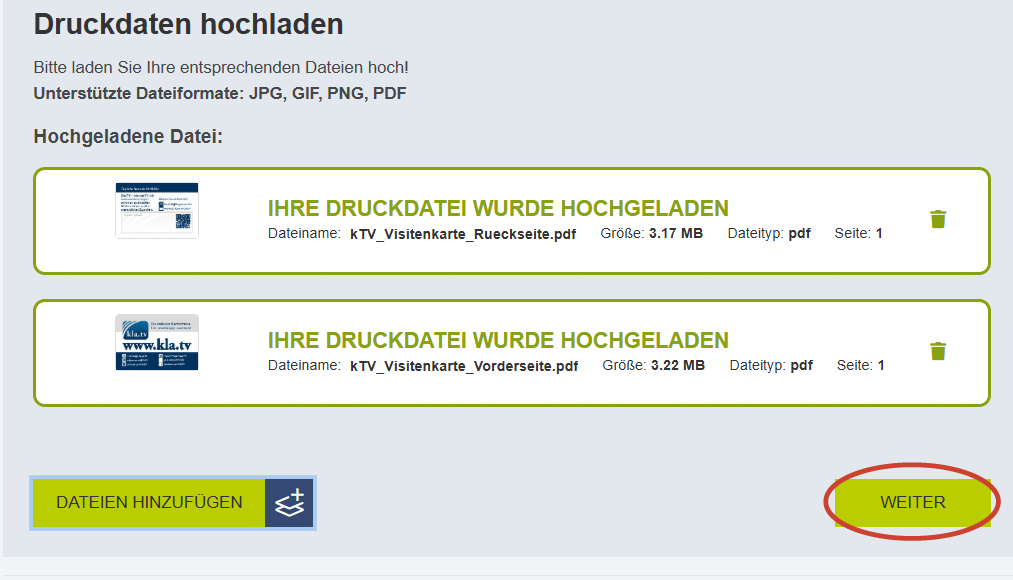
##### <span style="background-color: rgb(251, 238, 184);">**9. Klicke auf "weiter"**</span>

[![8. Schritt Druckdaten .png](https://wiki.kla.tv/uploads/images/gallery/2026-10/scaled-1680-/qPhn4yLTrxa4NGxm-8-schritt-druckdaten.png)](https://wiki.kla.tv/uploads/images/gallery/2026-10/qPhn4yLTrxa4NGxm-8-schritt-druckdaten.png)

#####  

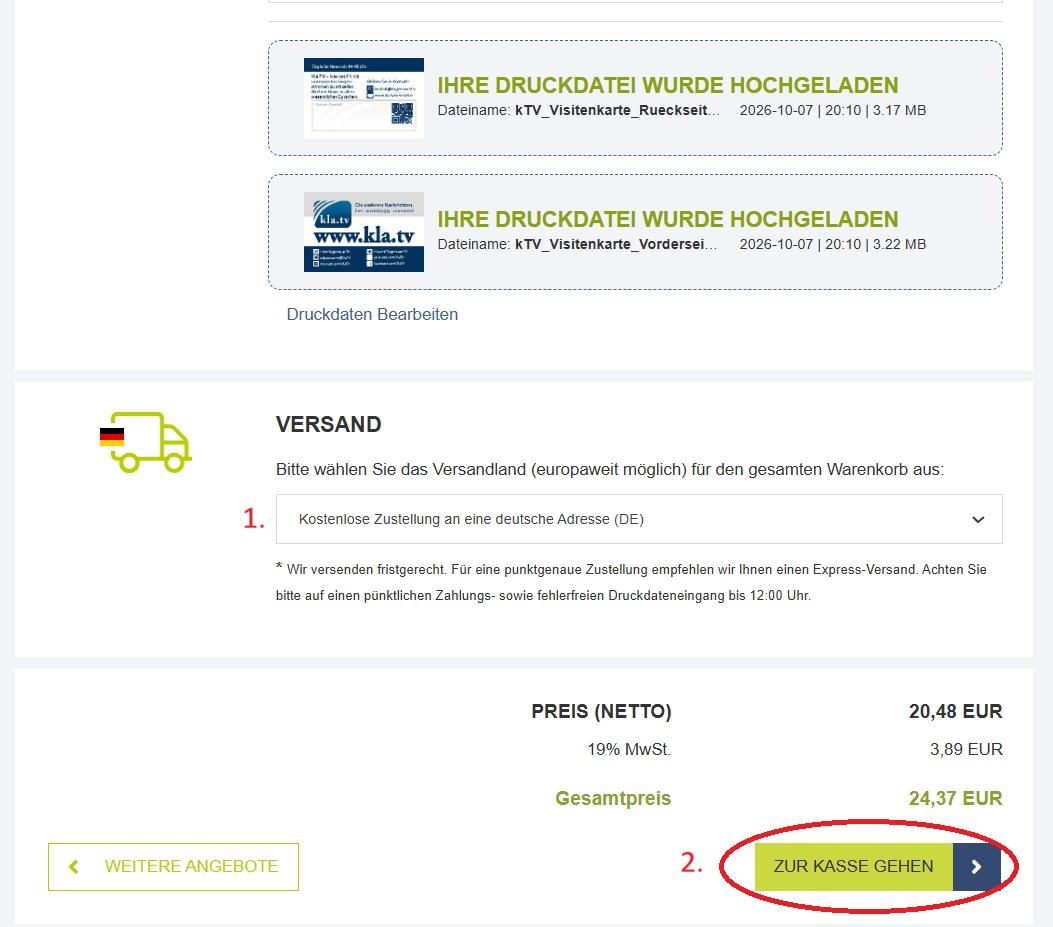
##### <span style="background-color: rgb(251, 238, 184);">**10. Wähle dein Versandland und klicke auf "weiter"**</span>

[![10. Schritt Versand und weiter.jpg](https://wiki.kla.tv/uploads/images/gallery/2026-10/scaled-1680-/ZDN5qKB6SvVZnGqR-10-schritt-versand-und-weiter.jpg)](https://wiki.kla.tv/uploads/images/gallery/2026-10/ZDN5qKB6SvVZnGqR-10-schritt-versand-und-weiter.jpg)

#####  

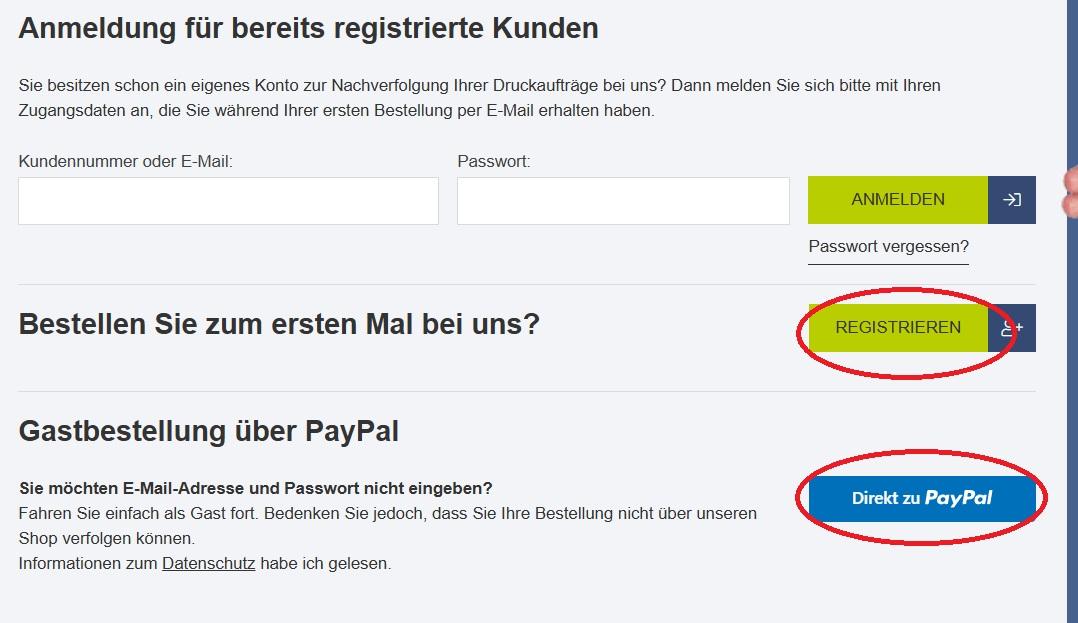
##### <span style="background-color: rgb(251, 238, 184);">**11. Zahle direkt über Paypal oder registriere dich bei "Wir-machen-druck"**</span>

[![11. Schritt Bestellen oder anmelden.jpg](https://wiki.kla.tv/uploads/images/gallery/2026-10/scaled-1680-/4T9Mj0W3CUa8QdV9-11-schritt-bestellen-oder-anmelden.jpg)](https://wiki.kla.tv/uploads/images/gallery/2026-10/4T9Mj0W3CUa8QdV9-11-schritt-bestellen-oder-anmelden.jpg)

####  

####  

#### <span style="color: rgb(0, 0, 0);">*<span style="background-color: rgb(248, 202, 198);">**Werde Teil unseres Kla.TV Teams, indem du unsere Visitenkarten in die Welt verbreitest!**</span>*</span>

[![uuCe9bBGgr0ucSAW-emoji.png](https://wiki.kla.tv/uploads/images/gallery/2026-10/scaled-1680-/z9LhXPLMRUazpl5x-uuce9bbggr0ucsaw-emoji.png)](https://wiki.kla.tv/uploads/images/gallery/2026-10/z9LhXPLMRUazpl5x-uuce9bbggr0ucsaw-emoji.png)

# Anleitung Kla.TV Flyer und Poster bedrucken lassen

<span style="color: rgb(0, 0, 0);">**Dateien zum Download im Anhang**</span>

<span style="color: rgb(0, 0, 0);">**[https://www.wir-machen-druck.de/plakate,category,9176.html](https://www.wir-machen-druck.de/plakate,category,9176.html)**</span>

<span style="color: rgb(0, 0, 0);">  
</span>

# Anleitung Kla.TV Werbebanner drucken lassen

### <span style="background-color: rgb(248, 202, 198);">VORBEREITUNGEN</span>

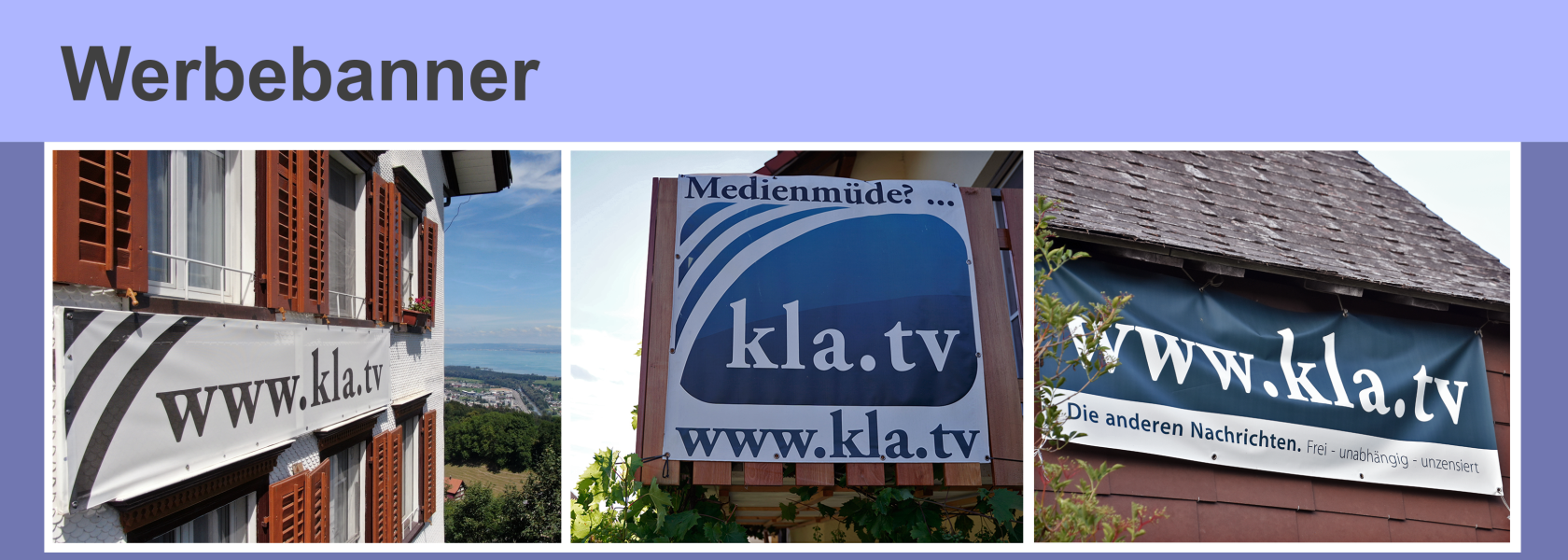
##### <span style="background-color: rgb(251, 238, 184);">**1. Wähle einen der 3 Kla.TV Werbebanner und lade ihn dir links neben dem Artikel aus ,,Anhänge" herunter. Unten in der Werbebannerauswahl kannst du sehen, wie der jeweilige Banner aussieht**</span>

[![2. Werbebanner Anleitung.jpg](https://wiki.kla.tv/uploads/images/gallery/2026-09/scaled-1680-/IQ1mfVY9jPAIBD9q-2-werbebanner-anleitung.jpg)](https://wiki.kla.tv/uploads/images/gallery/2026-09/IQ1mfVY9jPAIBD9q-2-werbebanner-anleitung.jpg)

[![1. Werbebanner Anleitung.jpg](https://wiki.kla.tv/uploads/images/gallery/2026-09/scaled-1680-/Ar3vp65FdnbaBNjY-1-werbebanner-anleitung.jpg)](https://wiki.kla.tv/uploads/images/gallery/2026-09/Ar3vp65FdnbaBNjY-1-werbebanner-anleitung.jpg)

##### **<span style="background-color: rgb(251, 238, 184);">2. Öffne die passende Seite um deinen Banner zu bestellen:</span>**

- Wenn du aus der **Schweiz** kommst, öffne diesen Link: [www.wir-machen-druck.ch](https://www.wir-machen-druck.ch)
- Wenn du aus **Deutschland** kommst, öffne diesen Link: [www.wir-machen-druck.de](https://www.wir-machen-druck.de)

[https://www.wir-machen-druck.de/auto-aufkleber-guenstig-drucken,category,30085.html](https://www.wir-machen-druck.de/auto-aufkleber-guenstig-drucken,category,30085.html)

##### **<span style="background-color: rgb(251, 238, 184);">(Letzter Schritt: Platziere deinen Werbanner so, dass er gut zu sehen ist und hilf uns so Kla.TV weiterzuverbreiten.)</span>**

[![werbematerial_07_A.png](https://wiki.kla.tv/uploads/images/gallery/2026-07/scaled-1680-/xmddHmbzbzHsqdql-werbematerial-07-a.png)](https://wiki.kla.tv/uploads/images/gallery/2026-07/xmddHmbzbzHsqdql-werbematerial-07-a.png)

# Anleitung Kla.TV T-Shirt bedrucken lassen

### <span style="background-color: rgb(248, 202, 198);">VORBEREITUNGEN</span>

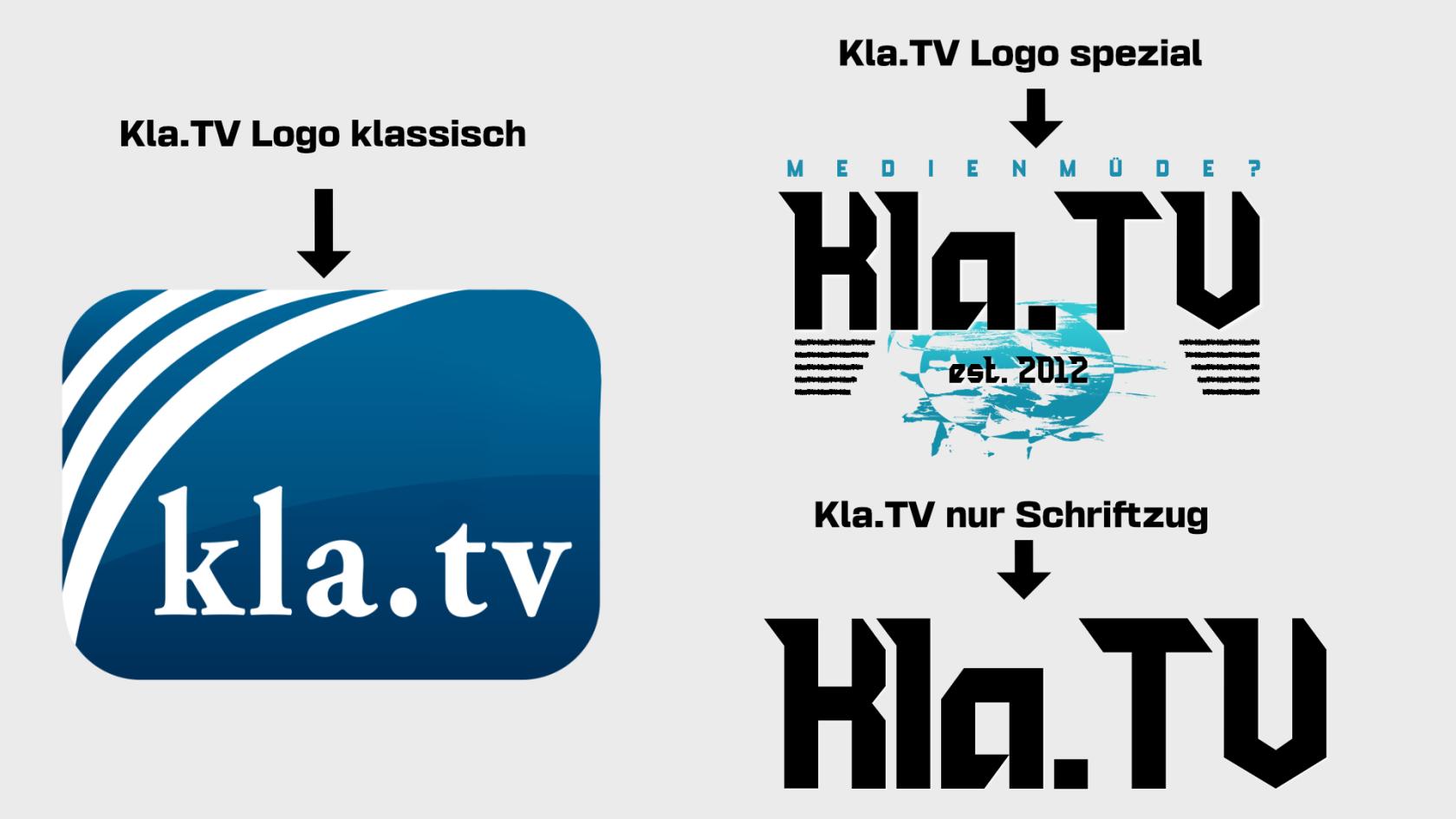
##### <span style="background-color: rgb(251, 238, 184);">**1. Wähle eines von den drei Logos. Lade es dir auf der linken Seite dieses Artikels, bei "Anhänge" herunter.**  
</span>

[![image.png](https://wiki.kla.tv/uploads/images/gallery/2026-08/scaled-1680-/eLaX2XwtVQY048Jz-image.png)](https://wiki.kla.tv/uploads/images/gallery/2026-08/eLaX2XwtVQY048Jz-image.png)

[![Kla.TV verschiedene Logos.jpg](https://wiki.kla.tv/uploads/images/gallery/2026-08/scaled-1680-/XtFISqPQy2huIBjY-kla-tv-verschiedene-logos.jpg)](https://wiki.kla.tv/uploads/images/gallery/2026-08/XtFISqPQy2huIBjY-kla-tv-verschiedene-logos.jpg)
##### **<span style="background-color: rgb(251, 238, 184);">2. Öffne die passende Seite um dein T-Shirt bedrucken zu lassen:</span>**

- Wenn du aus der **Schweiz** kommst, öffne diesen Link: [https://www.wir-machen-druck.ch/](https://www.wir-machen-druck.ch/)
- Wenn du aus **Deutschland** kommst, öffne diesen Link: [https://www.wir-machen-druck.de/](https://www.wir-machen-druck.de/)

[![Startseite.jpg](https://wiki.kla.tv/uploads/images/gallery/2026-08/scaled-1680-/i0yq1r2pwmMF4Nw1-startseite.jpg)](https://wiki.kla.tv/uploads/images/gallery/2026-08/i0yq1r2pwmMF4Nw1-startseite.jpg)

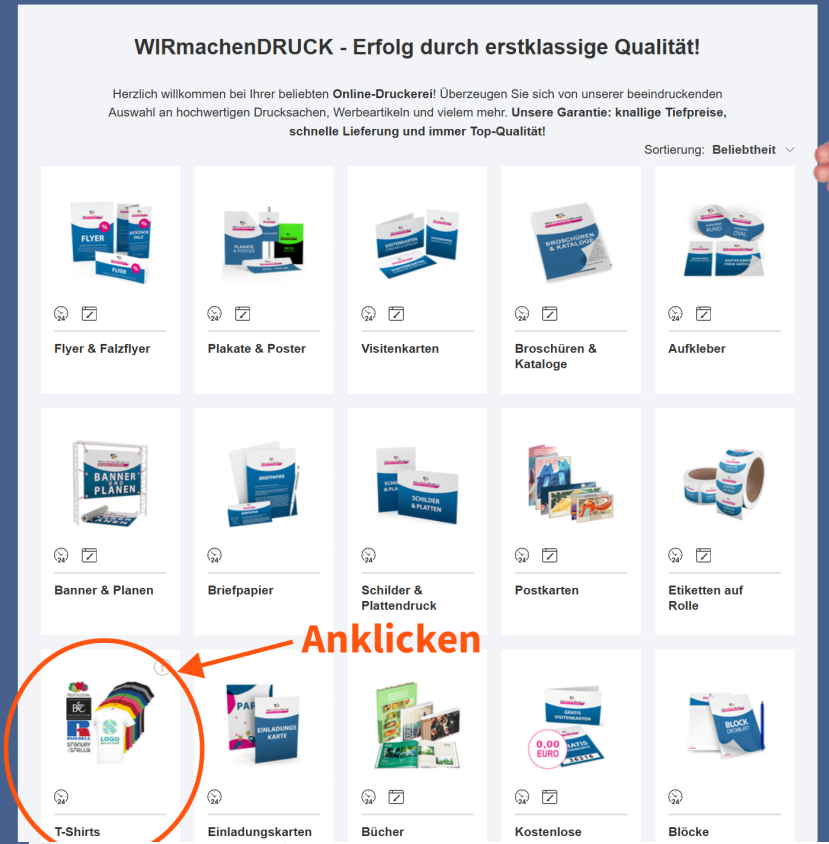
##### **<span style="background-color: rgb(251, 238, 184);">3. Klicke auf der Startseite auf den passenden Reiter "T-Shirt"</span>**

[![image.png](https://wiki.kla.tv/uploads/images/gallery/2026-08/scaled-1680-/w6IVpyfFP4FmNBYi-image.png)](https://wiki.kla.tv/uploads/images/gallery/2026-08/w6IVpyfFP4FmNBYi-image.png)


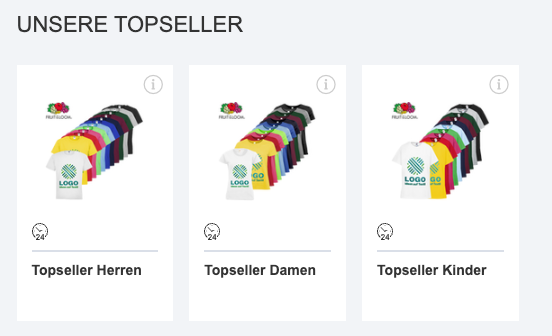
##### **<span style="background-color: rgb(251, 238, 184);">4. Klicke auf Herren/Damen/Kinder bei Topseller</span>**

[![image.png](https://wiki.kla.tv/uploads/images/gallery/2026-08/scaled-1680-/757RUusHrBfurW5y-image.png)](https://wiki.kla.tv/uploads/images/gallery/2026-08/757RUusHrBfurW5y-image.png)

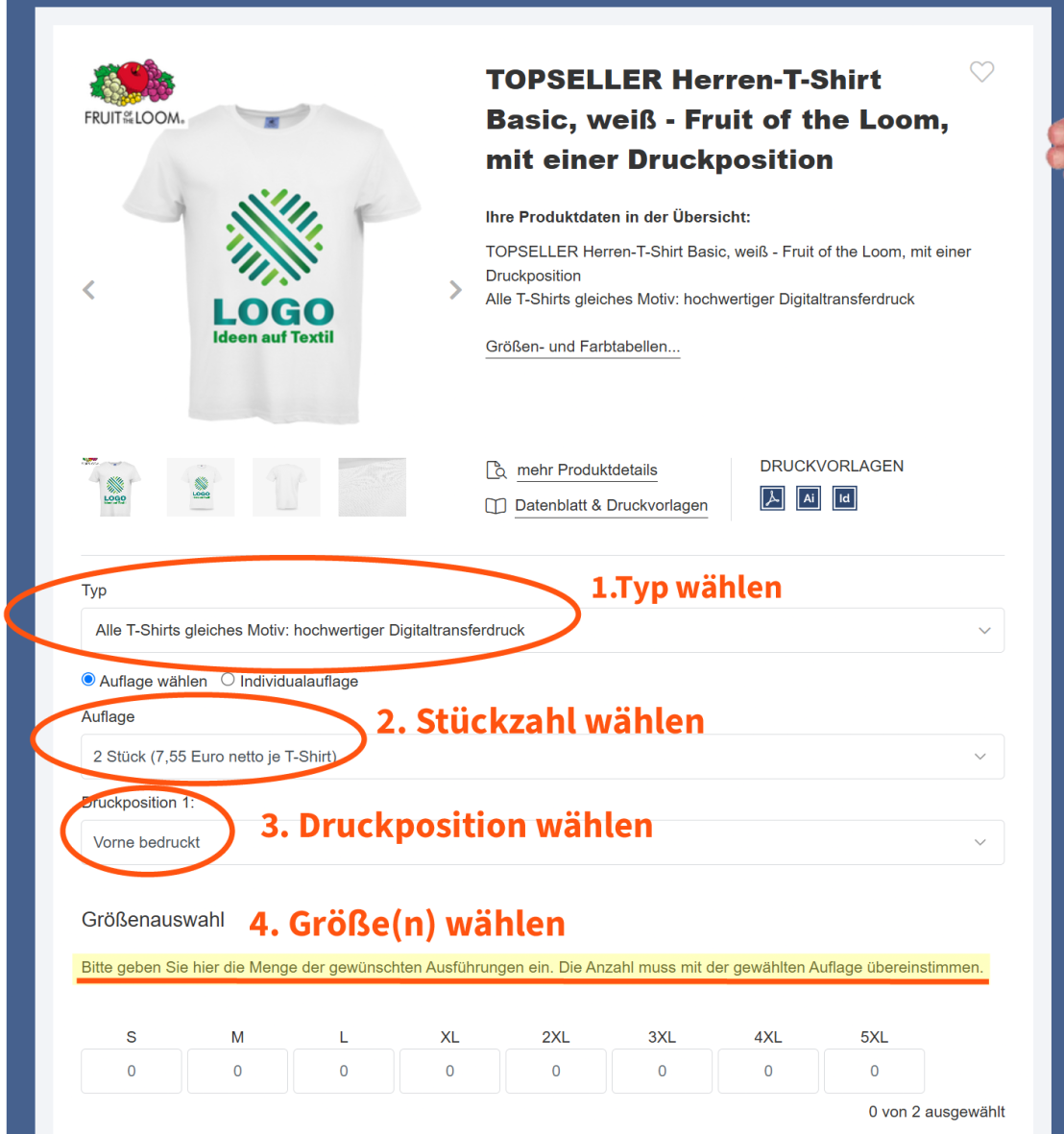
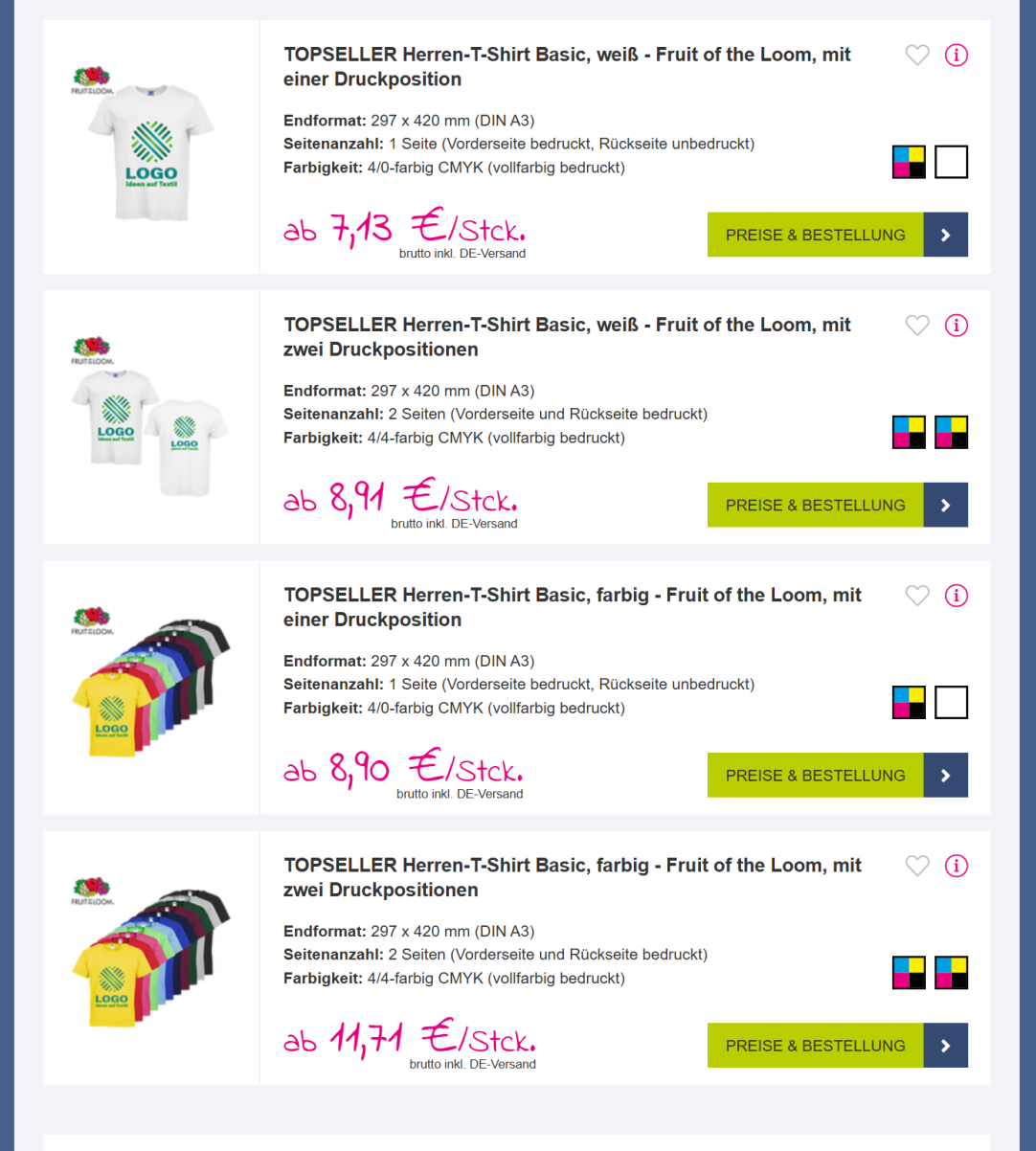
##### **<span style="background-color: rgb(251, 238, 184);">5. T-Shirt Druck und Farbe wählen</span>**

Du kannst nun wählen, ob du das T-Shirt **beidseitig** oder **einseitig** bedruckt haben möchtest und ob es ein **weißes** oder ein **farbiges T-Shirt** sein soll.

[![image.png](https://wiki.kla.tv/uploads/images/gallery/2026-08/scaled-1680-/PObVXoHPbS14SPyC-image.png)](https://wiki.kla.tv/uploads/images/gallery/2026-08/PObVXoHPbS14SPyC-image.png)
### <span style="background-color: rgb(248, 202, 198);">BEISPIEL 1</span>

##### <span style="background-color: rgb(251, 238, 184);">**1. Einseitiger Druck weiß**</span>

[![image.png](https://wiki.kla.tv/uploads/images/gallery/2026-08/scaled-1680-/vMoTwrq60EK2svwH-image.png)](https://wiki.kla.tv/uploads/images/gallery/2026-08/vMoTwrq60EK2svwH-image.png)

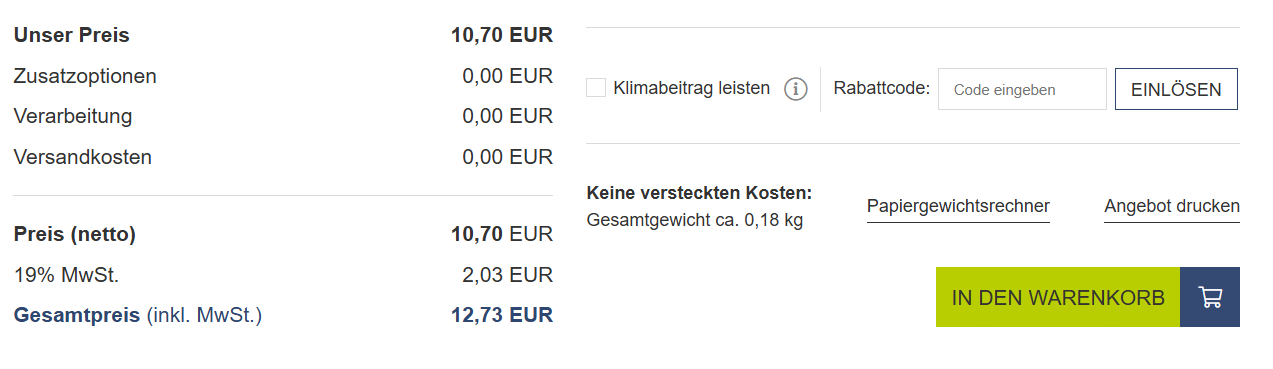
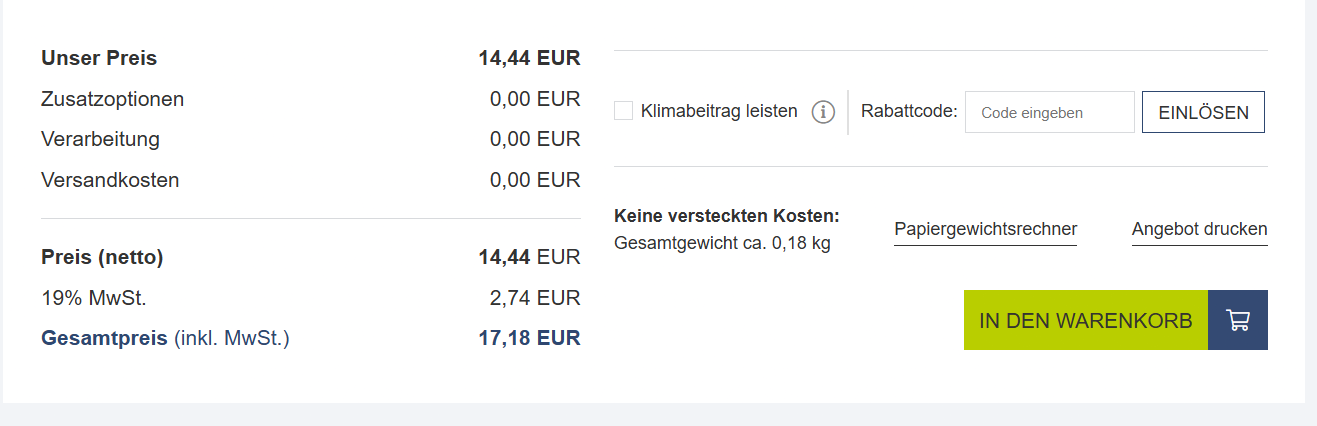
##### **<span style="background-color: rgb(251, 238, 184);">2. Scrolle hinunter und klicke auf "In den Warenkorb" </span>**

[![7. In den Warenkorb gehen.png](https://wiki.kla.tv/uploads/images/gallery/2026-08/scaled-1680-/7DDuLXxOW8SDIDik-7-in-den-warenkorb-gehen.png)](https://wiki.kla.tv/uploads/images/gallery/2026-08/7DDuLXxOW8SDIDik-7-in-den-warenkorb-gehen.png)

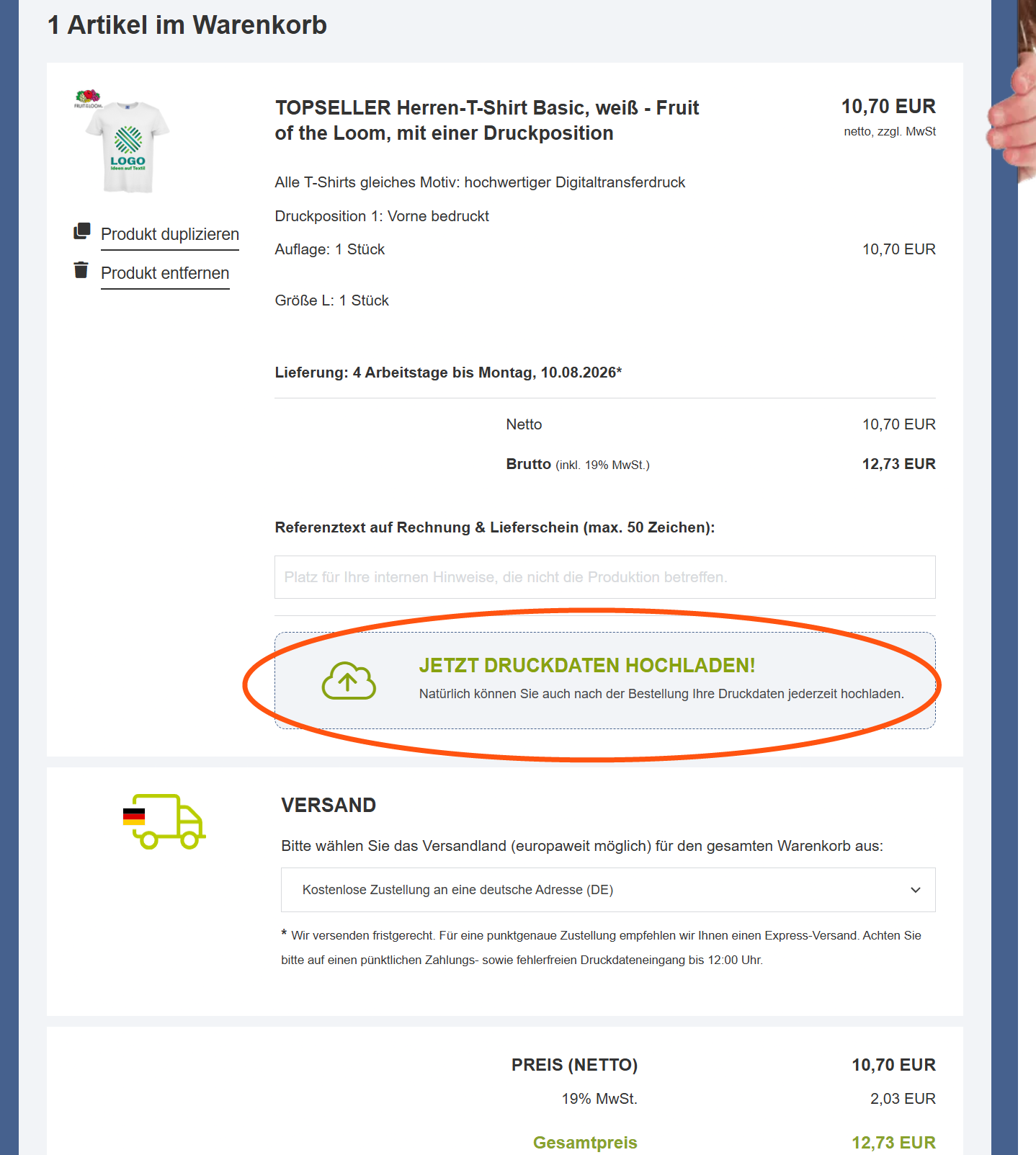
##### **<span style="background-color: rgb(251, 238, 184);">3. Klicke auf "Jetzt Druckdaten hochladen" und lade das in Schritt 1 heruntergeladene Logo hoch</span>**

[![8. Druckdaten hochladen.png](https://wiki.kla.tv/uploads/images/gallery/2026-08/scaled-1680-/MKo4mulO1ZNHd4zH-8-druckdaten-hochladen.png)](https://wiki.kla.tv/uploads/images/gallery/2026-08/MKo4mulO1ZNHd4zH-8-druckdaten-hochladen.png)

[![8. Druckdaten hochladen 2.png](https://wiki.kla.tv/uploads/images/gallery/2026-08/scaled-1680-/WndrEfOEHm3QXgHa-8-druckdaten-hochladen-2.png)](https://wiki.kla.tv/uploads/images/gallery/2026-08/WndrEfOEHm3QXgHa-8-druckdaten-hochladen-2.png)
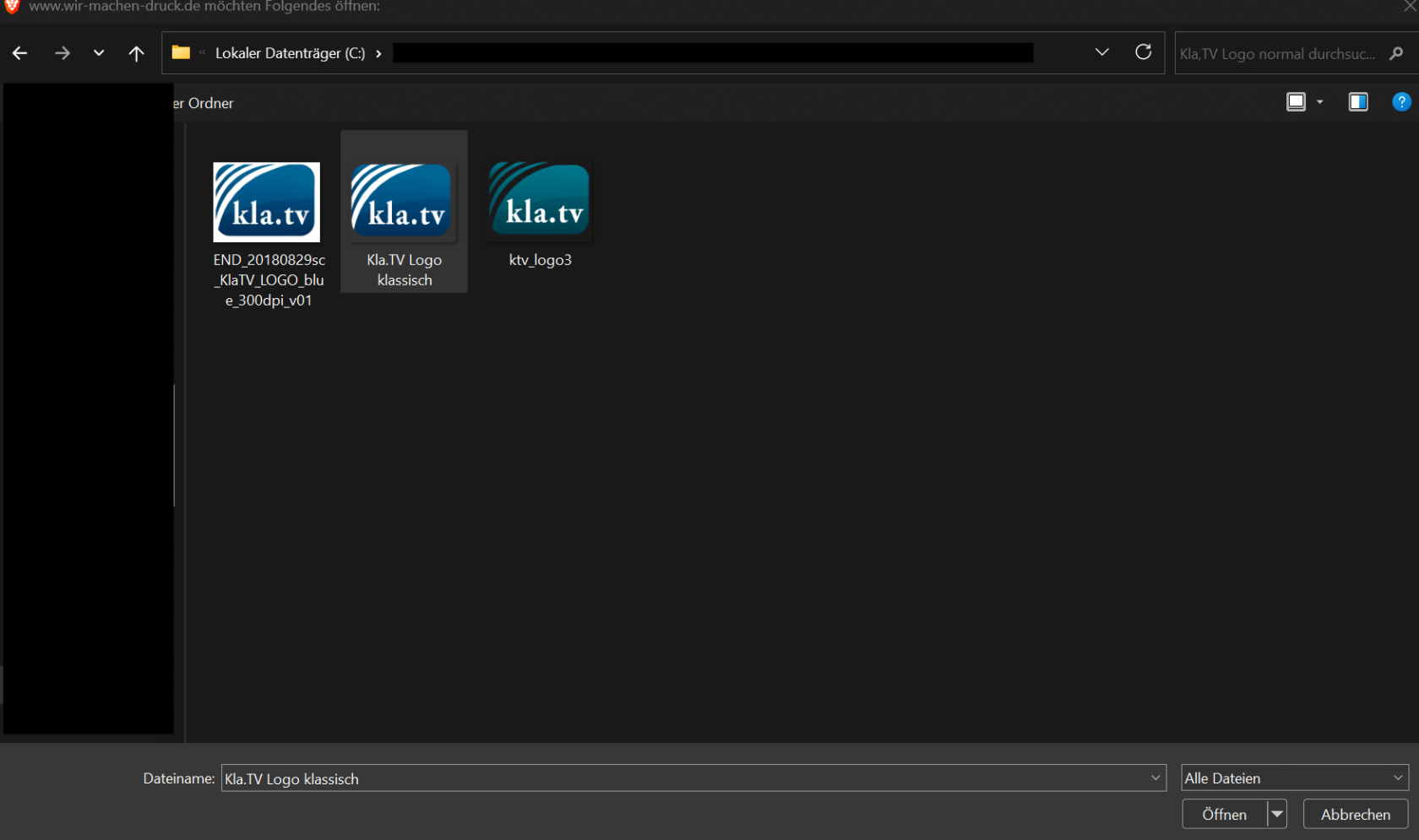
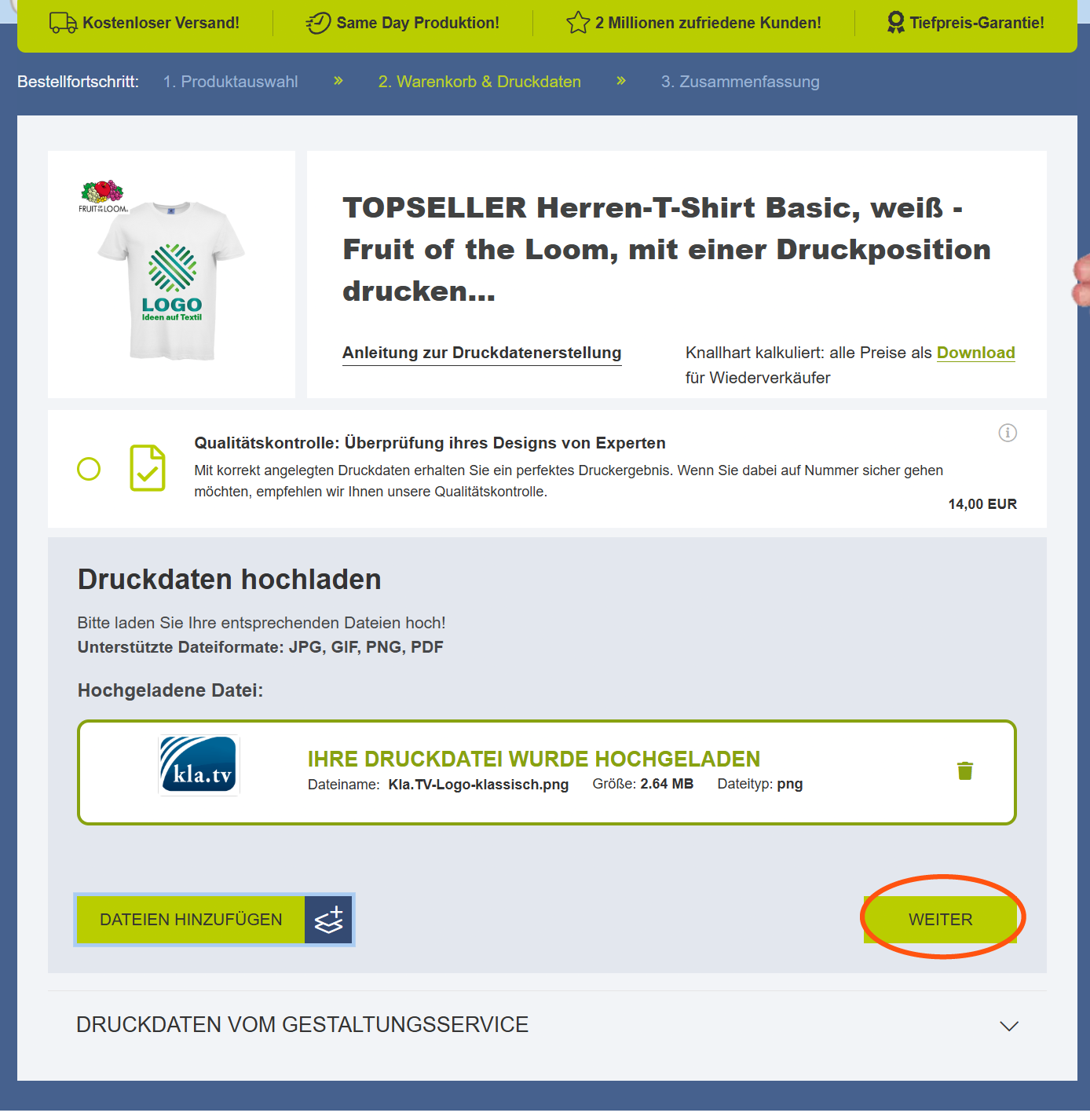
##### **<span style="background-color: rgb(251, 238, 184);">4. Klicke auf "weiter"</span>**

[![8. Druckdaten hochladen 3.png](https://wiki.kla.tv/uploads/images/gallery/2026-08/scaled-1680-/zTaIXkKEzDQENq56-8-druckdaten-hochladen-3.png)](https://wiki.kla.tv/uploads/images/gallery/2026-08/zTaIXkKEzDQENq56-8-druckdaten-hochladen-3.png)

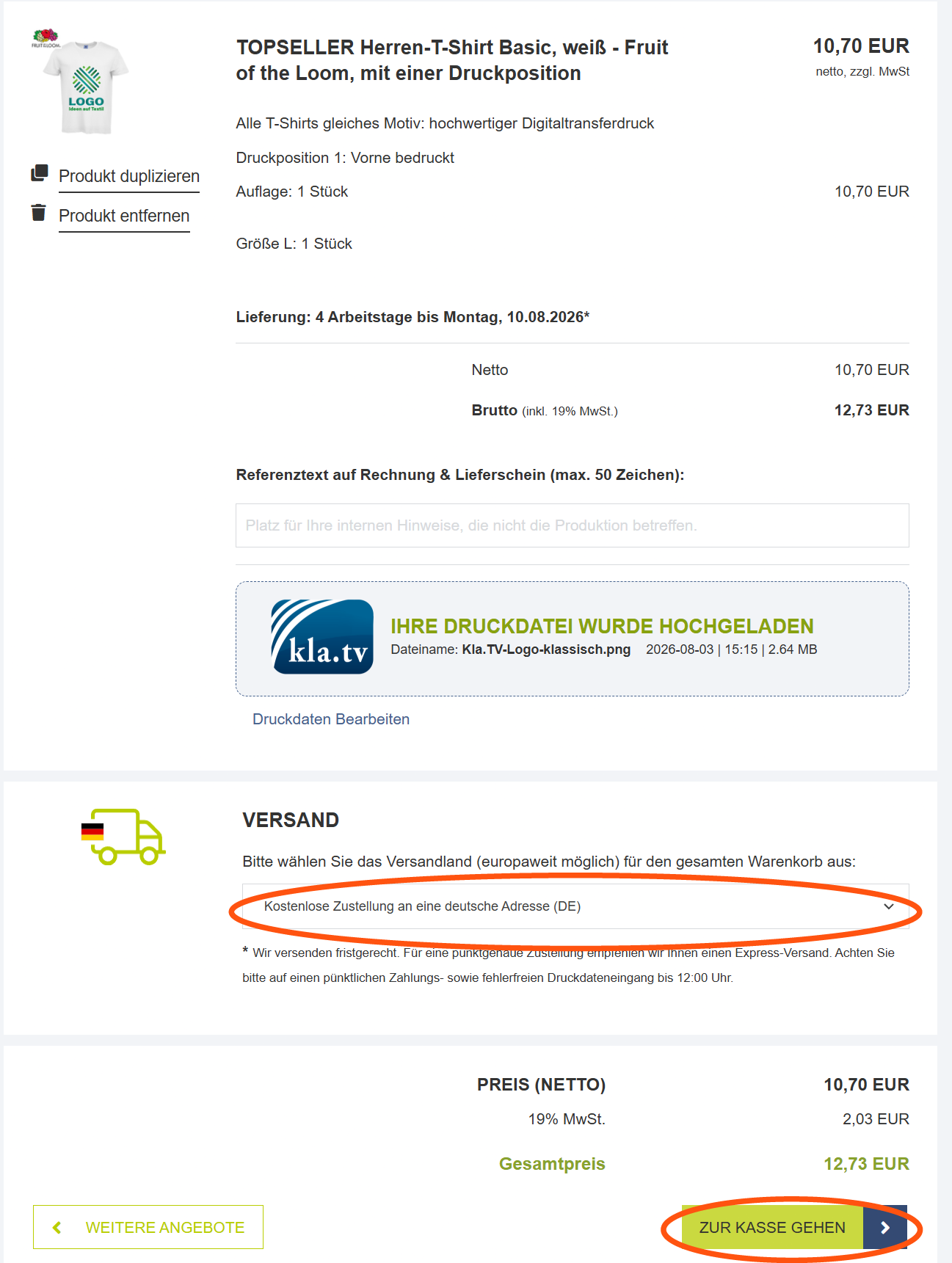
##### <span style="background-color: rgb(251, 238, 184);">**5. Gib das Versandland an und klicke auf "Zur Kasse gehen"**</span>

[![9. Adresse und Bezahlung.png](https://wiki.kla.tv/uploads/images/gallery/2026-08/scaled-1680-/0pAAC7LODVBXA0ez-9-adresse-und-bezahlung.png)](https://wiki.kla.tv/uploads/images/gallery/2026-08/0pAAC7LODVBXA0ez-9-adresse-und-bezahlung.png)

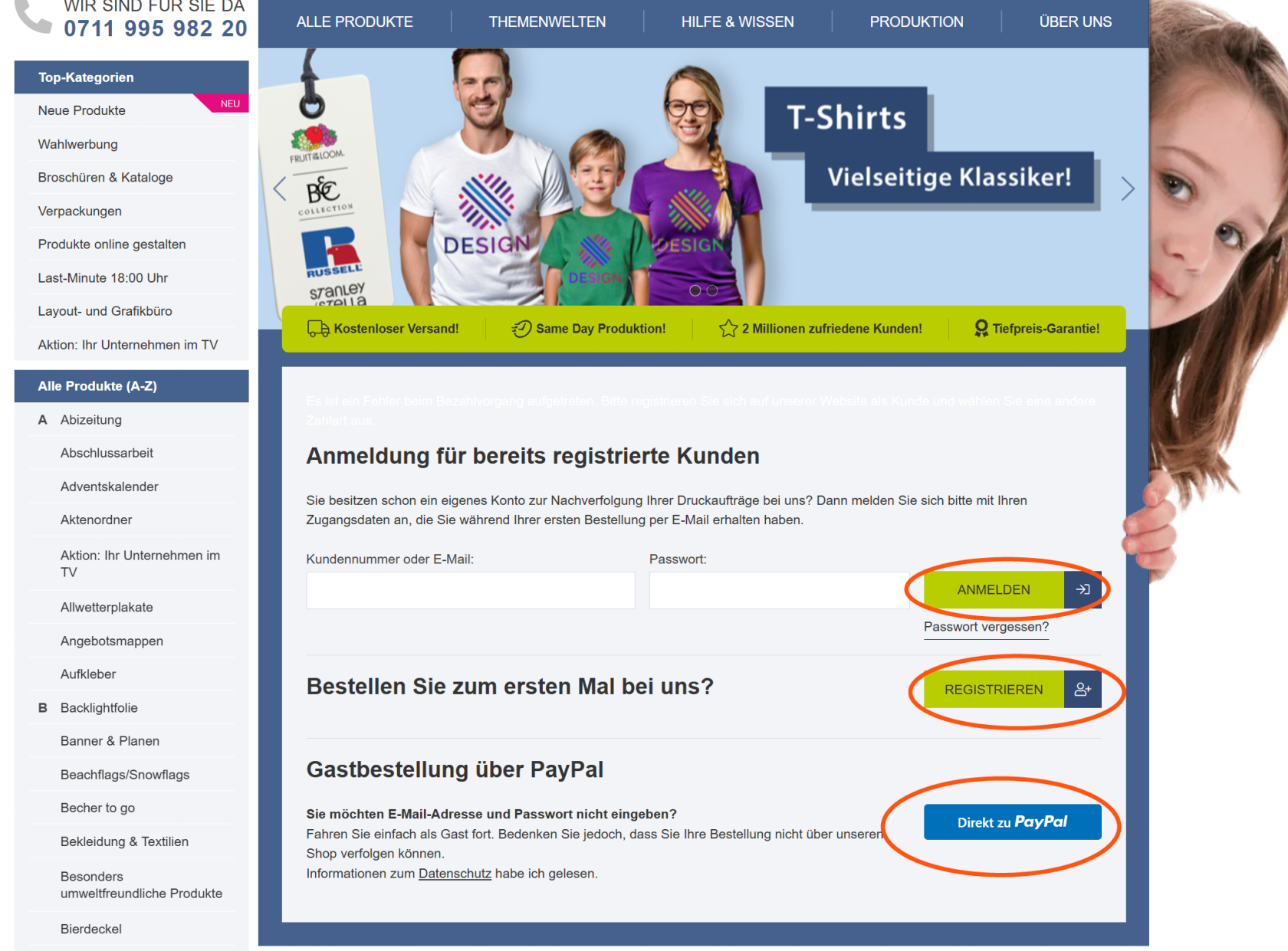
##### **<span style="background-color: rgb(251, 238, 184);">6. Bestelle direkt über Paypal oder erstelle ein neues Konto</span>**

[![10 Bestellung.png](https://wiki.kla.tv/uploads/images/gallery/2026-08/scaled-1680-/PLKoADDj69HGgXDa-10-bestellung.png)](https://wiki.kla.tv/uploads/images/gallery/2026-08/PLKoADDj69HGgXDa-10-bestellung.png)

### <span style="background-color: rgb(248, 202, 198);">BEISPIEL 2</span>

##### <span style="background-color: rgb(251, 238, 184);">**1. Zweiseitiger Druck auf farbigem T-Shirt**</span>

Nachdem du nun **Schritt 1-5 bei Vorbereitungen** ausgeführt hast, kannst du nun hier die beliebigen Druckdetails für den **beidseitigen Druck** auf einem **bunten T-Shirt** angeben.

[![beidseitiger Druck bunt_01.png](https://wiki.kla.tv/uploads/images/gallery/2026-08/scaled-1680-/7mCOdAySA2JdF0mq-beidseitiger-druck-bunt-01.png)](https://wiki.kla.tv/uploads/images/gallery/2026-08/7mCOdAySA2JdF0mq-beidseitiger-druck-bunt-01.png).
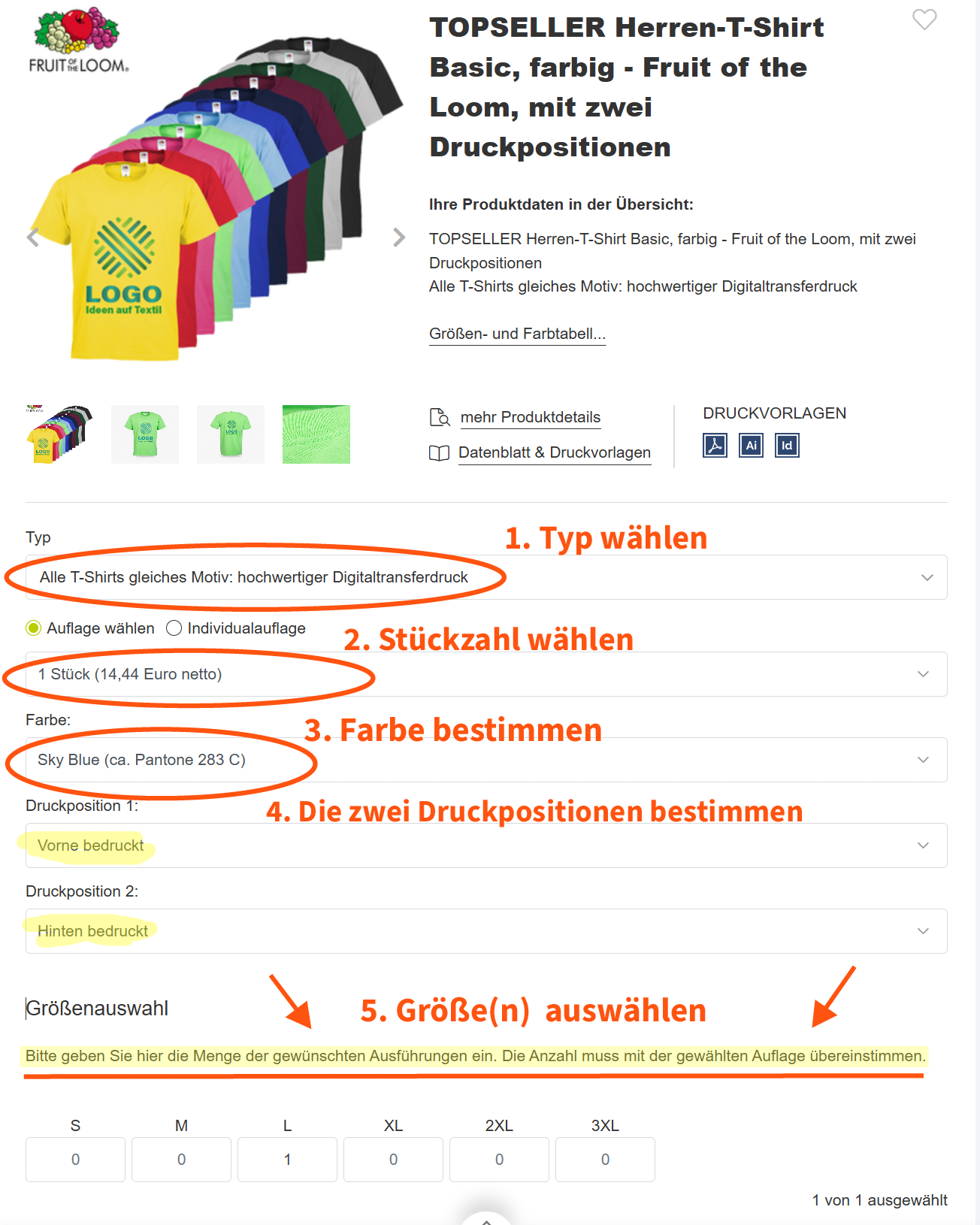
##### **<span style="background-color: rgb(251, 238, 184);">2. Scrolle </span><span style="background-color: rgb(251, 238, 184);">hinunter und klicke auf "In den Warenkorb" </span>**

[![beidseitiger Druck bunt_02.png](https://wiki.kla.tv/uploads/images/gallery/2026-08/scaled-1680-/G9r9nMYL4KIpBpNA-beidseitiger-druck-bunt-02.png)](https://wiki.kla.tv/uploads/images/gallery/2026-08/G9r9nMYL4KIpBpNA-beidseitiger-druck-bunt-02.png)

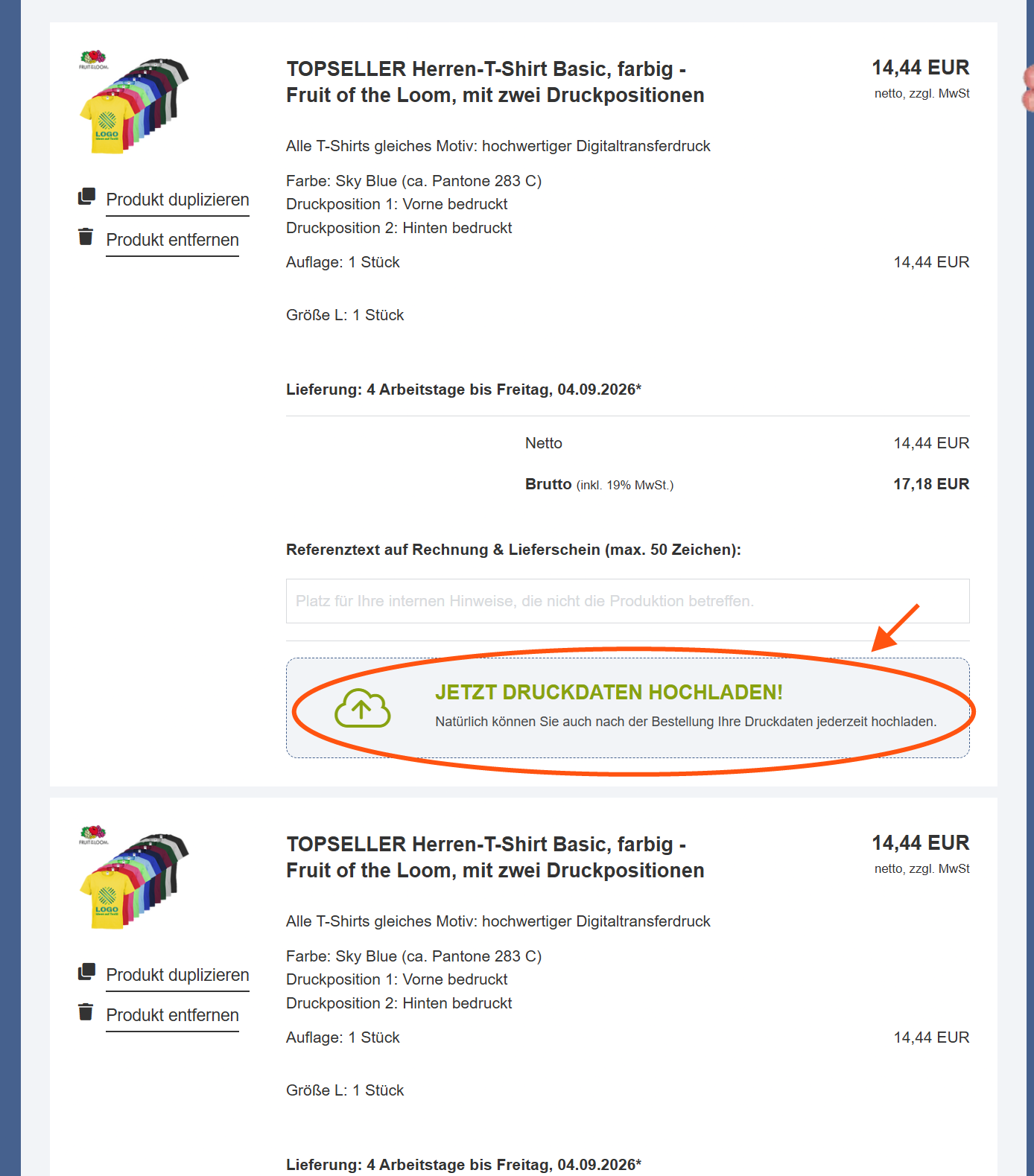
##### **<span style="background-color: rgb(251, 238, 184);">3. Klicke auf "Jetzt Druckdaten hochladen" und lade die in Schritt 1 heruntergeladenen Logos hoch</span>**


[![beidseitiger Druck bunt_03.png](https://wiki.kla.tv/uploads/images/gallery/2026-08/scaled-1680-/Fs8ZE2XhZMxcs8UO-beidseitiger-druck-bunt-03.png)](https://wiki.kla.tv/uploads/images/gallery/2026-08/Fs8ZE2XhZMxcs8UO-beidseitiger-druck-bunt-03.png)

[![beidseitiger Druck bunt_04.png](https://wiki.kla.tv/uploads/images/gallery/2026-08/scaled-1680-/sQjIoFyj4C1dOamL-beidseitiger-druck-bunt-04.png)](https://wiki.kla.tv/uploads/images/gallery/2026-08/sQjIoFyj4C1dOamL-beidseitiger-druck-bunt-04.png)
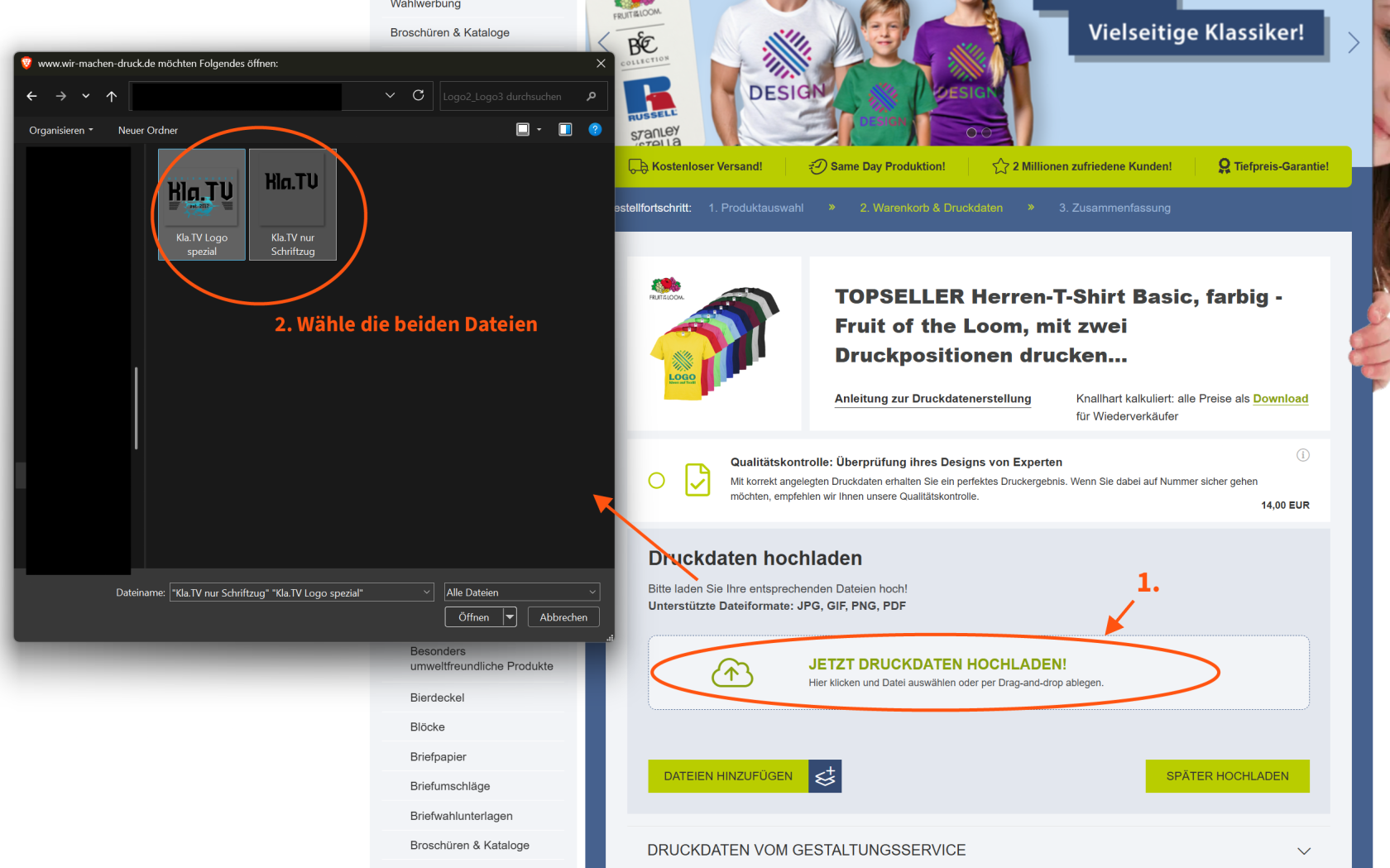

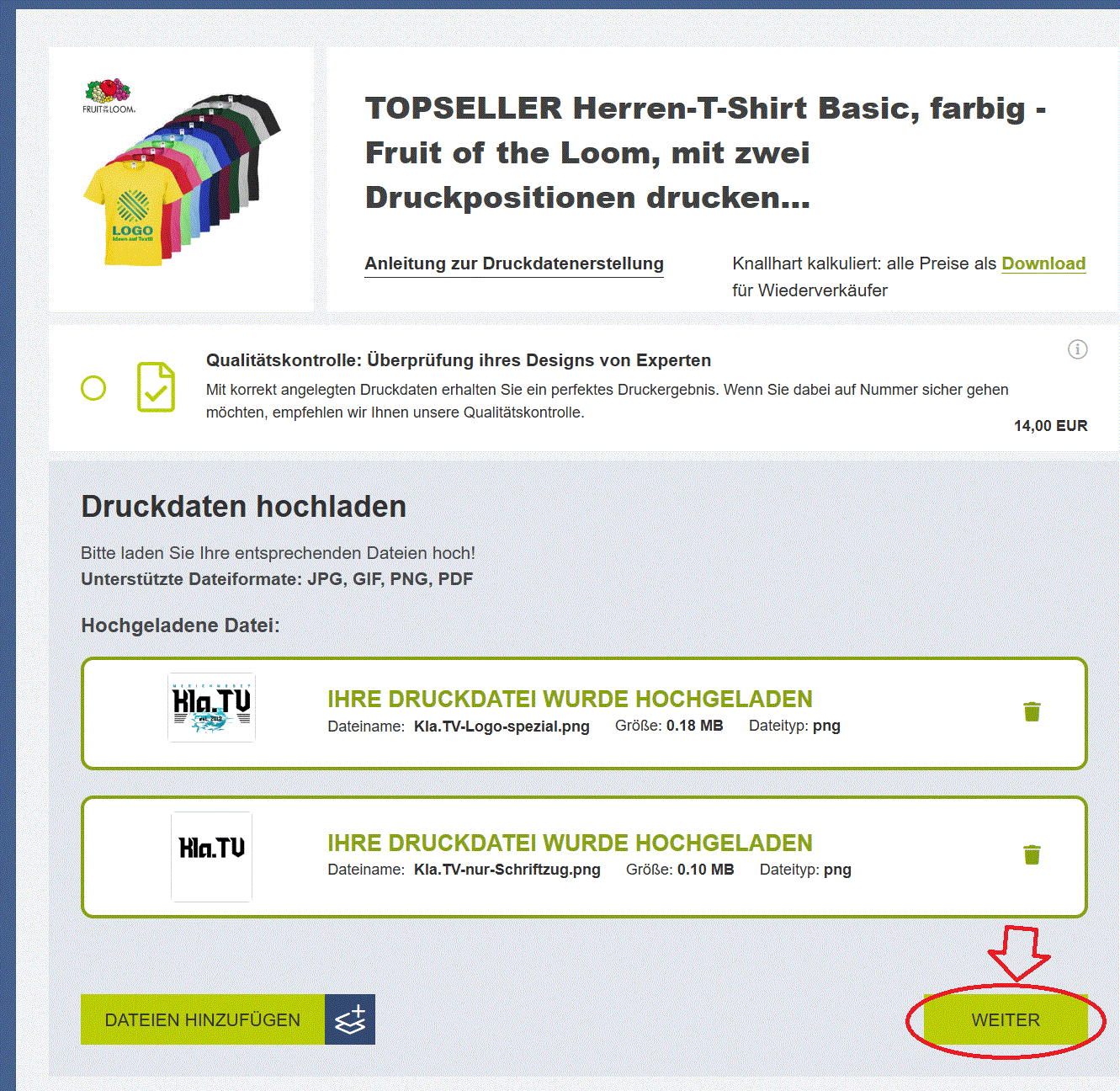
##### **<span style="background-color: rgb(251, 238, 184);">4. Klick</span><span style="background-color: rgb(251, 238, 184);">e auf "weiter"</span>**

[![beidseitiger Druck bunt_05.gif](https://wiki.kla.tv/uploads/images/gallery/2026-08/LWlKIVVk8okXUvXj-beidseitiger-druck-bunt-05.gif)](https://wiki.kla.tv/uploads/images/gallery/2026-08/LWlKIVVk8okXUvXj-beidseitiger-druck-bunt-05.gif)

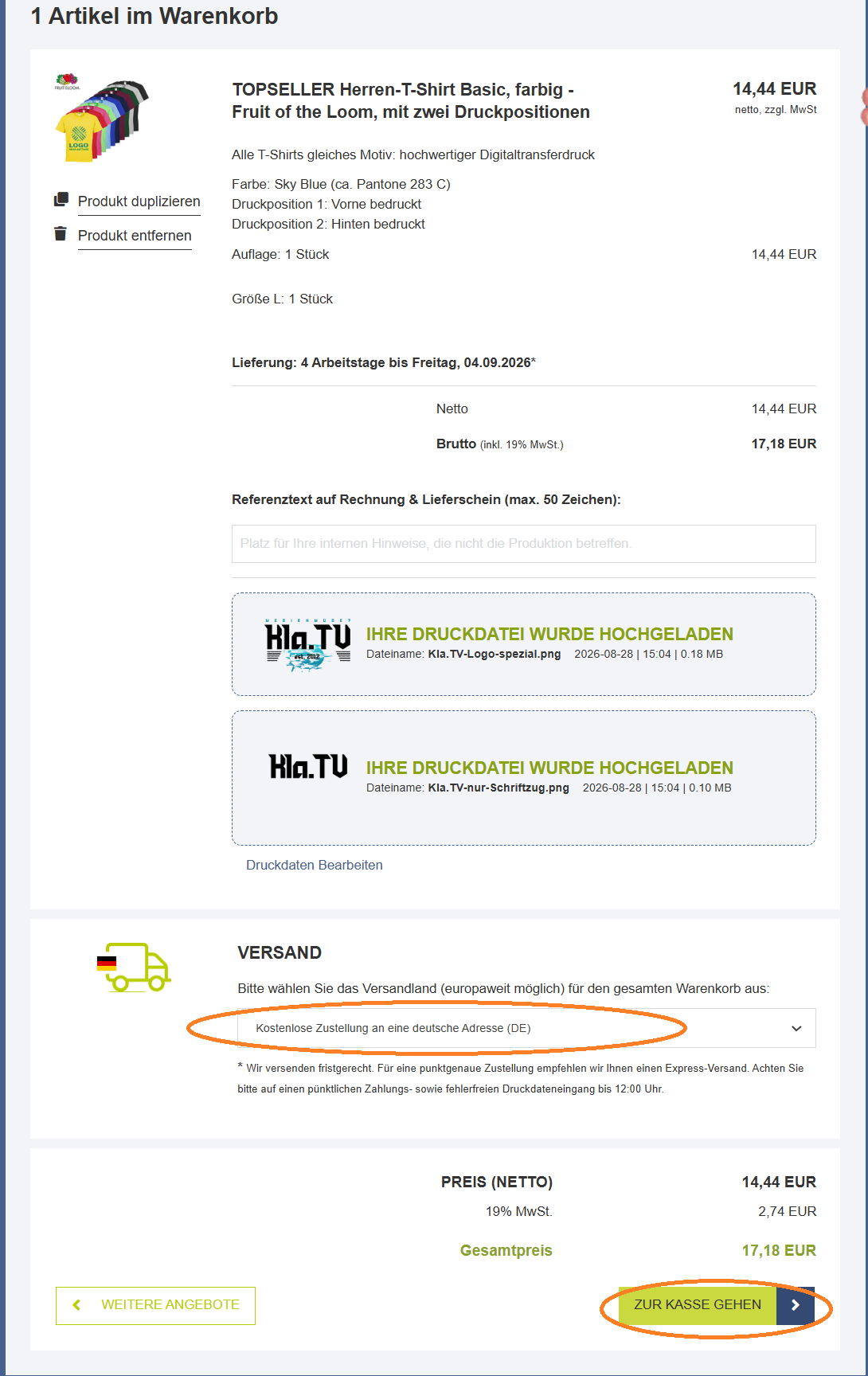
##### <span style="background-color: rgb(251, 238, 184);">**5. Gib das Versandland an und klicke auf "Zur Kasse gehen"**</span>

[![beidseitiger Druck bunt_06.png](https://wiki.kla.tv/uploads/images/gallery/2026-08/scaled-1680-/ceQu9MMe7I2k2r5x-beidseitiger-druck-bunt-06.png)](https://wiki.kla.tv/uploads/images/gallery/2026-08/ceQu9MMe7I2k2r5x-beidseitiger-druck-bunt-06.png)

##### **<span style="background-color: rgb(251, 238, 184);">6. Bestelle direkt über Paypal oder erstelle ein neues Konto</span>**

**<span style="background-color: rgb(251, 238, 184);">[![10 Bestellung.png](https://wiki.kla.tv/uploads/images/gallery/2026-08/scaled-1680-/PLKoADDj69HGgXDa-10-bestellung.png)](https://wiki.kla.tv/uploads/images/gallery/2026-08/PLKoADDj69HGgXDa-10-bestellung.png)</span>**

##### **<span style="background-color: rgb(251, 238, 184);">7. Gespannt darauf warten, dass die Bestellung eintrifft</span>**

# Anleitung Kla.TV Hoodie bedrucken lassen

### <span style="background-color: rgb(248, 202, 198);">VORBEREITUNGEN</span>

##### <span style="background-color: rgb(251, 238, 184);">**1. Wähle eines von den drei Logos. Lade es dir auf der linken Seite dieses Artikels, bei "Anhänge" herunter.**</span>  


[![image.png](https://wiki.kla.tv/uploads/images/gallery/2026-08/scaled-1680-/eLaX2XwtVQY048Jz-image.png)](https://wiki.kla.tv/uploads/images/gallery/2026-08/eLaX2XwtVQY048Jz-image.png)

[![Kla.TV verschiedene Logos.jpg](https://wiki.kla.tv/uploads/images/gallery/2026-08/scaled-1680-/XtFISqPQy2huIBjY-kla-tv-verschiedene-logos.jpg)](https://wiki.kla.tv/uploads/images/gallery/2026-08/XtFISqPQy2huIBjY-kla-tv-verschiedene-logos.jpg)

##### <span style="background-color: rgb(251, 238, 184);">**2. Öffne die passende Seite um dein T-Shirt bedrucken zu lassen:**</span>

- Wenn du aus der **Schweiz** kommst, öffne diesen Link: [https://www.wir-machen-druck.ch/](https://www.wir-machen-druck.ch/)
- 
- Wenn du aus **Deutschland** kommst, öffne diesen Link: [https://www.wir-machen-druck.de/](https://www.wir-machen-druck.de/)

[![Startseite.jpg](https://wiki.kla.tv/uploads/images/gallery/2026-08/scaled-1680-/i0yq1r2pwmMF4Nw1-startseite.jpg)](https://wiki.kla.tv/uploads/images/gallery/2026-08/i0yq1r2pwmMF4Nw1-startseite.jpg)

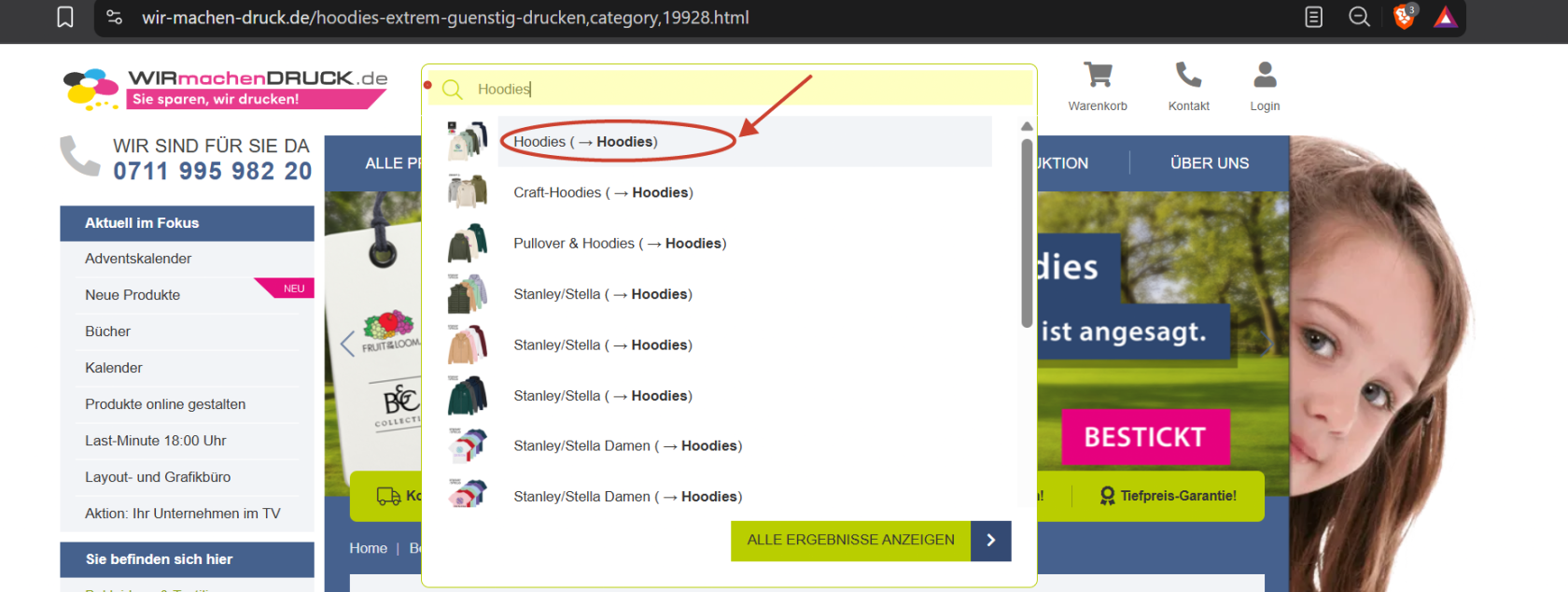
##### <span style="background-color: rgb(251, 238, 184);">**3. Gebe in die Suchleiste "Hoodies" ein und klicke auf das oberste Ergebnis.**</span>

[![3. Schritt Suchleiste.png](https://wiki.kla.tv/uploads/images/gallery/2026-09/scaled-1680-/dXTc7eOlOiO0aK9j-3-schritt-suchleiste.png)](https://wiki.kla.tv/uploads/images/gallery/2026-09/dXTc7eOlOiO0aK9j-3-schritt-suchleiste.png)

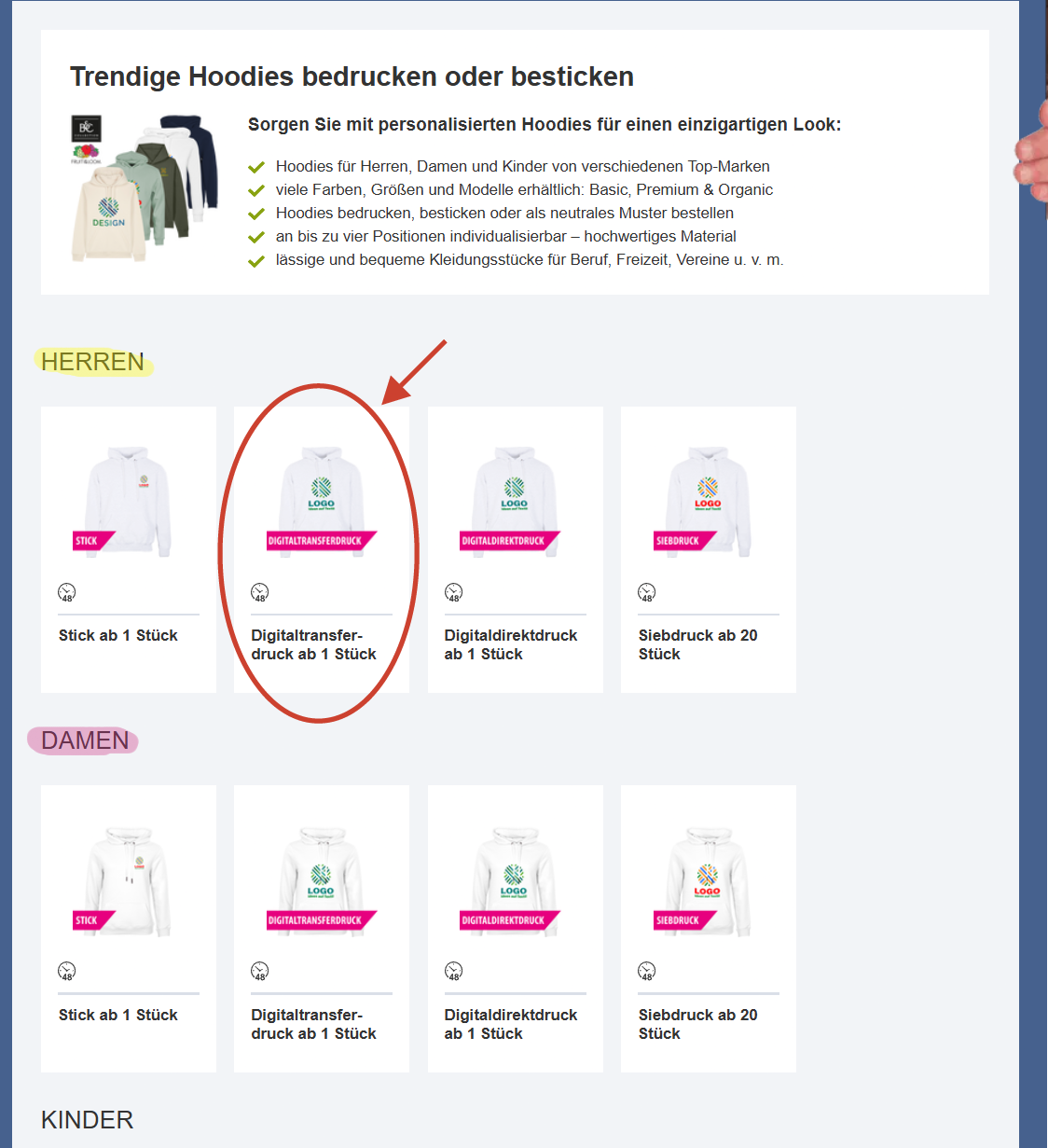
##### <span style="background-color: rgb(251, 238, 184);">**4. Klicke auf die Kachel Hoodie Digitaltransferdruck Herren/Damen**</span>

[![4. Schritt Digitaltransferdruck.png](https://wiki.kla.tv/uploads/images/gallery/2026-09/scaled-1680-/h7YcoRL2dmqE942z-4-schritt-digitaltransferdruck.png)](https://wiki.kla.tv/uploads/images/gallery/2026-09/h7YcoRL2dmqE942z-4-schritt-digitaltransferdruck.png)

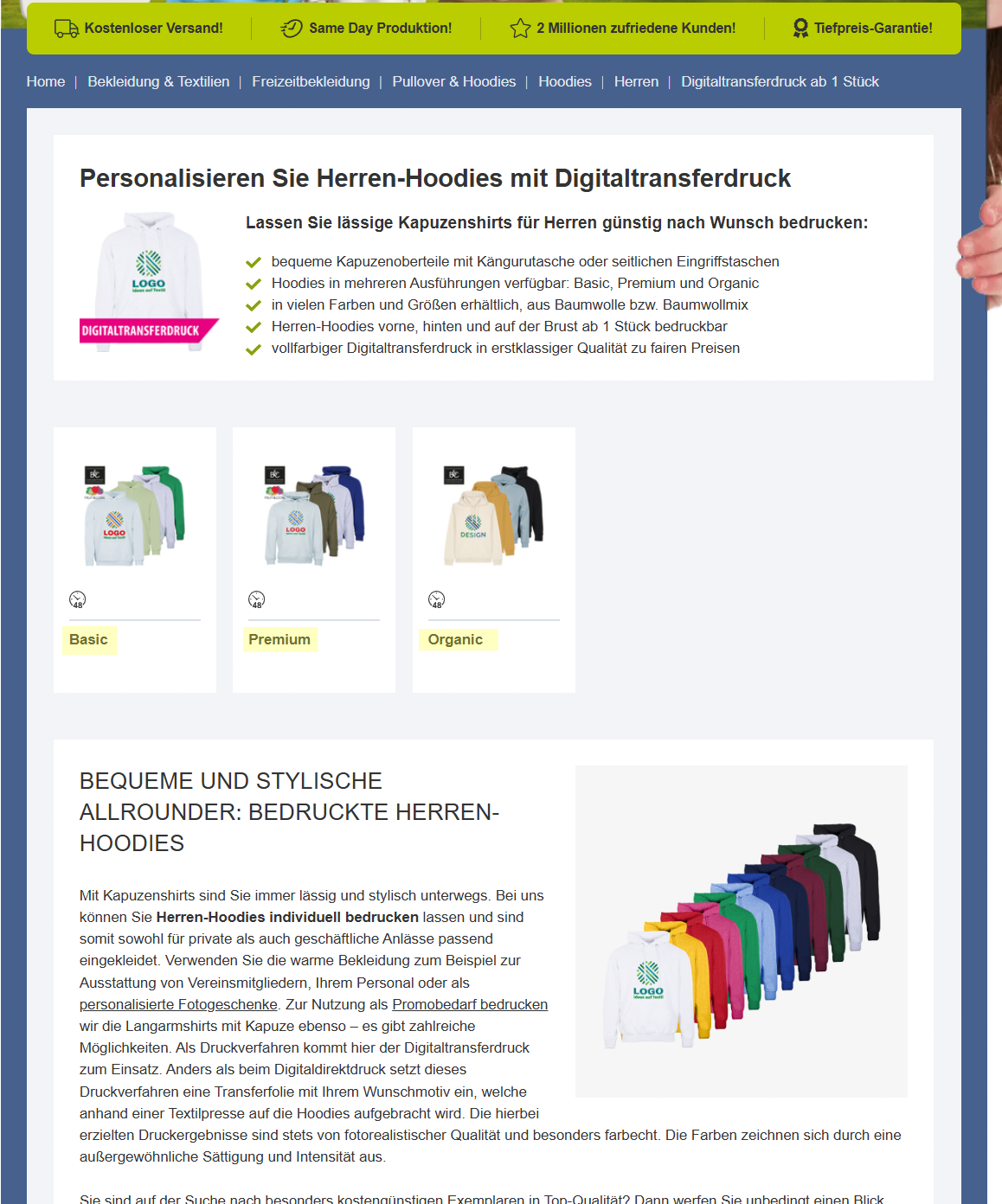
##### <span style="background-color: rgb(251, 238, 184);">**5. Entscheide dich für Qualität und Stoff den Pullovers und klicke dann auf die entsprechende Wahl**</span>

##### **Preisliste:** 

<span style="background-color: rgb(191, 237, 210);">Basic: ab **20,29 Euro**</span>

<span style="background-color: rgb(248, 202, 198);">Premium: ab **27,72 Euro**</span>

<span style="background-color: rgb(251, 238, 184);">Organic: ab **26,48 Euro**</span>

[![5. Schritt Qualität.png](https://wiki.kla.tv/uploads/images/gallery/2026-09/scaled-1680-/yGMJh8olA1h0Sx8K-5-schritt-qualitat.png)](https://wiki.kla.tv/uploads/images/gallery/2026-09/yGMJh8olA1h0Sx8K-5-schritt-qualitat.png)

### <span style="background-color: rgb(248, 202, 198);">BEISPIEL 1</span>

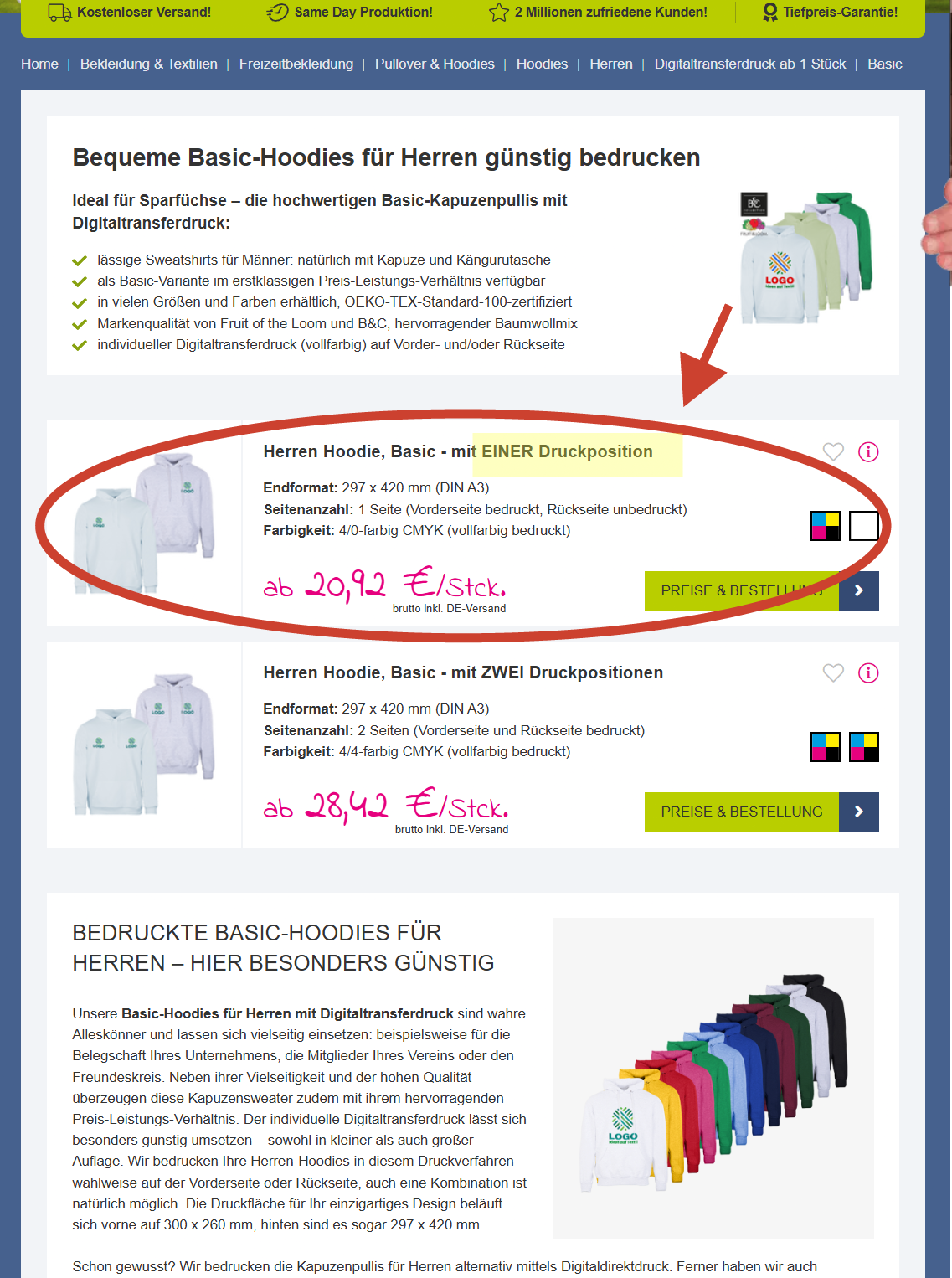
##### <span style="background-color: rgb(251, 238, 184);">**1.Einseitiger Druck**</span>

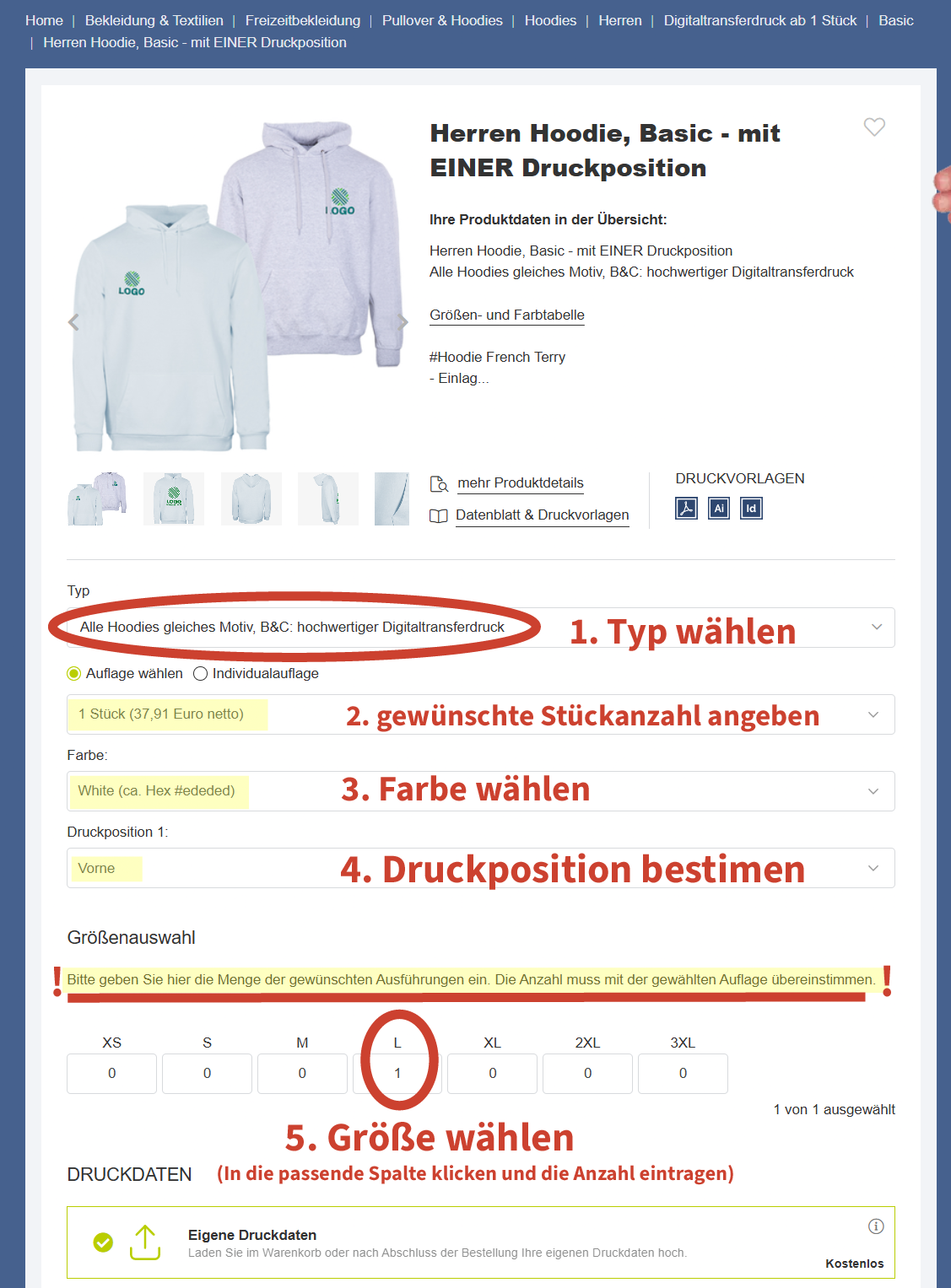
[![6.1. Schritt 1 Druckpositionen.png](https://wiki.kla.tv/uploads/images/gallery/2026-09/scaled-1680-/sp7dNtWwfE6uFcJ6-6-1-schritt-1-druckpositionen.png)](https://wiki.kla.tv/uploads/images/gallery/2026-09/sp7dNtWwfE6uFcJ6-6-1-schritt-1-druckpositionen.png)

##### <span style="background-color: rgb(251, 238, 184);">**2. Hoodie gestalten**</span>

[![6.2. Schritt Einzelheiten.png](https://wiki.kla.tv/uploads/images/gallery/2026-09/scaled-1680-/X153BGNRORyzhLIo-6-2-schritt-einzelheiten.png)](https://wiki.kla.tv/uploads/images/gallery/2026-09/X153BGNRORyzhLIo-6-2-schritt-einzelheiten.png)

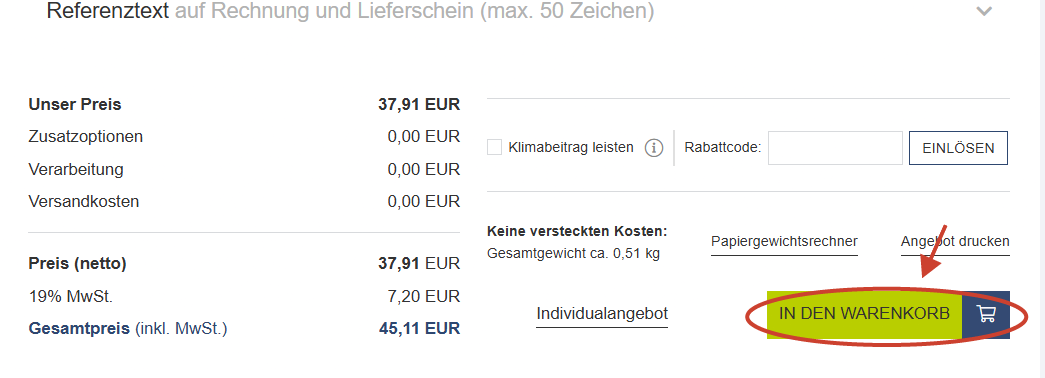
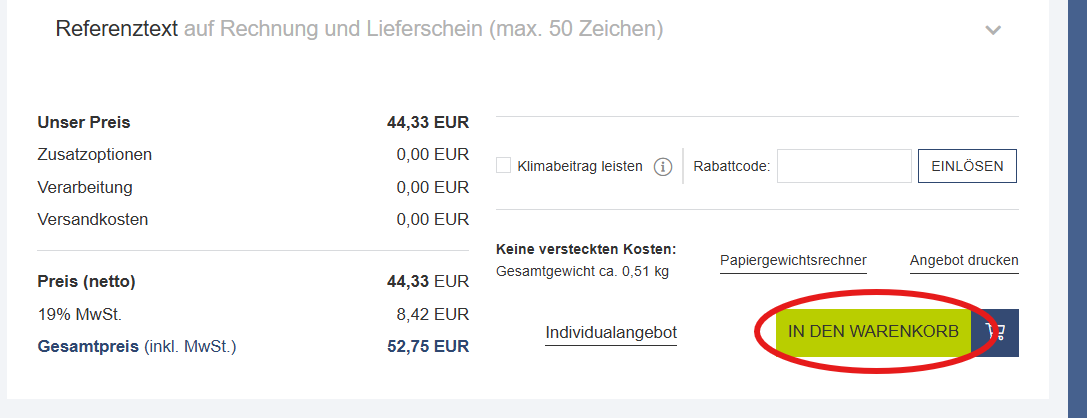
##### <span style="background-color: rgb(251, 238, 184);">**3. Scrolle hinunter und klicke auf "In den Warenkorb"** </span>

[![6.3. Schritt Warenkorb.png](https://wiki.kla.tv/uploads/images/gallery/2026-09/scaled-1680-/wSGdaH4fuj6IQ8Ku-6-3-schritt-warenkorb.png)](https://wiki.kla.tv/uploads/images/gallery/2026-09/wSGdaH4fuj6IQ8Ku-6-3-schritt-warenkorb.png)

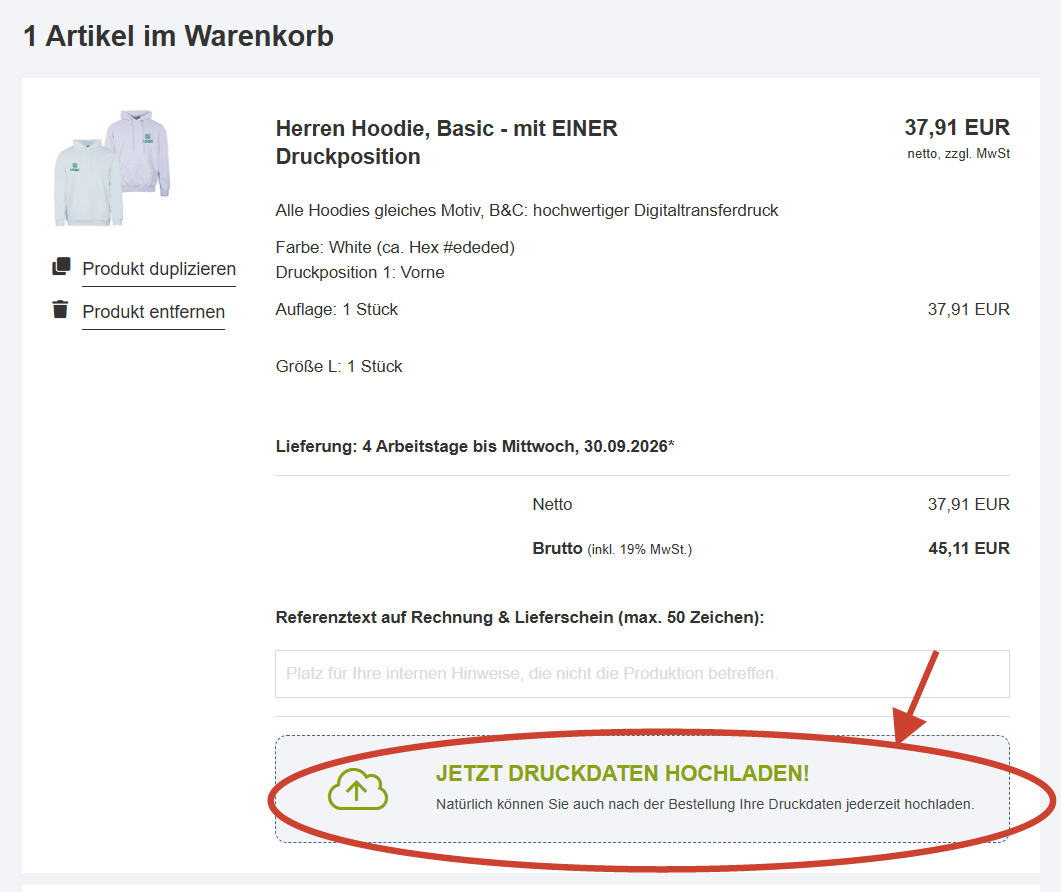
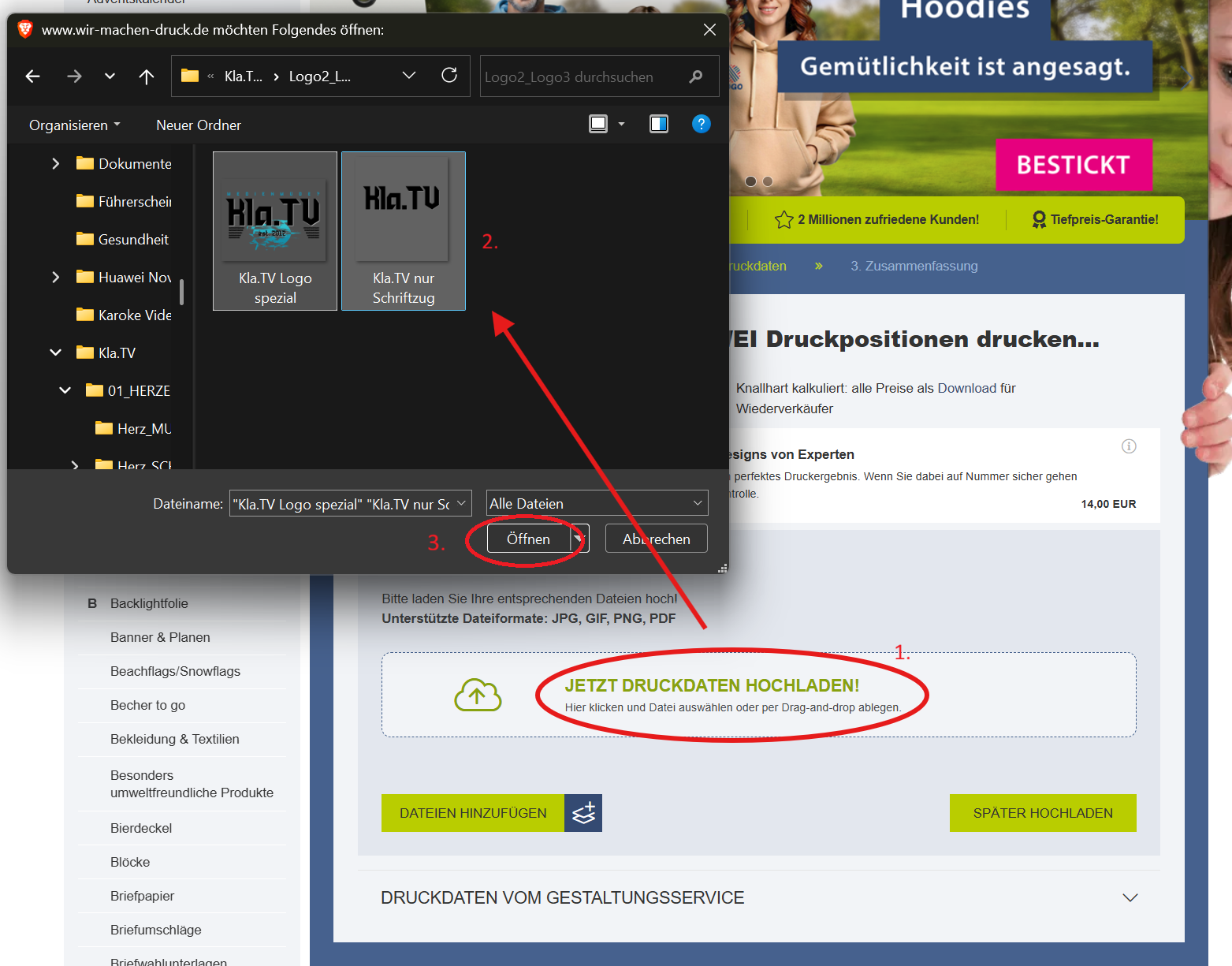
##### <span style="background-color: rgb(251, 238, 184);">**4. Klicke auf "Jetzt Druckdaten hochladen" und lade das in Schritt 1 heruntergeladene Logo hoch**</span>

[![6.4. Schritt Druckdaten.png](https://wiki.kla.tv/uploads/images/gallery/2026-09/scaled-1680-/dB8vmAyGsFOQowME-6-4-schritt-druckdaten.png)](https://wiki.kla.tv/uploads/images/gallery/2026-09/dB8vmAyGsFOQowME-6-4-schritt-druckdaten.png)

[![8. Druckdaten hochladen 2.png](https://wiki.kla.tv/uploads/images/gallery/2026-08/scaled-1680-/WndrEfOEHm3QXgHa-8-druckdaten-hochladen-2.png)](https://wiki.kla.tv/uploads/images/gallery/2026-08/WndrEfOEHm3QXgHa-8-druckdaten-hochladen-2.png)

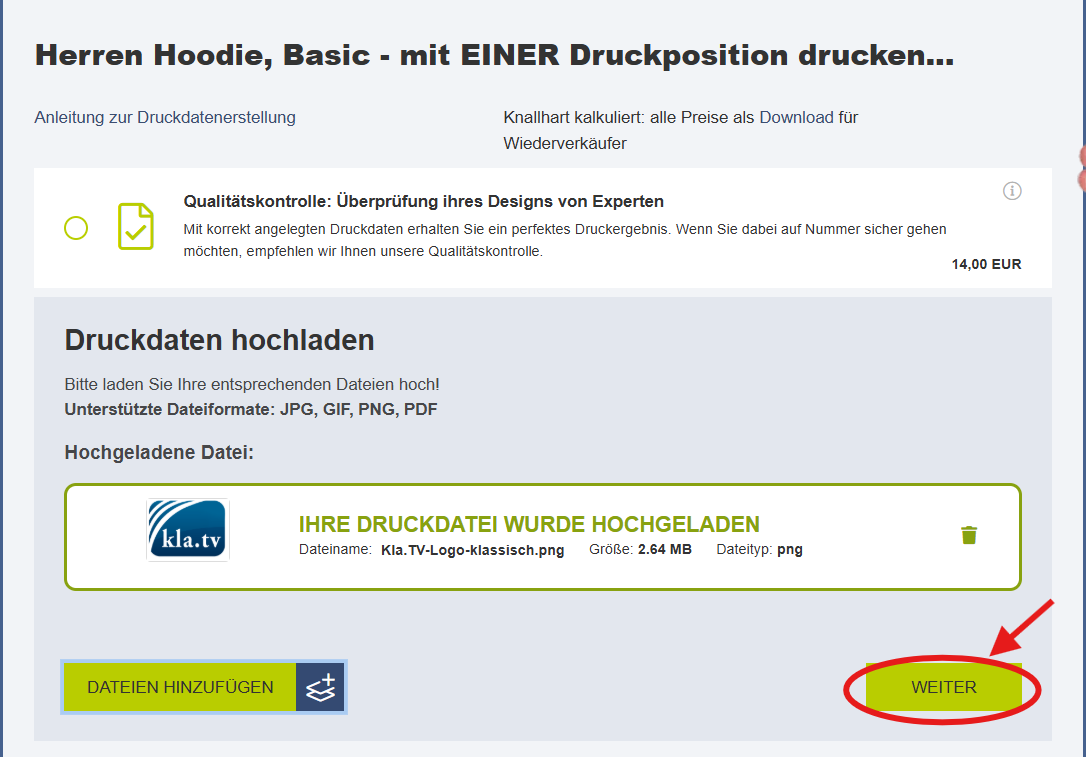
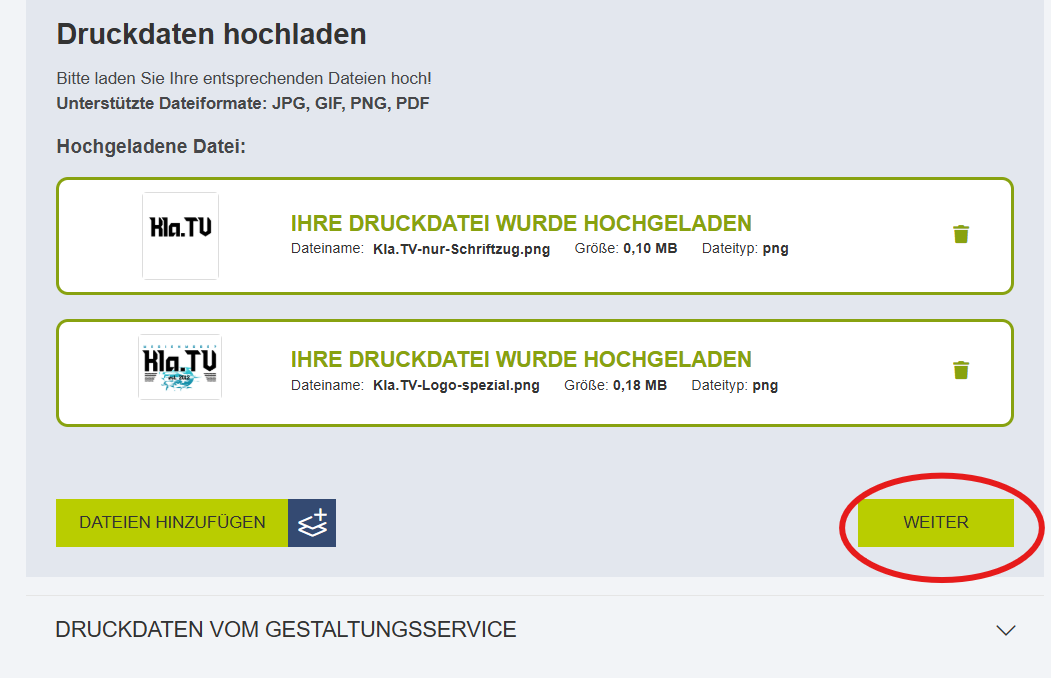
##### <span style="background-color: rgb(251, 238, 184);">**5. Klicke auf "weiter"**</span>

[![6.5. Schritt Weiter.png](https://wiki.kla.tv/uploads/images/gallery/2026-09/scaled-1680-/1yaCWJk2xdtqQhW3-6-5-schritt-weiter.png)](https://wiki.kla.tv/uploads/images/gallery/2026-09/1yaCWJk2xdtqQhW3-6-5-schritt-weiter.png)

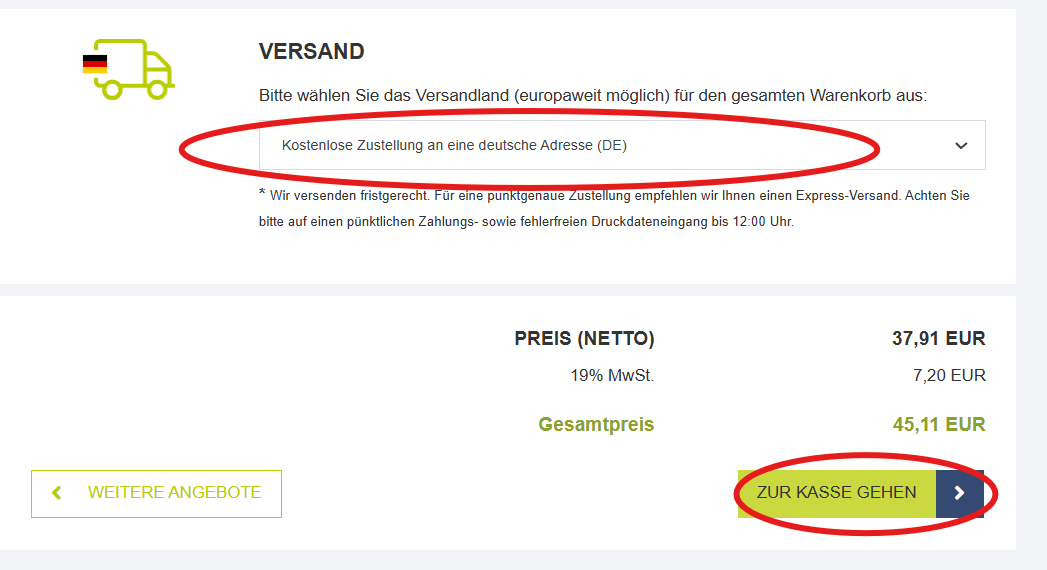
##### <span style="background-color: rgb(251, 238, 184);">**6. Gib das Versandland an und klicke auf "Zur Kasse gehen"**</span>

[![6.6. Schritt Versandland.png](https://wiki.kla.tv/uploads/images/gallery/2026-09/scaled-1680-/px4jWGq27znHaJ4K-6-6-schritt-versandland.png)](https://wiki.kla.tv/uploads/images/gallery/2026-09/px4jWGq27znHaJ4K-6-6-schritt-versandland.png)


##### <span style="background-color: rgb(251, 238, 184);">**7. Bestelle direkt über Paypal oder erstelle ein neues Konto**</span>

[![10 Bestellung.png](https://wiki.kla.tv/uploads/images/gallery/2026-08/scaled-1680-/PLKoADDj69HGgXDa-10-bestellung.png)](https://wiki.kla.tv/uploads/images/gallery/2026-08/PLKoADDj69HGgXDa-10-bestellung.png)

### <span style="background-color: rgb(248, 202, 198);">BEISPIEL 2</span>

##### <span style="background-color: rgb(251, 238, 184);">**1.Beidseitiger Druck**</span>

Nachdem du nun Schritt **1-5 bei Vorbereitungen** ausgeführt hast, kannst du nun hier die beliebigen Druckdetails für den **beidseitigen** Druck auf einem **Hoodie** angeben.

[![7.1. Schritt Zwei Druckpositonen.png](https://wiki.kla.tv/uploads/images/gallery/2026-09/scaled-1680-/k1ep3yfXUUcZEK1f-7-1-schritt-zwei-druckpositonen.png)](https://wiki.kla.tv/uploads/images/gallery/2026-09/k1ep3yfXUUcZEK1f-7-1-schritt-zwei-druckpositonen.png)
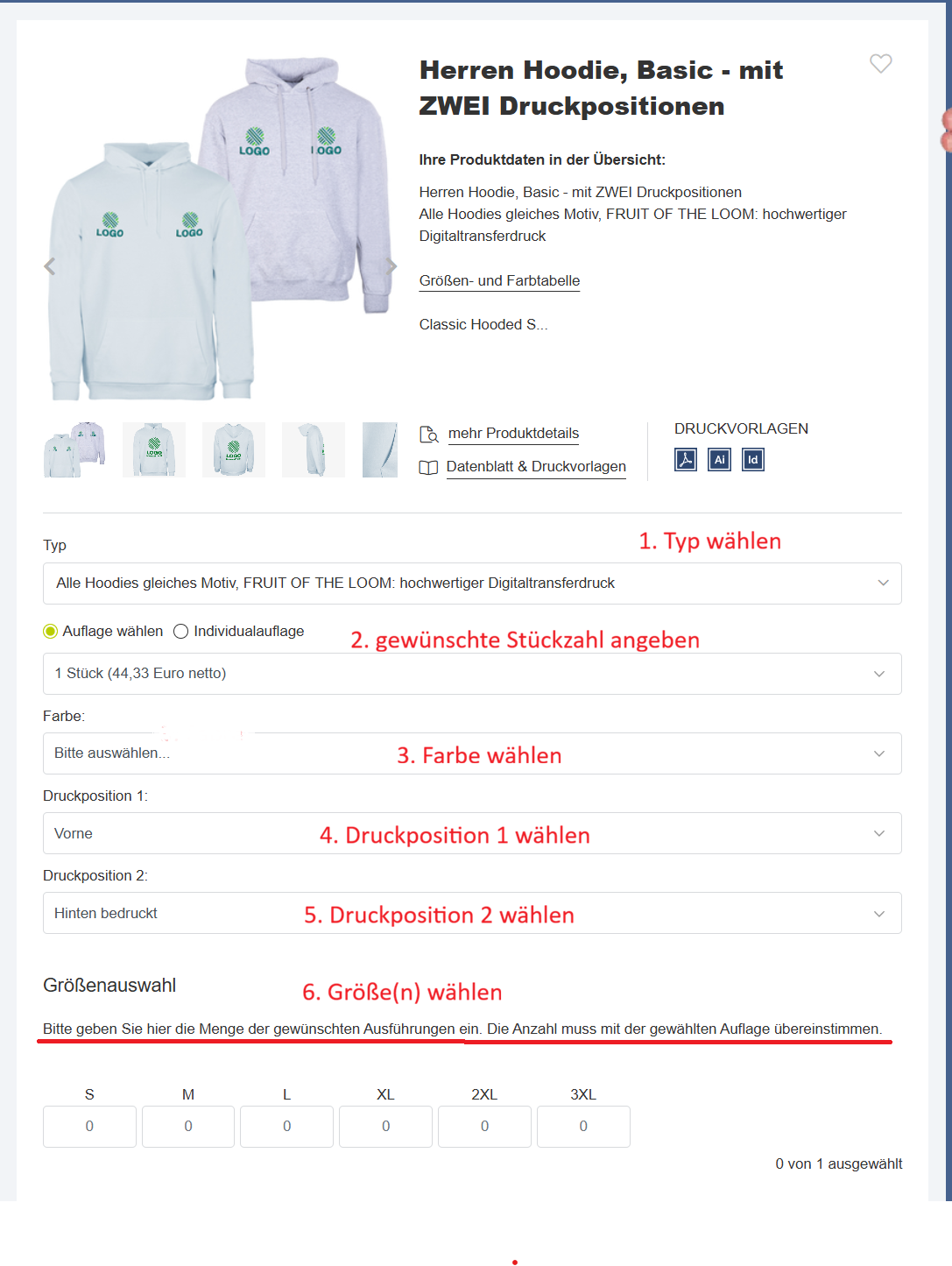
##### <span style="background-color: rgb(251, 238, 184);">**2. Scrolle hinunter und klicke auf "In den Warenkorb"** </span>

[![7.2. Schritt Warenkorb.png](https://wiki.kla.tv/uploads/images/gallery/2026-09/scaled-1680-/xH3TGqq5w0zrPxvF-7-2-schritt-warenkorb.png)](https://wiki.kla.tv/uploads/images/gallery/2026-09/xH3TGqq5w0zrPxvF-7-2-schritt-warenkorb.png)

##### <span style="background-color: rgb(251, 238, 184);">**3. Klicke auf "Jetzt Druckdaten hochladen" und lade die in Schritt 1 heruntergeladenen Logos hoch**</span>

[![7.3. Schritt Motive.png](https://wiki.kla.tv/uploads/images/gallery/2026-09/scaled-1680-/M7EYuquHikwkut60-7-3-schritt-motive.png)](https://wiki.kla.tv/uploads/images/gallery/2026-09/M7EYuquHikwkut60-7-3-schritt-motive.png)

##### <span style="background-color: rgb(251, 238, 184);">**4. Klicke auf "weiter"**</span>

[![7.4. Schritt Weiter.png](https://wiki.kla.tv/uploads/images/gallery/2026-09/scaled-1680-/Zi4JhY9DAyyE8qXL-7-4-schritt-weiter.png)](https://wiki.kla.tv/uploads/images/gallery/2026-09/Zi4JhY9DAyyE8qXL-7-4-schritt-weiter.png)

##### <span style="background-color: rgb(251, 238, 184);">**5. Gib das Versandland an und klicke auf "Zur Kasse gehen"**</span>

[![7.5. Schritt Versand.png](https://wiki.kla.tv/uploads/images/gallery/2026-09/scaled-1680-/J3vdc9zJ1ARUtFv6-7-5-schritt-versand.png)](https://wiki.kla.tv/uploads/images/gallery/2026-09/J3vdc9zJ1ARUtFv6-7-5-schritt-versand.png)

##### <span style="background-color: rgb(251, 238, 184);">**6. Bestelle direkt über Paypal oder erstelle ein neues Konto**</span>

**[![10 Bestellung.png](https://wiki.kla.tv/uploads/images/gallery/2026-08/scaled-1680-/PLKoADDj69HGgXDa-10-bestellung.png)](https://wiki.kla.tv/uploads/images/gallery/2026-08/PLKoADDj69HGgXDa-10-bestellung.png)**

##### <span style="background-color: rgb(251, 238, 184);">**7. Gespannt darauf warten, dass die Bestellung eintrifft**</span>