# MAC: Installation und Nutzung von "Kla.TV Downloader"

<p class="callout warning">**Der "Kla.TV-Downloader" funktioniert auf dem MAC-Betriebssystem zurzeit leider nicht und wird nicht mehr unterstützt. Bitte verwenden Sie auf MAC die Sicherungsmethode "Serverzugang":** [https://wiki.kla.tv/books/klatv-sichern/page/mac-installation-verbindung-mit-filezilla-serverzugang](https://wiki.kla.tv/books/klatv-sichern/page/mac-installation-verbindung-mit-filezilla-serverzugang)</p>

### **Was lernst du in diesem Artikel?**

Du lernst, wie du den Kla.TV-Downloader auf Mac installieren kannst. Der Kla.TV-Downloader hält dein Archiv automatisch immer auf dem aktuellen Stand. Gleichzeitig kannst du mit deinem Videoanschluss anderen Nutzern den Upload zur Verfügung stellen. Los gehts:

### **Videoanleitung: (13min)**

<iframe allowfullscreen="allowfullscreen" frameborder="0" height="332" src="https://www.kla.tv/index.php?a=showembed&vidid=31128&lang=de" width="590"></iframe>

<div class="responsive-iframe" id="bkmrk--1"></div><p class="callout info">Wir empfehlen, zuerst das Video anzuschauen, um die schriftliche Anleitung besser zu verstehen. Im Anschluss bitte mit der schriftlichen Anleitung arbeiten, da diese im Detail einige Aktualisierungen enthält.</p>

### <span lang="DE" style="font-size: 16.0pt; mso-bidi-font-size: 11.0pt; line-height: 107%; font-family: Wingdings; mso-ascii-font-family: Calibri; mso-ascii-theme-font: minor-latin; mso-fareast-font-family: Calibri; mso-fareast-theme-font: minor-latin; mso-hansi-font-family: Calibri; mso-hansi-theme-font: minor-latin; mso-bidi-font-family: 'Times New Roman'; mso-bidi-theme-font: minor-bidi; mso-ansi-language: DE; mso-fareast-language: EN-US; mso-bidi-language: AR-SA; mso-char-type: symbol; mso-symbol-font-family: Wingdings;"><span style="mso-char-type: symbol; mso-symbol-font-family: Wingdings;">&#131;</span></span><span lang="DE" style="font-size: 16.0pt; mso-bidi-font-size: 11.0pt; line-height: 107%; font-family: Wingdings; mso-ascii-font-family: Calibri; mso-ascii-theme-font: minor-latin; mso-fareast-font-family: Calibri; mso-fareast-theme-font: minor-latin; mso-hansi-font-family: Calibri; mso-hansi-theme-font: minor-latin; mso-bidi-font-family: 'Times New Roman'; mso-bidi-theme-font: minor-bidi; mso-ansi-language: DE; mso-fareast-language: EN-US; mso-bidi-language: AR-SA; mso-char-type: symbol; mso-symbol-font-family: Wingdings;"><span style="mso-char-type: symbol; mso-symbol-font-family: Wingdings;">&#132;</span></span><span lang="DE" style="font-size: 16.0pt; mso-bidi-font-size: 11.0pt; line-height: 107%; font-family: Wingdings; mso-ascii-font-family: Calibri; mso-ascii-theme-font: minor-latin; mso-fareast-font-family: Calibri; mso-fareast-theme-font: minor-latin; mso-hansi-font-family: Calibri; mso-hansi-theme-font: minor-latin; mso-bidi-font-family: 'Times New Roman'; mso-bidi-theme-font: minor-bidi; mso-ansi-language: DE; mso-fareast-language: EN-US; mso-bidi-language: AR-SA; mso-char-type: symbol; mso-symbol-font-family: Wingdings;"><span style="mso-char-type: symbol; mso-symbol-font-family: Wingdings;"> </span></span>**Schriftliche Anleitung:**

### <span style="background-color: rgb(241, 196, 15);">**1. Grundlegendes:**</span>

- Was ist der **Unterschied** vom Kla.TV-Downloader zum Download über Serverzugang (über FileZilla)? 
    - **Über den Server-Zugang** ladest du mit FileZilla einmalig das Archiv runter und musst es "per Hand" immer aktuell behalten und die neusten Sendungen immer wieder runterladen
    - **Über das Downloader-Programm** kannst du dein Archiv stetig automatisch auf dem aktuellen Stand behalten und synchronisieren, mit dem Datenbestand des Servers. Du stellst es einmalig ein und es wird automatisch aktuell behalten. Zusätzlich kannst die die Videos von deinem Videoanschluss anderen Nutzern zum Upload zur Verfügung stellen
- Zwei Programme musst du dazu neu installieren. 1. den Kla.TV Downloader und 2. den qBittorrent. Dazu die Anleitung:

### <span style="background-color: rgb(241, 196, 15);">**2. Installation des Kla.TV-Downloader:**</span>

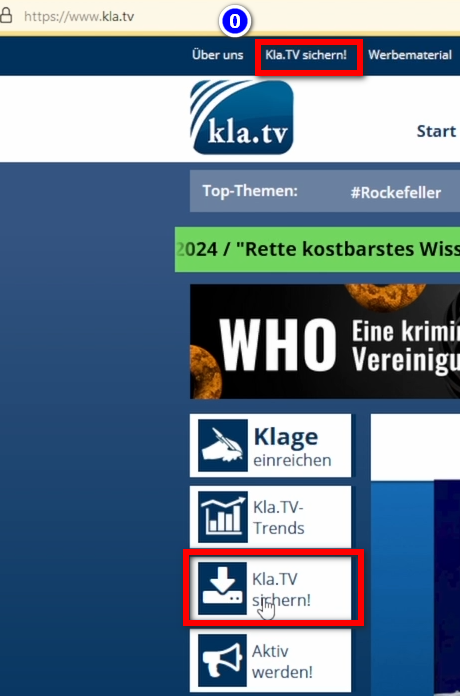
- <span style="background-color: rgb(251, 238, 184);">Gehe auf die Seite </span>**<span style="background-color: rgb(251, 238, 184);">[kla.tv/sichern](https://www.kla.tv/sichern)</span> <span style="background-color: rgb(52, 73, 94); color: rgb(236, 240, 241);">(0)</span>   
      
    [![grafik.png](https://wiki.kla.tv/uploads/images/gallery/2024-11/scaled-1680-/Dv7hI2hEiWQk8ey8-grafik.png)](https://wiki.kla.tv/uploads/images/gallery/2024-11/Dv7hI2hEiWQk8ey8-grafik.png)**<span style="background-color: rgb(251, 238, 184);">  
      
    </span>
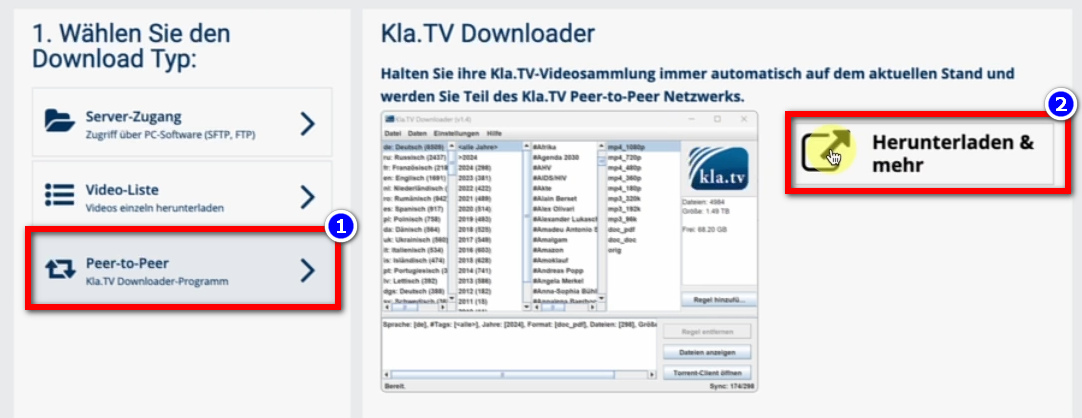
- <span style="background-color: rgb(251, 238, 184);">Gehe zum Download-Typ <span lang="DE" style="font-size: 16pt; line-height: 107%; font-family: Wingdings; background-color: rgb(251, 238, 184);"><span style="mso-char-type: symbol; mso-symbol-font-family: Wingdings;"><span lang="EN-US" style="font-size: 11pt; line-height: 107%; font-family: 'Cambria Math', serif; background-color: rgb(251, 238, 184);">❶</span></span></span> "**Peer-to-Peer**" → <span lang="DE" style="font-size: 16pt; line-height: 107%; font-family: Wingdings; background-color: rgb(251, 238, 184);"><span style="mso-char-type: symbol; mso-symbol-font-family: Wingdings;"><span lang="EN-US" style="font-size: 11pt; line-height: 107%; font-family: 'Cambria Math', serif; background-color: rgb(251, 238, 184);">❷</span></span></span> "**Herunterladen &amp; mehr**"</span>  
      
    [![grafik.png](https://wiki.kla.tv/uploads/images/gallery/2024-11/scaled-1680-/nuXM0H06k643OGNZ-grafik.png)](https://wiki.kla.tv/uploads/images/gallery/2024-11/nuXM0H06k643OGNZ-grafik.png)
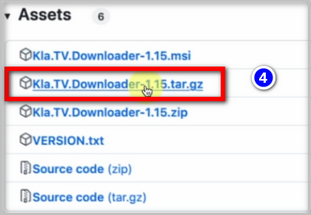
- <span style="background-color: rgb(251, 238, 184);">Kicke auf den <span lang="DE" style="font-size: 16pt; line-height: 107%; font-family: Wingdings; background-color: rgb(251, 238, 184);"><span style="mso-char-type: symbol; mso-symbol-font-family: Wingdings;"><span lang="EN-US" style="font-size: 11pt; line-height: 107%; font-family: 'Cambria Math', serif; background-color: rgb(251, 238, 184);">❸</span></span></span> **Kla-TV-Downloader** → lade das aktuellste Programm herunter (immer zu oberst) indem du bei "Assets" → auf <span lang="DE" style="font-size: 16pt; line-height: 107%; font-family: Wingdings; background-color: rgb(251, 238, 184);"><span style="mso-char-type: symbol; mso-symbol-font-family: Wingdings;"><span lang="EN-US" style="font-size: 11pt; line-height: 107%; font-family: 'Cambria Math', serif; background-color: rgb(251, 238, 184);">❹</span></span></span> "**Kla.TV.Downloader-\*.\*\*.tar.gz**" klickst</span>  
      
    [![grafik.png](https://wiki.kla.tv/uploads/images/gallery/2024-11/scaled-1680-/ZHJIXNQOHy6dYlte-grafik.png)](https://wiki.kla.tv/uploads/images/gallery/2024-11/ZHJIXNQOHy6dYlte-grafik.png)
    
    [![grafik.png](https://wiki.kla.tv/uploads/images/gallery/2024-11/scaled-1680-/xKO8pwvIyzzKFFa6-grafik.png)](https://wiki.kla.tv/uploads/images/gallery/2024-11/xKO8pwvIyzzKFFa6-grafik.png)
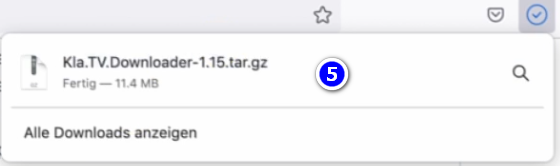
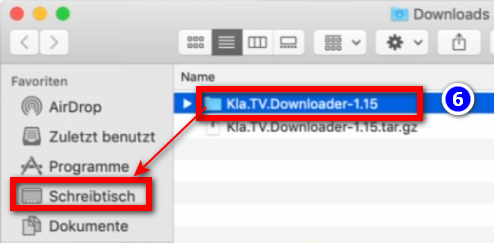
- <span style="background-color: rgb(251, 238, 184);"><span lang="DE" style="font-size: 16pt; line-height: 107%; font-family: Wingdings; background-color: rgb(251, 238, 184);"><span style="mso-char-type: symbol; mso-symbol-font-family: Wingdings;"><span lang="EN-US" style="font-size: 11pt; line-height: 107%; font-family: 'Cambria Math', serif; background-color: rgb(251, 238, 184);">❺</span></span></span> **Öffne** und **entzippe** das Programm → ziehe es z.B. auf den <span lang="EN-US" style="font-size: 11pt; line-height: 107%; font-family: 'Cambria Math', serif; background-color: rgb(251, 238, 184);">❻</span> </span>**<span style="background-color: rgb(251, 238, 184);">Schreibtisch</span>** ![grafik.png](https://wiki.kla.tv/uploads/images/gallery/2024-11/scaled-1680-/fqkvJohFv6e5fZeD-grafik.png)[![grafik.png](https://wiki.kla.tv/uploads/images/gallery/2024-11/scaled-1680-/fgT1bYzgnnG9BTgh-grafik.png)](https://wiki.kla.tv/uploads/images/gallery/2024-11/fgT1bYzgnnG9BTgh-grafik.png)

<span lang="DE" style="font-size: 16.0pt; mso-bidi-font-size: 11.0pt; line-height: 107%; font-family: Wingdings; mso-ascii-font-family: Calibri; mso-ascii-theme-font: minor-latin; mso-fareast-font-family: Calibri; mso-fareast-theme-font: minor-latin; mso-hansi-font-family: Calibri; mso-hansi-theme-font: minor-latin; mso-bidi-font-family: 'Times New Roman'; mso-bidi-theme-font: minor-bidi; mso-ansi-language: DE; mso-fareast-language: EN-US; mso-bidi-language: AR-SA; mso-char-type: symbol; mso-symbol-font-family: Wingdings;"><span style="mso-char-type: symbol; mso-symbol-font-family: Wingdings;">  
</span></span>

### <span style="background-color: rgb(241, 196, 15);">**3. Installation von JAVA (damit der Kla.TV-Downloader funktioniert):**</span>

- <span style="background-color: rgb(251, 238, 184);">Gehe auf die Webseite [**adoptium.net/**](https://adoptium.net/)</span>
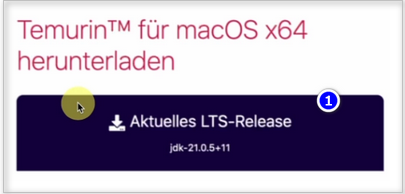
- <span style="background-color: rgb(251, 238, 184);">Hier wird das richtige Programm <span lang="DE" style="font-size: 16pt; line-height: 107%; font-family: Wingdings; background-color: rgb(251, 238, 184);"><span style="mso-char-type: symbol; mso-symbol-font-family: Wingdings;"><span lang="EN-US" style="font-size: 11pt; line-height: 107%; font-family: 'Cambria Math', serif; background-color: rgb(251, 238, 184);">❶</span></span></span> **"Aktuelles LTS-Release"** für deinen Mac angezeigt. Lade es runter durch anklicken</span>  
      
    [![grafik.png](https://wiki.kla.tv/uploads/images/gallery/2024-11/scaled-1680-/EmWazYFln77srf5R-grafik.png)](https://wiki.kla.tv/uploads/images/gallery/2024-11/EmWazYFln77srf5R-grafik.png)
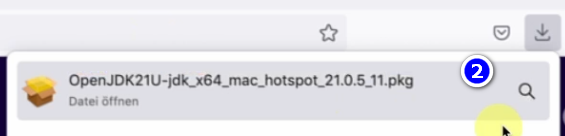
- <span style="background-color: rgb(251, 238, 184);"><span lang="DE" style="font-size: 16pt; line-height: 107%; font-family: Wingdings; background-color: rgb(251, 238, 184);"><span style="mso-char-type: symbol; mso-symbol-font-family: Wingdings;"><span lang="EN-US" style="font-size: 11pt; line-height: 107%; font-family: 'Cambria Math', serif; background-color: rgb(251, 238, 184);">❷</span></span></span> **Installiere** das Programm durch einen Doppelklick → **Fortfahren** → **Akzeptieren** → **Fortfahren** → **Installieren** (gebe Benutzername und Passwort deines Macs ein) → **Software installieren** → **Schließen** → **In den Papierkorb legen** (Installationsdatei)</span>  
      
    [![grafik.png](https://wiki.kla.tv/uploads/images/gallery/2024-11/scaled-1680-/H7DQOnAAE3ZeBUmo-grafik.png)](https://wiki.kla.tv/uploads/images/gallery/2024-11/H7DQOnAAE3ZeBUmo-grafik.png)

### <span style="background-color: rgb(241, 196, 15);">**4. Sicherheitseinstellungen vornehmen und Downloader einrichten:**</span>

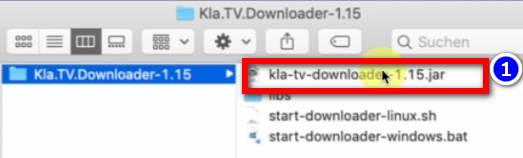
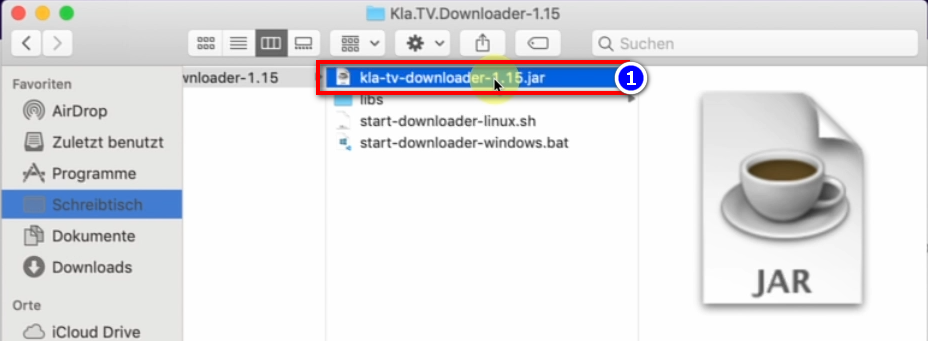
- <span style="background-color: rgb(251, 238, 184);">Gehe auf dem Schreibtisch zum Kla.TV-Downloader-Ordner und öffne <span lang="DE" style="font-size: 16pt; line-height: 107%; font-family: Wingdings; background-color: rgb(251, 238, 184);"><span style="mso-char-type: symbol; mso-symbol-font-family: Wingdings;"><span lang="EN-US" style="font-size: 11pt; line-height: 107%; font-family: 'Cambria Math', serif; background-color: rgb(251, 238, 184);">❶</span></span></span> </span>**<span style="background-color: rgb(251, 238, 184);">kla-tv-downloader-.jar</span>**  ![grafik.png](https://wiki.kla.tv/uploads/images/gallery/2024-11/scaled-1680-/xmXsOy2llxi8ItL3-grafik.png)
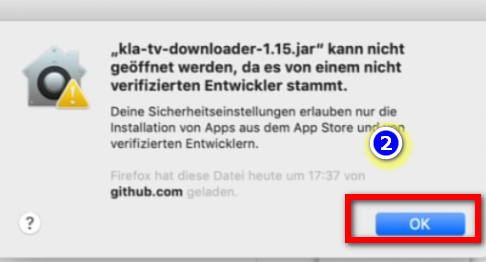
- <span style="background-color: rgb(251, 238, 184);">Klicke auf der<span lang="DE" style="font-size: 16pt; line-height: 107%; font-family: Wingdings; background-color: rgb(251, 238, 184);"><span style="mso-char-type: symbol; mso-symbol-font-family: Wingdings;"><span lang="EN-US" style="font-size: 11pt; line-height: 107%; font-family: Calibri, sans-serif; background-color: rgb(251, 238, 184);"> </span><span lang="EN-US" style="font-size: 11pt; line-height: 107%; font-family: 'Cambria Math', serif; background-color: rgb(251, 238, 184);">❷</span></span></span> **Warnmeldung auf "OK**"</span>  
    [![grafik.png](https://wiki.kla.tv/uploads/images/gallery/2024-11/scaled-1680-/ctWjfFgcE6oNtDZi-grafik.png)](https://wiki.kla.tv/uploads/images/gallery/2024-11/ctWjfFgcE6oNtDZi-grafik.png)

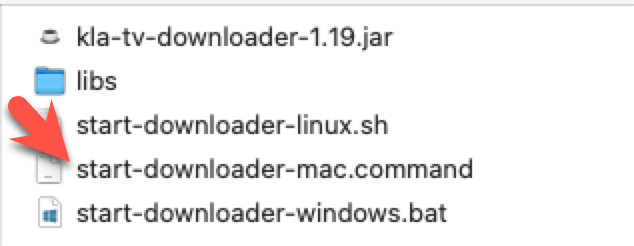
<p class="callout warning">Ältere MAC-Versionen z.B. Mac OS 10.7 können die .jar-Datei nicht mit einem Doppelklick öffnen. Starte dazu die Datei **"start-downloader-mac.command"** die sich ebenfalls im Ordner befindet. Du findest die Datei nicht? Dann lade das Release NEU herunter und entpacke nochmals: [https://github.com/Kla-TV/downloader/releases/](https://github.com/Kla-TV/downloader/releases/). (Die Datei wurde erst am Sa, 23. Nov / 15:12 Uhr hinzugefügt)</p>

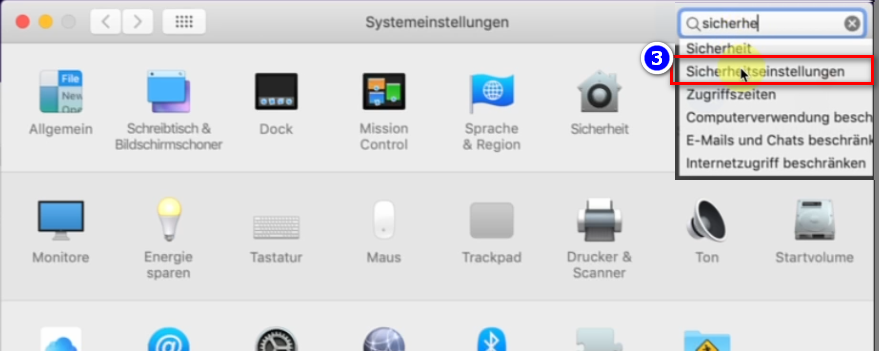
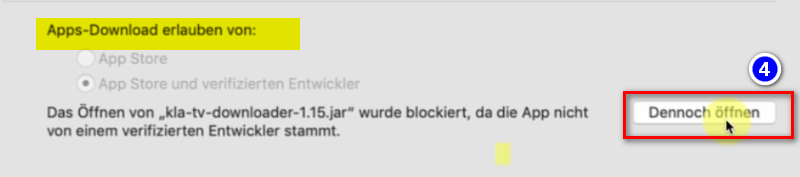
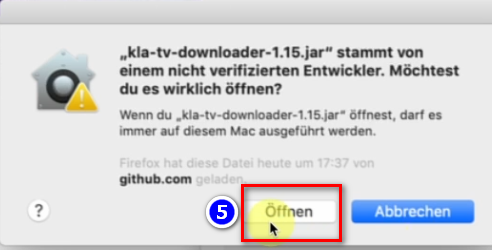
- <span style="background-color: rgb(251, 238, 184);">Öffne die **Systemeinstellungen deines Mac** → gebe <span lang="DE" style="font-size: 16pt; line-height: 107%; font-family: Wingdings; background-color: rgb(251, 238, 184);"><span style="mso-char-type: symbol; mso-symbol-font-family: Wingdings;"><span lang="EN-US" style="font-size: 11pt; line-height: 107%; font-family: 'Cambria Math', serif; background-color: rgb(251, 238, 184);">❸</span></span></span> "**Sicherheitseinstellungen**" ein (neuere Macs gehen auf: Datenschutz und Sicherheit)→ bei "Apps-Download erlauben von" auf <span lang="DE" style="font-size: 16pt; line-height: 107%; font-family: Wingdings; background-color: rgb(251, 238, 184);"><span style="mso-char-type: symbol; mso-symbol-font-family: Wingdings;"><span lang="EN-US" style="font-size: 11pt; line-height: 107%; font-family: 'Cambria Math', serif; background-color: rgb(251, 238, 184);">❹</span></span></span> "**Dennoch öffnen**" klicken → <span lang="DE" style="font-size: 16pt; line-height: 107%; font-family: Wingdings; background-color: rgb(251, 238, 184);"><span style="mso-char-type: symbol; mso-symbol-font-family: Wingdings;"><span lang="EN-US" style="font-size: 11pt; line-height: 107%; font-family: 'Cambria Math', serif; background-color: rgb(251, 238, 184);">❺</span></span></span> </span>**<span style="background-color: rgb(251, 238, 184);">Öffnen </span>  
      
    [![grafik.png](https://wiki.kla.tv/uploads/images/gallery/2024-11/scaled-1680-/4QHcwAGwlXxVJpfH-grafik.png)](https://wiki.kla.tv/uploads/images/gallery/2024-11/4QHcwAGwlXxVJpfH-grafik.png)[![grafik.png](https://wiki.kla.tv/uploads/images/gallery/2024-11/scaled-1680-/7PJo5iZ9CpX9xGP4-grafik.png)](https://wiki.kla.tv/uploads/images/gallery/2024-11/7PJo5iZ9CpX9xGP4-grafik.png)[![grafik.png](https://wiki.kla.tv/uploads/images/gallery/2024-11/scaled-1680-/8DkrZiRyz2KlOO2K-grafik.png)](https://wiki.kla.tv/uploads/images/gallery/2024-11/8DkrZiRyz2KlOO2K-grafik.png)**
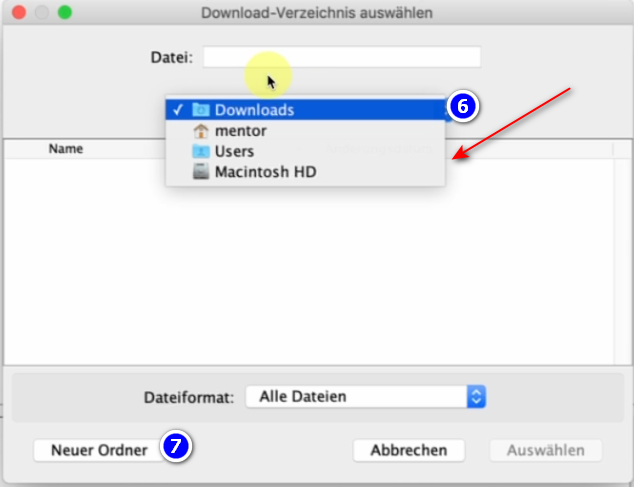
- <span style="background-color: rgb(251, 238, 184);">Wähle im geöffneten Programm, <span lang="DE" style="font-size: 16pt; line-height: 107%; font-family: Wingdings; background-color: rgb(251, 238, 184);"><span style="mso-char-type: symbol; mso-symbol-font-family: Wingdings;"><span lang="EN-US" style="font-size: 11pt; line-height: 107%; font-family: 'Cambria Math', serif; background-color: rgb(251, 238, 184);">❻</span></span></span> **wo die heruntergeladenen Dateien gespeichert** werden sollen (am besten eine geeignete externe Festplatte benutzen) → erstelle einen <span lang="DE" style="font-size: 16pt; line-height: 107%; font-family: Wingdings; background-color: rgb(251, 238, 184);"><span style="mso-char-type: symbol; mso-symbol-font-family: Wingdings;"><span lang="EN-US" style="font-size: 11pt; line-height: 107%; font-family: 'Cambria Math', serif; background-color: rgb(251, 238, 184);">❼</span></span></span> **neuen Ordner** mit dem Namen "KlaTV-Sicherung" und wähle diesen Ordner an</span>  
      
    [![grafik.png](https://wiki.kla.tv/uploads/images/gallery/2024-11/scaled-1680-/2gnwZlKS1YbJ22AJ-grafik.png)](https://wiki.kla.tv/uploads/images/gallery/2024-11/2gnwZlKS1YbJ22AJ-grafik.png)
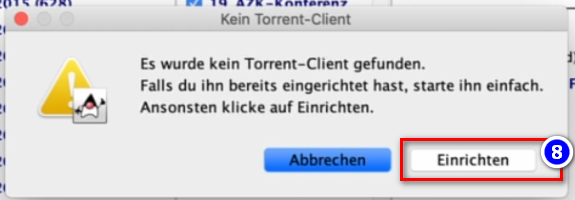
- <span style="background-color: rgb(251, 238, 184);">Meldung erscheint, dass kein Torrent-Client gefunden wurde (weil es noch den qBittorrent dazu braucht) → klicke auf <span lang="DE" style="font-size: 16pt; line-height: 107%; font-family: Wingdings; background-color: rgb(251, 238, 184);"><span style="mso-char-type: symbol; mso-symbol-font-family: Wingdings;"><span lang="EN-US" style="font-size: 11pt; line-height: 107%; font-family: 'Cambria Math', serif; background-color: rgb(251, 238, 184);">❽</span></span></span> </span>**<span style="background-color: rgb(251, 238, 184);">Einrichten</span>** [![grafik.png](https://wiki.kla.tv/uploads/images/gallery/2024-11/scaled-1680-/zhpiLXdRyXCGj3Pj-grafik.png)](https://wiki.kla.tv/uploads/images/gallery/2024-11/zhpiLXdRyXCGj3Pj-grafik.png)

### <span style="background-color: rgb(241, 196, 15);">**5. qBittorrent einrichten:**</span>

- <span style="background-color: rgb(251, 238, 184);">Nachdem du oben in Schritt <span lang="DE" style="font-size: 16pt; line-height: 107%; font-family: Wingdings; background-color: rgb(251, 238, 184);"><span style="mso-char-type: symbol; mso-symbol-font-family: Wingdings;"><span lang="EN-US" style="font-size: 11pt; line-height: 107%; font-family: 'Cambria Math', serif; background-color: rgb(251, 238, 184);">8 </span></span></span> auf Einrichten gedrückt hast, öffnet sich eine Internetseite. Lass die Seite geöffnet</span>
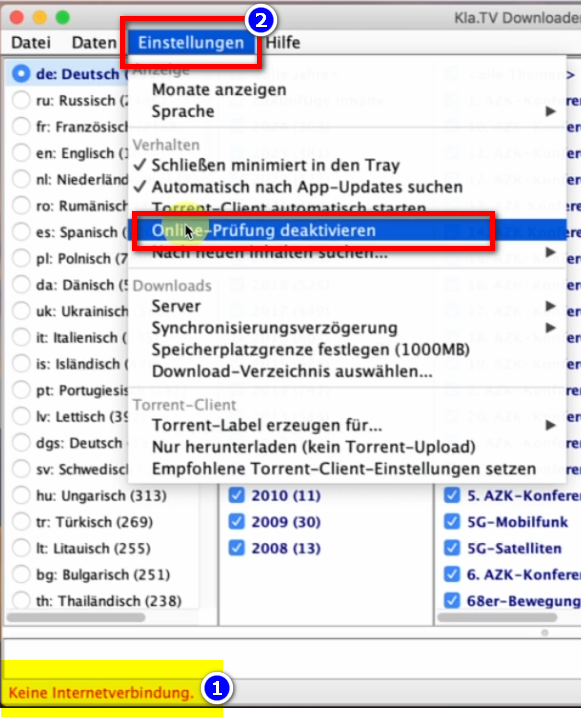
- <span style="background-color: rgb(251, 238, 184);">Wechsle ins **KlaTV-Downloader-Programm** und wenn unten in rot steht: <span lang="DE" style="font-size: 16pt; line-height: 107%; font-family: Wingdings; background-color: rgb(251, 238, 184);"><span style="mso-char-type: symbol; mso-symbol-font-family: Wingdings;"><span lang="EN-US" style="font-size: 11pt; line-height: 107%; font-family: 'Cambria Math', serif; background-color: rgb(251, 238, 184);">❶</span></span></span> "**keine Internetverbindung**" dann gehe in der <span lang="DE" style="font-size: 16pt; line-height: 107%; font-family: Wingdings; background-color: rgb(251, 238, 184);"><span style="mso-char-type: symbol; mso-symbol-font-family: Wingdings;"><span lang="EN-US" style="font-size: 11pt; line-height: 107%; font-family: 'Cambria Math', serif; background-color: rgb(251, 238, 184);">❷</span></span></span> **Menüleiste** auf → **Einstellungen** → </span>**<span style="background-color: rgb(251, 238, 184);">Online-Prüfung deaktivieren</span>  
      
    [![grafik.png](https://wiki.kla.tv/uploads/images/gallery/2024-11/scaled-1680-/lBx9ws8cG2ode0kv-grafik.png)](https://wiki.kla.tv/uploads/images/gallery/2024-11/lBx9ws8cG2ode0kv-grafik.png)**
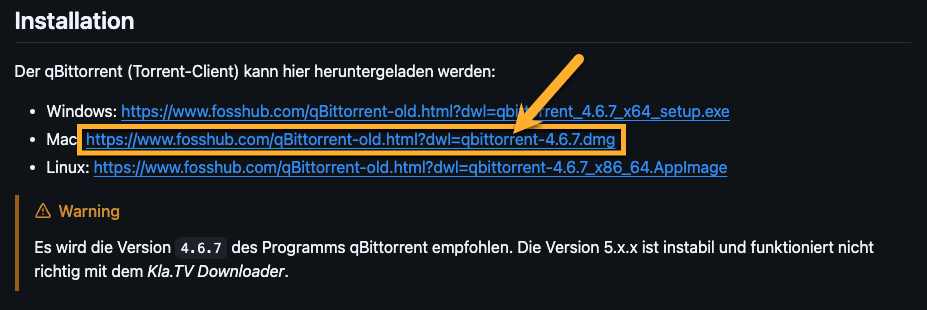
- <span style="background-color: rgb(251, 238, 184);">Wechsle wieder auf die Internetseite (Torrent-Client...) und scrolle zu "Installation" → wähle das <span lang="DE" style="font-size: 16pt; line-height: 107%; font-family: Wingdings; background-color: rgb(251, 238, 184);"><span style="mso-char-type: symbol; mso-symbol-font-family: Wingdings;"><span lang="EN-US" style="font-size: 11pt; line-height: 107%; font-family: 'Cambria Math', serif; background-color: rgb(251, 238, 184);">❸</span></span></span> </span>**<span style="background-color: rgb(251, 238, 184);">Download-Programm   
      
    [https://github.com/Kla-TV/downloader/wiki/Torrent%E2%80%90Client-manuell-einrichten#installation](https://github.com/Kla-TV/downloader/wiki/Torrent%E2%80%90Client-manuell-einrichten#installation) </span>** [![image.png](https://wiki.kla.tv/uploads/images/gallery/2024-12/scaled-1680-/Xlt4zxUN0Vaj36Lb-image.png)](https://wiki.kla.tv/uploads/images/gallery/2024-12/Xlt4zxUN0Vaj36Lb-image.png)
- <span style="background-color: rgb(251, 238, 184);">Der Download startet automatisch, sobald auf den Mac-Link geklickt wurde.</span>
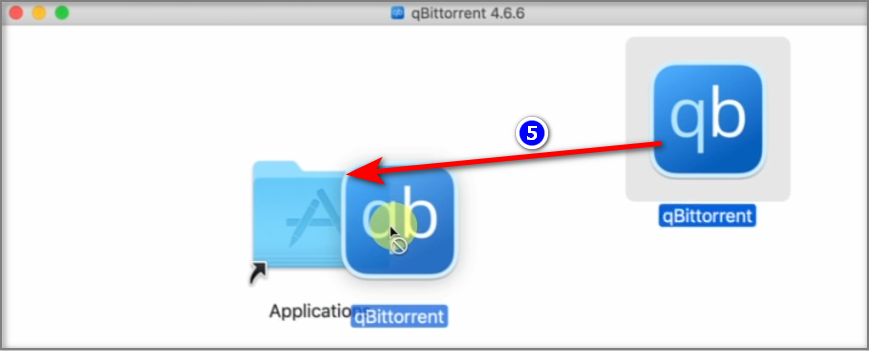
- <span style="background-color: rgb(251, 238, 184);">Das Installationsfenster öffnet sich. Ziehe das <span lang="DE" style="font-size: 16pt; line-height: 107%; font-family: Wingdings; background-color: rgb(251, 238, 184);"><span style="mso-char-type: symbol; mso-symbol-font-family: Wingdings;"><span lang="EN-US" style="font-size: 11pt; line-height: 107%; font-family: 'Cambria Math', serif; background-color: rgb(251, 238, 184);">❺</span></span></span> **Programm in die Applications** → Authentifizieren (Mac-PW eingeben)  
    </span>  
    [![grafik.png](https://wiki.kla.tv/uploads/images/gallery/2024-11/scaled-1680-/OtnZFeOV0e12B3va-grafik.png)](https://wiki.kla.tv/uploads/images/gallery/2024-11/OtnZFeOV0e12B3va-grafik.png)
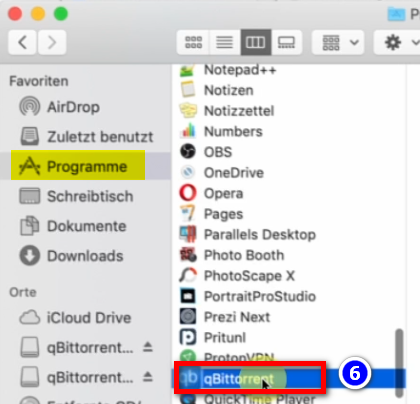
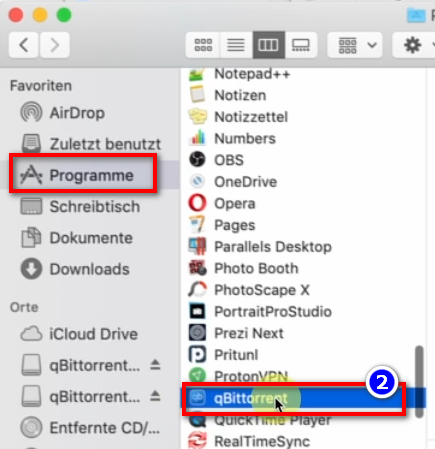
- <span style="background-color: rgb(251, 238, 184);">Gehe zu deinen Programmen und öffne <span lang="DE" style="font-size: 16pt; line-height: 107%; font-family: Wingdings; background-color: rgb(251, 238, 184);"><span style="mso-char-type: symbol; mso-symbol-font-family: Wingdings;"><span lang="EN-US" style="font-size: 11pt; line-height: 107%; font-family: 'Cambria Math', serif; background-color: rgb(251, 238, 184);">❻</span></span></span> "**qBittorent**"</span>  
      
    ![grafik.png](https://wiki.kla.tv/uploads/images/gallery/2024-11/scaled-1680-/R6s026HMTWcaSmzq-grafik.png)
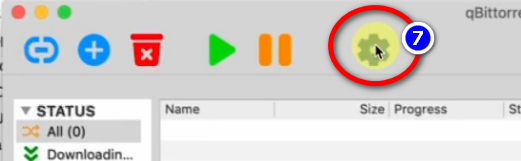
- <span style="background-color: rgb(251, 238, 184);">Gehe im Programm "qBittorent" auf das <span lang="DE" style="font-size: 16pt; line-height: 107%; font-family: Wingdings; background-color: rgb(251, 238, 184);"><span style="mso-char-type: symbol; mso-symbol-font-family: Wingdings;"><span lang="EN-US" style="font-size: 11pt; line-height: 107%; font-family: 'Cambria Math', serif; background-color: rgb(251, 238, 184);">❼</span></span></span> </span>**<span style="background-color: rgb(251, 238, 184);">Zahnrad </span>  
      
    [![grafik.png](https://wiki.kla.tv/uploads/images/gallery/2024-11/scaled-1680-/JZfeWVhWlOmQeUQm-grafik.png)](https://wiki.kla.tv/uploads/images/gallery/2024-11/JZfeWVhWlOmQeUQm-grafik.png)**
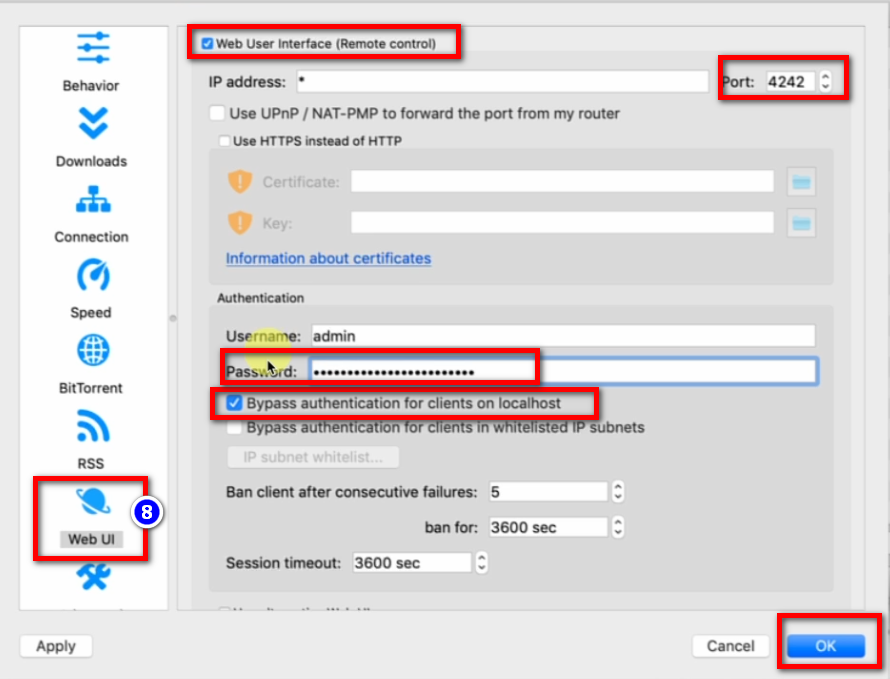
- <span style="background-color: rgb(251, 238, 184);"><span lang="DE" style="font-size: 16pt; line-height: 107%; font-family: Wingdings; background-color: rgb(251, 238, 184);"><span style="mso-char-type: symbol; mso-symbol-font-family: Wingdings;"><span lang="EN-US" style="font-size: 11pt; line-height: 107%; font-family: 'Cambria Math', serif; background-color: rgb(251, 238, 184);">❽</span></span></span>→ **Web UI** → aktiviere: "**Web User Intercace**" → Port: **4242** → Hacken bei "**Bypass authentication for clients on localhost**" → **Passwort**: irgendetwas eintragen, man muss es sich nicht merken</span>  
      
    [![grafik.png](https://wiki.kla.tv/uploads/images/gallery/2024-11/scaled-1680-/Q9GO0locW3FdJvQ2-grafik.png)](https://wiki.kla.tv/uploads/images/gallery/2024-11/Q9GO0locW3FdJvQ2-grafik.png)  
      
    
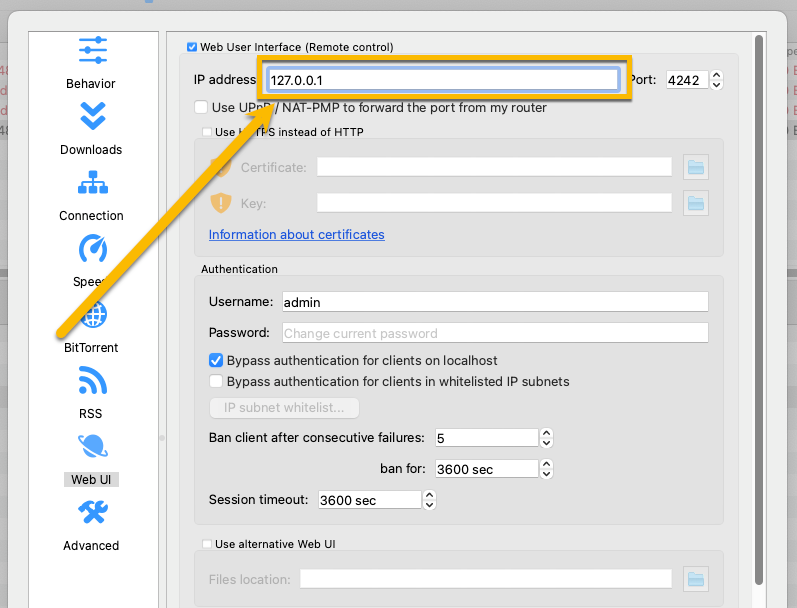
    - <span style="background-color: rgb(251, 238, 184);">**Zusätzlich (noch nicht in Video-Anleitung enthalten)** bei "IP address" statt \* **die lokale IP 127.0.0.1 eintragen**, damit **der Zugriff auf das Web User Interface nur vom lokalen Rechner aus möglich ist** und nicht von jedem Computer im lokalen Netzwerk</span>[![grafik.png](https://wiki.kla.tv/uploads/images/gallery/2026-02/scaled-1680-/UTbW14o1AjH88hxU-grafik.png)](https://wiki.kla.tv/uploads/images/gallery/2026-02/UTbW14o1AjH88hxU-grafik.png)
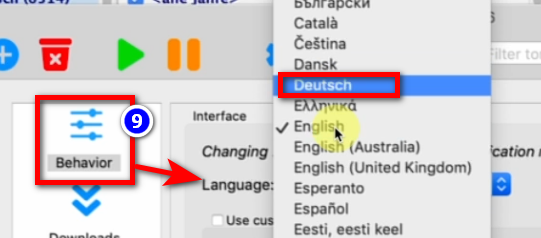
- <span style="background-color: rgb(251, 238, 184);"><span lang="DE" style="font-size: 16pt; line-height: 107%; font-family: Wingdings; background-color: rgb(251, 238, 184);"><span style="mso-char-type: symbol; mso-symbol-font-family: Wingdings;"><span lang="EN-US" style="font-size: 11pt; line-height: 107%; font-family: 'Cambria Math', serif; background-color: rgb(251, 238, 184);">❾</span></span></span>→ Behavior → Sprache: **deutsch** → </span>**<span style="background-color: rgb(251, 238, 184);">OK</span>  
      
    [![grafik.png](https://wiki.kla.tv/uploads/images/gallery/2024-11/scaled-1680-/55rNMIdKK7U0mTje-grafik.png)](https://wiki.kla.tv/uploads/images/gallery/2024-11/55rNMIdKK7U0mTje-grafik.png)**
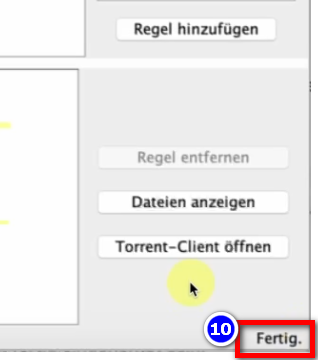
- <span style="background-color: rgb(251, 238, 184);">Schließe das Programm "Kla.TV-Downloader" und öffne es erneut → unten rechts steht nun <span lang="DE" style="font-size: 16pt; line-height: 107%; font-family: Wingdings; background-color: rgb(251, 238, 184);"><span style="mso-char-type: symbol; mso-symbol-font-family: Wingdings;"><span lang="EN-US" style="font-size: 11pt; line-height: 107%; font-family: 'Cambria Math', serif; background-color: rgb(251, 238, 184);">❿</span></span></span> "**Fertig**"</span>  
      
    [![grafik.png](https://wiki.kla.tv/uploads/images/gallery/2024-11/scaled-1680-/84bPGOJXwVAXo7fR-grafik.png)](https://wiki.kla.tv/uploads/images/gallery/2024-11/84bPGOJXwVAXo7fR-grafik.png)
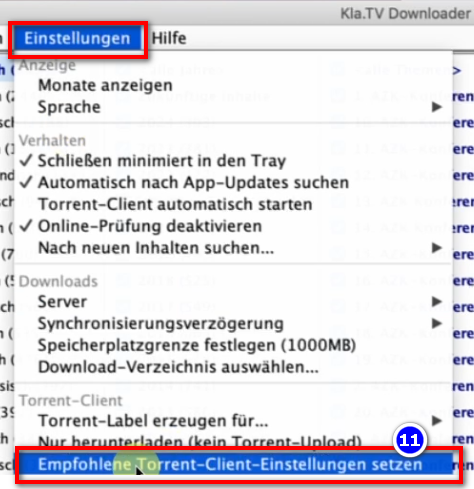
- <span style="background-color: rgb(251, 238, 184);">Gehe im <span lang="DE" style="font-size: 16pt; line-height: 107%; font-family: Wingdings; background-color: rgb(251, 238, 184);"><span style="mso-char-type: symbol; mso-symbol-font-family: Wingdings;"><span lang="EN-US" style="font-size: 11pt; line-height: 107%; font-family: 'Cambria Math', serif; background-color: rgb(251, 238, 184);">❿</span></span></span><span lang="DE" style="font-size: 16pt; line-height: 107%; font-family: Wingdings; background-color: rgb(251, 238, 184);"><span style="mso-char-type: symbol; mso-symbol-font-family: Wingdings;"><span lang="EN-US" style="font-size: 11pt; line-height: 107%; font-family: 'Cambria Math', serif; background-color: rgb(251, 238, 184);">❶</span></span></span> **Programm <span style="text-decoration: underline;">KlaTV-Downloader</span>** auf die **Menüleiste** → **Einstellungen** → **Empfohlene Torrent-Client-Einstellungen setzen** (alle richtigen Einstellungen werden automatisch eingetragen)</span>  
      
    [![grafik.png](https://wiki.kla.tv/uploads/images/gallery/2024-11/scaled-1680-/gqloWaqFD8o7LbNg-grafik.png)](https://wiki.kla.tv/uploads/images/gallery/2024-11/gqloWaqFD8o7LbNg-grafik.png)


### <span style="background-color: rgb(241, 196, 15);">**6. Synchronisieren:**</span>

<p class="callout info">Der KlaTV-Downloader fügt Synchronisierungsregeln hinzu und schickt diese an den qBittorrent, der daraufhin die Sendungen herunterlädt und sie immer auf den aktuellsten Stand hält. Das bedeutet: Der KlaTV-Downloader definiert lediglich nur wie und was heruntergeladen werden soll, während qBittorrent die Arbeit vom herunterladen übernimmt.</p>

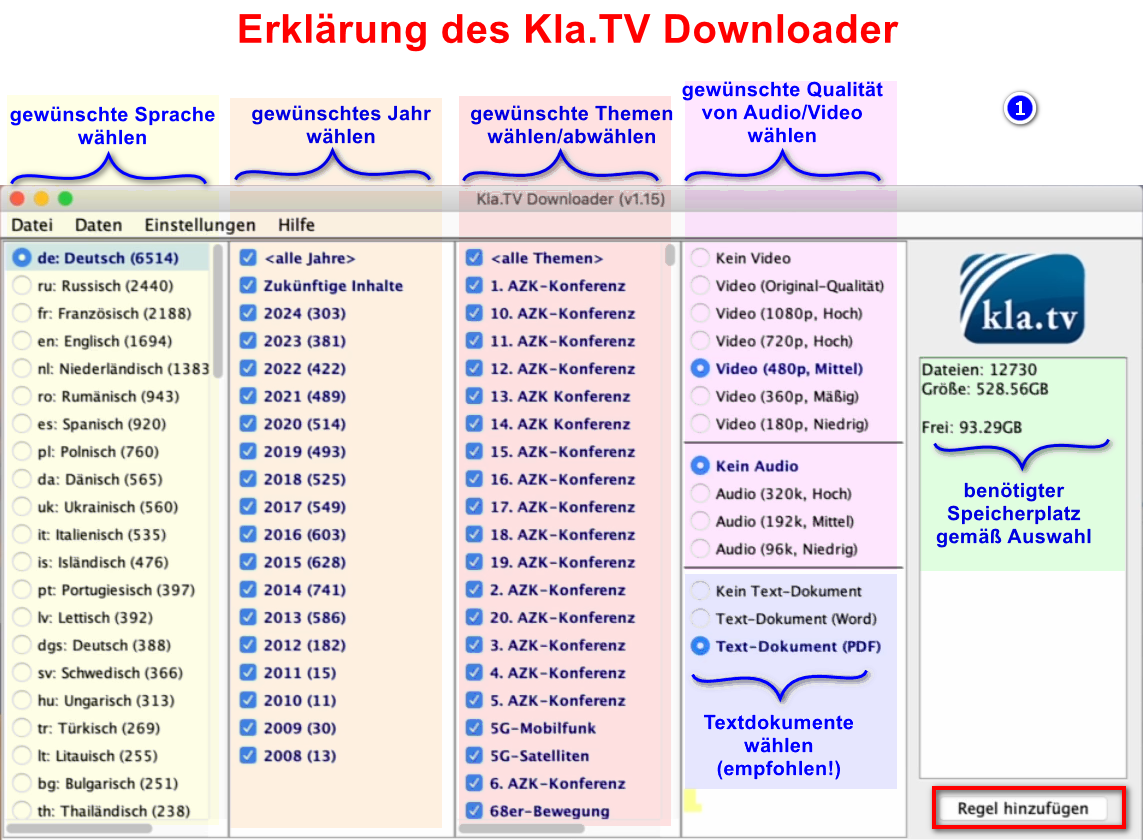
- <span style="background-color: rgb(251, 238, 184);">Öffne den **kla.TV-Downloader** → wähle deine <span lang="DE" style="font-size: 16pt; line-height: 107%; font-family: Wingdings; background-color: rgb(251, 238, 184);"><span style="mso-char-type: symbol; mso-symbol-font-family: Wingdings;"><span lang="EN-US" style="font-size: 11pt; line-height: 107%; font-family: 'Cambria Math', serif; background-color: rgb(251, 238, 184);">❶</span></span></span> **gewünschten Regeln**. (Erklärung dazu, siehe im Bild)</span>  
    [![grafik.png](https://wiki.kla.tv/uploads/images/gallery/2024-11/scaled-1680-/Q9Op8e0KGpDAFHm6-grafik.png)](https://wiki.kla.tv/uploads/images/gallery/2024-11/Q9Op8e0KGpDAFHm6-grafik.png)
- <span style="background-color: rgb(251, 238, 184);">Möchtest du **mehrere Qualiltäten** auswählen, musst du mehrmals nacheinander eine "Regel hinzufügen". Dann wird dieser Auftrag an den qBittorrent geschickt und dort runtergeladen. </span>  
    
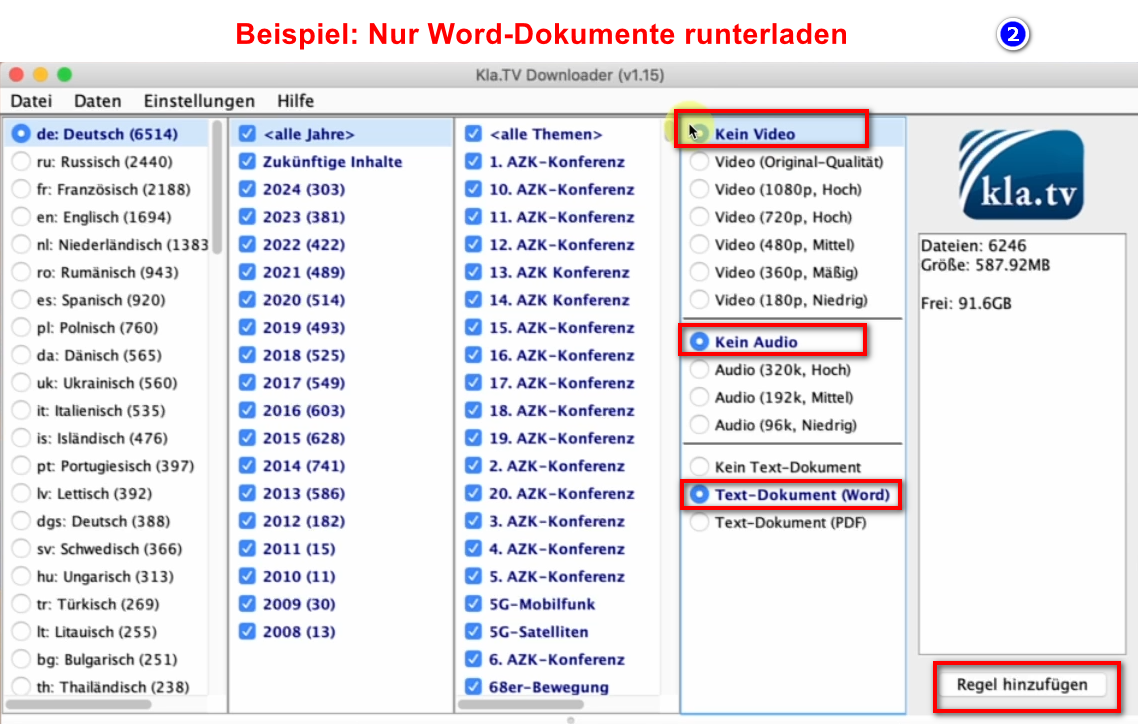
    - <span style="background-color: rgb(251, 238, 184);">Hier ein <span lang="DE" style="font-size: 16pt; line-height: 107%; font-family: Wingdings; background-color: rgb(251, 238, 184);"><span style="mso-char-type: symbol; mso-symbol-font-family: Wingdings;"><span lang="EN-US" style="font-size: 11pt; line-height: 107%; font-family: 'Calibri', sans-serif; background-color: rgb(251, 238, 184);"> </span><span lang="EN-US" style="font-size: 11pt; line-height: 107%; font-family: 'Cambria Math', serif; background-color: rgb(251, 238, 184);">❷</span></span></span> **Beispiel**, wenn du eine neue Regel erfassen möchtest, mit z.B. **NUR Word-Dateien**. Dann deaktiviere Video/Audio, wähle die gewünschten Jahre und füge die Regel hinzu. </span>  
        [![grafik.png](https://wiki.kla.tv/uploads/images/gallery/2024-11/scaled-1680-/MyrlhWDMHW4eBhyZ-grafik.png)](https://wiki.kla.tv/uploads/images/gallery/2024-11/MyrlhWDMHW4eBhyZ-grafik.png)
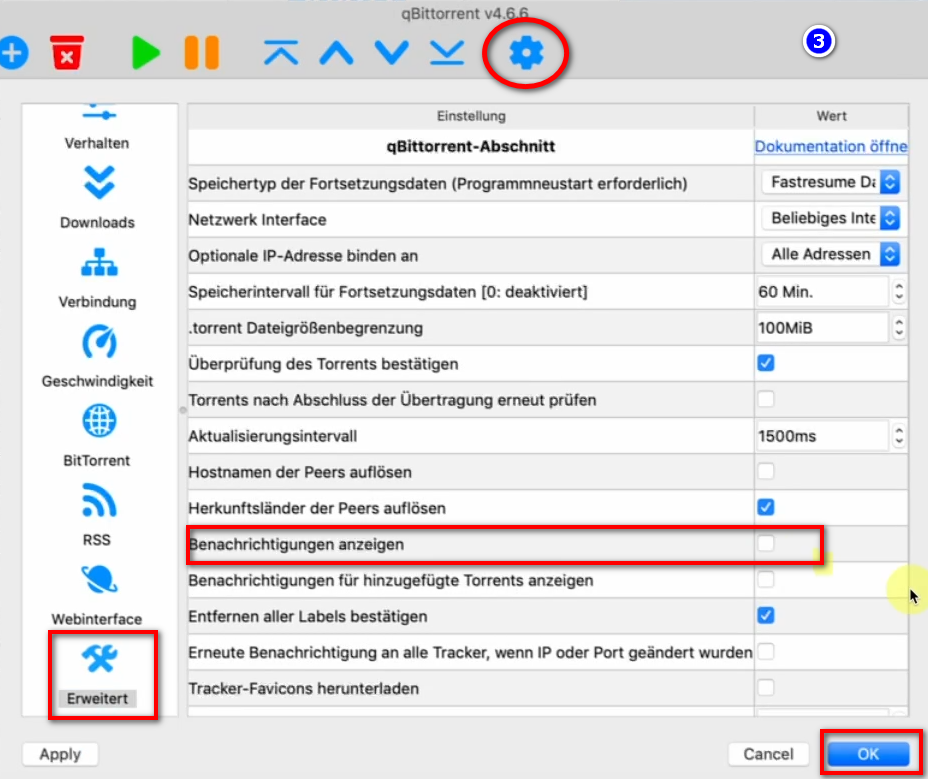
- <span style="background-color: rgb(251, 238, 184);">Damit nicht für jedes runtergeladene Video eine **Popup**-**Meldung** erscheint → gehe in den <span lang="DE" style="font-size: 16pt; line-height: 107%; font-family: Wingdings; background-color: rgb(251, 238, 184);"><span style="mso-char-type: symbol; mso-symbol-font-family: Wingdings;"><span lang="EN-US" style="font-size: 11pt; line-height: 107%; font-family: 'Cambria Math', serif; background-color: rgb(251, 238, 184);">❸ </span></span></span>**qBittorrent** → **Zahnrad** → **Erweitert** → **Benachrichtigungen anzeigen** → **deaktivieren** → </span>**<span style="background-color: rgb(251, 238, 184);">OK</span>  
      
    [![grafik.png](https://wiki.kla.tv/uploads/images/gallery/2024-11/scaled-1680-/6G1eB56aGCy3ji5X-grafik.png)](https://wiki.kla.tv/uploads/images/gallery/2024-11/6G1eB56aGCy3ji5X-grafik.png)**
- <span style="background-color: rgb(251, 238, 184);">**Programme können geschlossen werden** und es ladet im Hintergrund weiter</span>
- <span style="background-color: rgb(251, 238, 184);">Im <span lang="DE" style="font-size: 16pt; line-height: 107%; font-family: Wingdings; background-color: rgb(251, 238, 184);"><span style="mso-char-type: symbol; mso-symbol-font-family: Wingdings;"><span lang="EN-US" style="font-size: 11pt; line-height: 107%; font-family: 'Cambria Math', serif; background-color: rgb(251, 238, 184);">❹</span></span></span> **Header** kannst du das </span>**<span style="background-color: rgb(251, 238, 184);">Programmw wieder öffnen</span>  
      
    [![grafik.png](https://wiki.kla.tv/uploads/images/gallery/2024-11/scaled-1680-/H0S0ZQ0639Lk5hWA-grafik.png)](https://wiki.kla.tv/uploads/images/gallery/2024-11/H0S0ZQ0639Lk5hWA-grafik.png)**


### <span style="background-color: rgb(241, 196, 15);">**6. Upload für andere Leute zur Verfügung stellen:**</span>

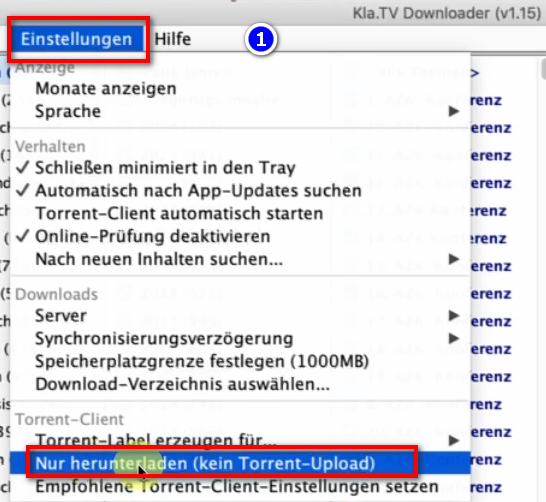
- <span style="background-color: rgb(251, 238, 184);">Der qBittorrent stellt standardmässig alle Dateien die man runterlädt anderen Leuten zur Verfügung. <span style="text-decoration: underline;">Möchte man das aus irgendwelchen Gründen nicht</span>, dann kann es deaktiviert werden:  
    </span>
- <span style="background-color: rgb(251, 238, 184);">Öffne <span lang="DE" style="font-size: 16pt; line-height: 107%; font-family: Wingdings; background-color: rgb(251, 238, 184);"><span style="mso-char-type: symbol; mso-symbol-font-family: Wingdings;"><span lang="EN-US" style="font-size: 11pt; line-height: 107%; font-family: 'Cambria Math', serif; background-color: rgb(251, 238, 184);">❶</span></span></span> **qBittorrent** → **Einstellungen** → </span>**<span style="background-color: rgb(251, 238, 184);">Nur herunterladen (kein Torrent-Upload)</span>  
      
      
    [![grafik.png](https://wiki.kla.tv/uploads/images/gallery/2024-11/scaled-1680-/TTyJJDELOuYYB7pb-grafik.png)](https://wiki.kla.tv/uploads/images/gallery/2024-11/TTyJJDELOuYYB7pb-grafik.png)**

### <span style="background-color: rgb(241, 196, 15);">**7. Empfehlung: Energieoptionen so einstellen, dass Computer nicht automatisch runterfährt:**   
</span>

<p class="callout info">Dieses Programm kann schnell mehrere Tage brauche, bis alles synchronisiert ist. Um diesen Vorgang zu verschnellern, empfielt es sich, den Energiesparmodus auszuschalten</p>

- <span style="background-color: rgb(251, 238, 184);">Wird der Computer neu gestartet, musst du die Applikation wieder neu starten müssen (siehe Anleitung Punkt 8)</span>
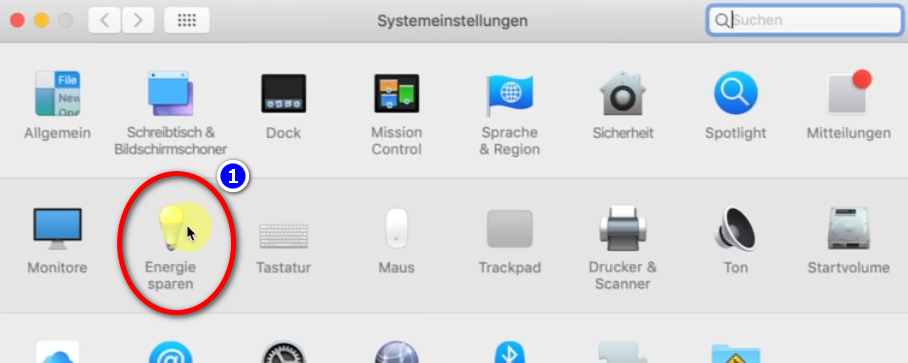
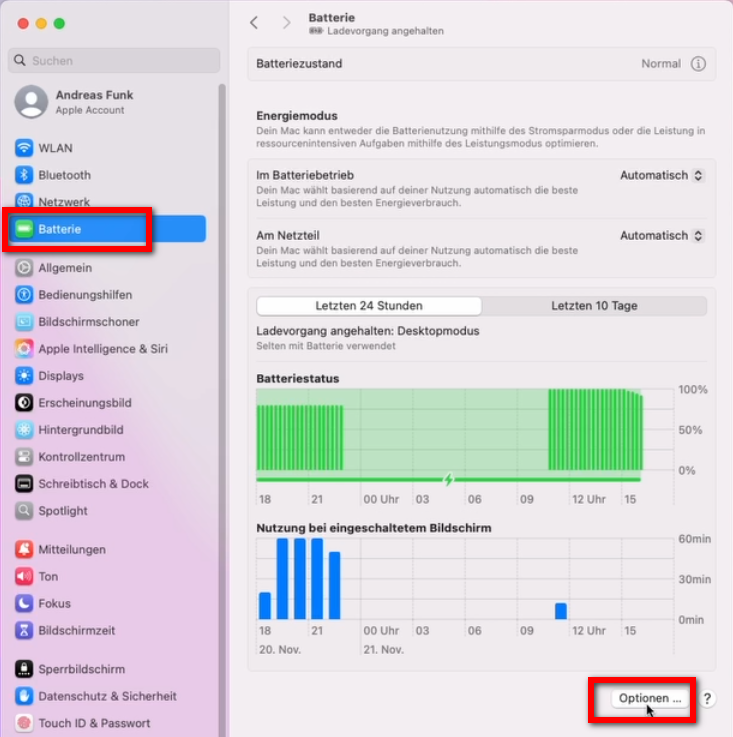
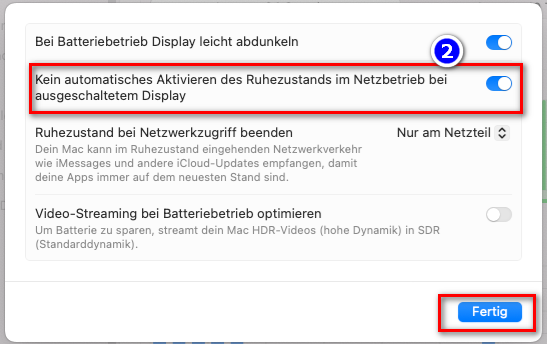
- <span style="background-color: rgb(251, 238, 184);">Damit der Mac nicht automatisch runtergefahren wird: Mac → <span lang="DE" style="font-size: 16pt; line-height: 107%; font-family: Wingdings; background-color: rgb(251, 238, 184);"><span style="mso-char-type: symbol; mso-symbol-font-family: Wingdings;"><span lang="EN-US" style="font-size: 11pt; line-height: 107%; font-family: 'Cambria Math', serif; background-color: rgb(251, 238, 184);">❶</span></span></span> **Systemeinstellungen** → **Energie sparen** → </span>  
    <span style="background-color: rgb(251, 238, 184);"><span lang="DE" style="font-size: 16pt; line-height: 107%; font-family: Wingdings; background-color: rgb(251, 238, 184);"><span style="mso-char-type: symbol; mso-symbol-font-family: Wingdings;"><span lang="EN-US" style="font-size: 11pt; line-height: 107%; font-family: 'Cambria Math', serif; background-color: rgb(251, 238, 184);">❷</span></span></span> **Kein automatisches Aktivieren des Ruhezustands ... → aktivieren**</span>
- <span style="background-color: rgb(251, 238, 184);">Computer laufen lassen, bis alle Dateien runtergeladen sind</span>
- [![grafik.png](https://wiki.kla.tv/uploads/images/gallery/2024-11/scaled-1680-/23U7rqFWbWlhJ5Uv-grafik.png)](https://wiki.kla.tv/uploads/images/gallery/2024-11/23U7rqFWbWlhJ5Uv-grafik.png)  
    <span style="background-color: rgb(251, 238, 184);">bei neueren Macs:</span>
    
    [![grafik.png](https://wiki.kla.tv/uploads/images/gallery/2024-11/scaled-1680-/gmOpiNFU9gKHn9B0-grafik.png)](https://wiki.kla.tv/uploads/images/gallery/2024-11/gmOpiNFU9gKHn9B0-grafik.png)
    
    [![grafik.png](https://wiki.kla.tv/uploads/images/gallery/2024-11/scaled-1680-/PGDWa65L7V1hj21V-grafik.png)](https://wiki.kla.tv/uploads/images/gallery/2024-11/PGDWa65L7V1hj21V-grafik.png)
### <span style="background-color: rgb(241, 196, 15);">**8. Programm neu starten, nach Computerneustart / Archiv aktuell behalten** </span>

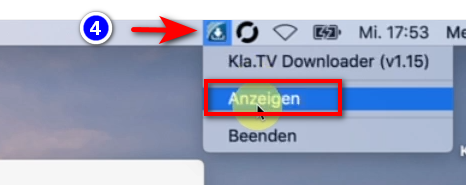
- <span style="background-color: rgb(251, 238, 184);">Wenn du deinen Computer neu startest, sind deine Downloadprogramm geschlossen. Damit der Downloadprozess weiterlaufen kann, solltest du beide Proramme (<span lang="DE" style="font-size: 16pt; line-height: 107%; font-family: Wingdings; background-color: rgb(251, 238, 184);"><span style="mso-char-type: symbol; mso-symbol-font-family: Wingdings;"><span lang="EN-US" style="font-size: 11pt; line-height: 107%; font-family: 'Cambria Math', serif; background-color: rgb(251, 238, 184);">❶</span></span></span> **KlaTV-Downloader** und <span lang="DE" style="font-size: 16pt; line-height: 107%; font-family: Wingdings; background-color: rgb(251, 238, 184);"><span style="mso-char-type: symbol; mso-symbol-font-family: Wingdings;"><span lang="EN-US" style="font-size: 11pt; line-height: 107%; font-family: 'Cambria Math', serif; background-color: rgb(251, 238, 184);">❷</span></span></span> **qBittorrent**) **neu öffnen**. Somit wird der Downloadprozess automatisch fortgesetzt.</span>  
      
    **[![grafik.png](https://wiki.kla.tv/uploads/images/gallery/2024-11/scaled-1680-/IjhxA7jMF7QCHpDT-grafik.png)](https://wiki.kla.tv/uploads/images/gallery/2024-11/IjhxA7jMF7QCHpDT-grafik.png)[![grafik.png](https://wiki.kla.tv/uploads/images/gallery/2024-11/scaled-1680-/DPiy0yNoIIVHuK7d-grafik.png)](https://wiki.kla.tv/uploads/images/gallery/2024-11/DPiy0yNoIIVHuK7d-grafik.png)**
- <span style="background-color: rgb(251, 238, 184);">**Achte darauf, dass du von Zeit zu Zeit diese beiden Programme öffnest, dass die aktuellen Sendungen automatisch auf deine Festplatte runtergeladen werden**</span>

### <span style="background-color: rgb(241, 196, 15);">**9. Update installieren:** </span>

- **<span style="background-color: rgb(251, 238, 184);">Von Zeit zu Zeit wird der KlaTV-Downloader optimiert und du solltest das Update installieren. So funktioniert es:  
    </span>**
- <span style="background-color: rgb(251, 238, 184);">Öffne den Kla.TV Downloader</span>
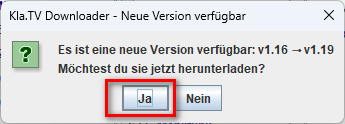
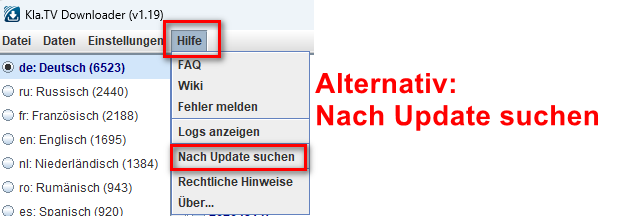
- <span style="background-color: rgb(251, 238, 184);">Diese Meldung erscheint: (Wenn nicht, dann gehe im Kla.TV Downloader auf → Hilfe → Nach Updates suchen</span>  
    [![grafik.png](https://wiki.kla.tv/uploads/images/gallery/2024-12/scaled-1680-/CPxIwgY3Aw6GYURU-grafik.png)](https://wiki.kla.tv/uploads/images/gallery/2024-12/CPxIwgY3Aw6GYURU-grafik.png)
    
    [![grafik.png](https://wiki.kla.tv/uploads/images/gallery/2024-12/scaled-1680-/YaiCj1fp8YsCOMGW-grafik.png)](https://wiki.kla.tv/uploads/images/gallery/2024-12/YaiCj1fp8YsCOMGW-grafik.png)
- <span style="background-color: rgb(251, 238, 184);">Das Internet öffnet sich, scrolle runter zu "Assets" </span><span style="background-color: rgb(251, 238, 184);">→ klicke auf <span lang="DE" style="font-size: 16pt; line-height: 107%; font-family: Wingdings; background-color: rgb(251, 238, 184);"><span style="mso-char-type: symbol; mso-symbol-font-family: Wingdings;"><span lang="EN-US" style="font-size: 11pt; line-height: 107%; font-family: 'Cambria Math', serif; background-color: rgb(251, 238, 184);">❹</span></span></span> "**Kla.TV.Downloader-\*.\*\*.tar.gz**"</span>
    - [![grafik.png](https://wiki.kla.tv/uploads/images/gallery/2024-11/scaled-1680-/xKO8pwvIyzzKFFa6-grafik.png)](https://wiki.kla.tv/uploads/images/gallery/2024-11/xKO8pwvIyzzKFFa6-grafik.png)
    - <span style="background-color: rgb(251, 238, 184);"><span lang="DE" style="font-size: 16pt; line-height: 107%; font-family: Wingdings; background-color: rgb(251, 238, 184);"><span style="mso-char-type: symbol; mso-symbol-font-family: Wingdings;"><span lang="EN-US" style="font-size: 11pt; line-height: 107%; font-family: 'Cambria Math', serif; background-color: rgb(251, 238, 184);">❺</span></span></span> **Öffne** und **entzippe** das Programm → ziehe es z.B. auf den <span lang="EN-US" style="font-size: 11pt; line-height: 107%; font-family: 'Cambria Math', serif; background-color: rgb(251, 238, 184);">❻</span> </span>**<span style="background-color: rgb(251, 238, 184);">Schreibtisch</span>** ![grafik.png](https://wiki.kla.tv/uploads/images/gallery/2024-11/scaled-1680-/fqkvJohFv6e5fZeD-grafik.png)[![grafik.png](https://wiki.kla.tv/uploads/images/gallery/2024-11/scaled-1680-/fgT1bYzgnnG9BTgh-grafik.png)](https://wiki.kla.tv/uploads/images/gallery/2024-11/fgT1bYzgnnG9BTgh-grafik.png)
    
    
    - <span style="background-color: rgb(251, 238, 184);">Gehe auf dem Schreibtisch zum Kla.TV-Downloader-Ordner und öffne </span>**<span style="background-color: rgb(251, 238, 184);">start-downlaoder-mac.command</span>**[![grafik.png](https://wiki.kla.tv/uploads/images/gallery/2024-12/scaled-1680-/vZn1x5u9UzFI8eE7-grafik.png)](https://wiki.kla.tv/uploads/images/gallery/2024-12/vZn1x5u9UzFI8eE7-grafik.png)
    - <span style="background-color: rgb(251, 238, 184);">Klicke auf der<span lang="DE" style="font-size: 16pt; line-height: 107%; font-family: Wingdings; background-color: rgb(251, 238, 184);"><span style="mso-char-type: symbol; mso-symbol-font-family: Wingdings;"><span lang="EN-US" style="font-size: 11pt; line-height: 107%; font-family: Calibri, sans-serif; background-color: rgb(251, 238, 184);"> </span><span lang="EN-US" style="font-size: 11pt; line-height: 107%; font-family: 'Cambria Math', serif; background-color: rgb(251, 238, 184);">❷</span></span></span> **Warnmeldung auf "OK**"</span>  
        [![grafik.png](https://wiki.kla.tv/uploads/images/gallery/2024-11/scaled-1680-/ctWjfFgcE6oNtDZi-grafik.png)](https://wiki.kla.tv/uploads/images/gallery/2024-11/ctWjfFgcE6oNtDZi-grafik.png)
    
    
    - <span style="background-color: rgb(251, 238, 184);">Öffne die **Systemeinstellungen deines Mac** → gebe <span lang="DE" style="font-size: 16pt; line-height: 107%; font-family: Wingdings; background-color: rgb(251, 238, 184);"><span style="mso-char-type: symbol; mso-symbol-font-family: Wingdings;"><span lang="EN-US" style="font-size: 11pt; line-height: 107%; font-family: 'Cambria Math', serif; background-color: rgb(251, 238, 184);">❸</span></span></span> "**Sicherheitseinstellungen**" ein (neuere Macs gehen auf: Datenschutz und Sicherheit)→ bei "Apps-Download erlauben von" auf <span lang="DE" style="font-size: 16pt; line-height: 107%; font-family: Wingdings; background-color: rgb(251, 238, 184);"><span style="mso-char-type: symbol; mso-symbol-font-family: Wingdings;"><span lang="EN-US" style="font-size: 11pt; line-height: 107%; font-family: 'Cambria Math', serif; background-color: rgb(251, 238, 184);">❹</span></span></span> "**Dennoch öffnen**" klicken → <span lang="DE" style="font-size: 16pt; line-height: 107%; font-family: Wingdings; background-color: rgb(251, 238, 184);"><span style="mso-char-type: symbol; mso-symbol-font-family: Wingdings;"><span lang="EN-US" style="font-size: 11pt; line-height: 107%; font-family: 'Cambria Math', serif; background-color: rgb(251, 238, 184);">❺</span></span></span> </span>**<span style="background-color: rgb(251, 238, 184);">Öffnen </span>  
          
        [![grafik.png](https://wiki.kla.tv/uploads/images/gallery/2024-11/scaled-1680-/4QHcwAGwlXxVJpfH-grafik.png)](https://wiki.kla.tv/uploads/images/gallery/2024-11/4QHcwAGwlXxVJpfH-grafik.png)[![grafik.png](https://wiki.kla.tv/uploads/images/gallery/2024-11/scaled-1680-/7PJo5iZ9CpX9xGP4-grafik.png)](https://wiki.kla.tv/uploads/images/gallery/2024-11/7PJo5iZ9CpX9xGP4-grafik.png)[![grafik.png](https://wiki.kla.tv/uploads/images/gallery/2024-11/scaled-1680-/8DkrZiRyz2KlOO2K-grafik.png)](https://wiki.kla.tv/uploads/images/gallery/2024-11/8DkrZiRyz2KlOO2K-grafik.png)**


- <span style="background-color: rgb(251, 238, 184);">Lösche die alte Version und öffne erneut den aktuellen Kla.TV-Downloader und geniesse die optimierte Version 😊</span>

##### Weitere Artikel, die dich interessieren könnten:  
  
[**Gesichertes Archiv durchsuchen**](https://wiki.kla.tv/books/klatv-sichern/page/gesichertes-archiv-durchsuchen)