# „KlaTV-Offline” aktuell halten, indem man es von einer anderen aktuellen Festplatte kopiert (mit SyncFolder - nur Windows)

##### **Aktualisiere deine Festplatte, indem du alle Dateien von einer anderen aktuellen Festplatte auf deine Festplatte rüber kopierst.** 

[![hinweis.png](https://wiki.kla.tv/uploads/images/gallery/2026-05/scaled-1680-/jsWFrLeeFOw27Jx6-hinweis.png)](https://wiki.kla.tv/books/klatv-offline/page/klatv-offline-aktuell-halten-indem-man-es-von-einer-anderen-aktuellen-festplatte-kopiert-freefilesync)

#### <span style="background-color: rgb(251, 238, 184);">Welcher Stand hat meine KlaTV-Festplatte?</span>

<table border="1" id="bkmrk-du-m%C3%B6chtest-rausfind" style="border-collapse: collapse; width: 100%;"><colgroup><col style="width: 50%;"></col><col style="width: 50%;"></col></colgroup><tbody><tr><td>##### Du möchtest rausfinden, welcher Stand deine Festplatte hat? 

</td><td>  
</td></tr><tr><td>##### Öffne auf deiner KlaTV-Festplatte die Datei "\_start (click-me).html"

</td><td>[![image.png](https://wiki.kla.tv/uploads/images/gallery/2026-04/scaled-1680-/YkT1yvYnxcApMYFm-image.png)](https://wiki.kla.tv/uploads/images/gallery/2026-04/YkT1yvYnxcApMYFm-image.png)  
</td></tr><tr><td>##### Die KlaTV-Webseite öffnet sich. In der untersten Leiste steht das Datum der letzten Aktualisierung.

</td><td>[![image.png](https://wiki.kla.tv/uploads/images/gallery/2026-04/scaled-1680-/c4F19REo4wA4AV89-image.png)](https://wiki.kla.tv/uploads/images/gallery/2026-04/c4F19REo4wA4AV89-image.png)</td></tr></tbody></table>

#### <span style="background-color: rgb(251, 238, 184);"><span style="text-decoration: underline;">Aktualisierungs-Variante 1:</span> </span><span style="background-color: rgb(251, 238, 184);">Nur die neusten/aktualisierten Dateien auf meine Festplatte kopieren, ohne meinen eigenen Inhalt zu löschen (mit SyncFolder)</span>

##### <span style="background-color: rgb(191, 237, 210);">Videoanleitung für WINDOWS:</span>

<div class="responsive-iframe" id="bkmrk--4"><iframe allowfullscreen="allowfullscreen" frameborder="0" height="332" src="https://video.elaion.ch?video_by_id=LajwdZYT1vkW" width="590"></iframe>

</div>##### <span style="background-color: rgb(191, 237, 210);">Schriftliche Anleitung:</span>

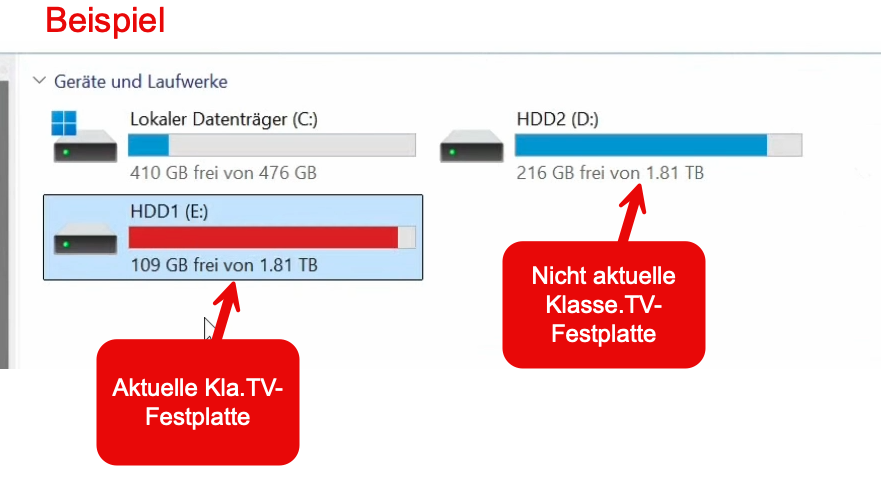
<table border="1" id="bkmrk-folgt-..." style="border-collapse: collapse; width: 100%;"><colgroup><col style="width: 50.0596%;"></col><col style="width: 50.0596%;"></col></colgroup><tbody><tr><td>##### Schliesse beide KlaTV-Festplatten an deinen Computer an. Die aktuelle Festplatte und die zu aktualisierende Festplatte.

</td><td>[![image.png](https://wiki.kla.tv/uploads/images/gallery/2026-05/scaled-1680-/1Y0MCXQdVGW6FGtw-image.png)](https://wiki.kla.tv/uploads/images/gallery/2026-05/1Y0MCXQdVGW6FGtw-image.png)

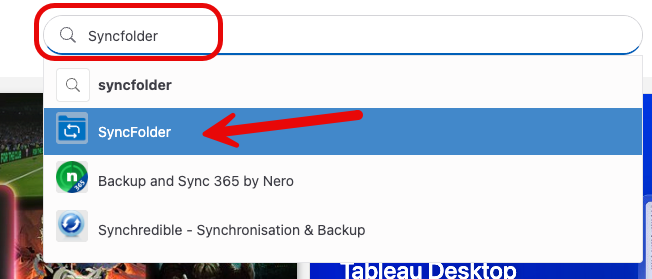
</td></tr><tr><td>##### Lade das Programm "SyncFolder" aus dem Internet runter. Gehe auf die Seite: [apps.microsoft.com ](https://apps.microsoft.com/detail/9nc73mjwhsww?hl=de-DE&gl=CH)und lade das Programm "SyncFolder" herunter. (Der Link führt dich direkt zum Programm. Falls nicht, gebe bei der Suche "SyncFolder" ein.)

</td><td>[![image.png](https://wiki.kla.tv/uploads/images/gallery/2026-05/scaled-1680-/lf7lh2QqjFhybFch-image.png)](https://wiki.kla.tv/uploads/images/gallery/2026-05/lf7lh2QqjFhybFch-image.png)

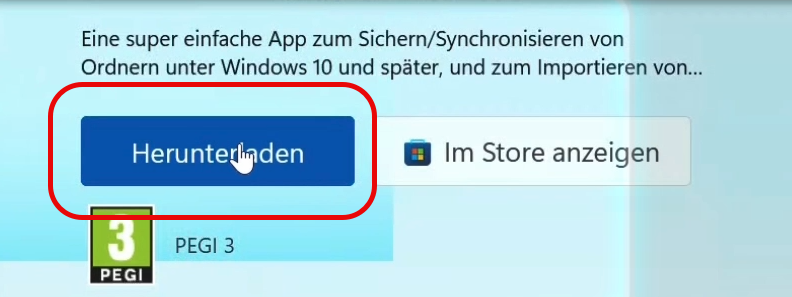
</td></tr><tr><td>##### Klicke auf "Herunterladen"

</td><td>[![image.png](https://wiki.kla.tv/uploads/images/gallery/2026-05/scaled-1680-/vp9UUREKay3AtLBt-image.png)](https://wiki.kla.tv/uploads/images/gallery/2026-05/vp9UUREKay3AtLBt-image.png)

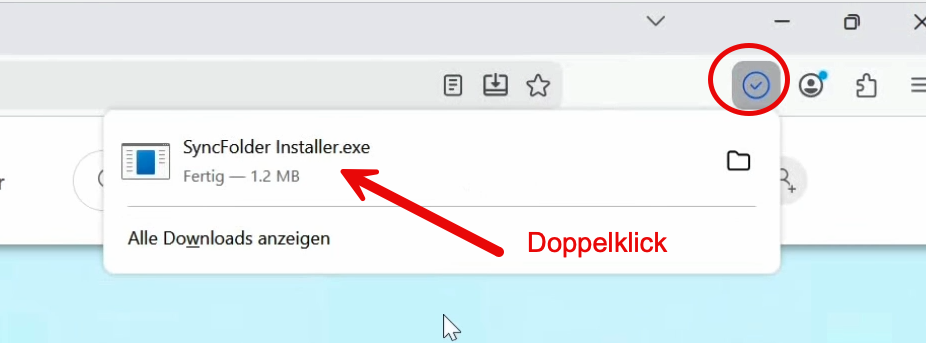
</td></tr><tr><td>##### Öffne und installiere das Programm

</td><td>[![image.png](https://wiki.kla.tv/uploads/images/gallery/2026-05/scaled-1680-/jSekx2DoqTFzOck0-image.png)](https://wiki.kla.tv/uploads/images/gallery/2026-05/jSekx2DoqTFzOck0-image.png)

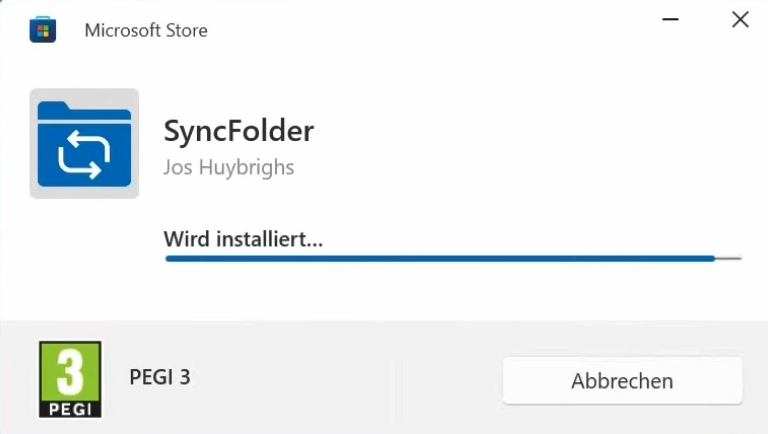
</td></tr><tr><td>##### Das Programm wird installiert

</td><td>[![image.png](https://wiki.kla.tv/uploads/images/gallery/2026-05/scaled-1680-/cZozkXApRpNnI2oq-image.png)](https://wiki.kla.tv/uploads/images/gallery/2026-05/cZozkXApRpNnI2oq-image.png)

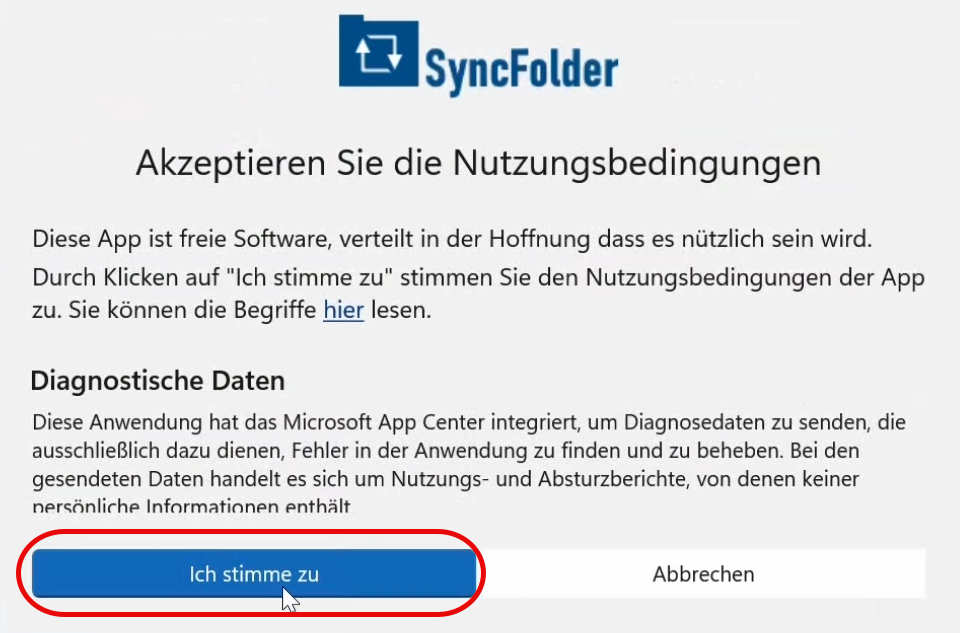
</td></tr><tr><td>##### Akzeptiere die Meldung

</td><td>[![image.png](https://wiki.kla.tv/uploads/images/gallery/2026-05/scaled-1680-/wQUSnlGn6k3JlJPW-image.png)](https://wiki.kla.tv/uploads/images/gallery/2026-05/wQUSnlGn6k3JlJPW-image.png)

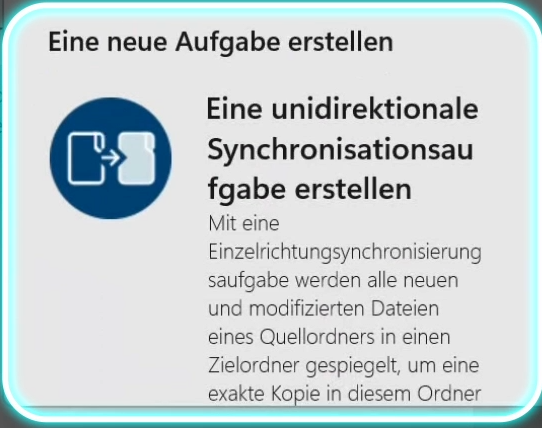
</td></tr><tr><td>##### Wähle die Aufgabe "Eine unidirektionale Synchronisationsaufgabe erstellen".

</td><td>[![image.png](https://wiki.kla.tv/uploads/images/gallery/2026-05/scaled-1680-/Bc97BSkjkPOpfHB8-image.png)](https://wiki.kla.tv/uploads/images/gallery/2026-05/Bc97BSkjkPOpfHB8-image.png)

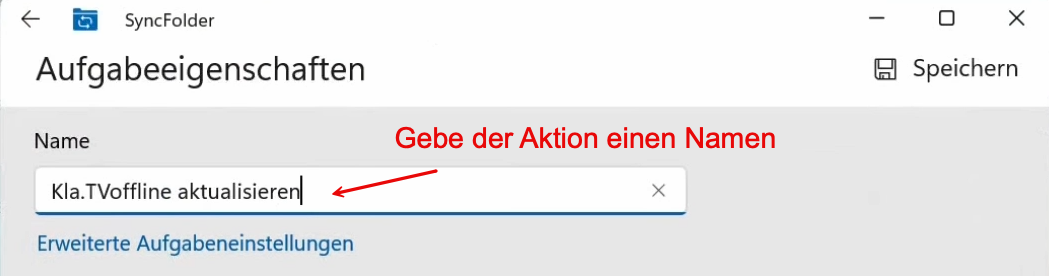
</td></tr><tr><td>##### Gebe der Aufgabe einen Namen, damit du es später leichter wieder ausführen kannst.

</td><td>[![image.png](https://wiki.kla.tv/uploads/images/gallery/2026-05/scaled-1680-/QsvsrzlRdqKTAfpY-image.png)](https://wiki.kla.tv/uploads/images/gallery/2026-05/QsvsrzlRdqKTAfpY-image.png)

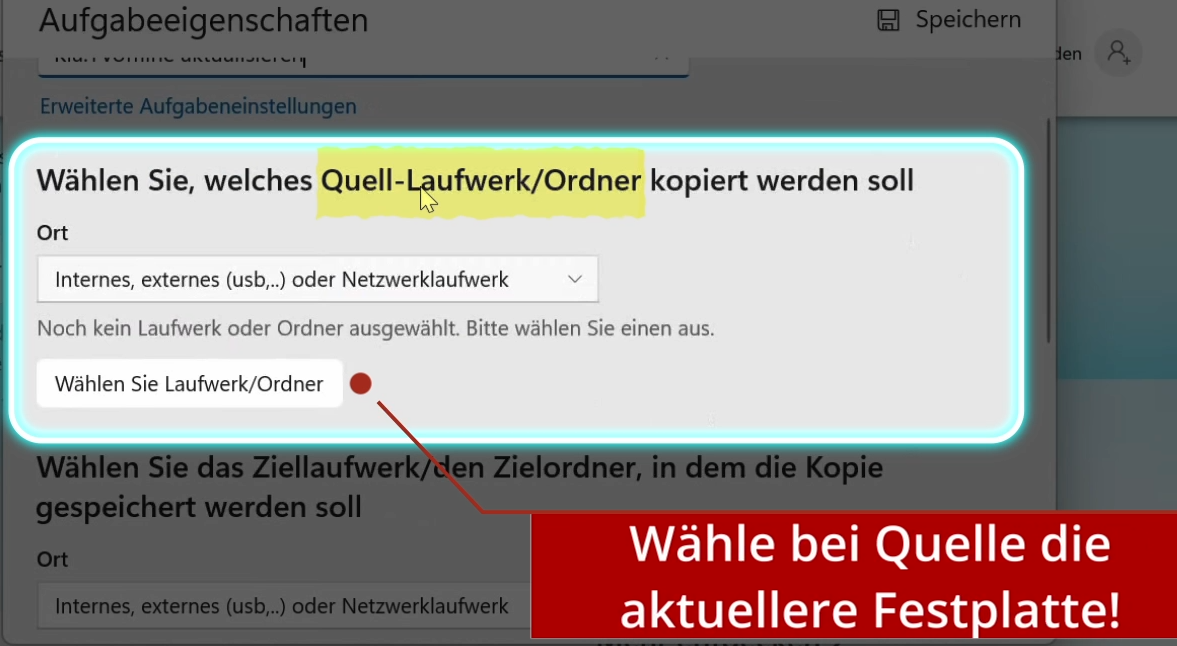
</td></tr><tr><td>##### Wähle als "Quelle" die aktuelle KlaTV-Festplatte (genau arbeiten!)

</td><td>[![image.png](https://wiki.kla.tv/uploads/images/gallery/2026-05/scaled-1680-/yiyjA6GCum7bIEEz-image.png)](https://wiki.kla.tv/uploads/images/gallery/2026-05/yiyjA6GCum7bIEEz-image.png)

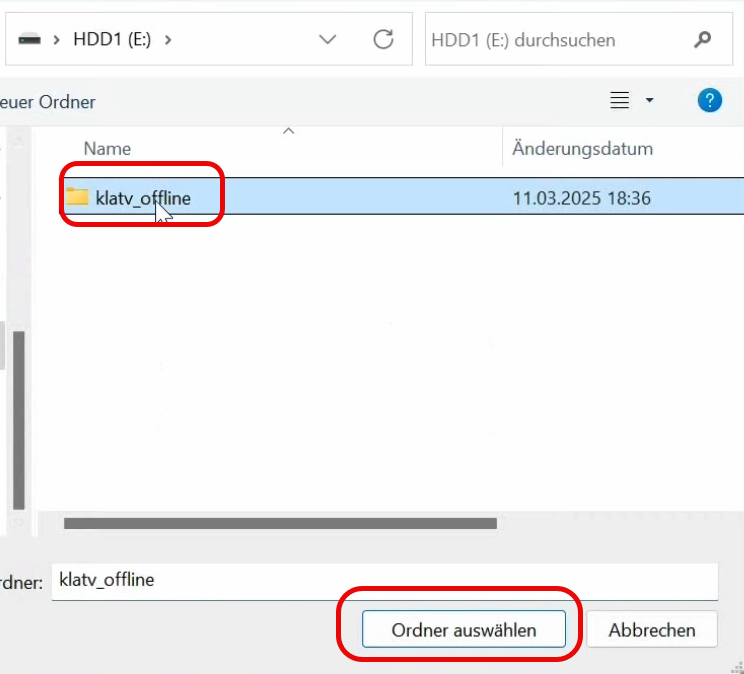
</td></tr><tr><td>##### Klicke 1x den Ordner "klatv\_offline" an und drücke "Ordner auswählen"

</td><td>[![image.png](https://wiki.kla.tv/uploads/images/gallery/2026-05/scaled-1680-/roYDB1j1XJVVd47v-image.png)](https://wiki.kla.tv/uploads/images/gallery/2026-05/roYDB1j1XJVVd47v-image.png)

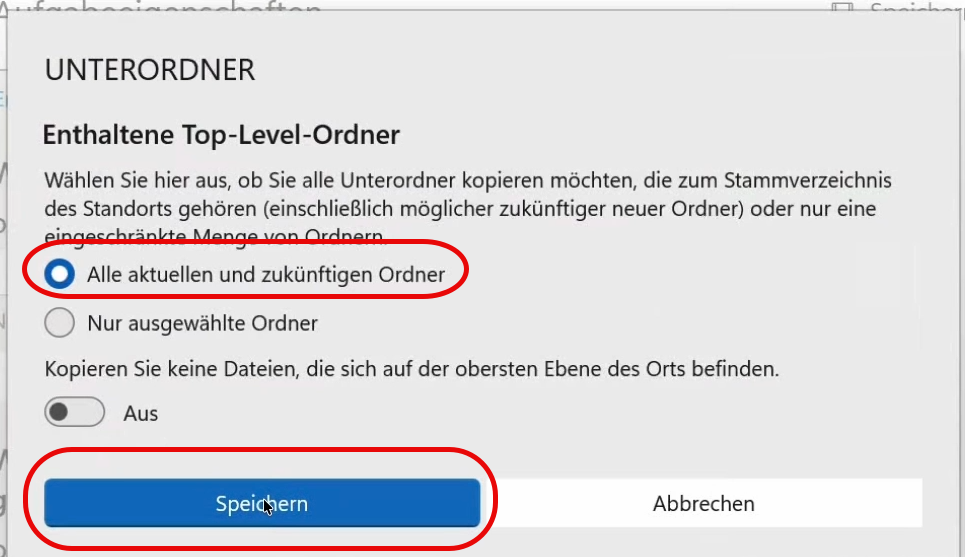
</td></tr><tr><td>#####  Wähle, dass alle Ordner und Unterordner kopiert werden

</td><td>[![image.png](https://wiki.kla.tv/uploads/images/gallery/2026-05/scaled-1680-/bzs22qGGVBWAowE1-image.png)](https://wiki.kla.tv/uploads/images/gallery/2026-05/bzs22qGGVBWAowE1-image.png)

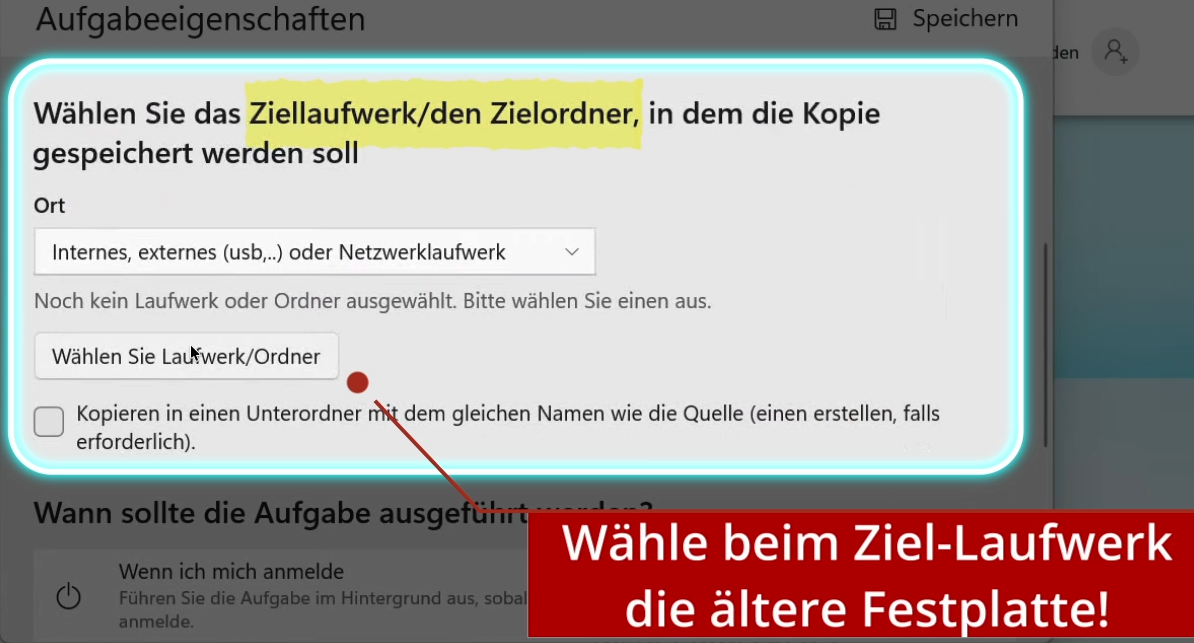
</td></tr><tr><td>##### Wähle beim Ziellaufwerk die nicht-aktuelle KlaTV-Festplatte (genau arbeiten!)

</td><td>[![image.png](https://wiki.kla.tv/uploads/images/gallery/2026-05/scaled-1680-/5KMpkdXJ8KsfbpUq-image.png)](https://wiki.kla.tv/uploads/images/gallery/2026-05/5KMpkdXJ8KsfbpUq-image.png)

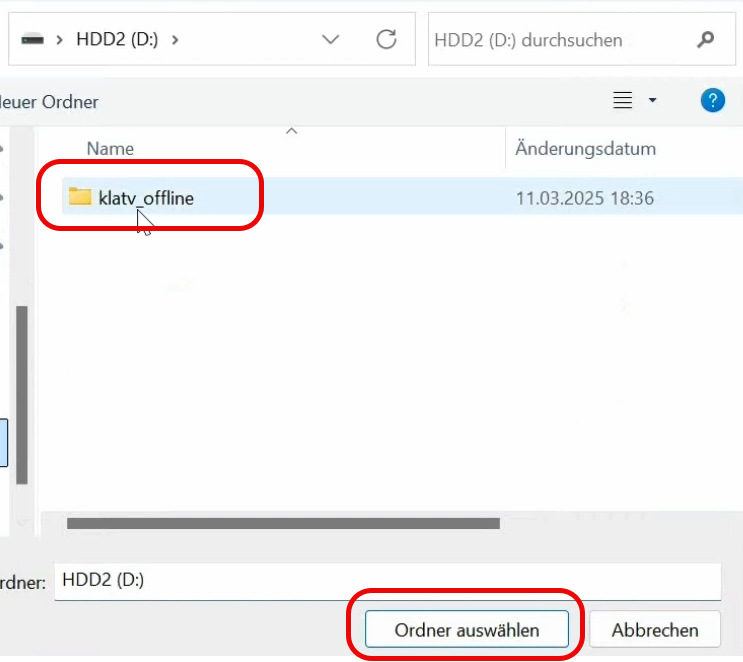
</td></tr><tr><td>##### Klicke 1x den Ordner "klatv\_offline" an und drücke "Ordner auswählen"

</td><td>[![image.png](https://wiki.kla.tv/uploads/images/gallery/2026-05/scaled-1680-/NA7qLh5WOcUY8boj-image.png)](https://wiki.kla.tv/uploads/images/gallery/2026-05/NA7qLh5WOcUY8boj-image.png)

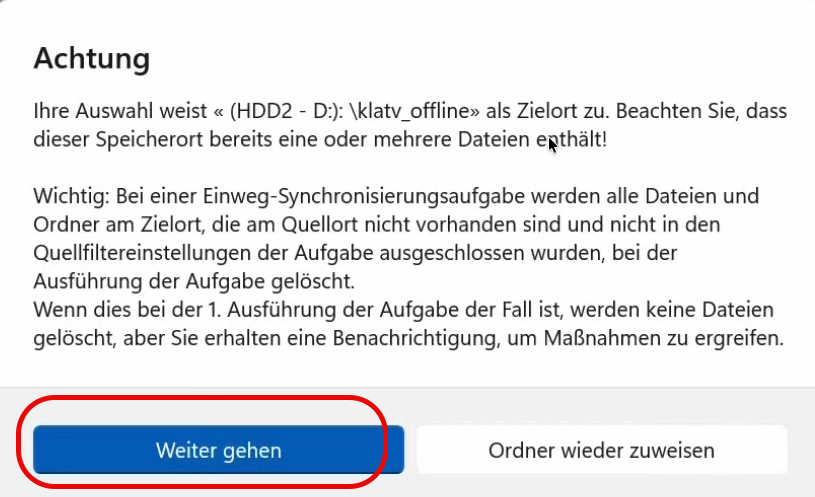
</td></tr><tr><td>##### Warnung akzeptieren, wenn du dir sicher bist, dass du die richtigen Festplatten gewählt hast

</td><td>[![image.png](https://wiki.kla.tv/uploads/images/gallery/2026-05/scaled-1680-/jTZBNMnxymtzE4ne-image.png)](https://wiki.kla.tv/uploads/images/gallery/2026-05/jTZBNMnxymtzE4ne-image.png)

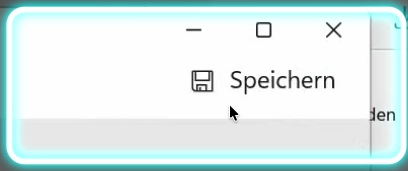
</td></tr><tr><td>##### Klicke oben rechts auf "Speichern"

</td><td>[![image.png](https://wiki.kla.tv/uploads/images/gallery/2026-05/scaled-1680-/INUw62dqXxG9WAmd-image.png)](https://wiki.kla.tv/uploads/images/gallery/2026-05/INUw62dqXxG9WAmd-image.png)

</td></tr><tr><td>##### Die Voreinstellungen sind erfolgreich eingestellt.

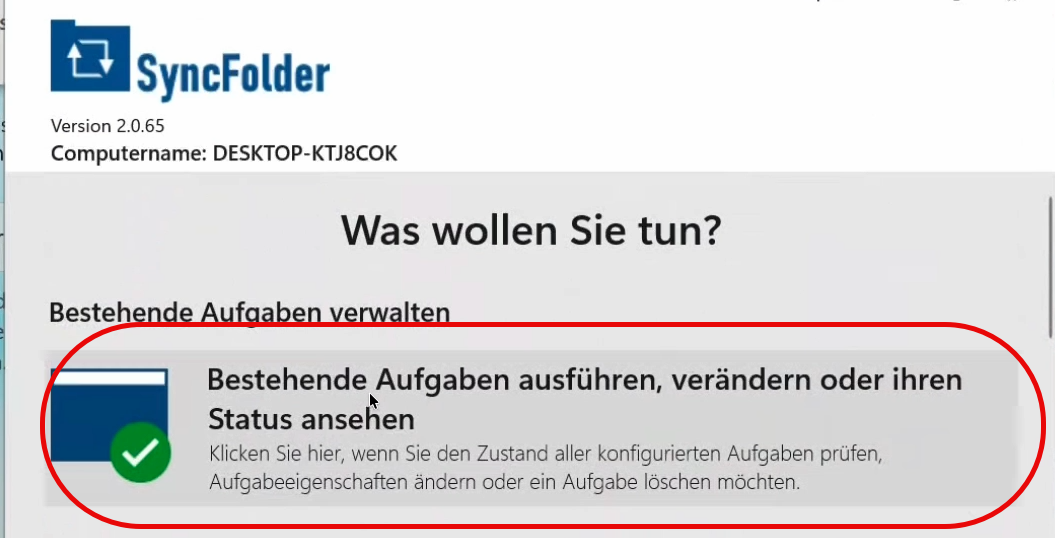
</td><td></td></tr><tr><td>##### Um den Auftrag nun auszuführen, klicke im SyncFolder-Programm auf "Bestehende Aufgabe ausführen ..."

</td><td>[![image.png](https://wiki.kla.tv/uploads/images/gallery/2026-05/scaled-1680-/0WG79HQ49ZeeZ24Z-image.png)](https://wiki.kla.tv/uploads/images/gallery/2026-05/0WG79HQ49ZeeZ24Z-image.png)

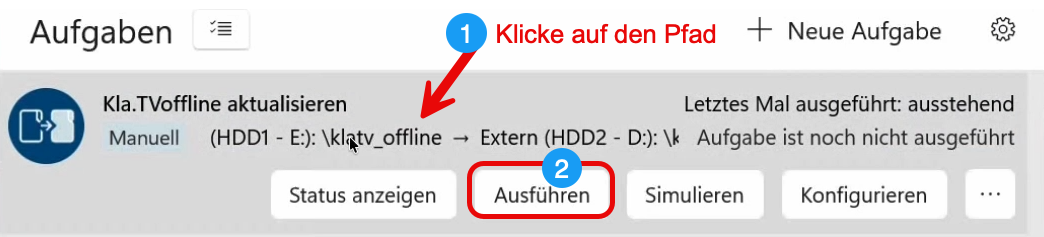
</td></tr><tr><td>##### Klicke auf deine gespeicherte Voreinstellung und klicke danach auf "Ausführen"

</td><td>[![image.png](https://wiki.kla.tv/uploads/images/gallery/2026-05/scaled-1680-/4kIGyn27ghWJOXeb-image.png)](https://wiki.kla.tv/uploads/images/gallery/2026-05/4kIGyn27ghWJOXeb-image.png)

</td></tr><tr><td>##### Der komplette Stand wird aktualisiert. Die bestehenden Dateien bleiben bestehen und es fügt lediglich die Neuerungen hinzu.

</td><td>[![image.png](https://wiki.kla.tv/uploads/images/gallery/2026-05/scaled-1680-/Uv2dQjEAizgtIKCn-image.png)](https://wiki.kla.tv/uploads/images/gallery/2026-05/Uv2dQjEAizgtIKCn-image.png)

Es kann einige Stunden dauern.

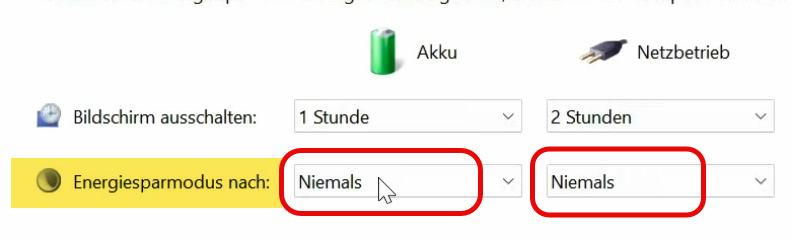
</td></tr><tr><td>##### <span style="background-color: rgb(248, 202, 198);">Achtung: </span>Stelle sicher, dass dein Computer nicht in den Ruhestand fährt. So stellst du es ein:

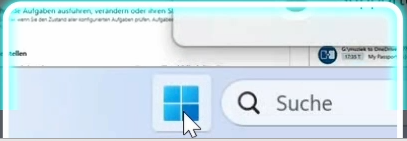
</td><td></td></tr><tr><td>##### Gehe auf dein Windows-Symbol

</td><td>[![image.png](https://wiki.kla.tv/uploads/images/gallery/2026-05/scaled-1680-/3qS1RnhFU6SBjvid-image.png)](https://wiki.kla.tv/uploads/images/gallery/2026-05/3qS1RnhFU6SBjvid-image.png)

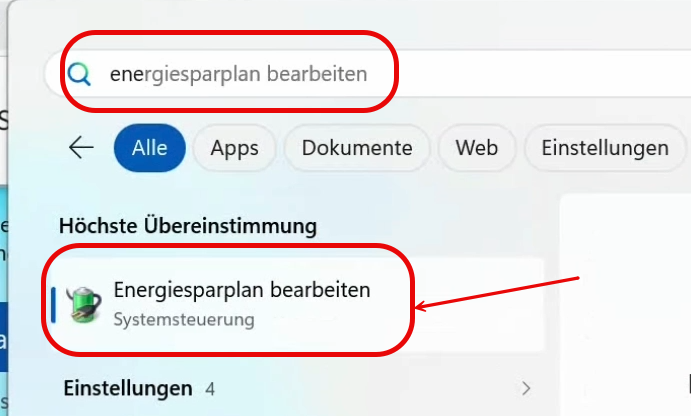
</td></tr><tr><td>##### Suche nach "Energiesparplan bearbeiten"

</td><td>[![image.png](https://wiki.kla.tv/uploads/images/gallery/2026-05/scaled-1680-/doIyHhbVMtd8OKUp-image.png)](https://wiki.kla.tv/uploads/images/gallery/2026-05/doIyHhbVMtd8OKUp-image.png)

</td></tr><tr><td>##### Wähle bei Energiesparmodus 2x Niemals

</td><td>[![image.png](https://wiki.kla.tv/uploads/images/gallery/2026-05/scaled-1680-/knuXTUL6bLDh9wiX-image.png)](https://wiki.kla.tv/uploads/images/gallery/2026-05/knuXTUL6bLDh9wiX-image.png)

</td></tr><tr><td>##### BRAVO - du hast es geschafft!

</td><td>[![image.png](https://wiki.kla.tv/uploads/images/gallery/2026-05/scaled-1680-/BwijtqjPMdRSIpmS-image.png)](https://wiki.kla.tv/uploads/images/gallery/2026-05/BwijtqjPMdRSIpmS-image.png)

</td></tr></tbody></table>

#### <span style="background-color: rgb(251, 238, 184);"><span style="text-decoration: underline;">Aktualisierungs-Variante 2</span><span style="text-decoration: underline;">:</span> Festplatte löschen und komplett neu befüllen</span>

Alternativ kannst du auch die „Holzfäller-Variante” wählen, indem du die veraltete KlaTV-Festplatte komplett löschst und den aktuellen Inhalt von deinem Kollegen erneut kopierst.

<table border="1" id="bkmrk-%C3%96ffne-deine-klatv-fe" style="border-collapse: collapse; width: 100%;"><colgroup><col style="width: 50%;"></col><col style="width: 50%;"></col></colgroup><tbody><tr><td>##### Öffne deine KlaTV-Festplatte

</td><td>  
</td></tr><tr><td>##### Lösche den "klatv\_offline"-Ordner und die HTML-Datei komplett. 

</td><td>[![image.png](https://wiki.kla.tv/uploads/images/gallery/2026-04/scaled-1680-/UaHGyzLVDAFQZEjL-image.png)](https://wiki.kla.tv/uploads/images/gallery/2026-04/UaHGyzLVDAFQZEjL-image.png)  
</td></tr><tr><td>##### Lösche danach den Papierkorb, weil sonst in den meisten Fällen der Inhalt noch nicht richtig gelöscht ist. (Rechtsklick auf den Papierkorb &gt; Papierkorb leeren)

</td><td>[![image.png](https://wiki.kla.tv/uploads/images/gallery/2026-05/scaled-1680-/1j0v5r7VLIYwsyoT-image.png)](https://wiki.kla.tv/uploads/images/gallery/2026-05/1j0v5r7VLIYwsyoT-image.png)

</td></tr><tr><td>##### Verbinde die aktuelle Festplatte deines Kontakts und ziehe diese beiden Ordner wieder auf deine Festplatte (beides markieren &gt; rechtsklick &gt; kopieren). 

</td><td>  
[![image.png](https://wiki.kla.tv/uploads/images/gallery/2026-05/scaled-1680-/VwUFhjnybxggdCAF-image.png)](https://wiki.kla.tv/uploads/images/gallery/2026-05/VwUFhjnybxggdCAF-image.png)

</td></tr><tr><td>##### Dieser Prozess dauert einige Stunden. Am besten über Nacht laufen lassen. 

</td><td>##### [Wie lange dauert der Kopierprozess? (Klick hier)](https://wiki.kla.tv/books/klatv-offline/page/wie-lange-dauert-das-kopieren-von-klatv-offline-von-einer-festplatte-auf-ein-oder-zwei-andere)

</td></tr></tbody></table>