# „KlaTV-Offline” aktuell halten, indem man es von einer anderen aktuellen Festplatte kopiert (FreeFileSync)

##### **Aktualisiere deine Festplatte, indem du alle Dateien von einer anderen aktuellen Festplatte auf deine Festplatte rüber kopierst.** 

[![ChatGPT Image 7. Mai 2026, 15_32_31.png](https://wiki.kla.tv/uploads/images/gallery/2026-05/scaled-1680-/2h3XpPDYP1Ay24QJ-chatgpt-image-7-mai-2026-15-32-31.png)](https://wiki.kla.tv/books/klatv-offline/page/klatv-offline-aktuell-halten-indem-man-es-von-einer-anderen-aktuellen-festplatte-kopiert-mit-syncfolder-nur-windows)

#### <span style="background-color: rgb(251, 238, 184);">Welcher Stand hat meine KlaTV-Festplatte?</span>

<table border="1" id="bkmrk-du-m%C3%B6chtest-rausfind" style="border-collapse: collapse; width: 100%;"><colgroup><col style="width: 50%;"></col><col style="width: 50%;"></col></colgroup><tbody><tr><td>##### Du möchtest rausfinden, welcher Stand deine Festplatte hat? 

</td><td>  
</td></tr><tr><td>##### Öffne auf deiner KlaTV-Festplatte die Datei "\_start (click-me).html"

</td><td>[![image.png](https://wiki.kla.tv/uploads/images/gallery/2026-04/scaled-1680-/YkT1yvYnxcApMYFm-image.png)](https://wiki.kla.tv/uploads/images/gallery/2026-04/YkT1yvYnxcApMYFm-image.png)  
</td></tr><tr><td>##### Die KlaTV-Webseite öffnet sich. In der untersten Leiste steht das Datum der letzten Aktualisierung.

</td><td>[![image.png](https://wiki.kla.tv/uploads/images/gallery/2026-04/scaled-1680-/c4F19REo4wA4AV89-image.png)](https://wiki.kla.tv/uploads/images/gallery/2026-04/c4F19REo4wA4AV89-image.png)</td></tr></tbody></table>

#### <span style="background-color: rgb(251, 238, 184);">Nur die neusten/aktualisierten Dateien auf meine Festplatte kopieren, ohne meinen eigenen Inhalt zu löschen mittels dem Programm FreeFileSync (Mac, Win, Linux)</span>

##### <span style="background-color: rgb(191, 237, 210);">Videoanleitung:</span>

<div class="responsive-iframe" id="bkmrk--4"><div class="responsive-iframe"><div class="responsive-iframe"><iframe allowfullscreen="allowfullscreen" frameborder="0" height="332" src="https://video.elaion.ch?video_by_id=8xjRiy6yFuzN" width="590"></iframe>

</div></div></div>##### <span style="background-color: rgb(191, 237, 210);">Schriftliche Anleitung:</span>

<table border="1" id="bkmrk-folgt-..." style="border-collapse: collapse; width: 100%;"><colgroup><col style="width: 50.0596%;"></col><col style="width: 50.0596%;"></col></colgroup><tbody><tr><td>##### Schliesse beide KlaTV-Festplatten an deinen Computer an. Die aktuelle Festplatte und die zu aktualisierende Festplatte.


</td><td>  
</td></tr><tr><td>##### Öffne das Programm "[FreeFileSync](https://freefilesync.org/)" oder lade es aus dem Internet runter. [www.freefilesync.org](https://freefilesync.org/download.php)

</td><td>Wenn du es neu runterlädst, klicke Download:  
[![image.png](https://wiki.kla.tv/uploads/images/gallery/2026-05/scaled-1680-/PXSFs1r0quQDTipz-image.png)](https://wiki.kla.tv/uploads/images/gallery/2026-05/PXSFs1r0quQDTipz-image.png)
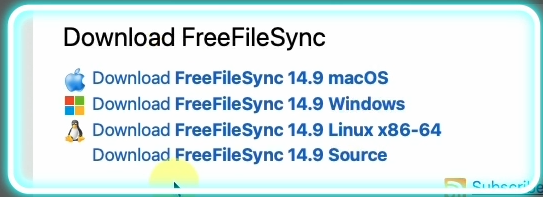
Wähle dein Betriebssystem

[![image.png](https://wiki.kla.tv/uploads/images/gallery/2026-05/scaled-1680-/Lks4s4F4IKeVyiY0-image.png)](https://wiki.kla.tv/uploads/images/gallery/2026-05/Lks4s4F4IKeVyiY0-image.png)
Installiere das runtergeladene Programm wie gewohnt

</td></tr><tr><td>##### Öffne das FreeFileSync-Programm. 

</td><td>  
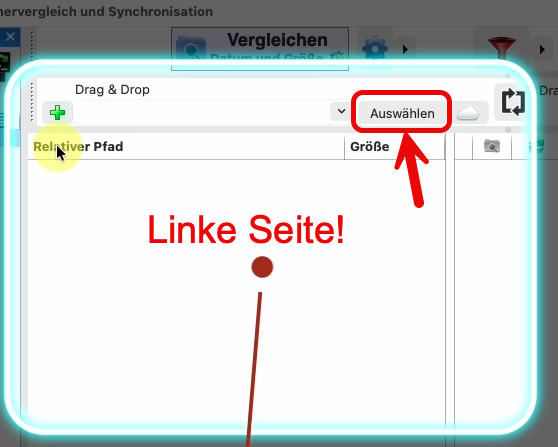
</td></tr><tr><td>##### Wähle links deine Quell-Festplatte. D.h. die Festplatte, welche aktuell ist. Klicke dazu auf "Auswählen"

</td><td>[![image.png](https://wiki.kla.tv/uploads/images/gallery/2026-05/scaled-1680-/4Jdb4LcDM7Nk1yz4-image.png)](https://wiki.kla.tv/uploads/images/gallery/2026-05/4Jdb4LcDM7Nk1yz4-image.png)

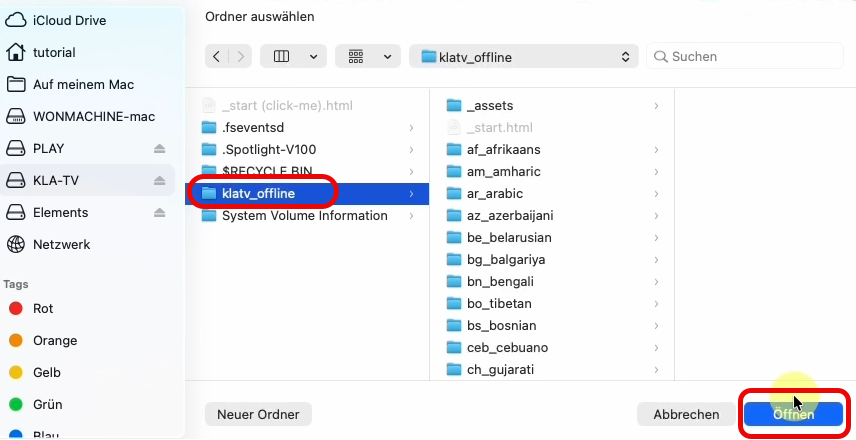
</td></tr><tr><td>##### Wähle nun in der geöffneten Ordnerstruktur die NEUERE/AKTUELLERE Festplatte und klicke den Ordner "klatv\_offline" an (wichtig!!). Klicke auf "Öffnen"

</td><td>[![image.png](https://wiki.kla.tv/uploads/images/gallery/2026-05/scaled-1680-/9b9yLxH4Aico1J88-image.png)](https://wiki.kla.tv/uploads/images/gallery/2026-05/9b9yLxH4Aico1J88-image.png)

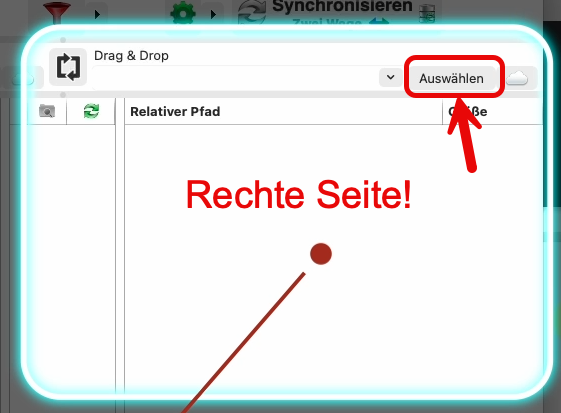
</td></tr><tr><td>##### Wähle rechts deine Ziel-Festplatte. D.h. die Festplatte, welche nicht aktuell ist. Klicke dazu auf "Auswählen"

</td><td>[![image.png](https://wiki.kla.tv/uploads/images/gallery/2026-05/scaled-1680-/nsWyPA90i2g3Y7MC-image.png)](https://wiki.kla.tv/uploads/images/gallery/2026-05/nsWyPA90i2g3Y7MC-image.png)

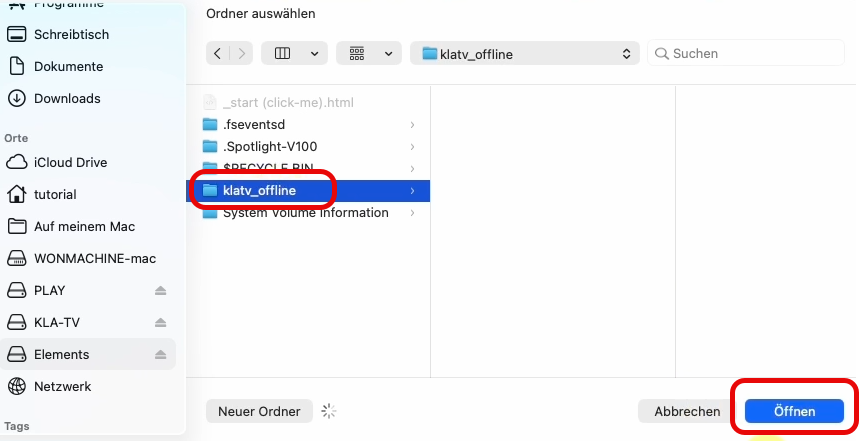
</td></tr><tr><td>##### Wähle nun in der geöffneten Ordnerstruktur die ÄLTERE/ NICHT AKTUELLE Festplatte und klicke den Ordner "klatv\_offline" an (wichtig!!). Klicke auf "Öffnen"

</td><td>[![image.png](https://wiki.kla.tv/uploads/images/gallery/2026-05/scaled-1680-/nFRHY4ORgwsuVLjw-image.png)](https://wiki.kla.tv/uploads/images/gallery/2026-05/nFRHY4ORgwsuVLjw-image.png)

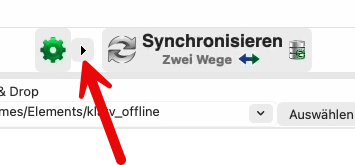
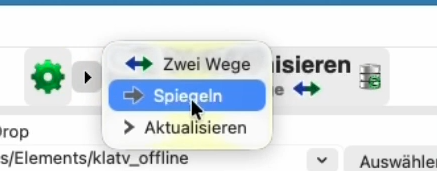
</td></tr><tr><td>##### Klicke beim grünen Zahnrad auf den schwarzen Pfeil &gt; und wähle "Spiegeln"

</td><td>[![image.png](https://wiki.kla.tv/uploads/images/gallery/2026-05/scaled-1680-/qiArs9s5UzWtk0qR-image.png)](https://wiki.kla.tv/uploads/images/gallery/2026-05/qiArs9s5UzWtk0qR-image.png)

[![image.png](https://wiki.kla.tv/uploads/images/gallery/2026-05/scaled-1680-/Xm6PSoqEpzEsiQSd-image.png)](https://wiki.kla.tv/uploads/images/gallery/2026-05/Xm6PSoqEpzEsiQSd-image.png)
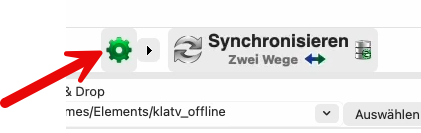
</td></tr><tr><td>#####  Klicke aufs grüne Zahnrad &gt; 

</td><td>[![image.png](https://wiki.kla.tv/uploads/images/gallery/2026-05/scaled-1680-/0s6p54l88EgE6R1o-image.png)](https://wiki.kla.tv/uploads/images/gallery/2026-05/0s6p54l88EgE6R1o-image.png)

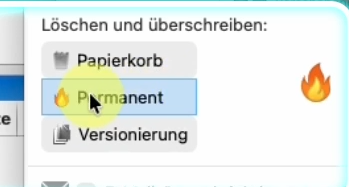
</td></tr><tr><td>##### Wähle bei "Löschen und überschreiben" &gt; Permanent &gt; so werden die alten Dateien direkt gelöscht und schaffen den benötigten Speicherplatz

</td><td>[![image.png](https://wiki.kla.tv/uploads/images/gallery/2026-05/scaled-1680-/G63FzshFaP7pnZDS-image.png)](https://wiki.kla.tv/uploads/images/gallery/2026-05/G63FzshFaP7pnZDS-image.png)

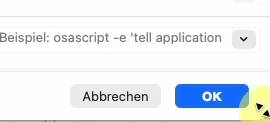
</td></tr><tr><td>##### Klicke auf OK

</td><td>[![image.png](https://wiki.kla.tv/uploads/images/gallery/2026-05/scaled-1680-/aLTW3y5pgpCHSjAz-image.png)](https://wiki.kla.tv/uploads/images/gallery/2026-05/aLTW3y5pgpCHSjAz-image.png)

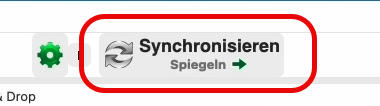
</td></tr><tr><td>##### Starte nun die Synchronisation, indem du auf "Synchronisieren" klickst

</td><td>[![image.png](https://wiki.kla.tv/uploads/images/gallery/2026-05/scaled-1680-/43due0GL6v7IAgSE-image.png)](https://wiki.kla.tv/uploads/images/gallery/2026-05/43due0GL6v7IAgSE-image.png)

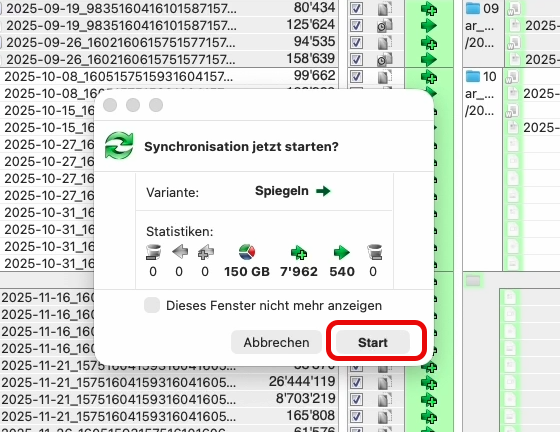
</td></tr><tr><td>##### Warte (ca. 10min) bis das Programm berechnet hat, was es alles zu Kopieren gibt. Danach zeigt er die Vorschau. Klicke auf "Start", wenn du bereit für den Kopiervorgang bist

</td><td>[![image.png](https://wiki.kla.tv/uploads/images/gallery/2026-05/scaled-1680-/SwCpCqSmRSeSsl9P-image.png)](https://wiki.kla.tv/uploads/images/gallery/2026-05/SwCpCqSmRSeSsl9P-image.png)

</td></tr><tr><td>##### Es kann einige Stunden dauern, je nachdem wie aktuell deine Festplatte ist.

##### BRAVO - du hast es geschafft!

</td><td>[![image.png](https://wiki.kla.tv/uploads/images/gallery/2026-05/scaled-1680-/BwijtqjPMdRSIpmS-image.png)](https://wiki.kla.tv/uploads/images/gallery/2026-05/BwijtqjPMdRSIpmS-image.png)

</td></tr></tbody></table>