# "Kla.TV-Offline" herunterladen und aktuell halten 🔄

# „KlaTV-Offline” aktuell halten, indem man es von einer anderen aktuellen Festplatte kopiert (mit SyncFolder - nur Windows)

##### **Aktualisiere deine Festplatte, indem du alle Dateien von einer anderen aktuellen Festplatte auf deine Festplatte rüber kopierst.** 

[![hinweis.png](https://wiki.kla.tv/uploads/images/gallery/2026-05/scaled-1680-/jsWFrLeeFOw27Jx6-hinweis.png)](https://wiki.kla.tv/books/klatv-offline/page/klatv-offline-aktuell-halten-indem-man-es-von-einer-anderen-aktuellen-festplatte-kopiert-freefilesync)

#### <span style="background-color: rgb(251, 238, 184);">Welcher Stand hat meine KlaTV-Festplatte?</span>

<table border="1" id="bkmrk-du-m%C3%B6chtest-rausfind" style="border-collapse: collapse; width: 100%;"><colgroup><col style="width: 50%;"></col><col style="width: 50%;"></col></colgroup><tbody><tr><td>##### Du möchtest rausfinden, welcher Stand deine Festplatte hat? 

</td><td>  
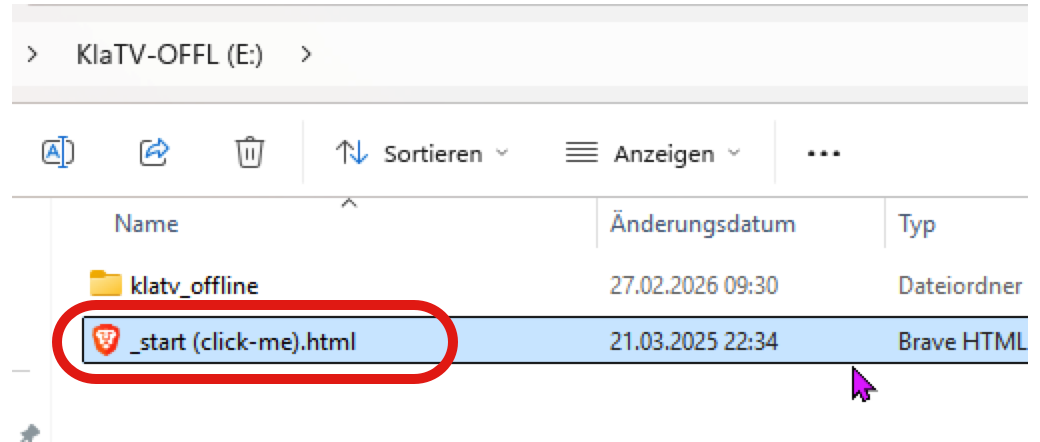
</td></tr><tr><td>##### Öffne auf deiner KlaTV-Festplatte die Datei "\_start (click-me).html"

</td><td>[![image.png](https://wiki.kla.tv/uploads/images/gallery/2026-04/scaled-1680-/YkT1yvYnxcApMYFm-image.png)](https://wiki.kla.tv/uploads/images/gallery/2026-04/YkT1yvYnxcApMYFm-image.png)  
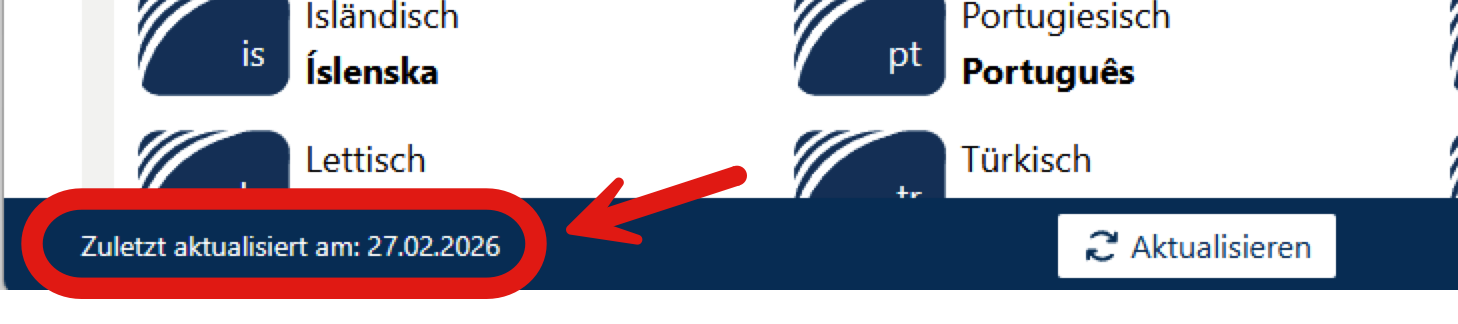
</td></tr><tr><td>##### Die KlaTV-Webseite öffnet sich. In der untersten Leiste steht das Datum der letzten Aktualisierung.

</td><td>[![image.png](https://wiki.kla.tv/uploads/images/gallery/2026-04/scaled-1680-/c4F19REo4wA4AV89-image.png)](https://wiki.kla.tv/uploads/images/gallery/2026-04/c4F19REo4wA4AV89-image.png)</td></tr></tbody></table>

#### <span style="background-color: rgb(251, 238, 184);"><span style="text-decoration: underline;">Aktualisierungs-Variante 1:</span> </span><span style="background-color: rgb(251, 238, 184);">Nur die neusten/aktualisierten Dateien auf meine Festplatte kopieren, ohne meinen eigenen Inhalt zu löschen (mit SyncFolder)</span>

##### <span style="background-color: rgb(191, 237, 210);">Videoanleitung für WINDOWS:</span>

<div class="responsive-iframe" id="bkmrk--4"><iframe allowfullscreen="allowfullscreen" frameborder="0" height="332" src="https://video.elaion.ch?video_by_id=LajwdZYT1vkW" width="590"></iframe>

</div>##### <span style="background-color: rgb(191, 237, 210);">Schriftliche Anleitung:</span>

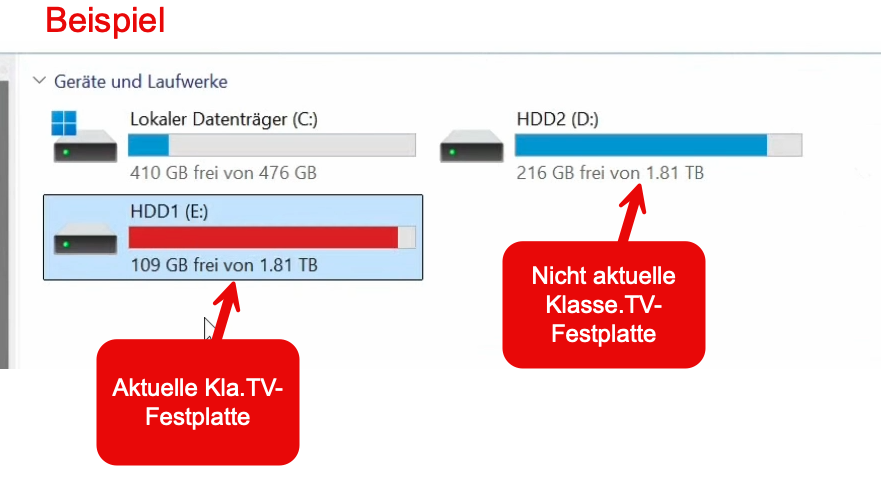
<table border="1" id="bkmrk-folgt-..." style="border-collapse: collapse; width: 100%;"><colgroup><col style="width: 50.0596%;"></col><col style="width: 50.0596%;"></col></colgroup><tbody><tr><td>##### Schliesse beide KlaTV-Festplatten an deinen Computer an. Die aktuelle Festplatte und die zu aktualisierende Festplatte.

</td><td>[![image.png](https://wiki.kla.tv/uploads/images/gallery/2026-05/scaled-1680-/1Y0MCXQdVGW6FGtw-image.png)](https://wiki.kla.tv/uploads/images/gallery/2026-05/1Y0MCXQdVGW6FGtw-image.png)

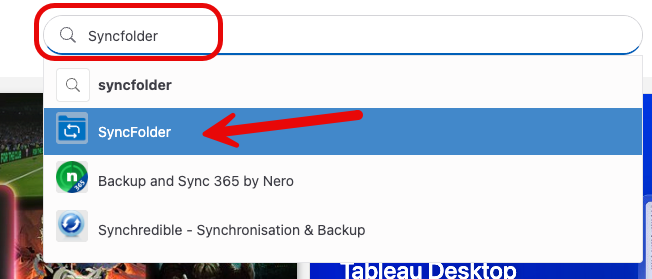
</td></tr><tr><td>##### Lade das Programm "SyncFolder" aus dem Internet runter. Gehe auf die Seite: [apps.microsoft.com ](https://apps.microsoft.com/detail/9nc73mjwhsww?hl=de-DE&gl=CH)und lade das Programm "SyncFolder" herunter. (Der Link führt dich direkt zum Programm. Falls nicht, gebe bei der Suche "SyncFolder" ein.)

</td><td>[![image.png](https://wiki.kla.tv/uploads/images/gallery/2026-05/scaled-1680-/lf7lh2QqjFhybFch-image.png)](https://wiki.kla.tv/uploads/images/gallery/2026-05/lf7lh2QqjFhybFch-image.png)

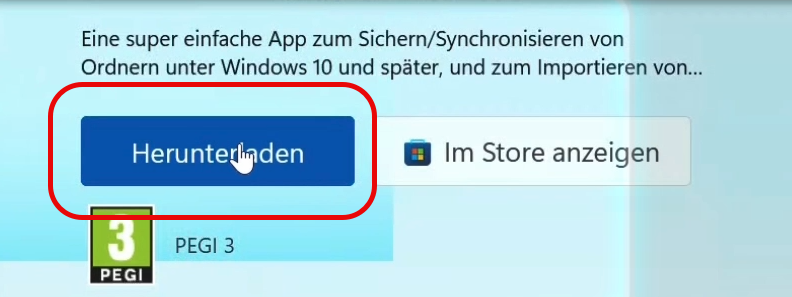
</td></tr><tr><td>##### Klicke auf "Herunterladen"

</td><td>[![image.png](https://wiki.kla.tv/uploads/images/gallery/2026-05/scaled-1680-/vp9UUREKay3AtLBt-image.png)](https://wiki.kla.tv/uploads/images/gallery/2026-05/vp9UUREKay3AtLBt-image.png)

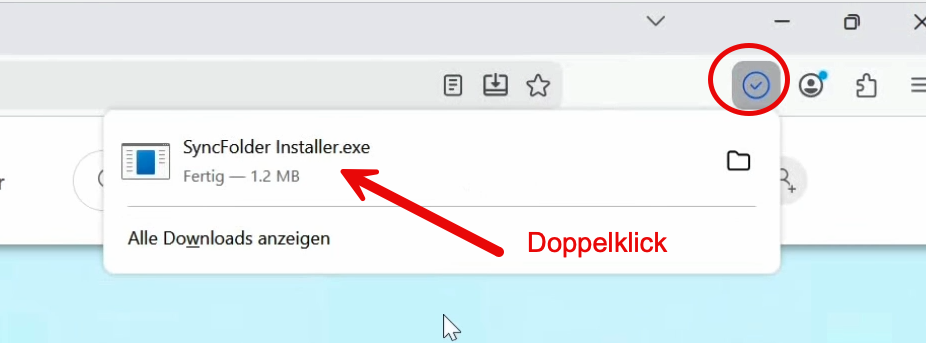
</td></tr><tr><td>##### Öffne und installiere das Programm

</td><td>[![image.png](https://wiki.kla.tv/uploads/images/gallery/2026-05/scaled-1680-/jSekx2DoqTFzOck0-image.png)](https://wiki.kla.tv/uploads/images/gallery/2026-05/jSekx2DoqTFzOck0-image.png)

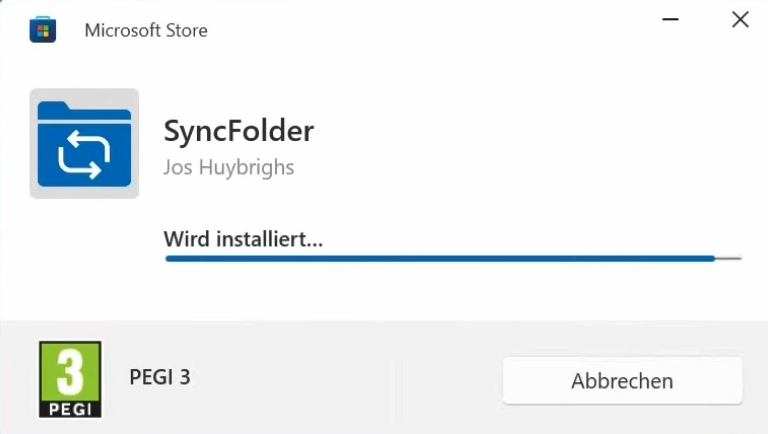
</td></tr><tr><td>##### Das Programm wird installiert

</td><td>[![image.png](https://wiki.kla.tv/uploads/images/gallery/2026-05/scaled-1680-/cZozkXApRpNnI2oq-image.png)](https://wiki.kla.tv/uploads/images/gallery/2026-05/cZozkXApRpNnI2oq-image.png)

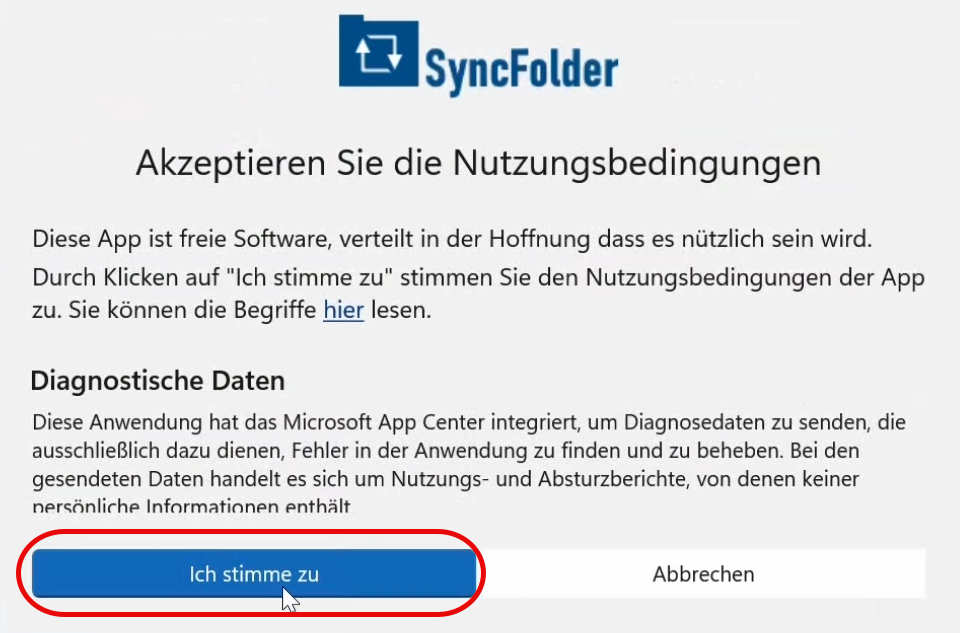
</td></tr><tr><td>##### Akzeptiere die Meldung

</td><td>[![image.png](https://wiki.kla.tv/uploads/images/gallery/2026-05/scaled-1680-/wQUSnlGn6k3JlJPW-image.png)](https://wiki.kla.tv/uploads/images/gallery/2026-05/wQUSnlGn6k3JlJPW-image.png)

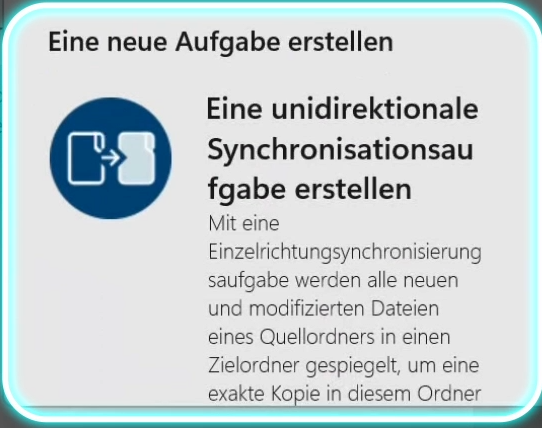
</td></tr><tr><td>##### Wähle die Aufgabe "Eine unidirektionale Synchronisationsaufgabe erstellen".

</td><td>[![image.png](https://wiki.kla.tv/uploads/images/gallery/2026-05/scaled-1680-/Bc97BSkjkPOpfHB8-image.png)](https://wiki.kla.tv/uploads/images/gallery/2026-05/Bc97BSkjkPOpfHB8-image.png)

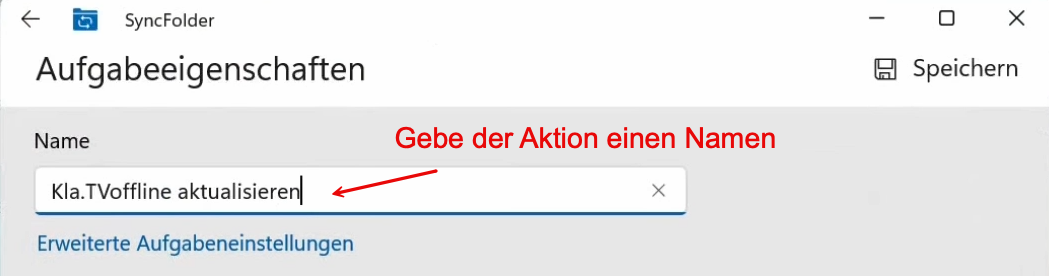
</td></tr><tr><td>##### Gebe der Aufgabe einen Namen, damit du es später leichter wieder ausführen kannst.

</td><td>[![image.png](https://wiki.kla.tv/uploads/images/gallery/2026-05/scaled-1680-/QsvsrzlRdqKTAfpY-image.png)](https://wiki.kla.tv/uploads/images/gallery/2026-05/QsvsrzlRdqKTAfpY-image.png)

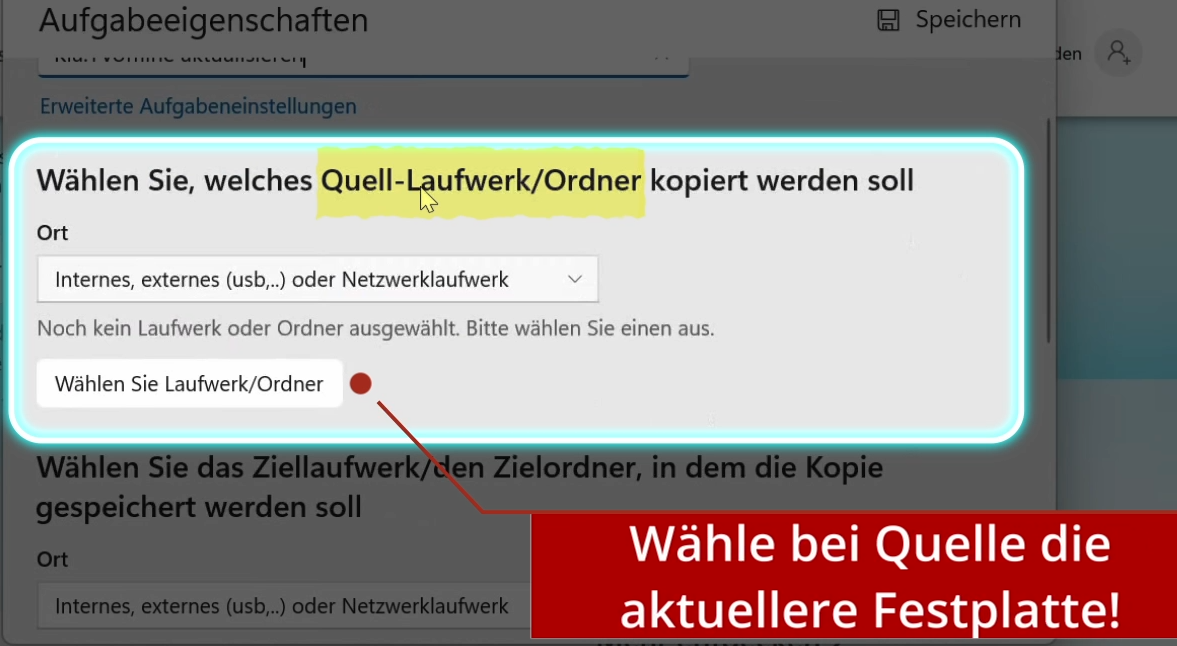
</td></tr><tr><td>##### Wähle als "Quelle" die aktuelle KlaTV-Festplatte (genau arbeiten!)

</td><td>[![image.png](https://wiki.kla.tv/uploads/images/gallery/2026-05/scaled-1680-/yiyjA6GCum7bIEEz-image.png)](https://wiki.kla.tv/uploads/images/gallery/2026-05/yiyjA6GCum7bIEEz-image.png)

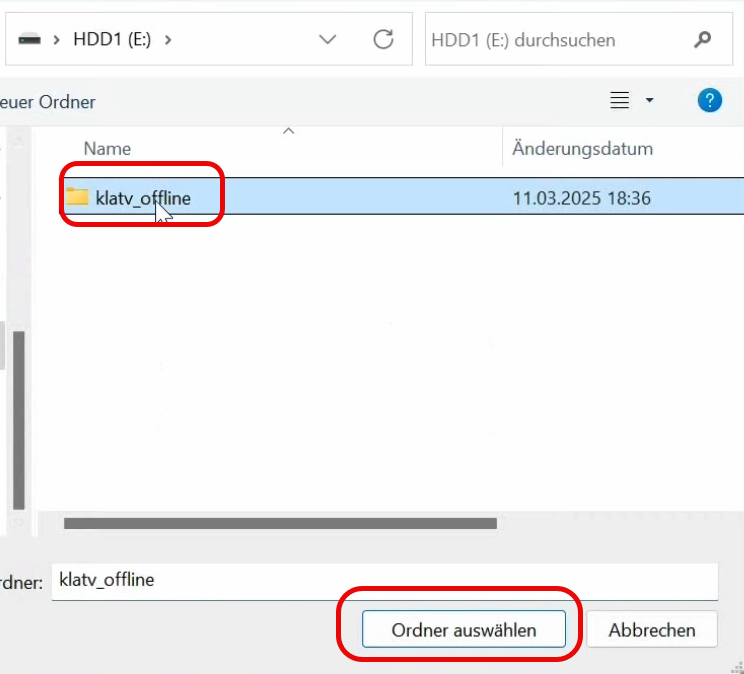
</td></tr><tr><td>##### Klicke 1x den Ordner "klatv\_offline" an und drücke "Ordner auswählen"

</td><td>[![image.png](https://wiki.kla.tv/uploads/images/gallery/2026-05/scaled-1680-/roYDB1j1XJVVd47v-image.png)](https://wiki.kla.tv/uploads/images/gallery/2026-05/roYDB1j1XJVVd47v-image.png)

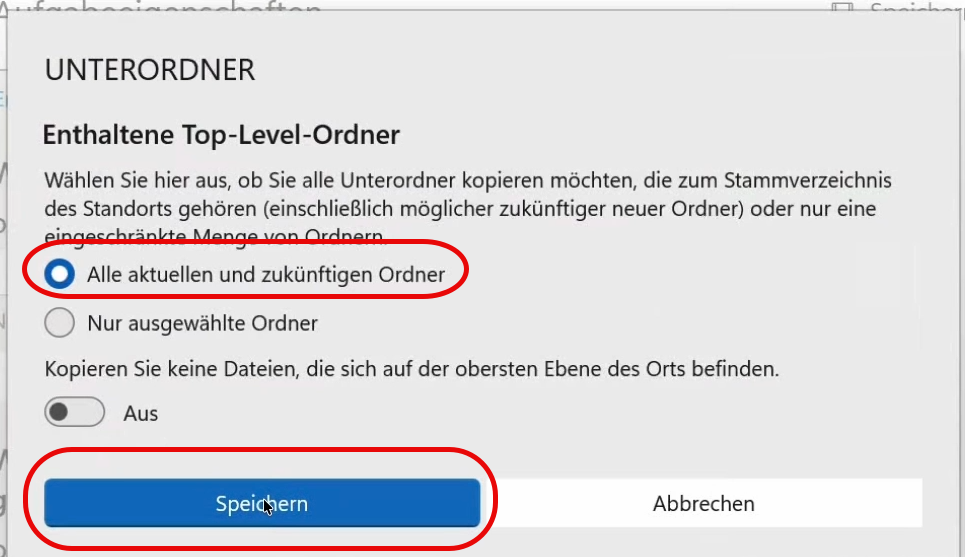
</td></tr><tr><td>#####  Wähle, dass alle Ordner und Unterordner kopiert werden

</td><td>[![image.png](https://wiki.kla.tv/uploads/images/gallery/2026-05/scaled-1680-/bzs22qGGVBWAowE1-image.png)](https://wiki.kla.tv/uploads/images/gallery/2026-05/bzs22qGGVBWAowE1-image.png)

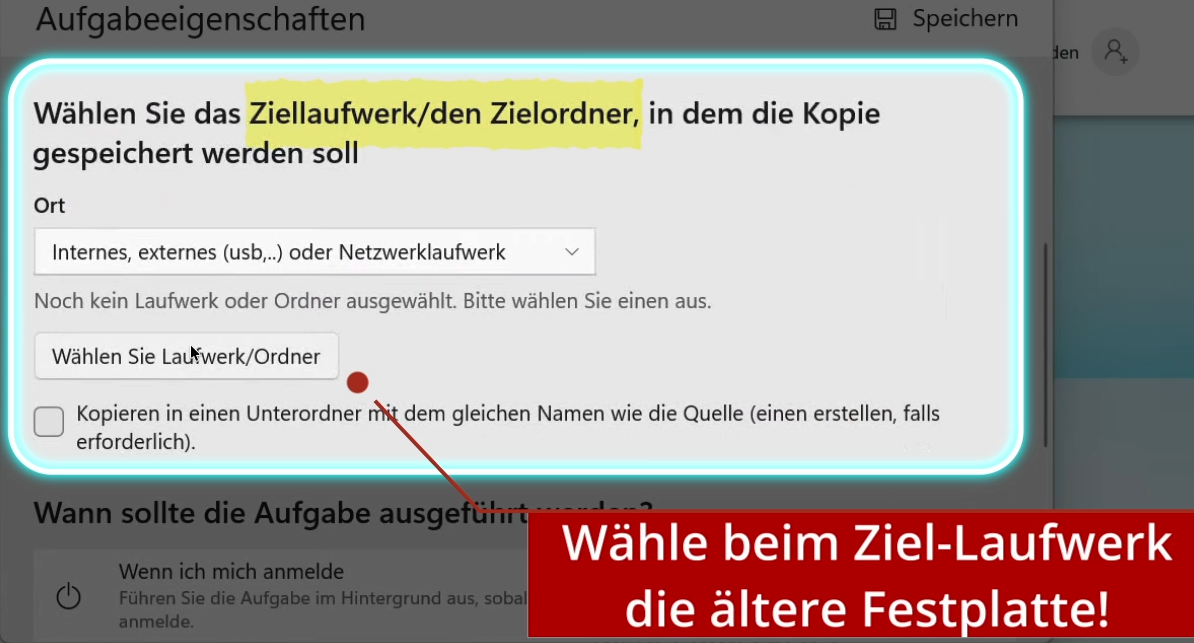
</td></tr><tr><td>##### Wähle beim Ziellaufwerk die nicht-aktuelle KlaTV-Festplatte (genau arbeiten!)

</td><td>[![image.png](https://wiki.kla.tv/uploads/images/gallery/2026-05/scaled-1680-/5KMpkdXJ8KsfbpUq-image.png)](https://wiki.kla.tv/uploads/images/gallery/2026-05/5KMpkdXJ8KsfbpUq-image.png)

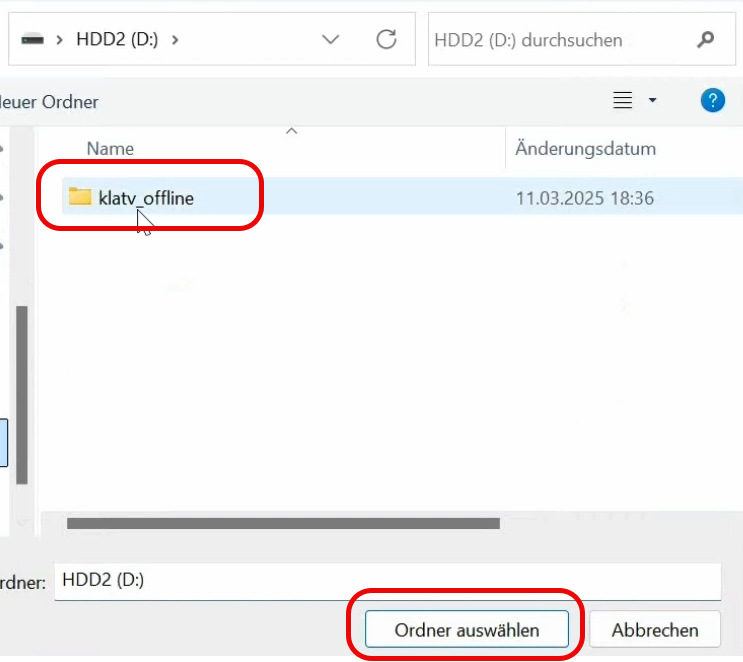
</td></tr><tr><td>##### Klicke 1x den Ordner "klatv\_offline" an und drücke "Ordner auswählen"

</td><td>[![image.png](https://wiki.kla.tv/uploads/images/gallery/2026-05/scaled-1680-/NA7qLh5WOcUY8boj-image.png)](https://wiki.kla.tv/uploads/images/gallery/2026-05/NA7qLh5WOcUY8boj-image.png)

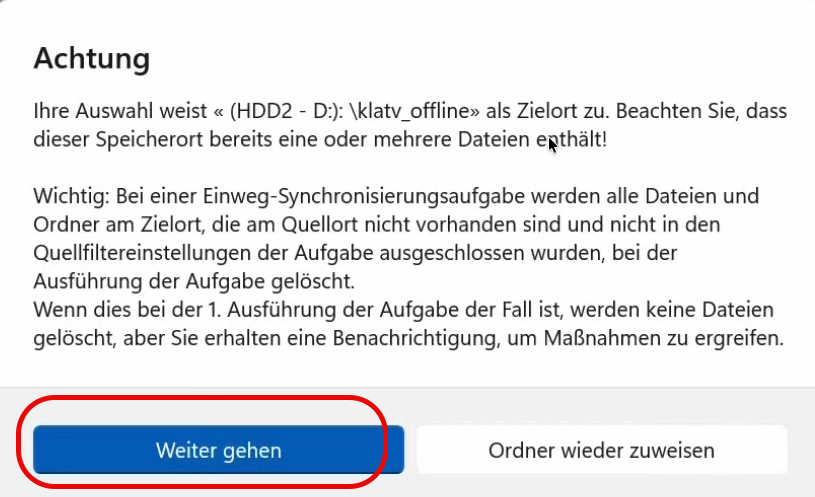
</td></tr><tr><td>##### Warnung akzeptieren, wenn du dir sicher bist, dass du die richtigen Festplatten gewählt hast

</td><td>[![image.png](https://wiki.kla.tv/uploads/images/gallery/2026-05/scaled-1680-/jTZBNMnxymtzE4ne-image.png)](https://wiki.kla.tv/uploads/images/gallery/2026-05/jTZBNMnxymtzE4ne-image.png)

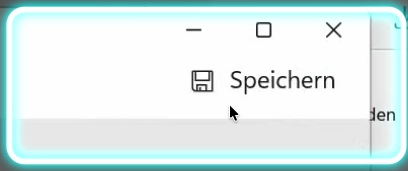
</td></tr><tr><td>##### Klicke oben rechts auf "Speichern"

</td><td>[![image.png](https://wiki.kla.tv/uploads/images/gallery/2026-05/scaled-1680-/INUw62dqXxG9WAmd-image.png)](https://wiki.kla.tv/uploads/images/gallery/2026-05/INUw62dqXxG9WAmd-image.png)

</td></tr><tr><td>##### Die Voreinstellungen sind erfolgreich eingestellt.

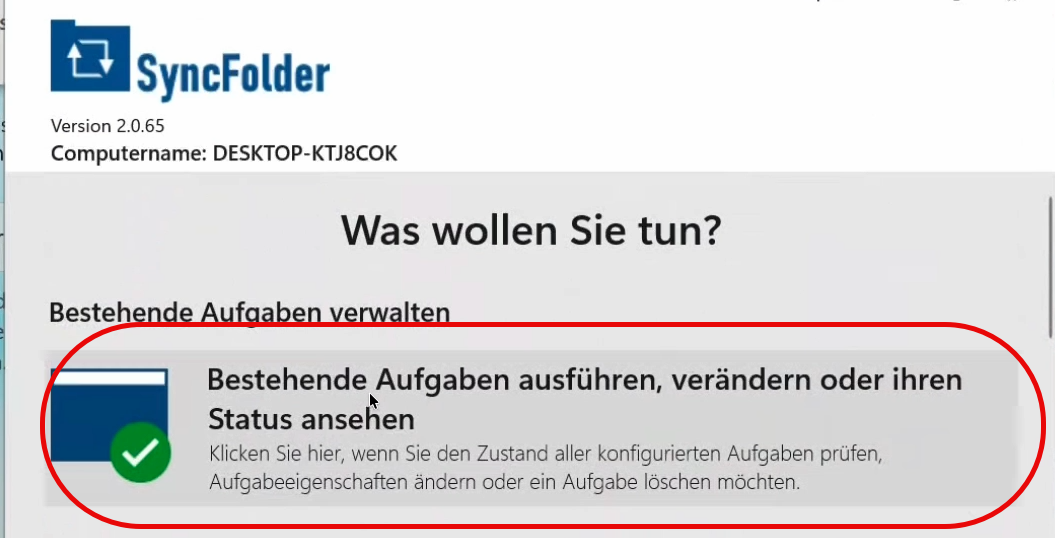
</td><td></td></tr><tr><td>##### Um den Auftrag nun auszuführen, klicke im SyncFolder-Programm auf "Bestehende Aufgabe ausführen ..."

</td><td>[![image.png](https://wiki.kla.tv/uploads/images/gallery/2026-05/scaled-1680-/0WG79HQ49ZeeZ24Z-image.png)](https://wiki.kla.tv/uploads/images/gallery/2026-05/0WG79HQ49ZeeZ24Z-image.png)

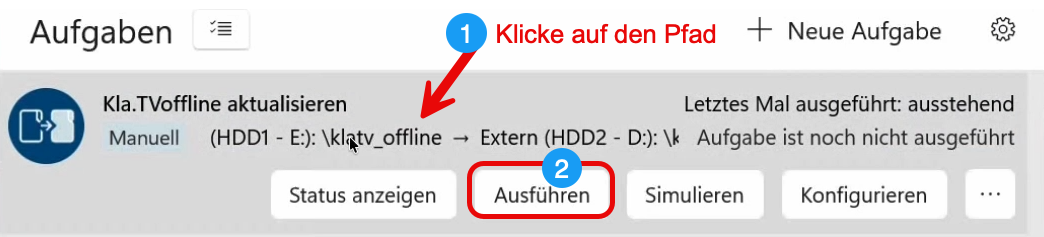
</td></tr><tr><td>##### Klicke auf deine gespeicherte Voreinstellung und klicke danach auf "Ausführen"

</td><td>[![image.png](https://wiki.kla.tv/uploads/images/gallery/2026-05/scaled-1680-/4kIGyn27ghWJOXeb-image.png)](https://wiki.kla.tv/uploads/images/gallery/2026-05/4kIGyn27ghWJOXeb-image.png)

</td></tr><tr><td>##### Der komplette Stand wird aktualisiert. Die bestehenden Dateien bleiben bestehen und es fügt lediglich die Neuerungen hinzu.

</td><td>[![image.png](https://wiki.kla.tv/uploads/images/gallery/2026-05/scaled-1680-/Uv2dQjEAizgtIKCn-image.png)](https://wiki.kla.tv/uploads/images/gallery/2026-05/Uv2dQjEAizgtIKCn-image.png)

Es kann einige Stunden dauern.

</td></tr><tr><td>##### <span style="background-color: rgb(248, 202, 198);">Achtung: </span>Stelle sicher, dass dein Computer nicht in den Ruhestand fährt. So stellst du es ein:

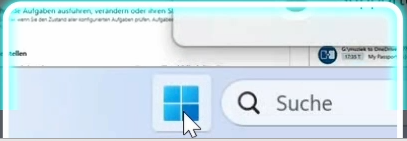
</td><td></td></tr><tr><td>##### Gehe auf dein Windows-Symbol

</td><td>[![image.png](https://wiki.kla.tv/uploads/images/gallery/2026-05/scaled-1680-/3qS1RnhFU6SBjvid-image.png)](https://wiki.kla.tv/uploads/images/gallery/2026-05/3qS1RnhFU6SBjvid-image.png)

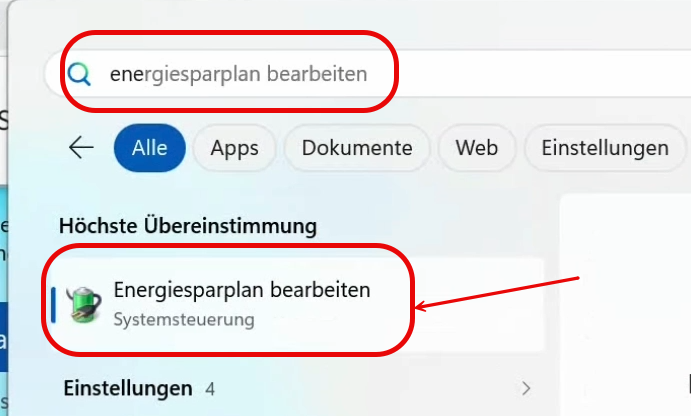
</td></tr><tr><td>##### Suche nach "Energiesparplan bearbeiten"

</td><td>[![image.png](https://wiki.kla.tv/uploads/images/gallery/2026-05/scaled-1680-/doIyHhbVMtd8OKUp-image.png)](https://wiki.kla.tv/uploads/images/gallery/2026-05/doIyHhbVMtd8OKUp-image.png)

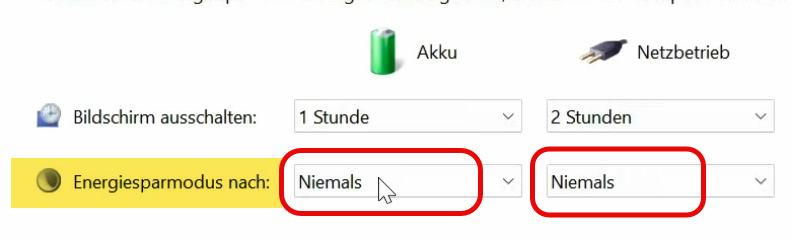
</td></tr><tr><td>##### Wähle bei Energiesparmodus 2x Niemals

</td><td>[![image.png](https://wiki.kla.tv/uploads/images/gallery/2026-05/scaled-1680-/knuXTUL6bLDh9wiX-image.png)](https://wiki.kla.tv/uploads/images/gallery/2026-05/knuXTUL6bLDh9wiX-image.png)

</td></tr><tr><td>##### BRAVO - du hast es geschafft!

</td><td>[![image.png](https://wiki.kla.tv/uploads/images/gallery/2026-05/scaled-1680-/BwijtqjPMdRSIpmS-image.png)](https://wiki.kla.tv/uploads/images/gallery/2026-05/BwijtqjPMdRSIpmS-image.png)

</td></tr></tbody></table>

#### <span style="background-color: rgb(251, 238, 184);"><span style="text-decoration: underline;">Aktualisierungs-Variante 2</span><span style="text-decoration: underline;">:</span> Festplatte löschen und komplett neu befüllen</span>

Alternativ kannst du auch die „Holzfäller-Variante” wählen, indem du die veraltete KlaTV-Festplatte komplett löschst und den aktuellen Inhalt von deinem Kollegen erneut kopierst.

<table border="1" id="bkmrk-%C3%96ffne-deine-klatv-fe" style="border-collapse: collapse; width: 100%;"><colgroup><col style="width: 50%;"></col><col style="width: 50%;"></col></colgroup><tbody><tr><td>##### Öffne deine KlaTV-Festplatte

</td><td>  
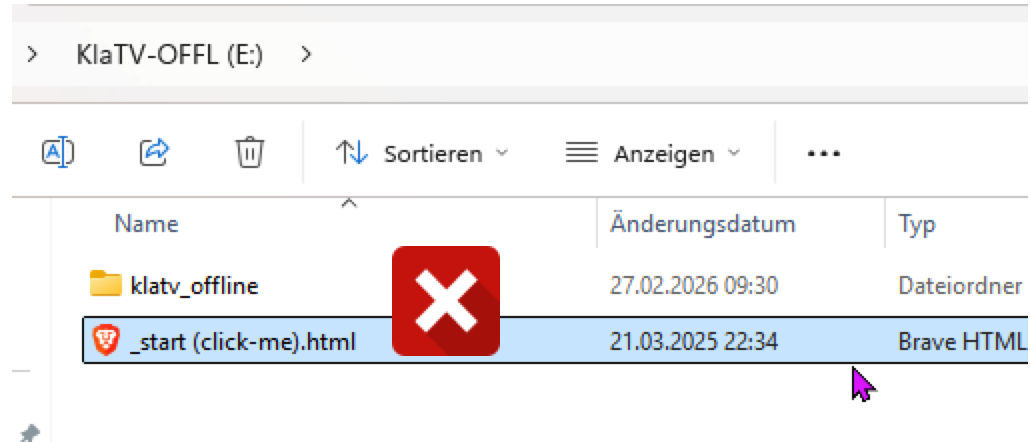
</td></tr><tr><td>##### Lösche den "klatv\_offline"-Ordner und die HTML-Datei komplett. 

</td><td>[![image.png](https://wiki.kla.tv/uploads/images/gallery/2026-04/scaled-1680-/UaHGyzLVDAFQZEjL-image.png)](https://wiki.kla.tv/uploads/images/gallery/2026-04/UaHGyzLVDAFQZEjL-image.png)  
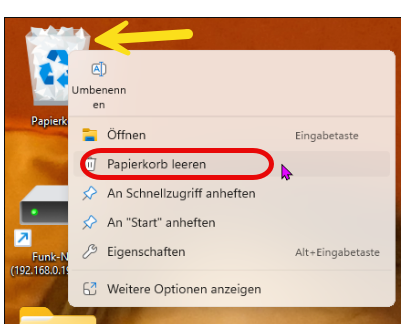
</td></tr><tr><td>##### Lösche danach den Papierkorb, weil sonst in den meisten Fällen der Inhalt noch nicht richtig gelöscht ist. (Rechtsklick auf den Papierkorb &gt; Papierkorb leeren)

</td><td>[![image.png](https://wiki.kla.tv/uploads/images/gallery/2026-05/scaled-1680-/1j0v5r7VLIYwsyoT-image.png)](https://wiki.kla.tv/uploads/images/gallery/2026-05/1j0v5r7VLIYwsyoT-image.png)

</td></tr><tr><td>##### Verbinde die aktuelle Festplatte deines Kontakts und ziehe diese beiden Ordner wieder auf deine Festplatte (beides markieren &gt; rechtsklick &gt; kopieren). 

</td><td>  
[![image.png](https://wiki.kla.tv/uploads/images/gallery/2026-05/scaled-1680-/VwUFhjnybxggdCAF-image.png)](https://wiki.kla.tv/uploads/images/gallery/2026-05/VwUFhjnybxggdCAF-image.png)

</td></tr><tr><td>##### Dieser Prozess dauert einige Stunden. Am besten über Nacht laufen lassen. 

</td><td>##### [Wie lange dauert der Kopierprozess? (Klick hier)](https://wiki.kla.tv/books/klatv-offline/page/wie-lange-dauert-das-kopieren-von-klatv-offline-von-einer-festplatte-auf-ein-oder-zwei-andere)

</td></tr></tbody></table>

# „KlaTV-Offline” aktuell halten, indem man es von einer anderen aktuellen Festplatte kopiert (FreeFileSync)

##### **Aktualisiere deine Festplatte, indem du alle Dateien von einer anderen aktuellen Festplatte auf deine Festplatte rüber kopierst.** 

[![ChatGPT Image 7. Mai 2026, 15_32_31.png](https://wiki.kla.tv/uploads/images/gallery/2026-05/scaled-1680-/2h3XpPDYP1Ay24QJ-chatgpt-image-7-mai-2026-15-32-31.png)](https://wiki.kla.tv/books/klatv-offline/page/klatv-offline-aktuell-halten-indem-man-es-von-einer-anderen-aktuellen-festplatte-kopiert-mit-syncfolder-nur-windows)

#### <span style="background-color: rgb(251, 238, 184);">Welcher Stand hat meine KlaTV-Festplatte?</span>

<table border="1" id="bkmrk-du-m%C3%B6chtest-rausfind" style="border-collapse: collapse; width: 100%;"><colgroup><col style="width: 50%;"></col><col style="width: 50%;"></col></colgroup><tbody><tr><td>##### Du möchtest rausfinden, welcher Stand deine Festplatte hat? 

</td><td>  
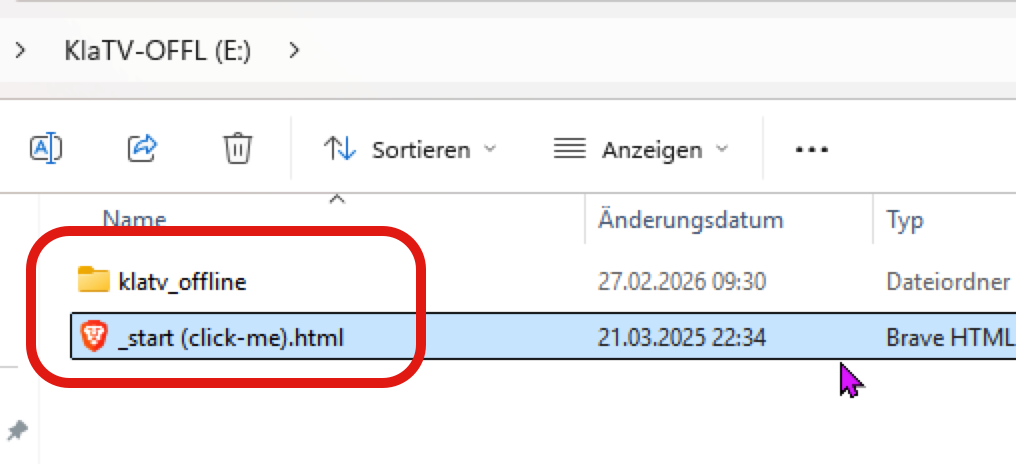
</td></tr><tr><td>##### Öffne auf deiner KlaTV-Festplatte die Datei "\_start (click-me).html"

</td><td>[![image.png](https://wiki.kla.tv/uploads/images/gallery/2026-04/scaled-1680-/YkT1yvYnxcApMYFm-image.png)](https://wiki.kla.tv/uploads/images/gallery/2026-04/YkT1yvYnxcApMYFm-image.png)  
</td></tr><tr><td>##### Die KlaTV-Webseite öffnet sich. In der untersten Leiste steht das Datum der letzten Aktualisierung.

</td><td>[![image.png](https://wiki.kla.tv/uploads/images/gallery/2026-04/scaled-1680-/c4F19REo4wA4AV89-image.png)](https://wiki.kla.tv/uploads/images/gallery/2026-04/c4F19REo4wA4AV89-image.png)</td></tr></tbody></table>

#### <span style="background-color: rgb(251, 238, 184);">Nur die neusten/aktualisierten Dateien auf meine Festplatte kopieren, ohne meinen eigenen Inhalt zu löschen mittels dem Programm FreeFileSync (Mac, Win, Linux)</span>

##### <span style="background-color: rgb(191, 237, 210);">Videoanleitung:</span>

<div class="responsive-iframe" id="bkmrk--4"><div class="responsive-iframe"><div class="responsive-iframe"><iframe allowfullscreen="allowfullscreen" frameborder="0" height="332" src="https://video.elaion.ch?video_by_id=8xjRiy6yFuzN" width="590"></iframe>

</div></div></div>##### <span style="background-color: rgb(191, 237, 210);">Schriftliche Anleitung:</span>

<table border="1" id="bkmrk-folgt-..." style="border-collapse: collapse; width: 100%;"><colgroup><col style="width: 50.0596%;"></col><col style="width: 50.0596%;"></col></colgroup><tbody><tr><td>##### Schliesse beide KlaTV-Festplatten an deinen Computer an. Die aktuelle Festplatte und die zu aktualisierende Festplatte.


</td><td>  
</td></tr><tr><td>##### Öffne das Programm "[FreeFileSync](https://freefilesync.org/)" oder lade es aus dem Internet runter. [www.freefilesync.org](https://freefilesync.org/download.php)

</td><td>Wenn du es neu runterlädst, klicke Download:  
[![image.png](https://wiki.kla.tv/uploads/images/gallery/2026-05/scaled-1680-/PXSFs1r0quQDTipz-image.png)](https://wiki.kla.tv/uploads/images/gallery/2026-05/PXSFs1r0quQDTipz-image.png)
Wähle dein Betriebssystem

[![image.png](https://wiki.kla.tv/uploads/images/gallery/2026-05/scaled-1680-/Lks4s4F4IKeVyiY0-image.png)](https://wiki.kla.tv/uploads/images/gallery/2026-05/Lks4s4F4IKeVyiY0-image.png)
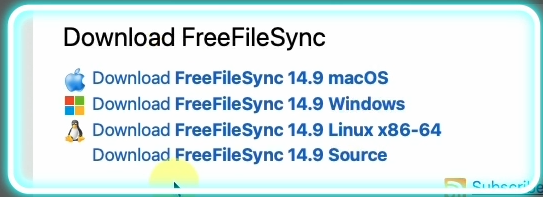
Installiere das runtergeladene Programm wie gewohnt

</td></tr><tr><td>##### Öffne das FreeFileSync-Programm. 

</td><td>  
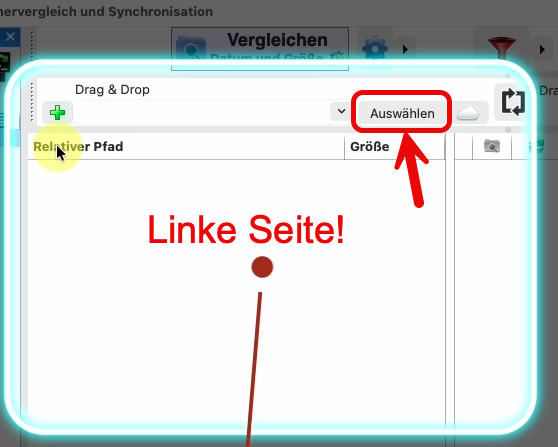
</td></tr><tr><td>##### Wähle links deine Quell-Festplatte. D.h. die Festplatte, welche aktuell ist. Klicke dazu auf "Auswählen"

</td><td>[![image.png](https://wiki.kla.tv/uploads/images/gallery/2026-05/scaled-1680-/4Jdb4LcDM7Nk1yz4-image.png)](https://wiki.kla.tv/uploads/images/gallery/2026-05/4Jdb4LcDM7Nk1yz4-image.png)

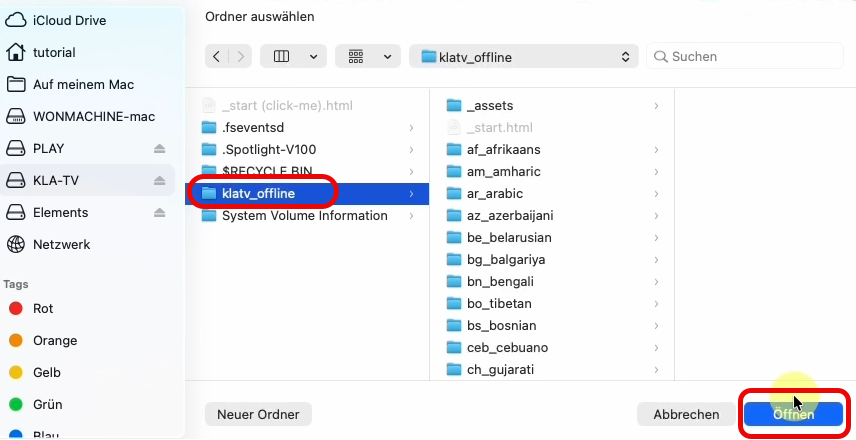
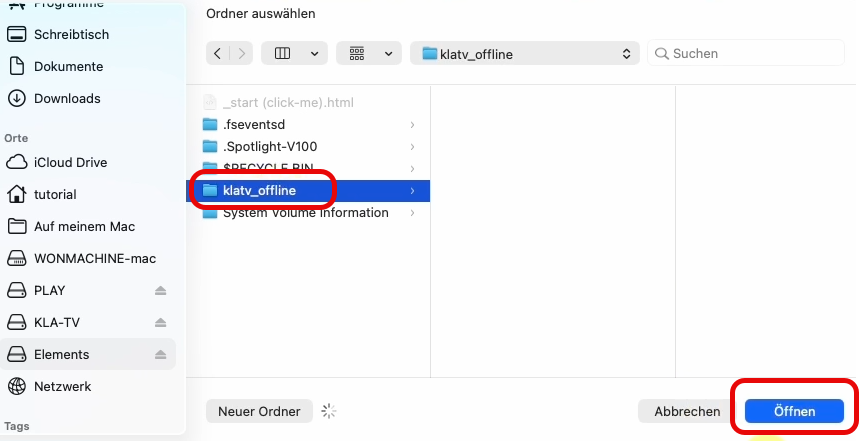
</td></tr><tr><td>##### Wähle nun in der geöffneten Ordnerstruktur die NEUERE/AKTUELLERE Festplatte und klicke den Ordner "klatv\_offline" an (wichtig!!). Klicke auf "Öffnen"

</td><td>[![image.png](https://wiki.kla.tv/uploads/images/gallery/2026-05/scaled-1680-/9b9yLxH4Aico1J88-image.png)](https://wiki.kla.tv/uploads/images/gallery/2026-05/9b9yLxH4Aico1J88-image.png)

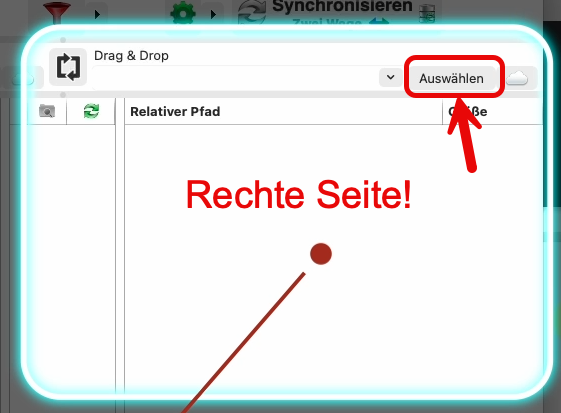
</td></tr><tr><td>##### Wähle rechts deine Ziel-Festplatte. D.h. die Festplatte, welche nicht aktuell ist. Klicke dazu auf "Auswählen"

</td><td>[![image.png](https://wiki.kla.tv/uploads/images/gallery/2026-05/scaled-1680-/nsWyPA90i2g3Y7MC-image.png)](https://wiki.kla.tv/uploads/images/gallery/2026-05/nsWyPA90i2g3Y7MC-image.png)

</td></tr><tr><td>##### Wähle nun in der geöffneten Ordnerstruktur die ÄLTERE/ NICHT AKTUELLE Festplatte und klicke den Ordner "klatv\_offline" an (wichtig!!). Klicke auf "Öffnen"

</td><td>[![image.png](https://wiki.kla.tv/uploads/images/gallery/2026-05/scaled-1680-/nFRHY4ORgwsuVLjw-image.png)](https://wiki.kla.tv/uploads/images/gallery/2026-05/nFRHY4ORgwsuVLjw-image.png)

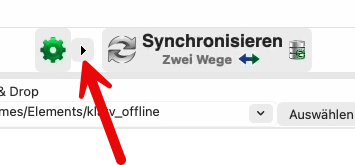
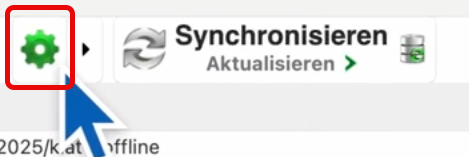
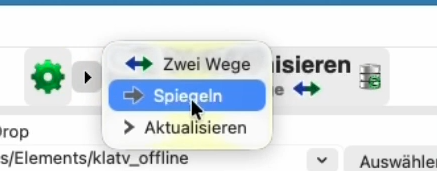
</td></tr><tr><td>##### Klicke beim grünen Zahnrad auf den schwarzen Pfeil &gt; und wähle "Spiegeln"

</td><td>[![image.png](https://wiki.kla.tv/uploads/images/gallery/2026-05/scaled-1680-/qiArs9s5UzWtk0qR-image.png)](https://wiki.kla.tv/uploads/images/gallery/2026-05/qiArs9s5UzWtk0qR-image.png)

[![image.png](https://wiki.kla.tv/uploads/images/gallery/2026-05/scaled-1680-/Xm6PSoqEpzEsiQSd-image.png)](https://wiki.kla.tv/uploads/images/gallery/2026-05/Xm6PSoqEpzEsiQSd-image.png)
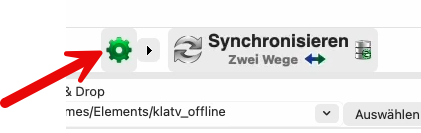
</td></tr><tr><td>#####  Klicke aufs grüne Zahnrad &gt; 

</td><td>[![image.png](https://wiki.kla.tv/uploads/images/gallery/2026-05/scaled-1680-/0s6p54l88EgE6R1o-image.png)](https://wiki.kla.tv/uploads/images/gallery/2026-05/0s6p54l88EgE6R1o-image.png)

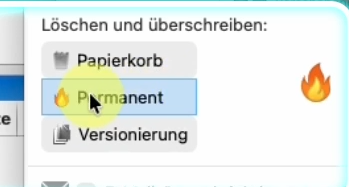
</td></tr><tr><td>##### Wähle bei "Löschen und überschreiben" &gt; Permanent &gt; so werden die alten Dateien direkt gelöscht und schaffen den benötigten Speicherplatz

</td><td>[![image.png](https://wiki.kla.tv/uploads/images/gallery/2026-05/scaled-1680-/G63FzshFaP7pnZDS-image.png)](https://wiki.kla.tv/uploads/images/gallery/2026-05/G63FzshFaP7pnZDS-image.png)

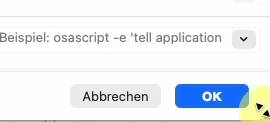
</td></tr><tr><td>##### Klicke auf OK

</td><td>[![image.png](https://wiki.kla.tv/uploads/images/gallery/2026-05/scaled-1680-/aLTW3y5pgpCHSjAz-image.png)](https://wiki.kla.tv/uploads/images/gallery/2026-05/aLTW3y5pgpCHSjAz-image.png)

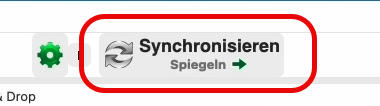
</td></tr><tr><td>##### Starte nun die Synchronisation, indem du auf "Synchronisieren" klickst

</td><td>[![image.png](https://wiki.kla.tv/uploads/images/gallery/2026-05/scaled-1680-/43due0GL6v7IAgSE-image.png)](https://wiki.kla.tv/uploads/images/gallery/2026-05/43due0GL6v7IAgSE-image.png)

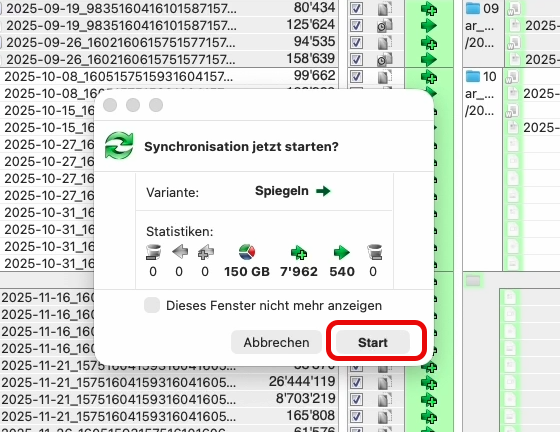
</td></tr><tr><td>##### Warte (ca. 10min) bis das Programm berechnet hat, was es alles zu Kopieren gibt. Danach zeigt er die Vorschau. Klicke auf "Start", wenn du bereit für den Kopiervorgang bist

</td><td>[![image.png](https://wiki.kla.tv/uploads/images/gallery/2026-05/scaled-1680-/SwCpCqSmRSeSsl9P-image.png)](https://wiki.kla.tv/uploads/images/gallery/2026-05/SwCpCqSmRSeSsl9P-image.png)

</td></tr><tr><td>##### Es kann einige Stunden dauern, je nachdem wie aktuell deine Festplatte ist.

##### BRAVO - du hast es geschafft!

</td><td>[![image.png](https://wiki.kla.tv/uploads/images/gallery/2026-05/scaled-1680-/BwijtqjPMdRSIpmS-image.png)](https://wiki.kla.tv/uploads/images/gallery/2026-05/BwijtqjPMdRSIpmS-image.png)

</td></tr></tbody></table>

# "KlaTV-Offline" über Serverzugang aktuell halten - mittels FreeFileSync (Mac,Linux,Windows)

<div dir="auto" id="bkmrk-"></div><p class="callout info">**„KlaTV-Offline” passt auf eine 2-TeraByte-Festplatte. Falls es bei dir nicht darauf passt, stelle sicher, dass du den Papierkorb leerst, <span style="text-decoration: underline;">*während* deine Festplatte eingesteckt ist.</span> Es ist normal, dass viele Dateien des Kla.TV-Archivs NEU heruntergeladen werden müssen und du neuen Speicherplatz gewinnst während dem *Aktualisieren*. Dies ist, weil viele Dateien im Laufe der Zeit besser konvertiert wurden um Speicherplatz zu sparen.**</p>

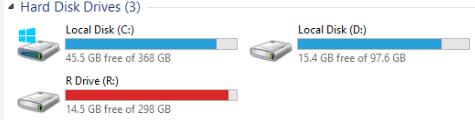
<p class="callout info">**Zeigt deine Festplatte einen roten Balken, weil nicht mehr viel Platz frei ist, dann sorge dich erstmals nicht. Die Festplatte wird immer so bespielt, dass sie gut befüllt, aber nicht überfüllt wird.  
[![image.png](https://wiki.kla.tv/uploads/images/gallery/2026-04/scaled-1680-/r4ke5S6VgcnJiext-image.png)](https://wiki.kla.tv/uploads/images/gallery/2026-04/r4ke5S6VgcnJiext-image.png)** </p>
<p class="callout info">Gehen die Videoanleitungen zu schnell? Dann studiere die schriftliche Schritt-für-Schritt-Anleitung, die unterhalb der Videos noch ausführlicher formuliert ist.</p>

## <span style="background-color: rgb(251, 238, 184);">**1. Herunterladen und Installation**</span>

<div dir="auto" id="bkmrk-gehe-auf-folgende-we"><div class="responsive-iframe"><div class="responsive-iframe"><div class="responsive-iframe"><div class="responsive-iframe"><div class="responsive-iframe"><iframe allowfullscreen="allowfullscreen" frameborder="0" height="332" src="https://video.elaion.ch?video_by_id=2t6yMxMxMQC8" width="590"></iframe>

</div><div class="responsive-iframe">- ##### Gehe auf folgende Webseite: [https://freefilesync.org/download.php ](https://freefilesync.org/download.php)
- ##### Wähle die gewünschte Installations-Datei. Das Programm wird danach runtergeladen:
    
    ##### [![image.png](https://wiki.kla.tv/uploads/images/gallery/2025-11/scaled-1680-/gLPAxTwYPmsj5e0l-image.png)](https://wiki.kla.tv/uploads/images/gallery/2025-11/gLPAxTwYPmsj5e0l-image.png)
- Tipp: Weißt du nicht, wo die runtergeladene Datei zu finden ist, dann gehe oben rechts im Internetbrowser auf das Download-Symbol und klicke direkt auf die Installationsdatei:  
    [![image.png](https://wiki.kla.tv/uploads/images/gallery/2026-04/scaled-1680-/3vGKs1lq7dD4ozY0-image.png)](https://wiki.kla.tv/uploads/images/gallery/2026-04/3vGKs1lq7dD4ozY0-image.png)
- ##### Durch Doppelklick auf die Installationsdatei installiert sich das Programm. Klicke auf "Ich akzeptiere die Vereinbarung" und drücke danach bei allen Fragen immer auf "Weiter".  
    
    
    [![image.png](https://wiki.kla.tv/uploads/images/gallery/2026-04/scaled-1680-/NPL6alQe55TbS6JA-image.png)](https://wiki.kla.tv/uploads/images/gallery/2026-04/NPL6alQe55TbS6JA-image.png)

</div></div></div></div></div></div>## <span style="background-color: rgb(251, 238, 184);">**2. Server-Verbindung und Programmeinstellung**</span>

<div dir="auto" id="bkmrk--2"><div class="responsive-iframe"><div class="responsive-iframe"><div class="responsive-iframe"><div class="responsive-iframe"><div class="responsive-iframe"><div class="responsive-iframe"><div class="responsive-iframe"><iframe allowfullscreen="allowfullscreen" frameborder="0" height="332" src="https://video.elaion.ch?video_by_id=AD2jcRW25Q8O" width="590"></iframe>

</div><div class="responsive-iframe">  
</div></div></div></div></div></div></div></div>##### **<span style="background-color: rgb(251, 238, 184);">Programm "FreeFileSync" öffnen:</span>**

<span style="color: rgb(52, 73, 94);">*&gt;&gt;Wenn du das Programm nicht findest, klicke unten links auf dein Windows-Symbol und schau bei den zuletzt hinzugefügten Programmen.*</span>

[![image.png](https://wiki.kla.tv/uploads/images/gallery/2026-04/scaled-1680-/kSenEZwbpaVrTnDp-image.png)](https://wiki.kla.tv/uploads/images/gallery/2026-04/kSenEZwbpaVrTnDp-image.png)

##### Hier ein Bild zur FreeFileSync-Programm-Erklärung:[![image.png](https://wiki.kla.tv/uploads/images/gallery/2025-11/scaled-1680-/ZsLnySu1keR1MwXt-image.png)](https://wiki.kla.tv/uploads/images/gallery/2025-11/ZsLnySu1keR1MwXt-image.png)


##### **<span style="background-color: rgb(251, 238, 184);">Kla-TV-Server verbinden:</span>**

##### Klicke im 1️⃣ Feld auf die Wolke (siehe Bild oben) , um dich mit folgenden Einstellungen (siehe Bild unten) mit dem KlaTV-Server zu verbinden:  
<span style="color: rgb(52, 73, 94);">*Achtung: für die Zugangsdaten (gelb-markierten Felder) musst du den nächsten Schritt lesen.*</span>[![image.png](https://wiki.kla.tv/uploads/images/gallery/2026-04/scaled-1680-/7Pscy9ZgZ3wUxqjP-image.png)](https://wiki.kla.tv/uploads/images/gallery/2026-04/7Pscy9ZgZ3wUxqjP-image.png)

##### &gt;&gt; gehe auf **[www.kla.tv/offline](https://www.kla.tv/offline)** &gt; unter "Fragen &amp; Antworten" (runter scrollen) findest du die Zugangsdaten. Drücke auf das Kopieren-Symbol und füge sie in FreeFileSync ein:  


[![image.png](https://wiki.kla.tv/uploads/images/gallery/2025-11/scaled-1680-/jHT5vTTllMYgw53r-image.png)](https://wiki.kla.tv/uploads/images/gallery/2025-11/jHT5vTTllMYgw53r-image.png)

*(Weshalb von der Webseite kopieren? = Weil dort die Serverzugänge zufällig zugewiesen werden)*

<div dir="auto" id="bkmrk-%3E%3E-das-war-nicht-ver"><div class="responsive-iframe"><div class="responsive-iframe"><div class="responsive-iframe"><div class="responsive-iframe"><div class="responsive-iframe"><div class="responsive-iframe"><div class="responsive-iframe">- ##### *<span style="color: rgb(52, 73, 94);"><span style="color: rgb(224, 62, 45);">&gt;&gt; Das war nicht verständlich, was du tun musst? &lt;&lt;   
    </span>Dann hier nochmals Schritt für Schritt:   
    Klicke auf der Webseite [www.kla.tv/offline](https://www.kla.tv/offline) bei "Fragen &amp; Antworten" bei "Serverpfad" auf das Kopieren-Symbol [![image.png](https://wiki.kla.tv/uploads/images/gallery/2026-04/scaled-1680-/QCPjea6f01K5NsbC-image.png)](https://wiki.kla.tv/uploads/images/gallery/2026-04/QCPjea6f01K5NsbC-image.png)</span>*
    
    
    ##### *<span style="color: rgb(52, 73, 94);">Der Computer speichert im Hintergrund den für dich bestimmten Serverlink:   
    </span>*[![image.png](https://wiki.kla.tv/uploads/images/gallery/2026-04/scaled-1680-/WoSdmZQ1Fj7NOjIX-image.png)](https://wiki.kla.tv/uploads/images/gallery/2026-04/WoSdmZQ1Fj7NOjIX-image.png)
- ##### <span style="color: rgb(52, 73, 94);">*Wechsle ins Programm FreeFileSync. Klicke ins Feld "Servername" und mache einen rechtsklick &gt; Einfügen*</span>
    
    ##### <span style="color: rgb(52, 73, 94);">*[![image.png](https://wiki.kla.tv/uploads/images/gallery/2026-04/scaled-1680-/Jn3sItPJ6KUnEfqv-image.png)](https://wiki.kla.tv/uploads/images/gallery/2026-04/Jn3sItPJ6KUnEfqv-image.png)*</span>
- ##### <span style="color: rgb(52, 73, 94);">*bei Benutzer und Passwort gebe genau diesen Text ein: **klatv\_offline***</span>

</div></div></div></div></div></div></div></div><div dir="auto" id="bkmrk-als-n%C3%A4chstes-klickst"><div class="responsive-iframe"><div class="responsive-iframe"><div class="responsive-iframe"><div class="responsive-iframe"><div class="responsive-iframe"><div class="responsive-iframe"><div class="responsive-iframe">- ##### Als nächstes klickst du hier auf "Auswählen"
    
    ##### [![image.png](https://wiki.kla.tv/uploads/images/gallery/2026-04/scaled-1680-/l6EVyXLJqAvVxKQe-image.png) ](https://wiki.kla.tv/uploads/images/gallery/2026-04/l6EVyXLJqAvVxKQe-image.png)
- ##### Klicke auf den Ordner "klatv\_offline" &gt; danach "Ornder auswählen"  
    ![image.png](https://wiki.kla.tv/uploads/images/gallery/2026-04/scaled-1680-/IAvKzi1tzi75JdC2-image.png)
- ##### Klicke "OK"
    
    [![image.png](https://wiki.kla.tv/uploads/images/gallery/2026-04/scaled-1680-/bdNZOv5CMAOw7XLL-image.png)](https://wiki.kla.tv/uploads/images/gallery/2026-04/bdNZOv5CMAOw7XLL-image.png)

</div></div></div></div></div></div></div></div>##### **<span style="background-color: rgb(251, 238, 184);">Eigene Festplatte verbinden:</span>**

<div dir="auto" id="bkmrk-%C2%A0klicke-im-rechten-f"><div class="responsive-iframe"><div class="responsive-iframe"><div class="responsive-iframe"><div class="responsive-iframe"><div class="responsive-iframe"><div class="responsive-iframe"><div class="responsive-iframe">- #####  Klicke im rechten Feld auf 2️⃣ "Auswählen", um dich mit deiner persönlichen Festplatte zu verbinden:
    
    [![image.png](https://wiki.kla.tv/uploads/images/gallery/2026-04/scaled-1680-/aVFjpaK9EpdtmRoc-image.png)](https://wiki.kla.tv/uploads/images/gallery/2026-04/aVFjpaK9EpdtmRoc-image.png)
- ##### Wähle die KlaTV-Festplatte (1). Dann wähle den Ordner "klatv\_offline" damit er wie im Bild markiert ist (2). Danach klicke "Ordner auswählen" (3) (auf Mac: "Öffnen")
    
    [![image.png](https://wiki.kla.tv/uploads/images/gallery/2026-04/scaled-1680-/ou6mu2JrWxzBs65v-image.png)](https://wiki.kla.tv/uploads/images/gallery/2026-04/ou6mu2JrWxzBs65v-image.png)

</div></div></div></div></div></div></div></div>##### **<span style="background-color: rgb(251, 238, 184);">Synchronisations-Einstellungen vornehmen:</span>**

<div dir="auto" id="bkmrk-zugangsdaten-findest"><div class="responsive-iframe" id="bkmrk-klicke-bei-%22vergleic"><div class="responsive-iframe"><div class="responsive-iframe"><div class="responsive-iframe"><div class="responsive-iframe"><div class="responsive-iframe"><div class="responsive-iframe">- ##### Klicke bei "Vergleichen" auf den Pfeil &gt; wähle "**Datum und Größe**"![image.png](https://wiki.kla.tv/uploads/images/gallery/2025-11/scaled-1680-/9LNMkeYktI7fw9oQ-image.png)
- ##### Klicke bei "Synchronisieren" auf den Pfeil &gt; wähle "**Aktualisieren**"[![image.png](https://wiki.kla.tv/uploads/images/gallery/2025-11/scaled-1680-/MRhljlPEFzLySIRU-image.png)](https://wiki.kla.tv/uploads/images/gallery/2025-11/MRhljlPEFzLySIRU-image.png)

</div></div></div></div></div></div></div></div><p class="callout info">Wenn du die Option **„Aktualisieren”** auswählst, bleiben Videos, die auf dem Kla.TV-Server gelöscht oder umbenannt wurden, auf deiner Festplatte erhalten. Dadurch braucht deine Festplatte dann aber evtl. mehr Speicherplatz. Wenn du keinen freien Speicherplatz mehr auf deiner 2-TB-Festplatte hast, musst du **„Spiegeln”** wählen. Dann werden die auf KlaTV gelöschten Sendungen auch auf deiner Festplatte gelöscht. „Kla.TV-Offline” ist immer so groß, dass es auf eine 2-TB-Festplatte passt!</p>

- ##### Klicke bei "Synchronisieren" auf das grüne Zahnrad und tätige folgende Einstellung &gt; Permanent &gt; danach klicke auf OK
    
    [![image.png](https://wiki.kla.tv/uploads/images/gallery/2025-11/scaled-1680-/yxbIsBuliLNHBSmD-image.png)](https://wiki.kla.tv/uploads/images/gallery/2025-11/yxbIsBuliLNHBSmD-image.png)
    
    [![image.png](https://wiki.kla.tv/uploads/images/gallery/2025-11/scaled-1680-/738v1Zt9igHwGf98-image.png)](https://wiki.kla.tv/uploads/images/gallery/2025-11/738v1Zt9igHwGf98-image.png)
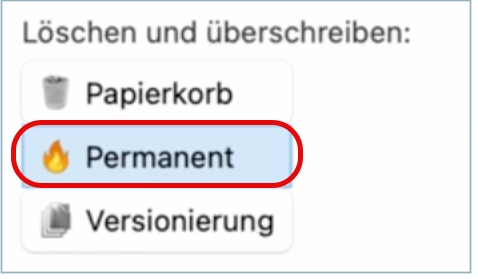
- ##### Um den Prozess zu starten, klicke auf "Vergleichen" (dauert ca. 10min). 
    
    [![image.png](https://wiki.kla.tv/uploads/images/gallery/2025-11/scaled-1680-/wg0XRh6Flq1iOlSr-image.png)](https://wiki.kla.tv/uploads/images/gallery/2025-11/wg0XRh6Flq1iOlSr-image.png)
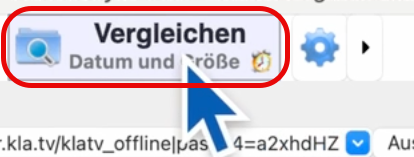
## <span style="background-color: rgb(251, 238, 184);">**3. Synchronisation**</span>

<div class="responsive-iframe" id="bkmrk-nach-dem-vergleichsp"><div class="responsive-iframe"><iframe allowfullscreen="allowfullscreen" frameborder="0" height="332" src="https://video.elaion.ch?video_by_id=pwccdBD356Zl" width="590"></iframe>

</div><div class="responsive-iframe">- ##### Nach dem Vergleichsprozess siehst du in der Liste, was alles neu kopiert wird. (Links ist der KlaTV-Server, rechts ist deine Festplatte)  
    Klicke auf "**Synchronisieren**" &gt; "**Start**"
    
    [![image.png](https://wiki.kla.tv/uploads/images/gallery/2025-11/scaled-1680-/p2Yo3gUjLN8EUjSD-image.png)](https://wiki.kla.tv/uploads/images/gallery/2025-11/p2Yo3gUjLN8EUjSD-image.png)

</div></div><div dir="auto" id="bkmrk-einstellungen-f%C3%BCrs-s"><div class="responsive-iframe" id="bkmrk-einstellungen-f%C3%BCrs-s-1"></div></div>- ##### Deine Festplatte ist nach dem Kopierprozess wieder aktuell!


##### **<span style="background-color: rgb(251, 238, 184);">Einstellungen als Preset abspeichern:</span>**

##### ***<span style="background-color: rgb(194, 224, 244);">TIPP: </span>*****Damit du nicht jedes Mal die Einstellungen in FreeFileSync neu einstellen musst (wie gerade eben alles), speichere nach diesem Vorgang deine Einstellungen ab:**

- #####  Klicke auf das Symbol "**Speichern**" &gt; wähle einen Namen z.B. "Sync\_KlaTV-Offline"  
    
    
    [![image.png](https://wiki.kla.tv/uploads/images/gallery/2025-11/scaled-1680-/m5Vf7UxyIb632WHG-image.png)](https://wiki.kla.tv/uploads/images/gallery/2025-11/m5Vf7UxyIb632WHG-image.png)
- ##### Möchtest du die Festplatte später wieder aktualisieren, mache einen **Doppelklick** auf "Sync\_KlaTV-Offline" und der Prozess startet automatisch, mit allen richtigen Einstellungen:  
    
    
    [![image.png](https://wiki.kla.tv/uploads/images/gallery/2025-11/scaled-1680-/jmjQTKeqKojlFOJr-image.png)](https://wiki.kla.tv/uploads/images/gallery/2025-11/jmjQTKeqKojlFOJr-image.png)

#### Gratulation! 🥳

##### **<span style="background-color: rgb(251, 238, 184);">Hinweis 1:</span>**

##### **Kleiner Hinweis: Falls vor oder während der Synchronisation <span style="background-color: rgb(236, 240, 241);">Warnungen</span> auftauchen, weil z.B. etwas nicht kopiert werden kann, gerne auf <span style="background-color: rgb(236, 240, 241);">Wiederholen</span> klicken, dann funktioniert der Kopiervorgang meist wieder. Ansonsten kann man in vielen Fällen auch auf <span style="background-color: rgb(236, 240, 241);">Ignorieren</span> klicken, weil die Warnung irrelevant ist, z.B. in diesem konkreten Fall war nur ein Buchstabe klein statt groß geschrieben, aber die Datei war dieselbe:**

[![image.png](https://wiki.kla.tv/uploads/images/gallery/2025-10/scaled-1680-/lndcJhKAeDb2fAtU-image.png)](https://wiki.kla.tv/uploads/images/gallery/2025-10/lndcJhKAeDb2fAtU-image.png)

##### **<span style="background-color: rgb(251, 238, 184);">Hinweis 2:</span>**

##### Die Fehlermeldung "Failed opening remote file" kann ignoriert werden! Das passiert, weil FreeFileSync versucht, **seine Synchronisationsdatenbank (`.sync.ffs_db`) auf dem entfernten Server** abzulegen, was nicht erlaubt ist.

[![grafik.png](https://wiki.kla.tv/uploads/images/gallery/2025-10/scaled-1680-/R6h7TtNr0n03RWQE-grafik.png)](https://wiki.kla.tv/uploads/images/gallery/2025-10/R6h7TtNr0n03RWQE-grafik.png)

##### **<span style="background-color: rgb(251, 238, 184);">Hinweis 3 - Energieoptionen:</span>**

##### Damit der Kopierprozess ohne Unterbrechung funktioniert, solltest du den Energiesparmodus so einstellen, dass der Computer nicht in den Ruhezustand wechselt. 

- - Energieoptionen so ändern, dass der Computer nicht runterfährt: **Windowssymbol**→ **Suchfeld: Energiesparplan** → <span lang="DE" style="font-size: 16pt; line-height: 107%; font-family: Wingdings;"><span style="mso-char-type: symbol; mso-symbol-font-family: Wingdings;"><span lang="EN-US" style="font-size: 11pt; line-height: 107%; font-family: 'Cambria Math', serif;">❶</span></span></span> **Energiesparplan bearbeiten**
    
    ![grafik.png](https://wiki.kla.tv/uploads/images/gallery/2024-11/scaled-1680-/ONpMkNkqaQmKdYtX-grafik.png)
    
    
    - **→** <span lang="DE" style="font-size: 16pt; line-height: 107%; font-family: Wingdings;"><span style="mso-char-type: symbol; mso-symbol-font-family: Wingdings;"><span lang="EN-US" style="font-size: 11pt; line-height: 107%; font-family: 'Cambria Math', serif;">❷</span></span></span> **Energiesparmodus nach: Niemals → Änderung speichern**  
        ![grafik.png](https://wiki.kla.tv/uploads/images/gallery/2024-11/scaled-1680-/c6InTIccNIpkCbYb-grafik.png)
    - Computer laufen lassen, bis alle Dateien runtergeladen sind

# "Kla.TV-Offline" über Serverzugang aktuell halten - mittels WinSCP (nur Windows)

<p class="callout info"><span style="color: rgb(0, 0, 0);">**WinSCP kann die Downloadgeschwindigkeit drosseln. Deshalb empfehlen wir für den Download des gesamten Archivs FileZilla zu benutzen: [https://wiki.kla.tv/books/klatv-offline/page/klatv-offline-aktuell-halten-mittels-filezilla-maclinuxwindows](https://wiki.kla.tv/books/klatv-offline/page/klatv-offline-aktuell-halten-mittels-filezilla-maclinuxwindows)  
Für die Aktualisierung empfehlen wir [FreeFileSync](https://wiki.kla.tv/books/klatv-offline/page/klatv-offline-uber-serverzugang-aktuell-halten-mittels-freefilesync-maclinuxwindows) oder WinSCP.**</span></p>

### <span style="color: rgb(255, 255, 255);">**<span style="background-color: rgb(29, 62, 98);"><span style="background-color: rgb(45, 194, 107);"><span style="background-color: rgb(29, 62, 98);"> WinSCP oder FileZilla?</span></span> </span>**</span>

<div class="responsive-iframe" id="bkmrk-"><div class="responsive-iframe"><iframe allowfullscreen="allowfullscreen" frameborder="0" height="332" src="https://video.elaion.ch?video_by_id=Y6hgJ5GqI9HF" width="590"></iframe>

</div></div>## <span style="color: rgb(255, 255, 255);">**<span style="background-color: rgb(29, 62, 98);"><span style="background-color: rgb(45, 194, 107);"><span style="background-color: rgb(120, 210, 40);"> 1 </span></span></span> <span style="background-color: rgb(29, 62, 98);"><span style="background-color: rgb(45, 194, 107);"><span style="background-color: rgb(29, 62, 98);"> </span></span>Lade dir WinSCP herunter </span>**</span>

<span style="color: rgb(29, 62, 98);">Als erstes benötigst du die Installationsdatei. Diese kannst du herunterladen, indem du auf den Link klickst:</span>

<p class="callout success">**[HIER KLICKEN (https://winscp.net/download.php)](https://winscp.net/download.php "Link zum Download")**</p>

### <span style="color: rgb(255, 255, 255);">**<span style="background-color: rgb(29, 62, 98);"><span style="background-color: rgb(45, 194, 107);"><span style="background-color: rgb(120, 210, 40);"> 2 </span></span></span> <span style="background-color: rgb(29, 62, 98);"><span style="background-color: rgb(45, 194, 107);"><span style="background-color: rgb(29, 62, 98);"> </span></span>Installiere WinSCP </span>**</span>

<div class="responsive-iframe" id="bkmrk--1"><div class="responsive-iframe"><div class="responsive-iframe"><iframe allowfullscreen="allowfullscreen" frameborder="0" height="332" src="https://video.elaion.ch?video_by_id=dstOOAKwP42S" width="590"></iframe>

</div></div></div>### <span style="color: rgb(255, 255, 255);">**<span style="background-color: rgb(29, 62, 98);"><span style="background-color: rgb(120, 210, 40);"> 3 </span></span> <span style="background-color: rgb(29, 62, 98);"> Verbinde WinSCP mit dem Server </span>**</span>

<div class="responsive-iframe" id="bkmrk--2"><div class="responsive-iframe"><div class="responsive-iframe"><div class="responsive-iframe"><div class="responsive-iframe"><iframe allowfullscreen="allowfullscreen" frameborder="0" height="332" src="https://video.elaion.ch?video_by_id=zIHLWmE6IDLc" width="590"></iframe>

</div></div></div></div></div>### <span style="color: rgb(255, 255, 255);">**<span style="background-color: rgb(29, 62, 98);"><span style="background-color: rgb(120, 210, 40);"> 4 </span></span> <span style="background-color: rgb(29, 62, 98);"> Richte dir das Programm ein </span>**</span>

<div class="responsive-iframe" id="bkmrk--3"><div class="responsive-iframe"><div class="responsive-iframe"><iframe allowfullscreen="allowfullscreen" frameborder="0" height="332" src="https://video.elaion.ch?video_by_id=xfW3b7YO99pJ" width="590"></iframe>

</div></div></div>### <span style="color: rgb(255, 255, 255);">**<span style="background-color: rgb(29, 62, 98);"><span style="background-color: rgb(120, 210, 40);"> 5 </span></span> <span style="background-color: rgb(29, 62, 98);"> Synchronisiere dein Archiv </span>**</span>

<div class="responsive-iframe" id="bkmrk-einstellungen-f%C3%BCrs-s"><div class="responsive-iframe"><iframe allowfullscreen="allowfullscreen" frameborder="0" height="332" src="https://video.elaion.ch?video_by_id=ptENtxtTdsm7" width="590"></iframe>

</div><div class="responsive-iframe">  
</div><div class="responsive-iframe"><span style="color: rgb(29, 62, 98);">**Einstellungen fürs synchronisieren:**</span></div></div>[![NUmmerierung.png](https://wiki.kla.tv/uploads/images/gallery/2025-03/scaled-1680-/sfc7JRnnMHPMUm9C-nummerierung.png)](https://wiki.kla.tv/uploads/images/gallery/2025-03/sfc7JRnnMHPMUm9C-nummerierung.png)

<p class="callout info">**Kein Platz mehr auf der Festplatte?**  
Wenn du den Haken setzt bei <span style="text-decoration: underline;">***"Dateien löschen"*,**</span> werden Videos, die auf dem Kla.TV-Server gelöscht oder umbenannt wurden, auch auf deiner Festplatte gelöscht. Falls du keinen freien Speicherplatz mehr auf deiner 2-TB-Festplatte hast, solltest du <span style="text-decoration: underline;">**„Dateien löschen”**</span> und Vergleichskriterium **"Dateigrösse"** wählen. „Kla.TV-Offline” ist immer so groß, dass es auf eine 2-TB-Festplatte passt!  
  
[![grafik.png](https://wiki.kla.tv/uploads/images/gallery/2025-10/scaled-1680-/qYkQeYZ5Dt4Jo431-grafik.png)](https://wiki.kla.tv/uploads/images/gallery/2025-10/qYkQeYZ5Dt4Jo431-grafik.png)  
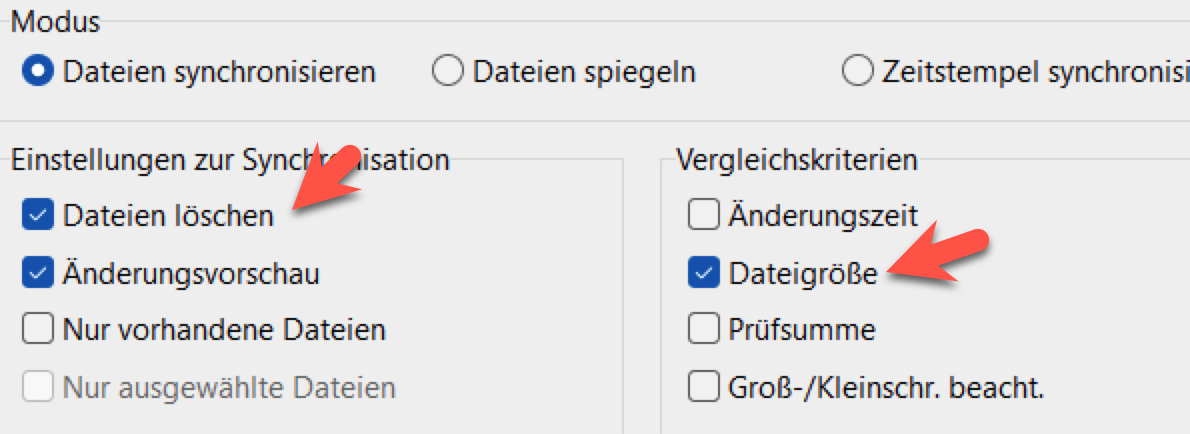
  
</p>

### <span style="color: rgb(255, 255, 255);">**<span style="background-color: rgb(29, 62, 98);"><span style="background-color: rgb(120, 210, 40);"> FERTIG </span></span>**</span>

# "Kla.TV-Offline" über Serverzugang aktuell halten - mittels Filezilla (Mac,Linux,Windows)

### <span style="color: rgb(255, 255, 255);">**<span style="background-color: rgb(29, 62, 98);"><span style="background-color: rgb(45, 194, 107);"><span style="background-color: rgb(29, 62, 98);"><iframe allowfullscreen="allowfullscreen" frameborder="0" height="332" src="https://www.kla.tv/index.php?a=showembed&vidid=37260#s=bs" width="590"></iframe>

 </span></span></span>**</span>

### <span style="color: rgb(255, 255, 255);">**<span style="background-color: rgb(29, 62, 98);"><span style="background-color: rgb(45, 194, 107);"><span style="background-color: rgb(29, 62, 98);">WinSCP oder FileZilla?</span></span> </span>**</span>

<div class="responsive-iframe" id="bkmrk-"><iframe allowfullscreen="allowfullscreen" frameborder="0" height="332" src="https://video.elaion.ch?video_by_id=kpdtcAOfuvJJ" width="590"></iframe>

</div>### <span style="color: rgb(255, 255, 255);">**<span style="background-color: rgb(164, 0, 0);"> 1 </span> <span style="background-color: rgb(29, 62, 98);"><span style="background-color: rgb(45, 194, 107);"><span style="background-color: rgb(29, 62, 98);"> </span></span>Lade dir FileZilla herunter </span>**</span>

<span style="color: rgb(29, 62, 98);">Als erstes benötigst du die Installationsdatei. Diese kannst du herunterladen, indem du auf den Link klickst:</span>

<p class="callout success">**[HIER KLICKEN (https://filezilla-project.org/download.php)](https://filezilla-project.org/download.php)**</p>

### <span style="color: rgb(255, 255, 255);">**<span style="background-color: rgb(164, 0, 0);"> 2 </span> <span style="background-color: rgb(29, 62, 98);"><span style="background-color: rgb(45, 194, 107);"><span style="background-color: rgb(29, 62, 98);"> </span></span>Installiere FileZilla </span>**</span>

<div class="responsive-iframe" id="bkmrk--1"><iframe allowfullscreen="allowfullscreen" frameborder="0" height="332" src="https://video.elaion.ch?video_by_id=ooaSN6vpGIsw" width="590"></iframe>

</div>### <span style="color: rgb(255, 255, 255);">**<span style="background-color: rgb(164, 0, 0);"> 3 </span> <span style="background-color: rgb(29, 62, 98);"><span style="background-color: rgb(45, 194, 107);"><span style="background-color: rgb(29, 62, 98);"> </span></span>Verbinde FileZilla mit dem Server </span>**</span>

<div class="responsive-iframe" id="bkmrk--2"><iframe allowfullscreen="allowfullscreen" frameborder="0" height="332" src="https://video.elaion.ch?video_by_id=ssTqOfALDzy5" width="590"></iframe>

</div>### <span style="color: rgb(255, 255, 255);">**<span style="background-color: rgb(164, 0, 0);"> 4 </span> <span style="background-color: rgb(29, 62, 98);"><span style="background-color: rgb(45, 194, 107);"><span style="background-color: rgb(29, 62, 98);"> </span></span></span>**</span><span style="color: rgb(255, 255, 255);">**<span style="background-color: rgb(29, 62, 98);">Synchronisiere dein Archiv</span>**</span><span style="color: rgb(255, 255, 255);">**<span style="background-color: rgb(29, 62, 98);"> </span>**</span>

<div class="responsive-iframe" id="bkmrk--3"><iframe allowfullscreen="allowfullscreen" frameborder="0" height="332" src="https://video.elaion.ch?video_by_id=TvhAmobR5TYt" width="590"></iframe>

</div><div class="responsive-iframe" id="bkmrk--4"></div>[![grafik.png](https://wiki.kla.tv/uploads/images/gallery/2025-03/scaled-1680-/FMg5KlE97WgkdEbI-grafik.png)](https://wiki.kla.tv/uploads/images/gallery/2025-03/FMg5KlE97WgkdEbI-grafik.png)

<p class="callout info"><span style="color: rgb(0, 0, 0);">**Durch die Aktualisierung mittels Filezilla bleiben Videos, die auf dem Kla.TV-Server gelöscht oder umbenannt wurden, auf deiner Festplatte erhalten. Dadurch braucht deine Festplatte dann aber evtl. mehr Speicherplatz. Wenn du keinen freien Speicherplatz mehr auf deiner 2-TB-Festplatte hast, musst du <span style="text-decoration: underline;">„Dateien spiegeln”. </span>**Dies kannst du leider nicht mit Filezilla, sondern musst du mit dem Programm "FreeFileSync" oder "WinSCP" tun. Mehr Anleitungen dazu hier: 👉 [<span style="text-decoration: underline;">https://wiki.kla.tv/books/klatv-offline/chapter/klatv-offline-herunterladen-und-aktuell-halten</span>](https://wiki.kla.tv/books/klatv-offline/chapter/klatv-offline-herunterladen-und-aktuell-halten)</span></p>

### <span style="color: rgb(255, 255, 255); background-color: rgb(164, 0, 0);"> **FERTIG** </span>

# "Kla.TV-Offline" über Serverzugang  aktuell halten - mittels Console rsync (Linux für Fortgeschrittene)

### <span style="color: rgb(255, 255, 255);">**<span style="background-color: rgb(29, 62, 98);"><span style="background-color: rgb(45, 194, 107);"><span style="background-color: rgb(29, 62, 98);"> Als Console</span></span> </span>**</span>

<div class="responsive-iframe" id="bkmrk-"></div>### <span style="color: rgb(255, 255, 255);">**<span style="background-color: rgb(164, 0, 0);"> 1 </span> <span style="background-color: rgb(29, 62, 98);"><span style="background-color: rgb(45, 194, 107);"><span style="background-color: rgb(29, 62, 98);"> Console starten</span></span> </span>**</span>

### <span style="color: rgb(255, 255, 255);">**<span style="background-color: rgb(164, 0, 0);"> 2 </span> <span style="background-color: rgb(29, 62, 98);"><span style="background-color: rgb(45, 194, 107);"><span style="background-color: rgb(29, 62, 98);"> </span></span>in das gewünschte Verzeichnis gehen </span>**</span>

### <span style="color: rgb(255, 255, 255);">**<span style="background-color: rgb(164, 0, 0);"> 3 </span> <span style="background-color: rgb(29, 62, 98);"><span style="background-color: rgb(45, 194, 107);"><span style="background-color: rgb(29, 62, 98);"> </span></span>folgenden Befehl eingeben </span>**</span>

```
export RSYNC_PASSWORD=klatv_offline

rsync -rptv --size-only rsync://klatv_offline@ch6.mirror.kla.tv:/klatv_offline/* . --delete
```

also ch6 kann mit jedem beliebigen Server ersetzt werden.

\--delete ist optional.

<p class="callout info"><span style="color: rgb(0, 0, 0);">**Es gibt keinen Ladebalken, es wird im Hintergrund runtergeladen.**</span></p>

<div class="responsive-iframe" id="bkmrk--4"></div>### <span style="color: rgb(255, 255, 255); background-color: rgb(45, 194, 107);"> **FERTIG** </span>

# "Kla.TV-Offline" aktuell halten mittels Kla.TV-Downloader App

Die Kla.TV-Downloader App ist noch in Entwicklung und unterstützt diese Funktion noch nicht.