# How do I format my hard disk correctly for “Kla.TV-Offline”? (exFAT)

##### To ensure that the hard disk can be read on any system, it is important that it is formatted correctly. It can then be read and written to on Mac, Windows and Linux.

<p class="callout danger">**Attention:** all data on the hard disk will be irrevocably deleted after this process! Carry out this step <span style="text-decoration: underline;">before</span> you have copied anything to the hard disk!</p>


## [![grafik.png](https://support.elaion.ch/uploads/images/gallery/2023-05/scaled-1680-/OQzkqjRNBQBbZ3N4-grafik.png) ](https://support.elaion.ch/uploads/images/gallery/2023-05/OQzkqjRNBQBbZ3N4-grafik.png)**Instructions for Windows**

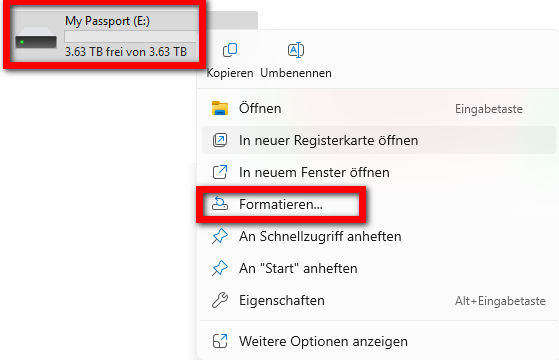
- <span style="background-color: rgb(236, 202, 250);"><span style="background-color: rgb(191, 237, 210);">Right-click on the hard disk &gt; select “Format”</span>  
      
    </span>[![image.png](https://wiki.kla.tv/uploads/images/gallery/2025-03/scaled-1680-/S2J6SAs5mI66IZ2M-image.png)](https://wiki.kla.tv/uploads/images/gallery/2025-03/S2J6SAs5mI66IZ2M-image.png)
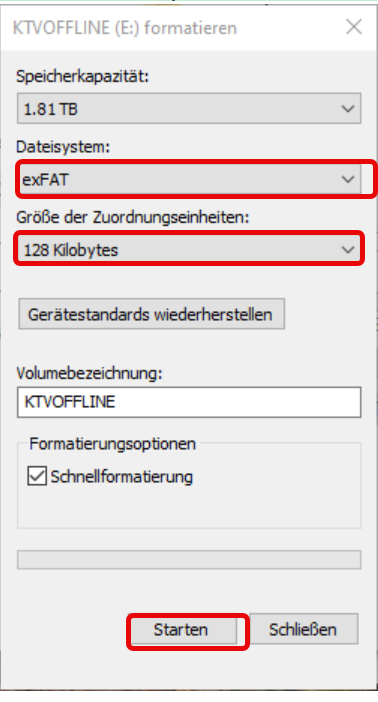
- <span style="background-color: rgb(191, 237, 210);">Select “exFAT” for the file system and press “Start”</span>  
    [![grafik.png](https://wiki.kla.tv/uploads/images/gallery/2025-03/scaled-1680-/8snRkUL8vzYZGtQf-grafik.png)](https://wiki.kla.tv/uploads/images/gallery/2025-03/8snRkUL8vzYZGtQf-grafik.png)

## ![image.png](https://support.elaion.ch/uploads/images/gallery/2022-08/scaled-1680-/n6YA4MHBcekCfTEp-image.png)**Instructions for MacOS**  


- <span style="background-color: rgb(251, 238, 184);">Navigate to the magnifying glass in the Mac's menu bar and enter “Disk Utility” in the search field:</span>[![image.png](https://wiki.kla.tv/uploads/images/gallery/2025-03/scaled-1680-/5ZgzTFAPl9gc1nPO-image.png)](https://wiki.kla.tv/uploads/images/gallery/2025-03/5ZgzTFAPl9gc1nPO-image.png)<span style="background-color: rgb(251, 238, 184);">  
    </span>[![Screenshot 2025-04-24 at 20.15.53.png](https://wiki.kla.tv/uploads/images/gallery/2025-04/scaled-1680-/bIPVnfgeQbIX3YPp-screenshot-2025-04-24-at-20-15-53.png)](https://wiki.kla.tv/uploads/images/gallery/2025-04/bIPVnfgeQbIX3YPp-screenshot-2025-04-24-at-20-15-53.png)
    
    <span style="background-color: rgb(251, 238, 184);">  
      
    </span>
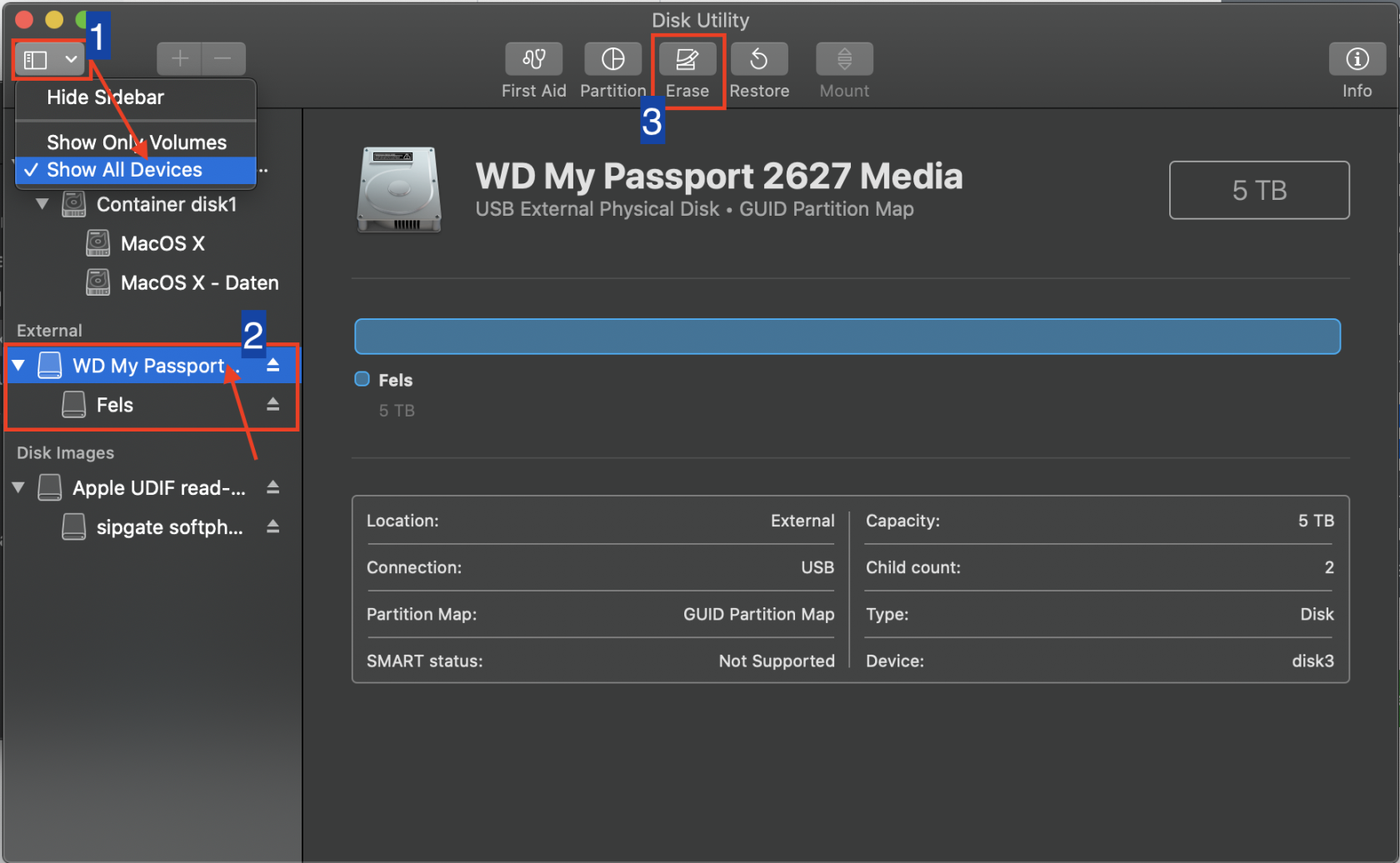
- <span style="background-color: rgb(251, 238, 184);">Select ❶ “View” &gt; “Show all devices”  
    </span>
- <span style="background-color: rgb(251, 238, 184);">Select the storage medium you want to format in the ❷ sidebar. ATTENTION: make sure you have selected the correct hard disk. (Click on it above the hard disk name)</span>
- <span style="background-color: rgb(251, 238, 184);">Click on ❸ “Delete”</span>[![Screenshot 2025-04-24 at 20.18.25.png](https://wiki.kla.tv/uploads/images/gallery/2025-04/scaled-1680-/089I6oU4DInax02F-screenshot-2025-04-24-at-20-18-25.png)](https://wiki.kla.tv/uploads/images/gallery/2025-04/089I6oU4DInax02F-screenshot-2025-04-24-at-20-18-25.png)
    
      
    <span style="background-color: rgb(251, 238, 184);">  
    </span>
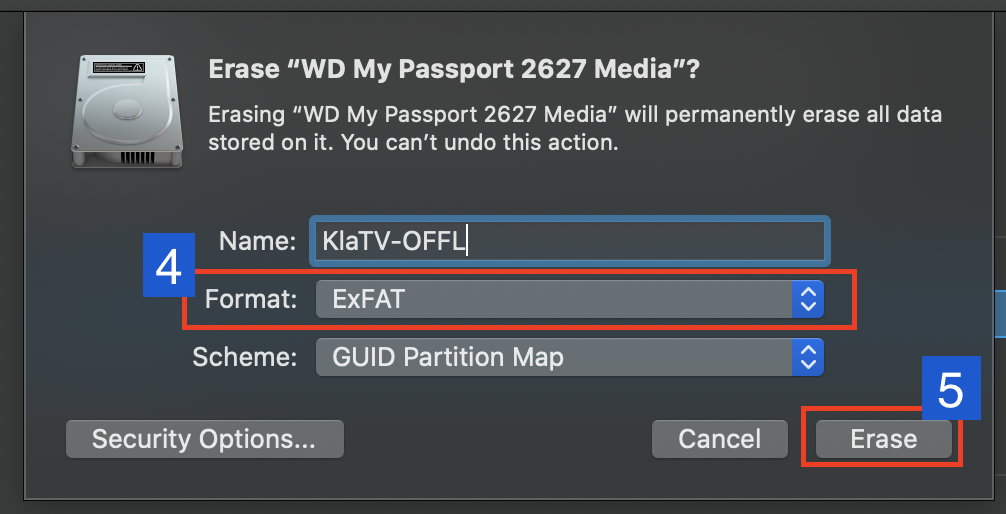
- <span style="background-color: rgb(251, 238, 184);">Select “ExFAT” for ❹ Format and then click on ❺ “Delete”</span>  
    [![Screenshot 2025-04-24 at 20.23.25.png](https://wiki.kla.tv/uploads/images/gallery/2025-04/scaled-1680-/j8vL1xNxEb3Uddrn-screenshot-2025-04-24-at-20-23-25.png)](https://wiki.kla.tv/uploads/images/gallery/2025-04/j8vL1xNxEb3Uddrn-screenshot-2025-04-24-at-20-23-25.png)

## [![grafik.png](https://support.elaion.ch/uploads/images/gallery/2023-05/scaled-1680-/HAfquWaq0hyk9mn0-grafik.png) ](https://support.elaion.ch/uploads/images/gallery/2023-05/HAfquWaq0hyk9mn0-grafik.png)**Instructions for Linux**

<div class="Article__Chapter fb-col-md-10 fb-col-lg-10  fb-direction-column-mu fb-order-5" id="bkmrk-starten-den-linux-re"><div class="mt-sm">1. Start the Linux computer and connect the external hard disk.
2. Now you need the “GParted” program, which is already pre-installed on most Linux versions.
3. Open GParted and enter your user password.
4. Click on the selection field at the top right and select the hard disk to be formatted.
5. Again, select the appropriate partitions, right-click on them and go to “unmount”.
6. Right-click again and select “Format as” and the desired file system (exFAT).
7. Click on the green tick above and confirm again. The hard disk will now be formatted.

</div></div><figure class="Article__Image mt-md fb-col-md-10 fb-col-lg-10 fb-order-5" id="bkmrk-">[<div class="Article__ImageWrapper shadow-2dp">![Festplatte unter Linux formatieren](https://im.contentlounge.net/styles/manual_crop/s3/festplatte-unter-linux-formatieren_54788448.png?im=Resize%3D%281200%2C675%29%2Caspect%3Dfit%2CAspectCrop%2Csize%3D%281200%2C675%29%2Cgravity%3DCenter%2CallowExpansion%2CBackgroundColor%2Ccolor%3Dtransparent&hash=e2a4445da618598921abfb480028c35ee50e7b8026f94e750ff7419c805f2d31)</div>](https://im.contentlounge.net/styles/manual_crop/s3/festplatte-unter-linux-formatieren_54788448.png?im=AspectCrop%2Csize%3D%2816%2C9%29%2Cgravity%3DCenter%2CallowExpansion%2CBackgroundColor%2Ccolor%3Dtransparent&hash=a34a2958e207df09cfc6e665d8377bb0e6ae3951c03e44aca726736eacc0b769)</figure>