# WINDOWS: Installazione e utilizzo del “Kla.TV Downloader”

### **Was lernst Du in diesem Artikel?**

Du lernst, wie du den Kla.TV-Downloader auf Windows installieren kannst. Der Kla.TV-Downloader hält dein Archiv automatisch immer auf dem aktuellen Stand. Gleichzeitig kannst du mit deinem Videoanschluss anderen Nutzern den Upload zur Verfügung stellen. Los gehts:

<p class="callout info">Diese Anleitung ist für Windows 10 und höher. Du hast noch Windows 7? Ganz unten in dieser Anleitung findest du Wegeleitung für Windows 7.</p>

### **Videoanleitung: (8min)**

<div class="responsive-iframe" id="bkmrk--1"></div><iframe allowfullscreen="allowfullscreen" frameborder="0" height="332" src="https://www.kla.tv/index.php?a=showembed&vidid=31127&lang=de" width="590"></iframe>

<p class="callout warning">Wir empfehlen, zuerst das Video anzuschauen, um die schriftliche Anleitung besser zu verstehen.</p>

<span lang="DE" style="font-size: 16.0pt; mso-bidi-font-size: 11.0pt; line-height: 107%; font-family: Wingdings; mso-ascii-font-family: Calibri; mso-ascii-theme-font: minor-latin; mso-fareast-font-family: Calibri; mso-fareast-theme-font: minor-latin; mso-hansi-font-family: Calibri; mso-hansi-theme-font: minor-latin; mso-bidi-font-family: 'Times New Roman'; mso-bidi-theme-font: minor-bidi; mso-ansi-language: DE; mso-fareast-language: EN-US; mso-bidi-language: AR-SA; mso-char-type: symbol; mso-symbol-font-family: Wingdings;"><span style="mso-char-type: symbol; mso-symbol-font-family: Wingdings;">&#131;</span></span><span lang="DE" style="font-size: 16.0pt; mso-bidi-font-size: 11.0pt; line-height: 107%; font-family: Wingdings; mso-ascii-font-family: Calibri; mso-ascii-theme-font: minor-latin; mso-fareast-font-family: Calibri; mso-fareast-theme-font: minor-latin; mso-hansi-font-family: Calibri; mso-hansi-theme-font: minor-latin; mso-bidi-font-family: 'Times New Roman'; mso-bidi-theme-font: minor-bidi; mso-ansi-language: DE; mso-fareast-language: EN-US; mso-bidi-language: AR-SA; mso-char-type: symbol; mso-symbol-font-family: Wingdings;"><span style="mso-char-type: symbol; mso-symbol-font-family: Wingdings;">&#132;</span></span><span lang="DE" style="font-size: 16.0pt; mso-bidi-font-size: 11.0pt; line-height: 107%; font-family: Wingdings; mso-ascii-font-family: Calibri; mso-ascii-theme-font: minor-latin; mso-fareast-font-family: Calibri; mso-fareast-theme-font: minor-latin; mso-hansi-font-family: Calibri; mso-hansi-theme-font: minor-latin; mso-bidi-font-family: 'Times New Roman'; mso-bidi-theme-font: minor-bidi; mso-ansi-language: DE; mso-fareast-language: EN-US; mso-bidi-language: AR-SA; mso-char-type: symbol; mso-symbol-font-family: Wingdings;"><span style="mso-char-type: symbol; mso-symbol-font-family: Wingdings;"> </span></span><span lang="DE" style="font-size: 16.0pt; mso-bidi-font-size: 11.0pt; line-height: 107%; font-family: Wingdings; mso-ascii-font-family: Calibri; mso-ascii-theme-font: minor-latin; mso-fareast-font-family: Calibri; mso-fareast-theme-font: minor-latin; mso-hansi-font-family: Calibri; mso-hansi-theme-font: minor-latin; mso-bidi-font-family: 'Times New Roman'; mso-bidi-theme-font: minor-bidi; mso-ansi-language: DE; mso-fareast-language: EN-US; mso-bidi-language: AR-SA; mso-char-type: symbol; mso-symbol-font-family: Wingdings;"><span style="mso-char-type: symbol; mso-symbol-font-family: Wingdings;">&#134;</span></span><span lang="DE" style="font-size: 16.0pt; mso-bidi-font-size: 11.0pt; line-height: 107%; font-family: Wingdings; mso-ascii-font-family: Calibri; mso-ascii-theme-font: minor-latin; mso-fareast-font-family: Calibri; mso-fareast-theme-font: minor-latin; mso-hansi-font-family: Calibri; mso-hansi-theme-font: minor-latin; mso-bidi-font-family: 'Times New Roman'; mso-bidi-theme-font: minor-bidi; mso-ansi-language: DE; mso-fareast-language: EN-US; mso-bidi-language: AR-SA; mso-char-type: symbol; mso-symbol-font-family: Wingdings;"><span style="mso-char-type: symbol; mso-symbol-font-family: Wingdings;">&#135;</span></span><span lang="DE" style="font-size: 16.0pt; mso-bidi-font-size: 11.0pt; line-height: 107%; font-family: Wingdings; mso-ascii-font-family: Calibri; mso-ascii-theme-font: minor-latin; mso-fareast-font-family: Calibri; mso-fareast-theme-font: minor-latin; mso-hansi-font-family: Calibri; mso-hansi-theme-font: minor-latin; mso-bidi-font-family: 'Times New Roman'; mso-bidi-theme-font: minor-bidi; mso-ansi-language: DE; mso-fareast-language: EN-US; mso-bidi-language: AR-SA; mso-char-type: symbol; mso-symbol-font-family: Wingdings;"><span style="mso-char-type: symbol; mso-symbol-font-family: Wingdings;">&#136;</span></span><span lang="DE" style="font-size: 16.0pt; mso-bidi-font-size: 11.0pt; line-height: 107%; font-family: Wingdings; mso-ascii-font-family: Calibri; mso-ascii-theme-font: minor-latin; mso-fareast-font-family: Calibri; mso-fareast-theme-font: minor-latin; mso-hansi-font-family: Calibri; mso-hansi-theme-font: minor-latin; mso-bidi-font-family: 'Times New Roman'; mso-bidi-theme-font: minor-bidi; mso-ansi-language: DE; mso-fareast-language: EN-US; mso-bidi-language: AR-SA; mso-char-type: symbol; mso-symbol-font-family: Wingdings;"><span style="mso-char-type: symbol; mso-symbol-font-family: Wingdings;">&#137;</span></span>

### **Schriftliche Anleitung:**

### <span data-darkreader-inline-bgcolor="" style="background-color: rgb(241, 196, 15);">**1. Grundlegendes:**</span>

- Was ist der **Unterschied** vom Kla.TV-Downloader zum Download über Serverzugang (über FileZilla)? 
    - **Über den Server-Zugang** ladest du mit FileZilla einmalig das Archiv runter und musst es "per Hand" immer aktuell behalten und die neusten Sendungen immer wieder runterladen
    - **Über das Downloader-Programm** kannst du dein Archiv stetig automatisch auf dem aktuellen Stand halten und synchronisieren, mit dem Datenbestand des Servers. Du stellst es einmalig ein und es wird automatisch aktuell behalten. Zusätzlich kannst die die Videos von deinem Videoanschluss anderen Nutzern zum Upload zur Verfügung stellen
- Zwei Programme musst du dazu neu installieren. 1. den Kla.TV Downloader und 2. den qBittorrent. Dazu die Anleitung:

### <span data-darkreader-inline-bgcolor="" style="background-color: rgb(241, 196, 15);">**2. Installation des Kla.TV-Downloader:**</span>

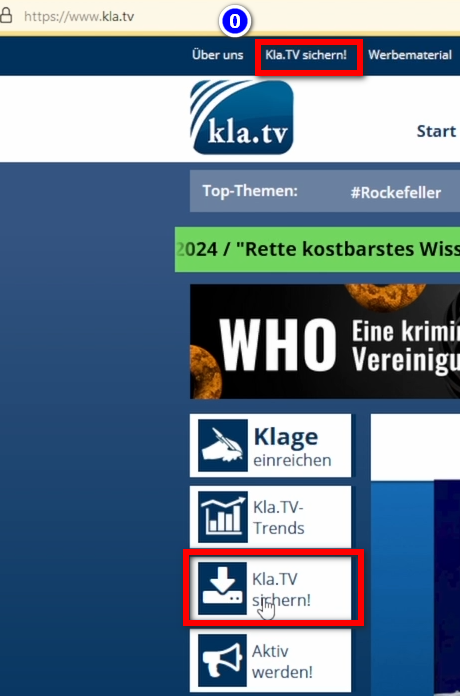
- <span data-darkreader-inline-bgcolor="" style="background-color: rgb(251, 238, 184);">Gehe auf die Seite </span>**<span data-darkreader-inline-bgcolor="" style="background-color: rgb(251, 238, 184);">[kla.tv/sichern](https://www.kla.tv/sichern)</span> <span data-darkreader-inline-bgcolor="" data-darkreader-inline-color="" style="background-color: rgb(52, 73, 94); color: rgb(236, 240, 241);">(0)</span>   
      
    [![grafik.png](https://wiki.kla.tv/uploads/images/gallery/2024-11/scaled-1680-/Dv7hI2hEiWQk8ey8-grafik.png)](https://wiki.kla.tv/uploads/images/gallery/2024-11/Dv7hI2hEiWQk8ey8-grafik.png)**
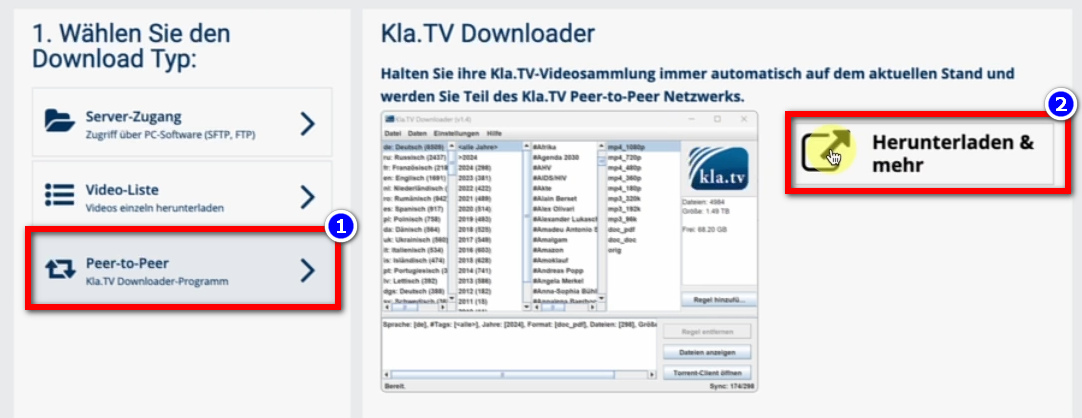
- <span data-darkreader-inline-bgcolor="" style="background-color: rgb(251, 238, 184);">Gehe zum Download-Typ <span data-darkreader-inline-bgcolor="" lang="DE" style="font-size: 16pt; line-height: 107%; font-family: Wingdings; background-color: rgb(251, 238, 184);"><span style="mso-char-type: symbol; mso-symbol-font-family: Wingdings;"><span data-darkreader-inline-bgcolor="" lang="EN-US" style="font-size: 11pt; line-height: 107%; font-family: 'Cambria Math', serif; background-color: rgb(251, 238, 184);">❶</span></span></span> "**Peer-to-Peer**" → <span data-darkreader-inline-bgcolor="" lang="DE" style="font-size: 16pt; line-height: 107%; font-family: Wingdings; background-color: rgb(251, 238, 184);"><span style="mso-char-type: symbol; mso-symbol-font-family: Wingdings;"><span data-darkreader-inline-bgcolor="" lang="EN-US" style="font-size: 11pt; line-height: 107%; font-family: 'Cambria Math', serif; background-color: rgb(251, 238, 184);">❷</span></span></span> "**Herunterladen &amp; mehr**"</span>  
      
    [![grafik.png](https://wiki.kla.tv/uploads/images/gallery/2024-11/scaled-1680-/nuXM0H06k643OGNZ-grafik.png)](https://wiki.kla.tv/uploads/images/gallery/2024-11/nuXM0H06k643OGNZ-grafik.png)
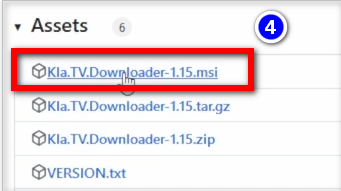
- <span data-darkreader-inline-bgcolor="" style="background-color: rgb(251, 238, 184);">Kicke auf den <span data-darkreader-inline-bgcolor="" lang="DE" style="font-size: 16pt; line-height: 107%; font-family: Wingdings; background-color: rgb(251, 238, 184);"><span style="mso-char-type: symbol; mso-symbol-font-family: Wingdings;"><span data-darkreader-inline-bgcolor="" lang="EN-US" style="font-size: 11pt; line-height: 107%; font-family: 'Cambria Math', serif; background-color: rgb(251, 238, 184);">❸</span></span></span> **Kla-TV-Downloader** → lade das aktuellste Programm herunter (immer zu oberst) indem du bei "Assets" → auf <span data-darkreader-inline-bgcolor="" lang="DE" style="font-size: 16pt; line-height: 107%; font-family: Wingdings; background-color: rgb(251, 238, 184);"><span style="mso-char-type: symbol; mso-symbol-font-family: Wingdings;"><span data-darkreader-inline-bgcolor="" lang="EN-US" style="font-size: 11pt; line-height: 107%; font-family: 'Cambria Math', serif; background-color: rgb(251, 238, 184);">❹</span></span></span> "**Kla.TV.Downloader-\*.\*\*msi**" klickst</span>  
      
    [![grafik.png](https://wiki.kla.tv/uploads/images/gallery/2024-11/scaled-1680-/KGwQNxlWLAf2jJke-grafik.png)](https://wiki.kla.tv/uploads/images/gallery/2024-11/KGwQNxlWLAf2jJke-grafik.png)[![grafik.png](https://wiki.kla.tv/uploads/images/gallery/2024-11/scaled-1680-/qqNVAJNRTBLvbUcO-grafik.png)](https://wiki.kla.tv/uploads/images/gallery/2024-11/qqNVAJNRTBLvbUcO-grafik.png)
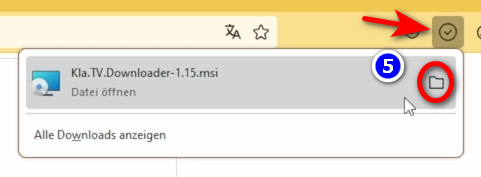
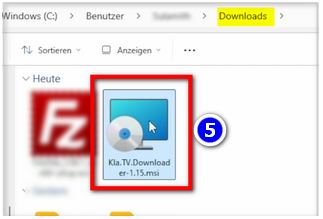
- <span data-darkreader-inline-bgcolor="" style="background-color: rgb(251, 238, 184);"><span data-darkreader-inline-bgcolor="" lang="DE" style="font-size: 16pt; line-height: 107%; font-family: Wingdings; background-color: rgb(251, 238, 184);"><span style="mso-char-type: symbol; mso-symbol-font-family: Wingdings;"><span data-darkreader-inline-bgcolor="" lang="EN-US" style="font-size: 11pt; line-height: 107%; font-family: 'Cambria Math', serif; background-color: rgb(251, 238, 184);">❺</span></span></span> Öffne das Programm mit einem Doppelklick</span>  
      
    [![grafik.png](https://wiki.kla.tv/uploads/images/gallery/2024-11/scaled-1680-/qnzVxcqoXLWrBM1l-grafik.png)](https://wiki.kla.tv/uploads/images/gallery/2024-11/qnzVxcqoXLWrBM1l-grafik.png)[![grafik.png](https://wiki.kla.tv/uploads/images/gallery/2024-11/scaled-1680-/GXplVmJvudLRCH8Y-grafik.png)](https://wiki.kla.tv/uploads/images/gallery/2024-11/GXplVmJvudLRCH8Y-grafik.png)
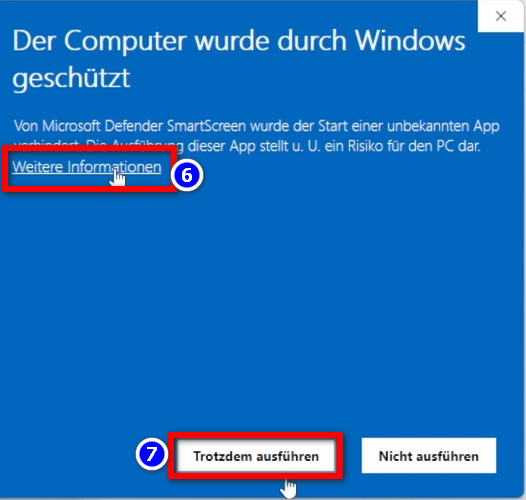
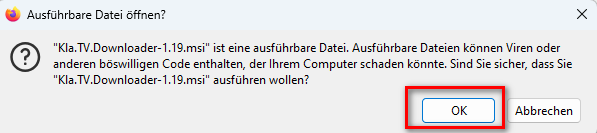
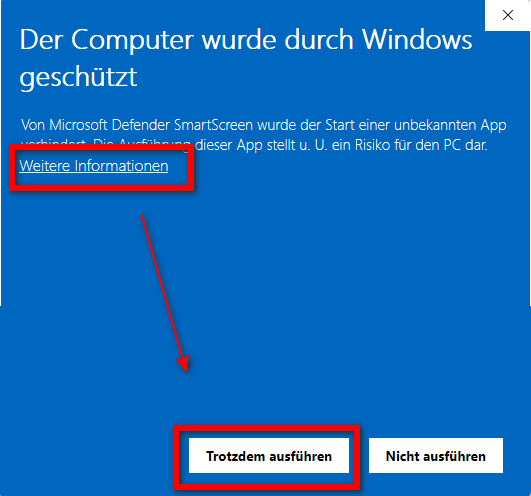
- <span data-darkreader-inline-bgcolor="" style="background-color: rgb(251, 238, 184);">Eine **Warnmeldung** erscheint → klicke auf <span data-darkreader-inline-bgcolor="" lang="EN-US" style="font-size: 11pt; line-height: 107%; font-family: 'Cambria Math', serif; background-color: rgb(251, 238, 184);">❻</span> "**Weitere Informationen**" → dann auf <span data-darkreader-inline-bgcolor="" lang="EN-US" style="font-size: 11pt; line-height: 107%; font-family: 'Cambria Math', serif; background-color: rgb(251, 238, 184);">❼</span> "**Trotzdem ausführen**"</span>  
      
    [![grafik.png](https://wiki.kla.tv/uploads/images/gallery/2024-11/scaled-1680-/8KGYRLXv6yY7SAwp-grafik.png)](https://wiki.kla.tv/uploads/images/gallery/2024-11/8KGYRLXv6yY7SAwp-grafik.png)  
    <span data-darkreader-inline-bgcolor="" style="background-color: rgb(230, 94, 34);">HINWEIS:</span> In wenigen Fällen verweigert Windows die Installation oder den Start des kla.tv-Downloaders mit einer Virus/Trojaner-Meldung (z.B. Wacatac.B!ml), ohne eine Möglichkeit eine Ausnahme zu erreichen. Da Microsoft allgemein zunehmend mehr Kontrolle über das Windows-System für sich beansprucht, empfehlen wir den eigenen PC mit Hilfe der Anleitung von [https://anti-control.info/](https://anti-control.info/) davon zu befreien!

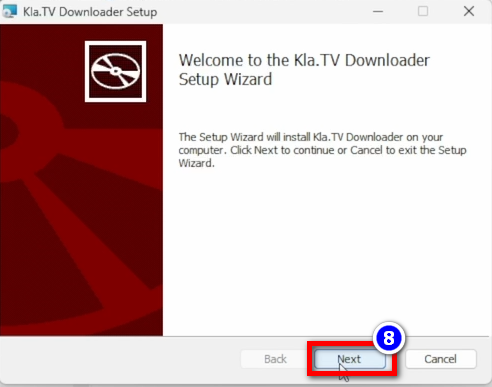
- <span data-darkreader-inline-bgcolor="" style="background-color: rgb(251, 238, 184);">**Installationsfenster** öffnet sich: Gehe auf <span data-darkreader-inline-bgcolor="" lang="EN-US" style="font-size: 11pt; line-height: 107%; font-family: 'Cambria Math', serif; background-color: rgb(251, 238, 184);">❽</span> **Next** → **Next** → **Install** → **Finish** → das Programm ist fertig installiert</span>  
      
    [![grafik.png](https://wiki.kla.tv/uploads/images/gallery/2024-11/scaled-1680-/GOVLl0dO2RnwiPvj-grafik.png)](https://wiki.kla.tv/uploads/images/gallery/2024-11/GOVLl0dO2RnwiPvj-grafik.png)
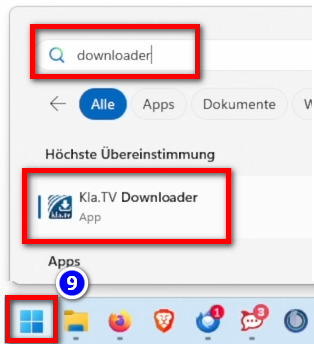
- <span data-darkreader-inline-bgcolor="" style="background-color: rgb(251, 238, 184);">Öffne es unter <span data-darkreader-inline-bgcolor="" lang="EN-US" style="font-size: 11pt; line-height: 107%; font-family: 'Cambria Math', serif; background-color: rgb(251, 238, 184);">❾</span> "**Windows**" → **Suchfeld: Downloader** → </span>**<span data-darkreader-inline-bgcolor="" style="background-color: rgb(251, 238, 184);">Kla.TV Downloader</span>  
      
    [![grafik.png](https://wiki.kla.tv/uploads/images/gallery/2024-11/scaled-1680-/xRnmM3IsrlAKyUx4-grafik.png)](https://wiki.kla.tv/uploads/images/gallery/2024-11/xRnmM3IsrlAKyUx4-grafik.png)**
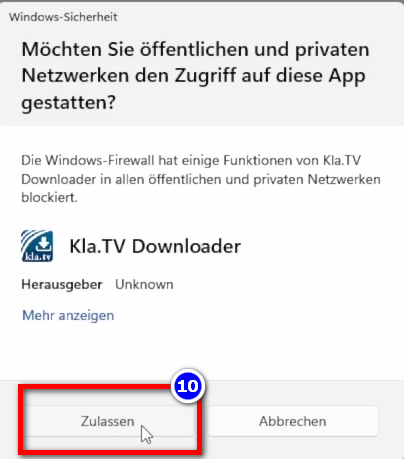
- <span data-darkreader-inline-bgcolor="" style="background-color: rgb(251, 238, 184);">Warnhinweis: <span data-darkreader-inline-bgcolor="" lang="EN-US" style="font-size: 11pt; line-height: 107%; font-family: 'Cambria Math', serif; background-color: rgb(251, 238, 184);">❿</span> </span>**<span data-darkreader-inline-bgcolor="" style="background-color: rgb(251, 238, 184);">Zulassen</span>  
      
    [![grafik.png](https://wiki.kla.tv/uploads/images/gallery/2024-11/scaled-1680-/oJRW5KcKLYoOBexb-grafik.png)](https://wiki.kla.tv/uploads/images/gallery/2024-11/oJRW5KcKLYoOBexb-grafik.png)**

### <span data-darkreader-inline-bgcolor="" style="background-color: rgb(241, 196, 15);">**3. Kla.TV Downloader einrichten:**</span>


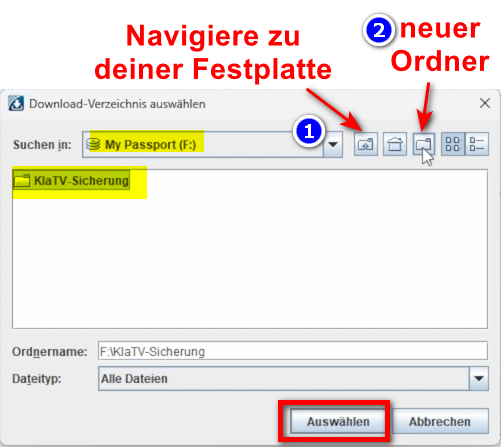
- <span data-darkreader-inline-bgcolor="" style="background-color: rgb(251, 238, 184);">Im geöffneten Programm erscheint ein Fenster. Gebe an, <span data-darkreader-inline-bgcolor="" lang="DE" style="font-size: 16pt; line-height: 107%; font-family: Wingdings; background-color: rgb(251, 238, 184);"><span style="mso-char-type: symbol; mso-symbol-font-family: Wingdings;"><span data-darkreader-inline-bgcolor="" lang="EN-US" style="font-size: 11pt; line-height: 107%; font-family: 'Cambria Math', serif; background-color: rgb(251, 238, 184);">❶</span></span></span> **wo die heruntergeladenen Dateien gespeichert** werden sollen (am besten eine externe Festplatte benutzen) → erstelle einen <span data-darkreader-inline-bgcolor="" lang="DE" style="font-size: 16pt; line-height: 107%; font-family: Wingdings; background-color: rgb(251, 238, 184);"><span style="mso-char-type: symbol; mso-symbol-font-family: Wingdings;"><span data-darkreader-inline-bgcolor="" lang="EN-US" style="font-size: 11pt; line-height: 107%; font-family: 'Cambria Math', serif; background-color: rgb(251, 238, 184);"><span data-darkreader-inline-bgcolor="" lang="DE" style="font-size: 16pt; line-height: 107%; font-family: Wingdings; background-color: rgb(251, 238, 184);"><span data-darkreader-inline-bgcolor="" lang="EN-US" style="font-size: 11pt; line-height: 107%; font-family: 'Cambria Math', serif; background-color: rgb(251, 238, 184);">❷</span></span></span></span></span> **neuen Ordner** mit dem Namen "Kla.TV-Sicherung" und wähle diesen Ordner an</span>[![grafik.png](https://wiki.kla.tv/uploads/images/gallery/2024-11/scaled-1680-/TfuSlhBJnOQuvPWb-grafik.png)](https://wiki.kla.tv/uploads/images/gallery/2024-11/TfuSlhBJnOQuvPWb-grafik.png)
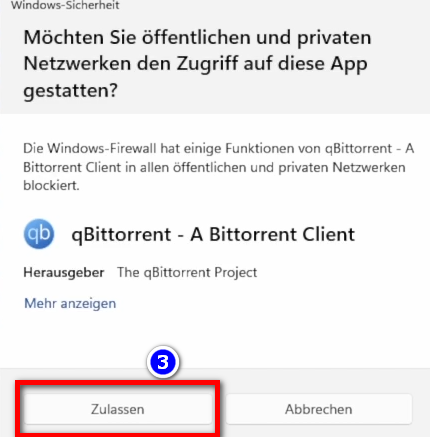
- <span data-darkreader-inline-bgcolor="" style="background-color: rgb(251, 238, 184);">Meldung erscheint, drücke <span data-darkreader-inline-bgcolor="" lang="DE" style="font-size: 16pt; line-height: 107%; font-family: Wingdings; background-color: rgb(251, 238, 184);"><span style="mso-char-type: symbol; mso-symbol-font-family: Wingdings;"><span data-darkreader-inline-bgcolor="" lang="EN-US" style="font-size: 11pt; line-height: 107%; font-family: 'Cambria Math', serif; background-color: rgb(251, 238, 184);">❸</span></span></span> "**Zulassen**"</span>  
      
     ![grafik.png](https://wiki.kla.tv/uploads/images/gallery/2024-11/scaled-1680-/Wi99hXuOIyuQbbPN-grafik.png)  
      
    
    - <span data-darkreader-inline-bgcolor="" style="background-color: rgb(194, 224, 244);">***► TIPP:***</span> *Möchtest du im Nachhinein den Festplatten-Speicherort ändern, gehe im Kla.TV-Downloader-Programm auf die Menüleiste "Einstellugen" → "Download-Verzeichnis auswählen"*

### <span data-darkreader-inline-bgcolor="" style="background-color: rgb(241, 196, 15);">**4. qBittorrent (Torrent-Client):** </span>

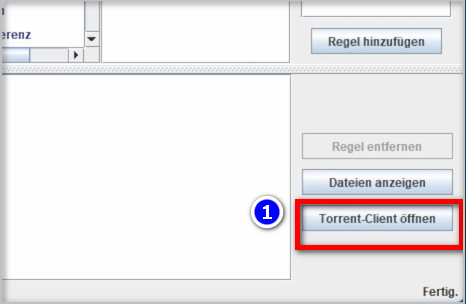
- <span data-darkreader-inline-bgcolor="" style="background-color: rgb(251, 238, 184);">Klicke im Kla.TV Downloader-Programm auf <span data-darkreader-inline-bgcolor="" lang="DE" style="font-size: 16pt; line-height: 107%; font-family: Wingdings; background-color: rgb(251, 238, 184);"><span style="mso-char-type: symbol; mso-symbol-font-family: Wingdings;"><span data-darkreader-inline-bgcolor="" lang="EN-US" style="font-size: 11pt; line-height: 107%; font-family: 'Cambria Math', serif; background-color: rgb(251, 238, 184);">❶</span></span></span> "**Torrent-Client öffnen**" und Torrent Client wird geöffnet (Torrent Client ist die ausführende Instanz von allem was du im Kla.TV-Downloader einträgst)</span>  
      
    [![grafik.png](https://wiki.kla.tv/uploads/images/gallery/2024-11/scaled-1680-/yvJAJsW6fwrGdqym-grafik.png)](https://wiki.kla.tv/uploads/images/gallery/2024-11/yvJAJsW6fwrGdqym-grafik.png)
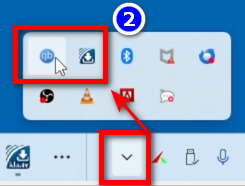
- <span data-darkreader-inline-bgcolor="" style="background-color: rgb(251, 238, 184);">In der <span data-darkreader-inline-bgcolor="" lang="DE" style="font-size: 16pt; line-height: 107%; font-family: Wingdings; background-color: rgb(251, 238, 184);"><span style="mso-char-type: symbol; mso-symbol-font-family: Wingdings;"><span data-darkreader-inline-bgcolor="" lang="EN-US" style="font-size: 11pt; line-height: 107%; font-family: 'Cambria Math', serif; background-color: rgb(251, 238, 184);">❷</span></span></span> **Menüleiste** siehst du zwei Symbole der beiden Programme. Auch wenn die Programme geschlossen sind, sind sie im Hintergrund aktiv (wenn du die Symbole siehst). Wenn nicht, Programm erneut öffnen.</span>  
      
    ![grafik.png](https://wiki.kla.tv/uploads/images/gallery/2024-11/scaled-1680-/8UeMJP1mxxT6OrQI-grafik.png) *(TIPP: die zwei Symbole können mit gehaltener Maustaste nach unten in die Tray-Menüleiste zu den anderen Symbolen gezogen werden. So hast du immer im Überblick, ob die Programme gestartet sind).*
- *Weitere Erklärung zur Oberfläche von Torrent-Client kannst du **im Video oben nachsehen** (man muss dort aber nichts speziell einstellen)*


### <span data-darkreader-inline-bgcolor="" style="background-color: rgb(241, 196, 15);">**5. Synchronisieren:** </span>

<p class="callout info">Der Kla.TV-Downloader fügt Synchronisierungsregeln hinzu und schickt diese an den qBittorrent, der daraufhin die Sendungen herunterlädt und sie immer auf den aktuellsten Stand hält. Das bedeutet: Der Kla.TV-Downloader definiert lediglich nur wie und was heruntergeladen werden soll, während qBittorrent die Arbeit vom herunterladen übernimmt.</p>

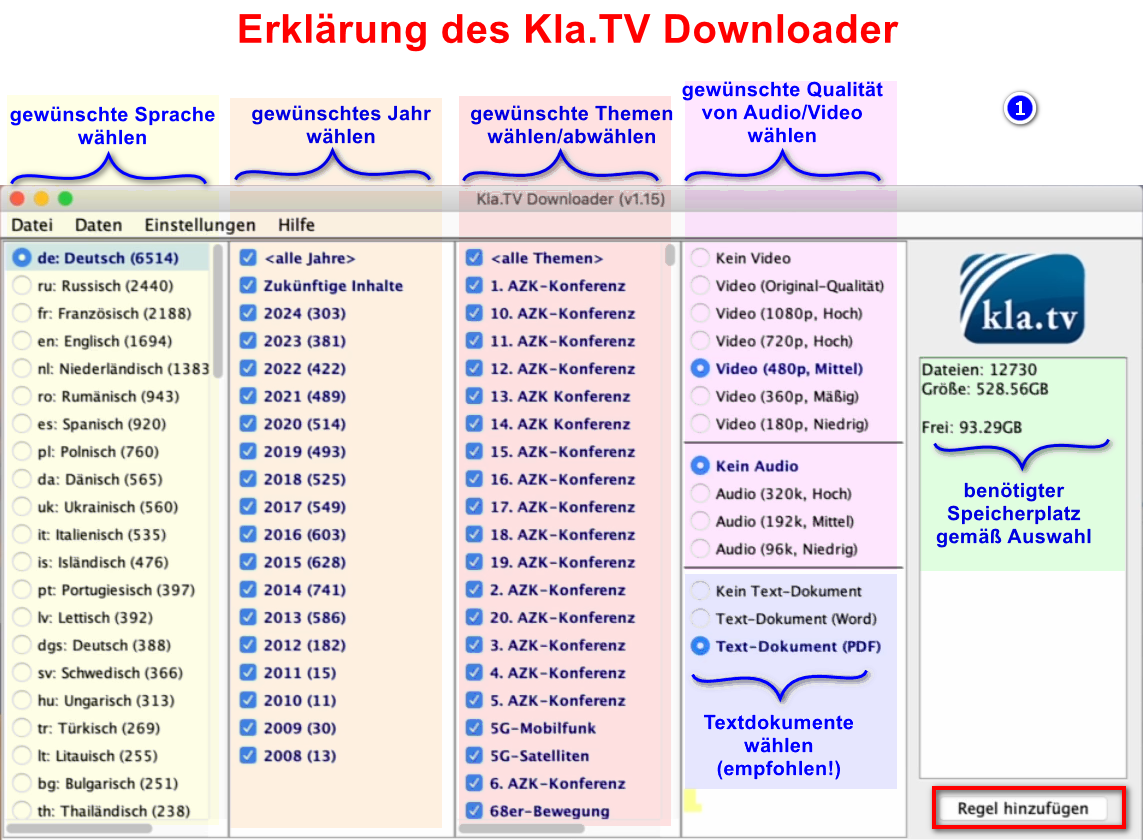
- <span data-darkreader-inline-bgcolor="" style="background-color: rgb(251, 238, 184);">Öffne den **kla.TV-Downloader** → wähle deine <span data-darkreader-inline-bgcolor="" lang="DE" style="font-size: 16pt; line-height: 107%; font-family: Wingdings; background-color: rgb(251, 238, 184);"><span style="mso-char-type: symbol; mso-symbol-font-family: Wingdings;"><span data-darkreader-inline-bgcolor="" lang="EN-US" style="font-size: 11pt; line-height: 107%; font-family: 'Cambria Math', serif; background-color: rgb(251, 238, 184);">❶</span></span></span> **gewünschten Regeln**. (Siehe Erklärungen im Bild)</span>  
      
    [![grafik.png](https://wiki.kla.tv/uploads/images/gallery/2024-11/scaled-1680-/Q9Op8e0KGpDAFHm6-grafik.png)](https://wiki.kla.tv/uploads/images/gallery/2024-11/Q9Op8e0KGpDAFHm6-grafik.png)[![grafik.png](https://wiki.kla.tv/uploads/images/gallery/2024-11/scaled-1680-/9Ok8odRA6beoyTpF-grafik.png)](https://wiki.kla.tv/uploads/images/gallery/2024-11/9Ok8odRA6beoyTpF-grafik.png)
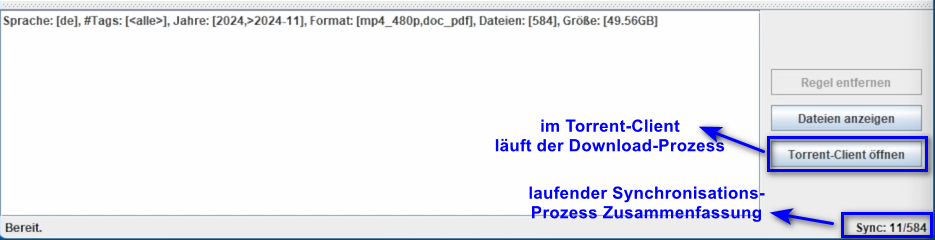
- <span data-darkreader-inline-bgcolor="" style="background-color: rgb(251, 238, 184);">Möchtest du **mehrere Qualiltäten** auswählen, musst du mehrmals eine "Regel hinzufügen". Dann wird dieser Auftrag an den Torrent-Client geschickt und dort runtergeladen. </span>  
      
    
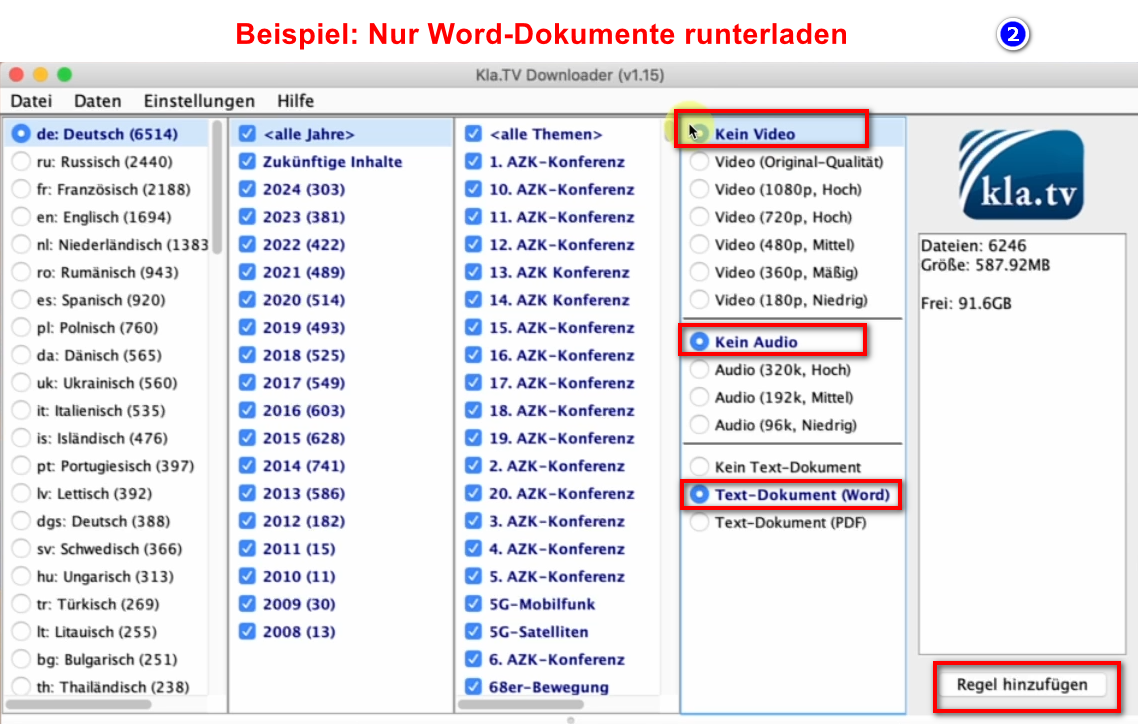
    - <span data-darkreader-inline-bgcolor="" style="background-color: rgb(251, 238, 184);">Hier ein <span data-darkreader-inline-bgcolor="" lang="DE" style="font-size: 16pt; line-height: 107%; font-family: Wingdings; background-color: rgb(251, 238, 184);"><span style="mso-char-type: symbol; mso-symbol-font-family: Wingdings;"><span data-darkreader-inline-bgcolor="" lang="EN-US" style="font-size: 11pt; line-height: 107%; font-family: 'Calibri', sans-serif; background-color: rgb(251, 238, 184);"> </span><span data-darkreader-inline-bgcolor="" lang="EN-US" style="font-size: 11pt; line-height: 107%; font-family: 'Cambria Math', serif; background-color: rgb(251, 238, 184);">❷</span></span></span> **Beispiel**, wenn du eine neue Regel erfassen möchtest, mit z.B. **NUR Word-Dateien**. Dann deaktiviere Video und Audio, wähle die gewünschten Jahre und füge die Regel hinzu. (Bei Video ist Audio dabei;)</span>[![grafik.png](https://wiki.kla.tv/uploads/images/gallery/2024-11/scaled-1680-/MyrlhWDMHW4eBhyZ-grafik.png)](https://wiki.kla.tv/uploads/images/gallery/2024-11/MyrlhWDMHW4eBhyZ-grafik.png)
- <span data-darkreader-inline-bgcolor="" style="background-color: rgb(251, 238, 184);">**Programme können geschlossen werden** und es ladet im Hintergrund weiter</span>

#### **<span data-darkreader-inline-bgcolor="" lang="DE" style="background-color: rgb(241, 196, 15);"><span lang="EN-US"> 5.1 Was wenn</span></span><span data-darkreader-inline-bgcolor="" lang="DE" style="background-color: rgb(241, 196, 15);"><span lang="EN-US"> die Downloads nicht starten und die Synchronisation nicht funktioniert? </span></span>**

<p class="callout warning">Falls die Downloads im Torrent-Client QBittorrent nicht starten kann es an einem Problem mit der Synchronisation zwischen dem Kla.TV-Downloader und dem Torrent-Client liegen. Um das Problem zu beheben befolgen Sie bitte die nächste Anweisung.</p>

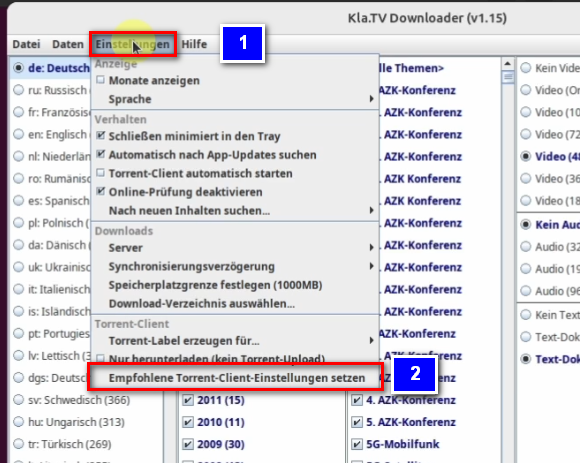
- <span data-darkreader-inline-bgcolor="" lang="DE" style="background-color: rgb(251, 238, 184);"><span lang="EN-US">Im Menü des Kla.TV-Downloaders <span data-darkreader-inline-bgcolor="" style="background-color: rgb(251, 238, 184);"><span data-darkreader-inline-bgcolor="" lang="DE" style="font-size: 16pt; line-height: 107%; font-family: Wingdings; background-color: rgb(251, 238, 184);"><span style="mso-char-type: symbol; mso-symbol-font-family: Wingdings;"><span data-darkreader-inline-bgcolor="" lang="EN-US" style="font-size: 11pt; line-height: 107%; font-family: 'Cambria Math', serif; background-color: rgb(251, 238, 184);">❶ </span></span></span></span>**Einstellungen** wählen und dann die unterste Option <span data-darkreader-inline-bgcolor="" style="background-color: rgb(251, 238, 184);"><span data-darkreader-inline-bgcolor="" lang="DE" style="font-size: 16pt; line-height: 107%; font-family: Wingdings; background-color: rgb(251, 238, 184);"><span style="mso-char-type: symbol; mso-symbol-font-family: Wingdings;"><span data-darkreader-inline-bgcolor="" lang="EN-US" style="font-size: 11pt; line-height: 107%; font-family: 'Cambria Math', serif; background-color: rgb(251, 238, 184);">❷</span></span></span> **Empfohlene Torrent-Client-Einstellungen setzen** anklicken. </span></span></span>

[![image.png](https://wiki.kla.tv/uploads/images/gallery/2025-02/scaled-1680-/0BDg5wfSZUeFQk56-image.png)](https://wiki.kla.tv/uploads/images/gallery/2025-02/0BDg5wfSZUeFQk56-image.png)

- Unten links im Fenster des Kla.TV-Downloaders sollte im Anschluss folgende Meldung erscheinen:

[![EmpfohleneEinstellungenGesetzt.png](https://wiki.kla.tv/uploads/images/gallery/2025-02/scaled-1680-/LornpXWtrJ7B7lkB-empfohleneeinstellungengesetzt.png)](https://wiki.kla.tv/uploads/images/gallery/2025-02/LornpXWtrJ7B7lkB-empfohleneeinstellungengesetzt.png)

### <span data-darkreader-inline-bgcolor="" style="background-color: rgb(241, 196, 15);">**6. Upload für andere Leute zur Verfügung stellen:** </span>

- <span data-darkreader-inline-bgcolor="" style="background-color: rgb(251, 238, 184);">Der qBittorrent stellt standardmässig alle Dateien die man runterlädt anderen Leuten zur Verfügung. <span style="text-decoration: underline;">Möchte man das aus irgendwelchen Gründen nicht</span>, dann kann es deaktiviert werden:</span>
- <span data-darkreader-inline-bgcolor="" style="background-color: rgb(251, 238, 184);">Öffne <span data-darkreader-inline-bgcolor="" lang="DE" style="font-size: 16pt; line-height: 107%; font-family: Wingdings; background-color: rgb(251, 238, 184);"><span style="mso-char-type: symbol; mso-symbol-font-family: Wingdings;"><span data-darkreader-inline-bgcolor="" lang="EN-US" style="font-size: 11pt; line-height: 107%; font-family: 'Cambria Math', serif; background-color: rgb(251, 238, 184);">❶</span></span></span> **qBittorrent** → **Einstellungen** → </span>**<span data-darkreader-inline-bgcolor="" style="background-color: rgb(251, 238, 184);">Nur herunterladen (kein Torrent-Upload)  
      
    [![grafik.png](https://wiki.kla.tv/uploads/images/gallery/2024-11/scaled-1680-/TTyJJDELOuYYB7pb-grafik.png)](https://wiki.kla.tv/uploads/images/gallery/2024-11/TTyJJDELOuYYB7pb-grafik.png)  
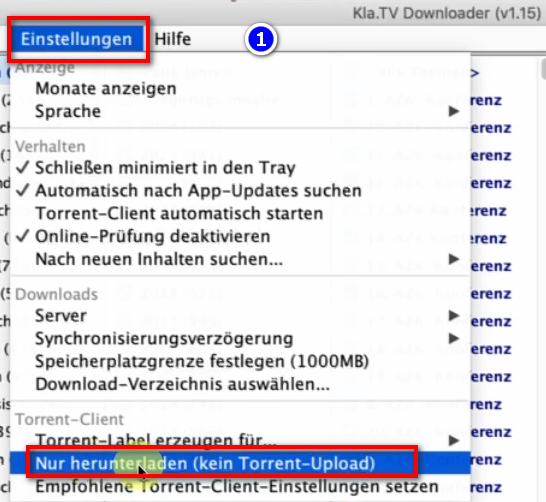
    </span>**

### <span data-darkreader-inline-bgcolor="" style="background-color: rgb(241, 196, 15);">**7. Empfehlung: Energieoptionen so einstellen, dass Computer nicht automatisch runterfährt:** </span>

<p class="callout info">Dieses Programm kann schnell mehrere Tage brauche, bis alles synchronisiert ist. Um diesen Vorgang zu verschnellern, empfielt es sich, den Energiesparmodus auszuschalten</p>

- <span data-darkreader-inline-bgcolor="" style="background-color: rgb(251, 238, 184);">Wird der Computer neu gestartet, musst du die Applikation wieder neu starten müssen (siehe Anleitung Punkt 8)</span>
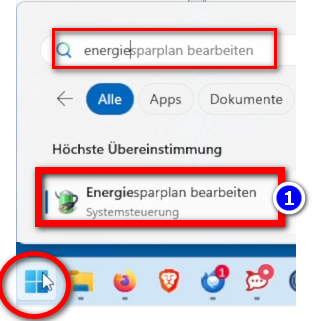
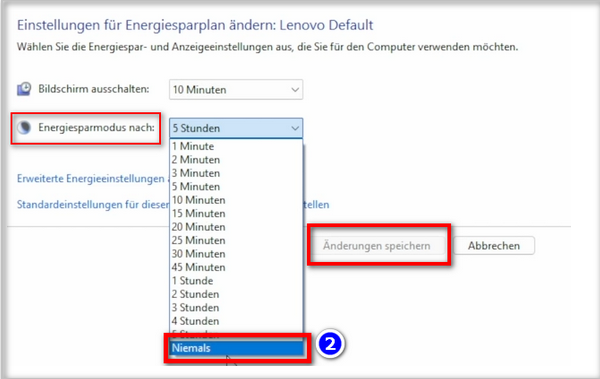
- <span data-darkreader-inline-bgcolor="" style="background-color: rgb(251, 238, 184);">Energieoptionen so ändern, dass der Computer nicht runterfährt: **Windowssymbol**→ **Suchfeld: Energiesparplan** → <span data-darkreader-inline-bgcolor="" lang="DE" style="font-size: 16pt; line-height: 107%; font-family: Wingdings; background-color: rgb(251, 238, 184);"><span style="mso-char-type: symbol; mso-symbol-font-family: Wingdings;"><span data-darkreader-inline-bgcolor="" lang="EN-US" style="font-size: 11pt; line-height: 107%; font-family: 'Cambria Math', serif; background-color: rgb(251, 238, 184);">❶</span></span></span> **Energiesparplan bearbeiten →** <span data-darkreader-inline-bgcolor="" lang="DE" style="font-size: 16pt; line-height: 107%; font-family: Wingdings; background-color: rgb(251, 238, 184);"><span style="mso-char-type: symbol; mso-symbol-font-family: Wingdings;"><span data-darkreader-inline-bgcolor="" lang="EN-US" style="font-size: 11pt; line-height: 107%; font-family: 'Cambria Math', serif; background-color: rgb(251, 238, 184);">❷</span></span></span> **Energiesparmodus nach: Niemals → Änderung speichern**</span>

![grafik.png](https://wiki.kla.tv/uploads/images/gallery/2024-11/scaled-1680-/ONpMkNkqaQmKdYtX-grafik.png)  
  
![grafik.png](https://wiki.kla.tv/uploads/images/gallery/2024-11/scaled-1680-/c6InTIccNIpkCbYb-grafik.png)

Eventuell noch bei "Erweiterte Energieeinstellungen" den Ruhezustand deaktivieren:

[![image.png](https://wiki.kla.tv/uploads/images/gallery/2025-02/scaled-1680-/um89TApH5tJcHwLM-image.png)](https://wiki.kla.tv/uploads/images/gallery/2025-02/um89TApH5tJcHwLM-image.png)
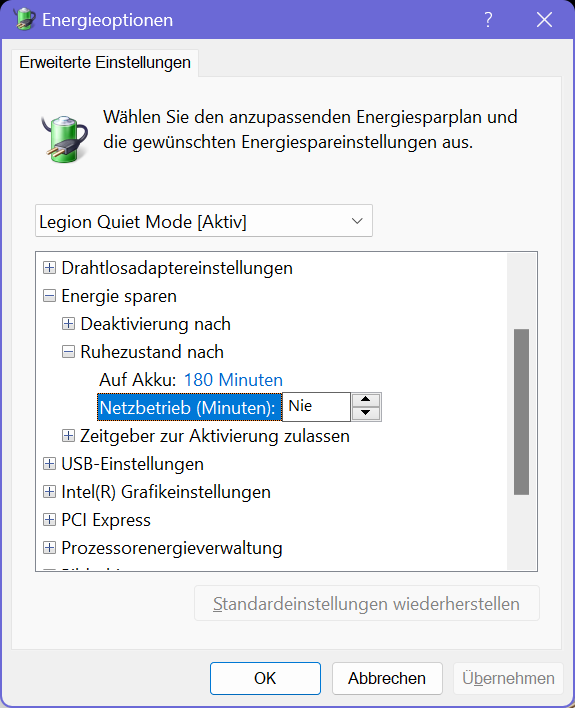
- <span data-darkreader-inline-bgcolor="" style="background-color: rgb(251, 238, 184);">Computer laufen lassen, bis alle Dateien runtergeladen sind</span>

### <span data-darkreader-inline-bgcolor="" style="background-color: rgb(241, 196, 15);">**8. Programm neu starten, nach Computerneustart / Archiv aktuell behalten:** </span>

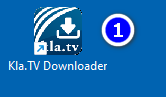
- <span data-darkreader-inline-bgcolor="" style="background-color: rgb(251, 238, 184);">Wenn du deinen Computer neu startest, sind deine Downloadprogramm geschlossen. Damit der Downloadprozess weiterlaufen kann, solltest du den <span data-darkreader-inline-bgcolor="" lang="DE" style="font-size: 16pt; line-height: 107%; font-family: Wingdings; background-color: rgb(251, 238, 184);"><span style="mso-char-type: symbol; mso-symbol-font-family: Wingdings;"><span data-darkreader-inline-bgcolor="" lang="EN-US" style="font-size: 11pt; line-height: 107%; font-family: 'Cambria Math', serif; background-color: rgb(251, 238, 184);">❶</span></span></span> **Kla.TV-Downloader** **neu öffnen**. (Programmverknüpfung auf dem Desktop). Somit wird der Downloadprozess automatisch fortgesetzt.</span> **[![grafik.png](https://wiki.kla.tv/uploads/images/gallery/2024-11/scaled-1680-/eNjNTP3E3Q1DowMV-grafik.png)](https://wiki.kla.tv/uploads/images/gallery/2024-11/eNjNTP3E3Q1DowMV-grafik.png)**
- <span data-darkreader-inline-bgcolor="" style="background-color: rgb(251, 238, 184);">**Achte darauf, dass du von Zeit zu Zeit dieses Programm öffnest, dass die aktuellen Sendungen automatisch auf deine Festplatte runtergeladen werden** (du musst nur öffnen und nichts weiter machen).</span>

### <span data-darkreader-inline-bgcolor="" style="background-color: rgb(241, 196, 15);">**9. Update installieren:** </span>

- **<span data-darkreader-inline-bgcolor="" style="background-color: rgb(251, 238, 184);">Von Zeit zu Zeit wird der Kla.TV-Downloader optimiert und du solltest das Update installieren. So funktioniert es:  
    </span>**
- <span data-darkreader-inline-bgcolor="" style="background-color: rgb(251, 238, 184);">Öffne den Kla.TV Downloader</span>
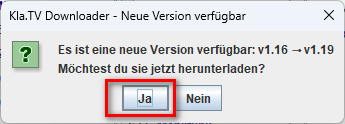
- <span data-darkreader-inline-bgcolor="" style="background-color: rgb(251, 238, 184);">Diese Meldung erscheint: (Wenn nicht, dann gehe im Kla.TV Downloader auf → Hilfe → Nach Updates suchen</span>  
    [![grafik.png](https://wiki.kla.tv/uploads/images/gallery/2024-12/scaled-1680-/CPxIwgY3Aw6GYURU-grafik.png)](https://wiki.kla.tv/uploads/images/gallery/2024-12/CPxIwgY3Aw6GYURU-grafik.png)
    
    [![grafik.png](https://wiki.kla.tv/uploads/images/gallery/2024-12/scaled-1680-/YaiCj1fp8YsCOMGW-grafik.png)](https://wiki.kla.tv/uploads/images/gallery/2024-12/YaiCj1fp8YsCOMGW-grafik.png)
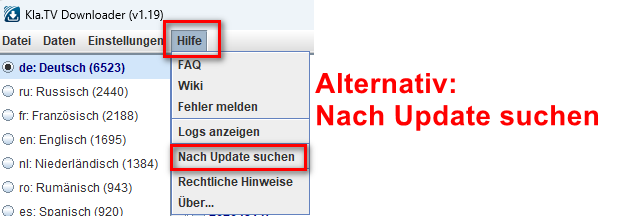
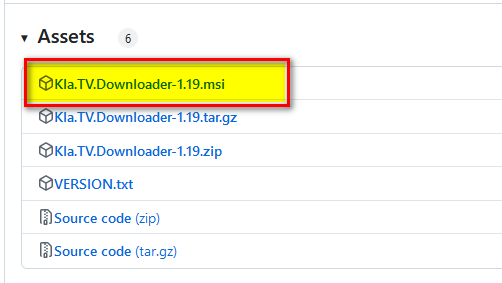
- <span data-darkreader-inline-bgcolor="" style="background-color: rgb(251, 238, 184);">Das Internet öffnet sich, scrolle runter zu "Assets" → wähle die .msi-Datei:</span>  
    [![grafik.png](https://wiki.kla.tv/uploads/images/gallery/2024-12/scaled-1680-/023Us4MTkHQ8u2Xi-grafik.png)](https://wiki.kla.tv/uploads/images/gallery/2024-12/023Us4MTkHQ8u2Xi-grafik.png)
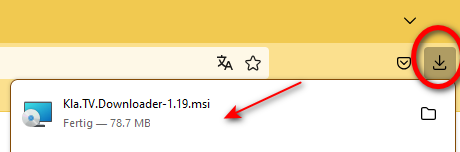
- <span data-darkreader-inline-bgcolor="" style="background-color: rgb(251, 238, 184);">Klicke auf die runtergeladene Installations-Datei:</span>  
    [![grafik.png](https://wiki.kla.tv/uploads/images/gallery/2024-12/scaled-1680-/STuGjeNRy39lXwMZ-grafik.png)](https://wiki.kla.tv/uploads/images/gallery/2024-12/STuGjeNRy39lXwMZ-grafik.png)
- <span data-darkreader-inline-bgcolor="" style="background-color: rgb(251, 238, 184);">Folge den Anweisungen:  
    </span>  
    [![grafik.png](https://wiki.kla.tv/uploads/images/gallery/2024-12/scaled-1680-/lDrsbwRT7NhCIHT5-grafik.png)](https://wiki.kla.tv/uploads/images/gallery/2024-12/lDrsbwRT7NhCIHT5-grafik.png)
    
    [![grafik.png](https://wiki.kla.tv/uploads/images/gallery/2024-12/scaled-1680-/DuS62hqvtDiwriHK-grafik.png)](https://wiki.kla.tv/uploads/images/gallery/2024-12/DuS62hqvtDiwriHK-grafik.png)
    
    [![grafik.png](https://wiki.kla.tv/uploads/images/gallery/2024-12/scaled-1680-/SDWAQqrIkcX2Z0sl-grafik.png)](https://wiki.kla.tv/uploads/images/gallery/2024-12/SDWAQqrIkcX2Z0sl-grafik.png)[![grafik.png](https://wiki.kla.tv/uploads/images/gallery/2024-12/scaled-1680-/TWYrM2csZQSt1XwL-grafik.png)](https://wiki.kla.tv/uploads/images/gallery/2024-12/TWYrM2csZQSt1XwL-grafik.png)
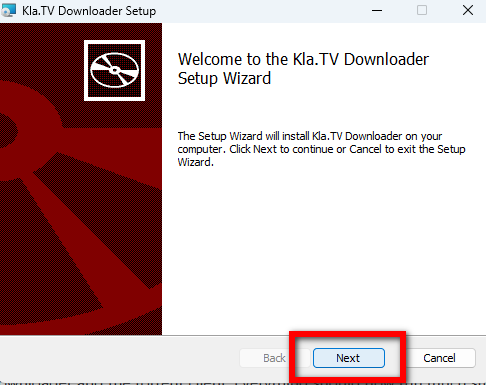
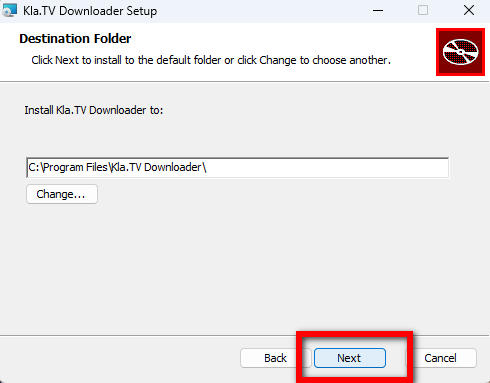
    
    [![grafik.png](https://wiki.kla.tv/uploads/images/gallery/2024-12/scaled-1680-/hEzR11mnRudFoalG-grafik.png)](https://wiki.kla.tv/uploads/images/gallery/2024-12/hEzR11mnRudFoalG-grafik.png)
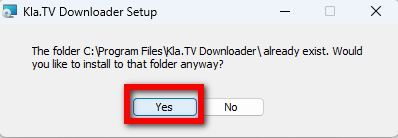
    
    [![grafik.png](https://wiki.kla.tv/uploads/images/gallery/2024-12/scaled-1680-/n8sRInnKKiM5K9SM-grafik.png)](https://wiki.kla.tv/uploads/images/gallery/2024-12/n8sRInnKKiM5K9SM-grafik.png)[![grafik.png](https://wiki.kla.tv/uploads/images/gallery/2024-12/scaled-1680-/FiZnOi5QIPfaKSkS-grafik.png)](https://wiki.kla.tv/uploads/images/gallery/2024-12/FiZnOi5QIPfaKSkS-grafik.png)
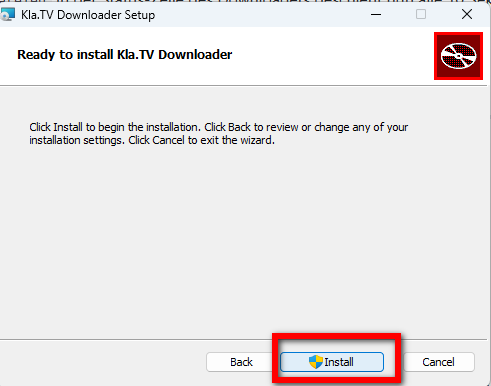
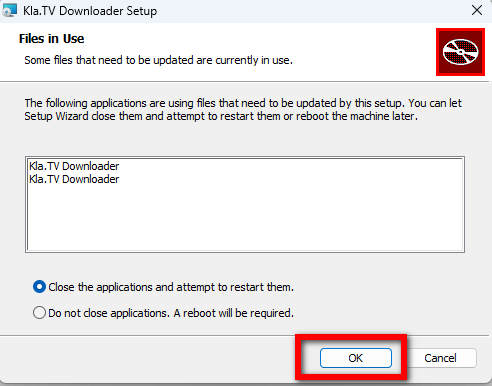
    
    [![grafik.png](https://wiki.kla.tv/uploads/images/gallery/2024-12/scaled-1680-/soHtgJxJGYlBuKpm-grafik.png)](https://wiki.kla.tv/uploads/images/gallery/2024-12/soHtgJxJGYlBuKpm-grafik.png)
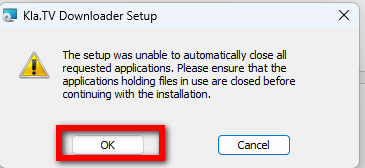
    
    [![grafik.png](https://wiki.kla.tv/uploads/images/gallery/2024-12/scaled-1680-/xa2mDeOnwfUW7BmE-grafik.png)](https://wiki.kla.tv/uploads/images/gallery/2024-12/xa2mDeOnwfUW7BmE-grafik.png)[![grafik.png](https://wiki.kla.tv/uploads/images/gallery/2024-12/scaled-1680-/u3XvGrOTW4sCrsBz-grafik.png)](https://wiki.kla.tv/uploads/images/gallery/2024-12/u3XvGrOTW4sCrsBz-grafik.png)
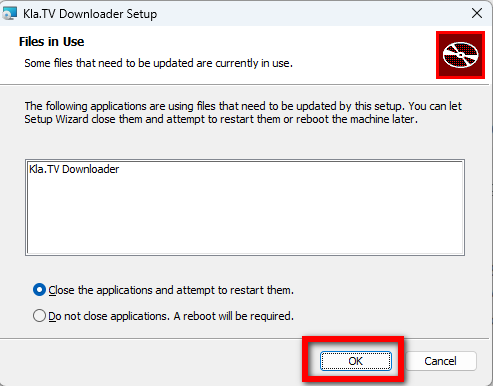
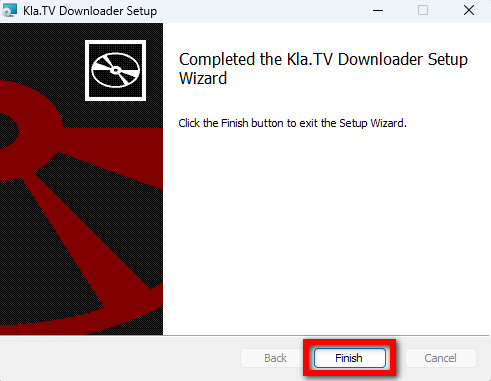
    
    [![grafik.png](https://wiki.kla.tv/uploads/images/gallery/2024-12/scaled-1680-/H216sMMqwgNrDH1M-grafik.png)](https://wiki.kla.tv/uploads/images/gallery/2024-12/H216sMMqwgNrDH1M-grafik.png)
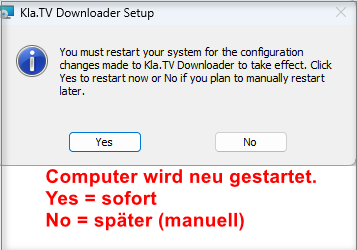
- <span data-darkreader-inline-bgcolor="" style="background-color: rgb(251, 238, 184);">Öffne erneut den Kla.TV-Downloader und geniesse die optimierte Version 😊</span>

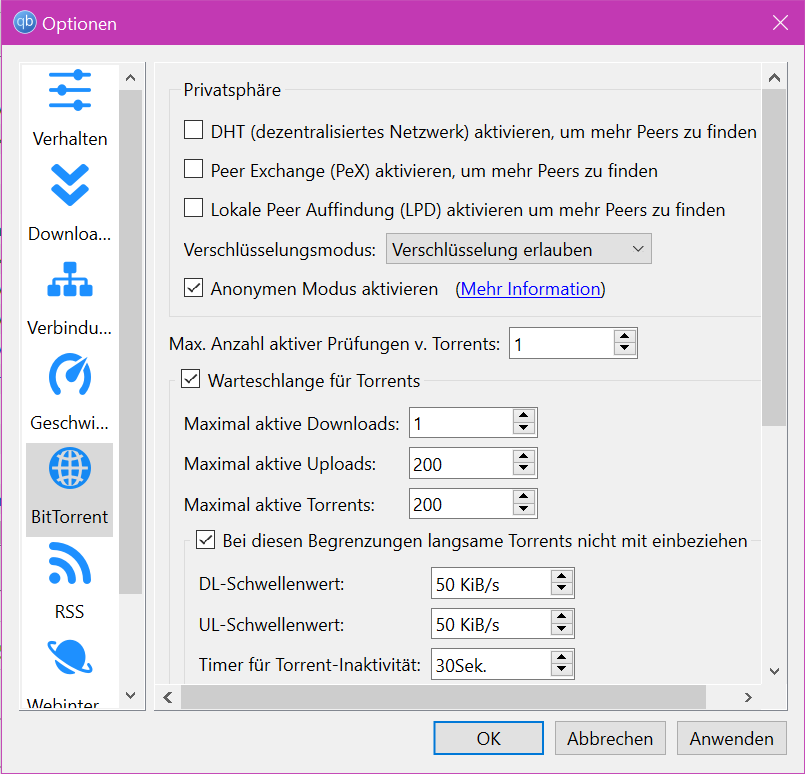
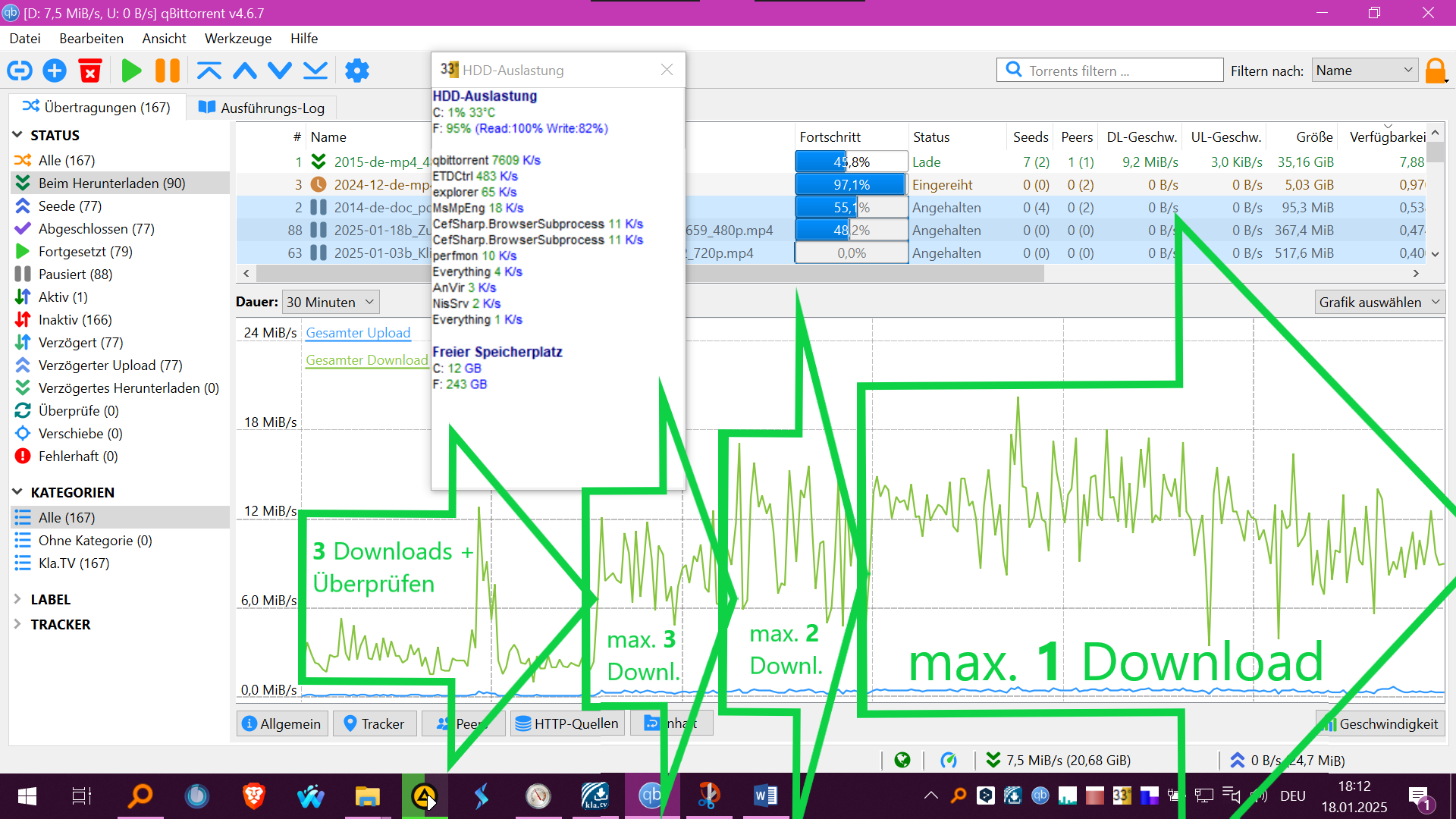
##### **Tipp für HDD-Laufwerke (Festplatten):**  
Es kann sein, dass schneller heruntergeladen wird, wenn man nur 1 Download zulässt: [![image.png](https://wiki.kla.tv/uploads/images/gallery/2025-02/scaled-1680-/PnHtxIQofqtusdRM-image.png)](https://wiki.kla.tv/uploads/images/gallery/2025-02/PnHtxIQofqtusdRM-image.png)   
[![Screenshot 2025-01-19_KlaTV-Download_QBT.png](https://wiki.kla.tv/uploads/images/gallery/2025-01/scaled-1680-/A6QSunlWubAyiqfg-screenshot-2025-01-19-klatv-download-qbt.png)](https://wiki.kla.tv/uploads/images/gallery/2025-01/A6QSunlWubAyiqfg-screenshot-2025-01-19-klatv-download-qbt.png)  
[![Screenshot_2025-01-18_1812_KlaTV-Download+.png](https://wiki.kla.tv/uploads/images/gallery/2025-01/scaled-1680-/7MCPADbx0LfClgeA-screenshot-2025-01-18-1812-klatv-download.png)](https://wiki.kla.tv/uploads/images/gallery/2025-01/7MCPADbx0LfClgeA-screenshot-2025-01-18-1812-klatv-download.png)  
  
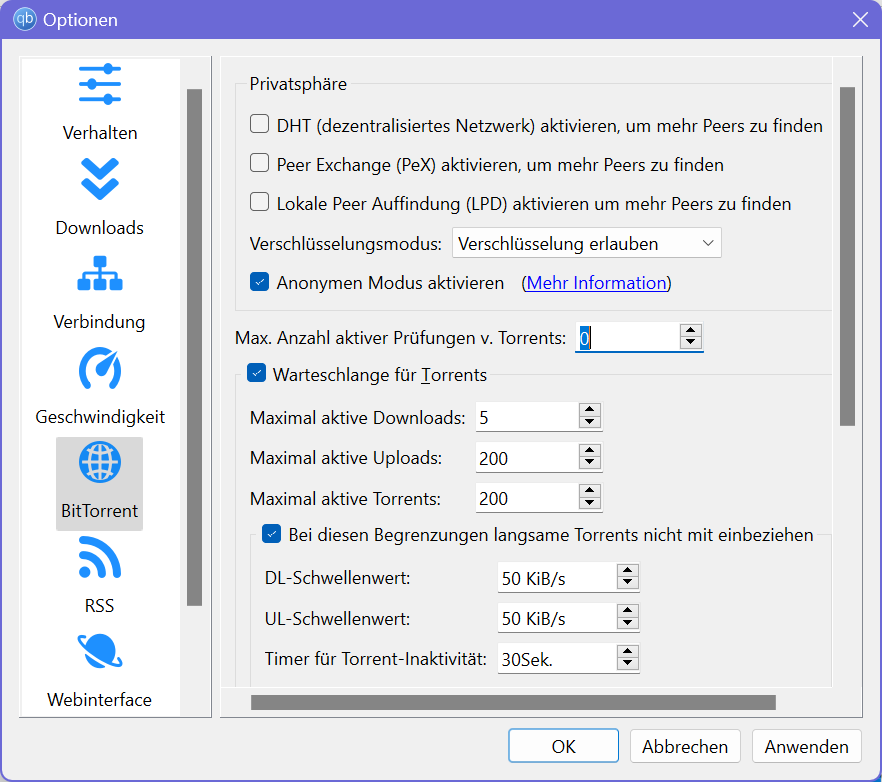
'Nach Wiederaufnahme der Downloads wurden gleichzeitig die vorhanden Dateien auf Vollständigkeit überprüft, was die HDD auch auslasten kann. Das kann man über "Max. Anzahl aktiver Prüfungen v. Torrents: 0" manuell pausieren und später fortsetzen:  
  
[![image.png](https://wiki.kla.tv/uploads/images/gallery/2025-02/scaled-1680-/WTF0Ochfl3T83MQ4-image.png)](https://wiki.kla.tv/uploads/images/gallery/2025-02/WTF0Ochfl3T83MQ4-image.png)  

##### Weitere Artikel, die dich interessieren könnten:  
  
[**Gesichertes Archiv durchsuchen**](https://wiki.kla.tv/books/klatv-sichern/page/gesichertes-archiv-durchsuchen)

### Anleitung für Windows 7:

Grundsätzlich ist der Installations-Prozess gleich wie bei Windows 10. Leider kann aber die im Installationsscript enthaltende portalbe Version vom qBittorrent 5 und grösser nicht ausgeführt werden und gibt eine entsprechende Fehlermeldung aus..

*Du kannst wie folgt vorgehen:*

1. Lade dir qBittorrent in der Version v4.4.5 von diesem Link herunter: [https://sourceforge.net/projects/qbittorrent/files/qbittorrent-win32/qbittorrent-4.4.5/](https://sourceforge.net/projects/qbittorrent/files/qbittorrent-win32/qbittorrent-4.4.5/) und installiere das Programm
2. Konfiguriere den qBittorrent manuell mit Hilfe dieser Instruktion: [https://github.com/Kla-TV/downloader/wiki/Torrent%E2%80%90Client-manuell-einrichten](https://github.com/Kla-TV/downloader/wiki/Torrent%E2%80%90Client-manuell-einrichten)

Tipp: Um ein Gefühl zu bekommen wie der "Kla.TV Downloader" und qBittorrent zusammenarbeitet, schaue dir auch die Anleitungen von [Linux](https://wiki.kla.tv/books/klatv-sichern/page/linux-installation-und-nutzung-von-klatv-downloader) oder [MAC](https://wiki.kla.tv/books/klatv-sichern/page/mac-installation-und-nutzung-von-klatv-downloader) an. Dort gibt es vertieften Einblick.