# MAC : Installation & connexion à Filezilla (Accès au serveur)

### **Qu'apprends-tu dans cet article ?**

Tu apprends comment sauvegarder **les émissions de KlaTV sur ton propre disque dur via l'accès au serveur.** Classées par date ou par thème et de différentes qualités. Tu apprends également comment trouver des émissions spécifiques dans des documents téléchargés en utilisant des mots-clés.

### **Vidéo explicative : (13min)**

 *- Sous-titres générés automatiquement -*

<div class="responsive-iframe" id="bkmrk-"></div><div class="responsive-iframe" id="bkmrk--1"><div class="responsive-iframe"><div class="responsive-iframe"><iframe allowfullscreen="allowfullscreen" frameborder="0" height="332" src="https://video.elaion-verlag.ch?video_by_id=AM8ELHmGd5cN" width="590"></iframe>

</div></div><div class="responsive-iframe">  
</div></div><p class="callout warning">Nous vous recommandons de regarder d'abord la vidéo afin de mieux comprendre les instructions écrites.</p>

### <span lang="DE" style="font-size: 16.0pt; mso-bidi-font-size: 11.0pt; line-height: 107%; font-family: Wingdings; mso-ascii-font-family: Calibri; mso-ascii-theme-font: minor-latin; mso-fareast-font-family: Calibri; mso-fareast-theme-font: minor-latin; mso-hansi-font-family: Calibri; mso-hansi-theme-font: minor-latin; mso-bidi-font-family: 'Times New Roman'; mso-bidi-theme-font: minor-bidi; mso-ansi-language: DE; mso-fareast-language: EN-US; mso-bidi-language: AR-SA; mso-char-type: symbol; mso-symbol-font-family: Wingdings;"><span style="mso-char-type: symbol; mso-symbol-font-family: Wingdings;">&#131;</span></span><span lang="DE" style="font-size: 16.0pt; mso-bidi-font-size: 11.0pt; line-height: 107%; font-family: Wingdings; mso-ascii-font-family: Calibri; mso-ascii-theme-font: minor-latin; mso-fareast-font-family: Calibri; mso-fareast-theme-font: minor-latin; mso-hansi-font-family: Calibri; mso-hansi-theme-font: minor-latin; mso-bidi-font-family: 'Times New Roman'; mso-bidi-theme-font: minor-bidi; mso-ansi-language: DE; mso-fareast-language: EN-US; mso-bidi-language: AR-SA; mso-char-type: symbol; mso-symbol-font-family: Wingdings;"><span style="mso-char-type: symbol; mso-symbol-font-family: Wingdings;">&#132;</span></span><span lang="DE" style="font-size: 16.0pt; mso-bidi-font-size: 11.0pt; line-height: 107%; font-family: Wingdings; mso-ascii-font-family: Calibri; mso-ascii-theme-font: minor-latin; mso-fareast-font-family: Calibri; mso-fareast-theme-font: minor-latin; mso-hansi-font-family: Calibri; mso-hansi-theme-font: minor-latin; mso-bidi-font-family: 'Times New Roman'; mso-bidi-theme-font: minor-bidi; mso-ansi-language: DE; mso-fareast-language: EN-US; mso-bidi-language: AR-SA; mso-char-type: symbol; mso-symbol-font-family: Wingdings;"><span style="mso-char-type: symbol; mso-symbol-font-family: Wingdings;"> </span></span>**Instructions écrites :**


#### <span style="background-color: rgb(241, 196, 15);">**1.** </span><span style="background-color: rgb(241, 196, 15);">**Accès au serveur :**</span>

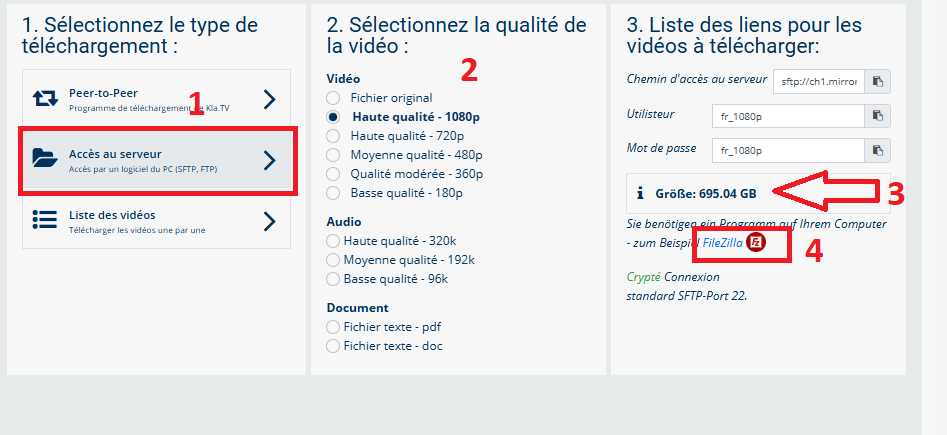
- <span style="background-color: rgb(251, 238, 184);"><span style="background-color: rgb(251, 238, 184);">Va sur la page</span>**<span style="background-color: rgb(251, 238, 184);"> [kla.tv/sichern](https://www.kla.tv/sichern) </span>** </span>
- <span style="background-color: rgb(251, 238, 184);"><span style="background-color: rgb(251, 238, 184);">Va <span lang="DE" style="font-size: 11pt; line-height: 107%; font-family: 'Cambria Math', serif; color: rgb(7, 40, 230); background-color: rgb(251, 238, 184);">❶</span> sur "**Accès au serveur"** (voir l'image ci-dessous)→ et choisis <span style="background-color: rgb(251, 238, 184);"> <span lang="DE" style="font-size: 11pt; line-height: 107%; font-family: 'Cambria Math', serif; color: rgb(7, 40, 230); background-color: rgb(251, 238, 184);">❷</span></span> la **qualité souhaitée** </span>  
      
    </span>***→ <span style="background-color: rgb(251, 238, 184);">ASTUCE :</span>***<span style="background-color: rgb(251, 238, 184);"> *il n'est pas possible de sélectionner plusieurs choses en même temps. Dans cet article, tu apprendras comment enregistrer plusieurs qualités dans la même structure de dossier : clique ici → Télécharger plusieurs qualités*</span>
- <span style="background-color: rgb(251, 238, 184);"><span style="background-color: rgb(251, 238, 184);"><span lang="DE" style="font-size: 11pt; line-height: 107%; font-family: 'Cambria Math', serif; color: rgb(7, 40, 230); background-color: rgb(251, 238, 184);">❸</span> la flèche rouge indique l'espace libre dont tu as besoin sur ton disque dur. Ajuste la qualité en conséquence.</span>  
      
    </span>
- <span style="background-color: rgb(251, 238, 184);">Ensuite, tu as besoin du programme « FileZilla ». <span class="--l --r sentence_highlight">Pour l'installer, clique sur</span> <span lang="DE" style="font-size: 11pt; line-height: 107%; font-family: 'Cambria Math', serif; color: rgb(7, 40, 230); background-color: rgb(251, 238, 184);">❹</span></span><span style="background-color: rgb(251, 238, 184);"><span style="color: rgb(7, 40, 230);"> </span>"**FileZilla**"</span>
    
    [![1.png](https://wiki.kla.tv/uploads/images/gallery/2025-04/scaled-1680-/wn8J9cy5k42RBnte-1.png)](https://wiki.kla.tv/uploads/images/gallery/2025-04/wn8J9cy5k42RBnte-1.png)

#### <span style="background-color: rgb(241, 196, 15);">**2.** </span><span style="background-color: rgb(241, 196, 15);">**Installer Filezilla :** </span>

*(Les images sont en allemands mais correspondent en français)*

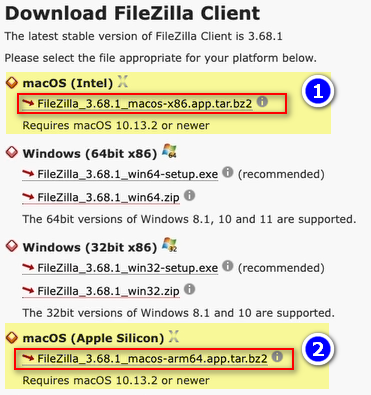
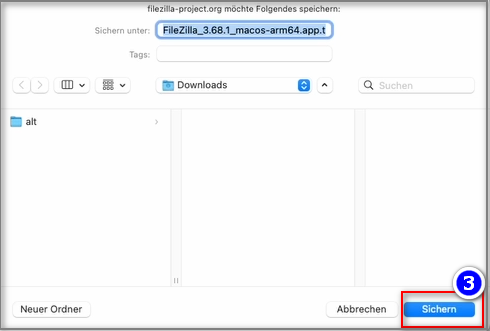
- <span style="background-color: rgb(251, 238, 184);">En fonction de la version de ton Mac (voir ASTUCE), choisis ❶ « **macOS (Intel)** » ou ❷ « **macOS (Apple Silicon)** ». → appuie sur ❸ « **Sauvegarder** ». **[![grafik.png](https://wiki.kla.tv/uploads/images/gallery/2024-11/scaled-1680-/VLN2CL32WZpwxfLX-grafik.png)](https://wiki.kla.tv/uploads/images/gallery/2024-11/VLN2CL32WZpwxfLX-grafik.png)**</span>![grafik.png](https://wiki.kla.tv/uploads/images/gallery/2024-11/scaled-1680-/WJTEKpNL5oe30lCx-grafik.png)
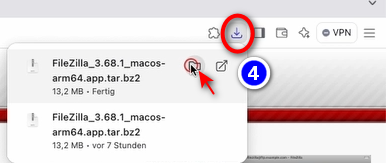
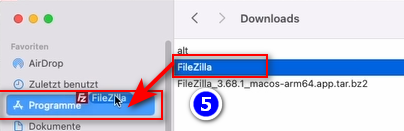
- <span style="background-color: rgb(251, 238, 184);">❹ **Ouvre le programme → Décompresse le programme** en double-cliquant dessus → **Glisse le** FileZilla décompressé dans ❺ **Programmes → Ouvre FileZilla** dans tes programmes  
      
    </span>  
    ![grafik.png](https://wiki.kla.tv/uploads/images/gallery/2024-11/scaled-1680-/VPNuuUPWGJRzrbtr-grafik.png) ![grafik.png](https://wiki.kla.tv/uploads/images/gallery/2024-11/scaled-1680-/N7MuRCCZvue6JAoZ-grafik.png)
- *<span style="background-color: rgb(194, 224, 244);">**ASTUCE :** </span>*<span class="ILfuVd" lang="de"><span class="hgKElc">*<span class="ct-span              oxy-stock-content-styles             " id="bkmrk-steht-dort-%22intel%22-%28">Si tu ne sais pas quelle est la version de ton Mac : Choisis pour cela en haut à gauche dans le menu Apple (![icons8-mac-os-50.png](https://wiki.kla.tv/uploads/images/gallery/2024-11/scaled-1680-/sy6Ed2uwA1TrzLIR-icons8-mac-os-50.png)) l'option "A propos de ce Mac" → "Puce/Processeur" → Si tu y trouves "Apple M1", "M2" ou "M3", tu as un   
     Apple Silicon Mac // Si tu y trouves "Intel" (par ex. "Intel Core i5"), il s'agit d'un Intel Mac</span>*</span></span>

#### <span style="background-color: rgb(241, 196, 15);">**3.** </span><span style="background-color: rgb(241, 196, 15);">**Paramétrer FileZilla :**</span>

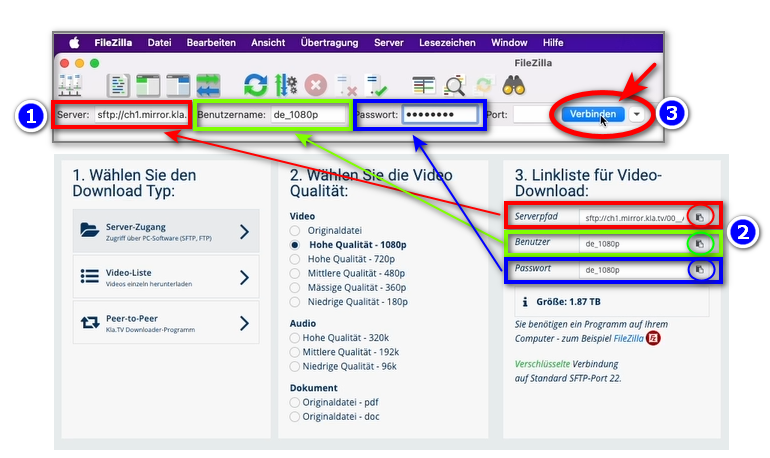
- <span style="background-color: rgb(251, 238, 184);">Copier dans <span style="background-color: rgb(251, 238, 184);"><span lang="DE" style="font-size: 11pt; line-height: 107%; font-family: 'Cambria Math', serif; color: rgb(7, 40, 230); background-color: rgb(251, 238, 184);">❶</span></span> **FileZilla les données du serveur** que tu trouves sur la page web <span style="background-color: rgb(251, 238, 184);"><span lang="DE" style="font-size: 11pt; line-height: 107%; font-family: 'Cambria Math', serif; color: rgb(7, 40, 230); background-color: rgb(251, 238, 184);">❷</span></span> [**kla.tv/sichern**](https://wiki.kla.tv/kla.tv/sichern) → ensuite sur <span style="background-color: rgb(251, 238, 184);"><span lang="DE" style="font-size: 11pt; line-height: 107%; font-family: 'Cambria Math', serif; color: rgb(7, 40, 230); background-color: rgb(251, 238, 184);">❸</span> cliquer sur </span>« Connexion rapide » :</span>  
    (Cliquer sur l'icône « copier » entourée d'un cercle et coller dans FileZilla ![grafik.png](https://wiki.kla.tv/uploads/images/gallery/2024-11/scaled-1680-/K7m9M4cml0Nk3bPx-grafik.png)) [![grafik.png](https://wiki.kla.tv/uploads/images/gallery/2024-11/scaled-1680-/wbIHEPHXZnCa1P71-grafik.png)](https://wiki.kla.tv/uploads/images/gallery/2024-11/wbIHEPHXZnCa1P71-grafik.png)

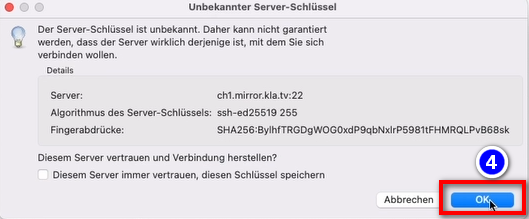
- <span style="background-color: rgb(251, 238, 184);">Un message ❹ apparaît, clique sur OK</span>  
    ![grafik.png](https://wiki.kla.tv/uploads/images/gallery/2024-11/scaled-1680-/I4RotrmPs0wSZmSf-grafik.png)

#### <span style="background-color: rgb(241, 196, 15);">**4. Sauvegarder les émissions :**</span>

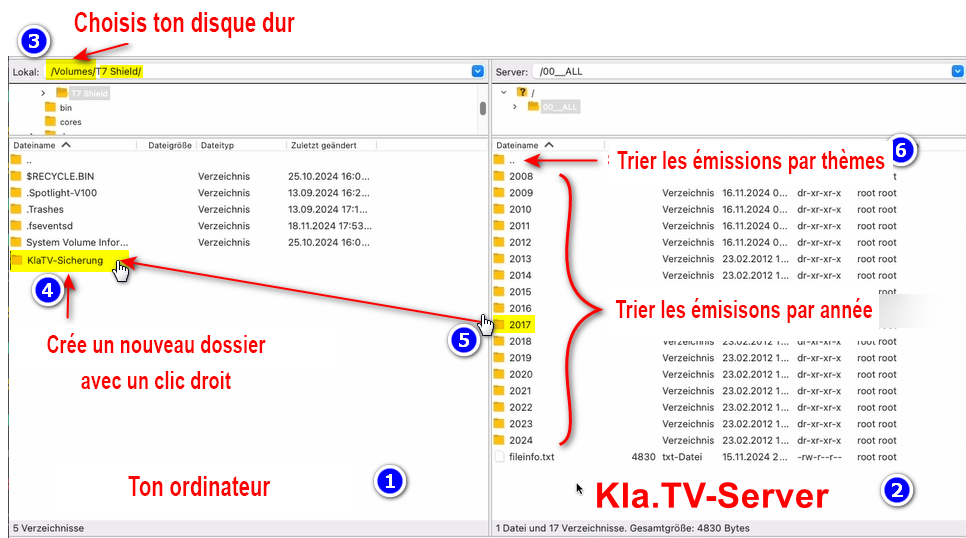
- <span style="background-color: rgb(251, 238, 184);"><span lang="DE" style="font-size: 11pt; line-height: 107%; font-family: 'Cambria Math', serif; color: rgb(7, 40, 230); background-color: rgb(251, 238, 184);">❶</span> A gauche, tu vois **ton** ordinateur, <span style="background-color: rgb(251, 238, 184);"><span style="background-color: rgb(251, 238, 184);"><span lang="DE" style="font-size: 11pt; line-height: 107%; font-family: 'Cambria Math', serif; color: rgb(7, 40, 230); background-color: rgb(251, 238, 184);">❷</span></span></span> à droite le serveur de Kla.TV </span>
- <span style="background-color: rgb(251, 238, 184);">Navigue à gauche <span style="background-color: rgb(251, 238, 184);"><span lang="DE" style="font-size: 11pt; line-height: 107%; font-family: 'Cambria Math', serif; color: rgb(7, 40, 230); background-color: rgb(251, 238, 184);">❸</span> </span> sur **ton disque dur.** (Sélectionne ton disque dur)</span>
- <span style="background-color: rgb(251, 238, 184);">Crée **<span style="background-color: rgb(251, 238, 184);"><span lang="DE" style="font-size: 11pt; line-height: 107%; font-family: 'Cambria Math', serif; color: rgb(7, 40, 230); background-color: rgb(251, 238, 184);">❹</span></span> un nouveau dossier** avec un clic droit « Créer un dossier » → nomme le dossier par exemple « Sauvegarde KlaTV ».</span>
- <span style="background-color: rgb(251, 238, 184);">Déplace <span lang="DE" style="font-size: 11pt; line-height: 107%; font-family: 'Cambria Math', serif; color: rgb(7, 40, 230); background-color: rgb(251, 238, 184);">❺</span> **le dossier d'émissions souhaité** sur ton disque dur en maintenant le bouton de la souris enfoncé. </span>
- <span style="background-color: rgb(251, 238, 184);">Tu peux aussi <span lang="DE" style="font-size: 11pt; line-height: 107%; font-family: 'Cambria Math', serif; color: rgb(7, 40, 230); background-color: rgb(251, 238, 184);">❻</span> télécharger **un thème particulier** (par ex. 5G, vaccination, Bill Gates, etc.). L'inconvénient est qu'avec le temps, de nouvelles vidéos sont ajoutées et stockées dans ces dossiers thématiques. Tu devras toujours faire une comparaison avec le disque dur et tu auras besoin de plus d'espace de stockage. </span>
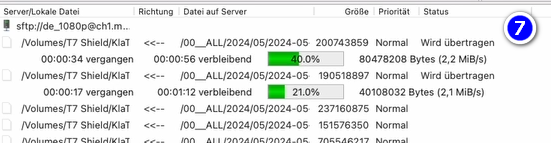
- <span style="background-color: rgb(251, 238, 184);"><span style="color: rgb(7, 40, 230);"><span lang="DE" style="font-size: 11pt; line-height: 107%; font-family: 'Cambria Math', serif; background-color: rgb(251, 238, 184);">❼</span> </span>Ci-dessous, tu peux voir comment les vidéos sont téléchargées dans l'ordre (cela peut prendre beaucoup de temps). </span>  
      
    *→<span style="background-color: rgb(194, 224, 244);"> **ASTUCE :** </span><span style="background-color: rgb(251, 238, 184);">Ici, tu apprendras comment limiter la vitesse d'Internet pour FileZilla, afin que tu puisses quand même travailler sur Internet à côté : clique ici → </span>*[**Limiter la vitesse de Filezilla**](https://wiki.kla.tv/books/fr-sauvegarder-klatv/page/sauvegarder-klatv-avec-lacces-au-serveur-limiter-la-vitesse-de-filezilla "Limiter la vitesse de Filezilla")
- [![filezilla.png](https://wiki.kla.tv/uploads/images/gallery/2025-04/scaled-1680-/kh9C3RoAmwYsMzXT-filezilla.png)](https://wiki.kla.tv/uploads/images/gallery/2025-04/kh9C3RoAmwYsMzXT-filezilla.png)
[![grafik.png](https://wiki.kla.tv/uploads/images/gallery/2024-11/scaled-1680-/uLGmaW3NtFcExaZn-grafik.png)](https://wiki.kla.tv/uploads/images/gallery/2024-11/uLGmaW3NtFcExaZn-grafik.png)
#### <span style="background-color: rgb(241, 196, 15);">**5. ALTERNATIVE - Sauvegarder les émissions sans FileZilla, directement sur le site :**</span>

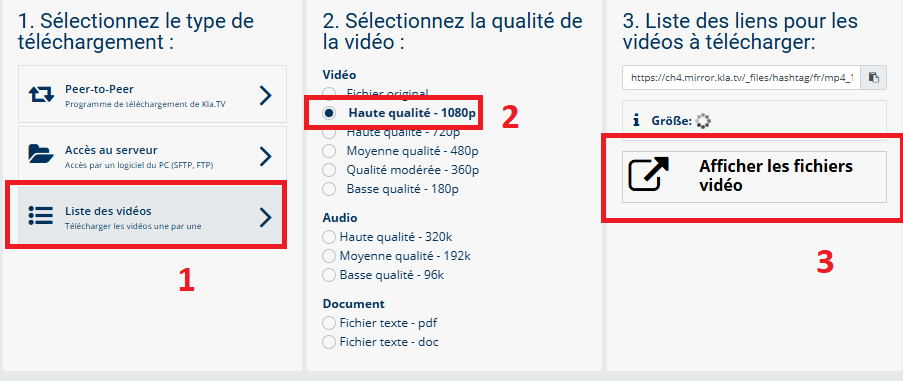
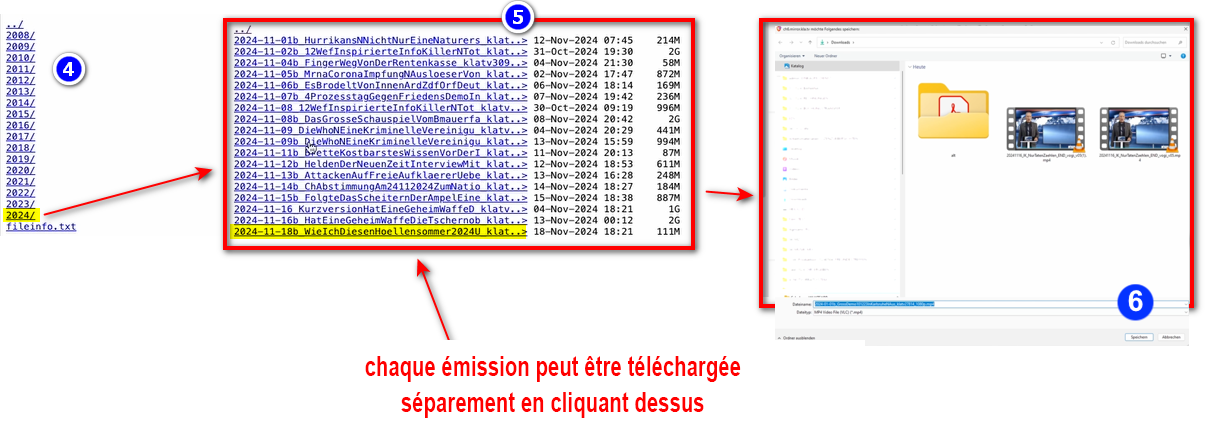
- <span style="background-color: rgb(251, 238, 184);">Va sur **[kla.tv/sichern](https://www.kla.tv/sichern)** → <span lang="DE" style="font-size: 11pt; line-height: 107%; font-family: 'Cambria Math', serif; color: rgb(7, 40, 230); background-color: rgb(251, 238, 184);">❶</span> **Liste des vidéos** → choisis <span lang="DE" style="font-size: 11pt; line-height: 107%; font-family: 'Cambria Math', serif; color: rgb(7, 40, 230); background-color: rgb(251, 238, 184);">❷</span> la **qualité souhaitée** →clique <span lang="DE" style="font-size: 11pt; line-height: 107%; font-family: 'Cambria Math', serif; color: rgb(7, 40, 230); background-color: rgb(251, 238, 184);">❸</span> sur "**Afficher les fichiers vidéo"**</span>
- <span style="background-color: rgb(251, 238, 184);">Maintenant,<span style="background-color: rgb(251, 238, 184);"><span lang="DE" style="font-size: 11pt; line-height: 107%; font-family: 'Cambria Math', serif; color: rgb(7, 40, 230); background-color: rgb(251, 238, 184);">❹</span></span> toutes les vidéos sont listées **par année**/mois. Clique dans l'année/mois souhaité et clique <span style="background-color: rgb(251, 238, 184);"><span lang="DE" style="font-size: 11pt; line-height: 107%; font-family: 'Cambria Math', serif; color: rgb(7, 40, 230); background-color: rgb(251, 238, 184);">❺</span></span> sur l'émission et appuie <span style="background-color: rgb(251, 238, 184);"><span lang="DE" style="font-size: 11pt; line-height: 107%; font-family: 'Cambria Math', serif; color: rgb(7, 40, 230); background-color: rgb(251, 238, 184);">❻</span></span> sur « **Enregistrer** ». Chaque émission peut être téléchargée individuellement.</span>  
      
    *→ <span style="background-color: rgb(194, 224, 244);">**ASTUCE :** </span><span style="background-color: rgb(251, 238, 184);">Cela demande beaucoup de temps et d'efforts. C'est pourquoi la variante avec FileZilla est recommandée</span>  
    [![3.png](https://wiki.kla.tv/uploads/images/gallery/2025-04/scaled-1680-/z6g6tak6NkyDI6Da-3.png)](https://wiki.kla.tv/uploads/images/gallery/2025-04/z6g6tak6NkyDI6Da-3.png)
    
      
    [![2.png](https://wiki.kla.tv/uploads/images/gallery/2025-04/scaled-1680-/u5hUsrAoT6hkx1yc-2.png)](https://wiki.kla.tv/uploads/images/gallery/2025-04/u5hUsrAoT6hkx1yc-2.png)
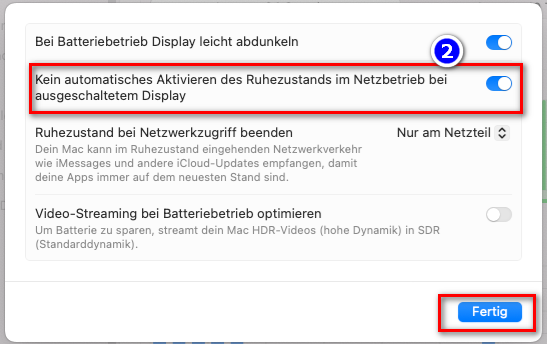
### <span style="background-color: rgb(241, 196, 15);">**6.** </span><span style="background-color: rgb(241, 196, 15);">**Recommandation : régler les options d'alimentation de manière à ce que l'ordinateur ne s'éteigne pas automatiquement :** </span>

- <span style="background-color: rgb(251, 238, 184);">Si l'ordinateur a redémarré, tu dois redémarrer l'application (voir instructions point 8).</span>
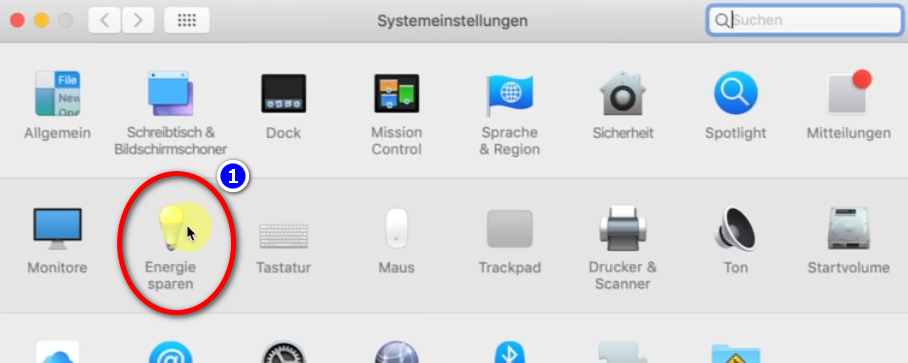
- <span style="background-color: rgb(251, 238, 184);">Pour éviter que ton Mac ne s'éteigne automatiquement : **Mac → ❶ Préférences Système → Économie d'énergie →  
    ❷ Ne pas activer automatiquement la mise en veille ... → activer**</span>
- <span style="background-color: rgb(251, 238, 184);">Laisser tourner l'ordinateur jusqu'à ce que tous les fichiers soient téléchargés</span>
- [![grafik.png](https://wiki.kla.tv/uploads/images/gallery/2024-11/scaled-1680-/23U7rqFWbWlhJ5Uv-grafik.png)](https://wiki.kla.tv/uploads/images/gallery/2024-11/23U7rqFWbWlhJ5Uv-grafik.png)
    
    [![grafik.png](https://wiki.kla.tv/uploads/images/gallery/2024-11/scaled-1680-/PGDWa65L7V1hj21V-grafik.png)](https://wiki.kla.tv/uploads/images/gallery/2024-11/PGDWa65L7V1hj21V-grafik.png)
<p class="callout info">Nous recommandons en outre les formations suivantes :  
  
**[Déterminer l'espace de stockage](https://wiki.kla.tv/books/fr-sauvegarder-klatv/page/sauvegarder-klatv-avec-lacces-au-serveur-determiner-lespace-de-stockage "Déterminer l'espace de stockage")  
  
[Limiter la vitesse de Filezilla](https://wiki.kla.tv/books/fr-sauvegarder-klatv/page/sauvegarder-klatv-avec-lacces-au-serveur-limiter-la-vitesse-de-filezilla "Limiter la vitesse de Filezilla")  
  
[Télécharger plusieurs qualités](https://wiki.kla.tv/books/fr-sauvegarder-klatv/page/sauvegarder-klatv-avec-lacces-au-serveur-telecharger-plusieurs-qualites "Télécharger plusieurs qualités")  
  
[Rechercher dans les archives sauvegardées](https://wiki.kla.tv/books/fr-sauvegarder-klatv/page/sauvegarder-klatv-avec-lacces-au-serveur-rechercher-dans-les-archives-sauvegardees "Rechercher dans les archives sauvegardées")**</p>