# LINUX : Installation et utilisation de "Kla.TV Downloader"

<p class="callout info">Les instructions écrites sont encore en cours d'élaboration.</p>

### **Qu'apprends-tu dans cet article**

Tu vas apprendre comment installer le téléchargeur Kla.TV sur Linux. Le téléchargeur Kla.TV met automatiquement à jour tes archives. En même temps, tu peux mettre ton connexion vidéo à la disposition d'autres utilisateurs pour le téléchargement. C'est parti :

### **Instructions vidéo : (14min)**

**(en allemand)**

<iframe allowfullscreen="allowfullscreen" frameborder="0" height="332" src="https://www.kla.tv/index.php?a=showembed&vidid=31126&lang=de" width="590"></iframe>

###  **Instructions écrites :**

### <span style="background-color: rgb(241, 196, 15);"> **1. Principes fondamentaux**</span>

- Quelle est la différence entre le téléchargeur Kla.TV et le téléchargement via l'accès au serveur (via FileZilla) ?  
    - **Via l'accès au serveur**, vous téléchargez l'archive une seule fois avec FileZilla et vous devez la maintenir à jour « manuellement » et télécharger régulièrement les dernières émissions.  
    - **Grâce au programme de téléchargement**, vous pouvez maintenir votre archive à jour automatiquement et la synchroniser avec la base de données du serveur. Vous le configurez une seule fois et il est automatiquement mis à jour. De plus, vous pouvez mettre les vidéos de votre connexion vidéo à la disposition d'autres utilisateurs pour qu'ils les téléchargent.
- Pour cela, vous devez installer deux nouveaux programmes. 1. le téléchargeur Kla.TV et 2. le qBittorrent. Voici les instructions :

### <span style="background-color: rgb(241, 196, 15);"> **2.** </span><span style="box-sizing: border-box; outline-color: rgb(0, 49, 92); outline-width: 1px; margin: 0px; padding: 0px; border: 0px; font: inherit; vertical-align: baseline; background-color: rgb(241, 196, 15);">**Installation du Kla.TV-Downloader** </span>

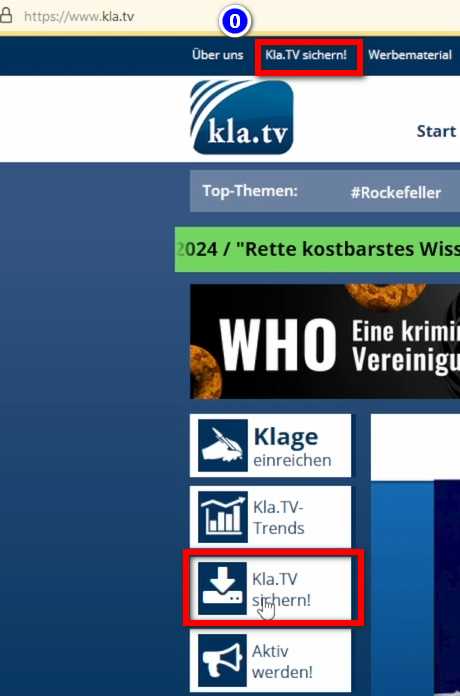
- <span style="background-color: rgb(251, 238, 184);">Aller sur la page </span>**<span style="background-color: rgb(251, 238, 184);">[kla.tv/sichern](https://www.kla.tv/sichern) <span style="color: rgb(0, 0, 0);">(0) (en français "Sauvegarder Kla.TV)</span></span>**

**<span style="background-color: rgb(52, 73, 94); color: rgb(255, 255, 255);">[![image.png](https://wiki.kla.tv/uploads/images/gallery/2024-11/scaled-1680-/KxmCDnQQzOrOT1s8-image.png)](https://wiki.kla.tv/uploads/images/gallery/2024-11/KxmCDnQQzOrOT1s8-image.png)</span>**

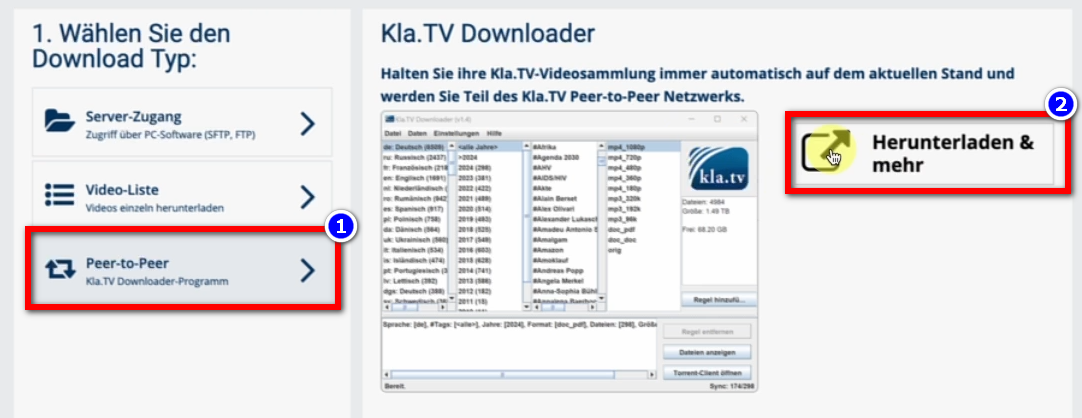
- Choisir **"Kla.TV/Downloader"**
- <span style="box-sizing: border-box; outline-color: rgb(0, 49, 92); outline-width: 1px; margin: 0px; padding: 0px; border: 0px; font: inherit; vertical-align: baseline; background-color: rgb(251, 238, 184);">Choisir le type de téléchargement <span lang="DE" style="box-sizing: border-box; outline-color: rgb(0, 49, 92); outline-width: 1px; margin: 0px; padding: 0px; border: 0px; font-style: inherit; font-variant: inherit; font-weight: inherit; font-stretch: inherit; font-size: 16pt; line-height: 22.8267px; font-family: Wingdings; font-optical-sizing: inherit; font-size-adjust: inherit; font-kerning: inherit; font-feature-settings: inherit; font-variation-settings: inherit; vertical-align: baseline; background-color: rgb(251, 238, 184);"><span style="box-sizing: border-box; outline-color: rgb(0, 49, 92); outline-width: 1px; margin: 0px; padding: 0px; border: 0px; font: inherit; vertical-align: baseline;"><span lang="EN-US" style="box-sizing: border-box; outline-color: rgb(0, 49, 92); outline-width: 1px; margin: 0px; padding: 0px; border: 0px; font-style: inherit; font-variant: inherit; font-weight: inherit; font-stretch: inherit; font-size: 11pt; line-height: 15.6933px; font-family: 'Cambria Math', serif; font-optical-sizing: inherit; font-size-adjust: inherit; font-kerning: inherit; font-feature-settings: inherit; font-variation-settings: inherit; vertical-align: baseline; background-color: rgb(251, 238, 184);">❶</span></span></span> "**Peer-to-Peer**" → <span lang="DE" style="box-sizing: border-box; outline-color: rgb(0, 49, 92); outline-width: 1px; margin: 0px; padding: 0px; border: 0px; font-style: inherit; font-variant: inherit; font-weight: inherit; font-stretch: inherit; font-size: 16pt; line-height: 22.8267px; font-family: Wingdings; font-optical-sizing: inherit; font-size-adjust: inherit; font-kerning: inherit; font-feature-settings: inherit; font-variation-settings: inherit; vertical-align: baseline; background-color: rgb(251, 238, 184);"><span style="box-sizing: border-box; outline-color: rgb(0, 49, 92); outline-width: 1px; margin: 0px; padding: 0px; border: 0px; font: inherit; vertical-align: baseline;"><span lang="EN-US" style="box-sizing: border-box; outline-color: rgb(0, 49, 92); outline-width: 1px; margin: 0px; padding: 0px; border: 0px; font-style: inherit; font-variant: inherit; font-weight: inherit; font-stretch: inherit; font-size: 11pt; line-height: 15.6933px; font-family: 'Cambria Math', serif; font-optical-sizing: inherit; font-size-adjust: inherit; font-kerning: inherit; font-feature-settings: inherit; font-variation-settings: inherit; vertical-align: baseline; background-color: rgb(251, 238, 184);">❷</span></span></span> **"Télécharger &amp; plus"**</span>
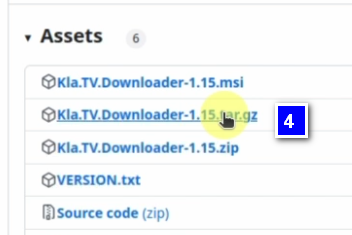
- <span style="color: rgb(68, 68, 68); font-family: -apple-system, BlinkMacSystemFont, 'Segoe UI', Oxygen, Ubuntu, Roboto, Cantarell, 'Fira Sans', 'Droid Sans', 'Helvetica Neue', sans-serif; font-size: 14px; font-style: normal; font-variant-ligatures: normal; font-variant-caps: normal; font-weight: 400; letter-spacing: normal; orphans: 2; text-align: left; text-indent: 0px; text-transform: none; widows: 2; word-spacing: 0px; -webkit-text-stroke-width: 0px; white-space: normal; background-color: rgb(251, 238, 184); text-decoration-thickness: initial; text-decoration-style: initial; text-decoration-color: initial; display: inline !important; float: none;">Cliquer sur </span><span lang="DE" style="box-sizing: border-box; outline-color: rgb(0, 49, 92); outline-width: 1px; margin: 0px; padding: 0px; border: 0px; font-style: normal; font-variant-ligatures: normal; font-variant-caps: normal; font-variant-numeric: inherit; font-variant-east-asian: inherit; font-variant-alternates: inherit; font-variant-position: inherit; font-variant-emoji: inherit; font-weight: 400; font-stretch: inherit; font-size: 16pt; line-height: 22.8267px; font-family: Wingdings; font-optical-sizing: inherit; font-size-adjust: inherit; font-kerning: inherit; font-feature-settings: inherit; font-variation-settings: inherit; vertical-align: baseline; color: rgb(68, 68, 68); letter-spacing: normal; orphans: 2; text-align: left; text-indent: 0px; text-transform: none; widows: 2; word-spacing: 0px; -webkit-text-stroke-width: 0px; white-space: normal; background-color: rgb(251, 238, 184); text-decoration-thickness: initial; text-decoration-style: initial; text-decoration-color: initial;"><span style="box-sizing: border-box; outline-color: rgb(0, 49, 92); outline-width: 1px; margin: 0px; padding: 0px; border: 0px; font: inherit; vertical-align: baseline;"><span lang="EN-US" style="box-sizing: border-box; outline-color: rgb(0, 49, 92); outline-width: 1px; margin: 0px; padding: 0px; border: 0px; font-style: inherit; font-variant: inherit; font-weight: inherit; font-stretch: inherit; font-size: 11pt; line-height: 15.6933px; font-family: 'Cambria Math', serif; font-optical-sizing: inherit; font-size-adjust: inherit; font-kerning: inherit; font-feature-settings: inherit; font-variation-settings: inherit; vertical-align: baseline; background-color: rgb(251, 238, 184);">❸</span></span></span><span style="color: rgb(68, 68, 68); font-family: -apple-system, BlinkMacSystemFont, 'Segoe UI', Oxygen, Ubuntu, Roboto, Cantarell, 'Fira Sans', 'Droid Sans', 'Helvetica Neue', sans-serif; font-size: 14px; font-style: normal; font-variant-ligatures: normal; font-variant-caps: normal; font-weight: 400; letter-spacing: normal; orphans: 2; text-align: left; text-indent: 0px; text-transform: none; widows: 2; word-spacing: 0px; -webkit-text-stroke-width: 0px; white-space: normal; background-color: rgb(251, 238, 184); text-decoration-thickness: initial; text-decoration-style: initial; text-decoration-color: initial; display: inline !important; float: none;"> </span>**Kla-TV-Downloader**<span style="color: rgb(68, 68, 68); font-family: -apple-system, BlinkMacSystemFont, 'Segoe UI', Oxygen, Ubuntu, Roboto, Cantarell, 'Fira Sans', 'Droid Sans', 'Helvetica Neue', sans-serif; font-size: 14px; font-style: normal; font-variant-ligatures: normal; font-variant-caps: normal; font-weight: 400; letter-spacing: normal; orphans: 2; text-align: left; text-indent: 0px; text-transform: none; widows: 2; word-spacing: 0px; -webkit-text-stroke-width: 0px; white-space: normal; background-color: rgb(251, 238, 184); text-decoration-thickness: initial; text-decoration-style: initial; text-decoration-color: initial; display: inline !important; float: none;"> → Téléchargez le programme le plus récent (toujours en haut) en cliquant sur « Assets »</span>

[![image.png](https://wiki.kla.tv/uploads/images/gallery/2024-11/scaled-1680-/DwW0At2IsmKMHp65-image.png)](https://wiki.kla.tv/uploads/images/gallery/2024-11/DwW0At2IsmKMHp65-image.png)

[![image.png](https://wiki.kla.tv/uploads/images/gallery/2024-11/scaled-1680-/qq15Fp4P7xqdCug0-image.png)](https://wiki.kla.tv/uploads/images/gallery/2024-11/qq15Fp4P7xqdCug0-image.png)

- <span style="background-color: rgb(251, 238, 184);"><span style="color: rgb(68, 68, 68); font-family: -apple-system, BlinkMacSystemFont, 'Segoe UI', Oxygen, Ubuntu, Roboto, Cantarell, 'Fira Sans', 'Droid Sans', 'Helvetica Neue', sans-serif; font-size: 14px; font-style: normal; font-variant-ligatures: normal; font-variant-caps: normal; font-weight: 400; letter-spacing: normal; text-align: left; text-indent: 0px; text-transform: none; word-spacing: 0px; -webkit-text-stroke-width: 0px; white-space: normal; text-decoration-thickness: initial; text-decoration-style: initial; text-decoration-color: initial; display: inline !important; float: none; background-color: rgb(251, 238, 184);">cliquer sur </span><span lang="DE" style="box-sizing: border-box; outline-color: rgb(0, 49, 92); outline-width: 1px; margin: 0px; padding: 0px; border: 0px; font-style: normal; font-variant-ligatures: normal; font-variant-caps: normal; font-variant-numeric: inherit; font-variant-east-asian: inherit; font-variant-alternates: inherit; font-variant-position: inherit; font-variant-emoji: inherit; font-weight: 400; font-stretch: inherit; font-size: 16pt; line-height: 22.8267px; font-family: Wingdings; font-optical-sizing: inherit; font-size-adjust: inherit; font-kerning: inherit; font-feature-settings: inherit; font-variation-settings: inherit; vertical-align: baseline; color: rgb(68, 68, 68); letter-spacing: normal; text-align: left; text-indent: 0px; text-transform: none; word-spacing: 0px; -webkit-text-stroke-width: 0px; white-space: normal; text-decoration-thickness: initial; text-decoration-style: initial; text-decoration-color: initial; background-color: rgb(251, 238, 184);"><span style="box-sizing: border-box; outline-color: rgb(0, 49, 92); outline-width: 1px; margin: 0px; padding: 0px; border: 0px; font: inherit; vertical-align: baseline; background-color: rgb(251, 238, 184);"><span lang="EN-US" style="box-sizing: border-box; outline-color: rgb(0, 49, 92); outline-width: 1px; margin: 0px; padding: 0px; border: 0px; font-style: inherit; font-variant: inherit; font-weight: inherit; font-stretch: inherit; font-size: 11pt; line-height: 15.6933px; font-family: 'Cambria Math', serif; font-optical-sizing: inherit; font-size-adjust: inherit; font-kerning: inherit; font-feature-settings: inherit; font-variation-settings: inherit; vertical-align: baseline; background-color: rgb(251, 238, 184);">❹</span></span></span><span style="color: rgb(68, 68, 68); font-family: -apple-system, BlinkMacSystemFont, 'Segoe UI', Oxygen, Ubuntu, Roboto, Cantarell, 'Fira Sans', 'Droid Sans', 'Helvetica Neue', sans-serif; font-size: 14px; font-style: normal; font-variant-ligatures: normal; font-variant-caps: normal; font-weight: 400; letter-spacing: normal; text-align: left; text-indent: 0px; text-transform: none; word-spacing: 0px; -webkit-text-stroke-width: 0px; white-space: normal; text-decoration-thickness: initial; text-decoration-style: initial; text-decoration-color: initial; display: inline !important; float: none; background-color: rgb(251, 238, 184);"> "</span>**Kla.TV.Downloader-\*.\*\*.tar.gz**<span style="color: rgb(68, 68, 68); font-family: -apple-system, BlinkMacSystemFont, 'Segoe UI', Oxygen, Ubuntu, Roboto, Cantarell, 'Fira Sans', 'Droid Sans', 'Helvetica Neue', sans-serif; font-size: 14px; font-style: normal; font-variant-ligatures: normal; font-variant-caps: normal; font-weight: 400; letter-spacing: normal; text-align: left; text-indent: 0px; text-transform: none; word-spacing: 0px; -webkit-text-stroke-width: 0px; white-space: normal; text-decoration-thickness: initial; text-decoration-style: initial; text-decoration-color: initial; display: inline !important; float: none; background-color: rgb(251, 238, 184);">" </span></span>
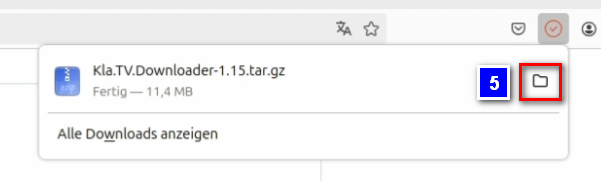
- <span style="background-color: rgb(251, 238, 184);"><span lang="DE"><span lang="EN-US">❺</span></span> Ouvrir le dossier de téléchargement</span>
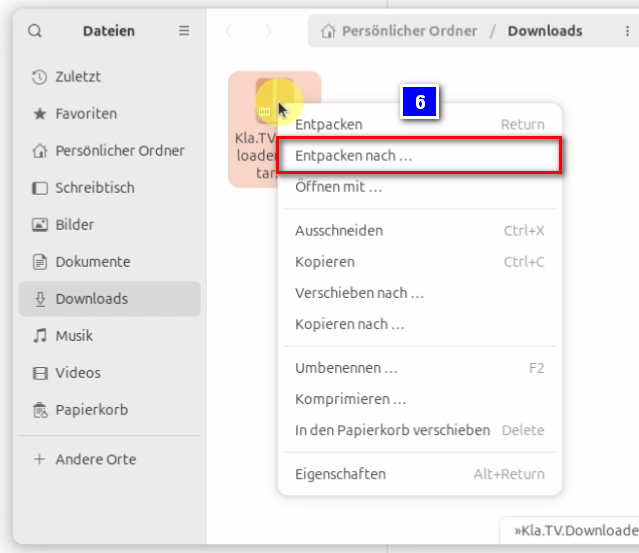
- <span style="background-color: rgb(251, 238, 184);">Décompresse le fichier, par exemple sur ton bureau ❻</span>

[![image.png](https://wiki.kla.tv/uploads/images/gallery/2024-11/scaled-1680-/qSErpIgwXlzwbwW8-image.png)](https://wiki.kla.tv/uploads/images/gallery/2024-11/qSErpIgwXlzwbwW8-image.png)[![image.png](https://wiki.kla.tv/uploads/images/gallery/2024-11/scaled-1680-/TlW6Qfw6MuE7VKYG-image.png)](https://wiki.kla.tv/uploads/images/gallery/2024-11/TlW6Qfw6MuE7VKYG-image.png)
[![image.png](https://wiki.kla.tv/uploads/images/gallery/2024-11/scaled-1680-/JH6Ob0TgsrkaGS7N-image.png)](https://wiki.kla.tv/uploads/images/gallery/2024-11/JH6Ob0TgsrkaGS7N-image.png)
### <span style="background-color: rgb(241, 196, 15);"> **3. Installation de JAWA (afin que Kla.TV-Downloader functionne) :** </span>

<div aria-label="Abschnittsoptionen der Seite" class="pointer-container" id="bkmrk-%C2%A0-4" refs="pointer@pointer" tabindex="-1"><div class="pointer flex-container-row items-center justify-space-between p-s anim is-page-editable"><div class="flex-container-row items-center gap-s" refs="pointer@mode-section"><button class="text-button icon px-xs" title="Permalink-Modus, Drücken, um Include-Tag anzuzeigen"><svg class="svg-icon" data-icon="link" role="presentation" viewbox="0 0 24 24" xmlns="http://www.w3.org/2000/svg"></svg></button><div class="input-group"> <button class="button outline icon" title="Link kopieren" type="button"><svg class="svg-icon" data-icon="copy" role="presentation" viewbox="0 0 24 24" xmlns="http://www.w3.org/2000/svg"></svg></button></div></div><svg class="svg-icon" data-icon="edit" role="presentation" viewbox="0 0 24 24" xmlns="http://www.w3.org/2000/svg"></svg></div></div>- <span style="background-color: rgb(251, 238, 184);">Ouvrez le terminal ❶, entrez cette commande ❷ et confirmez en appuyant sur Entrée :</span>  
    ```bash
    sudo apt install default-jre
    ```

[![image.png](https://wiki.kla.tv/uploads/images/gallery/2024-11/scaled-1680-/kZ69MgwY8HLhbXlM-image.png)](https://wiki.kla.tv/uploads/images/gallery/2024-11/kZ69MgwY8HLhbXlM-image.png)

[![image.png](https://wiki.kla.tv/uploads/images/gallery/2024-11/scaled-1680-/mfcrMMjPQdU3n1ph-image.png)](https://wiki.kla.tv/uploads/images/gallery/2024-11/mfcrMMjPQdU3n1ph-image.png)

- <span style="background-color: rgb(251, 238, 184);">Saisis le mot de passe de ton ordinateur et confirme à nouveau en appuyant sur Entrée.</span>
- <span style="background-color: rgb(251, 238, 184);">Tapez un seul « J » pour démarrer l'installation ❸ et confirmez en appuyant sur Entrée.</span>

[![image.png](https://wiki.kla.tv/uploads/images/gallery/2024-11/scaled-1680-/AXa4dynm8x0l3tpL-image.png)](https://wiki.kla.tv/uploads/images/gallery/2024-11/AXa4dynm8x0l3tpL-image.png)

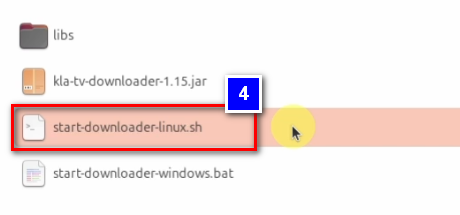
- <span style="background-color: rgb(251, 238, 184);">Accédez au dossier décompressé et cliquez avec le bouton droit de la souris sur le fichier : « start-downloader-linux.sh » ❹</span>
- <span style="background-color: rgb(251, 238, 184);">Sous Propriétés ❺, vérifie que l'option « Exécuter en tant que programme » ❻ est activée, car c'est la seule façon d'exécuter le fichier.</span>

[![image.png](https://wiki.kla.tv/uploads/images/gallery/2024-11/scaled-1680-/kJCMidObyli2Jhlh-image.png)](https://wiki.kla.tv/uploads/images/gallery/2024-11/kJCMidObyli2Jhlh-image.png)

[![image.png](https://wiki.kla.tv/uploads/images/gallery/2024-11/scaled-1680-/kZboiz14dfxwRP5N-image.png)](https://wiki.kla.tv/uploads/images/gallery/2024-11/kZboiz14dfxwRP5N-image.png) [![image.png](https://wiki.kla.tv/uploads/images/gallery/2024-11/scaled-1680-/EgEhKCmtxLZ0IDvt-image.png)](https://wiki.kla.tv/uploads/images/gallery/2024-11/EgEhKCmtxLZ0IDvt-image.png)

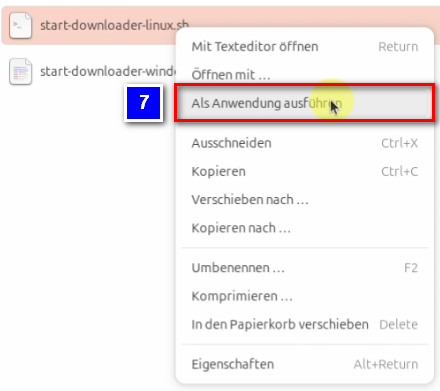
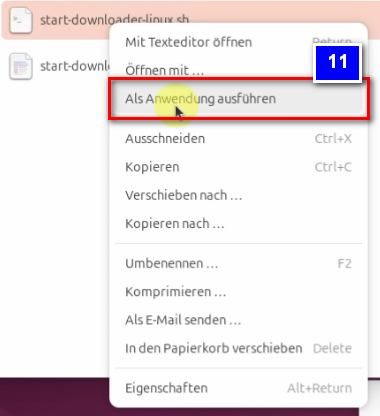
- <span style="background-color: rgb(251, 238, 184);">En cliquant avec le bouton droit de la souris sur le fichier et en sélectionnant l'option « Exécuter en tant qu'application » ❼, tu peux maintenant exécuter le fichier.</span>

[![image.png](https://wiki.kla.tv/uploads/images/gallery/2024-11/scaled-1680-/Oo8pi4NnoNHMGqiY-image.png)](https://wiki.kla.tv/uploads/images/gallery/2024-11/Oo8pi4NnoNHMGqiY-image.png)

- <span style="background-color: rgb(251, 238, 184);">Es öffnet sich ein Fenster ❽, in welchem du gefragt wirst, wohin die Dateien vom Kla.TV-Downloader abgelegt werden sollen. Es empfiehlt sich eine externe Festplatte dort zu verwenden und diese als Ablageort festzulegen. </span>
- <span style="background-color: rgb(251, 238, 184);">Créez un nouveau dossier ❾ sur le disque dur, nommez-le « Sauvegarde Kla.TV » et confirmez avec « Sélectionner » ❿.</span>
- <span style="background-color: rgb(251, 238, 184);">Le message ❿❶ indiquant qu'aucun client torrent n'est encore installé s'affiche.</span>

[![image.png](https://wiki.kla.tv/uploads/images/gallery/2024-11/scaled-1680-/vIsGKiaCCe8Ho0io-image.png)](https://wiki.kla.tv/uploads/images/gallery/2024-11/vIsGKiaCCe8Ho0io-image.png)[![image.png](https://wiki.kla.tv/uploads/images/gallery/2024-11/scaled-1680-/Y0e1DUaQV7tzWdoN-image.png)](https://wiki.kla.tv/uploads/images/gallery/2024-11/Y0e1DUaQV7tzWdoN-image.png)

[![image.png](https://wiki.kla.tv/uploads/images/gallery/2024-11/scaled-1680-/r2Rvsy3ubx6LO5lZ-image.png)](https://wiki.kla.tv/uploads/images/gallery/2024-11/r2Rvsy3ubx6LO5lZ-image.png)

#### **<span lang="DE" style="background-color: rgb(241, 196, 15);"><span lang="EN-US"> 3.1 Que faire si le programme ne démarre pas correctement ?</span></span>**

<p class="callout warning">Si le programme plante, car il ne fonctionne pas encore de manière stable sous Linux, tu dois suivre les étapes suivantes :</p>

- <span style="background-color: rgb(251, 238, 184);">Dans le coin supérieur droit de ton écran, tu devrais maintenant voir l'icône du téléchargeur Kla.TV ❶ qui te permet d'ouvrir le téléchargeur Kla.TV (clic droit dessus).</span>

<span lang="DE"><span lang="EN-US">[![image.png](https://wiki.kla.tv/uploads/images/gallery/2024-11/scaled-1680-/GCaEPt9UrqxpHsyi-image.png)](https://wiki.kla.tv/uploads/images/gallery/2024-11/GCaEPt9UrqxpHsyi-image.png)</span></span>

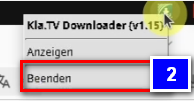
- <span style="background-color: rgb(251, 238, 184);">Si le programme ne démarre pas, c'est parce qu'il n'est pas encore assez stable sous Linux. Dans ce cas, clique sur l'icône et quitte le programme ❷</span>
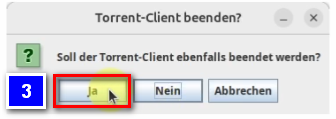
- <span style="background-color: rgb(251, 238, 184);">On vous demande alors si vous souhaitez quitter le client torrent, ce que vous confirmez en cliquant sur « Oui » ❸.</span>

<span lang="DE"><span lang="EN-US">[![image.png](https://wiki.kla.tv/uploads/images/gallery/2024-11/scaled-1680-/ThGUwAUubdq3ZxSQ-image.png)](https://wiki.kla.tv/uploads/images/gallery/2024-11/ThGUwAUubdq3ZxSQ-image.png)[ ![image.png](https://wiki.kla.tv/uploads/images/gallery/2024-11/scaled-1680-/XFRYJm6Oa5RINlIP-image.png)](https://wiki.kla.tv/uploads/images/gallery/2024-11/XFRYJm6Oa5RINlIP-image.png)</span></span>
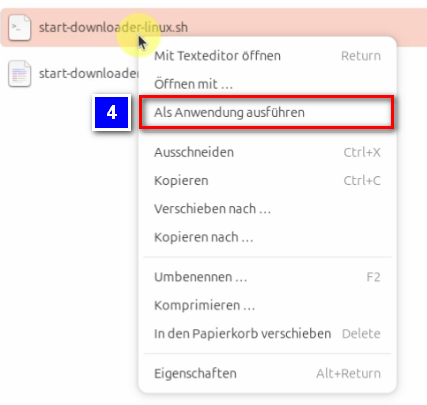
- <span style="background-color: rgb(251, 238, 184);">Retourne maintenant dans le dossier contenant le fichier « start-downloader-linux.sh ». Exécute à nouveau ce fichier en cliquant avec le bouton droit de la souris et en sélectionnant « Exécuter en tant qu'application » ❹.</span>
- <span style="background-color: rgb(251, 238, 184);">Tu peux fermer la fenêtre du terminal qui s'ouvre automatiquement.</span>

<span lang="DE"><span lang="EN-US">[![image.png](https://wiki.kla.tv/uploads/images/gallery/2024-11/scaled-1680-/04y9XoeOJsHDaLH5-image.png)](https://wiki.kla.tv/uploads/images/gallery/2024-11/04y9XoeOJsHDaLH5-image.png)</span></span>

<p class="callout success">Le programme devrait maintenant être correctement installé.</p>

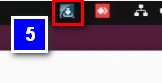
- <span style="background-color: rgb(251, 238, 184);">Ouvrez le téléchargeur Kla.TV en cliquant sur l'icône dans le coin supérieur droit de l'écran ❺.</span>

<span lang="DE"><span lang="EN-US">[![image.png](https://wiki.kla.tv/uploads/images/gallery/2024-11/scaled-1680-/8ykTwHoKNlh1HewA-image.png)](https://wiki.kla.tv/uploads/images/gallery/2024-11/8ykTwHoKNlh1HewA-image.png)</span></span>

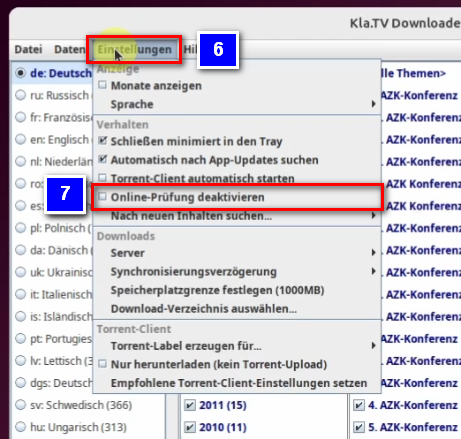
- <span style="background-color: rgb(251, 238, 184);">Sous l'onglet « Paramètres » ❻, cochez l'option « Désactiver la vérification en ligne » ❼. En effet, cette vérification Internet ne fonctionne pas vraiment sous Linux et le téléchargeur ne peut donc pas se connecter à Internet.</span>

[![image.png](https://wiki.kla.tv/uploads/images/gallery/2024-11/scaled-1680-/QEPCV2g7g5NfXGwY-image.png)](https://wiki.kla.tv/uploads/images/gallery/2024-11/QEPCV2g7g5NfXGwY-image.png)

### <span style="background-color: rgb(241, 196, 15);"> **4. Paramétrer Torrent-Client :** </span>

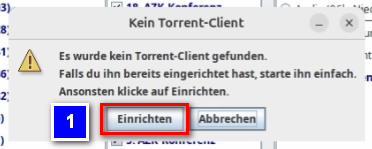
- <span style="background-color: rgb(251, 238, 184);">Un message indiquant qu'aucun client torrent n'a été trouvé s'affiche. Clique sur « Configurer » ❶ pour l'installer.</span>

[![image.png](https://wiki.kla.tv/uploads/images/gallery/2024-11/scaled-1680-/d5LIcdSURiVaV8yl-image.png)](https://wiki.kla.tv/uploads/images/gallery/2024-11/d5LIcdSURiVaV8yl-image.png)

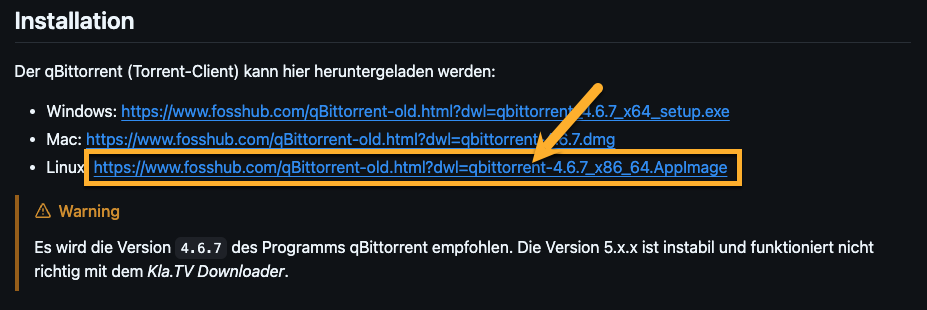
- <span style="background-color: rgb(251, 238, 184);">Une page web s'ouvre, expliquant comment configurer manuellement le client torrent. Clique sur le lien bleu dans la sous-rubrique « Installation ». </span>**<span style="background-color: rgb(251, 238, 184);">[https://github.com/Kla-TV/downloader/wiki/Torrent%E2%80%90Client-manuell-einrichten#installation](https://github.com/Kla-TV/downloader/wiki/Torrent%E2%80%90Client-manuell-einrichten#installation) </span>**

[![image.png](https://wiki.kla.tv/uploads/images/gallery/2024-12/scaled-1680-/udhsogFEkkjHYEZ8-image.png)](https://wiki.kla.tv/uploads/images/gallery/2024-12/udhsogFEkkjHYEZ8-image.png)

- <span style="background-color: rgb(251, 238, 184);">Le téléchargement démarre automatiquement dès que vous cliquez sur le lien Linux.</span>

#### **<span lang="DE" style="background-color: rgb(241, 196, 15);"><span lang="EN-US"> 4.1 Installer Libfuse (Base pour Torrent-Client): </span></span>**

- <span style="background-color: rgb(251, 238, 184);">Ouvrez le terminal et entrez cette commande ❶, puis confirmez en appuyant sur Entrée :</span>

```bash
sudo apt install libfuse2t64
```

[![image.png](https://wiki.kla.tv/uploads/images/gallery/2024-11/scaled-1680-/DXbGEbQf9MqSdvPP-image.png)](https://wiki.kla.tv/uploads/images/gallery/2024-11/DXbGEbQf9MqSdvPP-image.png)

- <span style="background-color: rgb(251, 238, 184);">Saisis maintenant ton mot de passe PC et confirme à nouveau en appuyant sur Entrée. Tu peux maintenant refermer le terminal.</span>
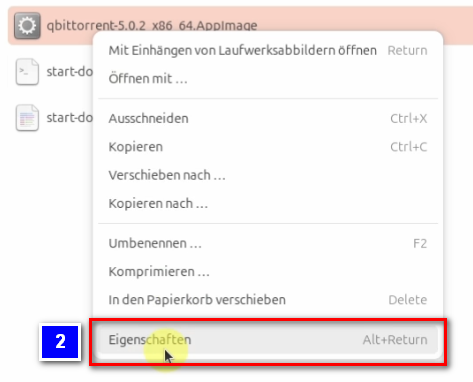
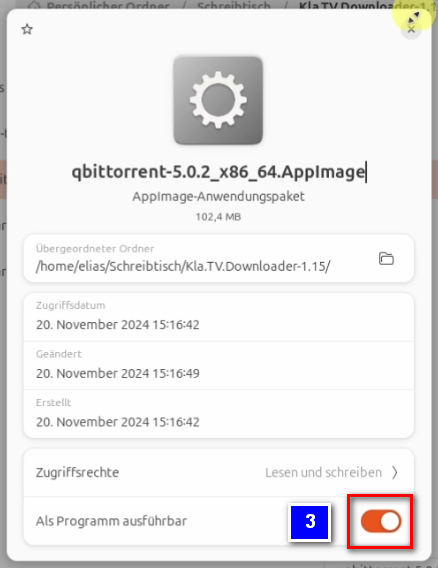
- <span style="background-color: rgb(251, 238, 184);">Retourne dans le dossier où se trouve le fichier « qbittorrent-5.02.2\_x86\_64.AppImage ». Clique avec le bouton droit de la souris et sélectionne « Propriétés » ❷ pour ouvrir les propriétés du fichier. Active ensuite l'option « Exécuter ce programme » ❸.</span>

<span lang="DE"><span lang="EN-US">[![image.png](https://wiki.kla.tv/uploads/images/gallery/2024-11/scaled-1680-/jANZvk8d2PRJL5B1-image.png)](https://wiki.kla.tv/uploads/images/gallery/2024-11/jANZvk8d2PRJL5B1-image.png)[![image.png](https://wiki.kla.tv/uploads/images/gallery/2024-11/scaled-1680-/oB9jZDaQChMi50Pm-image.png)](https://wiki.kla.tv/uploads/images/gallery/2024-11/oB9jZDaQChMi50Pm-image.png)</span></span>
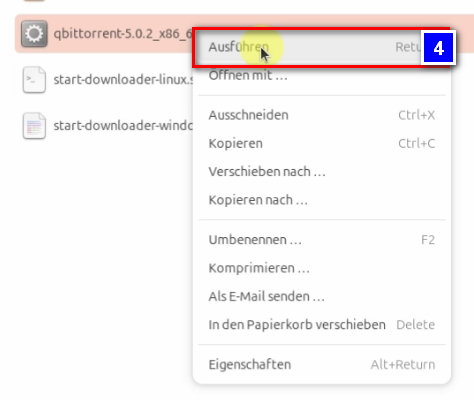
- <span style="background-color: rgb(251, 238, 184);">Il est désormais possible d'exécuter le programme en cliquant avec le bouton droit de la souris et en sélectionnant « Exécuter » ❹.</span>
- <span style="background-color: rgb(251, 238, 184);">Une mention légale s'affiche, que tu peux confirmer en cliquant sur « OK ». Le programme s'ouvre alors.</span>

[![image.png](https://wiki.kla.tv/uploads/images/gallery/2024-11/scaled-1680-/gKJCw3huqAkajqgB-image.png)](https://wiki.kla.tv/uploads/images/gallery/2024-11/gKJCw3huqAkajqgB-image.png)

#### **<span lang="DE" style="background-color: rgb(241, 196, 15);"><span lang="EN-US"> 4.2 Paramétrer qBittorrent : </span></span>**

<p class="callout info">Les deux programmes nécessaires sont désormais installés. Il ne reste plus qu'à les configurer correctement.</p>

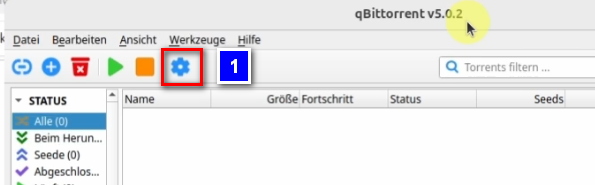
- <span style="background-color: rgb(251, 238, 184);">Cliquez maintenant sur la roue dentée dans qBittorrent ❶ pour ouvrir les paramètres.</span>

[![image.png](https://wiki.kla.tv/uploads/images/gallery/2024-11/scaled-1680-/VBMaqKF5ozph0wtK-image.png)](https://wiki.kla.tv/uploads/images/gallery/2024-11/VBMaqKF5ozph0wtK-image.png)

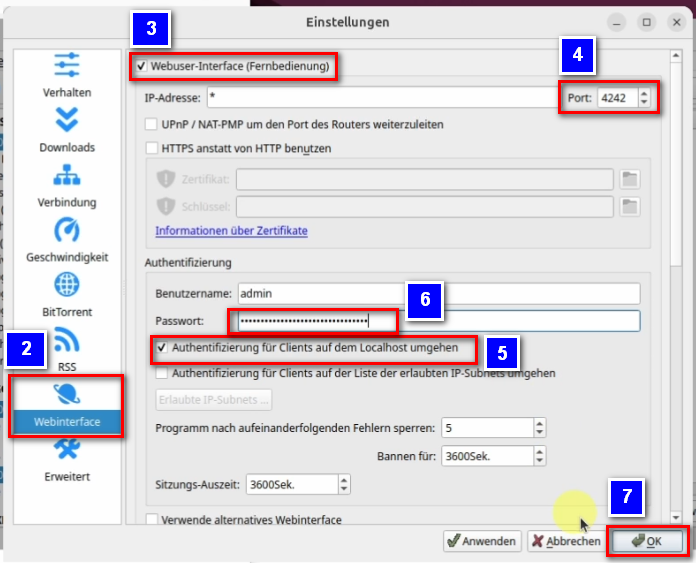
- <span style="background-color: rgb(251, 238, 184);">Dans les paramètres, allez d'abord dans « Interface Web » ❷. Cochez ensuite la case « Interface utilisateur Web (télécommande) » ❸, puis entrez le numéro « 4242 » ❹ dans le champ « Port ». Cochez la case « Contourner l'authentification pour les clients sur l'hôte local » ❺ et définissez un mot de passe ❻ que vous n'avez pas besoin de mémoriser. Pour finir, confirmez vos paramètres en cliquant sur le bouton « OK » ❼.</span>

[![image.png](https://wiki.kla.tv/uploads/images/gallery/2024-11/scaled-1680-/oD4FLPUJAwctKhmI-image.png)](https://wiki.kla.tv/uploads/images/gallery/2024-11/oD4FLPUJAwctKhmI-image.png)

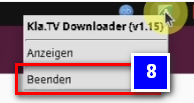
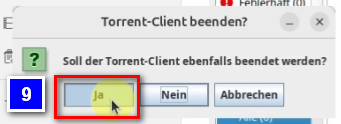
- <span style="background-color: rgb(251, 238, 184);">Pour vérifier si les paramètres ont bien été pris en compte, cliquez à nouveau avec le bouton droit de la souris sur l'icône du téléchargeur Kla.TV, fermez le programme ❽ et confirmez dans la fenêtre qui s'ouvre en cliquant sur « Oui » ❾.</span>

[![image.png](https://wiki.kla.tv/uploads/images/gallery/2024-11/scaled-1680-/qVEZuuzmydUUgf1b-image.png)](https://wiki.kla.tv/uploads/images/gallery/2024-11/qVEZuuzmydUUgf1b-image.png)[ ![image.png](https://wiki.kla.tv/uploads/images/gallery/2024-11/scaled-1680-/umMckXlersPuq70t-image.png)](https://wiki.kla.tv/uploads/images/gallery/2024-11/umMckXlersPuq70t-image.png)
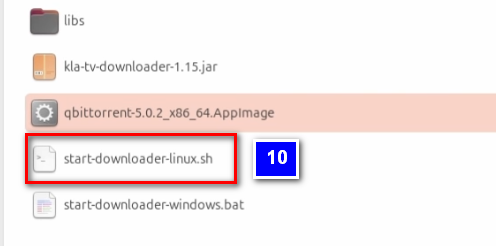
- <span style="background-color: rgb(251, 238, 184);">Clique avec le bouton droit de la souris sur le fichier Kla.TV-Downloader « start-downloader-linux.sh » ❿ et clique sur « Exécuter en tant qu'application » ❿❶ pour redémarrer le Kla.TV-Downloader.</span>

[![image.png](https://wiki.kla.tv/uploads/images/gallery/2024-11/scaled-1680-/46zu3ZCzYmFAIDIr-image.png)](https://wiki.kla.tv/uploads/images/gallery/2024-11/46zu3ZCzYmFAIDIr-image.png)

[![image.png](https://wiki.kla.tv/uploads/images/gallery/2024-11/scaled-1680-/d9oQNFYVgNKHquhJ-image.png)](https://wiki.kla.tv/uploads/images/gallery/2024-11/d9oQNFYVgNKHquhJ-image.png)
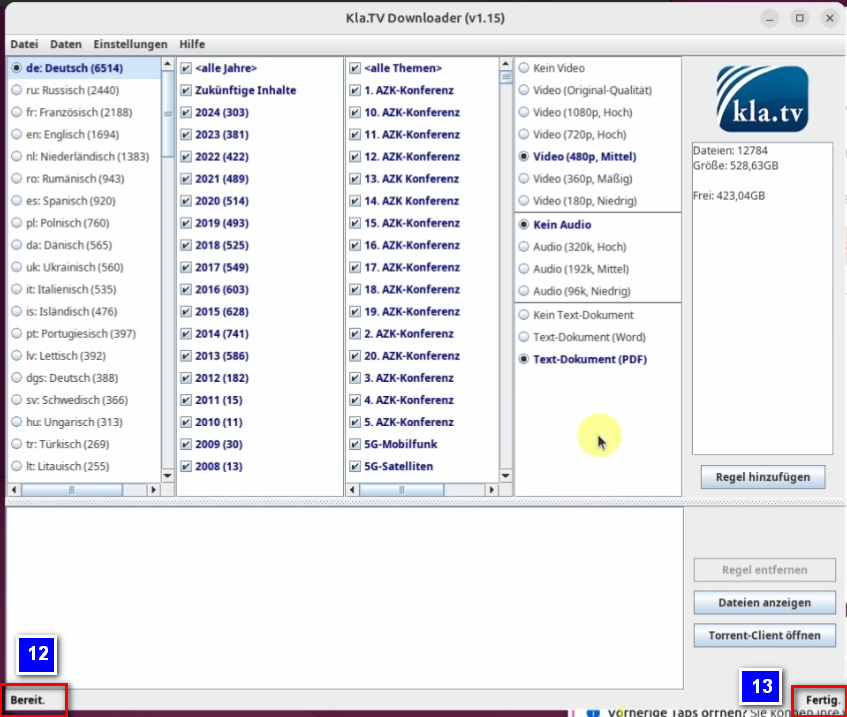
- <span style="background-color: rgb(251, 238, 184);">Si la configuration a réussi, les messages « Prêt. » ❿❷ et « Terminé. » ❿❸ devraient maintenant s'afficher en bas de l'écran dans le téléchargeur Kla.TV.</span>

[![image.png](https://wiki.kla.tv/uploads/images/gallery/2024-11/scaled-1680-/DXRX18cLkahBYV6L-image.png)](https://wiki.kla.tv/uploads/images/gallery/2024-11/DXRX18cLkahBYV6L-image.png)

<p class="callout info">Pour éviter d'avoir à effectuer encore plus de réglages manuels dans qBittorrent, passons maintenant aux paramètres du téléchargeur Kla.TV.</p>


#### **<span lang="DE" style="background-color: rgb(241, 196, 15);"><span lang="EN-US"> 4.3 Paramétrer Kla.TV-Downloader : </span></span>**

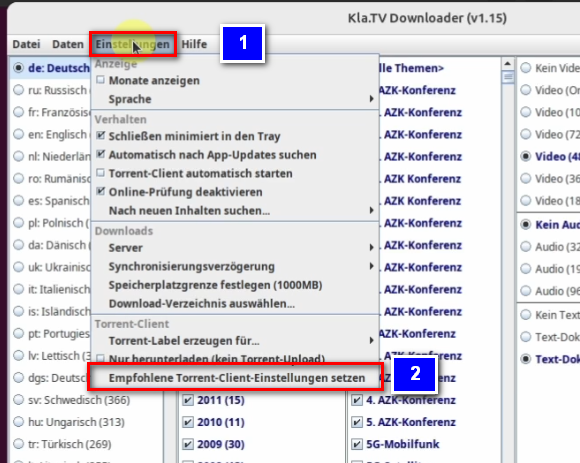
- <span style="background-color: rgb(251, 238, 184);">Ouvrez le téléchargeur Kla.TV et cliquez sur l'onglet « Paramètres » ❶. Cliquez ensuite sur l'option du bas « Définir les paramètres recommandés pour le client torrent » ❷.</span>

[![image.png](https://wiki.kla.tv/uploads/images/gallery/2024-11/scaled-1680-/KQbjwWn8mRcOpqFL-image.png)](https://wiki.kla.tv/uploads/images/gallery/2024-11/KQbjwWn8mRcOpqFL-image.png)

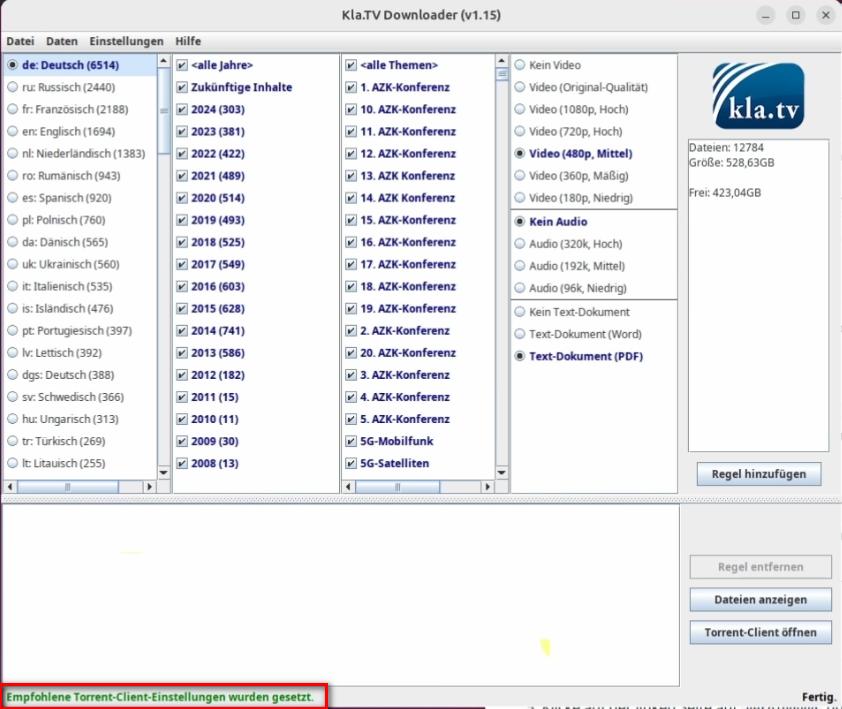
- <span style="background-color: rgb(251, 238, 184);">La fenêtre se referme immédiatement et le message vert « Les paramètres recommandés pour le client torrent ont été définis » devrait maintenant s'afficher dans le coin inférieur gauche de votre téléchargeur Kla.TV.</span>

[![image.png](https://wiki.kla.tv/uploads/images/gallery/2024-11/scaled-1680-/PH93mpYw4HgB9VOs-image.png)](https://wiki.kla.tv/uploads/images/gallery/2024-11/PH93mpYw4HgB9VOs-image.png)

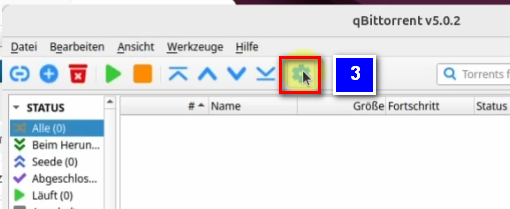
- <span style="background-color: rgb(251, 238, 184);">Pour vérifier si ces paramètres ont bien été pris en compte par le client torrent, retourne dans qBittorrent et ouvre les paramètres en cliquant sur la roue dentée bleue ❸.</span>

[![image.png](https://wiki.kla.tv/uploads/images/gallery/2024-11/scaled-1680-/n2CruvSI8nlMYq1l-image.png)](https://wiki.kla.tv/uploads/images/gallery/2024-11/n2CruvSI8nlMYq1l-image.png)

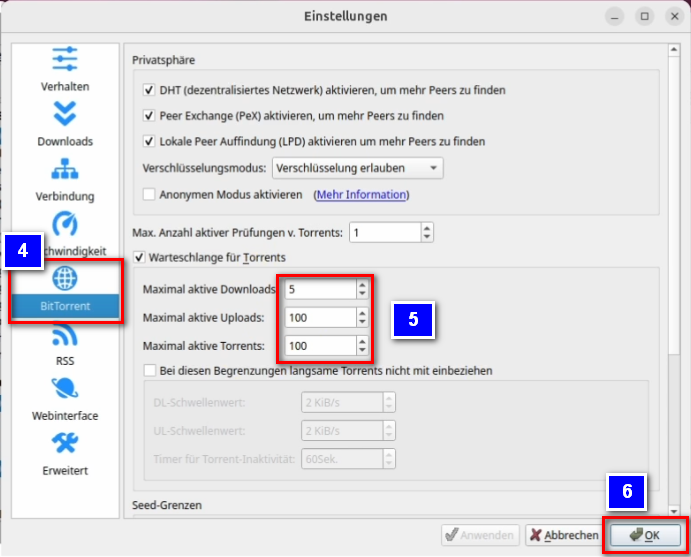
- <span style="background-color: rgb(251, 238, 184);">Sous « BitTorrent » ❹, tu peux maintenant vérifier si les chiffres « Téléchargements actifs maximum », « Téléchargements actifs maximum » et « Torrents actifs maximum » ont été correctement repris (« 5 », « 100 » et « 100 ») ❺. Si c'est le cas, cela a parfaitement fonctionné :) Tu peux confirmer en cliquant sur « OK » ❻.</span>

[![image.png](https://wiki.kla.tv/uploads/images/gallery/2024-11/scaled-1680-/J0GMSxNGKHgSE1mJ-image.png)](https://wiki.kla.tv/uploads/images/gallery/2024-11/J0GMSxNGKHgSE1mJ-image.png)


### <span style="background-color: rgb(241, 196, 15);"> **5. Synchroniser :** </span>

<p class="callout info">Le téléchargeur Kla.TV ajoute des règles de synchronisation et les envoie à qBittorrent, qui télécharge ensuite les émissions et les maintient à jour. Cela signifie que le téléchargeur Kla.TV définit uniquement comment et quoi télécharger, tandis que qBittorrent se charge du téléchargement.</p>

<p class="callout info">**Pour que la synchronisation entre qBittorrent et Kla.TV-Downloader fonctionne correctement, il faut toujours démarrer le client qBittorrent avant Kla.TV-Downloader.**</p>

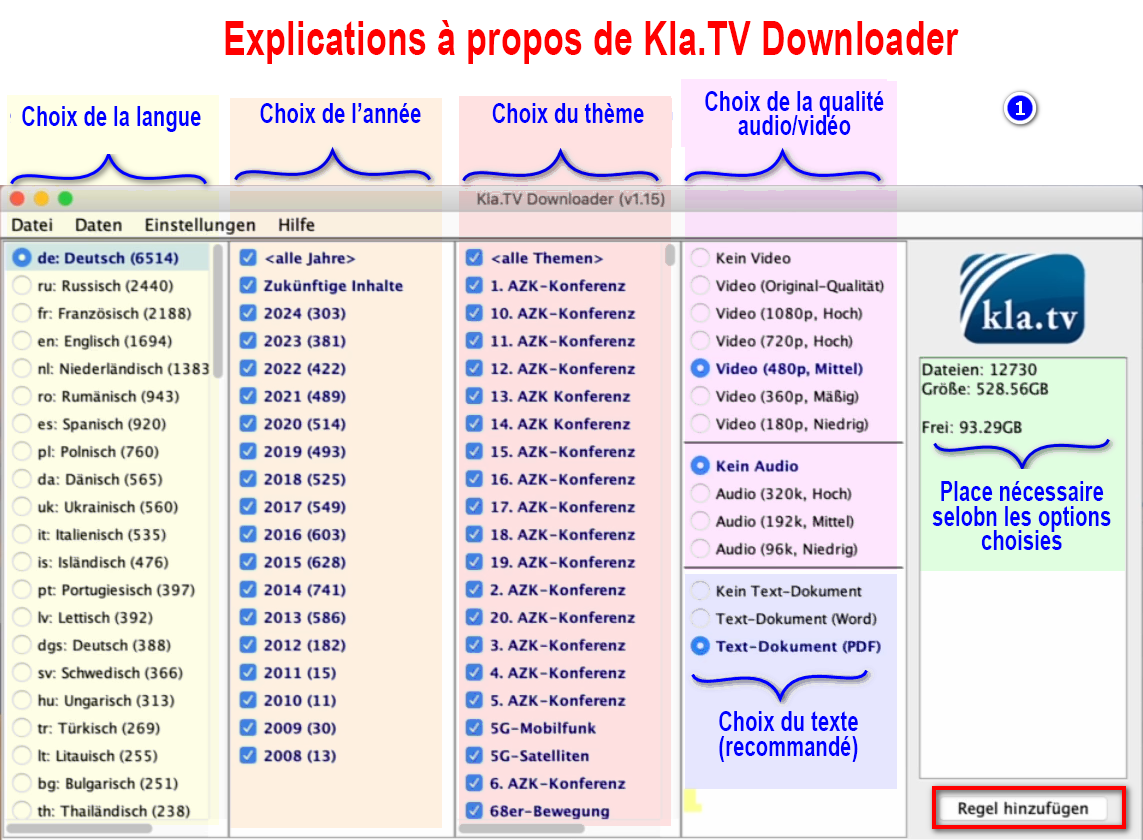
- <span style="background-color: rgb(251, 238, 184);">Ouvrez le téléchargeur Kla.TV → sélectionnez les règles souhaitées ❶. (Explication à ce sujet, voir l'image)</span>  
    [![4.png](https://wiki.kla.tv/uploads/images/gallery/2025-08/scaled-1680-/WaQEHarVglc5kEmf-4.png)](https://wiki.kla.tv/uploads/images/gallery/2025-08/WaQEHarVglc5kEmf-4.png)
- <span style="background-color: rgb(251, 238, 184);">Si vous souhaitez sélectionner plusieurs qualités, vous devez ajouter plusieurs fois de suite une « règle ». Cette tâche est ensuite envoyée à qBittorrent et téléchargée.</span>  
    
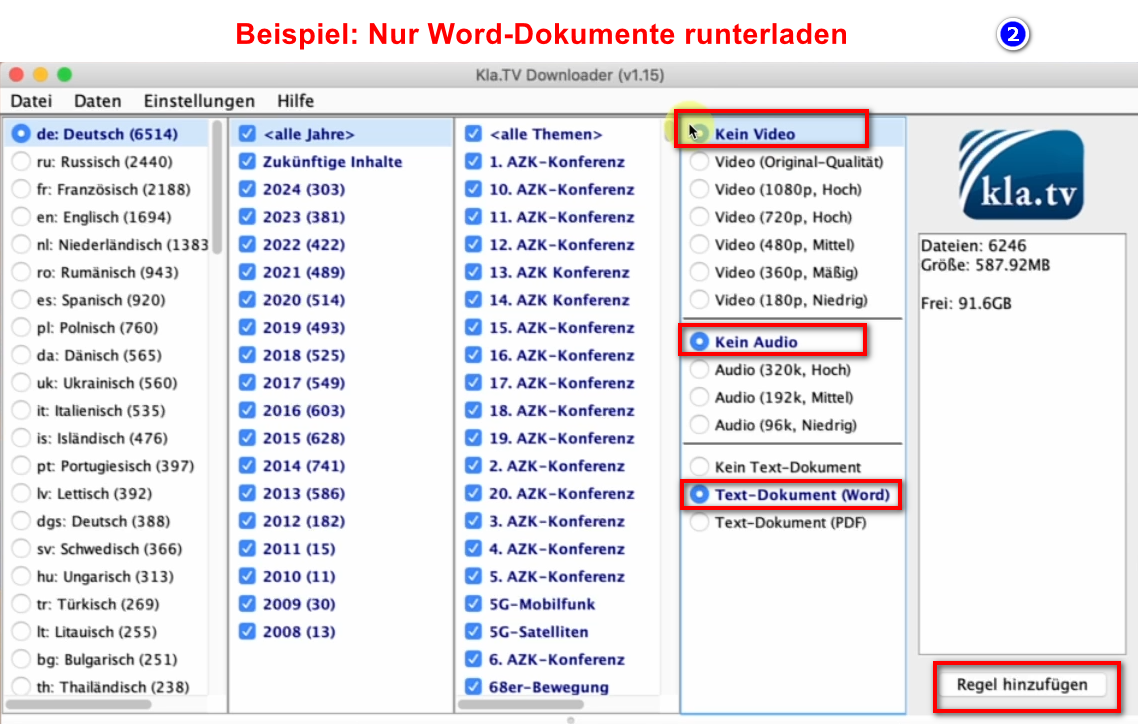
    - <span style="background-color: rgb(251, 238, 184);">Voici un ❷ exemple si vous souhaitez créer une nouvelle règle, par exemple UNIQUEMENT pour les fichiers Word. Désactivez ensuite la vidéo/l'audio, sélectionnez les années souhaitées et ajoutez la règle. (en allemand)</span>  
        [![grafik.png](https://wiki.kla.tv/uploads/images/gallery/2024-11/scaled-1680-/MyrlhWDMHW4eBhyZ-grafik.png)](https://wiki.kla.tv/uploads/images/gallery/2024-11/MyrlhWDMHW4eBhyZ-grafik.png)
- <span style="background-color: rgb(251, 238, 184);">Les programmes peuvent être fermés et le chargement se poursuit en arrière-plan.</span>
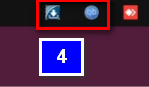
- <span style="background-color: rgb(251, 238, 184);">Dans l'en-tête ❹, tu peux rouvrir le programme.</span>  
      
    [![image.png](https://wiki.kla.tv/uploads/images/gallery/2024-11/scaled-1680-/UruJZRnksnPBNcI5-image.png)](https://wiki.kla.tv/uploads/images/gallery/2024-11/UruJZRnksnPBNcI5-image.png)

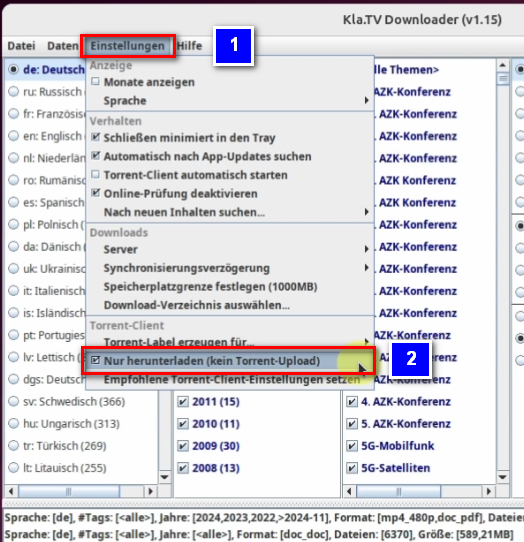
<p class="callout danger">Si tu ne souhaites pas proposer de téléchargement, tu peux cocher la case suivante</p>

- <span style="background-color: rgb(251, 238, 184);"> Accédez à Kla.TV Downloader. Sous l'onglet « Paramètres » ❶, vous pouvez désormais cocher la case « Télécharger uniquement, pas de téléchargement torrent » ❷.</span>

[![image.png](https://wiki.kla.tv/uploads/images/gallery/2024-11/scaled-1680-/xzxqAu5lwevSgcUN-image.png)](https://wiki.kla.tv/uploads/images/gallery/2024-11/xzxqAu5lwevSgcUN-image.png)

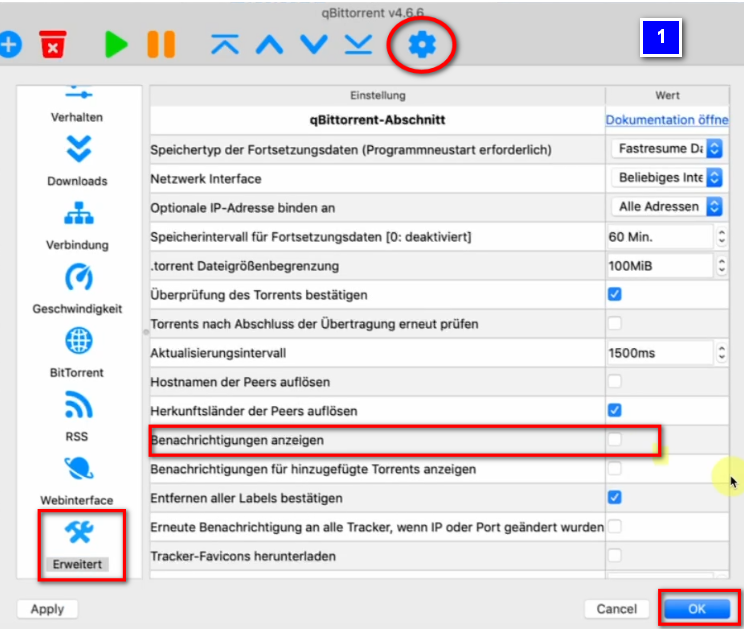
#### **<span style="background-color: rgb(241, 196, 15);"> 5.1 Désactiver les notifications système : </span>**

- <span style="background-color: rgb(251, 238, 184);">Pour éviter qu'une fenêtre contextuelle n'apparaisse à chaque fois qu'une vidéo est téléchargée → allez dans ❶ qBittorrent → Roue dentée → Avancé → Afficher les notifications → désactiver → OK</span>  
      
    [![image.png](https://wiki.kla.tv/uploads/images/gallery/2024-11/scaled-1680-/vnYOCBGCZDg63nhu-image.png)](https://wiki.kla.tv/uploads/images/gallery/2024-11/vnYOCBGCZDg63nhu-image.png)

### <span style="background-color: rgb(241, 196, 15);"> **6. Recommandation : configurer les options d'alimentation de manière à ce que l'ordinateur ne s'éteigne pas automatiquement :**</span>

<p class="callout info">Ce programme peut prendre plusieurs jours avant que tout soit synchronisé. Pour accélérer ce processus, il est recommandé de désactiver le mode économie d'énergie.</p>

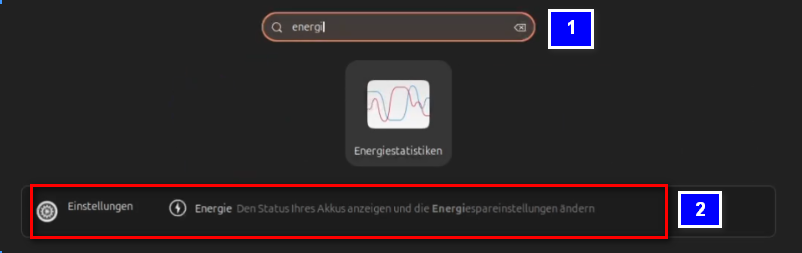
- <span style="background-color: rgb(251, 238, 184);">Pour ce faire, ouvre les paramètres d'alimentation de ton PC ❶ ❷.</span>

[![image.png](https://wiki.kla.tv/uploads/images/gallery/2024-11/scaled-1680-/zxB0f4nBuYDGphI1-image.png)](https://wiki.kla.tv/uploads/images/gallery/2024-11/zxB0f4nBuYDGphI1-image.png)

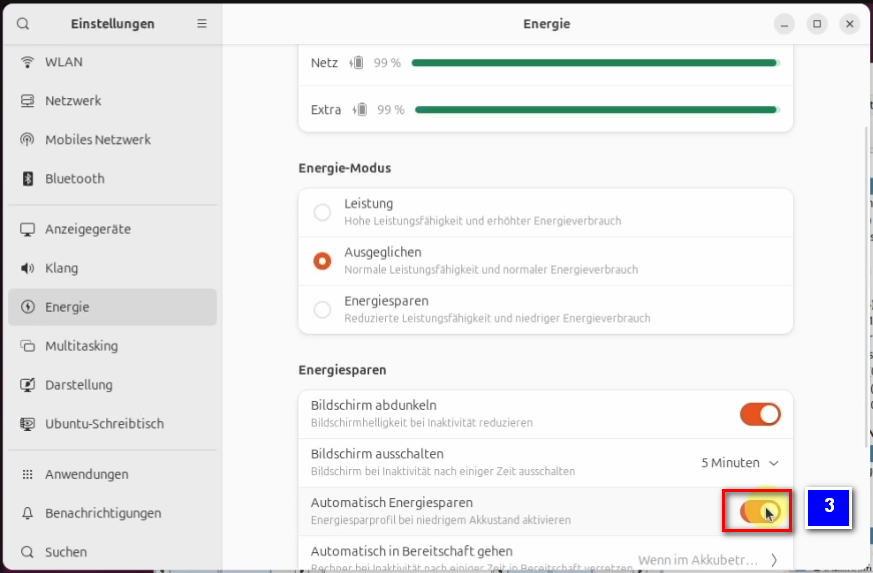
- <span style="background-color: rgb(251, 238, 184);">Désactivez le bouton « Économie d'énergie automatique » ❸ afin qu'il devienne gris.</span>

[![image.png](https://wiki.kla.tv/uploads/images/gallery/2024-11/scaled-1680-/AzEJbaL4glY3rLhP-image.png)](https://wiki.kla.tv/uploads/images/gallery/2024-11/AzEJbaL4glY3rLhP-image.png)

### <span style="background-color: rgb(241, 196, 15);">**7. Installer la mise à jour :**</span>

- **<span style="background-color: rgb(251, 238, 184);">De temps en temps, Kla.TV Downloader est optimisé et vous devez installer la mise à jour. Voici comment cela fonctionne :</span>**
- 
- <span style="background-color: rgb(251, 238, 184);">Ouvre Kla.TV Downloader</span>
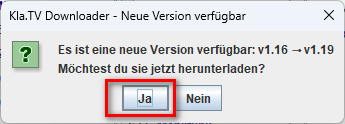
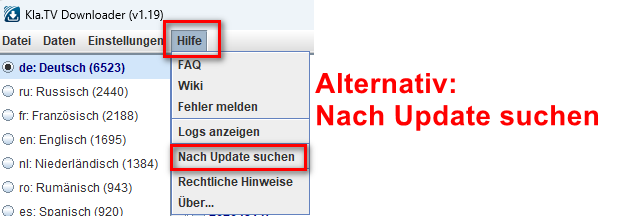
- <span style="background-color: rgb(251, 238, 184);">Le message suivant apparaît quand il y a une nouvelle version (Si ce n'est pas le cas, allez dans Kla.TV Downloader → Aide → Rechercher les mises à jour</span>  
    [![grafik.png](https://wiki.kla.tv/uploads/images/gallery/2024-12/scaled-1680-/CPxIwgY3Aw6GYURU-grafik.png)](https://wiki.kla.tv/uploads/images/gallery/2024-12/CPxIwgY3Aw6GYURU-grafik.png)
    
    [![grafik.png](https://wiki.kla.tv/uploads/images/gallery/2024-12/scaled-1680-/YaiCj1fp8YsCOMGW-grafik.png)](https://wiki.kla.tv/uploads/images/gallery/2024-12/YaiCj1fp8YsCOMGW-grafik.png)
- <span style="background-color: rgb(251, 238, 184);">La page Internet s'ouvre, faites défiler vers le bas jusqu'à « Assets » (Actifs).</span>  
    
    - - <span style="background-color: rgb(251, 238, 184);"> → cliquer sur <span lang="DE"><span lang="EN-US">❹</span></span> "Kla.TV.Downloader-\*.\*\*.tar.gz" </span>
        - <span style="background-color: rgb(251, 238, 184);"><span lang="DE"><span lang="EN-US">❺</span></span> Ouvrir le Downlodordner</span>
        - <span style="background-color: rgb(251, 238, 184);">Décompresse le fichier, par exemple sur ton bureau ❻</span>
        
        [![image.png](https://wiki.kla.tv/uploads/images/gallery/2024-11/scaled-1680-/qSErpIgwXlzwbwW8-image.png)](https://wiki.kla.tv/uploads/images/gallery/2024-11/qSErpIgwXlzwbwW8-image.png)[![image.png](https://wiki.kla.tv/uploads/images/gallery/2024-11/scaled-1680-/TlW6Qfw6MuE7VKYG-image.png)](https://wiki.kla.tv/uploads/images/gallery/2024-11/TlW6Qfw6MuE7VKYG-image.png)

        
        [![image.png](https://wiki.kla.tv/uploads/images/gallery/2024-11/scaled-1680-/JH6Ob0TgsrkaGS7N-image.png)](https://wiki.kla.tv/uploads/images/gallery/2024-11/JH6Ob0TgsrkaGS7N-image.png)

- <span style="background-color: rgb(251, 238, 184);">Accédez au dossier décompressé et cliquez avec le bouton droit de la souris sur le fichier : « start-downloader-linux.sh » ❹</span>
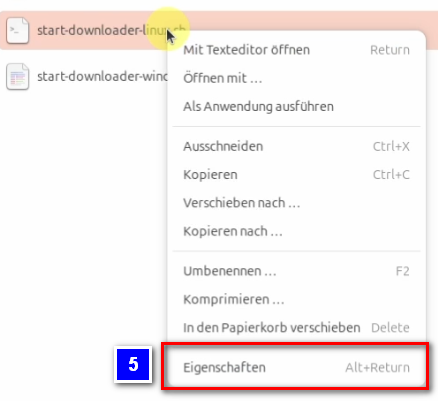
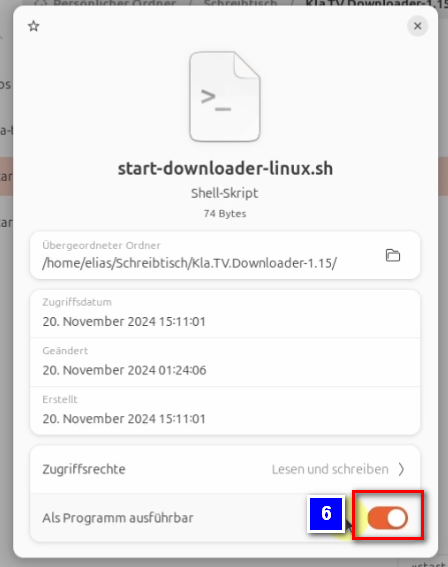
- <span style="background-color: rgb(251, 238, 184);">Sous Propriétés ❺, vérifie que l'option « Exécuter en tant que programme » ❻ est activée, car c'est la seule façon d'exécuter le fichier.</span>

[![image.png](https://wiki.kla.tv/uploads/images/gallery/2024-11/scaled-1680-/kJCMidObyli2Jhlh-image.png)](https://wiki.kla.tv/uploads/images/gallery/2024-11/kJCMidObyli2Jhlh-image.png)

[![image.png](https://wiki.kla.tv/uploads/images/gallery/2024-11/scaled-1680-/kZboiz14dfxwRP5N-image.png)](https://wiki.kla.tv/uploads/images/gallery/2024-11/kZboiz14dfxwRP5N-image.png) [![image.png](https://wiki.kla.tv/uploads/images/gallery/2024-11/scaled-1680-/EgEhKCmtxLZ0IDvt-image.png)](https://wiki.kla.tv/uploads/images/gallery/2024-11/EgEhKCmtxLZ0IDvt-image.png)
- <span style="background-color: rgb(251, 238, 184);">En cliquant avec le bouton droit de la souris sur le fichier et en sélectionnant l'option « Exécuter en tant qu'application » ❼, tu peux maintenant exécuter le fichier.</span>

[![image.png](https://wiki.kla.tv/uploads/images/gallery/2024-11/scaled-1680-/Oo8pi4NnoNHMGqiY-image.png)](https://wiki.kla.tv/uploads/images/gallery/2024-11/Oo8pi4NnoNHMGqiY-image.png)

- <span style="background-color: rgb(251, 238, 184);">Supprime l'ancienne version, ouvre à nouveau le téléchargeur Kla.TV actuel et profite de la version optimisée 😊</span>

##### Autres articles susceptibles de t'intéresser :  
[**Rechercher dans les archives sécurisées**](https://wiki.kla.tv/books/fr-sauvegarder-klatv/page/rechercher-dans-les-archives-securisees)