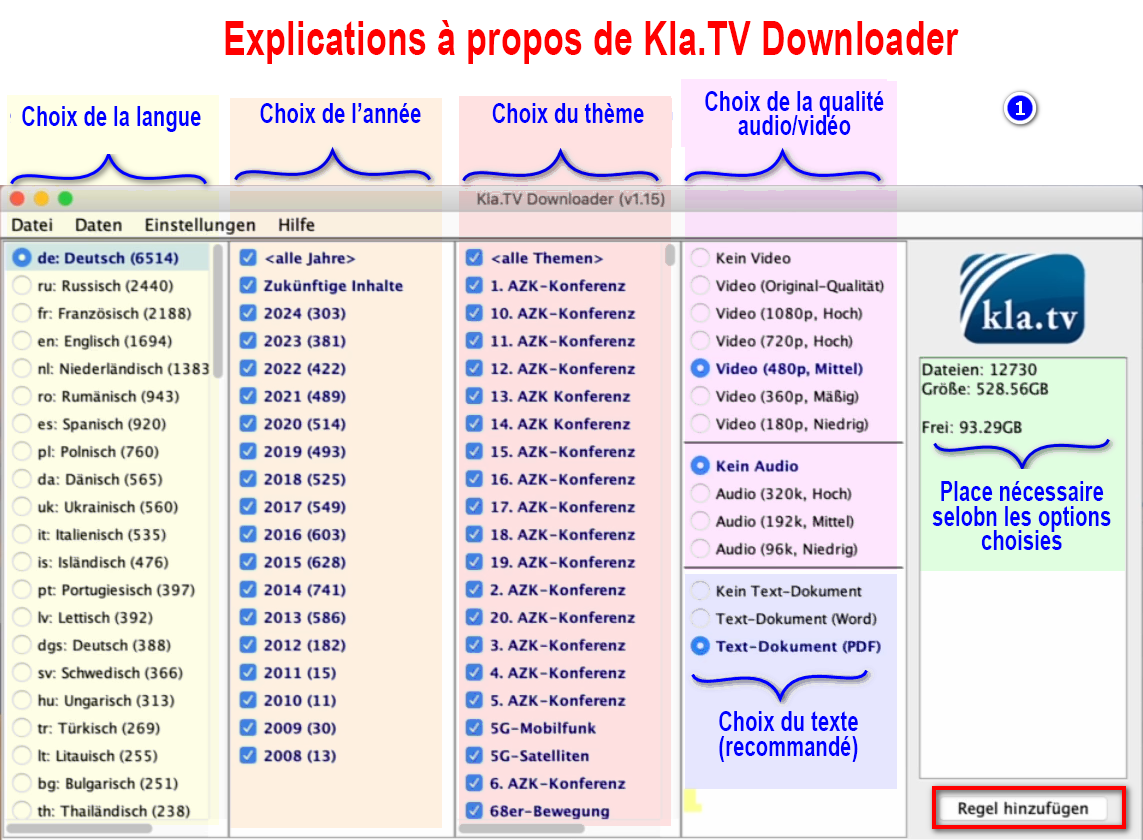
# FR_Sauvegarder Kla.TV

👉 www.kla.tv/sichern

# Accès au serveur avec Filezilla (SFTP)

# WINDOWS : Installation & connexion à Filezilla (Accès au serveur)

### **Qu'apprends-tu avec cet article ?**

Tu apprends comment sauvegarder **les émissions de Kla.TV sur ton propre disque dur via l'accès à nos serveurs.** Ces émissions sont classées par date ou par thème et en différentes qualités. Tu apprends également comment trouver des émissions spécifiques dans des documents téléchargés en utilisant des mots-clés.

### **Vidéo explicative : (12min)** 

*- Sous-titres générés automatiquement -*

<div class="responsive-iframe" id="bkmrk-"><div class="responsive-iframe"><div class="responsive-iframe"><div class="responsive-iframe"><iframe allowfullscreen="allowfullscreen" frameborder="0" height="332" src="https://video.elaion-verlag.ch?video_by_id=ClfVOt28VqJ8" width="590"></iframe>

</div></div></div></div><div class="responsive-iframe" id="bkmrk--1"></div><p class="callout warning">Nous vous recommandons de regarder d'abord la vidéo afin de mieux comprendre les instructions écrites.</p>

### <span lang="DE" style="font-size: 16.0pt; mso-bidi-font-size: 11.0pt; line-height: 107%; font-family: Wingdings; mso-ascii-font-family: Calibri; mso-ascii-theme-font: minor-latin; mso-fareast-font-family: Calibri; mso-fareast-theme-font: minor-latin; mso-hansi-font-family: Calibri; mso-hansi-theme-font: minor-latin; mso-bidi-font-family: 'Times New Roman'; mso-bidi-theme-font: minor-bidi; mso-ansi-language: DE; mso-fareast-language: EN-US; mso-bidi-language: AR-SA; mso-char-type: symbol; mso-symbol-font-family: Wingdings;"><span style="mso-char-type: symbol; mso-symbol-font-family: Wingdings;">&#131;</span></span><span lang="DE" style="font-size: 16.0pt; mso-bidi-font-size: 11.0pt; line-height: 107%; font-family: Wingdings; mso-ascii-font-family: Calibri; mso-ascii-theme-font: minor-latin; mso-fareast-font-family: Calibri; mso-fareast-theme-font: minor-latin; mso-hansi-font-family: Calibri; mso-hansi-theme-font: minor-latin; mso-bidi-font-family: 'Times New Roman'; mso-bidi-theme-font: minor-bidi; mso-ansi-language: DE; mso-fareast-language: EN-US; mso-bidi-language: AR-SA; mso-char-type: symbol; mso-symbol-font-family: Wingdings;"><span style="mso-char-type: symbol; mso-symbol-font-family: Wingdings;">&#132;</span></span><span lang="DE" style="font-size: 16.0pt; mso-bidi-font-size: 11.0pt; line-height: 107%; font-family: Wingdings; mso-ascii-font-family: Calibri; mso-ascii-theme-font: minor-latin; mso-fareast-font-family: Calibri; mso-fareast-theme-font: minor-latin; mso-hansi-font-family: Calibri; mso-hansi-theme-font: minor-latin; mso-bidi-font-family: 'Times New Roman'; mso-bidi-theme-font: minor-bidi; mso-ansi-language: DE; mso-fareast-language: EN-US; mso-bidi-language: AR-SA; mso-char-type: symbol; mso-symbol-font-family: Wingdings;"><span style="mso-char-type: symbol; mso-symbol-font-family: Wingdings;"> </span></span><span lang="DE" style="font-size: 16.0pt; mso-bidi-font-size: 11.0pt; line-height: 107%; font-family: Wingdings; mso-ascii-font-family: Calibri; mso-ascii-theme-font: minor-latin; mso-fareast-font-family: Calibri; mso-fareast-theme-font: minor-latin; mso-hansi-font-family: Calibri; mso-hansi-theme-font: minor-latin; mso-bidi-font-family: 'Times New Roman'; mso-bidi-theme-font: minor-bidi; mso-ansi-language: DE; mso-fareast-language: EN-US; mso-bidi-language: AR-SA; mso-char-type: symbol; mso-symbol-font-family: Wingdings;"><span style="mso-char-type: symbol; mso-symbol-font-family: Wingdings;">&#134;</span></span>**Instructions écrites :**

#### <span style="background-color: rgb(241, 196, 15);">**1. Accès au serveur :**</span>

- <span style="background-color: rgb(251, 238, 184);">Va sur la page **[kla.tv/sichern](https://www.kla.tv/sichern)** </span>
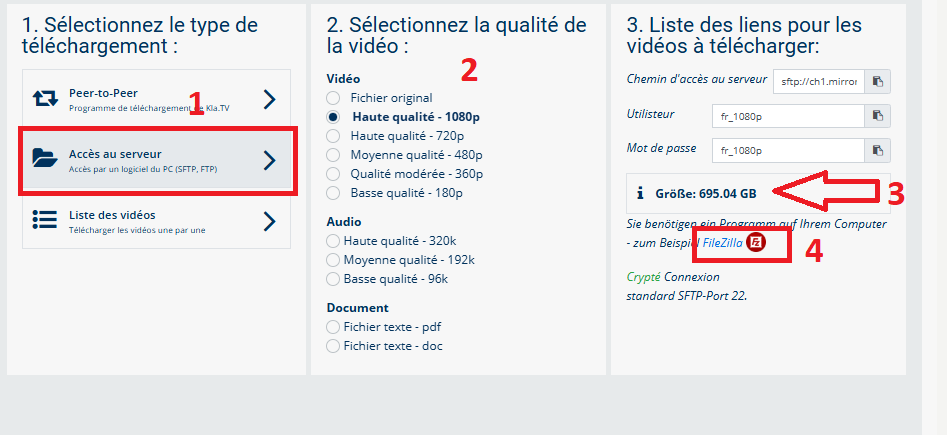
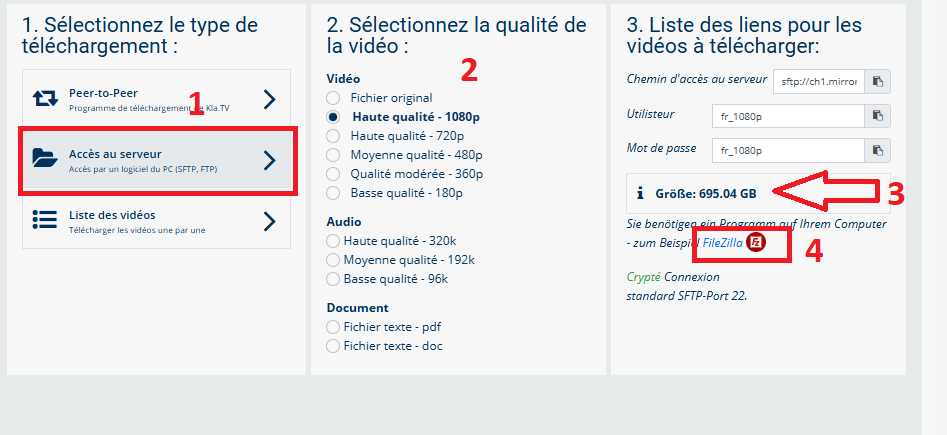
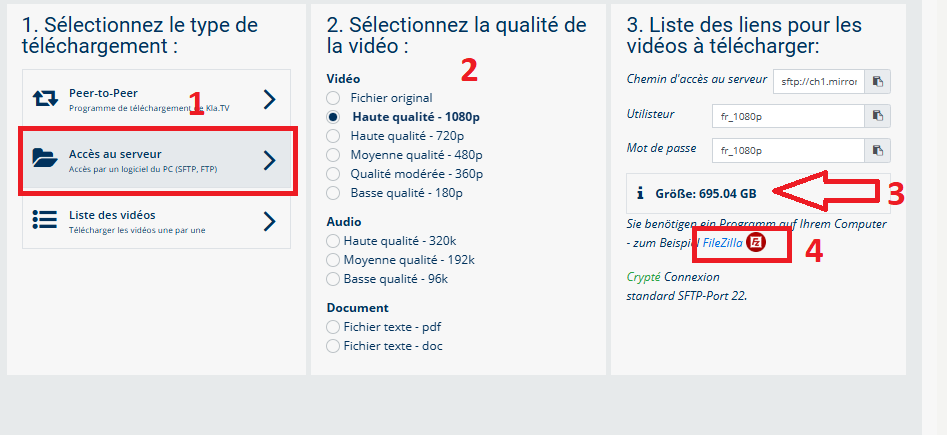
- <span style="background-color: rgb(251, 238, 184);">Va <span lang="DE" style="font-size: 11pt; line-height: 107%; font-family: 'Cambria Math', serif; color: rgb(7, 40, 230); background-color: rgb(251, 238, 184);">❶</span> sur **"Accès au serveur"** (voir l'image ci-dessous)→ et choisis <span style="background-color: rgb(251, 238, 184);"> <span lang="DE" style="font-size: 11pt; line-height: 107%; font-family: 'Cambria Math', serif; color: rgb(7, 40, 230); background-color: rgb(251, 238, 184);">❷</span></span> la **qualité** souhaitée   
    </span>
- <span style="background-color: rgb(251, 238, 184);"><span lang="DE" style="font-size: 11pt; line-height: 107%; font-family: 'Cambria Math', serif; color: rgb(7, 40, 230); background-color: rgb(251, 238, 184);">❸</span> la flèche rouge indique l'espace libre dont tu as besoin sur ton disque dur. Ajuste la qualité en conséquence.  
    </span>
- <span style="background-color: rgb(251, 238, 184);">Ensuite, tu as besoin du programme « FileZilla ». <span class="--l --r sentence_highlight">Pour l'installer, clique sur</span> <span lang="DE" style="font-size: 11pt; line-height: 107%; font-family: 'Cambria Math', serif; color: rgb(7, 40, 230); background-color: rgb(251, 238, 184);">❹</span></span>***<span style="background-color: rgb(251, 238, 184);"><span style="color: rgb(7, 40, 230);"> </span>"FileZilla"</span>***
    
    [![1.png](https://wiki.kla.tv/uploads/images/gallery/2025-04/scaled-1680-/bqgR1iZYkBdqgfQv-1.png)](https://wiki.kla.tv/uploads/images/gallery/2025-04/bqgR1iZYkBdqgfQv-1.png)

- ***→** <span style="background-color: rgb(251, 238, 184);">**ASTUCE :** il n'est pas possible de sélectionner plusieurs choses en même temps. Dans cet article, tu apprendras comment enregistrer plusieurs qualités dans la même structure de dossier : clique ici → [**Télécharger plusieurs qualités**](https://wiki.kla.tv/books/fr-sauvegarder-klatv/page/sauvegarder-klatv-avec-lacces-au-serveur-telecharger-plusieurs-qualites "Télécharger plusieurs qualités")</span>*

#### <span style="background-color: rgb(241, 196, 15);">**2. Installer Filezilla :** </span>

*(Les images sont en allemands mais correspondent en français)*

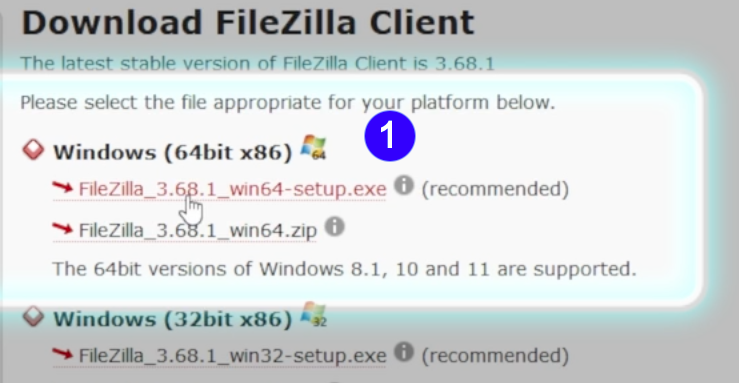
- <span style="background-color: rgb(251, 238, 184);">Choisis <span lang="DE" style="font-size: 11pt; line-height: 107%; font-family: 'Cambria Math', serif; color: rgb(7, 40, 230); background-color: rgb(251, 238, 184);">❶</span> "**Windows (64bit x86)"** → Le fichier d'installation se télécharg**e automatiquement**</span>

[![FileZilla_Win.png](https://wiki.kla.tv/uploads/images/gallery/2024-11/scaled-1680-/caAaduKbfa7Rs1bH-filezilla-win.png)](https://wiki.kla.tv/uploads/images/gallery/2024-11/caAaduKbfa7Rs1bH-filezilla-win.png)

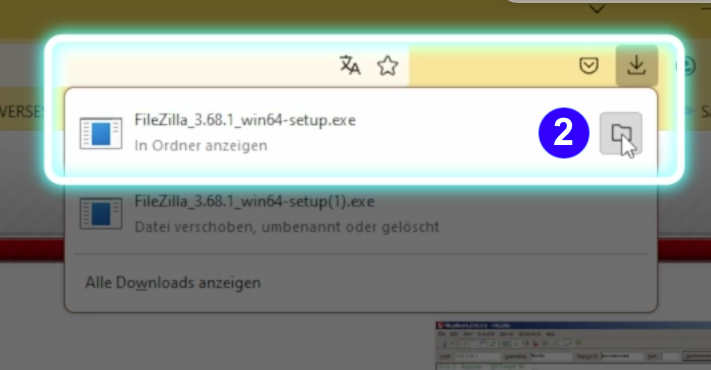
- <span style="background-color: rgb(251, 238, 184);"> <span lang="DE" style="font-size: 11pt; line-height: 107%; font-family: 'Cambria Math', serif; color: rgb(7, 40, 230); background-color: rgb(251, 238, 184);">❷</span></span>**<span style="background-color: rgb(251, 238, 184);"> Clique sur l'icône « Dossier ». </span>  
    [![FileZilla_Win12.png](https://wiki.kla.tv/uploads/images/gallery/2024-11/scaled-1680-/NGoMLwwJGP11t1ZK-filezilla-win12.png)](https://wiki.kla.tv/uploads/images/gallery/2024-11/NGoMLwwJGP11t1ZK-filezilla-win12.png)**
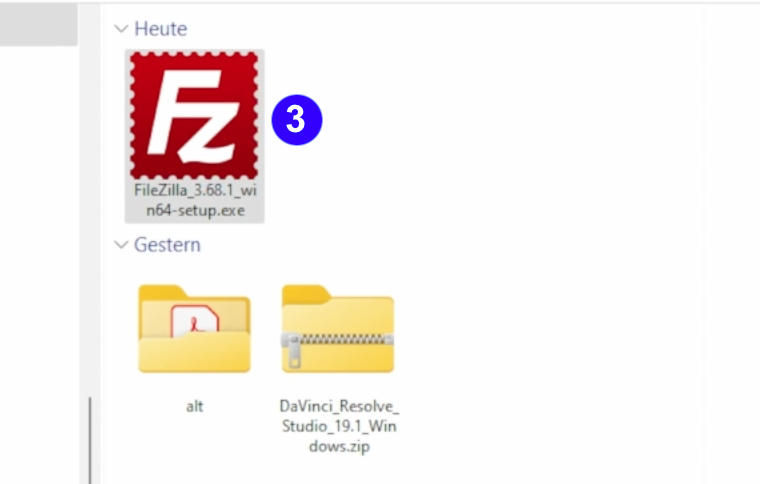
- <span style="background-color: rgb(251, 238, 184);"><span lang="DE" style="font-size: 11pt; line-height: 107%; font-family: 'Cambria Math', serif; color: rgb(7, 40, 230); background-color: rgb(251, 238, 184);">❸</span> Double-clique sur **l'icône FileZilla** </span>

 [![FileZilla_Win3.png](https://wiki.kla.tv/uploads/images/gallery/2024-11/scaled-1680-/CshLlTPv0loxG3xy-filezilla-win3.png)](https://wiki.kla.tv/uploads/images/gallery/2024-11/CshLlTPv0loxG3xy-filezilla-win3.png)

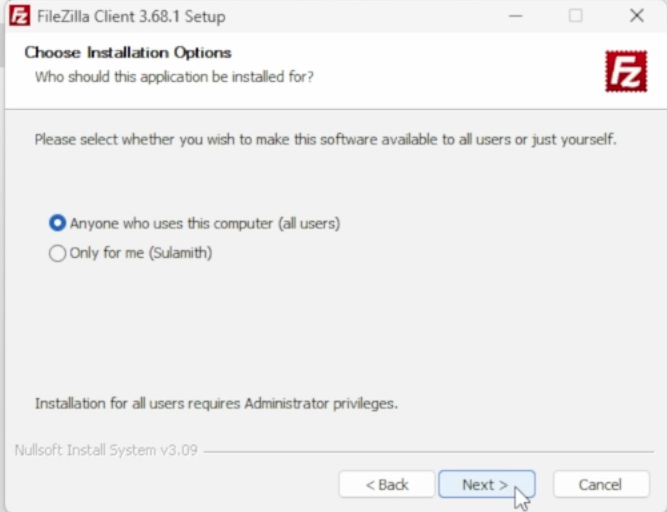
- <span style="background-color: rgb(251, 238, 184);"><span lang="DE" style="font-size: 11pt; line-height: 107%; font-family: 'Cambria Math', serif; background-color: rgb(251, 238, 184);"><span lang="DE" style="font-size: 11pt; line-height: 107%; font-family: 'Cambria Math', serif; color: rgb(7, 40, 230); background-color: rgb(251, 238, 184);">❹</span></span> **Installe FileZilla** (voir images ci-dessous) </span>

[![FileZilla_Win6.png](https://wiki.kla.tv/uploads/images/gallery/2024-11/scaled-1680-/wfxIztHOgkC68Alr-filezilla-win6.png)](https://wiki.kla.tv/uploads/images/gallery/2024-11/wfxIztHOgkC68Alr-filezilla-win6.png)[ ![FileZilla_Win7.png](https://wiki.kla.tv/uploads/images/gallery/2024-11/scaled-1680-/Jlv1TtbxZYYzBN4L-filezilla-win7.png)](https://wiki.kla.tv/uploads/images/gallery/2024-11/Jlv1TtbxZYYzBN4L-filezilla-win7.png)  
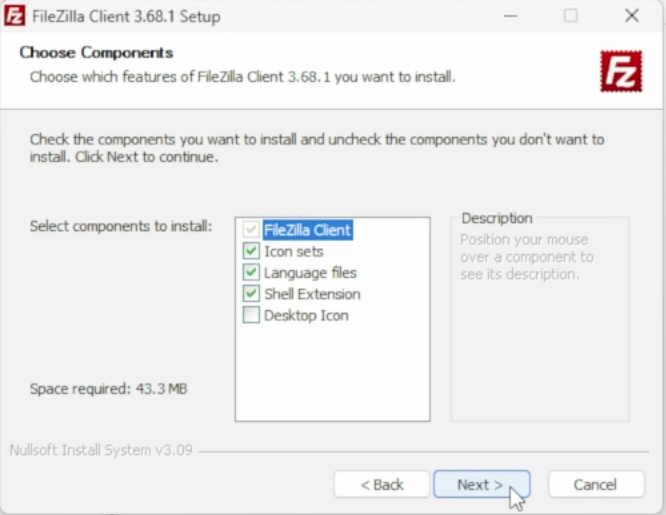
  
[![FileZilla_Win8.png](https://wiki.kla.tv/uploads/images/gallery/2024-11/scaled-1680-/vG7Ud4UODzLQkzzB-filezilla-win8.png) ](https://wiki.kla.tv/uploads/images/gallery/2024-11/vG7Ud4UODzLQkzzB-filezilla-win8.png)[![FileZilla_Win9.png](https://wiki.kla.tv/uploads/images/gallery/2024-11/scaled-1680-/ye0EQINv3v9uYJx8-filezilla-win9.png)](https://wiki.kla.tv/uploads/images/gallery/2024-11/ye0EQINv3v9uYJx8-filezilla-win9.png)
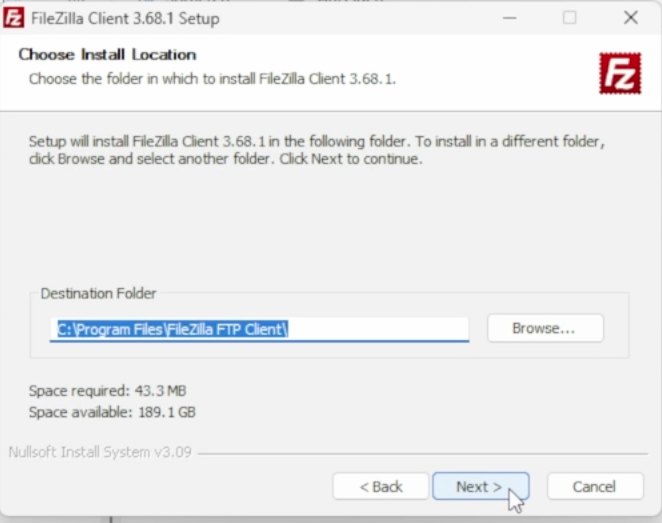
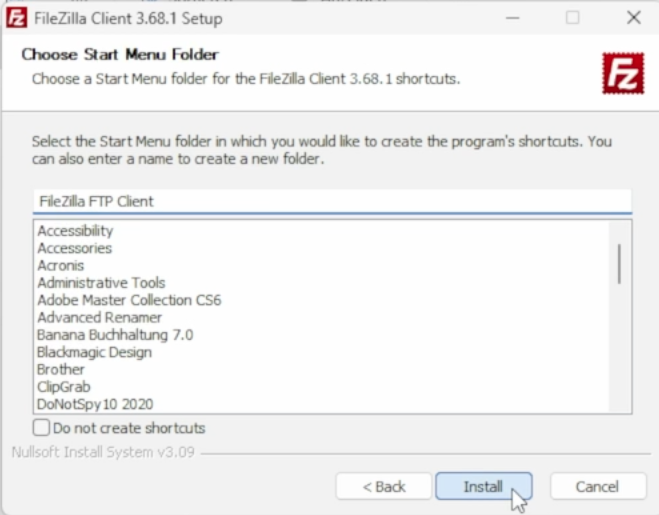
[![FileZilla_Win10.png](https://wiki.kla.tv/uploads/images/gallery/2024-11/scaled-1680-/pOcQNtHKuUS6RHl6-filezilla-win10.png)](https://wiki.kla.tv/uploads/images/gallery/2024-11/pOcQNtHKuUS6RHl6-filezilla-win10.png)
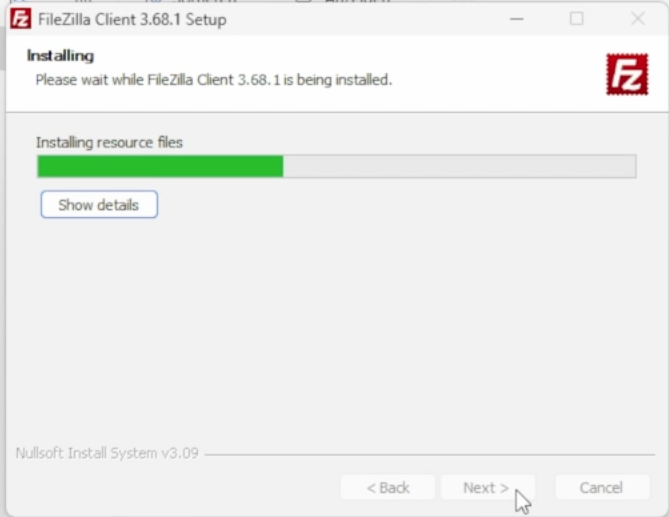
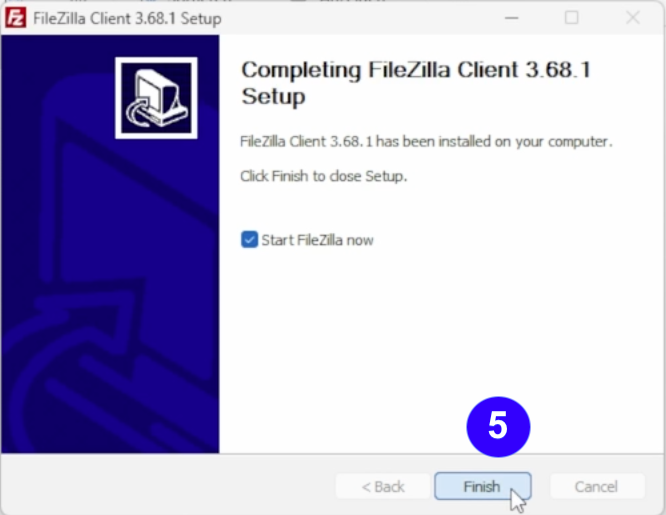
- <span style="background-color: rgb(251, 238, 184);"><span lang="DE" style="font-size: 11pt; line-height: 107%; font-family: 'Cambria Math', serif; color: rgb(7, 40, 230); background-color: rgb(251, 238, 184);">❺</span> **Démarre FileZilla** en cliquant sur « **Finish** ».</span>   
    [![FileZilla_Win11.png](https://wiki.kla.tv/uploads/images/gallery/2024-11/scaled-1680-/CiNjxf749VAoxFIr-filezilla-win11.png)](https://wiki.kla.tv/uploads/images/gallery/2024-11/CiNjxf749VAoxFIr-filezilla-win11.png)

#### <span style="background-color: rgb(241, 196, 15);">**3. Paramétrer FileZilla :**</span>

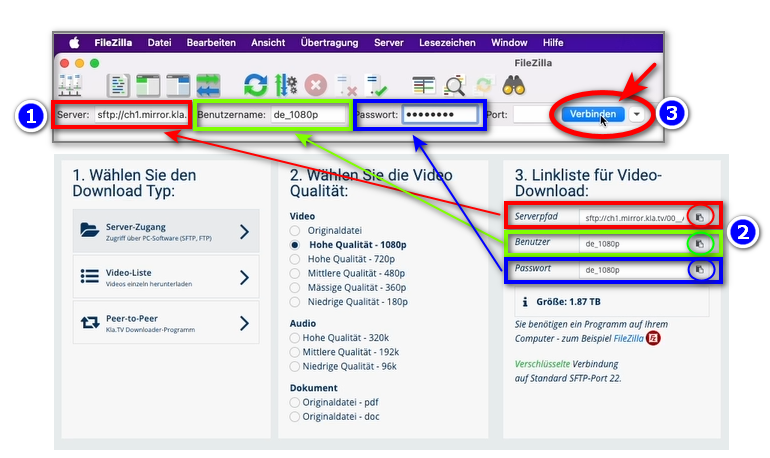
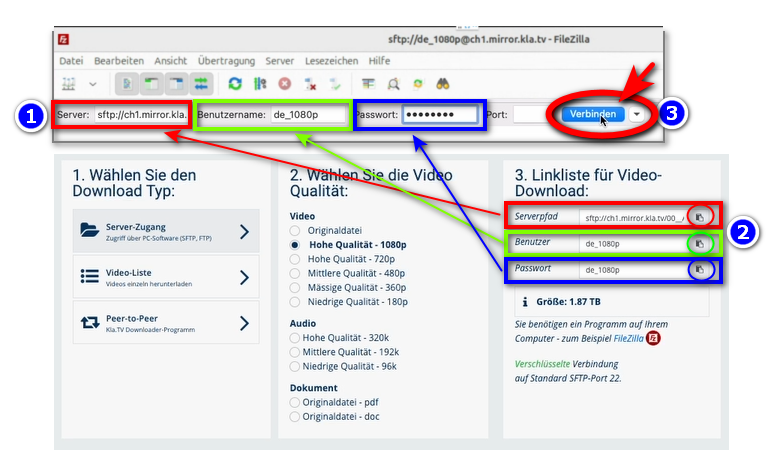
- <span style="background-color: rgb(251, 238, 184);">Copier dans <span style="background-color: rgb(251, 238, 184);"><span lang="DE" style="font-size: 11pt; line-height: 107%; font-family: 'Cambria Math', serif; color: rgb(7, 40, 230); background-color: rgb(251, 238, 184);">❶</span></span> **FileZilla les données du serveur** que tu trouves sur la page web <span style="background-color: rgb(251, 238, 184);"><span lang="DE" style="font-size: 11pt; line-height: 107%; font-family: 'Cambria Math', serif; color: rgb(7, 40, 230); background-color: rgb(251, 238, 184);">❷</span></span> [**kla.tv/sichern**](https://wiki.kla.tv/kla.tv/sichern) → ensuite sur <span style="background-color: rgb(251, 238, 184);"><span lang="DE" style="font-size: 11pt; line-height: 107%; font-family: 'Cambria Math', serif; color: rgb(7, 40, 230); background-color: rgb(251, 238, 184);">❸</span> cliquer sur </span>« Connexion rapide » :</span>  
    <span style="background-color: rgb(251, 238, 184);">(Cliquer sur l'icône « copier »[![copy icon.png](https://wiki.kla.tv/uploads/images/gallery/2024-11/scaled-1680-/FBgYTFlPc2gfJRTu-copy-icon.png)](https://wiki.kla.tv/uploads/images/gallery/2024-11/FBgYTFlPc2gfJRTu-copy-icon.png) entourée d'un cercle et coller dans FileZilla avec ctrl + V)</span>[![grafik.png](https://wiki.kla.tv/uploads/images/gallery/2024-11/scaled-1680-/wbIHEPHXZnCa1P71-grafik.png)](https://wiki.kla.tv/uploads/images/gallery/2024-11/wbIHEPHXZnCa1P71-grafik.png)
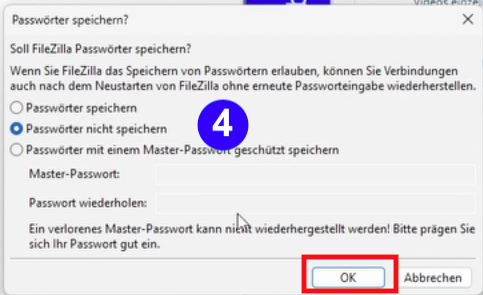
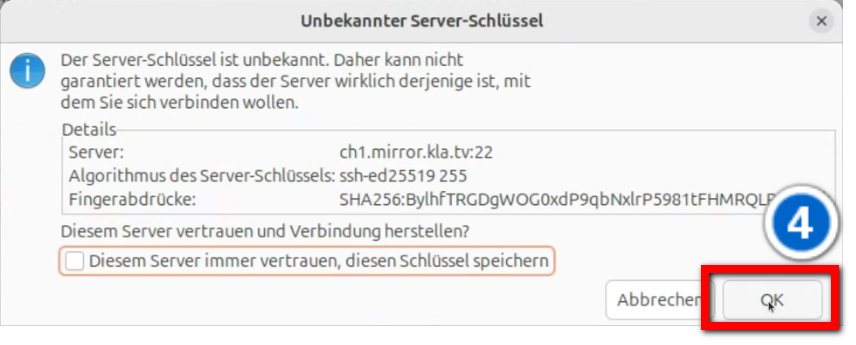
- <span style="background-color: rgb(251, 238, 184);"><span lang="DE" style="font-size: 11pt; line-height: 107%; font-family: 'Cambria Math', serif; color: rgb(7, 40, 230); background-color: rgb(251, 238, 184);">❹</span> Deux messages apparaissent. Clique sur **« Ne pas enregistrer les mots de passe », puis sur « OK ».**</span>  
      
    [![FileZilla-4.png](https://wiki.kla.tv/uploads/images/gallery/2024-11/scaled-1680-/6czE0TcJyOkquJfk-filezilla-4.png)](https://wiki.kla.tv/uploads/images/gallery/2024-11/6czE0TcJyOkquJfk-filezilla-4.png)
    
      
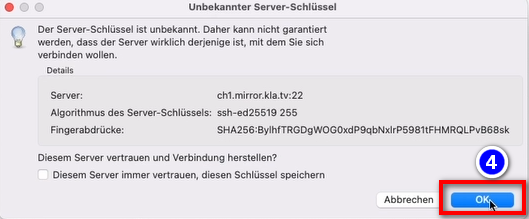
    et sur « **OK** » lorsque le message « Clé de serveur inconnue » s'affiche
    
      
    ![grafik.png](https://wiki.kla.tv/uploads/images/gallery/2024-11/scaled-1680-/I4RotrmPs0wSZmSf-grafik.png)

#### <span style="background-color: rgb(241, 196, 15);">**4. Sauvegarder les émissions :**</span>

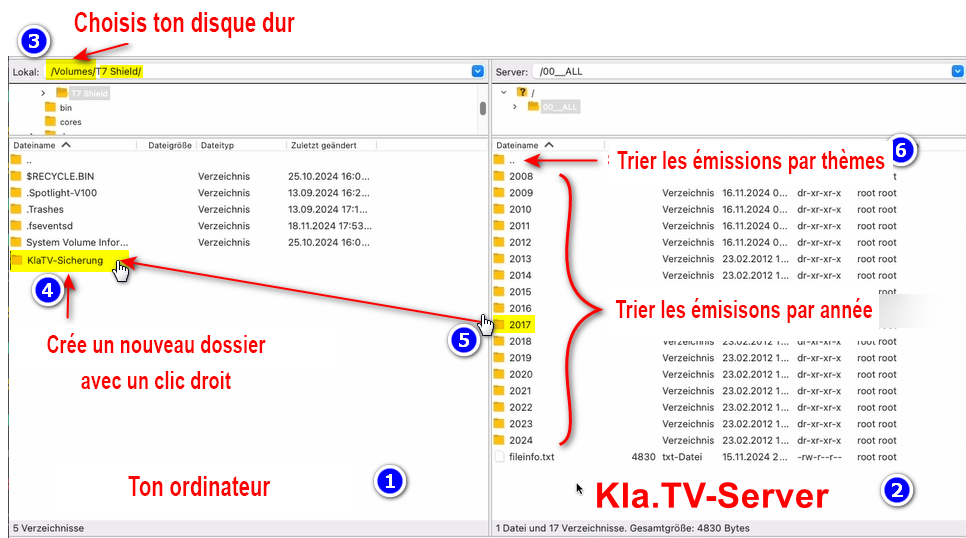
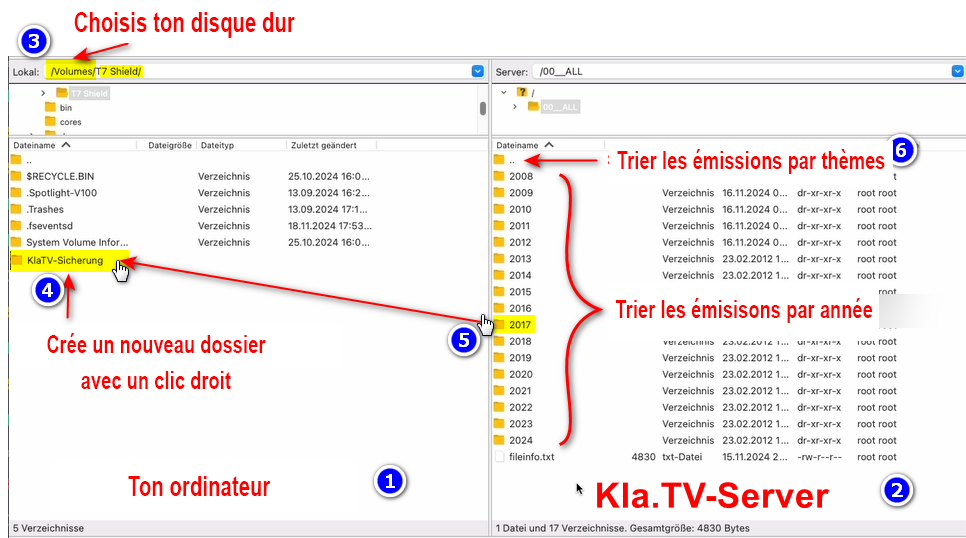
- <span style="background-color: rgb(251, 238, 184);"><span lang="DE" style="font-size: 11pt; line-height: 107%; font-family: 'Cambria Math', serif; color: rgb(7, 40, 230); background-color: rgb(251, 238, 184);">❶</span> A gauche, tu vois **ton** ordinateur, <span style="background-color: rgb(251, 238, 184);"><span style="background-color: rgb(251, 238, 184);"><span lang="DE" style="font-size: 11pt; line-height: 107%; font-family: 'Cambria Math', serif; color: rgb(7, 40, 230); background-color: rgb(251, 238, 184);">❷</span></span></span> à droite le serveur de Kla.TV </span>
- <span style="background-color: rgb(251, 238, 184);">Navigue à gauche <span style="background-color: rgb(251, 238, 184);"><span lang="DE" style="font-size: 11pt; line-height: 107%; font-family: 'Cambria Math', serif; color: rgb(7, 40, 230); background-color: rgb(251, 238, 184);">❸</span> </span> sur **ton disque dur.** (Sélectionne ton disque dur)  
    </span>
- <span style="background-color: rgb(251, 238, 184);">Crée **<span style="background-color: rgb(251, 238, 184);"><span lang="DE" style="font-size: 11pt; line-height: 107%; font-family: 'Cambria Math', serif; color: rgb(7, 40, 230); background-color: rgb(251, 238, 184);">❹</span></span> un nouveau dossier** avec un clic droit « Créer un dossier » → nomme le dossier par exemple « Sauvegarde KlaTV ».  
    </span>
- <span style="background-color: rgb(251, 238, 184);">Déplace <span lang="DE" style="font-size: 11pt; line-height: 107%; font-family: 'Cambria Math', serif; color: rgb(7, 40, 230); background-color: rgb(251, 238, 184);">❺</span> **le dossier d'émissions souhaité** sur ton disque dur en maintenant le bouton de la souris enfoncé. </span>
- <span style="background-color: rgb(251, 238, 184);">Tu peux aussi <span lang="DE" style="font-size: 11pt; line-height: 107%; font-family: 'Cambria Math', serif; color: rgb(7, 40, 230); background-color: rgb(251, 238, 184);">❻</span> télécharger **un thème particulier** (par ex. 5G, vaccination, Bill Gates, etc.). L'inconvénient est qu'avec le temps, de nouvelles vidéos sont ajoutées et stockées dans ces dossiers thématiques. Tu devras toujours faire une comparaison avec le disque dur et tu auras besoin de plus d'espace de stockage. </span>
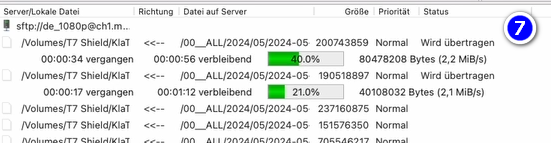
- <span style="background-color: rgb(251, 238, 184);"><span style="color: rgb(7, 40, 230);"><span lang="DE" style="font-size: 11pt; line-height: 107%; font-family: 'Cambria Math', serif; background-color: rgb(251, 238, 184);">❼</span> </span>Ci-dessous, tu peux voir comment les vidéos sont téléchargées dans l'ordre (cela peut prendre beaucoup de temps). </span>  
      
    *→<span style="background-color: rgb(194, 224, 244);"> **ASTUCE :** </span><span style="background-color: rgb(251, 238, 184);">Ici, tu apprendras comment limiter la vitesse d'Internet pour FileZilla, afin que tu puisses quand même travailler sur Internet à côté : clique ici → </span>**<span style="background-color: rgb(251, 238, 184);">[Limiter la vitesse de Filezilla](https://wiki.kla.tv/books/fr-sauvegarder-klatv/page/sauvegarder-klatv-avec-lacces-au-serveur-limiter-la-vitesse-de-filezilla "Limiter la vitesse de Filezilla")</span>***

[![filezilla.png](https://wiki.kla.tv/uploads/images/gallery/2025-04/scaled-1680-/jpRRl6kXAFRIaiPI-filezilla.png)](https://wiki.kla.tv/uploads/images/gallery/2025-04/jpRRl6kXAFRIaiPI-filezilla.png)

[![grafik.png](https://wiki.kla.tv/uploads/images/gallery/2024-11/scaled-1680-/uLGmaW3NtFcExaZn-grafik.png)](https://wiki.kla.tv/uploads/images/gallery/2024-11/uLGmaW3NtFcExaZn-grafik.png)

#### <span style="background-color: rgb(241, 196, 15);">**5. ALTERNATIVE - Sauvegarder les émissions sans FileZilla, directement sur le site :** </span>

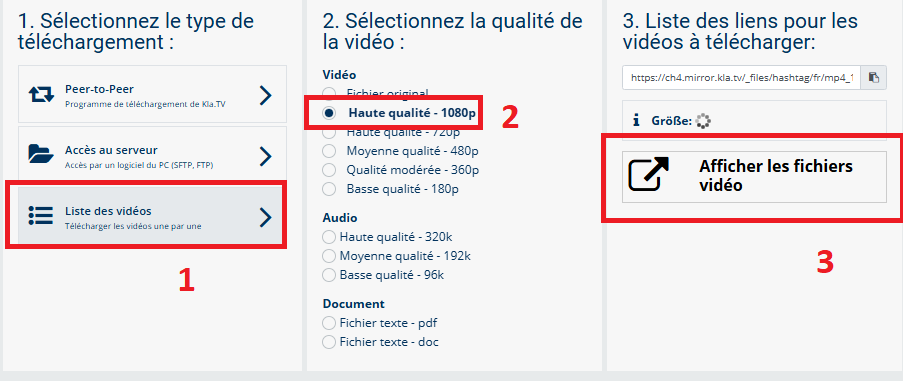
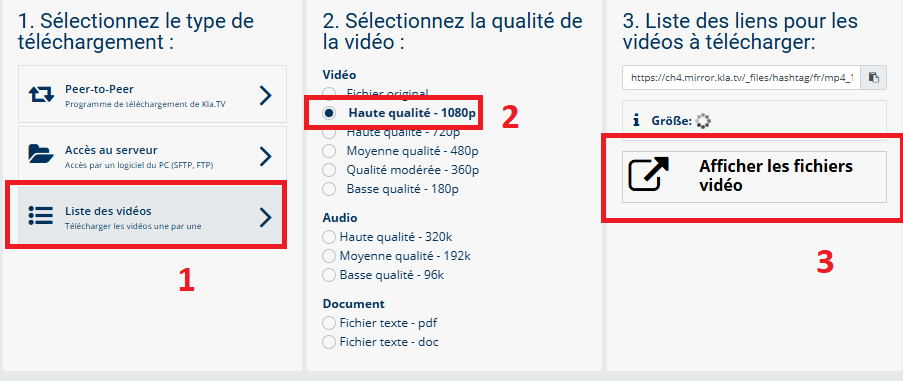
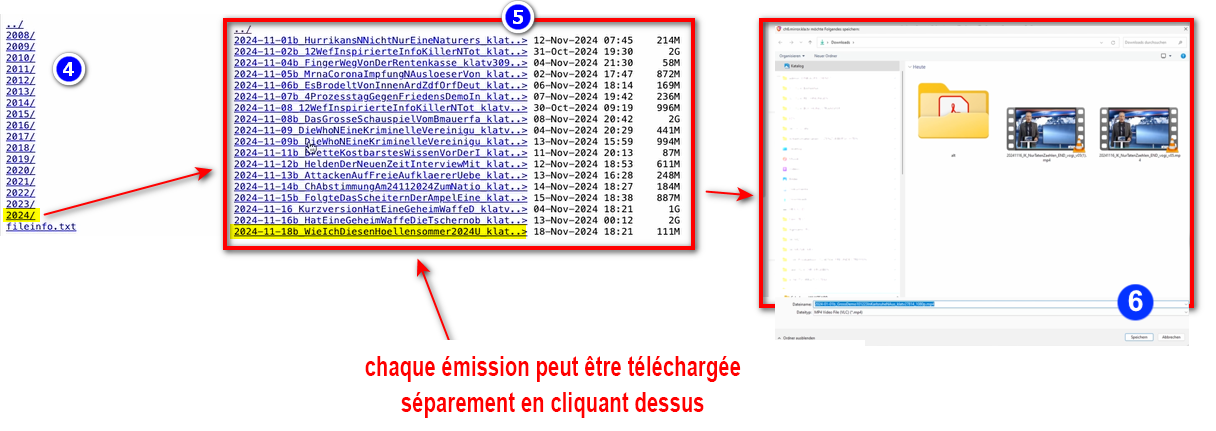
- <span style="background-color: rgb(251, 238, 184);">Va sur **[kla.tv/sichern](https://www.kla.tv/sichern)** → <span lang="DE" style="font-size: 11pt; line-height: 107%; font-family: 'Cambria Math', serif; color: rgb(7, 40, 230); background-color: rgb(251, 238, 184);">❶</span> **Liste des vidéos** → choisis <span lang="DE" style="font-size: 11pt; line-height: 107%; font-family: 'Cambria Math', serif; color: rgb(7, 40, 230); background-color: rgb(251, 238, 184);">❷</span> la **qualité souhaitée** →clique <span lang="DE" style="font-size: 11pt; line-height: 107%; font-family: 'Cambria Math', serif; color: rgb(7, 40, 230); background-color: rgb(251, 238, 184);">❸</span> sur "**Afficher les fichiers vidéo"**</span>  
      
    [![3.png](https://wiki.kla.tv/uploads/images/gallery/2025-04/scaled-1680-/W8x56XnxO2gkvJZZ-3.png)](https://wiki.kla.tv/uploads/images/gallery/2025-04/W8x56XnxO2gkvJZZ-3.png)
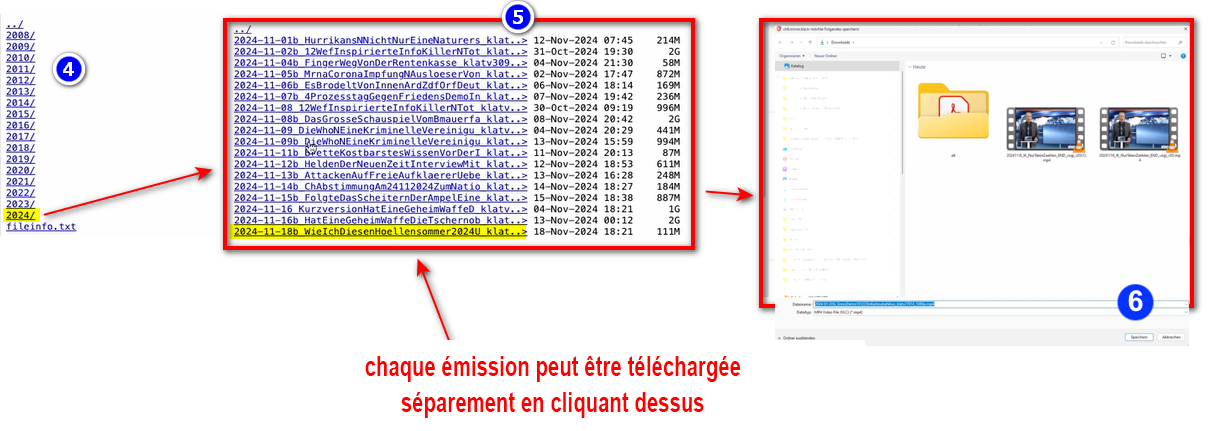
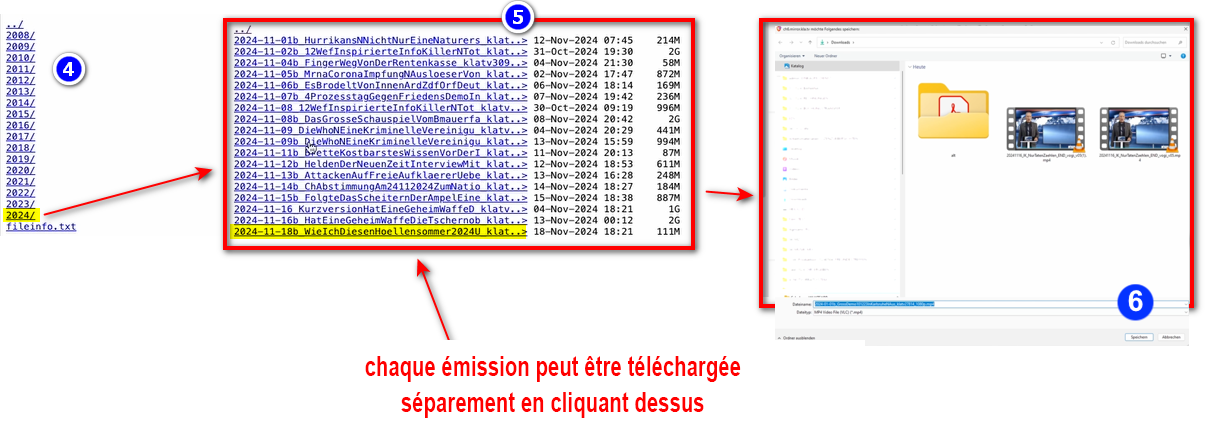
- <span style="background-color: rgb(251, 238, 184);">Maintenant,<span style="background-color: rgb(251, 238, 184);"><span lang="DE" style="font-size: 11pt; line-height: 107%; font-family: 'Cambria Math', serif; color: rgb(7, 40, 230); background-color: rgb(251, 238, 184);">❹</span></span> toutes les vidéos sont listées **par année**/mois. Clique dans l'année/mois souhaité et clique <span style="background-color: rgb(251, 238, 184);"><span lang="DE" style="font-size: 11pt; line-height: 107%; font-family: 'Cambria Math', serif; color: rgb(7, 40, 230); background-color: rgb(251, 238, 184);">❺</span></span> sur l'émission et appuie <span style="background-color: rgb(251, 238, 184);"><span lang="DE" style="font-size: 11pt; line-height: 107%; font-family: 'Cambria Math', serif; color: rgb(7, 40, 230); background-color: rgb(251, 238, 184);">❻</span></span> sur « **Enregistrer** ». Chaque émission peut être téléchargée individuellement.</span>  
      
      
    [![2.png](https://wiki.kla.tv/uploads/images/gallery/2025-04/scaled-1680-/nj7M4Uq6zUJOgY9N-2.png)](https://wiki.kla.tv/uploads/images/gallery/2025-04/nj7M4Uq6zUJOgY9N-2.png)


    *→ <span style="background-color: rgb(194, 224, 244);">**ASTUCE :** </span><span style="background-color: rgb(251, 238, 184);">Cela demande beaucoup de temps et d'efforts. C'est pourquoi la variante avec FileZilla est recommandée</span>*   
    ### <span style="background-color: rgb(241, 196, 15);">**6. Recommandation : régler les options d'alimentation de manière à ce que l'ordinateur ne s'éteigne pas automatiquement :** </span>
    
    
    - <span style="background-color: rgb(251, 238, 184);">Si l'ordinateur a redémarré, tu dois redémarrer l'application (voir instructions point 8).</span>
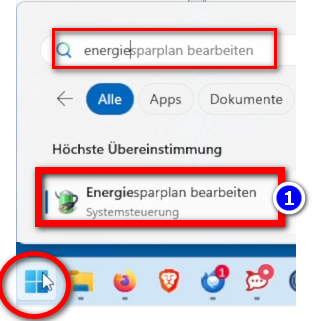
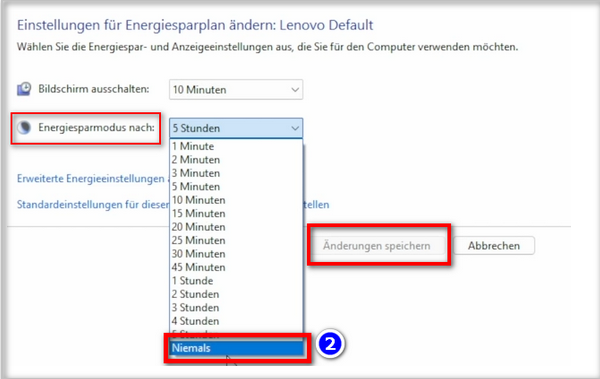
    - <span style="background-color: rgb(251, 238, 184);">Modifier les options d'alimentation de manière à ce que l'ordinateur ne s'arrête pas : Icône Windows→ Champ de recherche : **Energie → ❶ Modifier le plan d'économie d'énergie → ❷ Mode d'économie d'énergie vers : Jamais → Enregistrer la modification** (si vous ne trouver pas les mots correspondant en français, cherchez dans vos paramètres à "alimentation", "mise en veille"...)</span>
    - <span style="background-color: rgb(251, 238, 184);">Laisse tourner l'ordinateur jusqu'à ce que tous les fichiers soient téléchargés</span>
    
    ![grafik.png](https://wiki.kla.tv/uploads/images/gallery/2024-11/scaled-1680-/ONpMkNkqaQmKdYtX-grafik.png)  
      
    ![grafik.png](https://wiki.kla.tv/uploads/images/gallery/2024-11/scaled-1680-/c6InTIccNIpkCbYb-grafik.png)

<p class="callout info">Nous recommandons en outre les formations suivantes :  
  
**[Déterminer l'espace de stockage](https://wiki.kla.tv/books/fr-sauvegarder-klatv/page/sauvegarder-klatv-avec-lacces-au-serveur-determiner-lespace-de-stockage "Déterminer l'espace de stockage")  
  
[Comment puis-je limiter la vitesse de Filezilla ?](https://wiki.kla.tv/books/klatv-sichern/page/klatv-sichern-per-server-zugang-geschwindigkeit-von-filezilla-begrenzen)  
  
[Télécharger plusieurs qualités](https://wiki.kla.tv/books/fr-sauvegarder-klatv/page/sauvegarder-klatv-avec-lacces-au-serveur-telecharger-plusieurs-qualites "Télécharger plusieurs qualités")  
  
[Rechercher dans les archives sauvegardées](https://wiki.kla.tv/books/fr-sauvegarder-klatv/page/sauvegarder-klatv-avec-lacces-au-serveur-rechercher-dans-les-archives-sauvegardees "Rechercher dans les archives sauvegardées")**  
</p>

# MAC : Installation & connexion à Filezilla (Accès au serveur)

### **Qu'apprends-tu dans cet article ?**

Tu apprends comment sauvegarder **les émissions de KlaTV sur ton propre disque dur via l'accès au serveur.** Classées par date ou par thème et de différentes qualités. Tu apprends également comment trouver des émissions spécifiques dans des documents téléchargés en utilisant des mots-clés.

### **Vidéo explicative : (13min)**

 *- Sous-titres générés automatiquement -*

<div class="responsive-iframe" id="bkmrk-"></div><div class="responsive-iframe" id="bkmrk--1"><div class="responsive-iframe"><div class="responsive-iframe"><iframe allowfullscreen="allowfullscreen" frameborder="0" height="332" src="https://video.elaion-verlag.ch?video_by_id=AM8ELHmGd5cN" width="590"></iframe>

</div></div><div class="responsive-iframe">  
</div></div><p class="callout warning">Nous vous recommandons de regarder d'abord la vidéo afin de mieux comprendre les instructions écrites.</p>

### <span lang="DE" style="font-size: 16.0pt; mso-bidi-font-size: 11.0pt; line-height: 107%; font-family: Wingdings; mso-ascii-font-family: Calibri; mso-ascii-theme-font: minor-latin; mso-fareast-font-family: Calibri; mso-fareast-theme-font: minor-latin; mso-hansi-font-family: Calibri; mso-hansi-theme-font: minor-latin; mso-bidi-font-family: 'Times New Roman'; mso-bidi-theme-font: minor-bidi; mso-ansi-language: DE; mso-fareast-language: EN-US; mso-bidi-language: AR-SA; mso-char-type: symbol; mso-symbol-font-family: Wingdings;"><span style="mso-char-type: symbol; mso-symbol-font-family: Wingdings;">&#131;</span></span><span lang="DE" style="font-size: 16.0pt; mso-bidi-font-size: 11.0pt; line-height: 107%; font-family: Wingdings; mso-ascii-font-family: Calibri; mso-ascii-theme-font: minor-latin; mso-fareast-font-family: Calibri; mso-fareast-theme-font: minor-latin; mso-hansi-font-family: Calibri; mso-hansi-theme-font: minor-latin; mso-bidi-font-family: 'Times New Roman'; mso-bidi-theme-font: minor-bidi; mso-ansi-language: DE; mso-fareast-language: EN-US; mso-bidi-language: AR-SA; mso-char-type: symbol; mso-symbol-font-family: Wingdings;"><span style="mso-char-type: symbol; mso-symbol-font-family: Wingdings;">&#132;</span></span><span lang="DE" style="font-size: 16.0pt; mso-bidi-font-size: 11.0pt; line-height: 107%; font-family: Wingdings; mso-ascii-font-family: Calibri; mso-ascii-theme-font: minor-latin; mso-fareast-font-family: Calibri; mso-fareast-theme-font: minor-latin; mso-hansi-font-family: Calibri; mso-hansi-theme-font: minor-latin; mso-bidi-font-family: 'Times New Roman'; mso-bidi-theme-font: minor-bidi; mso-ansi-language: DE; mso-fareast-language: EN-US; mso-bidi-language: AR-SA; mso-char-type: symbol; mso-symbol-font-family: Wingdings;"><span style="mso-char-type: symbol; mso-symbol-font-family: Wingdings;"> </span></span>**Instructions écrites :**


#### <span style="background-color: rgb(241, 196, 15);">**1.** </span><span style="background-color: rgb(241, 196, 15);">**Accès au serveur :**</span>

- <span style="background-color: rgb(251, 238, 184);"><span style="background-color: rgb(251, 238, 184);">Va sur la page</span>**<span style="background-color: rgb(251, 238, 184);"> [kla.tv/sichern](https://www.kla.tv/sichern) </span>** </span>
- <span style="background-color: rgb(251, 238, 184);"><span style="background-color: rgb(251, 238, 184);">Va <span lang="DE" style="font-size: 11pt; line-height: 107%; font-family: 'Cambria Math', serif; color: rgb(7, 40, 230); background-color: rgb(251, 238, 184);">❶</span> sur "**Accès au serveur"** (voir l'image ci-dessous)→ et choisis <span style="background-color: rgb(251, 238, 184);"> <span lang="DE" style="font-size: 11pt; line-height: 107%; font-family: 'Cambria Math', serif; color: rgb(7, 40, 230); background-color: rgb(251, 238, 184);">❷</span></span> la **qualité souhaitée** </span>  
      
    </span>***→ <span style="background-color: rgb(251, 238, 184);">ASTUCE :</span>***<span style="background-color: rgb(251, 238, 184);"> *il n'est pas possible de sélectionner plusieurs choses en même temps. Dans cet article, tu apprendras comment enregistrer plusieurs qualités dans la même structure de dossier : clique ici → Télécharger plusieurs qualités*</span>
- <span style="background-color: rgb(251, 238, 184);"><span style="background-color: rgb(251, 238, 184);"><span lang="DE" style="font-size: 11pt; line-height: 107%; font-family: 'Cambria Math', serif; color: rgb(7, 40, 230); background-color: rgb(251, 238, 184);">❸</span> la flèche rouge indique l'espace libre dont tu as besoin sur ton disque dur. Ajuste la qualité en conséquence.</span>  
      
    </span>
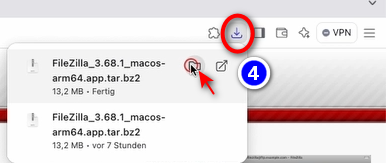
- <span style="background-color: rgb(251, 238, 184);">Ensuite, tu as besoin du programme « FileZilla ». <span class="--l --r sentence_highlight">Pour l'installer, clique sur</span> <span lang="DE" style="font-size: 11pt; line-height: 107%; font-family: 'Cambria Math', serif; color: rgb(7, 40, 230); background-color: rgb(251, 238, 184);">❹</span></span><span style="background-color: rgb(251, 238, 184);"><span style="color: rgb(7, 40, 230);"> </span>"**FileZilla**"</span>
    
    [![1.png](https://wiki.kla.tv/uploads/images/gallery/2025-04/scaled-1680-/wn8J9cy5k42RBnte-1.png)](https://wiki.kla.tv/uploads/images/gallery/2025-04/wn8J9cy5k42RBnte-1.png)

#### <span style="background-color: rgb(241, 196, 15);">**2.** </span><span style="background-color: rgb(241, 196, 15);">**Installer Filezilla :** </span>

*(Les images sont en allemands mais correspondent en français)*

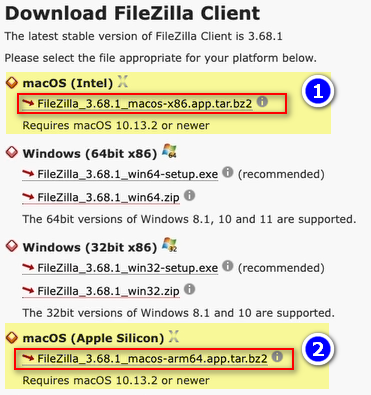
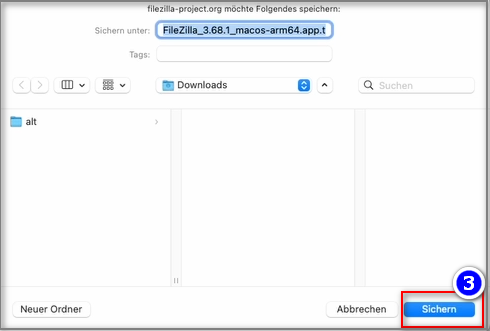
- <span style="background-color: rgb(251, 238, 184);">En fonction de la version de ton Mac (voir ASTUCE), choisis ❶ « **macOS (Intel)** » ou ❷ « **macOS (Apple Silicon)** ». → appuie sur ❸ « **Sauvegarder** ». **[![grafik.png](https://wiki.kla.tv/uploads/images/gallery/2024-11/scaled-1680-/VLN2CL32WZpwxfLX-grafik.png)](https://wiki.kla.tv/uploads/images/gallery/2024-11/VLN2CL32WZpwxfLX-grafik.png)**</span>![grafik.png](https://wiki.kla.tv/uploads/images/gallery/2024-11/scaled-1680-/WJTEKpNL5oe30lCx-grafik.png)
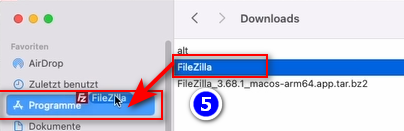
- <span style="background-color: rgb(251, 238, 184);">❹ **Ouvre le programme → Décompresse le programme** en double-cliquant dessus → **Glisse le** FileZilla décompressé dans ❺ **Programmes → Ouvre FileZilla** dans tes programmes  
      
    </span>  
    ![grafik.png](https://wiki.kla.tv/uploads/images/gallery/2024-11/scaled-1680-/VPNuuUPWGJRzrbtr-grafik.png) ![grafik.png](https://wiki.kla.tv/uploads/images/gallery/2024-11/scaled-1680-/N7MuRCCZvue6JAoZ-grafik.png)
- *<span style="background-color: rgb(194, 224, 244);">**ASTUCE :** </span>*<span class="ILfuVd" lang="de"><span class="hgKElc">*<span class="ct-span              oxy-stock-content-styles             " id="bkmrk-steht-dort-%22intel%22-%28">Si tu ne sais pas quelle est la version de ton Mac : Choisis pour cela en haut à gauche dans le menu Apple (![icons8-mac-os-50.png](https://wiki.kla.tv/uploads/images/gallery/2024-11/scaled-1680-/sy6Ed2uwA1TrzLIR-icons8-mac-os-50.png)) l'option "A propos de ce Mac" → "Puce/Processeur" → Si tu y trouves "Apple M1", "M2" ou "M3", tu as un   
     Apple Silicon Mac // Si tu y trouves "Intel" (par ex. "Intel Core i5"), il s'agit d'un Intel Mac</span>*</span></span>

#### <span style="background-color: rgb(241, 196, 15);">**3.** </span><span style="background-color: rgb(241, 196, 15);">**Paramétrer FileZilla :**</span>

- <span style="background-color: rgb(251, 238, 184);">Copier dans <span style="background-color: rgb(251, 238, 184);"><span lang="DE" style="font-size: 11pt; line-height: 107%; font-family: 'Cambria Math', serif; color: rgb(7, 40, 230); background-color: rgb(251, 238, 184);">❶</span></span> **FileZilla les données du serveur** que tu trouves sur la page web <span style="background-color: rgb(251, 238, 184);"><span lang="DE" style="font-size: 11pt; line-height: 107%; font-family: 'Cambria Math', serif; color: rgb(7, 40, 230); background-color: rgb(251, 238, 184);">❷</span></span> [**kla.tv/sichern**](https://wiki.kla.tv/kla.tv/sichern) → ensuite sur <span style="background-color: rgb(251, 238, 184);"><span lang="DE" style="font-size: 11pt; line-height: 107%; font-family: 'Cambria Math', serif; color: rgb(7, 40, 230); background-color: rgb(251, 238, 184);">❸</span> cliquer sur </span>« Connexion rapide » :</span>  
    (Cliquer sur l'icône « copier » entourée d'un cercle et coller dans FileZilla ![grafik.png](https://wiki.kla.tv/uploads/images/gallery/2024-11/scaled-1680-/K7m9M4cml0Nk3bPx-grafik.png)) [![grafik.png](https://wiki.kla.tv/uploads/images/gallery/2024-11/scaled-1680-/wbIHEPHXZnCa1P71-grafik.png)](https://wiki.kla.tv/uploads/images/gallery/2024-11/wbIHEPHXZnCa1P71-grafik.png)
- <span style="background-color: rgb(251, 238, 184);">Un message ❹ apparaît, clique sur OK</span>  
    ![grafik.png](https://wiki.kla.tv/uploads/images/gallery/2024-11/scaled-1680-/I4RotrmPs0wSZmSf-grafik.png)

#### <span style="background-color: rgb(241, 196, 15);">**4. Sauvegarder les émissions :**</span>

- <span style="background-color: rgb(251, 238, 184);"><span lang="DE" style="font-size: 11pt; line-height: 107%; font-family: 'Cambria Math', serif; color: rgb(7, 40, 230); background-color: rgb(251, 238, 184);">❶</span> A gauche, tu vois **ton** ordinateur, <span style="background-color: rgb(251, 238, 184);"><span style="background-color: rgb(251, 238, 184);"><span lang="DE" style="font-size: 11pt; line-height: 107%; font-family: 'Cambria Math', serif; color: rgb(7, 40, 230); background-color: rgb(251, 238, 184);">❷</span></span></span> à droite le serveur de Kla.TV </span>
- <span style="background-color: rgb(251, 238, 184);">Navigue à gauche <span style="background-color: rgb(251, 238, 184);"><span lang="DE" style="font-size: 11pt; line-height: 107%; font-family: 'Cambria Math', serif; color: rgb(7, 40, 230); background-color: rgb(251, 238, 184);">❸</span> </span> sur **ton disque dur.** (Sélectionne ton disque dur)</span>
- <span style="background-color: rgb(251, 238, 184);">Crée **<span style="background-color: rgb(251, 238, 184);"><span lang="DE" style="font-size: 11pt; line-height: 107%; font-family: 'Cambria Math', serif; color: rgb(7, 40, 230); background-color: rgb(251, 238, 184);">❹</span></span> un nouveau dossier** avec un clic droit « Créer un dossier » → nomme le dossier par exemple « Sauvegarde KlaTV ».</span>
- <span style="background-color: rgb(251, 238, 184);">Déplace <span lang="DE" style="font-size: 11pt; line-height: 107%; font-family: 'Cambria Math', serif; color: rgb(7, 40, 230); background-color: rgb(251, 238, 184);">❺</span> **le dossier d'émissions souhaité** sur ton disque dur en maintenant le bouton de la souris enfoncé. </span>
- <span style="background-color: rgb(251, 238, 184);">Tu peux aussi <span lang="DE" style="font-size: 11pt; line-height: 107%; font-family: 'Cambria Math', serif; color: rgb(7, 40, 230); background-color: rgb(251, 238, 184);">❻</span> télécharger **un thème particulier** (par ex. 5G, vaccination, Bill Gates, etc.). L'inconvénient est qu'avec le temps, de nouvelles vidéos sont ajoutées et stockées dans ces dossiers thématiques. Tu devras toujours faire une comparaison avec le disque dur et tu auras besoin de plus d'espace de stockage. </span>
- <span style="background-color: rgb(251, 238, 184);"><span style="color: rgb(7, 40, 230);"><span lang="DE" style="font-size: 11pt; line-height: 107%; font-family: 'Cambria Math', serif; background-color: rgb(251, 238, 184);">❼</span> </span>Ci-dessous, tu peux voir comment les vidéos sont téléchargées dans l'ordre (cela peut prendre beaucoup de temps). </span>  
      
    *→<span style="background-color: rgb(194, 224, 244);"> **ASTUCE :** </span><span style="background-color: rgb(251, 238, 184);">Ici, tu apprendras comment limiter la vitesse d'Internet pour FileZilla, afin que tu puisses quand même travailler sur Internet à côté : clique ici → </span>*[**Limiter la vitesse de Filezilla**](https://wiki.kla.tv/books/fr-sauvegarder-klatv/page/sauvegarder-klatv-avec-lacces-au-serveur-limiter-la-vitesse-de-filezilla "Limiter la vitesse de Filezilla")
- [![filezilla.png](https://wiki.kla.tv/uploads/images/gallery/2025-04/scaled-1680-/kh9C3RoAmwYsMzXT-filezilla.png)](https://wiki.kla.tv/uploads/images/gallery/2025-04/kh9C3RoAmwYsMzXT-filezilla.png)

[![grafik.png](https://wiki.kla.tv/uploads/images/gallery/2024-11/scaled-1680-/uLGmaW3NtFcExaZn-grafik.png)](https://wiki.kla.tv/uploads/images/gallery/2024-11/uLGmaW3NtFcExaZn-grafik.png)

#### <span style="background-color: rgb(241, 196, 15);">**5. ALTERNATIVE - Sauvegarder les émissions sans FileZilla, directement sur le site :**</span>

- <span style="background-color: rgb(251, 238, 184);">Va sur **[kla.tv/sichern](https://www.kla.tv/sichern)** → <span lang="DE" style="font-size: 11pt; line-height: 107%; font-family: 'Cambria Math', serif; color: rgb(7, 40, 230); background-color: rgb(251, 238, 184);">❶</span> **Liste des vidéos** → choisis <span lang="DE" style="font-size: 11pt; line-height: 107%; font-family: 'Cambria Math', serif; color: rgb(7, 40, 230); background-color: rgb(251, 238, 184);">❷</span> la **qualité souhaitée** →clique <span lang="DE" style="font-size: 11pt; line-height: 107%; font-family: 'Cambria Math', serif; color: rgb(7, 40, 230); background-color: rgb(251, 238, 184);">❸</span> sur "**Afficher les fichiers vidéo"**</span>
- <span style="background-color: rgb(251, 238, 184);">Maintenant,<span style="background-color: rgb(251, 238, 184);"><span lang="DE" style="font-size: 11pt; line-height: 107%; font-family: 'Cambria Math', serif; color: rgb(7, 40, 230); background-color: rgb(251, 238, 184);">❹</span></span> toutes les vidéos sont listées **par année**/mois. Clique dans l'année/mois souhaité et clique <span style="background-color: rgb(251, 238, 184);"><span lang="DE" style="font-size: 11pt; line-height: 107%; font-family: 'Cambria Math', serif; color: rgb(7, 40, 230); background-color: rgb(251, 238, 184);">❺</span></span> sur l'émission et appuie <span style="background-color: rgb(251, 238, 184);"><span lang="DE" style="font-size: 11pt; line-height: 107%; font-family: 'Cambria Math', serif; color: rgb(7, 40, 230); background-color: rgb(251, 238, 184);">❻</span></span> sur « **Enregistrer** ». Chaque émission peut être téléchargée individuellement.</span>  
      
    *→ <span style="background-color: rgb(194, 224, 244);">**ASTUCE :** </span><span style="background-color: rgb(251, 238, 184);">Cela demande beaucoup de temps et d'efforts. C'est pourquoi la variante avec FileZilla est recommandée</span>  
    [![3.png](https://wiki.kla.tv/uploads/images/gallery/2025-04/scaled-1680-/z6g6tak6NkyDI6Da-3.png)](https://wiki.kla.tv/uploads/images/gallery/2025-04/z6g6tak6NkyDI6Da-3.png)
    
      
    [![2.png](https://wiki.kla.tv/uploads/images/gallery/2025-04/scaled-1680-/u5hUsrAoT6hkx1yc-2.png)](https://wiki.kla.tv/uploads/images/gallery/2025-04/u5hUsrAoT6hkx1yc-2.png)

### <span style="background-color: rgb(241, 196, 15);">**6.** </span><span style="background-color: rgb(241, 196, 15);">**Recommandation : régler les options d'alimentation de manière à ce que l'ordinateur ne s'éteigne pas automatiquement :** </span>

- <span style="background-color: rgb(251, 238, 184);">Si l'ordinateur a redémarré, tu dois redémarrer l'application (voir instructions point 8).</span>
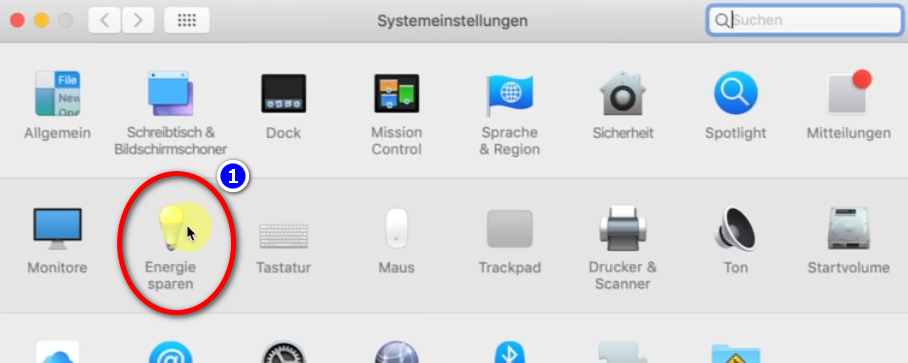
- <span style="background-color: rgb(251, 238, 184);">Pour éviter que ton Mac ne s'éteigne automatiquement : **Mac → ❶ Préférences Système → Économie d'énergie →  
    ❷ Ne pas activer automatiquement la mise en veille ... → activer**</span>
- <span style="background-color: rgb(251, 238, 184);">Laisser tourner l'ordinateur jusqu'à ce que tous les fichiers soient téléchargés</span>
- [![grafik.png](https://wiki.kla.tv/uploads/images/gallery/2024-11/scaled-1680-/23U7rqFWbWlhJ5Uv-grafik.png)](https://wiki.kla.tv/uploads/images/gallery/2024-11/23U7rqFWbWlhJ5Uv-grafik.png)
    
    [![grafik.png](https://wiki.kla.tv/uploads/images/gallery/2024-11/scaled-1680-/PGDWa65L7V1hj21V-grafik.png)](https://wiki.kla.tv/uploads/images/gallery/2024-11/PGDWa65L7V1hj21V-grafik.png)

<p class="callout info">Nous recommandons en outre les formations suivantes :  
  
**[Déterminer l'espace de stockage](https://wiki.kla.tv/books/fr-sauvegarder-klatv/page/sauvegarder-klatv-avec-lacces-au-serveur-determiner-lespace-de-stockage "Déterminer l'espace de stockage")  
  
[Limiter la vitesse de Filezilla](https://wiki.kla.tv/books/fr-sauvegarder-klatv/page/sauvegarder-klatv-avec-lacces-au-serveur-limiter-la-vitesse-de-filezilla "Limiter la vitesse de Filezilla")  
  
[Télécharger plusieurs qualités](https://wiki.kla.tv/books/fr-sauvegarder-klatv/page/sauvegarder-klatv-avec-lacces-au-serveur-telecharger-plusieurs-qualites "Télécharger plusieurs qualités")  
  
[Rechercher dans les archives sauvegardées](https://wiki.kla.tv/books/fr-sauvegarder-klatv/page/sauvegarder-klatv-avec-lacces-au-serveur-rechercher-dans-les-archives-sauvegardees "Rechercher dans les archives sauvegardées")**</p>

# LINUX : Installation & connexion à Filezilla (Accès au serveur)

### **Qu'apprends-tu avec cet article ?**

Tu apprends comment sauvegarder **les émissions de Kla.TV sur ton propre disque dur via l'accès à nos serveurs.** Ces émissions sont classées par date ou par thème et dans différentes qualités. Tu apprends également comment trouver des émissions spécifiques dans des documents téléchargés en utilisant des mots-clés.

### **Vidéo explicatives : (13min)**

*- Sous-titres générés automatiquement -*

<div class="responsive-iframe" id="bkmrk-"><div class="responsive-iframe"><iframe allowfullscreen="allowfullscreen" frameborder="0" height="332" src="https://video.elaion-verlag.ch?video_by_id=JZ0dBD3n57TD" width="590"></iframe>

</div></div><div class="responsive-iframe" id="bkmrk--1"></div><p class="callout warning">Nous vous recommandons de regarder d'abord la vidéo afin de mieux comprendre les instructions écrites.</p>

### **Instructions écrites :**

#### <span style="background-color: rgb(241, 196, 15);">**1.** </span><span style="background-color: rgb(241, 196, 15);">**Accès au serveur :**</span>

- <span style="background-color: rgb(251, 238, 184);">Va sur la page **[kla.tv/sichern](https://www.kla.tv/sichern)** </span>
- <span style="background-color: rgb(251, 238, 184);">Va <span lang="DE" style="font-size: 11pt; line-height: 107%; font-family: 'Cambria Math', serif; color: rgb(7, 40, 230); background-color: rgb(251, 238, 184);">❶</span> sur **"Accès au serveur"** (voir l'image ci-dessous)→ et choisis <span style="background-color: rgb(251, 238, 184);"> <span lang="DE" style="font-size: 11pt; line-height: 107%; font-family: 'Cambria Math', serif; color: rgb(7, 40, 230); background-color: rgb(251, 238, 184);">❷</span></span> la **qualité** souhaitée   
    </span>
- <span style="background-color: rgb(251, 238, 184);"><span lang="DE" style="font-size: 11pt; line-height: 107%; font-family: 'Cambria Math', serif; color: rgb(7, 40, 230); background-color: rgb(251, 238, 184);">❸</span> la flèche rouge indique l'espace libre dont tu as besoin sur ton disque dur. Ajuste la qualité en conséquence.  
    </span>
- <span style="background-color: rgb(251, 238, 184);">Ensuite, tu as besoin du programme « FileZilla ». <span class="--l --r sentence_highlight">Pour l'installer, clique sur</span> <span lang="DE" style="font-size: 11pt; line-height: 107%; font-family: 'Cambria Math', serif; color: rgb(7, 40, 230); background-color: rgb(251, 238, 184);">❹</span></span>***<span style="background-color: rgb(251, 238, 184);"><span style="color: rgb(7, 40, 230);"> </span>"FileZilla"</span>***

[![1.png](https://wiki.kla.tv/uploads/images/gallery/2025-04/scaled-1680-/G9ujgjj72sqZiWgq-1.png)](https://wiki.kla.tv/uploads/images/gallery/2025-04/G9ujgjj72sqZiWgq-1.png)

- ***→** <span style="background-color: rgb(251, 238, 184);">**ASTUCE :** il n'est pas possible de sélectionner plusieurs choses en même temps. Dans cet article, tu apprendras comment enregistrer plusieurs qualités dans la même structure de dossier : clique ici → **Télécharger plusieurs qualités**</span>*

#### <span style="background-color: rgb(241, 196, 15);">**2.** </span><span style="background-color: rgb(241, 196, 15);">**Installer Filezilla :** </span>

*- les images sont en allemands mais devraient correspondre visuellement à votre Linux en français -*

Selon la version de Linux que tu as, il y a différentes manières de procéder. Ici, nous allons montrer deux façons de procéder avec Ubuntu :

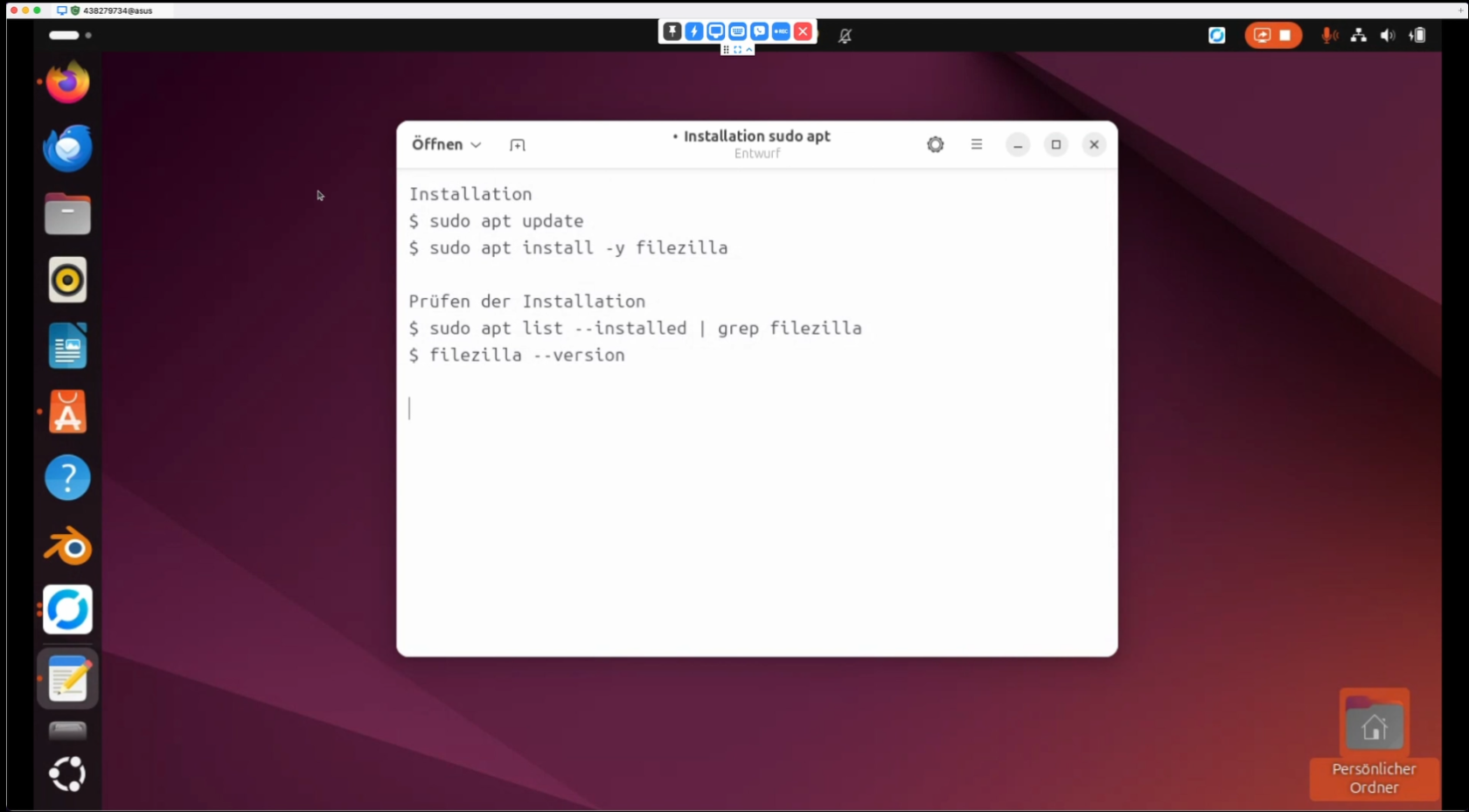
Soit tu ouvres le terminal et tu y tapes les commandes suivantes :

<p class="callout info">Installation</p>

```
$ sudo apt update
$ sudo apt install -y filezilla
```

<p class="callout info">Tester l'installation</p>

```
$ sudo apt list --installed | grep filezilla
$ filezilla --version
```

[![image.png](https://wiki.kla.tv/uploads/images/gallery/2024-11/scaled-1680-/7MGhW1g9EamixdNU-image.png)](https://wiki.kla.tv/uploads/images/gallery/2024-11/7MGhW1g9EamixdNU-image.png)

Ou tu peux aller sur le centre logiciel

[![image.png](https://wiki.kla.tv/uploads/images/gallery/2024-11/scaled-1680-/e64QXjSrpPigPsCV-image.png)](https://wiki.kla.tv/uploads/images/gallery/2024-11/e64QXjSrpPigPsCV-image.png)

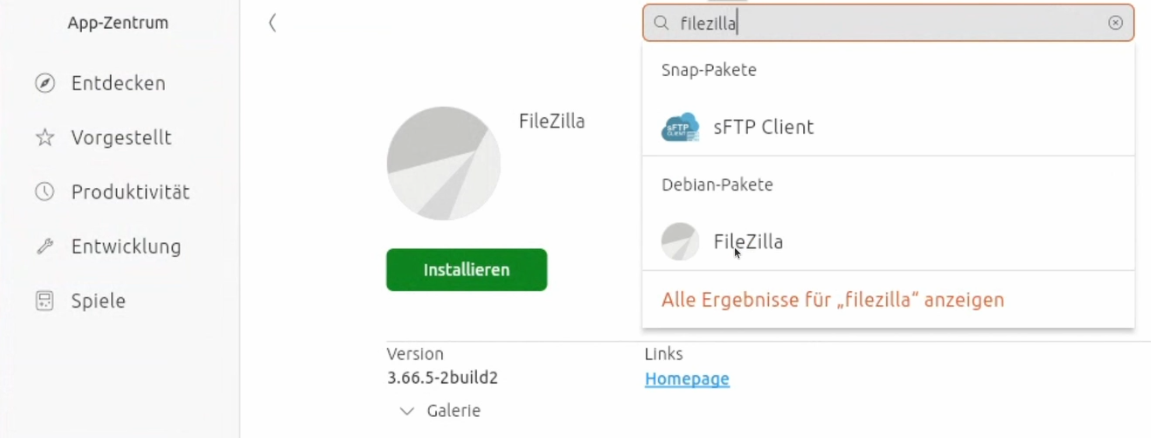
et tu tapes « filezilla » dans le champ de recherche. Ensuite, tu cliques sur "**Installer**" [![image.png](https://wiki.kla.tv/uploads/images/gallery/2024-11/scaled-1680-/dtKfYzaFKqPTru0Y-image.png):](https://wiki.kla.tv/uploads/images/gallery/2024-11/dtKfYzaFKqPTru0Y-image.png)

[![image.png](https://wiki.kla.tv/uploads/images/gallery/2024-11/scaled-1680-/lYdub7eHmTtRWSAj-image.png)](https://wiki.kla.tv/uploads/images/gallery/2024-11/lYdub7eHmTtRWSAj-image.png)

Ensuite, tu peux simplement aller sur l'application :

[![image.png](https://wiki.kla.tv/uploads/images/gallery/2024-11/scaled-1680-/JAHpJwLL32YIRT31-image.png)](https://wiki.kla.tv/uploads/images/gallery/2024-11/JAHpJwLL32YIRT31-image.png)

#### <span style="background-color: rgb(241, 196, 15);">**3.** </span><span style="background-color: rgb(241, 196, 15);">**Paramétrer FileZilla :**</span>

- Copier dans <span lang="DE" style="font-size: 11pt; line-height: 107%; font-family: 'Cambria Math', serif; color: rgb(7, 40, 230);">❶</span> **FileZilla les données du serveur** que tu trouves sur la page web <span lang="DE" style="font-size: 11pt; line-height: 107%; font-family: 'Cambria Math', serif; color: rgb(7, 40, 230);">❷</span> [**kla.tv/sichern**](https://www.kla.tv/sichern) → ensuite sur <span lang="DE" style="font-size: 11pt; line-height: 107%; font-family: 'Cambria Math', serif; color: rgb(7, 40, 230);">❸</span> cliquer sur « Connexion rapide » :  
    (Cliquer sur l'icône « copier »![copy icon.png](https://wiki.kla.tv/uploads/images/gallery/2024-11/scaled-1680-/FBgYTFlPc2gfJRTu-copy-icon.png) entourée d'un cercle et coller dans FileZilla avec ctrl + V)![image.png](https://wiki.kla.tv/uploads/images/gallery/2024-11/scaled-1680-/2uu5gLnLsLmRHnO4-image.png)
    
     [![image.png](https://wiki.kla.tv/uploads/images/gallery/2024-11/scaled-1680-/pM63WbD8vtCOQYoc-image.png)](https://wiki.kla.tv/uploads/images/gallery/2024-11/pM63WbD8vtCOQYoc-image.png)

#### <span style="background-color: rgb(241, 196, 15);">**4.** </span><span style="background-color: rgb(241, 196, 15);">**Sauvegarder les émissions :**</span>

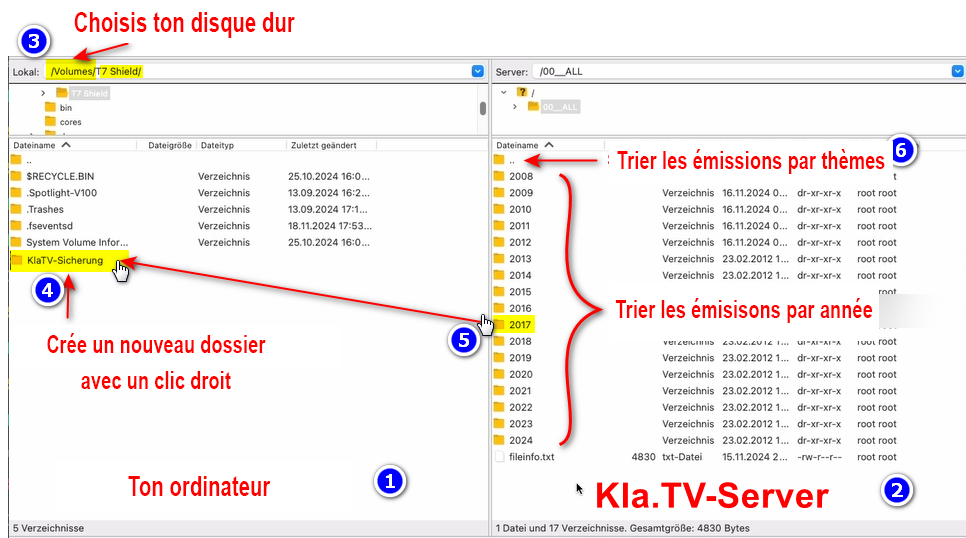
- <span lang="DE" style="font-size: 11pt; line-height: 107%; font-family: 'Cambria Math', serif; color: rgb(7, 40, 230);">❶</span> A gauche, tu vois **ton** ordinateur, <span lang="DE" style="font-size: 11pt; line-height: 107%; font-family: 'Cambria Math', serif; color: rgb(7, 40, 230);">❷</span> à droite le serveur de Kla.TV
- Navigue à gauche <span lang="DE" style="font-size: 11pt; line-height: 107%; font-family: 'Cambria Math', serif; color: rgb(7, 40, 230);">❸</span> sur **ton disque dur.** (Sélectionne ton disque dur)
- Crée **<span lang="DE" style="font-size: 11pt; line-height: 107%; font-family: 'Cambria Math', serif; color: rgb(7, 40, 230);">❹</span> un nouveau dossier** avec un clic droit « Créer un dossier » → nomme le dossier par exemple « Sauvegarde KlaTV ».
- Déplace <span lang="DE" style="font-size: 11pt; line-height: 107%; font-family: 'Cambria Math', serif; color: rgb(7, 40, 230);">❺</span> **le dossier d'émissions souhaité** sur ton disque dur en maintenant le bouton de la souris enfoncé.
- Tu peux aussi <span lang="DE" style="font-size: 11pt; line-height: 107%; font-family: 'Cambria Math', serif; color: rgb(7, 40, 230);">❻</span> télécharger **un thème particulier** (par ex. 5G, vaccination, Bill Gates, etc.). L'inconvénient est qu'avec le temps, de nouvelles vidéos sont ajoutées et stockées dans ces dossiers thématiques. Tu devras toujours faire une comparaison avec le disque dur et tu auras besoin de plus d'espace de stockage.
- <span style="color: rgb(7, 40, 230);"><span lang="DE" style="font-size: 11pt; line-height: 107%; font-family: 'Cambria Math', serif;">❼</span> </span>Ci-dessous, tu peux voir comment les vidéos sont téléchargées dans l'ordre (cela peut prendre beaucoup de temps).   
      
    *→ **ASTUCE :** Ici, tu apprendras comment limiter la vitesse d'Internet pour FileZilla, afin que tu puisses quand même travailler sur Internet à côté : clique ici → **[Limiter la vitesse de Filezilla](https://wiki.kla.tv/books/fr-sauvegarder-klatv/page/sauvegarder-klatv-avec-lacces-au-serveur-limiter-la-vitesse-de-filezilla "Limiter la vitesse de Filezilla")***

[![grafik.png](https://wiki.kla.tv/uploads/images/gallery/2024-11/scaled-1680-/uLGmaW3NtFcExaZn-grafik.png)](https://wiki.kla.tv/uploads/images/gallery/2024-11/uLGmaW3NtFcExaZn-grafik.png)
[![filezilla.png](https://wiki.kla.tv/uploads/images/gallery/2025-04/scaled-1680-/i68PLOBKKWCcR4WX-filezilla.png)](https://wiki.kla.tv/uploads/images/gallery/2025-04/i68PLOBKKWCcR4WX-filezilla.png)
#### <span style="background-color: rgb(241, 196, 15);">**5.** </span><span style="background-color: rgb(241, 196, 15);">**ALTERNATIVE - Sauvegarder les émissions sans FileZilla, directement sur le site :**</span>

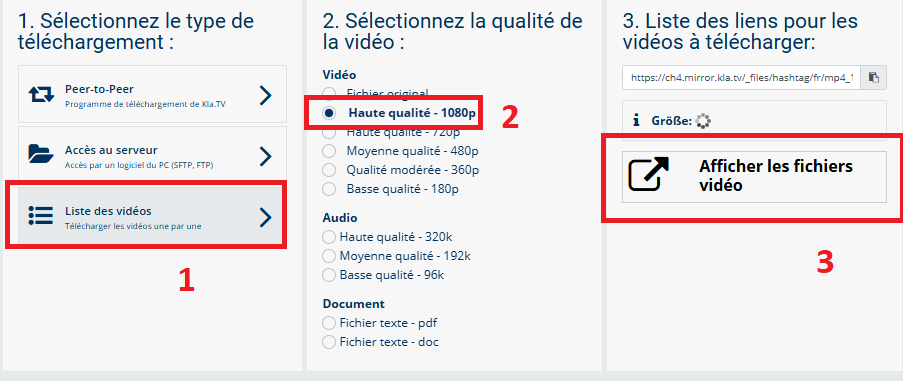
- Va sur **[kla.tv/sichern](https://www.kla.tv/sichern)** → <span lang="DE" style="font-size: 11pt; line-height: 107%; font-family: 'Cambria Math', serif; color: rgb(7, 40, 230);">❶</span> **Liste des vidéos** → choisis <span lang="DE" style="font-size: 11pt; line-height: 107%; font-family: 'Cambria Math', serif; color: rgb(7, 40, 230);">❷</span> la **qualité souhaitée** →clique <span lang="DE" style="font-size: 11pt; line-height: 107%; font-family: 'Cambria Math', serif; color: rgb(7, 40, 230);">❸</span> sur "**Afficher les fichiers vidéo"**
- Maintenant,<span lang="DE" style="font-size: 11pt; line-height: 107%; font-family: 'Cambria Math', serif; color: rgb(7, 40, 230);">❹</span> toutes les vidéos sont listées **par année**/mois. Clique dans l'année/mois souhaité et clique<span lang="DE" style="font-size: 11pt; line-height: 107%; font-family: 'Cambria Math', serif; color: rgb(7, 40, 230);">❺</span> sur l'émission et appuie<span lang="DE" style="font-size: 11pt; line-height: 107%; font-family: 'Cambria Math', serif; color: rgb(7, 40, 230);">❻</span> sur « **Enregistrer** ». Chaque émission peut être téléchargée individuellement.  
      
    *→ **ASTUCE :** Cela demande beaucoup de temps et d'efforts. C'est pourquoi la variante avec FileZilla est recommandée*  
    [![3.png](https://wiki.kla.tv/uploads/images/gallery/2025-04/scaled-1680-/4KgTm5XUnLiUAWEs-3.png)](https://wiki.kla.tv/uploads/images/gallery/2025-04/4KgTm5XUnLiUAWEs-3.png)
    
    [![2.png](https://wiki.kla.tv/uploads/images/gallery/2025-04/scaled-1680-/xPoAraObZCKDvuQB-2.png)](https://wiki.kla.tv/uploads/images/gallery/2025-04/xPoAraObZCKDvuQB-2.png)
<p class="callout info">Nous recommandons en outre les formations suivantes :  
  
**[Déterminer l'espace de stockage](https://wiki.kla.tv/books/fr-sauvegarder-klatv/page/sauvegarder-klatv-avec-lacces-au-serveur-determiner-lespace-de-stockage "Déterminer l'espace de stockage")  
  
[Limiter la vitesse de Filezilla](https://wiki.kla.tv/books/fr-sauvegarder-klatv/page/sauvegarder-klatv-avec-lacces-au-serveur-limiter-la-vitesse-de-filezilla "Limiter la vitesse de Filezilla")  
  
[Télécharger plusieurs qualités](https://wiki.kla.tv/books/fr-sauvegarder-klatv/page/sauvegarder-klatv-avec-lacces-au-serveur-telecharger-plusieurs-qualites "Télécharger plusieurs qualités")  
  
[Rechercher dans les archives sauvegardées](https://wiki.kla.tv/books/fr-sauvegarder-klatv/page/sauvegarder-klatv-avec-lacces-au-serveur-rechercher-dans-les-archives-sauvegardees "Rechercher dans les archives sauvegardées")**</p>

# Sauvegarder KlaTV avec l'accès au serveur - déterminer l'espace de stockage

### **Qu'apprends-tu avec cet article ?**

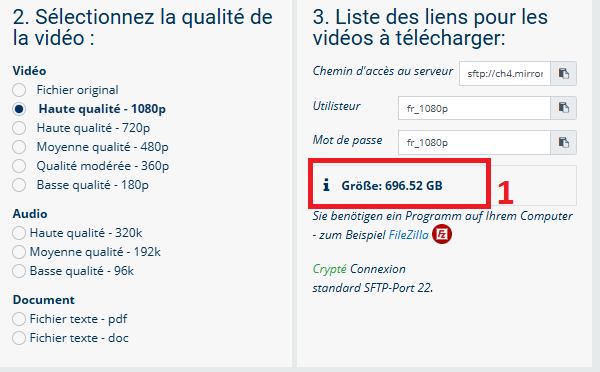
Sur kla.tv/sichern, seule la taille de l'archive complète est affichée ❶, en fonction de la qualité que tu as choisie. Comment trouver l'espace de stockage nécessaire si tu ne veux télécharger qu'une partie spécifique ? Par exemple, seulement une année ou quelques mois ? Tu le découvriras dans cet article.

[![Espace.png](https://wiki.kla.tv/uploads/images/gallery/2025-04/scaled-1680-/781F4pJkIV421uBQ-espace.png)](https://wiki.kla.tv/uploads/images/gallery/2025-04/781F4pJkIV421uBQ-espace.png)
### **Vidéo explicative : (1min)**

*- Sous-titres générés automatiquement -*

<div class="responsive-iframe" id="bkmrk--2"><iframe allowfullscreen="allowfullscreen" frameborder="0" height="332" src="https://video.elaion-verlag.ch?video_by_id=YE8YYxcH2jKh" width="590"></iframe>

</div><span lang="DE" style="font-size: 16.0pt; mso-bidi-font-size: 11.0pt; line-height: 107%; font-family: Wingdings; mso-ascii-font-family: Calibri; mso-ascii-theme-font: minor-latin; mso-fareast-font-family: Calibri; mso-fareast-theme-font: minor-latin; mso-hansi-font-family: Calibri; mso-hansi-theme-font: minor-latin; mso-bidi-font-family: 'Times New Roman'; mso-bidi-theme-font: minor-bidi; mso-ansi-language: DE; mso-fareast-language: EN-US; mso-bidi-language: AR-SA; mso-char-type: symbol; mso-symbol-font-family: Wingdings;"><span style="mso-char-type: symbol; mso-symbol-font-family: Wingdings;">&#131;</span></span><span lang="DE" style="font-size: 16.0pt; mso-bidi-font-size: 11.0pt; line-height: 107%; font-family: Wingdings; mso-ascii-font-family: Calibri; mso-ascii-theme-font: minor-latin; mso-fareast-font-family: Calibri; mso-fareast-theme-font: minor-latin; mso-hansi-font-family: Calibri; mso-hansi-theme-font: minor-latin; mso-bidi-font-family: 'Times New Roman'; mso-bidi-theme-font: minor-bidi; mso-ansi-language: DE; mso-fareast-language: EN-US; mso-bidi-language: AR-SA; mso-char-type: symbol; mso-symbol-font-family: Wingdings;"><span style="mso-char-type: symbol; mso-symbol-font-family: Wingdings;">&#132;</span></span><span lang="DE" style="font-size: 16.0pt; mso-bidi-font-size: 11.0pt; line-height: 107%; font-family: Wingdings; mso-ascii-font-family: Calibri; mso-ascii-theme-font: minor-latin; mso-fareast-font-family: Calibri; mso-fareast-theme-font: minor-latin; mso-hansi-font-family: Calibri; mso-hansi-theme-font: minor-latin; mso-bidi-font-family: 'Times New Roman'; mso-bidi-theme-font: minor-bidi; mso-ansi-language: DE; mso-fareast-language: EN-US; mso-bidi-language: AR-SA; mso-char-type: symbol; mso-symbol-font-family: Wingdings;"><span style="mso-char-type: symbol; mso-symbol-font-family: Wingdings;"> </span></span>

### **Instructions écrites :**

- Ouvre Filezilla et connecte-toi au **serveur de kla.TV** (Instructions détaillées à ce sujet : clique ici→ [**Sécuriser KlaTV : accès au serveur avec Filezilla** ](https://wiki.kla.tv/books/fr-sauvegarder-klatv/chapter/acces-au-serveur-avec-filezilla-sftp "Accès au serveur avec Filezilla (SFTP)"))
    
    [![grafik.png](https://wiki.kla.tv/uploads/images/gallery/2024-11/scaled-1680-/pxir8WbIE43Z4Kgc-grafik.png)](https://wiki.kla.tv/uploads/images/gallery/2024-11/pxir8WbIE43Z4Kgc-grafik.png)
    
    [![filezilla_1.png](https://wiki.kla.tv/uploads/images/gallery/2025-04/scaled-1680-/EGrIcJgsLoAzMNz3-filezilla-1.png)](https://wiki.kla.tv/uploads/images/gallery/2025-04/EGrIcJgsLoAzMNz3-filezilla-1.png)[![filezilla_2.png](https://wiki.kla.tv/uploads/images/gallery/2025-04/scaled-1680-/Kqd1msrwqn3N2eCx-filezilla-2.png)](https://wiki.kla.tv/uploads/images/gallery/2025-04/Kqd1msrwqn3N2eCx-filezilla-2.png)[![filezilla_3.png](https://wiki.kla.tv/uploads/images/gallery/2025-04/scaled-1680-/DihG2uZ6i7yMoZBH-filezilla-3.png)](https://wiki.kla.tv/uploads/images/gallery/2025-04/DihG2uZ6i7yMoZBH-filezilla-3.png)
    
    [![filezilla_4.png](https://wiki.kla.tv/uploads/images/gallery/2025-04/scaled-1680-/o55EWkY4Gd3IIUWD-filezilla-4.png)](https://wiki.kla.tv/uploads/images/gallery/2025-04/o55EWkY4Gd3IIUWD-filezilla-4.png)

# Sauvegarder KlaTV avec l'accès au serveur - Limiter la vitesse de Filezilla

### **Qu'apprends-tu dans cet article ?**

Si tu souhaites utiliser Internet en plus du téléchargement de Filezilla, il est conseillé de limiter la vitesse de Filezilla. Tu peux ainsi continuer à utiliser Internet en parallèle. Tu apprendras comment faire dans cet article.

### **Vidéo explicatives : (2min)**

*- Sous-titres générés automatiquement -*

<div class="responsive-iframe" id="bkmrk-"><iframe allowfullscreen="allowfullscreen" frameborder="0" height="332" src="https://video.elaion-verlag.ch?video_by_id=vTtsLFzJhkWo" width="590"></iframe>

</div><span lang="DE" style="font-size: 16.0pt; mso-bidi-font-size: 11.0pt; line-height: 107%; font-family: Wingdings; mso-ascii-font-family: Calibri; mso-ascii-theme-font: minor-latin; mso-fareast-font-family: Calibri; mso-fareast-theme-font: minor-latin; mso-hansi-font-family: Calibri; mso-hansi-theme-font: minor-latin; mso-bidi-font-family: 'Times New Roman'; mso-bidi-theme-font: minor-bidi; mso-ansi-language: DE; mso-fareast-language: EN-US; mso-bidi-language: AR-SA; mso-char-type: symbol; mso-symbol-font-family: Wingdings;"><span style="mso-char-type: symbol; mso-symbol-font-family: Wingdings;">&#131;</span></span><span lang="DE" style="font-size: 16.0pt; mso-bidi-font-size: 11.0pt; line-height: 107%; font-family: Wingdings; mso-ascii-font-family: Calibri; mso-ascii-theme-font: minor-latin; mso-fareast-font-family: Calibri; mso-fareast-theme-font: minor-latin; mso-hansi-font-family: Calibri; mso-hansi-theme-font: minor-latin; mso-bidi-font-family: 'Times New Roman'; mso-bidi-theme-font: minor-bidi; mso-ansi-language: DE; mso-fareast-language: EN-US; mso-bidi-language: AR-SA; mso-char-type: symbol; mso-symbol-font-family: Wingdings;"><span style="mso-char-type: symbol; mso-symbol-font-family: Wingdings;">&#132;</span></span><span lang="DE" style="font-size: 16.0pt; mso-bidi-font-size: 11.0pt; line-height: 107%; font-family: Wingdings; mso-ascii-font-family: Calibri; mso-ascii-theme-font: minor-latin; mso-fareast-font-family: Calibri; mso-fareast-theme-font: minor-latin; mso-hansi-font-family: Calibri; mso-hansi-theme-font: minor-latin; mso-bidi-font-family: 'Times New Roman'; mso-bidi-theme-font: minor-bidi; mso-ansi-language: DE; mso-fareast-language: EN-US; mso-bidi-language: AR-SA; mso-char-type: symbol; mso-symbol-font-family: Wingdings;"><span style="mso-char-type: symbol; mso-symbol-font-family: Wingdings;"> </span></span>

### **Instructions écrites :**

#### <span style="background-color: rgb(241, 196, 15);">**1. Déterminer la vitesse de son propre Internet :**</span>

- Ouvre le site **[speedtest.net](https://www.speedtest.net/)**
- Va sur ❶ « **Settings** » → choisis dans « **Speed** » ❷ “**Kbps**” → appuie sur ❸ « **Go** » pour démarrer la mesure  
      
    [![grafik.png](https://wiki.kla.tv/uploads/images/gallery/2024-11/scaled-1680-/sN5fJ7WQFc8atoVb-grafik.png) → ](https://wiki.kla.tv/uploads/images/gallery/2024-11/sN5fJ7WQFc8atoVb-grafik.png)![grafik.png](https://wiki.kla.tv/uploads/images/gallery/2024-11/scaled-1680-/uLHIHVN7bXrYcmO0-grafik.png) → [![grafik.png](https://wiki.kla.tv/uploads/images/gallery/2024-11/scaled-1680-/0cYEJ0ZzRX6c1Phx-grafik.png)](https://wiki.kla.tv/uploads/images/gallery/2024-11/0cYEJ0ZzRX6c1Phx-grafik.png)
- Tu vois maintenant **ta vitesse de téléchargement ❹ et ta vitesse d'envoi**. Si tu souhaites mettre à disposition de Filezilla par exemple 10% de ce transfert de données, saisis 10% de ces chiffres dans Filezilla. (voir point suivant)  
    [![grafik.png](https://wiki.kla.tv/uploads/images/gallery/2024-11/scaled-1680-/qKPHGCZYkowkrkAA-grafik.png)](https://wiki.kla.tv/uploads/images/gallery/2024-11/qKPHGCZYkowkrkAA-grafik.png)  
    → *<span style="background-color: rgb(194, 224, 244);">**ASTUCE :**</span> pour calculer 10%, il suffit de supprimer le dernier chiffre : par ex. téléchargement : 52111(0) Upload : 10534(8)*

#### <span style="background-color: rgb(241, 196, 15);">**2. Limiter la vitesse dans Filezilla :**</span>

- Limiter la vitesse dans Filezilla: Ouvrir Filezilla → Aller dans la barre de menu ❶ "**Transfert**" → ❷ "**Limitation des taux de transfert**" →❸ "**Paramètres**".  
    [![filezilla_5.png](https://wiki.kla.tv/uploads/images/gallery/2025-04/scaled-1680-/xnfj5R5dmhzdt0Ra-filezilla-5.png)](https://wiki.kla.tv/uploads/images/gallery/2025-04/xnfj5R5dmhzdt0Ra-filezilla-5.png)
- Coche→ ❹ "Activer la limitation des taux de transfert" → insère par exemple tes 10% pour ❺ vitesse de téléchargement et d'upload → ❻ OK  
      
    [![filezilla_6.png](https://wiki.kla.tv/uploads/images/gallery/2025-04/scaled-1680-/ZTRVOwOgGGJd7McV-filezilla-6.png)](https://wiki.kla.tv/uploads/images/gallery/2025-04/ZTRVOwOgGGJd7McV-filezilla-6.png)

[ ](https://wiki.kla.tv/uploads/images/gallery/2024-11/SIOBWNzuoXxGu7xU-grafik.png)

# Sauvegarder KlaTV avec l'accès au serveur - Télécharger plusieurs qualités

### **Qu'apprends-tu dans cet article ?**

Si tu souhaites télécharger différentes qualités de vidéo ou d'audio ou encore des documents, il est préférable que les fichiers associés soient également téléchargés dans la même structure de dossiers et non pas dans des dossiers différents. Cet article t'explique comment procéder.

### **Vidéo explicative : (2min)**

*- Sous-titres générés automatiquement -*

<div class="responsive-iframe" id="bkmrk-"><iframe allowfullscreen="allowfullscreen" frameborder="0" height="332" src="https://video.elaion-verlag.ch?video_by_id=BUEanAHgvN9W" width="590"></iframe>

</div><span lang="DE" style="font-size: 16.0pt; mso-bidi-font-size: 11.0pt; line-height: 107%; font-family: Wingdings; mso-ascii-font-family: Calibri; mso-ascii-theme-font: minor-latin; mso-fareast-font-family: Calibri; mso-fareast-theme-font: minor-latin; mso-hansi-font-family: Calibri; mso-hansi-theme-font: minor-latin; mso-bidi-font-family: 'Times New Roman'; mso-bidi-theme-font: minor-bidi; mso-ansi-language: DE; mso-fareast-language: EN-US; mso-bidi-language: AR-SA; mso-char-type: symbol; mso-symbol-font-family: Wingdings;"><span style="mso-char-type: symbol; mso-symbol-font-family: Wingdings;">&#131;</span></span><span lang="DE" style="font-size: 16.0pt; mso-bidi-font-size: 11.0pt; line-height: 107%; font-family: Wingdings; mso-ascii-font-family: Calibri; mso-ascii-theme-font: minor-latin; mso-fareast-font-family: Calibri; mso-fareast-theme-font: minor-latin; mso-hansi-font-family: Calibri; mso-hansi-theme-font: minor-latin; mso-bidi-font-family: 'Times New Roman'; mso-bidi-theme-font: minor-bidi; mso-ansi-language: DE; mso-fareast-language: EN-US; mso-bidi-language: AR-SA; mso-char-type: symbol; mso-symbol-font-family: Wingdings;"><span style="mso-char-type: symbol; mso-symbol-font-family: Wingdings;">&#132;</span></span><span lang="DE" style="font-size: 16.0pt; mso-bidi-font-size: 11.0pt; line-height: 107%; font-family: Wingdings; mso-ascii-font-family: Calibri; mso-ascii-theme-font: minor-latin; mso-fareast-font-family: Calibri; mso-fareast-theme-font: minor-latin; mso-hansi-font-family: Calibri; mso-hansi-theme-font: minor-latin; mso-bidi-font-family: 'Times New Roman'; mso-bidi-theme-font: minor-bidi; mso-ansi-language: DE; mso-fareast-language: EN-US; mso-bidi-language: AR-SA; mso-char-type: symbol; mso-symbol-font-family: Wingdings;"><span style="mso-char-type: symbol; mso-symbol-font-family: Wingdings;"> </span></span><span lang="DE" style="font-size: 16.0pt; mso-bidi-font-size: 11.0pt; line-height: 107%; font-family: Wingdings; mso-ascii-font-family: Calibri; mso-ascii-theme-font: minor-latin; mso-fareast-font-family: Calibri; mso-fareast-theme-font: minor-latin; mso-hansi-font-family: Calibri; mso-hansi-theme-font: minor-latin; mso-bidi-font-family: 'Times New Roman'; mso-bidi-theme-font: minor-bidi; mso-ansi-language: DE; mso-fareast-language: EN-US; mso-bidi-language: AR-SA; mso-char-type: symbol; mso-symbol-font-family: Wingdings;"><span style="mso-char-type: symbol; mso-symbol-font-family: Wingdings;">&#134;</span></span><span lang="DE" style="font-size: 16.0pt; mso-bidi-font-size: 11.0pt; line-height: 107%; font-family: Wingdings; mso-ascii-font-family: Calibri; mso-ascii-theme-font: minor-latin; mso-fareast-font-family: Calibri; mso-fareast-theme-font: minor-latin; mso-hansi-font-family: Calibri; mso-hansi-theme-font: minor-latin; mso-bidi-font-family: 'Times New Roman'; mso-bidi-theme-font: minor-bidi; mso-ansi-language: DE; mso-fareast-language: EN-US; mso-bidi-language: AR-SA; mso-char-type: symbol; mso-symbol-font-family: Wingdings;"><span style="mso-char-type: symbol; mso-symbol-font-family: Wingdings;">&#135;</span></span>

### **Instructions écrites :**

#### <span style="background-color: rgb(241, 196, 15);">**1. Informations importantes :**</span>

- La structure des fichiers sur ton disque dur doit correspondre exactement à celle de l'archive KlaTV. Il est préférable de ne pas modifier le nom ou l'ordre des dossiers sur le disque dur de tes archives, tu seras ainsi en sécurité.
- Si tu as déjà téléchargé la qualité moyenne - 360p - et que tu souhaites télécharger la haute qualité - 1080p ou les documents texte, ces fichiers seront automatiquement recopiés dans la bonne structure de dossier lors du téléchargement.

#### <span style="background-color: rgb(241, 196, 15);">**2. Télécharger d'autres qualités (Vidéo, audio, texte) :**</span>

- Va sur [**kla.tv/sichern**](https://www.kla.tv/sichern) → choisis <span lang="EN-US" style="font-size: 11.0pt; line-height: 107%; font-family: 'Cambria Math',serif; mso-fareast-font-family: Calibri; mso-fareast-theme-font: minor-latin; mso-bidi-font-family: 'Cambria Math'; mso-ansi-language: EN-US; mso-fareast-language: EN-US; mso-bidi-language: AR-SA;">❶</span> **qualité souhaitée** → <span lang="EN-US" style="font-size: 11.0pt; line-height: 107%; font-family: 'Cambria Math',serif; mso-fareast-font-family: Calibri; mso-fareast-theme-font: minor-latin; mso-bidi-font-family: 'Cambria Math'; mso-ansi-language: EN-US; mso-fareast-language: EN-US; mso-bidi-language: AR-SA;">❷</span> **connecte-toi grâce à Filezilla** au serveur de Kla.TV (*pour des instructions plus détaillées, cliquez ici→* **[Accès au serveur avec Filezilla ](https://wiki.kla.tv/books/fr-sauvegarder-klatv/chapter/acces-au-serveur-avec-filezilla-sftp "Accès au serveur avec Filezilla (SFTP)")** )  
    (copier les données entourées en rouge dans Filezilla et cliquer sur **Connexion** dans Filezilla)  
    [![grafik.png](https://wiki.kla.tv/uploads/images/gallery/2024-11/scaled-1680-/K29aQ7GL9towSizz-grafik.png)](https://wiki.kla.tv/uploads/images/gallery/2024-11/K29aQ7GL9towSizz-grafik.png)

- Navigue dans Filezilla jusqu'au ❸ dossier souhaité sur l'archive Kla.TV (par ex. 2008) et glisse-le sur ton disque dur ❹ dans le même dossier (par ex. 2008). Maintenant, il trie toutes les qualités dans la bonne sous-structure (par ex. mois).

[![grafik.png](https://wiki.kla.tv/uploads/images/gallery/2024-11/scaled-1680-/cIRjgA9mzVhGu0S9-grafik.png)](https://wiki.kla.tv/uploads/images/gallery/2024-11/cIRjgA9mzVhGu0S9-grafik.png)

- Sur ❺ ton disque dur, tu trouves maintenant les différentes qualités toutes au même endroit. Il en va de même pour les fichiers audio et les documents texte.

[![grafik.png](https://wiki.kla.tv/uploads/images/gallery/2024-11/scaled-1680-/6f6PNxo7YUmGkU8o-grafik.png)](https://wiki.kla.tv/uploads/images/gallery/2024-11/6f6PNxo7YUmGkU8o-grafik.png)

# Sauvegarder KlaTV avec l'accès au serveur - Rechercher dans les archives sauvegardées

### **Qu'apprends-tu dans cet article ?**

À quoi sert une archive si on ne peut pas y faire de recherche ? Tu apprendras dans cet article comment faire des recherches dans tes archives sauvegardées.

### **Vidéo explicative : (2min)**

*- Sous-titres générés automatiquement -*

<div class="responsive-iframe" id="bkmrk-"><iframe allowfullscreen="allowfullscreen" frameborder="0" height="332" src="https://video.elaion-verlag.ch?video_by_id=lxuvxVgjpKNp" width="590"></iframe>

</div><span lang="DE" style="font-size: 16.0pt; mso-bidi-font-size: 11.0pt; line-height: 107%; font-family: Wingdings; mso-ascii-font-family: Calibri; mso-ascii-theme-font: minor-latin; mso-fareast-font-family: Calibri; mso-fareast-theme-font: minor-latin; mso-hansi-font-family: Calibri; mso-hansi-theme-font: minor-latin; mso-bidi-font-family: 'Times New Roman'; mso-bidi-theme-font: minor-bidi; mso-ansi-language: DE; mso-fareast-language: EN-US; mso-bidi-language: AR-SA; mso-char-type: symbol; mso-symbol-font-family: Wingdings;"><span style="mso-char-type: symbol; mso-symbol-font-family: Wingdings;">&#131;</span></span><span lang="DE" style="font-size: 16.0pt; mso-bidi-font-size: 11.0pt; line-height: 107%; font-family: Wingdings; mso-ascii-font-family: Calibri; mso-ascii-theme-font: minor-latin; mso-fareast-font-family: Calibri; mso-fareast-theme-font: minor-latin; mso-hansi-font-family: Calibri; mso-hansi-theme-font: minor-latin; mso-bidi-font-family: 'Times New Roman'; mso-bidi-theme-font: minor-bidi; mso-ansi-language: DE; mso-fareast-language: EN-US; mso-bidi-language: AR-SA; mso-char-type: symbol; mso-symbol-font-family: Wingdings;"><span style="mso-char-type: symbol; mso-symbol-font-family: Wingdings;">&#132;</span></span><span lang="DE" style="font-size: 16.0pt; mso-bidi-font-size: 11.0pt; line-height: 107%; font-family: Wingdings; mso-ascii-font-family: Calibri; mso-ascii-theme-font: minor-latin; mso-fareast-font-family: Calibri; mso-fareast-theme-font: minor-latin; mso-hansi-font-family: Calibri; mso-hansi-theme-font: minor-latin; mso-bidi-font-family: 'Times New Roman'; mso-bidi-theme-font: minor-bidi; mso-ansi-language: DE; mso-fareast-language: EN-US; mso-bidi-language: AR-SA; mso-char-type: symbol; mso-symbol-font-family: Wingdings;"><span style="mso-char-type: symbol; mso-symbol-font-family: Wingdings;"> </span></span>

### **Instructions écrites :** 

#### <span style="background-color: rgb(241, 196, 15);">**1. Informations importantes :**</span>

- Assure-toi que tu as le logiciel gratuit Adobe Acrobat Reader sur ton ordinateur. Si tu ne l'as pas, tu peux le télécharger ici : [https://get.adobe.com/fr/reader/](https://get.adobe.com/fr/reader/)  
      
    [![Acrobat.png](https://wiki.kla.tv/uploads/images/gallery/2025-04/scaled-1680-/PGCEwtJA9UW6ZQLJ-acrobat.png)](https://wiki.kla.tv/uploads/images/gallery/2025-04/PGCEwtJA9UW6ZQLJ-acrobat.png)
- ***COMME ALTERNATIVE**, il est possible d'utiliser un autre lecteur PDF, par exemple le Foxit PDF-Reader (les instructions suivantes se réfèrent à Adobe Acrobat Reader. Le principe peut être transféré)*
- Pour pouvoir rechercher des mots-clés et autres dans tes archives, tu dois avoir téléchargé tous les documents PDF dans tes archives. (Pour savoir comment faire, consulte cet article : clique ici →). ***[Télécharger plusieurs qualités par ex. les PDF](https://wiki.kla.tv/books/fr-sauvegarder-klatv/page/sauvegarder-klatv-avec-lacces-au-serveur-telecharger-plusieurs-qualites)**

#### <span style="background-color: rgb(241, 196, 15);">**2. Parcourir les archives :** </span>

- Ouvre dans tes archives ❶ un fichier PDF avec un clic droit → Ouvrir avec → Adobe Acrobat

[![grafik.png](https://wiki.kla.tv/uploads/images/gallery/2024-11/scaled-1680-/oitLYbjjy1n6jU5q-grafik.png)](https://wiki.kla.tv/uploads/images/gallery/2024-11/oitLYbjjy1n6jU5q-grafik.png)

- Barre de menu → ❷ Fichier → Recherche avancée

![grafik.png](https://wiki.kla.tv/uploads/images/gallery/2024-11/scaled-1680-/VOLZlpq47UdXHnkF-grafik.png)

- ❸ « Sur quoi doit porter la recherche » → « Tous les documents PDF » → appuie sur « Tous les disques durs locaux » et va sur « Rechercher un dossier... » → sélectionne l'archive Kla.TV sur ton disque dur

 [![grafik.png](https://wiki.kla.tv/uploads/images/gallery/2024-11/scaled-1680-/g0JIlEaoDFMHIowA-grafik.png)](https://wiki.kla.tv/uploads/images/gallery/2024-11/g0JIlEaoDFMHIowA-grafik.png)

- Dans ❹ « Quel est le mot ou l'expression à rechercher ? », entre le terme de recherche souhaité (par ex. Great Reset) → va sur « Rechercher ».

[![grafik.png](https://wiki.kla.tv/uploads/images/gallery/2024-11/scaled-1680-/sroZh1eA96Hnl78R-grafik.png)](https://wiki.kla.tv/uploads/images/gallery/2024-11/sroZh1eA96Hnl78R-grafik.png)

- ❺ Tous les documents (ou émissions) contenant le terme « Great Reset », par exemple, sont affichés.

[![grafik.png](https://wiki.kla.tv/uploads/images/gallery/2024-11/scaled-1680-/zGHxtqiRYHzlHq39-grafik.png)](https://wiki.kla.tv/uploads/images/gallery/2024-11/zGHxtqiRYHzlHq39-grafik.png)

- ❻ Tu veux savoir où cette émission est sauvegardée : ouvre le document souhaité → barre de menu → fichier → propriétés du document

[![grafik.png](https://wiki.kla.tv/uploads/images/gallery/2024-11/scaled-1680-/XGWTkFr9bsAqTAbk-grafik.png)](https://wiki.kla.tv/uploads/images/gallery/2024-11/XGWTkFr9bsAqTAbk-grafik.png)

- ❼ Clique sur le chemin d'accès à l'emplacement, le dossier s'ouvre alors directement et marque l'émission souhaitée.

[![grafik.png](https://wiki.kla.tv/uploads/images/gallery/2024-11/scaled-1680-/MCKUhQgILhJGMYJg-grafik.png)](https://wiki.kla.tv/uploads/images/gallery/2024-11/MCKUhQgILhJGMYJg-grafik.png)

# Programme Kla.TV Downloader(P2P)

# WINDOWS : Installation et utilisation de "Kla.TV Downloader"

### **Qu'apprendras-tu dans cet article ?**

Tu apprends comment installer Kla.TV Downloader sur Windows. Kla.TV-Downloader maintient automatiquement tes archives à jour. En même temps, tu peux mettre le téléchargement à la disposition d'autres utilisateurs grâce à tes téléchargements. C'est parti !

<p class="callout info">Ces instructions sont pour Windows 10 et supérieur. Tu as encore Windows 7 ? Tout en bas de ce guide, tu trouveras des indications pour Windows 7.</p>

### **Vidéo explicative : (8min)**

<div class="responsive-iframe" id="bkmrk--1"></div><iframe allowfullscreen="allowfullscreen" frameborder="0" height="332" src="https://www.kla.tv/index.php?a=showembed&vidid=31127&lang=de" width="590"></iframe>

<p class="callout warning">Nous te recommandons de regarder d'abord la vidéo afin de mieux comprendre les instructions écrites.</p>

<span lang="DE" style="font-size: 16.0pt; mso-bidi-font-size: 11.0pt; line-height: 107%; font-family: Wingdings; mso-ascii-font-family: Calibri; mso-ascii-theme-font: minor-latin; mso-fareast-font-family: Calibri; mso-fareast-theme-font: minor-latin; mso-hansi-font-family: Calibri; mso-hansi-theme-font: minor-latin; mso-bidi-font-family: 'Times New Roman'; mso-bidi-theme-font: minor-bidi; mso-ansi-language: DE; mso-fareast-language: EN-US; mso-bidi-language: AR-SA; mso-char-type: symbol; mso-symbol-font-family: Wingdings;"><span style="mso-char-type: symbol; mso-symbol-font-family: Wingdings;">&#131;</span></span><span lang="DE" style="font-size: 16.0pt; mso-bidi-font-size: 11.0pt; line-height: 107%; font-family: Wingdings; mso-ascii-font-family: Calibri; mso-ascii-theme-font: minor-latin; mso-fareast-font-family: Calibri; mso-fareast-theme-font: minor-latin; mso-hansi-font-family: Calibri; mso-hansi-theme-font: minor-latin; mso-bidi-font-family: 'Times New Roman'; mso-bidi-theme-font: minor-bidi; mso-ansi-language: DE; mso-fareast-language: EN-US; mso-bidi-language: AR-SA; mso-char-type: symbol; mso-symbol-font-family: Wingdings;"><span style="mso-char-type: symbol; mso-symbol-font-family: Wingdings;">&#132;</span></span><span lang="DE" style="font-size: 16.0pt; mso-bidi-font-size: 11.0pt; line-height: 107%; font-family: Wingdings; mso-ascii-font-family: Calibri; mso-ascii-theme-font: minor-latin; mso-fareast-font-family: Calibri; mso-fareast-theme-font: minor-latin; mso-hansi-font-family: Calibri; mso-hansi-theme-font: minor-latin; mso-bidi-font-family: 'Times New Roman'; mso-bidi-theme-font: minor-bidi; mso-ansi-language: DE; mso-fareast-language: EN-US; mso-bidi-language: AR-SA; mso-char-type: symbol; mso-symbol-font-family: Wingdings;"><span style="mso-char-type: symbol; mso-symbol-font-family: Wingdings;"> </span></span><span lang="DE" style="font-size: 16.0pt; mso-bidi-font-size: 11.0pt; line-height: 107%; font-family: Wingdings; mso-ascii-font-family: Calibri; mso-ascii-theme-font: minor-latin; mso-fareast-font-family: Calibri; mso-fareast-theme-font: minor-latin; mso-hansi-font-family: Calibri; mso-hansi-theme-font: minor-latin; mso-bidi-font-family: 'Times New Roman'; mso-bidi-theme-font: minor-bidi; mso-ansi-language: DE; mso-fareast-language: EN-US; mso-bidi-language: AR-SA; mso-char-type: symbol; mso-symbol-font-family: Wingdings;"><span style="mso-char-type: symbol; mso-symbol-font-family: Wingdings;">&#134;</span></span><span lang="DE" style="font-size: 16.0pt; mso-bidi-font-size: 11.0pt; line-height: 107%; font-family: Wingdings; mso-ascii-font-family: Calibri; mso-ascii-theme-font: minor-latin; mso-fareast-font-family: Calibri; mso-fareast-theme-font: minor-latin; mso-hansi-font-family: Calibri; mso-hansi-theme-font: minor-latin; mso-bidi-font-family: 'Times New Roman'; mso-bidi-theme-font: minor-bidi; mso-ansi-language: DE; mso-fareast-language: EN-US; mso-bidi-language: AR-SA; mso-char-type: symbol; mso-symbol-font-family: Wingdings;"><span style="mso-char-type: symbol; mso-symbol-font-family: Wingdings;">&#135;</span></span><span lang="DE" style="font-size: 16.0pt; mso-bidi-font-size: 11.0pt; line-height: 107%; font-family: Wingdings; mso-ascii-font-family: Calibri; mso-ascii-theme-font: minor-latin; mso-fareast-font-family: Calibri; mso-fareast-theme-font: minor-latin; mso-hansi-font-family: Calibri; mso-hansi-theme-font: minor-latin; mso-bidi-font-family: 'Times New Roman'; mso-bidi-theme-font: minor-bidi; mso-ansi-language: DE; mso-fareast-language: EN-US; mso-bidi-language: AR-SA; mso-char-type: symbol; mso-symbol-font-family: Wingdings;"><span style="mso-char-type: symbol; mso-symbol-font-family: Wingdings;">&#136;</span></span><span lang="DE" style="font-size: 16.0pt; mso-bidi-font-size: 11.0pt; line-height: 107%; font-family: Wingdings; mso-ascii-font-family: Calibri; mso-ascii-theme-font: minor-latin; mso-fareast-font-family: Calibri; mso-fareast-theme-font: minor-latin; mso-hansi-font-family: Calibri; mso-hansi-theme-font: minor-latin; mso-bidi-font-family: 'Times New Roman'; mso-bidi-theme-font: minor-bidi; mso-ansi-language: DE; mso-fareast-language: EN-US; mso-bidi-language: AR-SA; mso-char-type: symbol; mso-symbol-font-family: Wingdings;"><span style="mso-char-type: symbol; mso-symbol-font-family: Wingdings;">&#137;</span></span>

### **Instructions écrites :**

### <span data-darkreader-inline-bgcolor="" style="background-color: rgb(241, 196, 15);">**1. Fondamentaux :**</span>

- Quelle est la différence entre le téléchargement de Kla.TV et le téléchargement par accès au serveur (via FileZilla) ?  
    
    - **Par le biais de l'accès au serveur**, tu télécharges une fois l'archive avec FileZilla et tu dois toujours la tenir à jour « manuellement » et télécharger les émissions les plus récentes.
    - **Le programme de téléchargement** te permet de maintenir automatiquement tes archives à jour et de les synchroniser avec les données du serveur. Tu le configures une fois et il est automatiquement mis à jour. De plus, tu peux mettre les vidéos téléchargées à la disposition d'autres utilisateurs pour qu'ils les téléchargent à leur tour.
- Pour cela, tu dois installer deux programmes. 1. Kla.TV Downloader et 2. le qBittorrent. Voici les instructions :

### <span data-darkreader-inline-bgcolor="" style="background-color: rgb(241, 196, 15);">**2. Installation de Kla.TV Downloader :**</span>

*- Les images sont en allemands mais correspondent avec le français normalement-*

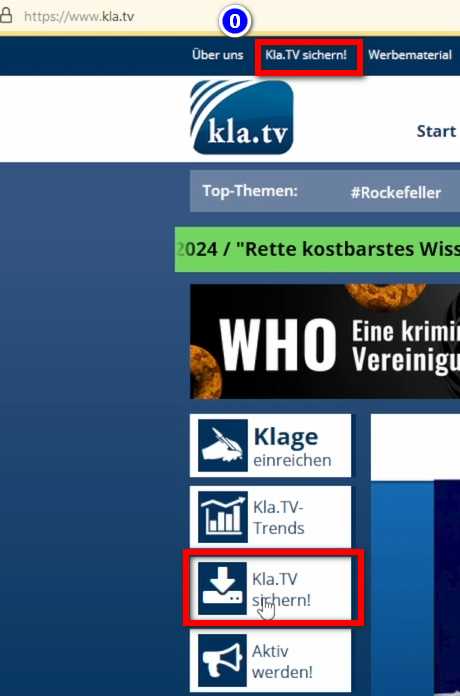
- <span data-darkreader-inline-bgcolor="" style="background-color: rgb(251, 238, 184);">Va sur la page </span>**<span data-darkreader-inline-bgcolor="" style="background-color: rgb(251, 238, 184);">[kla.tv/sichern](https://www.kla.tv/sichern)</span> <span data-darkreader-inline-bgcolor="" data-darkreader-inline-color="" style="background-color: rgb(52, 73, 94); color: rgb(236, 240, 241);">(0)</span><span data-darkreader-inline-bgcolor="" data-darkreader-inline-color="" style="background-color: rgb(52, 73, 94); color: rgb(236, 240, 241);">[![1.png](https://wiki.kla.tv/uploads/images/gallery/2025-04/scaled-1680-/g7KXT0ApFikyeQqk-1.png)](https://wiki.kla.tv/uploads/images/gallery/2025-04/g7KXT0ApFikyeQqk-1.png)</span>**
- Puis choisissez "Kla.TV Downoalder"  
    [![2.png](https://wiki.kla.tv/uploads/images/gallery/2025-04/scaled-1680-/5cHu4ZLkKgZthKh0-2.png)](https://wiki.kla.tv/uploads/images/gallery/2025-04/5cHu4ZLkKgZthKh0-2.png)
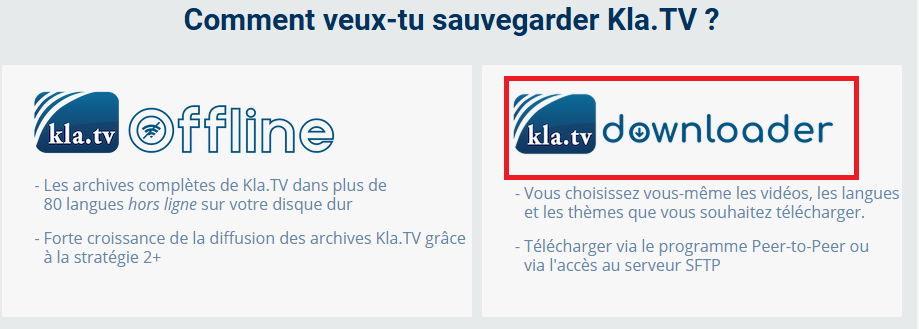
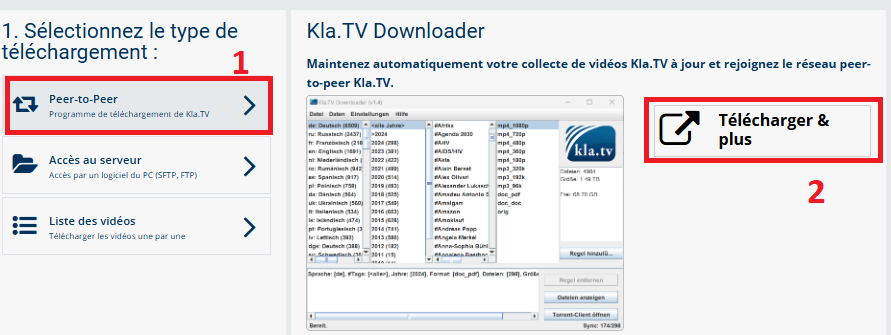
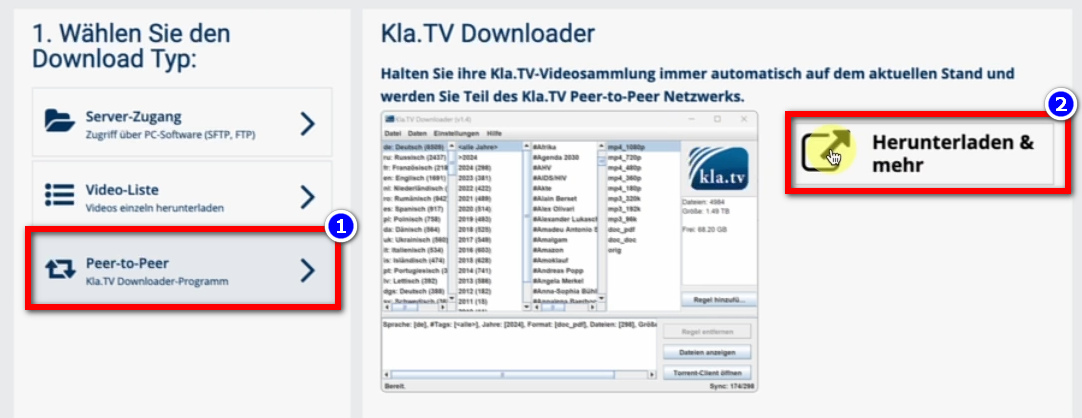
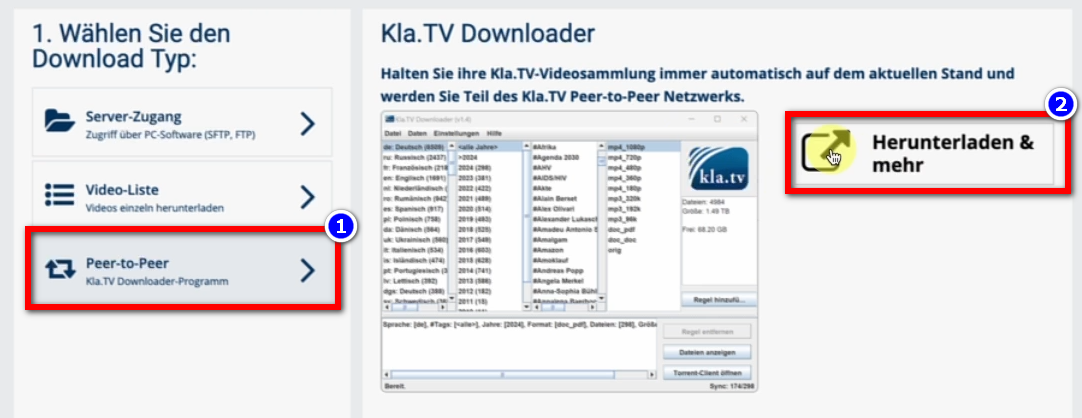
- Aller au type de téléchargement ❶ « Peer-to-Peer » → ❷ « Télécharger &amp; plus ».  
      
    [![3.png](https://wiki.kla.tv/uploads/images/gallery/2025-04/scaled-1680-/PMmsOUIyvl58j3qM-3.png)](https://wiki.kla.tv/uploads/images/gallery/2025-04/PMmsOUIyvl58j3qM-3.png)
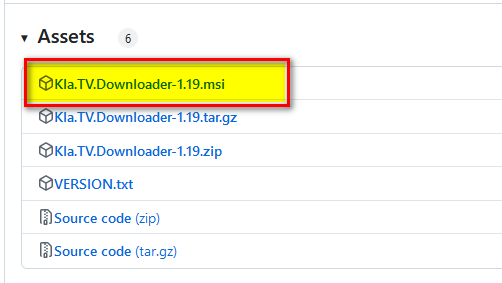
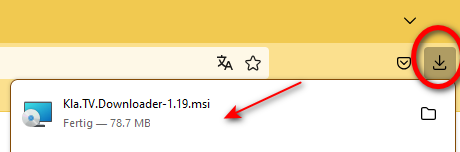
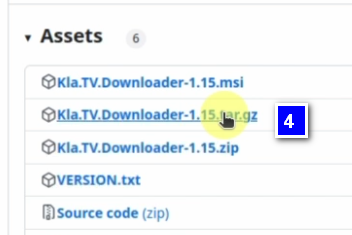
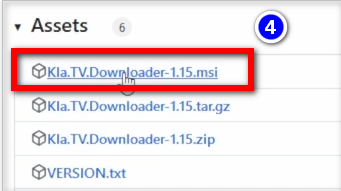
- Clique sur le ❸ Kla.TV Downloader → Télécharge le programme le plus récent (toujours en haut) en cliquant sur ❹ « Kla.TV.Downloader-\*.\*\*msi » dans « Assets » →.  
      
    [![grafik.png](https://wiki.kla.tv/uploads/images/gallery/2024-11/scaled-1680-/KGwQNxlWLAf2jJke-grafik.png)](https://wiki.kla.tv/uploads/images/gallery/2024-11/KGwQNxlWLAf2jJke-grafik.png)[![grafik.png](https://wiki.kla.tv/uploads/images/gallery/2024-11/scaled-1680-/qqNVAJNRTBLvbUcO-grafik.png)](https://wiki.kla.tv/uploads/images/gallery/2024-11/qqNVAJNRTBLvbUcO-grafik.png)

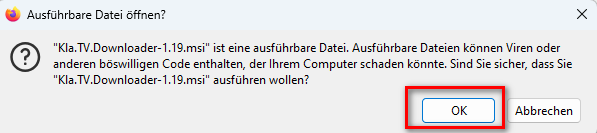
- ❺ Ouvre le programme par un double clic  
      
    [![grafik.png](https://wiki.kla.tv/uploads/images/gallery/2024-11/scaled-1680-/qnzVxcqoXLWrBM1l-grafik.png)](https://wiki.kla.tv/uploads/images/gallery/2024-11/qnzVxcqoXLWrBM1l-grafik.png)[![grafik.png](https://wiki.kla.tv/uploads/images/gallery/2024-11/scaled-1680-/GXplVmJvudLRCH8Y-grafik.png)](https://wiki.kla.tv/uploads/images/gallery/2024-11/GXplVmJvudLRCH8Y-grafik.png)
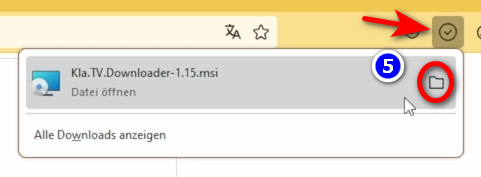
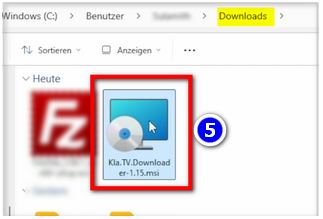
- Un message d'avertissement apparaît → clique sur ❻ « Plus d'informations » → puis sur ❼ « Exécuter quand même »  
      
    [![grafik.png](https://wiki.kla.tv/uploads/images/gallery/2024-11/scaled-1680-/8KGYRLXv6yY7SAwp-grafik.png)](https://wiki.kla.tv/uploads/images/gallery/2024-11/8KGYRLXv6yY7SAwp-grafik.png)  
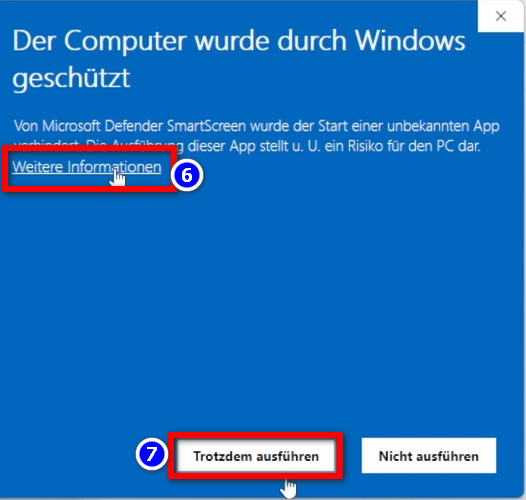
    <span data-darkreader-inline-bgcolor="" style="background-color: rgb(230, 94, 34);">REMARQUE :</span> Dans quelques cas, Windows refuse l'installation ou le démarrage de Kla.TV Downloader en affichant un message de virus/trojan (par ex. Wacatac.B!ml), sans possibilité d'obtenir une exception. Étant donné que Microsoft revendique en général de plus en plus de contrôle sur le système Windows, nous recommandons de libérer son propre PC de cette situation à l'aide des instructions de [https://fr.anti-control.info/](https://fr.anti-control.info/) !

- La fenêtre d'installation s'ouvre : aller sur ❽ Next → Next → Install → Finish → le programme est installé  
      
    [![grafik.png](https://wiki.kla.tv/uploads/images/gallery/2024-11/scaled-1680-/GOVLl0dO2RnwiPvj-grafik.png)](https://wiki.kla.tv/uploads/images/gallery/2024-11/GOVLl0dO2RnwiPvj-grafik.png)
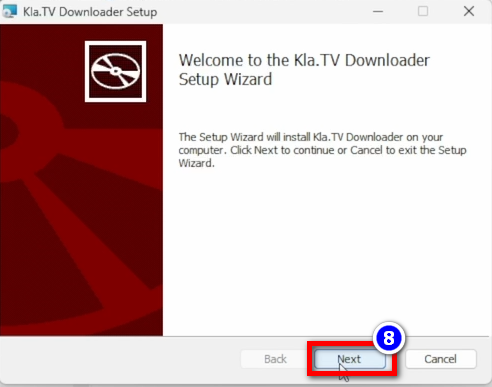
- Ouvre-le sous ❾ « Windows » → champ de recherche : Downloader → Kla.TV Downloader **[![grafik.png](https://wiki.kla.tv/uploads/images/gallery/2024-11/scaled-1680-/xRnmM3IsrlAKyUx4-grafik.png)](https://wiki.kla.tv/uploads/images/gallery/2024-11/xRnmM3IsrlAKyUx4-grafik.png)**
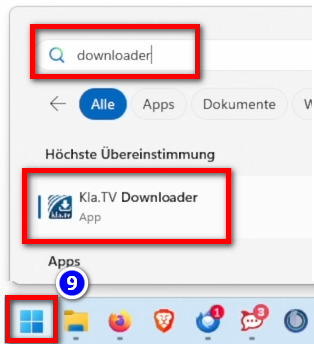
- Avertissement : ❿ Autoriser **[![grafik.png](https://wiki.kla.tv/uploads/images/gallery/2024-11/scaled-1680-/oJRW5KcKLYoOBexb-grafik.png)](https://wiki.kla.tv/uploads/images/gallery/2024-11/oJRW5KcKLYoOBexb-grafik.png)**
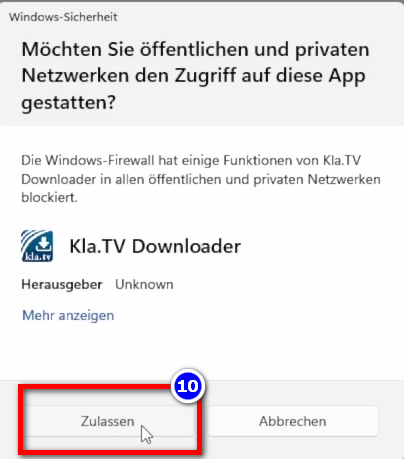
### <span data-darkreader-inline-bgcolor="" style="background-color: rgb(241, 196, 15);">**3. Paramétrer Kla.TV Downloader** </span>


- <span data-darkreader-inline-bgcolor="" style="background-color: rgb(251, 238, 184);">Une fenêtre apparaît dans le programme ouvert. Indique ❶ où les fichiers téléchargés doivent être enregistrés (utiliser de préférence un disque dur externe) → crée un ❷ nouveau dossier nommé "Sauvegarde-Kla.TV" (Kla.TV-Sicherung en allemand) et sélectionne ce dossier </span>
- [![grafik.png](https://wiki.kla.tv/uploads/images/gallery/2024-11/scaled-1680-/TfuSlhBJnOQuvPWb-grafik.png)](https://wiki.kla.tv/uploads/images/gallery/2024-11/TfuSlhBJnOQuvPWb-grafik.png)
- un message apparaît, appuie sur ❸ "Autoriser"  
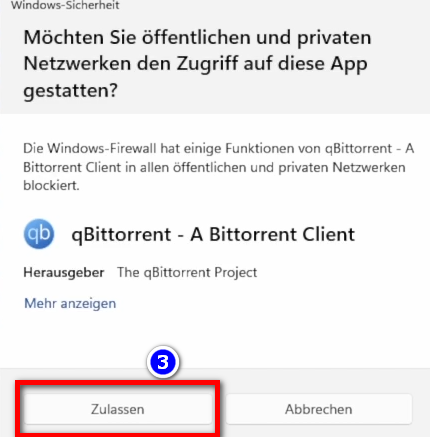
      
     ![grafik.png](https://wiki.kla.tv/uploads/images/gallery/2024-11/scaled-1680-/Wi99hXuOIyuQbbPN-grafik.png)  
      
    
    - <span data-darkreader-inline-bgcolor="" style="background-color: rgb(194, 224, 244);">***► ASTUCE :***</span> *Si tu souhaites modifier ultérieurement l'emplacement du disque dur, va dans le programme de téléchargement Kla.TV dans la barre de menu "Paramètres" → "Sélectionner le répertoire de téléchargement"*

### <span data-darkreader-inline-bgcolor="" style="background-color: rgb(241, 196, 15);">**4. qBittorrent (Torrent-Client) :** </span>

- Dans le programme Kla.TV Downloader, clique sur ❶ « Ouvrir le client torrent » et le client torrent s'ouvre (le client torrent est l'instance exécutante de tout ce que tu saisis dans le programme de téléchargement de Kla.TV).  
      
    [![grafik.png](https://wiki.kla.tv/uploads/images/gallery/2024-11/scaled-1680-/yvJAJsW6fwrGdqym-grafik.png)](https://wiki.kla.tv/uploads/images/gallery/2024-11/yvJAJsW6fwrGdqym-grafik.png)
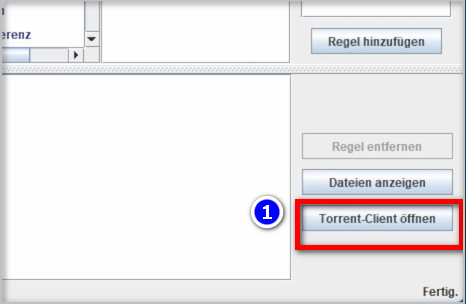
- Dans la barre de menu ❷, tu vois deux icônes des deux programmes. Même si les programmes sont fermés, ils sont actifs en arrière-plan (si tu vois les icônes). Si ce n'est pas le cas, ouvre à nouveau le programme.  
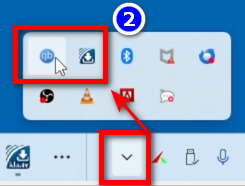
      
    ![grafik.png](https://wiki.kla.tv/uploads/images/gallery/2024-11/scaled-1680-/8UeMJP1mxxT6OrQI-grafik.png) *(ASTUCE :* l*es deux icônes peuvent être déplacées vers le bas dans la barre de menu de la barre d'état système avec les autres icônes en maintenant le bouton de la souris enfoncé. Ainsi, tu as toujours une vue d'ensemble pour savoir si les programmes sont démarrés).*
- Tu trouveras plus d'explications sur l'interface du client torrent dans la vidéo ci-dessus (mais il n'y a rien à configurer spécifiquement).


### <span data-darkreader-inline-bgcolor="" style="background-color: rgb(241, 196, 15);">**5. Synchroniser :** </span>

<p class="callout info">Le Kla.TV-Downloader ajoute des règles de synchronisation et les envoie à qBittorrent, qui télécharge ensuite les émissions et les tient toujours à jour. En d'autres termes, le Kla.TV-Downloader se contente de définir comment et ce qui doit être téléchargé, tandis que qBittorrent se charge du travail de téléchargement.</p>

- Ouvre Kla.TV Downloader → choisis tes ❶ règles souhaitées. (Voir les explications dans l'image) [![4.png](https://wiki.kla.tv/uploads/images/gallery/2025-04/scaled-1680-/4e9bSnInhSBMKjK7-4.png)](https://wiki.kla.tv/uploads/images/gallery/2025-04/4e9bSnInhSBMKjK7-4.png)
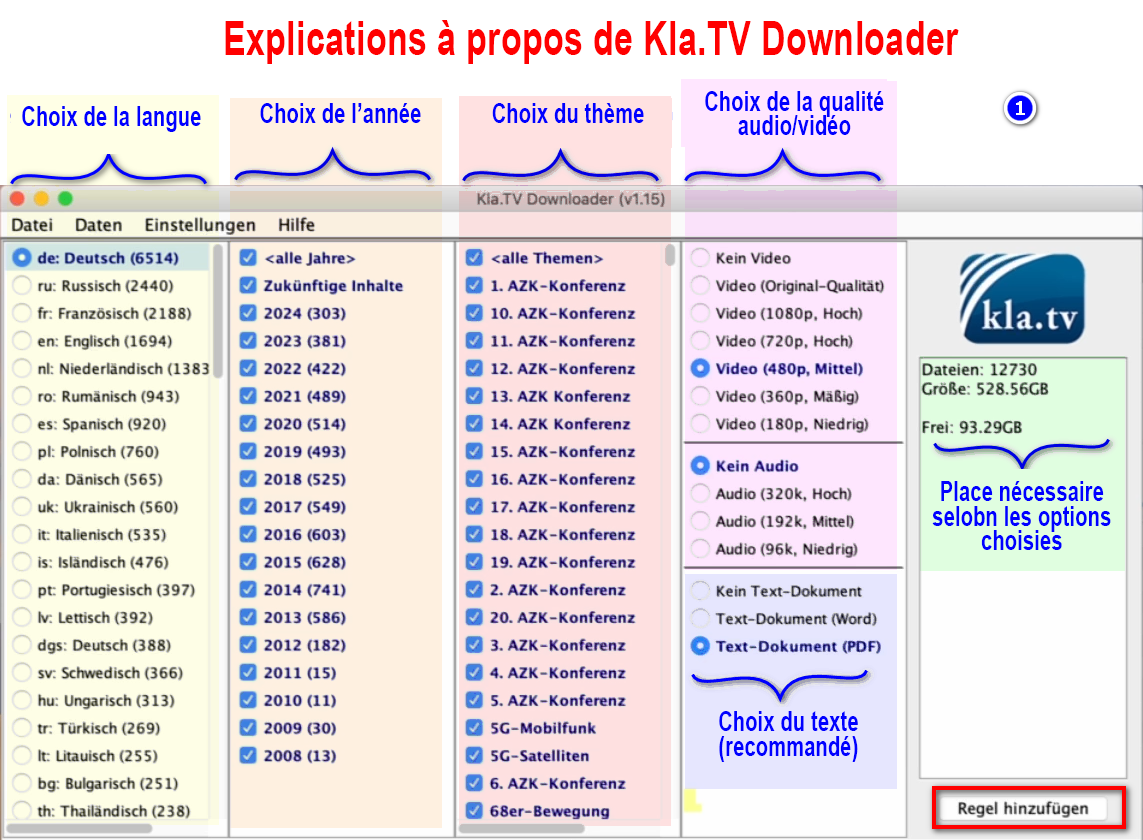
    
      
    [![grafik.png](https://wiki.kla.tv/uploads/images/gallery/2024-11/scaled-1680-/9Ok8odRA6beoyTpF-grafik.png)](https://wiki.kla.tv/uploads/images/gallery/2024-11/9Ok8odRA6beoyTpF-grafik.png)  
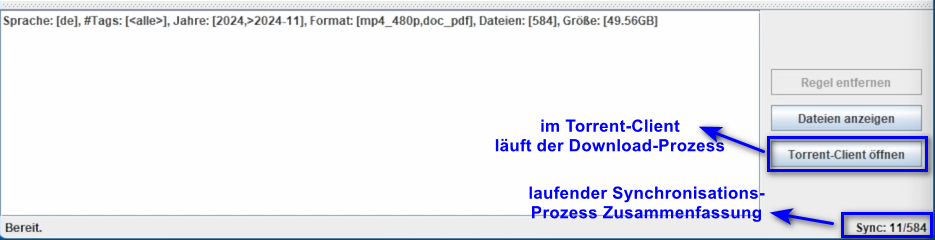
     *\*Le processus est en cours dans le Torrent-Client*  \* Résumé de la synchronisation en cours
- <span data-darkreader-inline-bgcolor="" style="background-color: rgb(251, 238, 184);">Si tu souhaites sélectionner **plusieurs qualités,** tu dois ajouter plusieurs fois une « règle ». Ensuite, cette commande sera envoyée au client torrent où elle sera téléchargée. </span>  
      
    
    - <span data-darkreader-inline-bgcolor="" style="background-color: rgb(251, 238, 184);">Voici un exemple ❷ si tu veux saisir une nouvelle règle, avec par exemple UNIQUEMENT des fichiers Word. Ensuite, désactive la vidéo et l'audio, sélectionne les années souhaitées et ajoute la règle. (Pour la vidéo, l'audio est inclus ;)</span>[![grafik.png](https://wiki.kla.tv/uploads/images/gallery/2024-11/scaled-1680-/MyrlhWDMHW4eBhyZ-grafik.png)](https://wiki.kla.tv/uploads/images/gallery/2024-11/MyrlhWDMHW4eBhyZ-grafik.png)
- <span data-darkreader-inline-bgcolor="" style="background-color: rgb(251, 238, 184);">**Les programmes peuvent être fermés** et le chargement se poursuit en arrière-plan.</span>

#### **<span data-darkreader-inline-bgcolor="" lang="DE" style="background-color: rgb(241, 196, 15);"><span lang="EN-US"> 5.1 </span></span><span data-darkreader-inline-bgcolor="" lang="DE" style="background-color: rgb(241, 196, 15);"><span lang="EN-US">Que faire si les téléchargements ne démarrent pas et que la synchronisation ne fonctionne pas ? </span></span>**

<p class="callout warning">Si les téléchargements ne démarrent pas dans le Torrent-Client QBittorrent, cela peut être dû à un problème de synchronisation entre Kla.TV Dowloader et le Torrent-Client. Pour résoudre ce problème, veuillez suivre les instructions suivantes.</p>

- <span data-darkreader-inline-bgcolor="" lang="DE" style="background-color: rgb(251, 238, 184);"><span lang="EN-US"><span data-darkreader-inline-bgcolor="" style="background-color: rgb(251, 238, 184);">Dans le menu de Kla.TV-Downloader, sélectionner ❶ **Paramètres,** puis cliquer sur l'option la plus basse ❷ **Définir les paramètres recommandés du Torrent-Client.**</span></span></span>

[![image.png](https://wiki.kla.tv/uploads/images/gallery/2025-02/scaled-1680-/0BDg5wfSZUeFQk56-image.png)](https://wiki.kla.tv/uploads/images/gallery/2025-02/0BDg5wfSZUeFQk56-image.png)

- Le message suivant doit s'afficher en bas à gauche de la fenêtre de Kla.TV-Downloader : \**Les paramètres recommandés de Torrent-Client ont été définis*

[![EmpfohleneEinstellungenGesetzt.png](https://wiki.kla.tv/uploads/images/gallery/2025-02/scaled-1680-/LornpXWtrJ7B7lkB-empfohleneeinstellungengesetzt.png)](https://wiki.kla.tv/uploads/images/gallery/2025-02/LornpXWtrJ7B7lkB-empfohleneeinstellungengesetzt.png)

### <span data-darkreader-inline-bgcolor="" style="background-color: rgb(241, 196, 15);">**6. Mettre le téléchargement à la disposition d'autres personnes :** </span>

- <span data-darkreader-inline-bgcolor="" style="background-color: rgb(251, 238, 184);">Par défaut, le qBittorrent met à disposition pour d'autres personnes tous les fichiers que l'on télécharge. Si, pour une raison ou une autre, on ne le souhaite pas, il est possible de le désactiver :</span>
- <span data-darkreader-inline-bgcolor="" style="background-color: rgb(251, 238, 184);">Ouvre </span>**<span data-darkreader-inline-bgcolor="" style="background-color: rgb(251, 238, 184);">❶ qBittorrent → Paramètres → Télécharger uniquement (pas de téléchargement torrent)  
      
    [![grafik.png](https://wiki.kla.tv/uploads/images/gallery/2024-11/scaled-1680-/TTyJJDELOuYYB7pb-grafik.png)](https://wiki.kla.tv/uploads/images/gallery/2024-11/TTyJJDELOuYYB7pb-grafik.png)  
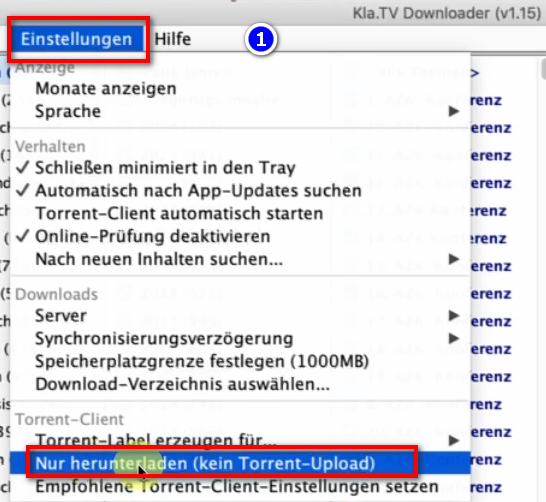
    </span>**

### <span data-darkreader-inline-bgcolor="" style="background-color: rgb(241, 196, 15);">**7. Recommandation : régler les options d'alimentation de manière à ce que l'ordinateur ne s'éteigne pas automatiquement :** </span>

<p class="callout info">Ce programme peut rapidement prendre plusieurs jours pour que tout soit synchronisé. Pour accélérer le processus, il est conseillé de désactiver le mode d'économie d'énergie.</p>

- <span data-darkreader-inline-bgcolor="" style="background-color: rgb(251, 238, 184);">Si l'ordinateur est redémarré, tu dois redémarrer l'application (voir instructions point 8).</span>
- <span data-darkreader-inline-bgcolor="" style="background-color: rgb(251, 238, 184);">Modifier les options d'alimentation de manière à ce que l'ordinateur ne s'éteigne pas : **Icône Windows→ Champ de recherche : plan d'économie d'énergie → ❶ Modifier le plan d'économie d'énergie → ❷ Mode d'économie d'énergie vers : Jamais → Enregistrer la modification** </span>*<span data-darkreader-inline-bgcolor="">(termes traduit de l'allemand, à vous de trouver les bons en français)</span>*

![grafik.png](https://wiki.kla.tv/uploads/images/gallery/2024-11/scaled-1680-/ONpMkNkqaQmKdYtX-grafik.png)  
  
![grafik.png](https://wiki.kla.tv/uploads/images/gallery/2024-11/scaled-1680-/c6InTIccNIpkCbYb-grafik.png)

Désactiver éventuellement encore le mode veille dans « Paramètres d'énergie avancés » :

[![image.png](https://wiki.kla.tv/uploads/images/gallery/2025-02/scaled-1680-/um89TApH5tJcHwLM-image.png)](https://wiki.kla.tv/uploads/images/gallery/2025-02/um89TApH5tJcHwLM-image.png)
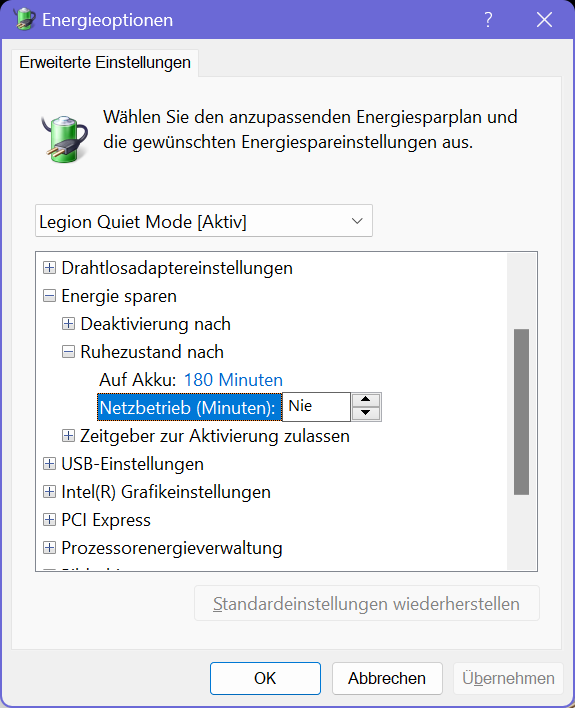
- <span data-darkreader-inline-bgcolor="" style="background-color: rgb(251, 238, 184);">Laisser tourner l'ordinateur jusqu'à ce que tous les fichiers soient téléchargés</span>

### <span data-darkreader-inline-bgcolor="" style="background-color: rgb(241, 196, 15);">**8. Redémarrer le programme, après le redémarrage de l'ordinateur / garder les archives à jour :** </span>

- <span data-darkreader-inline-bgcolor="" style="background-color: rgb(251, 238, 184);">Lorsque tu redémarres ton ordinateur, tes programmes de téléchargement sont fermés. Pour que le processus de téléchargement puisse se poursuivre, tu dois rouvrir le téléchargeur ❶ Kla.TV. (raccourci du programme sur le bureau). Ainsi, le processus de téléchargement se poursuivra automatiquement.</span> **[![grafik.png](https://wiki.kla.tv/uploads/images/gallery/2024-11/scaled-1680-/eNjNTP3E3Q1DowMV-grafik.png)](https://wiki.kla.tv/uploads/images/gallery/2024-11/eNjNTP3E3Q1DowMV-grafik.png)**
- <span data-darkreader-inline-bgcolor="" style="background-color: rgb(251, 238, 184);">Veille à ouvrir de temps en temps ce programme pour que les émissions actuelles soient automatiquement téléchargées sur ton disque dur (il suffit de l'ouvrir et de ne rien faire d'autre).</span>

### <span data-darkreader-inline-bgcolor="" style="background-color: rgb(241, 196, 15);">**9. Installer la mise à jour :** </span>

- **<span data-darkreader-inline-bgcolor="" style="background-color: rgb(251, 238, 184);">De temps en temps, le téléchargeur Kla.TV est optimisé et tu devrais installer la mise à jour. Voici comment cela fonctionne :</span>**
- <span data-darkreader-inline-bgcolor="" style="background-color: rgb(251, 238, 184);">Ouvre Kla.TV Downloader</span>
- <span data-darkreader-inline-bgcolor="" style="background-color: rgb(251, 238, 184);">Ce message apparaît : (Si ce n'est pas le cas, dans Kla.TV Downloader, va sur → Aide → Rechercher les mises à jour</span> *Une nouvelle version est disponible : v1.16--&gt; v.19. Souhaites-tu la télécharger ?*
- [![grafik.png](https://wiki.kla.tv/uploads/images/gallery/2024-12/scaled-1680-/CPxIwgY3Aw6GYURU-grafik.png)](https://wiki.kla.tv/uploads/images/gallery/2024-12/CPxIwgY3Aw6GYURU-grafik.png)
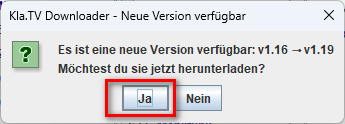
    
    [![grafik.png](https://wiki.kla.tv/uploads/images/gallery/2024-12/scaled-1680-/YaiCj1fp8YsCOMGW-grafik.png)](https://wiki.kla.tv/uploads/images/gallery/2024-12/YaiCj1fp8YsCOMGW-grafik.png)
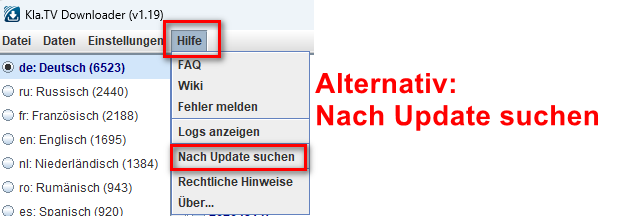
    
    *Alternative : Aide/Chercher des mises à jour*
- <span data-darkreader-inline-bgcolor="" style="background-color: rgb(251, 238, 184);">Internet s'ouvre, fais défiler vers le bas jusqu'à « Assets » → sélectionne le fichier .msi :</span>  
    [![grafik.png](https://wiki.kla.tv/uploads/images/gallery/2024-12/scaled-1680-/023Us4MTkHQ8u2Xi-grafik.png)](https://wiki.kla.tv/uploads/images/gallery/2024-12/023Us4MTkHQ8u2Xi-grafik.png)
- <span data-darkreader-inline-bgcolor="" style="background-color: rgb(251, 238, 184);">Clique sur le fichier d'installation téléchargé :</span>  
    [![grafik.png](https://wiki.kla.tv/uploads/images/gallery/2024-12/scaled-1680-/STuGjeNRy39lXwMZ-grafik.png)](https://wiki.kla.tv/uploads/images/gallery/2024-12/STuGjeNRy39lXwMZ-grafik.png)
- <span data-darkreader-inline-bgcolor="" style="background-color: rgb(251, 238, 184);">Suis les instructions :  
    </span>  
    [![grafik.png](https://wiki.kla.tv/uploads/images/gallery/2024-12/scaled-1680-/lDrsbwRT7NhCIHT5-grafik.png)](https://wiki.kla.tv/uploads/images/gallery/2024-12/lDrsbwRT7NhCIHT5-grafik.png)
    
    [![grafik.png](https://wiki.kla.tv/uploads/images/gallery/2024-12/scaled-1680-/DuS62hqvtDiwriHK-grafik.png)](https://wiki.kla.tv/uploads/images/gallery/2024-12/DuS62hqvtDiwriHK-grafik.png)
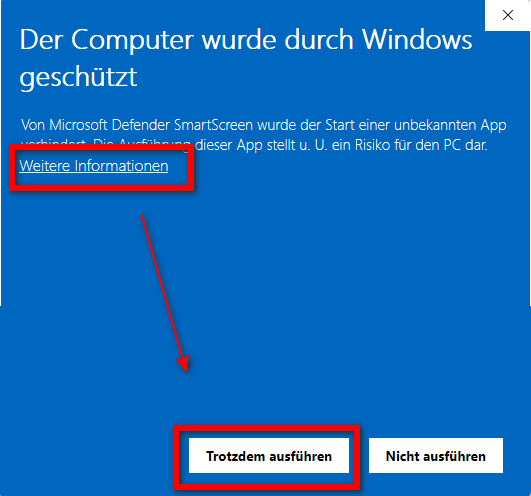
    
    [![grafik.png](https://wiki.kla.tv/uploads/images/gallery/2024-12/scaled-1680-/SDWAQqrIkcX2Z0sl-grafik.png)](https://wiki.kla.tv/uploads/images/gallery/2024-12/SDWAQqrIkcX2Z0sl-grafik.png)[![grafik.png](https://wiki.kla.tv/uploads/images/gallery/2024-12/scaled-1680-/TWYrM2csZQSt1XwL-grafik.png)](https://wiki.kla.tv/uploads/images/gallery/2024-12/TWYrM2csZQSt1XwL-grafik.png)
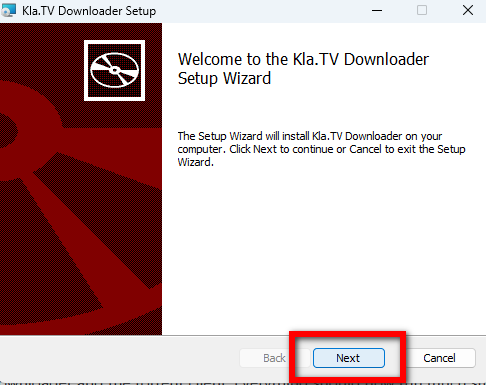
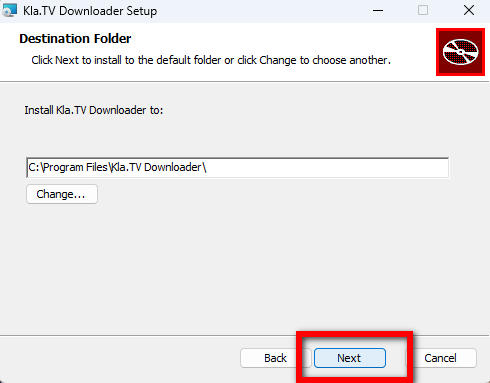
    
    [![grafik.png](https://wiki.kla.tv/uploads/images/gallery/2024-12/scaled-1680-/hEzR11mnRudFoalG-grafik.png)](https://wiki.kla.tv/uploads/images/gallery/2024-12/hEzR11mnRudFoalG-grafik.png)
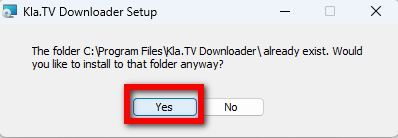
    
    [![grafik.png](https://wiki.kla.tv/uploads/images/gallery/2024-12/scaled-1680-/n8sRInnKKiM5K9SM-grafik.png)](https://wiki.kla.tv/uploads/images/gallery/2024-12/n8sRInnKKiM5K9SM-grafik.png)[![grafik.png](https://wiki.kla.tv/uploads/images/gallery/2024-12/scaled-1680-/FiZnOi5QIPfaKSkS-grafik.png)](https://wiki.kla.tv/uploads/images/gallery/2024-12/FiZnOi5QIPfaKSkS-grafik.png)
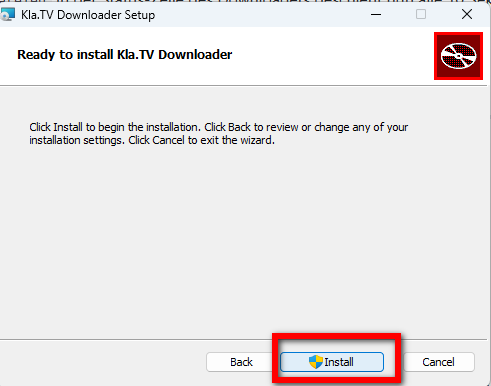
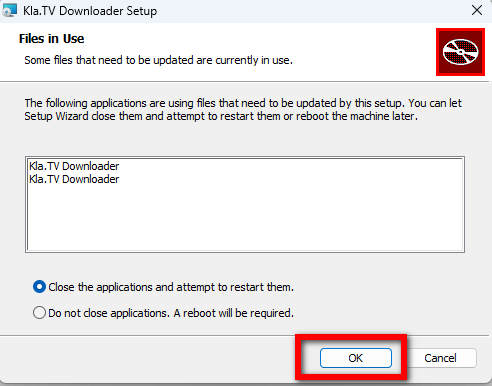
    
    [![grafik.png](https://wiki.kla.tv/uploads/images/gallery/2024-12/scaled-1680-/soHtgJxJGYlBuKpm-grafik.png)](https://wiki.kla.tv/uploads/images/gallery/2024-12/soHtgJxJGYlBuKpm-grafik.png)
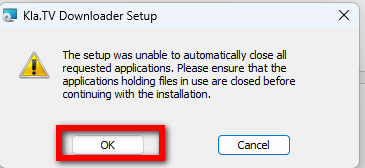
    
    [![grafik.png](https://wiki.kla.tv/uploads/images/gallery/2024-12/scaled-1680-/xa2mDeOnwfUW7BmE-grafik.png)](https://wiki.kla.tv/uploads/images/gallery/2024-12/xa2mDeOnwfUW7BmE-grafik.png)[![grafik.png](https://wiki.kla.tv/uploads/images/gallery/2024-12/scaled-1680-/u3XvGrOTW4sCrsBz-grafik.png)](https://wiki.kla.tv/uploads/images/gallery/2024-12/u3XvGrOTW4sCrsBz-grafik.png)
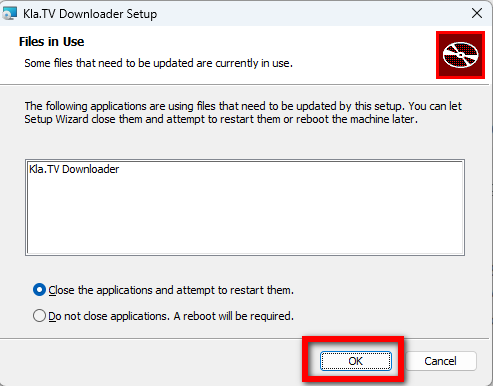
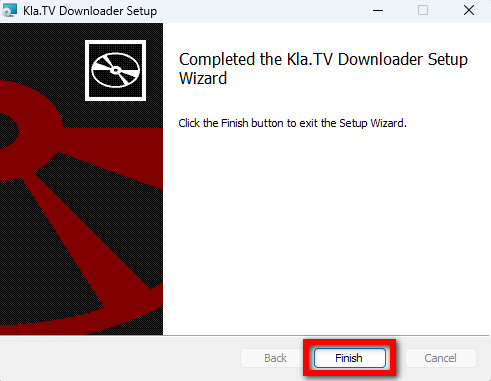
    
    [![grafik.png](https://wiki.kla.tv/uploads/images/gallery/2024-12/scaled-1680-/H216sMMqwgNrDH1M-grafik.png)](https://wiki.kla.tv/uploads/images/gallery/2024-12/H216sMMqwgNrDH1M-grafik.png)
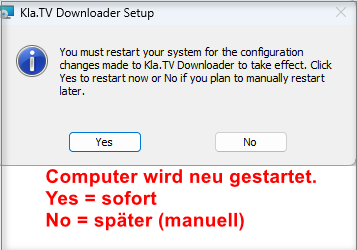
    
    *L'ordinateur va redémarrer/ Oui : tout de suite / Non : plus tard (manuellement)*
- <span data-darkreader-inline-bgcolor="" style="background-color: rgb(251, 238, 184);">Ouvre à nouveau Kla.TV Downloader et profite de la version optimisée 😊</span>

##### **Astuce pour les lecteurs HDD (disques durs) :**  
Il se peut que le téléchargement soit plus rapide si l'on n'autorise qu'un seul téléchargement : [![image.png](https://wiki.kla.tv/uploads/images/gallery/2025-02/scaled-1680-/PnHtxIQofqtusdRM-image.png)](https://wiki.kla.tv/uploads/images/gallery/2025-02/PnHtxIQofqtusdRM-image.png) *Référer-vous à l'image allemande pour paramétrer vos options en français*  
[![Screenshot 2025-01-19_KlaTV-Download_QBT.png](https://wiki.kla.tv/uploads/images/gallery/2025-01/scaled-1680-/A6QSunlWubAyiqfg-screenshot-2025-01-19-klatv-download-qbt.png)](https://wiki.kla.tv/uploads/images/gallery/2025-01/A6QSunlWubAyiqfg-screenshot-2025-01-19-klatv-download-qbt.png)  
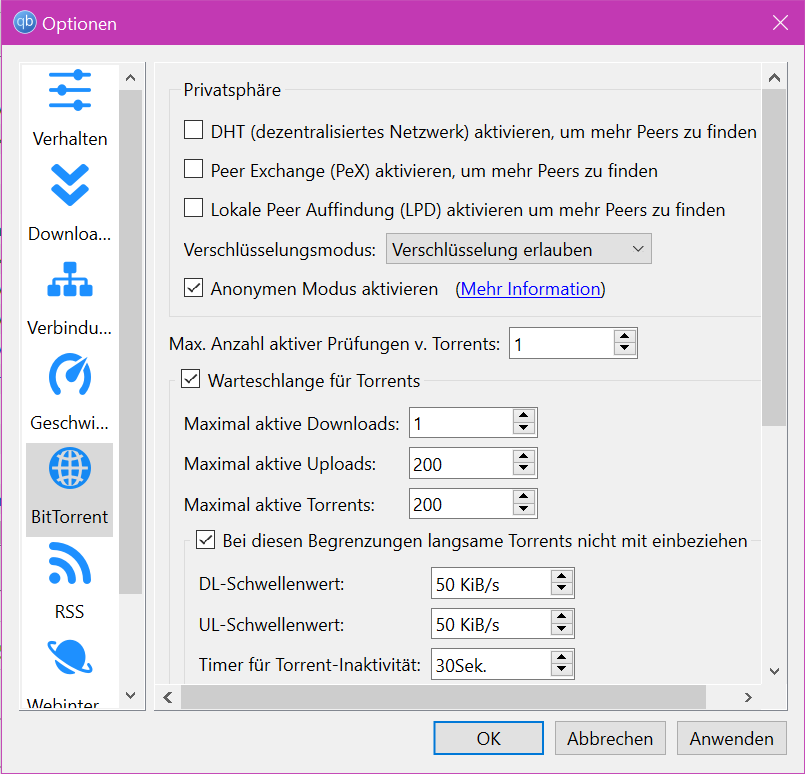
[![Screenshot_2025-01-18_1812_KlaTV-Download+.png](https://wiki.kla.tv/uploads/images/gallery/2025-01/scaled-1680-/7MCPADbx0LfClgeA-screenshot-2025-01-18-1812-klatv-download.png)](https://wiki.kla.tv/uploads/images/gallery/2025-01/7MCPADbx0LfClgeA-screenshot-2025-01-18-1812-klatv-download.png)  
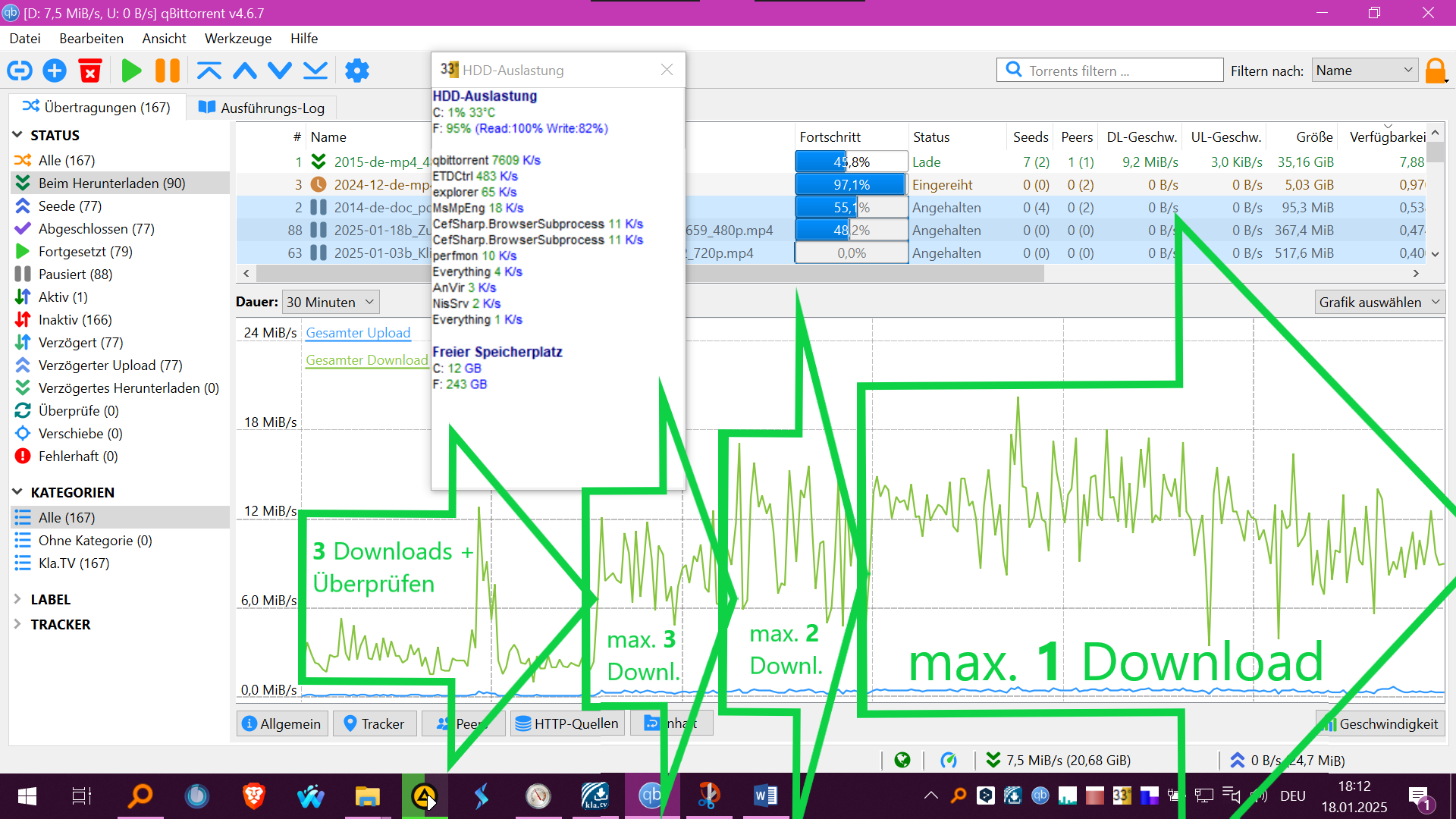
  
Après la reprise des téléchargements, l'intégralité des fichiers présents a été vérifiée simultanément, ce qui peut également saturer le HDD. Il est possible d'interrompre manuellement ce processus en sélectionnant 'Nombre max. de vérifications actives de torrents : 0' et de le reprendre plus tard :  
  
[![image.png](https://wiki.kla.tv/uploads/images/gallery/2025-02/scaled-1680-/WTF0Ochfl3T83MQ4-image.png)](https://wiki.kla.tv/uploads/images/gallery/2025-02/WTF0Ochfl3T83MQ4-image.png)  
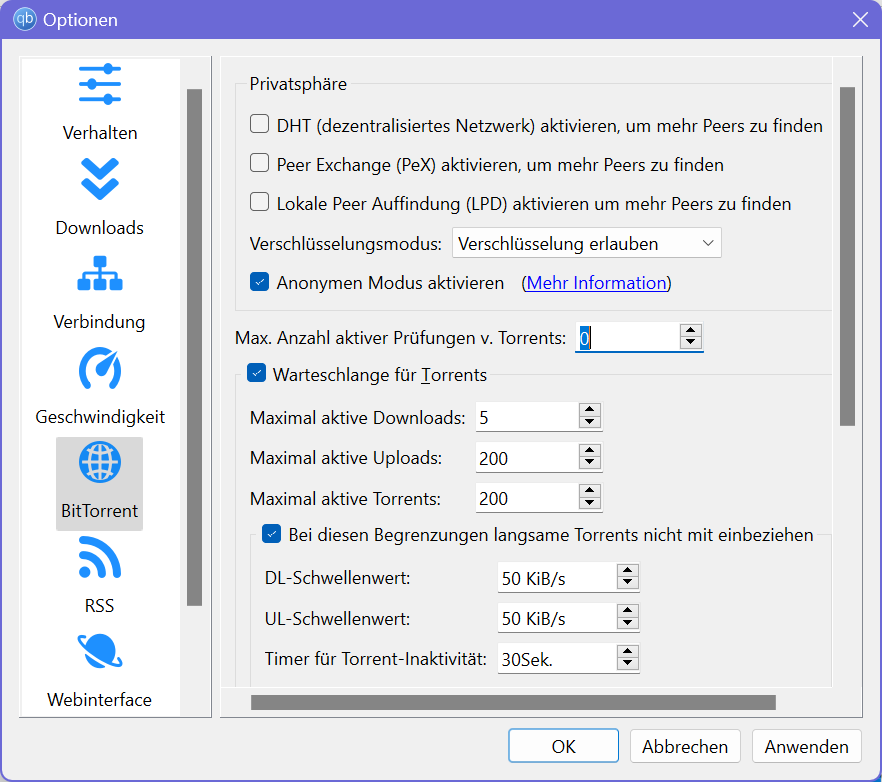

##### D'autres articles qui pourraient t'intéresser :  
  
[Rechercher dans les archives sauvegardées](https://wiki.kla.tv/books/fr-sauvegarder-klatv/page/sauvegarder-klatv-avec-lacces-au-serveur-rechercher-dans-les-archives-sauvegardees "Rechercher dans les archives sauvegardées")

### Instructions pour Windows 7 :

En principe, le processus d'installation est le même que pour Windows 10. Malheureusement, la version portable de qBittorrent 5 et plus, contenue dans le script d'installation ne peut pas être exécutée et affiche un message d'erreur...

*Tu peux procéder de la manière suivante :*

1. Télécharge la version v4.4.5 de qBittorrent à partir de ce lien : [https://sourceforge.net/projects/qbittorrent/files/qbittorrent-win32/qbittorrent-4.4.5/](https://sourceforge.net/projects/qbittorrent/files/qbittorrent-win32/qbittorrent-4.4.5/) et installe le programme.
2. Configure le qBittorrent manuellement à l'aide de cette instruction (en allemand) : [https://github.com/Kla-TV/downloader/wiki/Torrent%E2%80%90Client-manuell-einrichten](https://github.com/Kla-TV/downloader/wiki/Torrent%E2%80%90Client-manuell-einrichten)

Astuce : Pour avoir une idée de la manière dont « Kla.TV Downloader » et qBittorrent fonctionnent ensemble, consulte également les instructions pour [Linux](https://wiki.kla.tv/books/klatv-sichern/page/linux-installation-und-nutzung-von-klatv-downloader) ou [MAC](https://wiki.kla.tv/books/klatv-sichern/page/mac-installation-und-nutzung-von-klatv-downloader). On y trouve un aperçu approfondi.

# MAC : Installation et utilisation de "Kla.TV Downloader"

### **Qu'apprends-tu dans cet article ?**

Tu vas apprendre comment installer le Kla.TV Downloader sur Mac. Le Kla.TV Downloader met automatiquement à jour tes archives. En même temps, tu peux mettre tes vidéos à la disposition d'autres utilisateurs grâce à ta connexion. C'est parti !

### **Instruction vidéo: (13min)**

 **(en allemand)**

<iframe allowfullscreen="allowfullscreen" frameborder="0" height="332" src="https://www.kla.tv/index.php?a=showembed&vidid=31128&lang=de" width="590"></iframe>

<div class="responsive-iframe" id="bkmrk--1"></div>### <span lang="DE" style="font-size: 16.0pt; mso-bidi-font-size: 11.0pt; line-height: 107%; font-family: Wingdings; mso-ascii-font-family: Calibri; mso-ascii-theme-font: minor-latin; mso-fareast-font-family: Calibri; mso-fareast-theme-font: minor-latin; mso-hansi-font-family: Calibri; mso-hansi-theme-font: minor-latin; mso-bidi-font-family: 'Times New Roman'; mso-bidi-theme-font: minor-bidi; mso-ansi-language: DE; mso-fareast-language: EN-US; mso-bidi-language: AR-SA; mso-char-type: symbol; mso-symbol-font-family: Wingdings;"><span style="mso-char-type: symbol; mso-symbol-font-family: Wingdings;">&#131;</span></span><span lang="DE" style="font-size: 16.0pt; mso-bidi-font-size: 11.0pt; line-height: 107%; font-family: Wingdings; mso-ascii-font-family: Calibri; mso-ascii-theme-font: minor-latin; mso-fareast-font-family: Calibri; mso-fareast-theme-font: minor-latin; mso-hansi-font-family: Calibri; mso-hansi-theme-font: minor-latin; mso-bidi-font-family: 'Times New Roman'; mso-bidi-theme-font: minor-bidi; mso-ansi-language: DE; mso-fareast-language: EN-US; mso-bidi-language: AR-SA; mso-char-type: symbol; mso-symbol-font-family: Wingdings;"><span style="mso-char-type: symbol; mso-symbol-font-family: Wingdings;">&#132;</span></span><span lang="DE" style="font-size: 16.0pt; mso-bidi-font-size: 11.0pt; line-height: 107%; font-family: Wingdings; mso-ascii-font-family: Calibri; mso-ascii-theme-font: minor-latin; mso-fareast-font-family: Calibri; mso-fareast-theme-font: minor-latin; mso-hansi-font-family: Calibri; mso-hansi-theme-font: minor-latin; mso-bidi-font-family: 'Times New Roman'; mso-bidi-theme-font: minor-bidi; mso-ansi-language: DE; mso-fareast-language: EN-US; mso-bidi-language: AR-SA; mso-char-type: symbol; mso-symbol-font-family: Wingdings;"><span style="mso-char-type: symbol; mso-symbol-font-family: Wingdings;"> </span></span>**Instructions écrites :**

### <span style="background-color: rgb(241, 196, 15);">**1. Principes fondamentaux :**</span>

- Quelle est la différence entre le téléchargeur Kla.TV et le téléchargement via l'accès au serveur (via FileZilla) ?  
    \- **Via l'accès au serveur**, vous téléchargez l'archive une seule fois avec FileZilla et vous devez la maintenir à jour « manuellement » et télécharger régulièrement les dernières émissions.  
    \- **Grâce au programme de téléchargement**, vous pouvez maintenir votre archive à jour automatiquement et la synchroniser avec la base de données du serveur. Vous le configurez une seule fois et il est automatiquement mis à jour. De plus, vous pouvez mettre les vidéos de votre connexion vidéo à la disposition d'autres utilisateurs pour qu'ils les téléchargent.
- Pour cela, vous devez installer deux nouveaux programmes. 1. le téléchargeur Kla.TV et 2. le qBittorrent. Voici les instructions :

### <span style="background-color: rgb(241, 196, 15);">**2. Installation du Kla.TV-Downloader :**</span>

- <span style="background-color: rgb(251, 238, 184);">Aller sur la page </span>**[<span style="background-color: rgb(251, 238, 184);">kla.tv/sichern</span>](https://www.kla.tv/sichern) <span style="background-color: rgb(52, 73, 94); color: rgb(236, 240, 241);">(0)</span>** Sur la page française "Sauvegarder Kla.TV" **[![grafik.png](https://wiki.kla.tv/uploads/images/gallery/2024-11/scaled-1680-/Dv7hI2hEiWQk8ey8-grafik.png)](https://wiki.kla.tv/uploads/images/gallery/2024-11/Dv7hI2hEiWQk8ey8-grafik.png)**<span style="background-color: rgb(251, 238, 184);">  
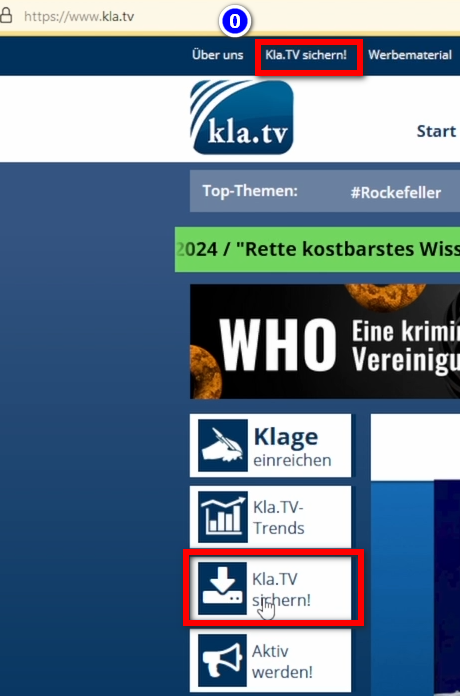
      
    </span>
- Choisir **"Kla.TV/Downloader"**
- <span style="background-color: rgb(251, 238, 184);">Choisir le type de téléchargement <span lang="DE" style="font-size: 16pt; line-height: 107%; font-family: Wingdings; background-color: rgb(251, 238, 184);"><span style="mso-char-type: symbol; mso-symbol-font-family: Wingdings;"><span lang="EN-US" style="font-size: 11pt; line-height: 107%; font-family: 'Cambria Math', serif; background-color: rgb(251, 238, 184);">❶</span></span></span> "**Peer-to-Peer**" → <span lang="DE" style="font-size: 16pt; line-height: 107%; font-family: Wingdings; background-color: rgb(251, 238, 184);"><span style="mso-char-type: symbol; mso-symbol-font-family: Wingdings;"><span lang="EN-US" style="font-size: 11pt; line-height: 107%; font-family: 'Cambria Math', serif; background-color: rgb(251, 238, 184);">❷</span></span></span> **"Télécharger &amp; plus"**</span>
- [![grafik.png](https://wiki.kla.tv/uploads/images/gallery/2024-11/scaled-1680-/nuXM0H06k643OGNZ-grafik.png)](https://wiki.kla.tv/uploads/images/gallery/2024-11/nuXM0H06k643OGNZ-grafik.png)
- <span style="background-color: rgb(251, 238, 184);">Cliquer sur <span lang="DE" style="font-size: 16pt; line-height: 107%; font-family: Wingdings; background-color: rgb(251, 238, 184);"><span style="mso-char-type: symbol; mso-symbol-font-family: Wingdings;"><span lang="EN-US" style="font-size: 11pt; line-height: 107%; font-family: 'Cambria Math', serif; background-color: rgb(251, 238, 184);">❸</span></span></span> **Kla-TV-Downloader** → Téléchargez le programme le plus récent (toujours en haut) en cliquant sur « Assets »→ cliquer sur <span lang="DE" style="font-size: 16pt; line-height: 107%; font-family: Wingdings; background-color: rgb(251, 238, 184);"><span style="mso-char-type: symbol; mso-symbol-font-family: Wingdings;"><span lang="EN-US" style="font-size: 11pt; line-height: 107%; font-family: 'Cambria Math', serif; background-color: rgb(251, 238, 184);">❹</span></span></span> "**Kla.TV.Downloader-\*.\*\*.tar.gz**" </span>  
      
    [![grafik.png](https://wiki.kla.tv/uploads/images/gallery/2024-11/scaled-1680-/ZHJIXNQOHy6dYlte-grafik.png)](https://wiki.kla.tv/uploads/images/gallery/2024-11/ZHJIXNQOHy6dYlte-grafik.png)
    
    [![grafik.png](https://wiki.kla.tv/uploads/images/gallery/2024-11/scaled-1680-/xKO8pwvIyzzKFFa6-grafik.png)](https://wiki.kla.tv/uploads/images/gallery/2024-11/xKO8pwvIyzzKFFa6-grafik.png)
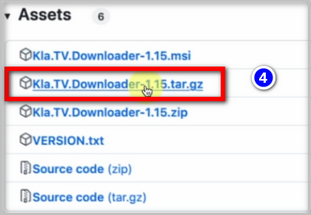
- <span style="background-color: rgb(251, 238, 184);"><span lang="DE" style="font-size: 16pt; line-height: 107%; font-family: Wingdings; background-color: rgb(251, 238, 184);"><span style="mso-char-type: symbol; mso-symbol-font-family: Wingdings;"><span lang="EN-US" style="font-size: 11pt; line-height: 107%; font-family: 'Cambria Math', serif; background-color: rgb(251, 238, 184);">❺</span></span></span> **Ouvrir** et **décompresser** le programme. → Je le télécharge par exemple sur le <span lang="EN-US" style="font-size: 11pt; line-height: 107%; font-family: 'Cambria Math', serif; background-color: rgb(251, 238, 184);">❻</span> </span>**bureau** ![grafik.png](https://wiki.kla.tv/uploads/images/gallery/2024-11/scaled-1680-/fqkvJohFv6e5fZeD-grafik.png)[![grafik.png](https://wiki.kla.tv/uploads/images/gallery/2024-11/scaled-1680-/fgT1bYzgnnG9BTgh-grafik.png)](https://wiki.kla.tv/uploads/images/gallery/2024-11/fgT1bYzgnnG9BTgh-grafik.png)

<span lang="DE" style="font-size: 16.0pt; mso-bidi-font-size: 11.0pt; line-height: 107%; font-family: Wingdings; mso-ascii-font-family: Calibri; mso-ascii-theme-font: minor-latin; mso-fareast-font-family: Calibri; mso-fareast-theme-font: minor-latin; mso-hansi-font-family: Calibri; mso-hansi-theme-font: minor-latin; mso-bidi-font-family: 'Times New Roman'; mso-bidi-theme-font: minor-bidi; mso-ansi-language: DE; mso-fareast-language: EN-US; mso-bidi-language: AR-SA; mso-char-type: symbol; mso-symbol-font-family: Wingdings;"><span style="mso-char-type: symbol; mso-symbol-font-family: Wingdings;">  
</span></span>

### <span style="background-color: rgb(241, 196, 15);">**3. Installation de JAVA (afin que Kla.TV-Downloader functionne) :**</span>

- <span style="background-color: rgb(251, 238, 184);">Aller sur le site web [**adoptium.net/**](https://adoptium.net/)</span>
- <span style="background-color: rgb(251, 238, 184);">Le programme adapté « Version LTS actuelle » pour votre Mac s'affiche ici. Téléchargez-le en cliquant dessus.</span>  
      
    [![grafik.png](https://wiki.kla.tv/uploads/images/gallery/2024-11/scaled-1680-/EmWazYFln77srf5R-grafik.png)](https://wiki.kla.tv/uploads/images/gallery/2024-11/EmWazYFln77srf5R-grafik.png)
- <span style="background-color: rgb(251, 238, 184);"><span lang="DE" style="font-size: 16pt; line-height: 107%; font-family: Wingdings; background-color: rgb(251, 238, 184);"><span style="mso-char-type: symbol; mso-symbol-font-family: Wingdings;"><span lang="EN-US" style="font-size: 11pt; line-height: 107%; font-family: 'Cambria Math', serif; background-color: rgb(251, 238, 184);">❷</span></span></span> Installez le programme en double-cliquant dessus → Continuer → Accepter → Continuer → Installer (saisissez le nom d'utilisateur et le mot de passe de votre Mac) → Installer le logiciel → Fermer → Déplacer vers la corbeille (fichier d'installation)</span>  
      
    [![grafik.png](https://wiki.kla.tv/uploads/images/gallery/2024-11/scaled-1680-/H7DQOnAAE3ZeBUmo-grafik.png)](https://wiki.kla.tv/uploads/images/gallery/2024-11/H7DQOnAAE3ZeBUmo-grafik.png)

### <span style="background-color: rgb(241, 196, 15);">**4. Configurer les paramètres de sécurité et installer le téléchargeur :**</span>

- <span style="background-color: rgb(251, 238, 184);">Sur le bureau, accédez au dossier Kla.TV-Downloader et ouvrez-le. <span lang="DE" style="font-size: 16pt; line-height: 107%; font-family: Wingdings; background-color: rgb(251, 238, 184);"><span style="mso-char-type: symbol; mso-symbol-font-family: Wingdings;"><span lang="EN-US" style="font-size: 11pt; line-height: 107%; font-family: 'Cambria Math', serif; background-color: rgb(251, 238, 184);">❶</span></span></span> </span>**<span style="background-color: rgb(251, 238, 184);">kla-tv-downloader-.jar</span>**  ![grafik.png](https://wiki.kla.tv/uploads/images/gallery/2024-11/scaled-1680-/xmXsOy2llxi8ItL3-grafik.png)
- Klicke auf der<span lang="DE" style="font-size: 16.0pt; mso-bidi-font-size: 11.0pt; line-height: 107%; font-family: Wingdings; mso-ascii-font-family: Calibri; mso-ascii-theme-font: minor-latin; mso-fareast-font-family: Calibri; mso-fareast-theme-font: minor-latin; mso-hansi-font-family: Calibri; mso-hansi-theme-font: minor-latin; mso-bidi-font-family: 'Times New Roman'; mso-bidi-theme-font: minor-bidi; mso-ansi-language: DE; mso-fareast-language: EN-US; mso-bidi-language: AR-SA; mso-char-type: symbol; mso-symbol-font-family: Wingdings;"><span style="mso-char-type: symbol; mso-symbol-font-family: Wingdings;"><span lang="EN-US" style="font-size: 11.0pt; line-height: 107%; font-family: 'Calibri',sans-serif; mso-ascii-theme-font: minor-latin; mso-fareast-font-family: Calibri; mso-fareast-theme-font: minor-latin; mso-hansi-theme-font: minor-latin; mso-bidi-font-family: 'Times New Roman'; mso-bidi-theme-font: minor-bidi; mso-ansi-language: EN-US; mso-fareast-language: EN-US; mso-bidi-language: AR-SA;"> </span><span lang="EN-US" style="font-size: 11.0pt; line-height: 107%; font-family: 'Cambria Math',serif; mso-fareast-font-family: Calibri; mso-fareast-theme-font: minor-latin; mso-bidi-font-family: 'Cambria Math'; mso-ansi-language: EN-US; mso-fareast-language: EN-US; mso-bidi-language: AR-SA;">❷</span></span></span> **Warnmeldung auf "OK**"  
    [![grafik.png](https://wiki.kla.tv/uploads/images/gallery/2024-11/scaled-1680-/ctWjfFgcE6oNtDZi-grafik.png)](https://wiki.kla.tv/uploads/images/gallery/2024-11/ctWjfFgcE6oNtDZi-grafik.png)

<p class="callout warning">Les anciennes versions MAC, par exemple Mac OS 10.7, ne peuvent pas ouvrir le fichier .jar en double-cliquant dessus. Pour ce faire, lancez le fichier « start-downloader-mac.command » qui se trouve également dans le dossier. Vous ne trouvez pas le fichier ? Alors téléchargez la nouvelle version et décompressez-la à nouveau : https://github.com/Kla-TV/downloader/releases/. (Le fichier a été ajouté le samedi 23 novembre à 15h12).</p>

- <span style="background-color: rgb(251, 238, 184);">Ouvrez les préférences système de votre Mac → écrire <span lang="DE" style="font-size: 16pt; line-height: 107%; font-family: Wingdings; background-color: rgb(251, 238, 184);"><span style="mso-char-type: symbol; mso-symbol-font-family: Wingdings;"><span lang="EN-US" style="font-size: 11pt; line-height: 107%; font-family: 'Cambria Math', serif; background-color: rgb(251, 238, 184);">❸</span></span></span> « Paramètres de sécurité » (sur les Mac plus récents, allez dans : Confidentialité et sécurité) → sous « Autoriser le téléchargement d'applications depuis », cliquez sur ❹ « Ouvrir quand même » → ❺ Ouvrir</span> **[![grafik.png](https://wiki.kla.tv/uploads/images/gallery/2024-11/scaled-1680-/4QHcwAGwlXxVJpfH-grafik.png)](https://wiki.kla.tv/uploads/images/gallery/2024-11/4QHcwAGwlXxVJpfH-grafik.png)[![grafik.png](https://wiki.kla.tv/uploads/images/gallery/2024-11/scaled-1680-/7PJo5iZ9CpX9xGP4-grafik.png)](https://wiki.kla.tv/uploads/images/gallery/2024-11/7PJo5iZ9CpX9xGP4-grafik.png)[![grafik.png](https://wiki.kla.tv/uploads/images/gallery/2024-11/scaled-1680-/8DkrZiRyz2KlOO2K-grafik.png)](https://wiki.kla.tv/uploads/images/gallery/2024-11/8DkrZiRyz2KlOO2K-grafik.png)**
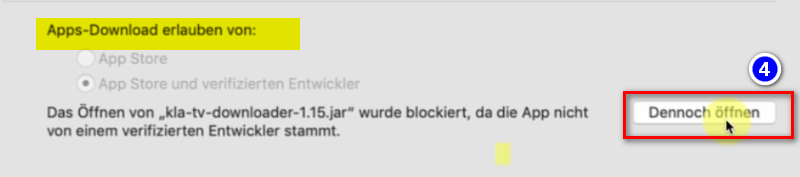
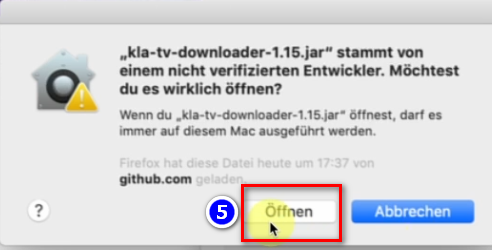
- <span style="background-color: rgb(251, 238, 184);">Dans le programme ouvert, sélectionnez ❻ l'emplacement où les fichiers téléchargés doivent être enregistrés (il est préférable d'utiliser un disque dur externe adapté) → créez un ❼ nouveau dossier nommé « Sauvegarde KlaTV » et sélectionnez ce dossier.</span>  
      
    [![grafik.png](https://wiki.kla.tv/uploads/images/gallery/2024-11/scaled-1680-/2gnwZlKS1YbJ22AJ-grafik.png)](https://wiki.kla.tv/uploads/images/gallery/2024-11/2gnwZlKS1YbJ22AJ-grafik.png)
- <span style="background-color: rgb(251, 238, 184);">Un message apparaît indiquant qu'aucun client torrent n'a été trouvé (car qBittorrent est nécessaire pour cela) → cliquez sur ❽ Configurer</span>  
      
    [![grafik.png](https://wiki.kla.tv/uploads/images/gallery/2024-11/scaled-1680-/zhpiLXdRyXCGj3Pj-grafik.png)](https://wiki.kla.tv/uploads/images/gallery/2024-11/zhpiLXdRyXCGj3Pj-grafik.png)

### <span style="background-color: rgb(241, 196, 15);">**5. paramétrer le qBittorrent :**</span>

- <span style="background-color: rgb(251, 238, 184);">Après avoir cliqué sur « Configurer » à l'étape 8 ci-dessus, une page Internet s'ouvre. Laisse la page ouverte</span>
- <span style="background-color: rgb(251, 238, 184);">Passe au programme KlaTV Downloader et si le message suivant s'affiche en rouge en bas : ❶ « Pas de connexion Internet », va dans la barre de menu ❷ → Paramètres → Désactiver la vérification en ligne</span> **[![grafik.png](https://wiki.kla.tv/uploads/images/gallery/2024-11/scaled-1680-/lBx9ws8cG2ode0kv-grafik.png)](https://wiki.kla.tv/uploads/images/gallery/2024-11/lBx9ws8cG2ode0kv-grafik.png)**
- <span style="background-color: rgb(251, 238, 184);">Retourne sur le site Internet (client torrent...) et fais défiler jusqu'à « Installation » → sélectionne le programme de téléchargement ❸.</span>**<span style="background-color: rgb(251, 238, 184);">  
      
    [https://github.com/Kla-TV/downloader/wiki/Torrent%E2%80%90Client-manuell-einrichten#installation](https://github.com/Kla-TV/downloader/wiki/Torrent%E2%80%90Client-manuell-einrichten#installation) </span>** [![image.png](https://wiki.kla.tv/uploads/images/gallery/2024-12/scaled-1680-/Xlt4zxUN0Vaj36Lb-image.png)](https://wiki.kla.tv/uploads/images/gallery/2024-12/Xlt4zxUN0Vaj36Lb-image.png)
- <span style="background-color: rgb(251, 238, 184);">Le téléchargement démarre automatiquement dès que vous cliquez sur le lien Mac.</span>
- <span style="background-color: rgb(251, 238, 184);">La fenêtre d'installation s'ouvre. Faites glisser le ❺ programme vers Applications → Authentifiez-vous (entrez votre mot de passe Mac)</span>  
    [![grafik.png](https://wiki.kla.tv/uploads/images/gallery/2024-11/scaled-1680-/OtnZFeOV0e12B3va-grafik.png)](https://wiki.kla.tv/uploads/images/gallery/2024-11/OtnZFeOV0e12B3va-grafik.png)
- <span style="background-color: rgb(251, 238, 184);">Accédez à vos programmes et ouvrez ❻ **« qBittorent ».**</span>  
      
    ![grafik.png](https://wiki.kla.tv/uploads/images/gallery/2024-11/scaled-1680-/R6s026HMTWcaSmzq-grafik.png)
- <span style="background-color: rgb(251, 238, 184);">Dans le programme « qBittorent », cliquez sur la **roue dentée** ❼.</span> **[![grafik.png](https://wiki.kla.tv/uploads/images/gallery/2024-11/scaled-1680-/JZfeWVhWlOmQeUQm-grafik.png)](https://wiki.kla.tv/uploads/images/gallery/2024-11/JZfeWVhWlOmQeUQm-grafik.png)**
- <span style="background-color: rgb(251, 238, 184);">❽→ Interface utilisateur Web → activer : « Interface utilisateur Web » → Port : 4242 → Cocher « Contourner l'authentification pour les clients sur localhost » → Mot de passe : entrer n'importe quoi, pas besoin de le mémoriser</span>  
      
    [![grafik.png](https://wiki.kla.tv/uploads/images/gallery/2024-11/scaled-1680-/Q9GO0locW3FdJvQ2-grafik.png)](https://wiki.kla.tv/uploads/images/gallery/2024-11/Q9GO0locW3FdJvQ2-grafik.png)
- <span style="background-color: rgb(251, 238, 184);"><span lang="DE" style="font-size: 16pt; line-height: 107%; font-family: Wingdings; background-color: rgb(251, 238, 184);"><span style="mso-char-type: symbol; mso-symbol-font-family: Wingdings;"><span lang="EN-US" style="font-size: 11pt; line-height: 107%; font-family: 'Cambria Math', serif; background-color: rgb(251, 238, 184);">❾</span></span></span>→ Behavior → Langue : Français → </span>**<span style="background-color: rgb(251, 238, 184);">OK</span>  
      
    [![grafik.png](https://wiki.kla.tv/uploads/images/gallery/2024-11/scaled-1680-/55rNMIdKK7U0mTje-grafik.png)](https://wiki.kla.tv/uploads/images/gallery/2024-11/55rNMIdKK7U0mTje-grafik.png)**
- <span style="background-color: rgb(251, 238, 184);">Fermez le programme « Kla.TV-Downloader » et rouvrez-le → en bas à droite, vous verrez désormais ❿ **« Terminé ».**</span>  
      
    [![grafik.png](https://wiki.kla.tv/uploads/images/gallery/2024-11/scaled-1680-/84bPGOJXwVAXo7fR-grafik.png)](https://wiki.kla.tv/uploads/images/gallery/2024-11/84bPGOJXwVAXo7fR-grafik.png)
- <span style="background-color: rgb(251, 238, 184);">Dans le programme KlaTV-Downloader, allez dans la barre de menu → Paramètres → Définir les paramètres recommandés pour le client torrent (tous les paramètres corrects sont automatiquement renseignés).</span>  
      
    [![grafik.png](https://wiki.kla.tv/uploads/images/gallery/2024-11/scaled-1680-/gqloWaqFD8o7LbNg-grafik.png)](https://wiki.kla.tv/uploads/images/gallery/2024-11/gqloWaqFD8o7LbNg-grafik.png)


### <span style="background-color: rgb(241, 196, 15);">**6. Synchroniser :**</span>

<p class="callout info">KlaTV Downloader ajoute des règles de synchronisation et les envoie à qBittorrent, qui télécharge ensuite les émissions et les maintient à jour. Cela signifie que le téléchargeur KlaTV définit uniquement comment et quoi télécharger, tandis que qBittorrent se charge du téléchargement.</p>

- <span style="background-color: rgb(251, 238, 184);">Ouvrez le téléchargeur kla.TV → sélectionnez les règles souhaitées ❶. (Explication à ce sujet, voir l'image)</span>  
    [![4.png](https://wiki.kla.tv/uploads/images/gallery/2025-08/scaled-1680-/JHtDghQwjkkKC9JY-4.png)](https://wiki.kla.tv/uploads/images/gallery/2024-11/Q9Op8e0KGpDAFHm6-grafik.png)  
      
    
    - <span style="background-color: rgb(251, 238, 184);">Si tu souhaites sélectionner plusieurs qualités, tu dois ajouter plusieurs fois de suite une « règle ». Cette tâche est ensuite envoyée à qBittorrent et téléchargée. </span>
        
        <span style="background-color: rgb(251, 238, 184);">Voici un ❷ exemple si tu souhaites créer une nouvelle règle, par exemple UNIQUEMENT pour les fichiers Word. Désactive ensuite la vidéo/l'audio, sélectionne les années souhaitées et ajoute la règle. (exemple en allemand)</span>
        
          
        [![grafik.png](https://wiki.kla.tv/uploads/images/gallery/2024-11/scaled-1680-/MyrlhWDMHW4eBhyZ-grafik.png)](https://wiki.kla.tv/uploads/images/gallery/2024-11/MyrlhWDMHW4eBhyZ-grafik.png)
- <span style="background-color: rgb(251, 238, 184);">Pour éviter qu'une fenêtre contextuelle n'apparaisse à chaque fois qu'une vidéo est téléchargée → allez dans ❸ qBittorrent → Roue dentée → Avancé → Afficher les notifications → désactiver → OK</span> **[![grafik.png](https://wiki.kla.tv/uploads/images/gallery/2024-11/scaled-1680-/6G1eB56aGCy3ji5X-grafik.png)](https://wiki.kla.tv/uploads/images/gallery/2024-11/6G1eB56aGCy3ji5X-grafik.png)**
- <span style="background-color: rgb(251, 238, 184);">Les programmes peuvent être fermés et le chargement se poursuit en arrière-plan.</span>
- <span style="background-color: rgb(251, 238, 184);">Dans l'en-tête ❹, tu peux rouvrir le programme.</span> **[![grafik.png](https://wiki.kla.tv/uploads/images/gallery/2024-11/scaled-1680-/H0S0ZQ0639Lk5hWA-grafik.png)](https://wiki.kla.tv/uploads/images/gallery/2024-11/H0S0ZQ0639Lk5hWA-grafik.png)**


### <span style="background-color: rgb(241, 196, 15);">**6. Mettre le téléchargement à la disposition d'autres personnes :**</span>

- <span style="background-color: rgb(251, 238, 184);">Par défaut, qBittorrent met tous les fichiers téléchargés à la disposition d'autres utilisateurs. Si, pour une raison quelconque, vous ne le souhaitez pas, vous pouvez désactiver cette fonction :  
    </span>
- **<span style="background-color: rgb(251, 238, 184);">Ouvrez ❶ qBittorrent → Paramètres → Téléchargement uniquement (pas de téléchargement torrent)</span>  
      
      
    [![grafik.png](https://wiki.kla.tv/uploads/images/gallery/2024-11/scaled-1680-/TTyJJDELOuYYB7pb-grafik.png)](https://wiki.kla.tv/uploads/images/gallery/2024-11/TTyJJDELOuYYB7pb-grafik.png)**

### <span style="background-color: rgb(241, 196, 15);">**7. Recommandation : configurer les options d'alimentation de manière à ce que l'ordinateur ne s'éteigne pas automatiquement :**   
</span>

<p class="callout info">Ce programme peut prendre plusieurs jours avant que tout soit synchronisé. Pour accélérer ce processus, il est recommandé de désactiver le mode économie d'énergie.</p>

- <span style="background-color: rgb(251, 238, 184);">Si l'ordinateur est redémarré, tu devras relancer l'application (voir instruction point 8).</span>
- <span style="background-color: rgb(251, 238, 184);">Pour éviter que le Mac ne s'éteigne automatiquement : Mac → ❶ Préférences Système → Économie d'énergie →</span>  
    <span style="background-color: rgb(251, 238, 184);">❷ Ne pas activer automatiquement le mode veille... → activer</span>
- <span style="background-color: rgb(251, 238, 184);">Laisser l'ordinateur allumé jusqu'à ce que tous les fichiers soient téléchargés.</span>
- [![grafik.png](https://wiki.kla.tv/uploads/images/gallery/2024-11/scaled-1680-/23U7rqFWbWlhJ5Uv-grafik.png)](https://wiki.kla.tv/uploads/images/gallery/2024-11/23U7rqFWbWlhJ5Uv-grafik.png)  
    <span style="background-color: rgb(251, 238, 184);">bei neueren Macs:</span>
    
    [![grafik.png](https://wiki.kla.tv/uploads/images/gallery/2024-11/scaled-1680-/gmOpiNFU9gKHn9B0-grafik.png)](https://wiki.kla.tv/uploads/images/gallery/2024-11/gmOpiNFU9gKHn9B0-grafik.png)
    
    [![grafik.png](https://wiki.kla.tv/uploads/images/gallery/2024-11/scaled-1680-/PGDWa65L7V1hj21V-grafik.png)](https://wiki.kla.tv/uploads/images/gallery/2024-11/PGDWa65L7V1hj21V-grafik.png)
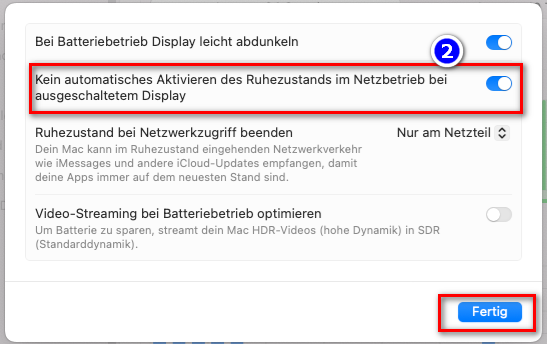
### <span style="background-color: rgb(241, 196, 15);">**8. Redémarrer le programme après le redémarrage de l'ordinateur / Conserver les archives à jour**</span>

- <span style="background-color: rgb(251, 238, 184);">Lorsque vous redémarrez votre ordinateur, vos programmes de téléchargement sont fermés. Pour que le processus de téléchargement puisse se poursuivre, vous devez rouvrir les deux programmes (❶ KlaTV-Downloader et ❷ qBittorrent). Le processus de téléchargement se poursuivra alors automatiquement.</span>  
      
    **[![grafik.png](https://wiki.kla.tv/uploads/images/gallery/2024-11/scaled-1680-/IjhxA7jMF7QCHpDT-grafik.png)](https://wiki.kla.tv/uploads/images/gallery/2024-11/IjhxA7jMF7QCHpDT-grafik.png)[![grafik.png](https://wiki.kla.tv/uploads/images/gallery/2024-11/scaled-1680-/DPiy0yNoIIVHuK7d-grafik.png)](https://wiki.kla.tv/uploads/images/gallery/2024-11/DPiy0yNoIIVHuK7d-grafik.png)**
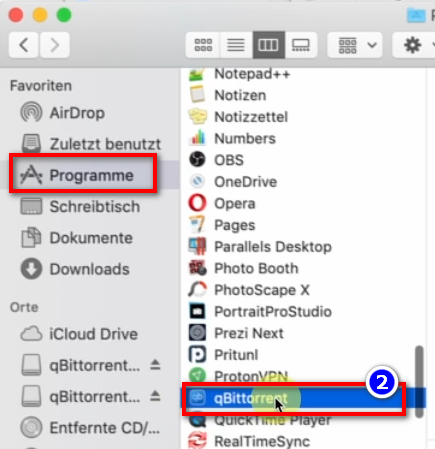
- <span style="background-color: rgb(251, 238, 184);">Veille à ouvrir ces deux programmes de temps en temps afin que les émissions actuelles soient automatiquement téléchargées sur ton disque dur.</span>

### <span style="background-color: rgb(241, 196, 15);">**9. Installer la mise à jour :**</span>

- **<span style="background-color: rgb(251, 238, 184);">De temps en temps, KlaTV Downloader est optimisé et vous devez installer la mise à jour. Voici comment cela fonctionne :</span>**
- <span style="background-color: rgb(251, 238, 184);">Ouvrir Kla.TV Downloader</span>
- <span style="background-color: rgb(251, 238, 184);">Le message suivant apparaît pour annoncer une nouvelle version du programme: (Si ce n'est pas le cas, allez dans Kla.TV Downloader → Aide → Rechercher les mises à jour</span>  
    [![grafik.png](https://wiki.kla.tv/uploads/images/gallery/2024-12/scaled-1680-/CPxIwgY3Aw6GYURU-grafik.png)](https://wiki.kla.tv/uploads/images/gallery/2024-12/CPxIwgY3Aw6GYURU-grafik.png)
    
    [![grafik.png](https://wiki.kla.tv/uploads/images/gallery/2024-12/scaled-1680-/YaiCj1fp8YsCOMGW-grafik.png)](https://wiki.kla.tv/uploads/images/gallery/2024-12/YaiCj1fp8YsCOMGW-grafik.png)

- L<span style="background-color: rgb(251, 238, 184);">a page Internet s'ouvre, faites défiler vers le bas jusqu'à « Assets » → cliquez sur ❹ « Kla.TV.Downloader-\*.\*\*.tar.gz ».</span>  
    
    - [![grafik.png](https://wiki.kla.tv/uploads/images/gallery/2024-11/scaled-1680-/xKO8pwvIyzzKFFa6-grafik.png)](https://wiki.kla.tv/uploads/images/gallery/2024-11/xKO8pwvIyzzKFFa6-grafik.png)
    - <span style="background-color: rgb(251, 238, 184);">❺ Ouvrez et décompressez le programme → faites-le glisser par exemple sur le ❻ bureau.</span>  
          
        ![grafik.png](https://wiki.kla.tv/uploads/images/gallery/2024-11/scaled-1680-/fqkvJohFv6e5fZeD-grafik.png)[![grafik.png](https://wiki.kla.tv/uploads/images/gallery/2024-11/scaled-1680-/fgT1bYzgnnG9BTgh-grafik.png)](https://wiki.kla.tv/uploads/images/gallery/2024-11/fgT1bYzgnnG9BTgh-grafik.png)
    
    
    - <span style="background-color: rgb(251, 238, 184);">Sur le bureau, accédez au dossier Kla.TV Downloader et ouvrez start-downlaoder-mac.command.</span>  
        [![grafik.png](https://wiki.kla.tv/uploads/images/gallery/2024-12/scaled-1680-/vZn1x5u9UzFI8eE7-grafik.png)](https://wiki.kla.tv/uploads/images/gallery/2024-12/vZn1x5u9UzFI8eE7-grafik.png)
    - Klicke auf der<span lang="DE" style="font-size: 16.0pt; mso-bidi-font-size: 11.0pt; line-height: 107%; font-family: Wingdings; mso-ascii-font-family: Calibri; mso-ascii-theme-font: minor-latin; mso-fareast-font-family: Calibri; mso-fareast-theme-font: minor-latin; mso-hansi-font-family: Calibri; mso-hansi-theme-font: minor-latin; mso-bidi-font-family: 'Times New Roman'; mso-bidi-theme-font: minor-bidi; mso-ansi-language: DE; mso-fareast-language: EN-US; mso-bidi-language: AR-SA; mso-char-type: symbol; mso-symbol-font-family: Wingdings;"><span style="mso-char-type: symbol; mso-symbol-font-family: Wingdings;"><span lang="EN-US" style="font-size: 11.0pt; line-height: 107%; font-family: 'Calibri',sans-serif; mso-ascii-theme-font: minor-latin; mso-fareast-font-family: Calibri; mso-fareast-theme-font: minor-latin; mso-hansi-theme-font: minor-latin; mso-bidi-font-family: 'Times New Roman'; mso-bidi-theme-font: minor-bidi; mso-ansi-language: EN-US; mso-fareast-language: EN-US; mso-bidi-language: AR-SA;"> </span><span lang="EN-US" style="font-size: 11.0pt; line-height: 107%; font-family: 'Cambria Math',serif; mso-fareast-font-family: Calibri; mso-fareast-theme-font: minor-latin; mso-bidi-font-family: 'Cambria Math'; mso-ansi-language: EN-US; mso-fareast-language: EN-US; mso-bidi-language: AR-SA;">❷</span></span></span> **Warnmeldung auf "OK**"  
        [![grafik.png](https://wiki.kla.tv/uploads/images/gallery/2024-11/scaled-1680-/ctWjfFgcE6oNtDZi-grafik.png)](https://wiki.kla.tv/uploads/images/gallery/2024-11/ctWjfFgcE6oNtDZi-grafik.png)
    
    
    - <span style="background-color: rgb(251, 238, 184);">Ouvrez les paramètres système de votre Mac → entrez ❸ « Paramètres de sécurité » (sur les Mac plus récents, allez dans : Confidentialité et sécurité) → sous « Autoriser le téléchargement d'applications depuis », cliquez sur ❹ « Ouvrir quand même » → ❺ Ouvrir</span> **[![grafik.png](https://wiki.kla.tv/uploads/images/gallery/2024-11/scaled-1680-/4QHcwAGwlXxVJpfH-grafik.png)](https://wiki.kla.tv/uploads/images/gallery/2024-11/4QHcwAGwlXxVJpfH-grafik.png)[![grafik.png](https://wiki.kla.tv/uploads/images/gallery/2024-11/scaled-1680-/7PJo5iZ9CpX9xGP4-grafik.png)](https://wiki.kla.tv/uploads/images/gallery/2024-11/7PJo5iZ9CpX9xGP4-grafik.png)[![grafik.png](https://wiki.kla.tv/uploads/images/gallery/2024-11/scaled-1680-/8DkrZiRyz2KlOO2K-grafik.png)](https://wiki.kla.tv/uploads/images/gallery/2024-11/8DkrZiRyz2KlOO2K-grafik.png)**


    
    <span style="background-color: rgb(251, 238, 184);">Supprime l'ancienne version, ouvre à nouveau le téléchargeur Kla.TV actuel et profite de la version optimisée 😊</span>

##### Autres articles susceptibles de t'intéresser :  
  
[**Rechercher dans les archives sécurisées**](https://wiki.kla.tv/books/fr-sauvegarder-klatv/page/rechercher-dans-les-archives-securisees)

# LINUX : Installation et utilisation de "Kla.TV Downloader"

<p class="callout info">Les instructions écrites sont encore en cours d'élaboration.</p>

### **Qu'apprends-tu dans cet article**

Tu vas apprendre comment installer le téléchargeur Kla.TV sur Linux. Le téléchargeur Kla.TV met automatiquement à jour tes archives. En même temps, tu peux mettre ton connexion vidéo à la disposition d'autres utilisateurs pour le téléchargement. C'est parti :

### **Instructions vidéo : (14min)**

**(en allemand)**

<iframe allowfullscreen="allowfullscreen" frameborder="0" height="332" src="https://www.kla.tv/index.php?a=showembed&vidid=31126&lang=de" width="590"></iframe>

###  **Instructions écrites :**

### <span style="background-color: rgb(241, 196, 15);"> **1. Principes fondamentaux**</span>

- Quelle est la différence entre le téléchargeur Kla.TV et le téléchargement via l'accès au serveur (via FileZilla) ?  
    - **Via l'accès au serveur**, vous téléchargez l'archive une seule fois avec FileZilla et vous devez la maintenir à jour « manuellement » et télécharger régulièrement les dernières émissions.  
    - **Grâce au programme de téléchargement**, vous pouvez maintenir votre archive à jour automatiquement et la synchroniser avec la base de données du serveur. Vous le configurez une seule fois et il est automatiquement mis à jour. De plus, vous pouvez mettre les vidéos de votre connexion vidéo à la disposition d'autres utilisateurs pour qu'ils les téléchargent.
- Pour cela, vous devez installer deux nouveaux programmes. 1. le téléchargeur Kla.TV et 2. le qBittorrent. Voici les instructions :

### <span style="background-color: rgb(241, 196, 15);"> **2.** </span><span style="box-sizing: border-box; outline-color: rgb(0, 49, 92); outline-width: 1px; margin: 0px; padding: 0px; border: 0px; font: inherit; vertical-align: baseline; background-color: rgb(241, 196, 15);">**Installation du Kla.TV-Downloader** </span>

- <span style="background-color: rgb(251, 238, 184);">Aller sur la page </span>**<span style="background-color: rgb(251, 238, 184);">[kla.tv/sichern](https://www.kla.tv/sichern) <span style="color: rgb(0, 0, 0);">(0) (en français "Sauvegarder Kla.TV)</span></span>**

**<span style="background-color: rgb(52, 73, 94); color: rgb(255, 255, 255);">[![image.png](https://wiki.kla.tv/uploads/images/gallery/2024-11/scaled-1680-/KxmCDnQQzOrOT1s8-image.png)](https://wiki.kla.tv/uploads/images/gallery/2024-11/KxmCDnQQzOrOT1s8-image.png)</span>**

- Choisir **"Kla.TV/Downloader"**
- <span style="box-sizing: border-box; outline-color: rgb(0, 49, 92); outline-width: 1px; margin: 0px; padding: 0px; border: 0px; font: inherit; vertical-align: baseline; background-color: rgb(251, 238, 184);">Choisir le type de téléchargement <span lang="DE" style="box-sizing: border-box; outline-color: rgb(0, 49, 92); outline-width: 1px; margin: 0px; padding: 0px; border: 0px; font-style: inherit; font-variant: inherit; font-weight: inherit; font-stretch: inherit; font-size: 16pt; line-height: 22.8267px; font-family: Wingdings; font-optical-sizing: inherit; font-size-adjust: inherit; font-kerning: inherit; font-feature-settings: inherit; font-variation-settings: inherit; vertical-align: baseline; background-color: rgb(251, 238, 184);"><span style="box-sizing: border-box; outline-color: rgb(0, 49, 92); outline-width: 1px; margin: 0px; padding: 0px; border: 0px; font: inherit; vertical-align: baseline;"><span lang="EN-US" style="box-sizing: border-box; outline-color: rgb(0, 49, 92); outline-width: 1px; margin: 0px; padding: 0px; border: 0px; font-style: inherit; font-variant: inherit; font-weight: inherit; font-stretch: inherit; font-size: 11pt; line-height: 15.6933px; font-family: 'Cambria Math', serif; font-optical-sizing: inherit; font-size-adjust: inherit; font-kerning: inherit; font-feature-settings: inherit; font-variation-settings: inherit; vertical-align: baseline; background-color: rgb(251, 238, 184);">❶</span></span></span> "**Peer-to-Peer**" → <span lang="DE" style="box-sizing: border-box; outline-color: rgb(0, 49, 92); outline-width: 1px; margin: 0px; padding: 0px; border: 0px; font-style: inherit; font-variant: inherit; font-weight: inherit; font-stretch: inherit; font-size: 16pt; line-height: 22.8267px; font-family: Wingdings; font-optical-sizing: inherit; font-size-adjust: inherit; font-kerning: inherit; font-feature-settings: inherit; font-variation-settings: inherit; vertical-align: baseline; background-color: rgb(251, 238, 184);"><span style="box-sizing: border-box; outline-color: rgb(0, 49, 92); outline-width: 1px; margin: 0px; padding: 0px; border: 0px; font: inherit; vertical-align: baseline;"><span lang="EN-US" style="box-sizing: border-box; outline-color: rgb(0, 49, 92); outline-width: 1px; margin: 0px; padding: 0px; border: 0px; font-style: inherit; font-variant: inherit; font-weight: inherit; font-stretch: inherit; font-size: 11pt; line-height: 15.6933px; font-family: 'Cambria Math', serif; font-optical-sizing: inherit; font-size-adjust: inherit; font-kerning: inherit; font-feature-settings: inherit; font-variation-settings: inherit; vertical-align: baseline; background-color: rgb(251, 238, 184);">❷</span></span></span> **"Télécharger &amp; plus"**</span>
- <span style="color: rgb(68, 68, 68); font-family: -apple-system, BlinkMacSystemFont, 'Segoe UI', Oxygen, Ubuntu, Roboto, Cantarell, 'Fira Sans', 'Droid Sans', 'Helvetica Neue', sans-serif; font-size: 14px; font-style: normal; font-variant-ligatures: normal; font-variant-caps: normal; font-weight: 400; letter-spacing: normal; orphans: 2; text-align: left; text-indent: 0px; text-transform: none; widows: 2; word-spacing: 0px; -webkit-text-stroke-width: 0px; white-space: normal; background-color: rgb(251, 238, 184); text-decoration-thickness: initial; text-decoration-style: initial; text-decoration-color: initial; display: inline !important; float: none;">Cliquer sur </span><span lang="DE" style="box-sizing: border-box; outline-color: rgb(0, 49, 92); outline-width: 1px; margin: 0px; padding: 0px; border: 0px; font-style: normal; font-variant-ligatures: normal; font-variant-caps: normal; font-variant-numeric: inherit; font-variant-east-asian: inherit; font-variant-alternates: inherit; font-variant-position: inherit; font-variant-emoji: inherit; font-weight: 400; font-stretch: inherit; font-size: 16pt; line-height: 22.8267px; font-family: Wingdings; font-optical-sizing: inherit; font-size-adjust: inherit; font-kerning: inherit; font-feature-settings: inherit; font-variation-settings: inherit; vertical-align: baseline; color: rgb(68, 68, 68); letter-spacing: normal; orphans: 2; text-align: left; text-indent: 0px; text-transform: none; widows: 2; word-spacing: 0px; -webkit-text-stroke-width: 0px; white-space: normal; background-color: rgb(251, 238, 184); text-decoration-thickness: initial; text-decoration-style: initial; text-decoration-color: initial;"><span style="box-sizing: border-box; outline-color: rgb(0, 49, 92); outline-width: 1px; margin: 0px; padding: 0px; border: 0px; font: inherit; vertical-align: baseline;"><span lang="EN-US" style="box-sizing: border-box; outline-color: rgb(0, 49, 92); outline-width: 1px; margin: 0px; padding: 0px; border: 0px; font-style: inherit; font-variant: inherit; font-weight: inherit; font-stretch: inherit; font-size: 11pt; line-height: 15.6933px; font-family: 'Cambria Math', serif; font-optical-sizing: inherit; font-size-adjust: inherit; font-kerning: inherit; font-feature-settings: inherit; font-variation-settings: inherit; vertical-align: baseline; background-color: rgb(251, 238, 184);">❸</span></span></span><span style="color: rgb(68, 68, 68); font-family: -apple-system, BlinkMacSystemFont, 'Segoe UI', Oxygen, Ubuntu, Roboto, Cantarell, 'Fira Sans', 'Droid Sans', 'Helvetica Neue', sans-serif; font-size: 14px; font-style: normal; font-variant-ligatures: normal; font-variant-caps: normal; font-weight: 400; letter-spacing: normal; orphans: 2; text-align: left; text-indent: 0px; text-transform: none; widows: 2; word-spacing: 0px; -webkit-text-stroke-width: 0px; white-space: normal; background-color: rgb(251, 238, 184); text-decoration-thickness: initial; text-decoration-style: initial; text-decoration-color: initial; display: inline !important; float: none;"> </span>**Kla-TV-Downloader**<span style="color: rgb(68, 68, 68); font-family: -apple-system, BlinkMacSystemFont, 'Segoe UI', Oxygen, Ubuntu, Roboto, Cantarell, 'Fira Sans', 'Droid Sans', 'Helvetica Neue', sans-serif; font-size: 14px; font-style: normal; font-variant-ligatures: normal; font-variant-caps: normal; font-weight: 400; letter-spacing: normal; orphans: 2; text-align: left; text-indent: 0px; text-transform: none; widows: 2; word-spacing: 0px; -webkit-text-stroke-width: 0px; white-space: normal; background-color: rgb(251, 238, 184); text-decoration-thickness: initial; text-decoration-style: initial; text-decoration-color: initial; display: inline !important; float: none;"> → Téléchargez le programme le plus récent (toujours en haut) en cliquant sur « Assets »</span>

[![image.png](https://wiki.kla.tv/uploads/images/gallery/2024-11/scaled-1680-/DwW0At2IsmKMHp65-image.png)](https://wiki.kla.tv/uploads/images/gallery/2024-11/DwW0At2IsmKMHp65-image.png)

[![image.png](https://wiki.kla.tv/uploads/images/gallery/2024-11/scaled-1680-/qq15Fp4P7xqdCug0-image.png)](https://wiki.kla.tv/uploads/images/gallery/2024-11/qq15Fp4P7xqdCug0-image.png)

- <span style="background-color: rgb(251, 238, 184);"><span style="color: rgb(68, 68, 68); font-family: -apple-system, BlinkMacSystemFont, 'Segoe UI', Oxygen, Ubuntu, Roboto, Cantarell, 'Fira Sans', 'Droid Sans', 'Helvetica Neue', sans-serif; font-size: 14px; font-style: normal; font-variant-ligatures: normal; font-variant-caps: normal; font-weight: 400; letter-spacing: normal; text-align: left; text-indent: 0px; text-transform: none; word-spacing: 0px; -webkit-text-stroke-width: 0px; white-space: normal; text-decoration-thickness: initial; text-decoration-style: initial; text-decoration-color: initial; display: inline !important; float: none; background-color: rgb(251, 238, 184);">cliquer sur </span><span lang="DE" style="box-sizing: border-box; outline-color: rgb(0, 49, 92); outline-width: 1px; margin: 0px; padding: 0px; border: 0px; font-style: normal; font-variant-ligatures: normal; font-variant-caps: normal; font-variant-numeric: inherit; font-variant-east-asian: inherit; font-variant-alternates: inherit; font-variant-position: inherit; font-variant-emoji: inherit; font-weight: 400; font-stretch: inherit; font-size: 16pt; line-height: 22.8267px; font-family: Wingdings; font-optical-sizing: inherit; font-size-adjust: inherit; font-kerning: inherit; font-feature-settings: inherit; font-variation-settings: inherit; vertical-align: baseline; color: rgb(68, 68, 68); letter-spacing: normal; text-align: left; text-indent: 0px; text-transform: none; word-spacing: 0px; -webkit-text-stroke-width: 0px; white-space: normal; text-decoration-thickness: initial; text-decoration-style: initial; text-decoration-color: initial; background-color: rgb(251, 238, 184);"><span style="box-sizing: border-box; outline-color: rgb(0, 49, 92); outline-width: 1px; margin: 0px; padding: 0px; border: 0px; font: inherit; vertical-align: baseline; background-color: rgb(251, 238, 184);"><span lang="EN-US" style="box-sizing: border-box; outline-color: rgb(0, 49, 92); outline-width: 1px; margin: 0px; padding: 0px; border: 0px; font-style: inherit; font-variant: inherit; font-weight: inherit; font-stretch: inherit; font-size: 11pt; line-height: 15.6933px; font-family: 'Cambria Math', serif; font-optical-sizing: inherit; font-size-adjust: inherit; font-kerning: inherit; font-feature-settings: inherit; font-variation-settings: inherit; vertical-align: baseline; background-color: rgb(251, 238, 184);">❹</span></span></span><span style="color: rgb(68, 68, 68); font-family: -apple-system, BlinkMacSystemFont, 'Segoe UI', Oxygen, Ubuntu, Roboto, Cantarell, 'Fira Sans', 'Droid Sans', 'Helvetica Neue', sans-serif; font-size: 14px; font-style: normal; font-variant-ligatures: normal; font-variant-caps: normal; font-weight: 400; letter-spacing: normal; text-align: left; text-indent: 0px; text-transform: none; word-spacing: 0px; -webkit-text-stroke-width: 0px; white-space: normal; text-decoration-thickness: initial; text-decoration-style: initial; text-decoration-color: initial; display: inline !important; float: none; background-color: rgb(251, 238, 184);"> "</span>**Kla.TV.Downloader-\*.\*\*.tar.gz**<span style="color: rgb(68, 68, 68); font-family: -apple-system, BlinkMacSystemFont, 'Segoe UI', Oxygen, Ubuntu, Roboto, Cantarell, 'Fira Sans', 'Droid Sans', 'Helvetica Neue', sans-serif; font-size: 14px; font-style: normal; font-variant-ligatures: normal; font-variant-caps: normal; font-weight: 400; letter-spacing: normal; text-align: left; text-indent: 0px; text-transform: none; word-spacing: 0px; -webkit-text-stroke-width: 0px; white-space: normal; text-decoration-thickness: initial; text-decoration-style: initial; text-decoration-color: initial; display: inline !important; float: none; background-color: rgb(251, 238, 184);">" </span></span>
- <span style="background-color: rgb(251, 238, 184);"><span lang="DE"><span lang="EN-US">❺</span></span> Ouvrir le dossier de téléchargement</span>
- <span style="background-color: rgb(251, 238, 184);">Décompresse le fichier, par exemple sur ton bureau ❻</span>

[![image.png](https://wiki.kla.tv/uploads/images/gallery/2024-11/scaled-1680-/qSErpIgwXlzwbwW8-image.png)](https://wiki.kla.tv/uploads/images/gallery/2024-11/qSErpIgwXlzwbwW8-image.png)[![image.png](https://wiki.kla.tv/uploads/images/gallery/2024-11/scaled-1680-/TlW6Qfw6MuE7VKYG-image.png)](https://wiki.kla.tv/uploads/images/gallery/2024-11/TlW6Qfw6MuE7VKYG-image.png)
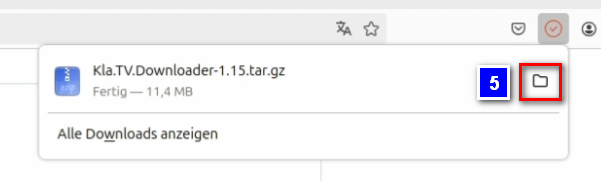
[![image.png](https://wiki.kla.tv/uploads/images/gallery/2024-11/scaled-1680-/JH6Ob0TgsrkaGS7N-image.png)](https://wiki.kla.tv/uploads/images/gallery/2024-11/JH6Ob0TgsrkaGS7N-image.png)
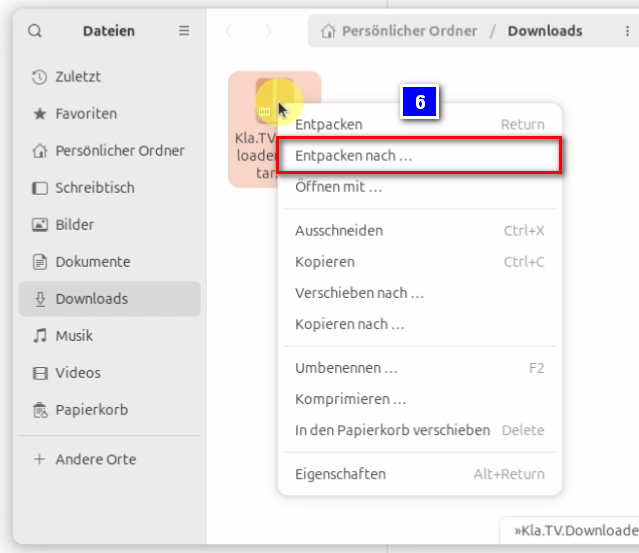
### <span style="background-color: rgb(241, 196, 15);"> **3. Installation de JAWA (afin que Kla.TV-Downloader functionne) :** </span>

<div aria-label="Abschnittsoptionen der Seite" class="pointer-container" id="bkmrk-%C2%A0-4" refs="pointer@pointer" tabindex="-1"><div class="pointer flex-container-row items-center justify-space-between p-s anim is-page-editable"><div class="flex-container-row items-center gap-s" refs="pointer@mode-section"><button class="text-button icon px-xs" title="Permalink-Modus, Drücken, um Include-Tag anzuzeigen"><svg class="svg-icon" data-icon="link" role="presentation" viewbox="0 0 24 24" xmlns="http://www.w3.org/2000/svg"></svg></button><div class="input-group"> <button class="button outline icon" title="Link kopieren" type="button"><svg class="svg-icon" data-icon="copy" role="presentation" viewbox="0 0 24 24" xmlns="http://www.w3.org/2000/svg"></svg></button></div></div><svg class="svg-icon" data-icon="edit" role="presentation" viewbox="0 0 24 24" xmlns="http://www.w3.org/2000/svg"></svg></div></div>- <span style="background-color: rgb(251, 238, 184);">Ouvrez le terminal ❶, entrez cette commande ❷ et confirmez en appuyant sur Entrée :</span>  
    ```bash
    sudo apt install default-jre
    ```

[![image.png](https://wiki.kla.tv/uploads/images/gallery/2024-11/scaled-1680-/kZ69MgwY8HLhbXlM-image.png)](https://wiki.kla.tv/uploads/images/gallery/2024-11/kZ69MgwY8HLhbXlM-image.png)

[![image.png](https://wiki.kla.tv/uploads/images/gallery/2024-11/scaled-1680-/mfcrMMjPQdU3n1ph-image.png)](https://wiki.kla.tv/uploads/images/gallery/2024-11/mfcrMMjPQdU3n1ph-image.png)

- <span style="background-color: rgb(251, 238, 184);">Saisis le mot de passe de ton ordinateur et confirme à nouveau en appuyant sur Entrée.</span>
- <span style="background-color: rgb(251, 238, 184);">Tapez un seul « J » pour démarrer l'installation ❸ et confirmez en appuyant sur Entrée.</span>

[![image.png](https://wiki.kla.tv/uploads/images/gallery/2024-11/scaled-1680-/AXa4dynm8x0l3tpL-image.png)](https://wiki.kla.tv/uploads/images/gallery/2024-11/AXa4dynm8x0l3tpL-image.png)

- <span style="background-color: rgb(251, 238, 184);">Accédez au dossier décompressé et cliquez avec le bouton droit de la souris sur le fichier : « start-downloader-linux.sh » ❹</span>
- <span style="background-color: rgb(251, 238, 184);">Sous Propriétés ❺, vérifie que l'option « Exécuter en tant que programme » ❻ est activée, car c'est la seule façon d'exécuter le fichier.</span>

[![image.png](https://wiki.kla.tv/uploads/images/gallery/2024-11/scaled-1680-/kJCMidObyli2Jhlh-image.png)](https://wiki.kla.tv/uploads/images/gallery/2024-11/kJCMidObyli2Jhlh-image.png)

[![image.png](https://wiki.kla.tv/uploads/images/gallery/2024-11/scaled-1680-/kZboiz14dfxwRP5N-image.png)](https://wiki.kla.tv/uploads/images/gallery/2024-11/kZboiz14dfxwRP5N-image.png) [![image.png](https://wiki.kla.tv/uploads/images/gallery/2024-11/scaled-1680-/EgEhKCmtxLZ0IDvt-image.png)](https://wiki.kla.tv/uploads/images/gallery/2024-11/EgEhKCmtxLZ0IDvt-image.png)

- <span style="background-color: rgb(251, 238, 184);">En cliquant avec le bouton droit de la souris sur le fichier et en sélectionnant l'option « Exécuter en tant qu'application » ❼, tu peux maintenant exécuter le fichier.</span>

[![image.png](https://wiki.kla.tv/uploads/images/gallery/2024-11/scaled-1680-/Oo8pi4NnoNHMGqiY-image.png)](https://wiki.kla.tv/uploads/images/gallery/2024-11/Oo8pi4NnoNHMGqiY-image.png)

- <span style="background-color: rgb(251, 238, 184);">Es öffnet sich ein Fenster ❽, in welchem du gefragt wirst, wohin die Dateien vom Kla.TV-Downloader abgelegt werden sollen. Es empfiehlt sich eine externe Festplatte dort zu verwenden und diese als Ablageort festzulegen. </span>
- <span style="background-color: rgb(251, 238, 184);">Créez un nouveau dossier ❾ sur le disque dur, nommez-le « Sauvegarde Kla.TV » et confirmez avec « Sélectionner » ❿.</span>
- <span style="background-color: rgb(251, 238, 184);">Le message ❿❶ indiquant qu'aucun client torrent n'est encore installé s'affiche.</span>

[![image.png](https://wiki.kla.tv/uploads/images/gallery/2024-11/scaled-1680-/vIsGKiaCCe8Ho0io-image.png)](https://wiki.kla.tv/uploads/images/gallery/2024-11/vIsGKiaCCe8Ho0io-image.png)[![image.png](https://wiki.kla.tv/uploads/images/gallery/2024-11/scaled-1680-/Y0e1DUaQV7tzWdoN-image.png)](https://wiki.kla.tv/uploads/images/gallery/2024-11/Y0e1DUaQV7tzWdoN-image.png)

[![image.png](https://wiki.kla.tv/uploads/images/gallery/2024-11/scaled-1680-/r2Rvsy3ubx6LO5lZ-image.png)](https://wiki.kla.tv/uploads/images/gallery/2024-11/r2Rvsy3ubx6LO5lZ-image.png)

#### **<span lang="DE" style="background-color: rgb(241, 196, 15);"><span lang="EN-US"> 3.1 Que faire si le programme ne démarre pas correctement ?</span></span>**

<p class="callout warning">Si le programme plante, car il ne fonctionne pas encore de manière stable sous Linux, tu dois suivre les étapes suivantes :</p>

- <span style="background-color: rgb(251, 238, 184);">Dans le coin supérieur droit de ton écran, tu devrais maintenant voir l'icône du téléchargeur Kla.TV ❶ qui te permet d'ouvrir le téléchargeur Kla.TV (clic droit dessus).</span>

<span lang="DE"><span lang="EN-US">[![image.png](https://wiki.kla.tv/uploads/images/gallery/2024-11/scaled-1680-/GCaEPt9UrqxpHsyi-image.png)](https://wiki.kla.tv/uploads/images/gallery/2024-11/GCaEPt9UrqxpHsyi-image.png)</span></span>

- <span style="background-color: rgb(251, 238, 184);">Si le programme ne démarre pas, c'est parce qu'il n'est pas encore assez stable sous Linux. Dans ce cas, clique sur l'icône et quitte le programme ❷</span>
- <span style="background-color: rgb(251, 238, 184);">On vous demande alors si vous souhaitez quitter le client torrent, ce que vous confirmez en cliquant sur « Oui » ❸.</span>

<span lang="DE"><span lang="EN-US">[![image.png](https://wiki.kla.tv/uploads/images/gallery/2024-11/scaled-1680-/ThGUwAUubdq3ZxSQ-image.png)](https://wiki.kla.tv/uploads/images/gallery/2024-11/ThGUwAUubdq3ZxSQ-image.png)[ ![image.png](https://wiki.kla.tv/uploads/images/gallery/2024-11/scaled-1680-/XFRYJm6Oa5RINlIP-image.png)](https://wiki.kla.tv/uploads/images/gallery/2024-11/XFRYJm6Oa5RINlIP-image.png)</span></span>
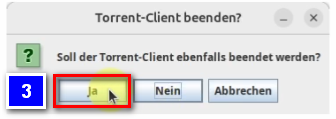
- <span style="background-color: rgb(251, 238, 184);">Retourne maintenant dans le dossier contenant le fichier « start-downloader-linux.sh ». Exécute à nouveau ce fichier en cliquant avec le bouton droit de la souris et en sélectionnant « Exécuter en tant qu'application » ❹.</span>
- <span style="background-color: rgb(251, 238, 184);">Tu peux fermer la fenêtre du terminal qui s'ouvre automatiquement.</span>

<span lang="DE"><span lang="EN-US">[![image.png](https://wiki.kla.tv/uploads/images/gallery/2024-11/scaled-1680-/04y9XoeOJsHDaLH5-image.png)](https://wiki.kla.tv/uploads/images/gallery/2024-11/04y9XoeOJsHDaLH5-image.png)</span></span>

<p class="callout success">Le programme devrait maintenant être correctement installé.</p>

- <span style="background-color: rgb(251, 238, 184);">Ouvrez le téléchargeur Kla.TV en cliquant sur l'icône dans le coin supérieur droit de l'écran ❺.</span>

<span lang="DE"><span lang="EN-US">[![image.png](https://wiki.kla.tv/uploads/images/gallery/2024-11/scaled-1680-/8ykTwHoKNlh1HewA-image.png)](https://wiki.kla.tv/uploads/images/gallery/2024-11/8ykTwHoKNlh1HewA-image.png)</span></span>

- <span style="background-color: rgb(251, 238, 184);">Sous l'onglet « Paramètres » ❻, cochez l'option « Désactiver la vérification en ligne » ❼. En effet, cette vérification Internet ne fonctionne pas vraiment sous Linux et le téléchargeur ne peut donc pas se connecter à Internet.</span>

[![image.png](https://wiki.kla.tv/uploads/images/gallery/2024-11/scaled-1680-/QEPCV2g7g5NfXGwY-image.png)](https://wiki.kla.tv/uploads/images/gallery/2024-11/QEPCV2g7g5NfXGwY-image.png)

### <span style="background-color: rgb(241, 196, 15);"> **4. Paramétrer Torrent-Client :** </span>

- <span style="background-color: rgb(251, 238, 184);">Un message indiquant qu'aucun client torrent n'a été trouvé s'affiche. Clique sur « Configurer » ❶ pour l'installer.</span>

[![image.png](https://wiki.kla.tv/uploads/images/gallery/2024-11/scaled-1680-/d5LIcdSURiVaV8yl-image.png)](https://wiki.kla.tv/uploads/images/gallery/2024-11/d5LIcdSURiVaV8yl-image.png)

- <span style="background-color: rgb(251, 238, 184);">Une page web s'ouvre, expliquant comment configurer manuellement le client torrent. Clique sur le lien bleu dans la sous-rubrique « Installation ». </span>**<span style="background-color: rgb(251, 238, 184);">[https://github.com/Kla-TV/downloader/wiki/Torrent%E2%80%90Client-manuell-einrichten#installation](https://github.com/Kla-TV/downloader/wiki/Torrent%E2%80%90Client-manuell-einrichten#installation) </span>**

[![image.png](https://wiki.kla.tv/uploads/images/gallery/2024-12/scaled-1680-/udhsogFEkkjHYEZ8-image.png)](https://wiki.kla.tv/uploads/images/gallery/2024-12/udhsogFEkkjHYEZ8-image.png)

- <span style="background-color: rgb(251, 238, 184);">Le téléchargement démarre automatiquement dès que vous cliquez sur le lien Linux.</span>

#### **<span lang="DE" style="background-color: rgb(241, 196, 15);"><span lang="EN-US"> 4.1 Installer Libfuse (Base pour Torrent-Client): </span></span>**

- <span style="background-color: rgb(251, 238, 184);">Ouvrez le terminal et entrez cette commande ❶, puis confirmez en appuyant sur Entrée :</span>

```bash
sudo apt install libfuse2t64
```

[![image.png](https://wiki.kla.tv/uploads/images/gallery/2024-11/scaled-1680-/DXbGEbQf9MqSdvPP-image.png)](https://wiki.kla.tv/uploads/images/gallery/2024-11/DXbGEbQf9MqSdvPP-image.png)

- <span style="background-color: rgb(251, 238, 184);">Saisis maintenant ton mot de passe PC et confirme à nouveau en appuyant sur Entrée. Tu peux maintenant refermer le terminal.</span>
- <span style="background-color: rgb(251, 238, 184);">Retourne dans le dossier où se trouve le fichier « qbittorrent-5.02.2\_x86\_64.AppImage ». Clique avec le bouton droit de la souris et sélectionne « Propriétés » ❷ pour ouvrir les propriétés du fichier. Active ensuite l'option « Exécuter ce programme » ❸.</span>

<span lang="DE"><span lang="EN-US">[![image.png](https://wiki.kla.tv/uploads/images/gallery/2024-11/scaled-1680-/jANZvk8d2PRJL5B1-image.png)](https://wiki.kla.tv/uploads/images/gallery/2024-11/jANZvk8d2PRJL5B1-image.png)[![image.png](https://wiki.kla.tv/uploads/images/gallery/2024-11/scaled-1680-/oB9jZDaQChMi50Pm-image.png)](https://wiki.kla.tv/uploads/images/gallery/2024-11/oB9jZDaQChMi50Pm-image.png)</span></span>
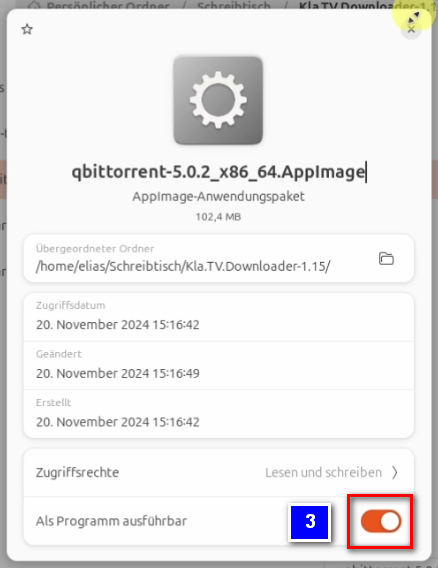
- <span style="background-color: rgb(251, 238, 184);">Il est désormais possible d'exécuter le programme en cliquant avec le bouton droit de la souris et en sélectionnant « Exécuter » ❹.</span>
- <span style="background-color: rgb(251, 238, 184);">Une mention légale s'affiche, que tu peux confirmer en cliquant sur « OK ». Le programme s'ouvre alors.</span>

[![image.png](https://wiki.kla.tv/uploads/images/gallery/2024-11/scaled-1680-/gKJCw3huqAkajqgB-image.png)](https://wiki.kla.tv/uploads/images/gallery/2024-11/gKJCw3huqAkajqgB-image.png)

#### **<span lang="DE" style="background-color: rgb(241, 196, 15);"><span lang="EN-US"> 4.2 Paramétrer qBittorrent : </span></span>**

<p class="callout info">Les deux programmes nécessaires sont désormais installés. Il ne reste plus qu'à les configurer correctement.</p>

- <span style="background-color: rgb(251, 238, 184);">Cliquez maintenant sur la roue dentée dans qBittorrent ❶ pour ouvrir les paramètres.</span>

[![image.png](https://wiki.kla.tv/uploads/images/gallery/2024-11/scaled-1680-/VBMaqKF5ozph0wtK-image.png)](https://wiki.kla.tv/uploads/images/gallery/2024-11/VBMaqKF5ozph0wtK-image.png)

- <span style="background-color: rgb(251, 238, 184);">Dans les paramètres, allez d'abord dans « Interface Web » ❷. Cochez ensuite la case « Interface utilisateur Web (télécommande) » ❸, puis entrez le numéro « 4242 » ❹ dans le champ « Port ». Cochez la case « Contourner l'authentification pour les clients sur l'hôte local » ❺ et définissez un mot de passe ❻ que vous n'avez pas besoin de mémoriser. Pour finir, confirmez vos paramètres en cliquant sur le bouton « OK » ❼.</span>

[![image.png](https://wiki.kla.tv/uploads/images/gallery/2024-11/scaled-1680-/oD4FLPUJAwctKhmI-image.png)](https://wiki.kla.tv/uploads/images/gallery/2024-11/oD4FLPUJAwctKhmI-image.png)

- <span style="background-color: rgb(251, 238, 184);">Pour vérifier si les paramètres ont bien été pris en compte, cliquez à nouveau avec le bouton droit de la souris sur l'icône du téléchargeur Kla.TV, fermez le programme ❽ et confirmez dans la fenêtre qui s'ouvre en cliquant sur « Oui » ❾.</span>

[![image.png](https://wiki.kla.tv/uploads/images/gallery/2024-11/scaled-1680-/qVEZuuzmydUUgf1b-image.png)](https://wiki.kla.tv/uploads/images/gallery/2024-11/qVEZuuzmydUUgf1b-image.png)[ ![image.png](https://wiki.kla.tv/uploads/images/gallery/2024-11/scaled-1680-/umMckXlersPuq70t-image.png)](https://wiki.kla.tv/uploads/images/gallery/2024-11/umMckXlersPuq70t-image.png)
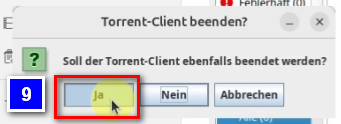
- <span style="background-color: rgb(251, 238, 184);">Clique avec le bouton droit de la souris sur le fichier Kla.TV-Downloader « start-downloader-linux.sh » ❿ et clique sur « Exécuter en tant qu'application » ❿❶ pour redémarrer le Kla.TV-Downloader.</span>

[![image.png](https://wiki.kla.tv/uploads/images/gallery/2024-11/scaled-1680-/46zu3ZCzYmFAIDIr-image.png)](https://wiki.kla.tv/uploads/images/gallery/2024-11/46zu3ZCzYmFAIDIr-image.png)

[![image.png](https://wiki.kla.tv/uploads/images/gallery/2024-11/scaled-1680-/d9oQNFYVgNKHquhJ-image.png)](https://wiki.kla.tv/uploads/images/gallery/2024-11/d9oQNFYVgNKHquhJ-image.png)
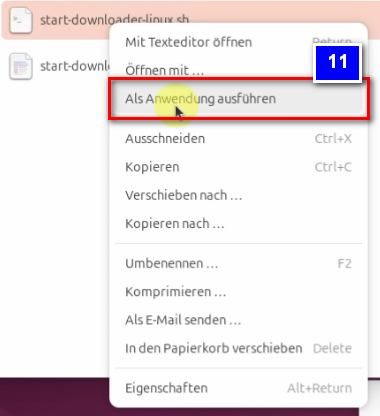
- <span style="background-color: rgb(251, 238, 184);">Si la configuration a réussi, les messages « Prêt. » ❿❷ et « Terminé. » ❿❸ devraient maintenant s'afficher en bas de l'écran dans le téléchargeur Kla.TV.</span>

[![image.png](https://wiki.kla.tv/uploads/images/gallery/2024-11/scaled-1680-/DXRX18cLkahBYV6L-image.png)](https://wiki.kla.tv/uploads/images/gallery/2024-11/DXRX18cLkahBYV6L-image.png)

<p class="callout info">Pour éviter d'avoir à effectuer encore plus de réglages manuels dans qBittorrent, passons maintenant aux paramètres du téléchargeur Kla.TV.</p>


#### **<span lang="DE" style="background-color: rgb(241, 196, 15);"><span lang="EN-US"> 4.3 Paramétrer Kla.TV-Downloader : </span></span>**

- <span style="background-color: rgb(251, 238, 184);">Ouvrez le téléchargeur Kla.TV et cliquez sur l'onglet « Paramètres » ❶. Cliquez ensuite sur l'option du bas « Définir les paramètres recommandés pour le client torrent » ❷.</span>

[![image.png](https://wiki.kla.tv/uploads/images/gallery/2024-11/scaled-1680-/KQbjwWn8mRcOpqFL-image.png)](https://wiki.kla.tv/uploads/images/gallery/2024-11/KQbjwWn8mRcOpqFL-image.png)

- <span style="background-color: rgb(251, 238, 184);">La fenêtre se referme immédiatement et le message vert « Les paramètres recommandés pour le client torrent ont été définis » devrait maintenant s'afficher dans le coin inférieur gauche de votre téléchargeur Kla.TV.</span>

[![image.png](https://wiki.kla.tv/uploads/images/gallery/2024-11/scaled-1680-/PH93mpYw4HgB9VOs-image.png)](https://wiki.kla.tv/uploads/images/gallery/2024-11/PH93mpYw4HgB9VOs-image.png)

- <span style="background-color: rgb(251, 238, 184);">Pour vérifier si ces paramètres ont bien été pris en compte par le client torrent, retourne dans qBittorrent et ouvre les paramètres en cliquant sur la roue dentée bleue ❸.</span>

[![image.png](https://wiki.kla.tv/uploads/images/gallery/2024-11/scaled-1680-/n2CruvSI8nlMYq1l-image.png)](https://wiki.kla.tv/uploads/images/gallery/2024-11/n2CruvSI8nlMYq1l-image.png)

- <span style="background-color: rgb(251, 238, 184);">Sous « BitTorrent » ❹, tu peux maintenant vérifier si les chiffres « Téléchargements actifs maximum », « Téléchargements actifs maximum » et « Torrents actifs maximum » ont été correctement repris (« 5 », « 100 » et « 100 ») ❺. Si c'est le cas, cela a parfaitement fonctionné :) Tu peux confirmer en cliquant sur « OK » ❻.</span>

[![image.png](https://wiki.kla.tv/uploads/images/gallery/2024-11/scaled-1680-/J0GMSxNGKHgSE1mJ-image.png)](https://wiki.kla.tv/uploads/images/gallery/2024-11/J0GMSxNGKHgSE1mJ-image.png)


### <span style="background-color: rgb(241, 196, 15);"> **5. Synchroniser :** </span>

<p class="callout info">Le téléchargeur Kla.TV ajoute des règles de synchronisation et les envoie à qBittorrent, qui télécharge ensuite les émissions et les maintient à jour. Cela signifie que le téléchargeur Kla.TV définit uniquement comment et quoi télécharger, tandis que qBittorrent se charge du téléchargement.</p>

<p class="callout info">**Pour que la synchronisation entre qBittorrent et Kla.TV-Downloader fonctionne correctement, il faut toujours démarrer le client qBittorrent avant Kla.TV-Downloader.**</p>

- <span style="background-color: rgb(251, 238, 184);">Ouvrez le téléchargeur Kla.TV → sélectionnez les règles souhaitées ❶. (Explication à ce sujet, voir l'image)</span>  
    [![4.png](https://wiki.kla.tv/uploads/images/gallery/2025-08/scaled-1680-/WaQEHarVglc5kEmf-4.png)](https://wiki.kla.tv/uploads/images/gallery/2025-08/WaQEHarVglc5kEmf-4.png)
- <span style="background-color: rgb(251, 238, 184);">Si vous souhaitez sélectionner plusieurs qualités, vous devez ajouter plusieurs fois de suite une « règle ». Cette tâche est ensuite envoyée à qBittorrent et téléchargée.</span>  
    
    - <span style="background-color: rgb(251, 238, 184);">Voici un ❷ exemple si vous souhaitez créer une nouvelle règle, par exemple UNIQUEMENT pour les fichiers Word. Désactivez ensuite la vidéo/l'audio, sélectionnez les années souhaitées et ajoutez la règle. (en allemand)</span>  
        [![grafik.png](https://wiki.kla.tv/uploads/images/gallery/2024-11/scaled-1680-/MyrlhWDMHW4eBhyZ-grafik.png)](https://wiki.kla.tv/uploads/images/gallery/2024-11/MyrlhWDMHW4eBhyZ-grafik.png)
- <span style="background-color: rgb(251, 238, 184);">Les programmes peuvent être fermés et le chargement se poursuit en arrière-plan.</span>
- <span style="background-color: rgb(251, 238, 184);">Dans l'en-tête ❹, tu peux rouvrir le programme.</span>  
      
    [![image.png](https://wiki.kla.tv/uploads/images/gallery/2024-11/scaled-1680-/UruJZRnksnPBNcI5-image.png)](https://wiki.kla.tv/uploads/images/gallery/2024-11/UruJZRnksnPBNcI5-image.png)

<p class="callout danger">Si tu ne souhaites pas proposer de téléchargement, tu peux cocher la case suivante</p>

- <span style="background-color: rgb(251, 238, 184);"> Accédez à Kla.TV Downloader. Sous l'onglet « Paramètres » ❶, vous pouvez désormais cocher la case « Télécharger uniquement, pas de téléchargement torrent » ❷.</span>

[![image.png](https://wiki.kla.tv/uploads/images/gallery/2024-11/scaled-1680-/xzxqAu5lwevSgcUN-image.png)](https://wiki.kla.tv/uploads/images/gallery/2024-11/xzxqAu5lwevSgcUN-image.png)

#### **<span style="background-color: rgb(241, 196, 15);"> 5.1 Désactiver les notifications système : </span>**

- <span style="background-color: rgb(251, 238, 184);">Pour éviter qu'une fenêtre contextuelle n'apparaisse à chaque fois qu'une vidéo est téléchargée → allez dans ❶ qBittorrent → Roue dentée → Avancé → Afficher les notifications → désactiver → OK</span>  
      
    [![image.png](https://wiki.kla.tv/uploads/images/gallery/2024-11/scaled-1680-/vnYOCBGCZDg63nhu-image.png)](https://wiki.kla.tv/uploads/images/gallery/2024-11/vnYOCBGCZDg63nhu-image.png)

### <span style="background-color: rgb(241, 196, 15);"> **6. Recommandation : configurer les options d'alimentation de manière à ce que l'ordinateur ne s'éteigne pas automatiquement :**</span>

<p class="callout info">Ce programme peut prendre plusieurs jours avant que tout soit synchronisé. Pour accélérer ce processus, il est recommandé de désactiver le mode économie d'énergie.</p>

- <span style="background-color: rgb(251, 238, 184);">Pour ce faire, ouvre les paramètres d'alimentation de ton PC ❶ ❷.</span>

[![image.png](https://wiki.kla.tv/uploads/images/gallery/2024-11/scaled-1680-/zxB0f4nBuYDGphI1-image.png)](https://wiki.kla.tv/uploads/images/gallery/2024-11/zxB0f4nBuYDGphI1-image.png)

- <span style="background-color: rgb(251, 238, 184);">Désactivez le bouton « Économie d'énergie automatique » ❸ afin qu'il devienne gris.</span>

[![image.png](https://wiki.kla.tv/uploads/images/gallery/2024-11/scaled-1680-/AzEJbaL4glY3rLhP-image.png)](https://wiki.kla.tv/uploads/images/gallery/2024-11/AzEJbaL4glY3rLhP-image.png)

### <span style="background-color: rgb(241, 196, 15);">**7. Installer la mise à jour :**</span>

- **<span style="background-color: rgb(251, 238, 184);">De temps en temps, Kla.TV Downloader est optimisé et vous devez installer la mise à jour. Voici comment cela fonctionne :</span>**
- 
- <span style="background-color: rgb(251, 238, 184);">Ouvre Kla.TV Downloader</span>
- <span style="background-color: rgb(251, 238, 184);">Le message suivant apparaît quand il y a une nouvelle version (Si ce n'est pas le cas, allez dans Kla.TV Downloader → Aide → Rechercher les mises à jour</span>  
    [![grafik.png](https://wiki.kla.tv/uploads/images/gallery/2024-12/scaled-1680-/CPxIwgY3Aw6GYURU-grafik.png)](https://wiki.kla.tv/uploads/images/gallery/2024-12/CPxIwgY3Aw6GYURU-grafik.png)
    
    [![grafik.png](https://wiki.kla.tv/uploads/images/gallery/2024-12/scaled-1680-/YaiCj1fp8YsCOMGW-grafik.png)](https://wiki.kla.tv/uploads/images/gallery/2024-12/YaiCj1fp8YsCOMGW-grafik.png)

- <span style="background-color: rgb(251, 238, 184);">La page Internet s'ouvre, faites défiler vers le bas jusqu'à « Assets » (Actifs).</span>  
    
    - - <span style="background-color: rgb(251, 238, 184);"> → cliquer sur <span lang="DE"><span lang="EN-US">❹</span></span> "Kla.TV.Downloader-\*.\*\*.tar.gz" </span>
        - <span style="background-color: rgb(251, 238, 184);"><span lang="DE"><span lang="EN-US">❺</span></span> Ouvrir le Downlodordner</span>
        - <span style="background-color: rgb(251, 238, 184);">Décompresse le fichier, par exemple sur ton bureau ❻</span>
        
        [![image.png](https://wiki.kla.tv/uploads/images/gallery/2024-11/scaled-1680-/qSErpIgwXlzwbwW8-image.png)](https://wiki.kla.tv/uploads/images/gallery/2024-11/qSErpIgwXlzwbwW8-image.png)[![image.png](https://wiki.kla.tv/uploads/images/gallery/2024-11/scaled-1680-/TlW6Qfw6MuE7VKYG-image.png)](https://wiki.kla.tv/uploads/images/gallery/2024-11/TlW6Qfw6MuE7VKYG-image.png)

        
        [![image.png](https://wiki.kla.tv/uploads/images/gallery/2024-11/scaled-1680-/JH6Ob0TgsrkaGS7N-image.png)](https://wiki.kla.tv/uploads/images/gallery/2024-11/JH6Ob0TgsrkaGS7N-image.png)

- <span style="background-color: rgb(251, 238, 184);">Accédez au dossier décompressé et cliquez avec le bouton droit de la souris sur le fichier : « start-downloader-linux.sh » ❹</span>
- <span style="background-color: rgb(251, 238, 184);">Sous Propriétés ❺, vérifie que l'option « Exécuter en tant que programme » ❻ est activée, car c'est la seule façon d'exécuter le fichier.</span>

[![image.png](https://wiki.kla.tv/uploads/images/gallery/2024-11/scaled-1680-/kJCMidObyli2Jhlh-image.png)](https://wiki.kla.tv/uploads/images/gallery/2024-11/kJCMidObyli2Jhlh-image.png)

[![image.png](https://wiki.kla.tv/uploads/images/gallery/2024-11/scaled-1680-/kZboiz14dfxwRP5N-image.png)](https://wiki.kla.tv/uploads/images/gallery/2024-11/kZboiz14dfxwRP5N-image.png) [![image.png](https://wiki.kla.tv/uploads/images/gallery/2024-11/scaled-1680-/EgEhKCmtxLZ0IDvt-image.png)](https://wiki.kla.tv/uploads/images/gallery/2024-11/EgEhKCmtxLZ0IDvt-image.png)
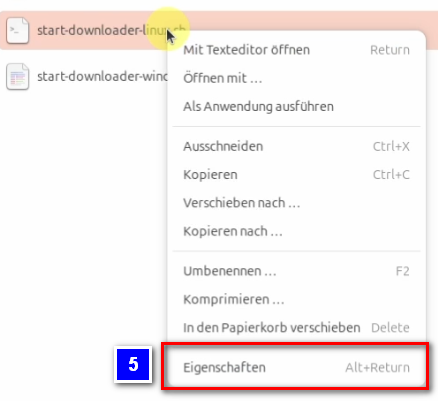
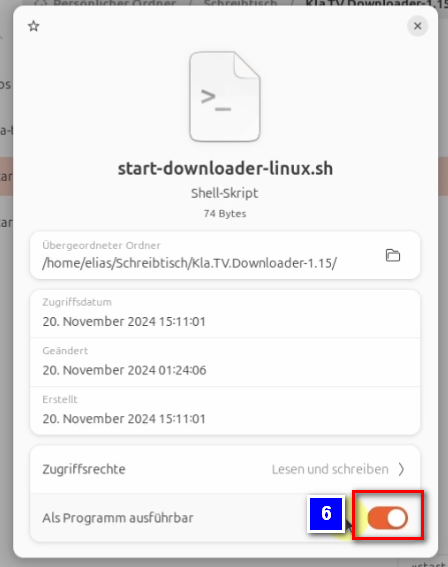
- <span style="background-color: rgb(251, 238, 184);">En cliquant avec le bouton droit de la souris sur le fichier et en sélectionnant l'option « Exécuter en tant qu'application » ❼, tu peux maintenant exécuter le fichier.</span>

[![image.png](https://wiki.kla.tv/uploads/images/gallery/2024-11/scaled-1680-/Oo8pi4NnoNHMGqiY-image.png)](https://wiki.kla.tv/uploads/images/gallery/2024-11/Oo8pi4NnoNHMGqiY-image.png)

- <span style="background-color: rgb(251, 238, 184);">Supprime l'ancienne version, ouvre à nouveau le téléchargeur Kla.TV actuel et profite de la version optimisée 😊</span>

##### Autres articles susceptibles de t'intéresser :  
[**Rechercher dans les archives sécurisées**](https://wiki.kla.tv/books/fr-sauvegarder-klatv/page/rechercher-dans-les-archives-securisees)

# Rechercher dans les archives sécurisées

### **Qu'apprends-tu dans cet article ?**

À quoi sert une archive si on ne peut pas y effectuer de recherche ? Cet article vous explique comment effectuer une recherche dans votre archive sauvegardée.

### **Instructions vidéo : (2min)**

**(en allemand)**

<div class="responsive-iframe" id="bkmrk-"><iframe allowfullscreen="allowfullscreen" frameborder="0" height="332" src="https://video.elaion.ch?video_by_id=AuYhrKbR3qF4" width="590"></iframe>

</div><span lang="DE" style="font-size: 16.0pt; mso-bidi-font-size: 11.0pt; line-height: 107%; font-family: Wingdings; mso-ascii-font-family: Calibri; mso-ascii-theme-font: minor-latin; mso-fareast-font-family: Calibri; mso-fareast-theme-font: minor-latin; mso-hansi-font-family: Calibri; mso-hansi-theme-font: minor-latin; mso-bidi-font-family: 'Times New Roman'; mso-bidi-theme-font: minor-bidi; mso-ansi-language: DE; mso-fareast-language: EN-US; mso-bidi-language: AR-SA; mso-char-type: symbol; mso-symbol-font-family: Wingdings;"><span style="mso-char-type: symbol; mso-symbol-font-family: Wingdings;">&#131;</span></span><span lang="DE" style="font-size: 16.0pt; mso-bidi-font-size: 11.0pt; line-height: 107%; font-family: Wingdings; mso-ascii-font-family: Calibri; mso-ascii-theme-font: minor-latin; mso-fareast-font-family: Calibri; mso-fareast-theme-font: minor-latin; mso-hansi-font-family: Calibri; mso-hansi-theme-font: minor-latin; mso-bidi-font-family: 'Times New Roman'; mso-bidi-theme-font: minor-bidi; mso-ansi-language: DE; mso-fareast-language: EN-US; mso-bidi-language: AR-SA; mso-char-type: symbol; mso-symbol-font-family: Wingdings;"><span style="mso-char-type: symbol; mso-symbol-font-family: Wingdings;">&#132;</span></span><span lang="DE" style="font-size: 16.0pt; mso-bidi-font-size: 11.0pt; line-height: 107%; font-family: Wingdings; mso-ascii-font-family: Calibri; mso-ascii-theme-font: minor-latin; mso-fareast-font-family: Calibri; mso-fareast-theme-font: minor-latin; mso-hansi-font-family: Calibri; mso-hansi-theme-font: minor-latin; mso-bidi-font-family: 'Times New Roman'; mso-bidi-theme-font: minor-bidi; mso-ansi-language: DE; mso-fareast-language: EN-US; mso-bidi-language: AR-SA; mso-char-type: symbol; mso-symbol-font-family: Wingdings;"><span style="mso-char-type: symbol; mso-symbol-font-family: Wingdings;"> </span></span>

### **Instructions écrites :**

#### <span style="background-color: rgb(241, 196, 15);">**1. Informations importantes :**</span>

- <span style="background-color: rgb(251, 238, 184);">Assure-toi que tu disposes du logiciel gratuit Adobe Acrobat Reader sur ton ordinateur. Si ce n'est pas le cas, tu peux le télécharger ici : </span>[<span style="background-color: rgb(251, 238, 184);">https://get.adobe.com/de/reader/</span>](https://get.adobe.com/de/reader/)[![grafik.png](https://wiki.kla.tv/uploads/images/gallery/2024-11/scaled-1680-/yNLIiFDzypdCJmPm-grafik.png)](https://get.adobe.com/de/reader/)
    
    
    - ***ALTERNATIVEMENT,** vous pouvez également utiliser un autre lecteur PDF, par exemple Foxit PDF Reader (les instructions suivantes se réfèrent à Adobe Acrobat Reader. Le principe peut être transposé).*
- <span style="background-color: rgb(251, 238, 184);">IMPORTANT : pour effectuer une recherche par mots-clés dans tes archives, tu dois avoir téléchargé tous les documents PDF dans tes archives. (Pour savoir comment procéder, consulte cet article : </span>[Installation et utilisation de "Kla.TV Downloader"](https://wiki.kla.tv/books/fr-sauvegarder-klatv/page/windows-installation-et-utilisation-de-klatv-downloader)

#### <span style="background-color: rgb(241, 196, 15);">**2. Rechercher dans les archives** </span>

- <span style="background-color: rgb(251, 238, 184);">Ouvrez un fichier PDF dans vos archives en cliquant avec le bouton droit de la souris → Ouvrir avec → Adobe Acrobat.</span>

[![grafik.png](https://wiki.kla.tv/uploads/images/gallery/2024-11/scaled-1680-/oitLYbjjy1n6jU5q-grafik.png)](https://wiki.kla.tv/uploads/images/gallery/2024-11/oitLYbjjy1n6jU5q-grafik.png)

- <span style="background-color: rgb(251, 238, 184);">Menu → <span lang="DE" style="font-size: 16pt; line-height: 107%; font-family: Wingdings; background-color: rgb(251, 238, 184);"><span style="mso-char-type: symbol; mso-symbol-font-family: Wingdings;"><span lang="EN-US" style="font-size: 11pt; line-height: 107%; font-family: 'Cambria Math', serif; background-color: rgb(251, 238, 184);">❷ Fichier</span></span></span> →  **Recherche avancée**</span>

![grafik.png](https://wiki.kla.tv/uploads/images/gallery/2024-11/scaled-1680-/VOLZlpq47UdXHnkF-grafik.png)

- <span style="background-color: rgb(251, 238, 184);">❸ « Que faut-il rechercher ? » → « Tous les documents PDF » → cliquez sur « Tous les disques durs locaux » et allez dans « Rechercher un dossier... » → sélectionnez les archives Kla.TV. sur ton disque dur.</span>

 [![grafik.png](https://wiki.kla.tv/uploads/images/gallery/2024-11/scaled-1680-/g0JIlEaoDFMHIowA-grafik.png)](https://wiki.kla.tv/uploads/images/gallery/2024-11/g0JIlEaoDFMHIowA-grafik.png)

- <span style="background-color: rgb(251, 238, 184);">Dans ❹ « Quel mot ou quelle expression rechercher ? », saisis le terme souhaité (par exemple « Great Reset ») → clique sur « Rechercher ».</span>

[![grafik.png](https://wiki.kla.tv/uploads/images/gallery/2024-11/scaled-1680-/sroZh1eA96Hnl78R-grafik.png)](https://wiki.kla.tv/uploads/images/gallery/2024-11/sroZh1eA96Hnl78R-grafik.png)

- <span style="background-color: rgb(251, 238, 184);">❺ Tous les documents (ou émissions) contenant le terme « Great Reset », par exemple, s'affichent.</span>

[![grafik.png](https://wiki.kla.tv/uploads/images/gallery/2024-11/scaled-1680-/zGHxtqiRYHzlHq39-grafik.png)](https://wiki.kla.tv/uploads/images/gallery/2024-11/zGHxtqiRYHzlHq39-grafik.png)

- <span style="background-color: rgb(251, 238, 184);">❻ Si vous souhaitez savoir où ce fichier est enregistré : ouvrez le document souhaité → barre de menu → Fichier → Propriétés du document</span>

[![grafik.png](https://wiki.kla.tv/uploads/images/gallery/2024-11/scaled-1680-/XGWTkFr9bsAqTAbk-grafik.png)](https://wiki.kla.tv/uploads/images/gallery/2024-11/XGWTkFr9bsAqTAbk-grafik.png)

- <span style="background-color: rgb(251, 238, 184);">❼ Cliquez sur le chemin d'accès à l'emplacement de stockage pour ouvrir directement le dossier et sélectionner l'émission souhaitée.</span>

[![grafik.png](https://wiki.kla.tv/uploads/images/gallery/2024-11/scaled-1680-/MCKUhQgILhJGMYJg-grafik.png)](https://wiki.kla.tv/uploads/images/gallery/2024-11/MCKUhQgILhJGMYJg-grafik.png)

# Kla.TV Downloader - Mise à jour vers la version 1.29 ou supérieure

<p class="callout info">**Le programme Kla.TV Downloader** a été entièrement remanié dans la version v1.29. Tu peux télécharger la version actuelle du programme ici :: [https://github.com/Kla-TV/downloader/releases](https://github.com/Kla-TV/downloader/releases)</p>

La vidéo suivante présente les principales nouveautés et vous aide à effectuer la mise à jour dans les meilleures conditions possibles : (en allemand)

<iframe allowfullscreen="allowfullscreen" frameborder="0" height="332" src="https://www.kla.tv/index.php?a=showembed&vidid=31559&lang=de" width="590"></iframe>

 **Les principales nouveautés :**

- Le processus de téléchargement utilise désormais des torrents groupés, ce qui améliore considérablement le fonctionnement et réduit la puissance informatique nécessaire.
- Les vidéos/fichiers audio/documents téléchargés restent inchangés et ne doivent PAS être téléchargés à nouveau.

Plus d'informations sur la manière de mettre à jour le programme :  
  
Windows : [https://wiki.kla.tv/link/4#bkmrk-9.-update-installier  ](https://wiki.kla.tv/link/4#bkmrk-9.-update-installier)Mac : [https://wiki.kla.tv/link/5#bkmrk-9.-update-installier  ](https://wiki.kla.tv/link/5#bkmrk-9.-update-installier)Linux : [https://wiki.kla.tv/link/6#bkmrk-9.-update-installier](https://wiki.kla.tv/link/6#bkmrk-9.-update-installier)

Et n'oubliez pas : « Sauvegarder Kla.TV » n'est pas un sprint, mais un marathon. 😉 Si le « Kla.TV-Downloader » vous semble trop compliqué, passez sans hésiter à la méthode de sauvegarde éprouvée « Accès au serveur ». Pour en savoir plus :[ www.kla.tv/sichern](http://www.kla.tv/sichern)