# Accès au serveur avec Filezilla (SFTP)

# WINDOWS : Installation & connexion à Filezilla (Accès au serveur)

### **Qu'apprends-tu avec cet article ?**

Tu apprends comment sauvegarder **les émissions de Kla.TV sur ton propre disque dur via l'accès à nos serveurs.** Ces émissions sont classées par date ou par thème et en différentes qualités. Tu apprends également comment trouver des émissions spécifiques dans des documents téléchargés en utilisant des mots-clés.

### **Vidéo explicative : (12min)** 

*- Sous-titres générés automatiquement -*

<div class="responsive-iframe" id="bkmrk-"><div class="responsive-iframe"><div class="responsive-iframe"><div class="responsive-iframe"><iframe allowfullscreen="allowfullscreen" frameborder="0" height="332" src="https://video.elaion-verlag.ch?video_by_id=ClfVOt28VqJ8" width="590"></iframe>

</div></div></div></div><div class="responsive-iframe" id="bkmrk--1"></div><p class="callout warning">Nous vous recommandons de regarder d'abord la vidéo afin de mieux comprendre les instructions écrites.</p>

### <span lang="DE" style="font-size: 16.0pt; mso-bidi-font-size: 11.0pt; line-height: 107%; font-family: Wingdings; mso-ascii-font-family: Calibri; mso-ascii-theme-font: minor-latin; mso-fareast-font-family: Calibri; mso-fareast-theme-font: minor-latin; mso-hansi-font-family: Calibri; mso-hansi-theme-font: minor-latin; mso-bidi-font-family: 'Times New Roman'; mso-bidi-theme-font: minor-bidi; mso-ansi-language: DE; mso-fareast-language: EN-US; mso-bidi-language: AR-SA; mso-char-type: symbol; mso-symbol-font-family: Wingdings;"><span style="mso-char-type: symbol; mso-symbol-font-family: Wingdings;">&#131;</span></span><span lang="DE" style="font-size: 16.0pt; mso-bidi-font-size: 11.0pt; line-height: 107%; font-family: Wingdings; mso-ascii-font-family: Calibri; mso-ascii-theme-font: minor-latin; mso-fareast-font-family: Calibri; mso-fareast-theme-font: minor-latin; mso-hansi-font-family: Calibri; mso-hansi-theme-font: minor-latin; mso-bidi-font-family: 'Times New Roman'; mso-bidi-theme-font: minor-bidi; mso-ansi-language: DE; mso-fareast-language: EN-US; mso-bidi-language: AR-SA; mso-char-type: symbol; mso-symbol-font-family: Wingdings;"><span style="mso-char-type: symbol; mso-symbol-font-family: Wingdings;">&#132;</span></span><span lang="DE" style="font-size: 16.0pt; mso-bidi-font-size: 11.0pt; line-height: 107%; font-family: Wingdings; mso-ascii-font-family: Calibri; mso-ascii-theme-font: minor-latin; mso-fareast-font-family: Calibri; mso-fareast-theme-font: minor-latin; mso-hansi-font-family: Calibri; mso-hansi-theme-font: minor-latin; mso-bidi-font-family: 'Times New Roman'; mso-bidi-theme-font: minor-bidi; mso-ansi-language: DE; mso-fareast-language: EN-US; mso-bidi-language: AR-SA; mso-char-type: symbol; mso-symbol-font-family: Wingdings;"><span style="mso-char-type: symbol; mso-symbol-font-family: Wingdings;"> </span></span><span lang="DE" style="font-size: 16.0pt; mso-bidi-font-size: 11.0pt; line-height: 107%; font-family: Wingdings; mso-ascii-font-family: Calibri; mso-ascii-theme-font: minor-latin; mso-fareast-font-family: Calibri; mso-fareast-theme-font: minor-latin; mso-hansi-font-family: Calibri; mso-hansi-theme-font: minor-latin; mso-bidi-font-family: 'Times New Roman'; mso-bidi-theme-font: minor-bidi; mso-ansi-language: DE; mso-fareast-language: EN-US; mso-bidi-language: AR-SA; mso-char-type: symbol; mso-symbol-font-family: Wingdings;"><span style="mso-char-type: symbol; mso-symbol-font-family: Wingdings;">&#134;</span></span>**Instructions écrites :**

#### <span style="background-color: rgb(241, 196, 15);">**1. Accès au serveur :**</span>

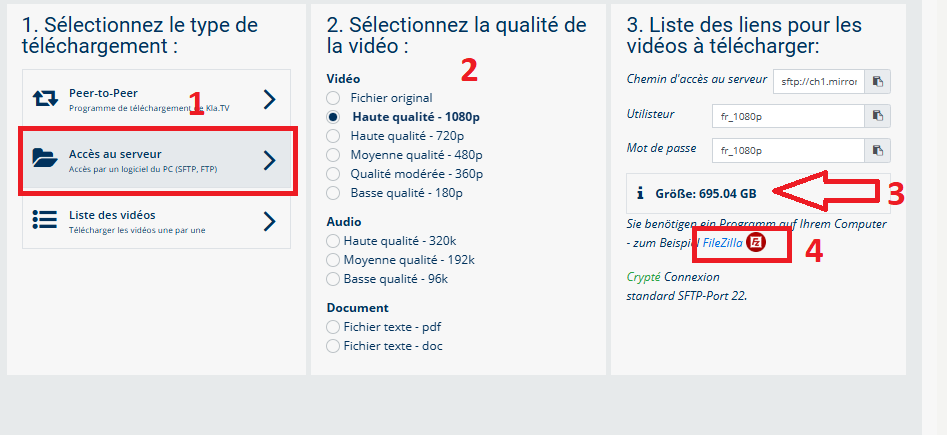
- <span style="background-color: rgb(251, 238, 184);">Va sur la page **[kla.tv/sichern](https://www.kla.tv/sichern)** </span>
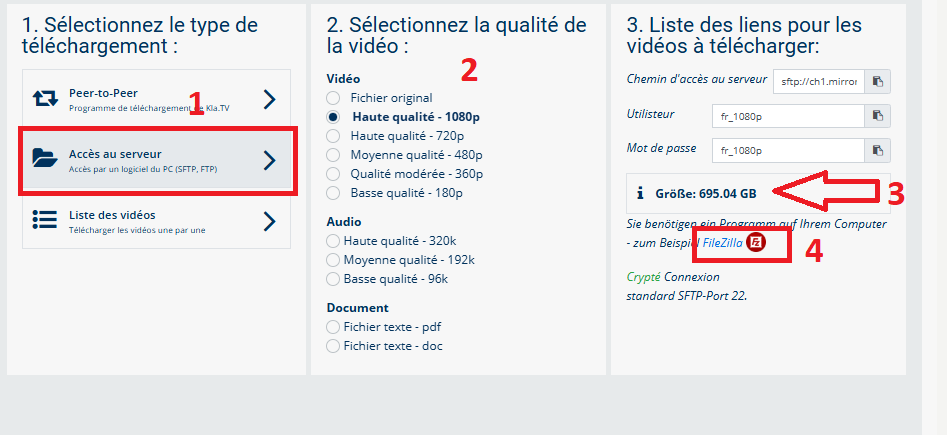
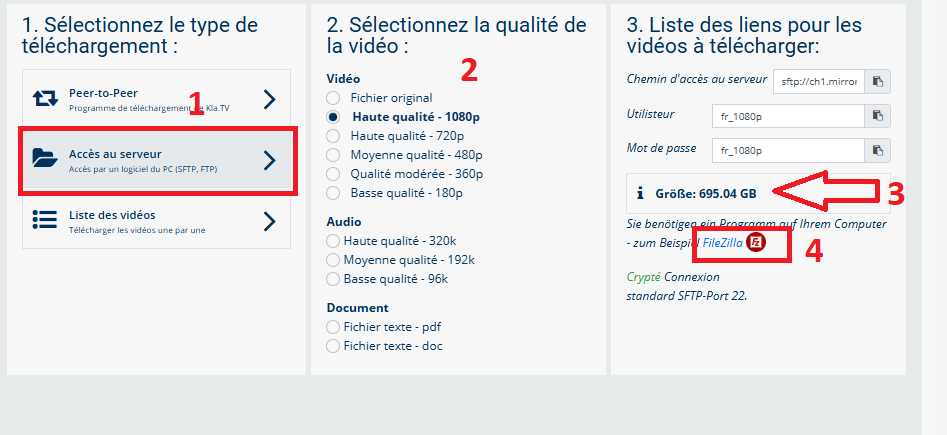
- <span style="background-color: rgb(251, 238, 184);">Va <span lang="DE" style="font-size: 11pt; line-height: 107%; font-family: 'Cambria Math', serif; color: rgb(7, 40, 230); background-color: rgb(251, 238, 184);">❶</span> sur **"Accès au serveur"** (voir l'image ci-dessous)→ et choisis <span style="background-color: rgb(251, 238, 184);"> <span lang="DE" style="font-size: 11pt; line-height: 107%; font-family: 'Cambria Math', serif; color: rgb(7, 40, 230); background-color: rgb(251, 238, 184);">❷</span></span> la **qualité** souhaitée   
    </span>
- <span style="background-color: rgb(251, 238, 184);"><span lang="DE" style="font-size: 11pt; line-height: 107%; font-family: 'Cambria Math', serif; color: rgb(7, 40, 230); background-color: rgb(251, 238, 184);">❸</span> la flèche rouge indique l'espace libre dont tu as besoin sur ton disque dur. Ajuste la qualité en conséquence.  
    </span>
- <span style="background-color: rgb(251, 238, 184);">Ensuite, tu as besoin du programme « FileZilla ». <span class="--l --r sentence_highlight">Pour l'installer, clique sur</span> <span lang="DE" style="font-size: 11pt; line-height: 107%; font-family: 'Cambria Math', serif; color: rgb(7, 40, 230); background-color: rgb(251, 238, 184);">❹</span></span>***<span style="background-color: rgb(251, 238, 184);"><span style="color: rgb(7, 40, 230);"> </span>"FileZilla"</span>***
    
    [![1.png](https://wiki.kla.tv/uploads/images/gallery/2025-04/scaled-1680-/bqgR1iZYkBdqgfQv-1.png)](https://wiki.kla.tv/uploads/images/gallery/2025-04/bqgR1iZYkBdqgfQv-1.png)

- ***→** <span style="background-color: rgb(251, 238, 184);">**ASTUCE :** il n'est pas possible de sélectionner plusieurs choses en même temps. Dans cet article, tu apprendras comment enregistrer plusieurs qualités dans la même structure de dossier : clique ici → [**Télécharger plusieurs qualités**](https://wiki.kla.tv/books/fr-sauvegarder-klatv/page/sauvegarder-klatv-avec-lacces-au-serveur-telecharger-plusieurs-qualites "Télécharger plusieurs qualités")</span>*

#### <span style="background-color: rgb(241, 196, 15);">**2. Installer Filezilla :** </span>

*(Les images sont en allemands mais correspondent en français)*

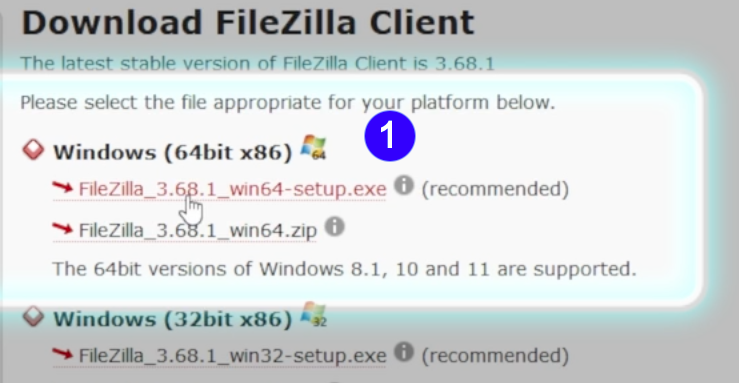
- <span style="background-color: rgb(251, 238, 184);">Choisis <span lang="DE" style="font-size: 11pt; line-height: 107%; font-family: 'Cambria Math', serif; color: rgb(7, 40, 230); background-color: rgb(251, 238, 184);">❶</span> "**Windows (64bit x86)"** → Le fichier d'installation se télécharg**e automatiquement**</span>

[![FileZilla_Win.png](https://wiki.kla.tv/uploads/images/gallery/2024-11/scaled-1680-/caAaduKbfa7Rs1bH-filezilla-win.png)](https://wiki.kla.tv/uploads/images/gallery/2024-11/caAaduKbfa7Rs1bH-filezilla-win.png)

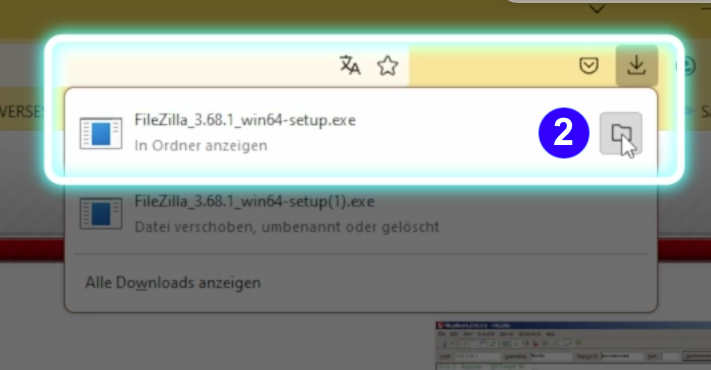
- <span style="background-color: rgb(251, 238, 184);"> <span lang="DE" style="font-size: 11pt; line-height: 107%; font-family: 'Cambria Math', serif; color: rgb(7, 40, 230); background-color: rgb(251, 238, 184);">❷</span></span>**<span style="background-color: rgb(251, 238, 184);"> Clique sur l'icône « Dossier ». </span>  
    [![FileZilla_Win12.png](https://wiki.kla.tv/uploads/images/gallery/2024-11/scaled-1680-/NGoMLwwJGP11t1ZK-filezilla-win12.png)](https://wiki.kla.tv/uploads/images/gallery/2024-11/NGoMLwwJGP11t1ZK-filezilla-win12.png)**
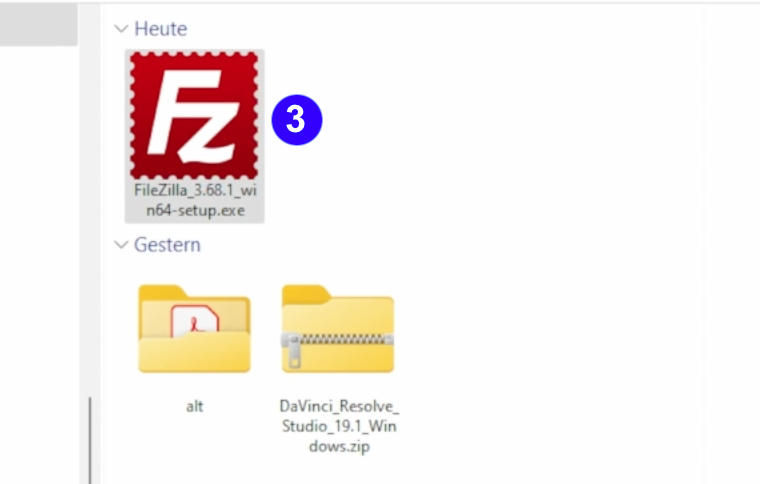
- <span style="background-color: rgb(251, 238, 184);"><span lang="DE" style="font-size: 11pt; line-height: 107%; font-family: 'Cambria Math', serif; color: rgb(7, 40, 230); background-color: rgb(251, 238, 184);">❸</span> Double-clique sur **l'icône FileZilla** </span>

 [![FileZilla_Win3.png](https://wiki.kla.tv/uploads/images/gallery/2024-11/scaled-1680-/CshLlTPv0loxG3xy-filezilla-win3.png)](https://wiki.kla.tv/uploads/images/gallery/2024-11/CshLlTPv0loxG3xy-filezilla-win3.png)

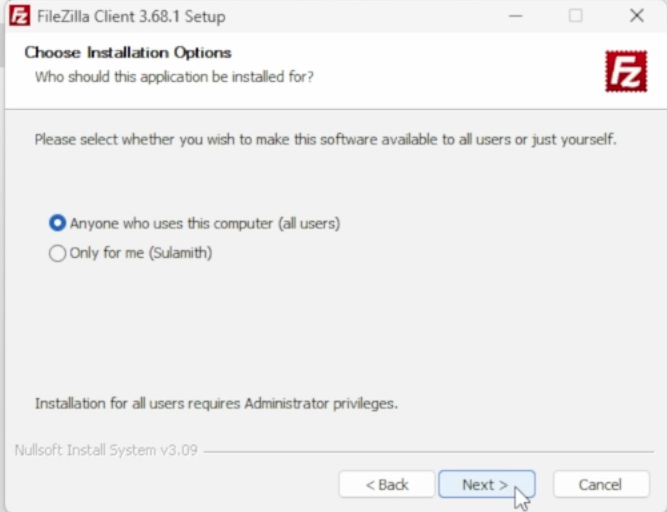
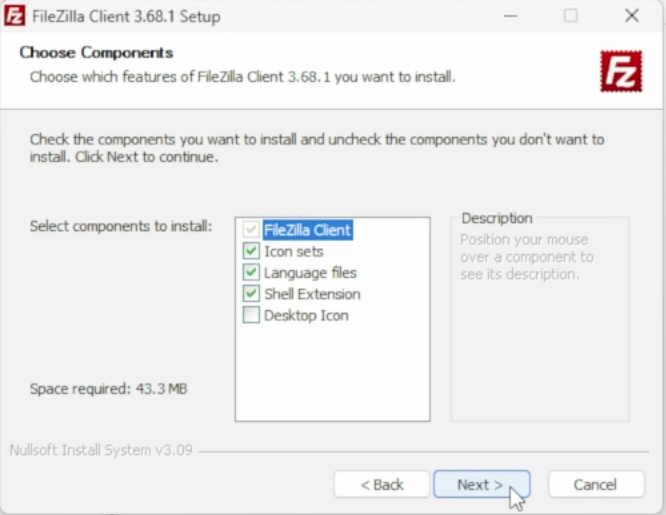
- <span style="background-color: rgb(251, 238, 184);"><span lang="DE" style="font-size: 11pt; line-height: 107%; font-family: 'Cambria Math', serif; background-color: rgb(251, 238, 184);"><span lang="DE" style="font-size: 11pt; line-height: 107%; font-family: 'Cambria Math', serif; color: rgb(7, 40, 230); background-color: rgb(251, 238, 184);">❹</span></span> **Installe FileZilla** (voir images ci-dessous) </span>

[![FileZilla_Win6.png](https://wiki.kla.tv/uploads/images/gallery/2024-11/scaled-1680-/wfxIztHOgkC68Alr-filezilla-win6.png)](https://wiki.kla.tv/uploads/images/gallery/2024-11/wfxIztHOgkC68Alr-filezilla-win6.png)[ ![FileZilla_Win7.png](https://wiki.kla.tv/uploads/images/gallery/2024-11/scaled-1680-/Jlv1TtbxZYYzBN4L-filezilla-win7.png)](https://wiki.kla.tv/uploads/images/gallery/2024-11/Jlv1TtbxZYYzBN4L-filezilla-win7.png)  
  
[![FileZilla_Win8.png](https://wiki.kla.tv/uploads/images/gallery/2024-11/scaled-1680-/vG7Ud4UODzLQkzzB-filezilla-win8.png) ](https://wiki.kla.tv/uploads/images/gallery/2024-11/vG7Ud4UODzLQkzzB-filezilla-win8.png)[![FileZilla_Win9.png](https://wiki.kla.tv/uploads/images/gallery/2024-11/scaled-1680-/ye0EQINv3v9uYJx8-filezilla-win9.png)](https://wiki.kla.tv/uploads/images/gallery/2024-11/ye0EQINv3v9uYJx8-filezilla-win9.png)
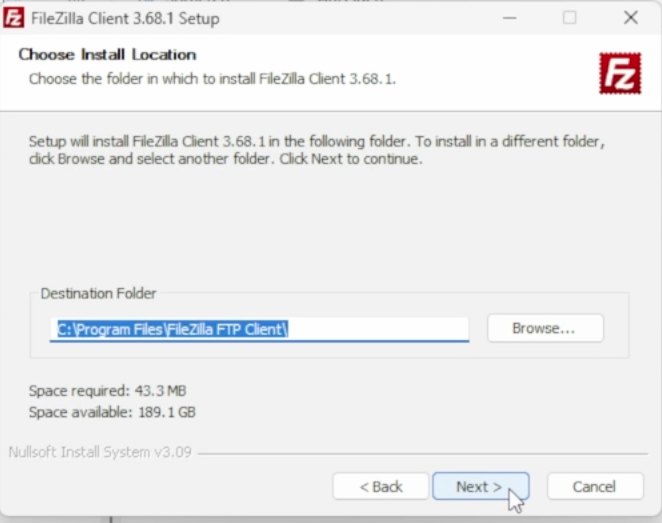
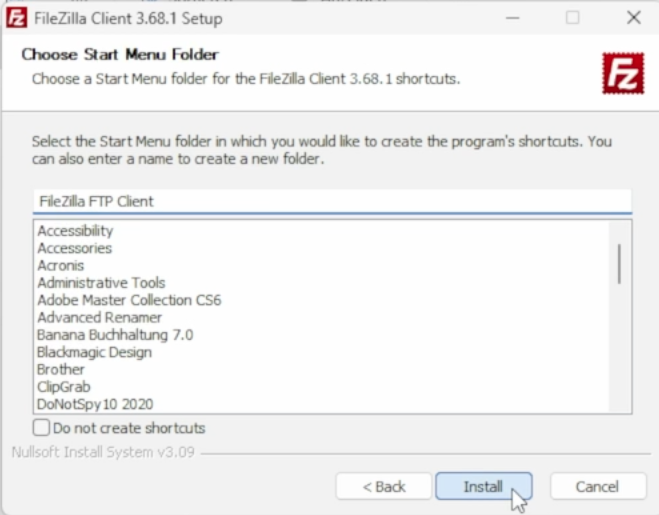
[![FileZilla_Win10.png](https://wiki.kla.tv/uploads/images/gallery/2024-11/scaled-1680-/pOcQNtHKuUS6RHl6-filezilla-win10.png)](https://wiki.kla.tv/uploads/images/gallery/2024-11/pOcQNtHKuUS6RHl6-filezilla-win10.png)
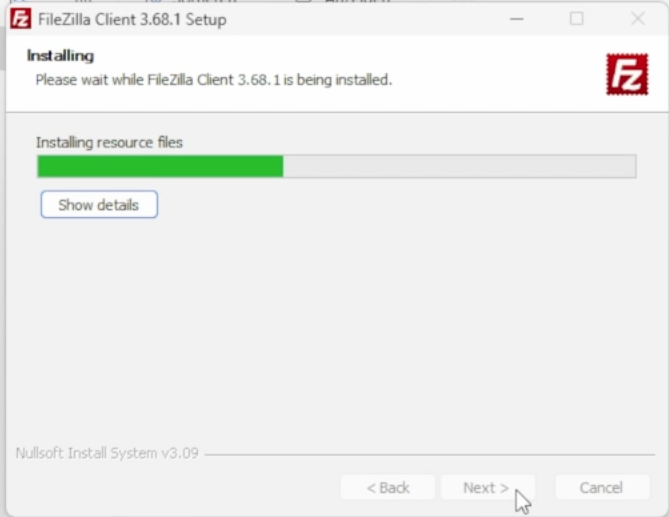
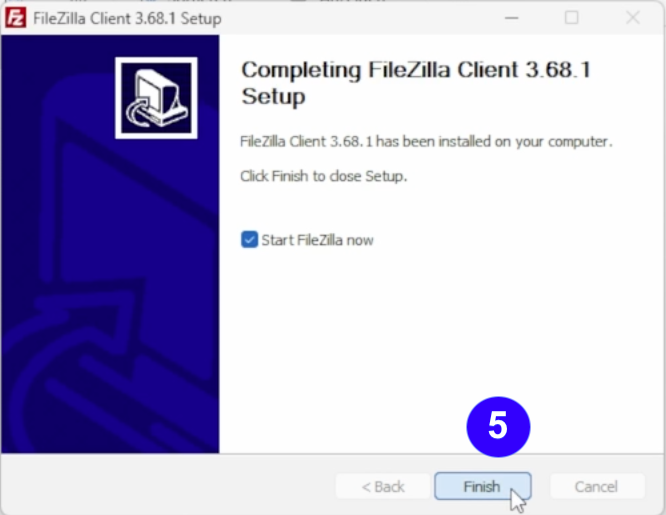
- <span style="background-color: rgb(251, 238, 184);"><span lang="DE" style="font-size: 11pt; line-height: 107%; font-family: 'Cambria Math', serif; color: rgb(7, 40, 230); background-color: rgb(251, 238, 184);">❺</span> **Démarre FileZilla** en cliquant sur « **Finish** ».</span>   
    [![FileZilla_Win11.png](https://wiki.kla.tv/uploads/images/gallery/2024-11/scaled-1680-/CiNjxf749VAoxFIr-filezilla-win11.png)](https://wiki.kla.tv/uploads/images/gallery/2024-11/CiNjxf749VAoxFIr-filezilla-win11.png)

#### <span style="background-color: rgb(241, 196, 15);">**3. Paramétrer FileZilla :**</span>

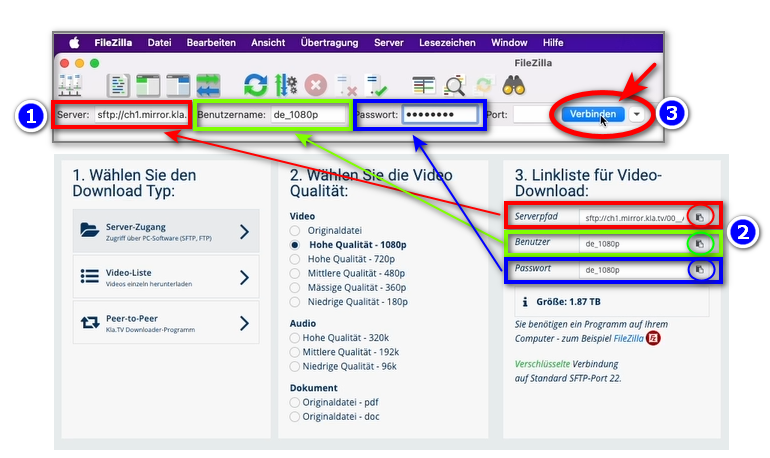
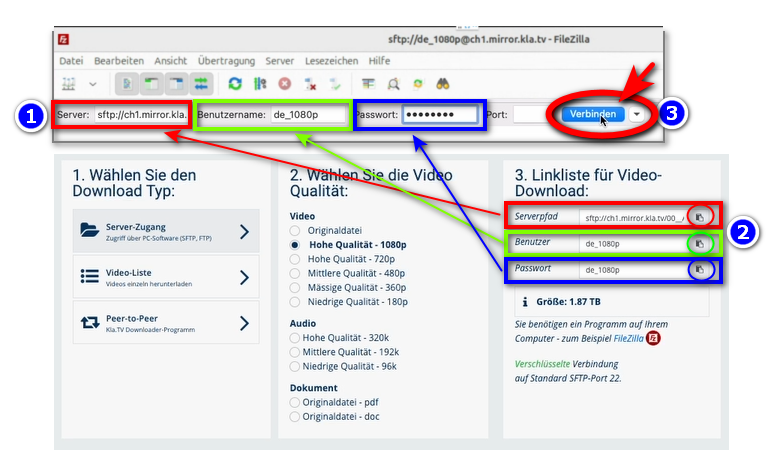
- <span style="background-color: rgb(251, 238, 184);">Copier dans <span style="background-color: rgb(251, 238, 184);"><span lang="DE" style="font-size: 11pt; line-height: 107%; font-family: 'Cambria Math', serif; color: rgb(7, 40, 230); background-color: rgb(251, 238, 184);">❶</span></span> **FileZilla les données du serveur** que tu trouves sur la page web <span style="background-color: rgb(251, 238, 184);"><span lang="DE" style="font-size: 11pt; line-height: 107%; font-family: 'Cambria Math', serif; color: rgb(7, 40, 230); background-color: rgb(251, 238, 184);">❷</span></span> [**kla.tv/sichern**](https://wiki.kla.tv/kla.tv/sichern) → ensuite sur <span style="background-color: rgb(251, 238, 184);"><span lang="DE" style="font-size: 11pt; line-height: 107%; font-family: 'Cambria Math', serif; color: rgb(7, 40, 230); background-color: rgb(251, 238, 184);">❸</span> cliquer sur </span>« Connexion rapide » :</span>  
    <span style="background-color: rgb(251, 238, 184);">(Cliquer sur l'icône « copier »[![copy icon.png](https://wiki.kla.tv/uploads/images/gallery/2024-11/scaled-1680-/FBgYTFlPc2gfJRTu-copy-icon.png)](https://wiki.kla.tv/uploads/images/gallery/2024-11/FBgYTFlPc2gfJRTu-copy-icon.png) entourée d'un cercle et coller dans FileZilla avec ctrl + V)</span>[![grafik.png](https://wiki.kla.tv/uploads/images/gallery/2024-11/scaled-1680-/wbIHEPHXZnCa1P71-grafik.png)](https://wiki.kla.tv/uploads/images/gallery/2024-11/wbIHEPHXZnCa1P71-grafik.png)
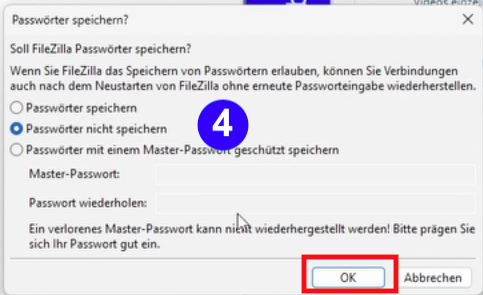
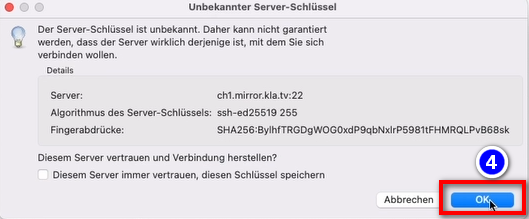
- <span style="background-color: rgb(251, 238, 184);"><span lang="DE" style="font-size: 11pt; line-height: 107%; font-family: 'Cambria Math', serif; color: rgb(7, 40, 230); background-color: rgb(251, 238, 184);">❹</span> Deux messages apparaissent. Clique sur **« Ne pas enregistrer les mots de passe », puis sur « OK ».**</span>  
      
    [![FileZilla-4.png](https://wiki.kla.tv/uploads/images/gallery/2024-11/scaled-1680-/6czE0TcJyOkquJfk-filezilla-4.png)](https://wiki.kla.tv/uploads/images/gallery/2024-11/6czE0TcJyOkquJfk-filezilla-4.png)
    
      
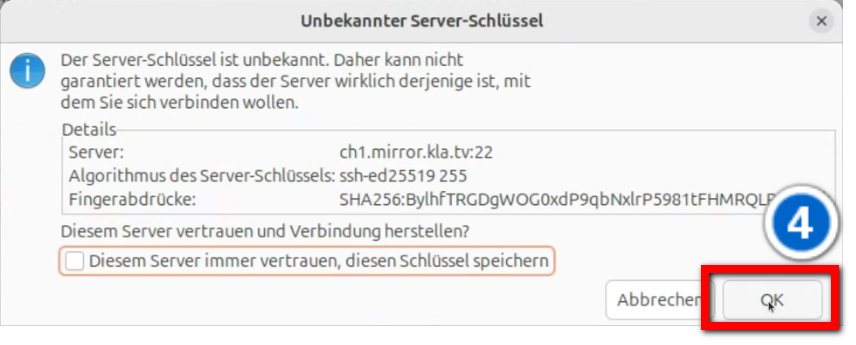
    et sur « **OK** » lorsque le message « Clé de serveur inconnue » s'affiche
    
      
    ![grafik.png](https://wiki.kla.tv/uploads/images/gallery/2024-11/scaled-1680-/I4RotrmPs0wSZmSf-grafik.png)

#### <span style="background-color: rgb(241, 196, 15);">**4. Sauvegarder les émissions :**</span>

- <span style="background-color: rgb(251, 238, 184);"><span lang="DE" style="font-size: 11pt; line-height: 107%; font-family: 'Cambria Math', serif; color: rgb(7, 40, 230); background-color: rgb(251, 238, 184);">❶</span> A gauche, tu vois **ton** ordinateur, <span style="background-color: rgb(251, 238, 184);"><span style="background-color: rgb(251, 238, 184);"><span lang="DE" style="font-size: 11pt; line-height: 107%; font-family: 'Cambria Math', serif; color: rgb(7, 40, 230); background-color: rgb(251, 238, 184);">❷</span></span></span> à droite le serveur de Kla.TV </span>
- <span style="background-color: rgb(251, 238, 184);">Navigue à gauche <span style="background-color: rgb(251, 238, 184);"><span lang="DE" style="font-size: 11pt; line-height: 107%; font-family: 'Cambria Math', serif; color: rgb(7, 40, 230); background-color: rgb(251, 238, 184);">❸</span> </span> sur **ton disque dur.** (Sélectionne ton disque dur)  
    </span>
- <span style="background-color: rgb(251, 238, 184);">Crée **<span style="background-color: rgb(251, 238, 184);"><span lang="DE" style="font-size: 11pt; line-height: 107%; font-family: 'Cambria Math', serif; color: rgb(7, 40, 230); background-color: rgb(251, 238, 184);">❹</span></span> un nouveau dossier** avec un clic droit « Créer un dossier » → nomme le dossier par exemple « Sauvegarde KlaTV ».  
    </span>
- <span style="background-color: rgb(251, 238, 184);">Déplace <span lang="DE" style="font-size: 11pt; line-height: 107%; font-family: 'Cambria Math', serif; color: rgb(7, 40, 230); background-color: rgb(251, 238, 184);">❺</span> **le dossier d'émissions souhaité** sur ton disque dur en maintenant le bouton de la souris enfoncé. </span>
- <span style="background-color: rgb(251, 238, 184);">Tu peux aussi <span lang="DE" style="font-size: 11pt; line-height: 107%; font-family: 'Cambria Math', serif; color: rgb(7, 40, 230); background-color: rgb(251, 238, 184);">❻</span> télécharger **un thème particulier** (par ex. 5G, vaccination, Bill Gates, etc.). L'inconvénient est qu'avec le temps, de nouvelles vidéos sont ajoutées et stockées dans ces dossiers thématiques. Tu devras toujours faire une comparaison avec le disque dur et tu auras besoin de plus d'espace de stockage. </span>
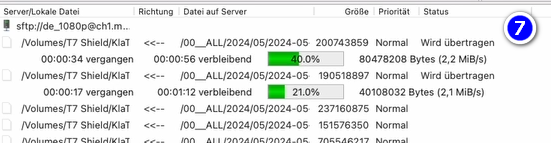
- <span style="background-color: rgb(251, 238, 184);"><span style="color: rgb(7, 40, 230);"><span lang="DE" style="font-size: 11pt; line-height: 107%; font-family: 'Cambria Math', serif; background-color: rgb(251, 238, 184);">❼</span> </span>Ci-dessous, tu peux voir comment les vidéos sont téléchargées dans l'ordre (cela peut prendre beaucoup de temps). </span>  
      
    *→<span style="background-color: rgb(194, 224, 244);"> **ASTUCE :** </span><span style="background-color: rgb(251, 238, 184);">Ici, tu apprendras comment limiter la vitesse d'Internet pour FileZilla, afin que tu puisses quand même travailler sur Internet à côté : clique ici → </span>**<span style="background-color: rgb(251, 238, 184);">[Limiter la vitesse de Filezilla](https://wiki.kla.tv/books/fr-sauvegarder-klatv/page/sauvegarder-klatv-avec-lacces-au-serveur-limiter-la-vitesse-de-filezilla "Limiter la vitesse de Filezilla")</span>***

[![filezilla.png](https://wiki.kla.tv/uploads/images/gallery/2025-04/scaled-1680-/jpRRl6kXAFRIaiPI-filezilla.png)](https://wiki.kla.tv/uploads/images/gallery/2025-04/jpRRl6kXAFRIaiPI-filezilla.png)

[![grafik.png](https://wiki.kla.tv/uploads/images/gallery/2024-11/scaled-1680-/uLGmaW3NtFcExaZn-grafik.png)](https://wiki.kla.tv/uploads/images/gallery/2024-11/uLGmaW3NtFcExaZn-grafik.png)

#### <span style="background-color: rgb(241, 196, 15);">**5. ALTERNATIVE - Sauvegarder les émissions sans FileZilla, directement sur le site :** </span>

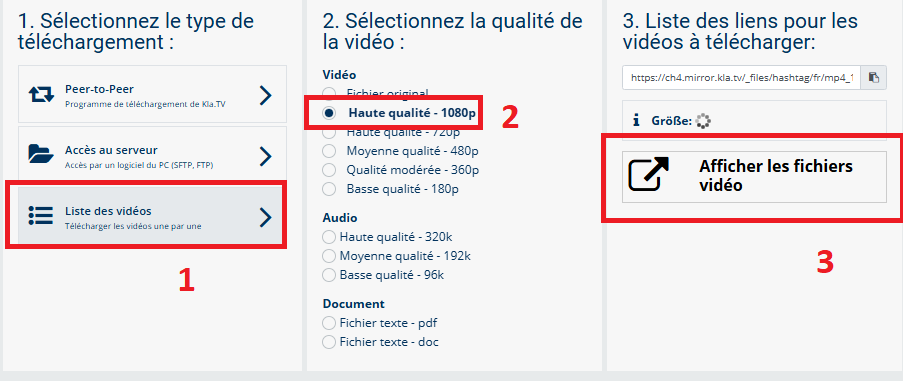
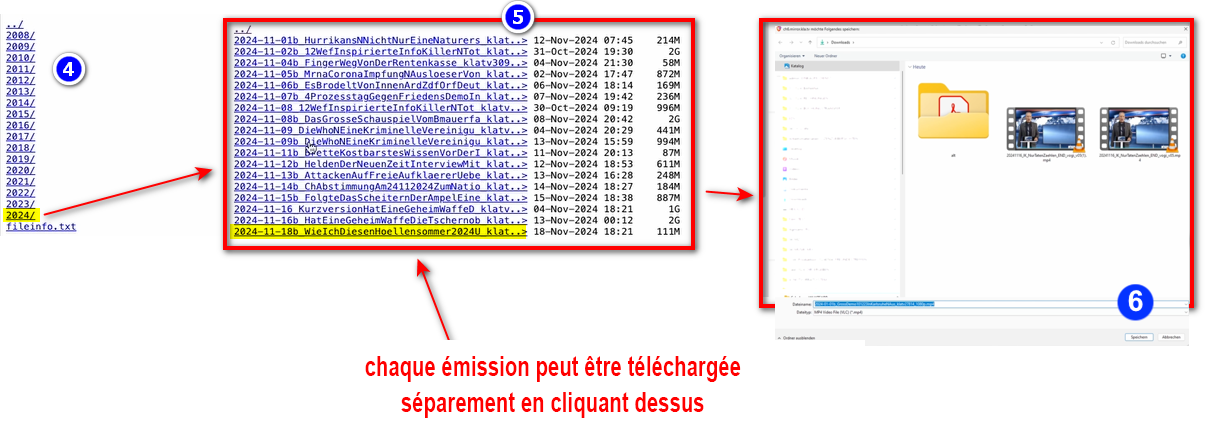
- <span style="background-color: rgb(251, 238, 184);">Va sur **[kla.tv/sichern](https://www.kla.tv/sichern)** → <span lang="DE" style="font-size: 11pt; line-height: 107%; font-family: 'Cambria Math', serif; color: rgb(7, 40, 230); background-color: rgb(251, 238, 184);">❶</span> **Liste des vidéos** → choisis <span lang="DE" style="font-size: 11pt; line-height: 107%; font-family: 'Cambria Math', serif; color: rgb(7, 40, 230); background-color: rgb(251, 238, 184);">❷</span> la **qualité souhaitée** →clique <span lang="DE" style="font-size: 11pt; line-height: 107%; font-family: 'Cambria Math', serif; color: rgb(7, 40, 230); background-color: rgb(251, 238, 184);">❸</span> sur "**Afficher les fichiers vidéo"**</span>  
      
    [![3.png](https://wiki.kla.tv/uploads/images/gallery/2025-04/scaled-1680-/W8x56XnxO2gkvJZZ-3.png)](https://wiki.kla.tv/uploads/images/gallery/2025-04/W8x56XnxO2gkvJZZ-3.png)
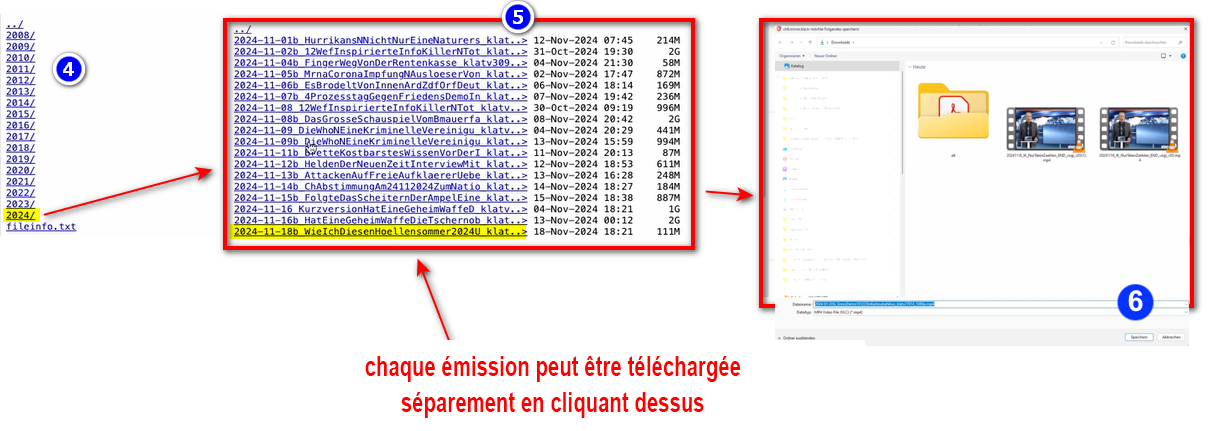
- <span style="background-color: rgb(251, 238, 184);">Maintenant,<span style="background-color: rgb(251, 238, 184);"><span lang="DE" style="font-size: 11pt; line-height: 107%; font-family: 'Cambria Math', serif; color: rgb(7, 40, 230); background-color: rgb(251, 238, 184);">❹</span></span> toutes les vidéos sont listées **par année**/mois. Clique dans l'année/mois souhaité et clique <span style="background-color: rgb(251, 238, 184);"><span lang="DE" style="font-size: 11pt; line-height: 107%; font-family: 'Cambria Math', serif; color: rgb(7, 40, 230); background-color: rgb(251, 238, 184);">❺</span></span> sur l'émission et appuie <span style="background-color: rgb(251, 238, 184);"><span lang="DE" style="font-size: 11pt; line-height: 107%; font-family: 'Cambria Math', serif; color: rgb(7, 40, 230); background-color: rgb(251, 238, 184);">❻</span></span> sur « **Enregistrer** ». Chaque émission peut être téléchargée individuellement.</span>  
      
      
    [![2.png](https://wiki.kla.tv/uploads/images/gallery/2025-04/scaled-1680-/nj7M4Uq6zUJOgY9N-2.png)](https://wiki.kla.tv/uploads/images/gallery/2025-04/nj7M4Uq6zUJOgY9N-2.png)


    *→ <span style="background-color: rgb(194, 224, 244);">**ASTUCE :** </span><span style="background-color: rgb(251, 238, 184);">Cela demande beaucoup de temps et d'efforts. C'est pourquoi la variante avec FileZilla est recommandée</span>*   
    ### <span style="background-color: rgb(241, 196, 15);">**6. Recommandation : régler les options d'alimentation de manière à ce que l'ordinateur ne s'éteigne pas automatiquement :** </span>
    
    
    - <span style="background-color: rgb(251, 238, 184);">Si l'ordinateur a redémarré, tu dois redémarrer l'application (voir instructions point 8).</span>
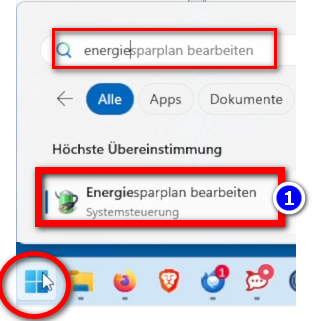
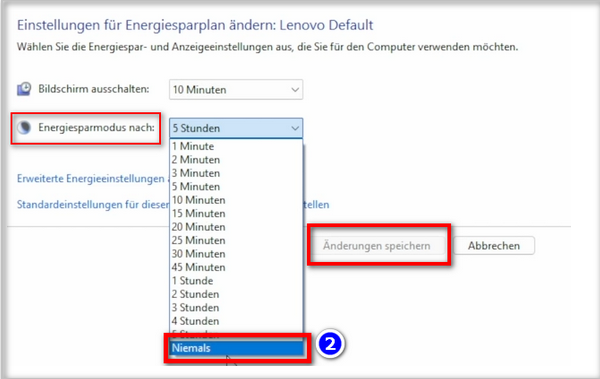
    - <span style="background-color: rgb(251, 238, 184);">Modifier les options d'alimentation de manière à ce que l'ordinateur ne s'arrête pas : Icône Windows→ Champ de recherche : **Energie → ❶ Modifier le plan d'économie d'énergie → ❷ Mode d'économie d'énergie vers : Jamais → Enregistrer la modification** (si vous ne trouver pas les mots correspondant en français, cherchez dans vos paramètres à "alimentation", "mise en veille"...)</span>
    - <span style="background-color: rgb(251, 238, 184);">Laisse tourner l'ordinateur jusqu'à ce que tous les fichiers soient téléchargés</span>
    
    ![grafik.png](https://wiki.kla.tv/uploads/images/gallery/2024-11/scaled-1680-/ONpMkNkqaQmKdYtX-grafik.png)  
      
    ![grafik.png](https://wiki.kla.tv/uploads/images/gallery/2024-11/scaled-1680-/c6InTIccNIpkCbYb-grafik.png)

<p class="callout info">Nous recommandons en outre les formations suivantes :  
  
**[Déterminer l'espace de stockage](https://wiki.kla.tv/books/fr-sauvegarder-klatv/page/sauvegarder-klatv-avec-lacces-au-serveur-determiner-lespace-de-stockage "Déterminer l'espace de stockage")  
  
[Comment puis-je limiter la vitesse de Filezilla ?](https://wiki.kla.tv/books/klatv-sichern/page/klatv-sichern-per-server-zugang-geschwindigkeit-von-filezilla-begrenzen)  
  
[Télécharger plusieurs qualités](https://wiki.kla.tv/books/fr-sauvegarder-klatv/page/sauvegarder-klatv-avec-lacces-au-serveur-telecharger-plusieurs-qualites "Télécharger plusieurs qualités")  
  
[Rechercher dans les archives sauvegardées](https://wiki.kla.tv/books/fr-sauvegarder-klatv/page/sauvegarder-klatv-avec-lacces-au-serveur-rechercher-dans-les-archives-sauvegardees "Rechercher dans les archives sauvegardées")**  
</p>

# MAC : Installation & connexion à Filezilla (Accès au serveur)

### **Qu'apprends-tu dans cet article ?**

Tu apprends comment sauvegarder **les émissions de KlaTV sur ton propre disque dur via l'accès au serveur.** Classées par date ou par thème et de différentes qualités. Tu apprends également comment trouver des émissions spécifiques dans des documents téléchargés en utilisant des mots-clés.

### **Vidéo explicative : (13min)**

 *- Sous-titres générés automatiquement -*

<div class="responsive-iframe" id="bkmrk-"></div><div class="responsive-iframe" id="bkmrk--1"><div class="responsive-iframe"><div class="responsive-iframe"><iframe allowfullscreen="allowfullscreen" frameborder="0" height="332" src="https://video.elaion-verlag.ch?video_by_id=AM8ELHmGd5cN" width="590"></iframe>

</div></div><div class="responsive-iframe">  
</div></div><p class="callout warning">Nous vous recommandons de regarder d'abord la vidéo afin de mieux comprendre les instructions écrites.</p>

### <span lang="DE" style="font-size: 16.0pt; mso-bidi-font-size: 11.0pt; line-height: 107%; font-family: Wingdings; mso-ascii-font-family: Calibri; mso-ascii-theme-font: minor-latin; mso-fareast-font-family: Calibri; mso-fareast-theme-font: minor-latin; mso-hansi-font-family: Calibri; mso-hansi-theme-font: minor-latin; mso-bidi-font-family: 'Times New Roman'; mso-bidi-theme-font: minor-bidi; mso-ansi-language: DE; mso-fareast-language: EN-US; mso-bidi-language: AR-SA; mso-char-type: symbol; mso-symbol-font-family: Wingdings;"><span style="mso-char-type: symbol; mso-symbol-font-family: Wingdings;">&#131;</span></span><span lang="DE" style="font-size: 16.0pt; mso-bidi-font-size: 11.0pt; line-height: 107%; font-family: Wingdings; mso-ascii-font-family: Calibri; mso-ascii-theme-font: minor-latin; mso-fareast-font-family: Calibri; mso-fareast-theme-font: minor-latin; mso-hansi-font-family: Calibri; mso-hansi-theme-font: minor-latin; mso-bidi-font-family: 'Times New Roman'; mso-bidi-theme-font: minor-bidi; mso-ansi-language: DE; mso-fareast-language: EN-US; mso-bidi-language: AR-SA; mso-char-type: symbol; mso-symbol-font-family: Wingdings;"><span style="mso-char-type: symbol; mso-symbol-font-family: Wingdings;">&#132;</span></span><span lang="DE" style="font-size: 16.0pt; mso-bidi-font-size: 11.0pt; line-height: 107%; font-family: Wingdings; mso-ascii-font-family: Calibri; mso-ascii-theme-font: minor-latin; mso-fareast-font-family: Calibri; mso-fareast-theme-font: minor-latin; mso-hansi-font-family: Calibri; mso-hansi-theme-font: minor-latin; mso-bidi-font-family: 'Times New Roman'; mso-bidi-theme-font: minor-bidi; mso-ansi-language: DE; mso-fareast-language: EN-US; mso-bidi-language: AR-SA; mso-char-type: symbol; mso-symbol-font-family: Wingdings;"><span style="mso-char-type: symbol; mso-symbol-font-family: Wingdings;"> </span></span>**Instructions écrites :**


#### <span style="background-color: rgb(241, 196, 15);">**1.** </span><span style="background-color: rgb(241, 196, 15);">**Accès au serveur :**</span>

- <span style="background-color: rgb(251, 238, 184);"><span style="background-color: rgb(251, 238, 184);">Va sur la page</span>**<span style="background-color: rgb(251, 238, 184);"> [kla.tv/sichern](https://www.kla.tv/sichern) </span>** </span>
- <span style="background-color: rgb(251, 238, 184);"><span style="background-color: rgb(251, 238, 184);">Va <span lang="DE" style="font-size: 11pt; line-height: 107%; font-family: 'Cambria Math', serif; color: rgb(7, 40, 230); background-color: rgb(251, 238, 184);">❶</span> sur "**Accès au serveur"** (voir l'image ci-dessous)→ et choisis <span style="background-color: rgb(251, 238, 184);"> <span lang="DE" style="font-size: 11pt; line-height: 107%; font-family: 'Cambria Math', serif; color: rgb(7, 40, 230); background-color: rgb(251, 238, 184);">❷</span></span> la **qualité souhaitée** </span>  
      
    </span>***→ <span style="background-color: rgb(251, 238, 184);">ASTUCE :</span>***<span style="background-color: rgb(251, 238, 184);"> *il n'est pas possible de sélectionner plusieurs choses en même temps. Dans cet article, tu apprendras comment enregistrer plusieurs qualités dans la même structure de dossier : clique ici → Télécharger plusieurs qualités*</span>
- <span style="background-color: rgb(251, 238, 184);"><span style="background-color: rgb(251, 238, 184);"><span lang="DE" style="font-size: 11pt; line-height: 107%; font-family: 'Cambria Math', serif; color: rgb(7, 40, 230); background-color: rgb(251, 238, 184);">❸</span> la flèche rouge indique l'espace libre dont tu as besoin sur ton disque dur. Ajuste la qualité en conséquence.</span>  
      
    </span>
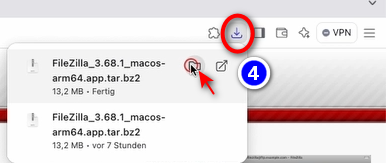
- <span style="background-color: rgb(251, 238, 184);">Ensuite, tu as besoin du programme « FileZilla ». <span class="--l --r sentence_highlight">Pour l'installer, clique sur</span> <span lang="DE" style="font-size: 11pt; line-height: 107%; font-family: 'Cambria Math', serif; color: rgb(7, 40, 230); background-color: rgb(251, 238, 184);">❹</span></span><span style="background-color: rgb(251, 238, 184);"><span style="color: rgb(7, 40, 230);"> </span>"**FileZilla**"</span>
    
    [![1.png](https://wiki.kla.tv/uploads/images/gallery/2025-04/scaled-1680-/wn8J9cy5k42RBnte-1.png)](https://wiki.kla.tv/uploads/images/gallery/2025-04/wn8J9cy5k42RBnte-1.png)

#### <span style="background-color: rgb(241, 196, 15);">**2.** </span><span style="background-color: rgb(241, 196, 15);">**Installer Filezilla :** </span>

*(Les images sont en allemands mais correspondent en français)*

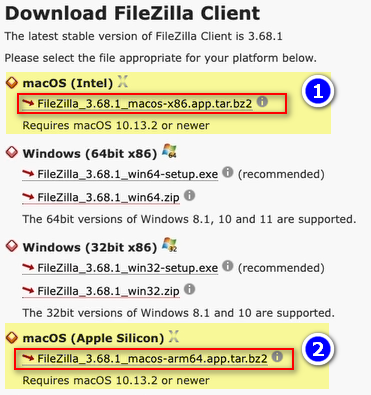
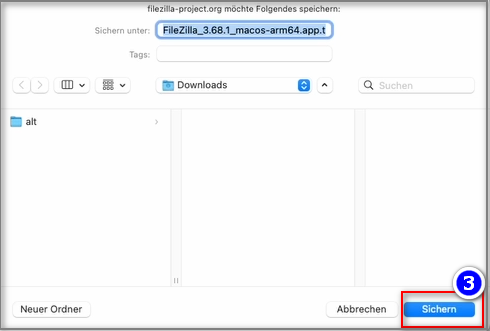
- <span style="background-color: rgb(251, 238, 184);">En fonction de la version de ton Mac (voir ASTUCE), choisis ❶ « **macOS (Intel)** » ou ❷ « **macOS (Apple Silicon)** ». → appuie sur ❸ « **Sauvegarder** ». **[![grafik.png](https://wiki.kla.tv/uploads/images/gallery/2024-11/scaled-1680-/VLN2CL32WZpwxfLX-grafik.png)](https://wiki.kla.tv/uploads/images/gallery/2024-11/VLN2CL32WZpwxfLX-grafik.png)**</span>![grafik.png](https://wiki.kla.tv/uploads/images/gallery/2024-11/scaled-1680-/WJTEKpNL5oe30lCx-grafik.png)
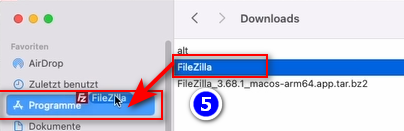
- <span style="background-color: rgb(251, 238, 184);">❹ **Ouvre le programme → Décompresse le programme** en double-cliquant dessus → **Glisse le** FileZilla décompressé dans ❺ **Programmes → Ouvre FileZilla** dans tes programmes  
      
    </span>  
    ![grafik.png](https://wiki.kla.tv/uploads/images/gallery/2024-11/scaled-1680-/VPNuuUPWGJRzrbtr-grafik.png) ![grafik.png](https://wiki.kla.tv/uploads/images/gallery/2024-11/scaled-1680-/N7MuRCCZvue6JAoZ-grafik.png)
- *<span style="background-color: rgb(194, 224, 244);">**ASTUCE :** </span>*<span class="ILfuVd" lang="de"><span class="hgKElc">*<span class="ct-span              oxy-stock-content-styles             " id="bkmrk-steht-dort-%22intel%22-%28">Si tu ne sais pas quelle est la version de ton Mac : Choisis pour cela en haut à gauche dans le menu Apple (![icons8-mac-os-50.png](https://wiki.kla.tv/uploads/images/gallery/2024-11/scaled-1680-/sy6Ed2uwA1TrzLIR-icons8-mac-os-50.png)) l'option "A propos de ce Mac" → "Puce/Processeur" → Si tu y trouves "Apple M1", "M2" ou "M3", tu as un   
     Apple Silicon Mac // Si tu y trouves "Intel" (par ex. "Intel Core i5"), il s'agit d'un Intel Mac</span>*</span></span>

#### <span style="background-color: rgb(241, 196, 15);">**3.** </span><span style="background-color: rgb(241, 196, 15);">**Paramétrer FileZilla :**</span>

- <span style="background-color: rgb(251, 238, 184);">Copier dans <span style="background-color: rgb(251, 238, 184);"><span lang="DE" style="font-size: 11pt; line-height: 107%; font-family: 'Cambria Math', serif; color: rgb(7, 40, 230); background-color: rgb(251, 238, 184);">❶</span></span> **FileZilla les données du serveur** que tu trouves sur la page web <span style="background-color: rgb(251, 238, 184);"><span lang="DE" style="font-size: 11pt; line-height: 107%; font-family: 'Cambria Math', serif; color: rgb(7, 40, 230); background-color: rgb(251, 238, 184);">❷</span></span> [**kla.tv/sichern**](https://wiki.kla.tv/kla.tv/sichern) → ensuite sur <span style="background-color: rgb(251, 238, 184);"><span lang="DE" style="font-size: 11pt; line-height: 107%; font-family: 'Cambria Math', serif; color: rgb(7, 40, 230); background-color: rgb(251, 238, 184);">❸</span> cliquer sur </span>« Connexion rapide » :</span>  
    (Cliquer sur l'icône « copier » entourée d'un cercle et coller dans FileZilla ![grafik.png](https://wiki.kla.tv/uploads/images/gallery/2024-11/scaled-1680-/K7m9M4cml0Nk3bPx-grafik.png)) [![grafik.png](https://wiki.kla.tv/uploads/images/gallery/2024-11/scaled-1680-/wbIHEPHXZnCa1P71-grafik.png)](https://wiki.kla.tv/uploads/images/gallery/2024-11/wbIHEPHXZnCa1P71-grafik.png)
- <span style="background-color: rgb(251, 238, 184);">Un message ❹ apparaît, clique sur OK</span>  
    ![grafik.png](https://wiki.kla.tv/uploads/images/gallery/2024-11/scaled-1680-/I4RotrmPs0wSZmSf-grafik.png)

#### <span style="background-color: rgb(241, 196, 15);">**4. Sauvegarder les émissions :**</span>

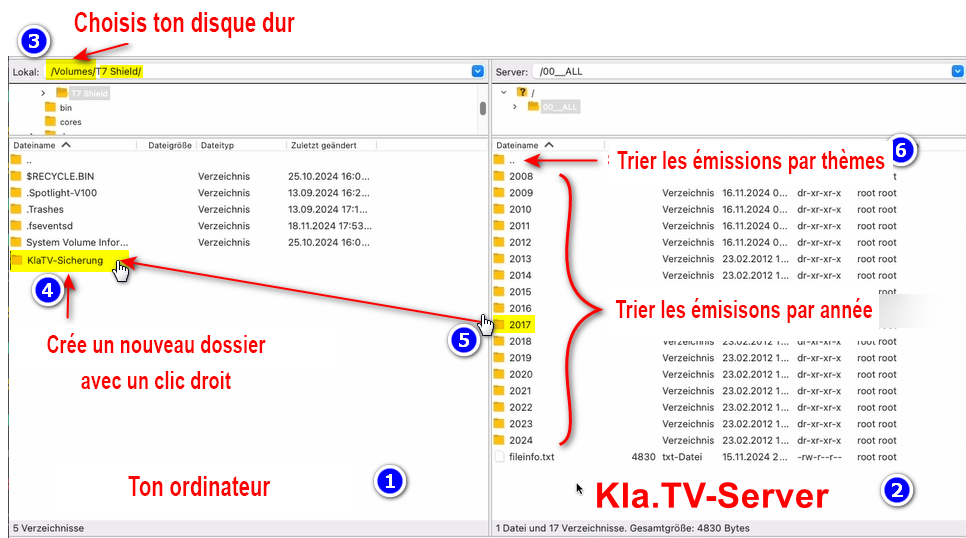
- <span style="background-color: rgb(251, 238, 184);"><span lang="DE" style="font-size: 11pt; line-height: 107%; font-family: 'Cambria Math', serif; color: rgb(7, 40, 230); background-color: rgb(251, 238, 184);">❶</span> A gauche, tu vois **ton** ordinateur, <span style="background-color: rgb(251, 238, 184);"><span style="background-color: rgb(251, 238, 184);"><span lang="DE" style="font-size: 11pt; line-height: 107%; font-family: 'Cambria Math', serif; color: rgb(7, 40, 230); background-color: rgb(251, 238, 184);">❷</span></span></span> à droite le serveur de Kla.TV </span>
- <span style="background-color: rgb(251, 238, 184);">Navigue à gauche <span style="background-color: rgb(251, 238, 184);"><span lang="DE" style="font-size: 11pt; line-height: 107%; font-family: 'Cambria Math', serif; color: rgb(7, 40, 230); background-color: rgb(251, 238, 184);">❸</span> </span> sur **ton disque dur.** (Sélectionne ton disque dur)</span>
- <span style="background-color: rgb(251, 238, 184);">Crée **<span style="background-color: rgb(251, 238, 184);"><span lang="DE" style="font-size: 11pt; line-height: 107%; font-family: 'Cambria Math', serif; color: rgb(7, 40, 230); background-color: rgb(251, 238, 184);">❹</span></span> un nouveau dossier** avec un clic droit « Créer un dossier » → nomme le dossier par exemple « Sauvegarde KlaTV ».</span>
- <span style="background-color: rgb(251, 238, 184);">Déplace <span lang="DE" style="font-size: 11pt; line-height: 107%; font-family: 'Cambria Math', serif; color: rgb(7, 40, 230); background-color: rgb(251, 238, 184);">❺</span> **le dossier d'émissions souhaité** sur ton disque dur en maintenant le bouton de la souris enfoncé. </span>
- <span style="background-color: rgb(251, 238, 184);">Tu peux aussi <span lang="DE" style="font-size: 11pt; line-height: 107%; font-family: 'Cambria Math', serif; color: rgb(7, 40, 230); background-color: rgb(251, 238, 184);">❻</span> télécharger **un thème particulier** (par ex. 5G, vaccination, Bill Gates, etc.). L'inconvénient est qu'avec le temps, de nouvelles vidéos sont ajoutées et stockées dans ces dossiers thématiques. Tu devras toujours faire une comparaison avec le disque dur et tu auras besoin de plus d'espace de stockage. </span>
- <span style="background-color: rgb(251, 238, 184);"><span style="color: rgb(7, 40, 230);"><span lang="DE" style="font-size: 11pt; line-height: 107%; font-family: 'Cambria Math', serif; background-color: rgb(251, 238, 184);">❼</span> </span>Ci-dessous, tu peux voir comment les vidéos sont téléchargées dans l'ordre (cela peut prendre beaucoup de temps). </span>  
      
    *→<span style="background-color: rgb(194, 224, 244);"> **ASTUCE :** </span><span style="background-color: rgb(251, 238, 184);">Ici, tu apprendras comment limiter la vitesse d'Internet pour FileZilla, afin que tu puisses quand même travailler sur Internet à côté : clique ici → </span>*[**Limiter la vitesse de Filezilla**](https://wiki.kla.tv/books/fr-sauvegarder-klatv/page/sauvegarder-klatv-avec-lacces-au-serveur-limiter-la-vitesse-de-filezilla "Limiter la vitesse de Filezilla")
- [![filezilla.png](https://wiki.kla.tv/uploads/images/gallery/2025-04/scaled-1680-/kh9C3RoAmwYsMzXT-filezilla.png)](https://wiki.kla.tv/uploads/images/gallery/2025-04/kh9C3RoAmwYsMzXT-filezilla.png)

[![grafik.png](https://wiki.kla.tv/uploads/images/gallery/2024-11/scaled-1680-/uLGmaW3NtFcExaZn-grafik.png)](https://wiki.kla.tv/uploads/images/gallery/2024-11/uLGmaW3NtFcExaZn-grafik.png)

#### <span style="background-color: rgb(241, 196, 15);">**5. ALTERNATIVE - Sauvegarder les émissions sans FileZilla, directement sur le site :**</span>

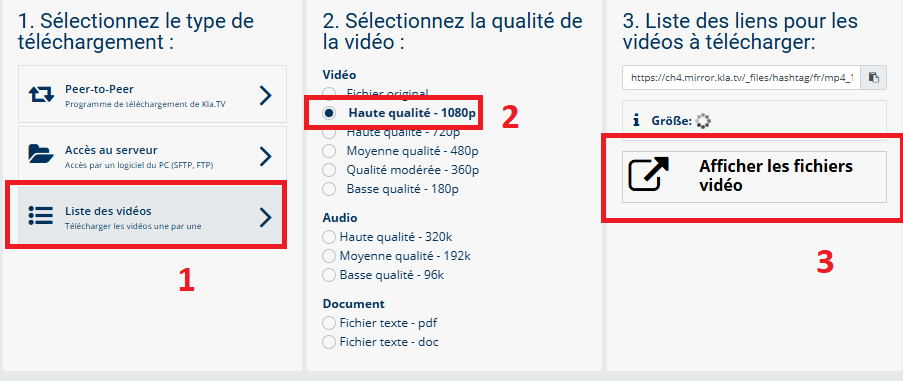
- <span style="background-color: rgb(251, 238, 184);">Va sur **[kla.tv/sichern](https://www.kla.tv/sichern)** → <span lang="DE" style="font-size: 11pt; line-height: 107%; font-family: 'Cambria Math', serif; color: rgb(7, 40, 230); background-color: rgb(251, 238, 184);">❶</span> **Liste des vidéos** → choisis <span lang="DE" style="font-size: 11pt; line-height: 107%; font-family: 'Cambria Math', serif; color: rgb(7, 40, 230); background-color: rgb(251, 238, 184);">❷</span> la **qualité souhaitée** →clique <span lang="DE" style="font-size: 11pt; line-height: 107%; font-family: 'Cambria Math', serif; color: rgb(7, 40, 230); background-color: rgb(251, 238, 184);">❸</span> sur "**Afficher les fichiers vidéo"**</span>
- <span style="background-color: rgb(251, 238, 184);">Maintenant,<span style="background-color: rgb(251, 238, 184);"><span lang="DE" style="font-size: 11pt; line-height: 107%; font-family: 'Cambria Math', serif; color: rgb(7, 40, 230); background-color: rgb(251, 238, 184);">❹</span></span> toutes les vidéos sont listées **par année**/mois. Clique dans l'année/mois souhaité et clique <span style="background-color: rgb(251, 238, 184);"><span lang="DE" style="font-size: 11pt; line-height: 107%; font-family: 'Cambria Math', serif; color: rgb(7, 40, 230); background-color: rgb(251, 238, 184);">❺</span></span> sur l'émission et appuie <span style="background-color: rgb(251, 238, 184);"><span lang="DE" style="font-size: 11pt; line-height: 107%; font-family: 'Cambria Math', serif; color: rgb(7, 40, 230); background-color: rgb(251, 238, 184);">❻</span></span> sur « **Enregistrer** ». Chaque émission peut être téléchargée individuellement.</span>  
      
    *→ <span style="background-color: rgb(194, 224, 244);">**ASTUCE :** </span><span style="background-color: rgb(251, 238, 184);">Cela demande beaucoup de temps et d'efforts. C'est pourquoi la variante avec FileZilla est recommandée</span>  
    [![3.png](https://wiki.kla.tv/uploads/images/gallery/2025-04/scaled-1680-/z6g6tak6NkyDI6Da-3.png)](https://wiki.kla.tv/uploads/images/gallery/2025-04/z6g6tak6NkyDI6Da-3.png)
    
      
    [![2.png](https://wiki.kla.tv/uploads/images/gallery/2025-04/scaled-1680-/u5hUsrAoT6hkx1yc-2.png)](https://wiki.kla.tv/uploads/images/gallery/2025-04/u5hUsrAoT6hkx1yc-2.png)

### <span style="background-color: rgb(241, 196, 15);">**6.** </span><span style="background-color: rgb(241, 196, 15);">**Recommandation : régler les options d'alimentation de manière à ce que l'ordinateur ne s'éteigne pas automatiquement :** </span>

- <span style="background-color: rgb(251, 238, 184);">Si l'ordinateur a redémarré, tu dois redémarrer l'application (voir instructions point 8).</span>
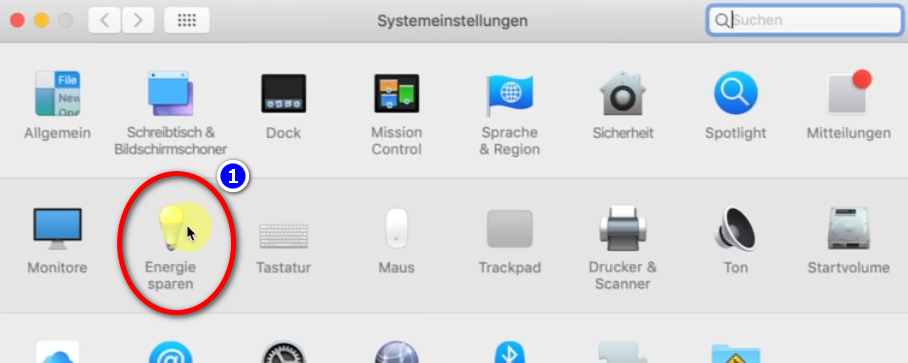
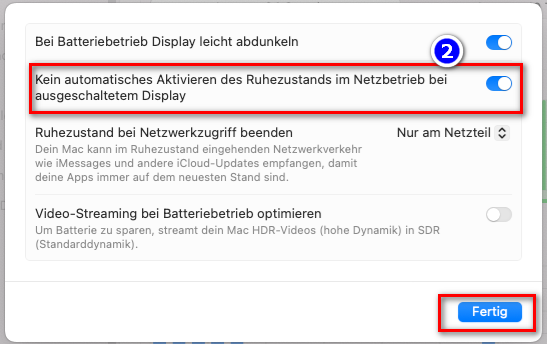
- <span style="background-color: rgb(251, 238, 184);">Pour éviter que ton Mac ne s'éteigne automatiquement : **Mac → ❶ Préférences Système → Économie d'énergie →  
    ❷ Ne pas activer automatiquement la mise en veille ... → activer**</span>
- <span style="background-color: rgb(251, 238, 184);">Laisser tourner l'ordinateur jusqu'à ce que tous les fichiers soient téléchargés</span>
- [![grafik.png](https://wiki.kla.tv/uploads/images/gallery/2024-11/scaled-1680-/23U7rqFWbWlhJ5Uv-grafik.png)](https://wiki.kla.tv/uploads/images/gallery/2024-11/23U7rqFWbWlhJ5Uv-grafik.png)
    
    [![grafik.png](https://wiki.kla.tv/uploads/images/gallery/2024-11/scaled-1680-/PGDWa65L7V1hj21V-grafik.png)](https://wiki.kla.tv/uploads/images/gallery/2024-11/PGDWa65L7V1hj21V-grafik.png)

<p class="callout info">Nous recommandons en outre les formations suivantes :  
  
**[Déterminer l'espace de stockage](https://wiki.kla.tv/books/fr-sauvegarder-klatv/page/sauvegarder-klatv-avec-lacces-au-serveur-determiner-lespace-de-stockage "Déterminer l'espace de stockage")  
  
[Limiter la vitesse de Filezilla](https://wiki.kla.tv/books/fr-sauvegarder-klatv/page/sauvegarder-klatv-avec-lacces-au-serveur-limiter-la-vitesse-de-filezilla "Limiter la vitesse de Filezilla")  
  
[Télécharger plusieurs qualités](https://wiki.kla.tv/books/fr-sauvegarder-klatv/page/sauvegarder-klatv-avec-lacces-au-serveur-telecharger-plusieurs-qualites "Télécharger plusieurs qualités")  
  
[Rechercher dans les archives sauvegardées](https://wiki.kla.tv/books/fr-sauvegarder-klatv/page/sauvegarder-klatv-avec-lacces-au-serveur-rechercher-dans-les-archives-sauvegardees "Rechercher dans les archives sauvegardées")**</p>

# LINUX : Installation & connexion à Filezilla (Accès au serveur)

### **Qu'apprends-tu avec cet article ?**

Tu apprends comment sauvegarder **les émissions de Kla.TV sur ton propre disque dur via l'accès à nos serveurs.** Ces émissions sont classées par date ou par thème et dans différentes qualités. Tu apprends également comment trouver des émissions spécifiques dans des documents téléchargés en utilisant des mots-clés.

### **Vidéo explicatives : (13min)**

*- Sous-titres générés automatiquement -*

<div class="responsive-iframe" id="bkmrk-"><div class="responsive-iframe"><iframe allowfullscreen="allowfullscreen" frameborder="0" height="332" src="https://video.elaion-verlag.ch?video_by_id=JZ0dBD3n57TD" width="590"></iframe>

</div></div><div class="responsive-iframe" id="bkmrk--1"></div><p class="callout warning">Nous vous recommandons de regarder d'abord la vidéo afin de mieux comprendre les instructions écrites.</p>

### **Instructions écrites :**

#### <span style="background-color: rgb(241, 196, 15);">**1.** </span><span style="background-color: rgb(241, 196, 15);">**Accès au serveur :**</span>

- <span style="background-color: rgb(251, 238, 184);">Va sur la page **[kla.tv/sichern](https://www.kla.tv/sichern)** </span>
- <span style="background-color: rgb(251, 238, 184);">Va <span lang="DE" style="font-size: 11pt; line-height: 107%; font-family: 'Cambria Math', serif; color: rgb(7, 40, 230); background-color: rgb(251, 238, 184);">❶</span> sur **"Accès au serveur"** (voir l'image ci-dessous)→ et choisis <span style="background-color: rgb(251, 238, 184);"> <span lang="DE" style="font-size: 11pt; line-height: 107%; font-family: 'Cambria Math', serif; color: rgb(7, 40, 230); background-color: rgb(251, 238, 184);">❷</span></span> la **qualité** souhaitée   
    </span>
- <span style="background-color: rgb(251, 238, 184);"><span lang="DE" style="font-size: 11pt; line-height: 107%; font-family: 'Cambria Math', serif; color: rgb(7, 40, 230); background-color: rgb(251, 238, 184);">❸</span> la flèche rouge indique l'espace libre dont tu as besoin sur ton disque dur. Ajuste la qualité en conséquence.  
    </span>
- <span style="background-color: rgb(251, 238, 184);">Ensuite, tu as besoin du programme « FileZilla ». <span class="--l --r sentence_highlight">Pour l'installer, clique sur</span> <span lang="DE" style="font-size: 11pt; line-height: 107%; font-family: 'Cambria Math', serif; color: rgb(7, 40, 230); background-color: rgb(251, 238, 184);">❹</span></span>***<span style="background-color: rgb(251, 238, 184);"><span style="color: rgb(7, 40, 230);"> </span>"FileZilla"</span>***

[![1.png](https://wiki.kla.tv/uploads/images/gallery/2025-04/scaled-1680-/G9ujgjj72sqZiWgq-1.png)](https://wiki.kla.tv/uploads/images/gallery/2025-04/G9ujgjj72sqZiWgq-1.png)

- ***→** <span style="background-color: rgb(251, 238, 184);">**ASTUCE :** il n'est pas possible de sélectionner plusieurs choses en même temps. Dans cet article, tu apprendras comment enregistrer plusieurs qualités dans la même structure de dossier : clique ici → **Télécharger plusieurs qualités**</span>*

#### <span style="background-color: rgb(241, 196, 15);">**2.** </span><span style="background-color: rgb(241, 196, 15);">**Installer Filezilla :** </span>

*- les images sont en allemands mais devraient correspondre visuellement à votre Linux en français -*

Selon la version de Linux que tu as, il y a différentes manières de procéder. Ici, nous allons montrer deux façons de procéder avec Ubuntu :

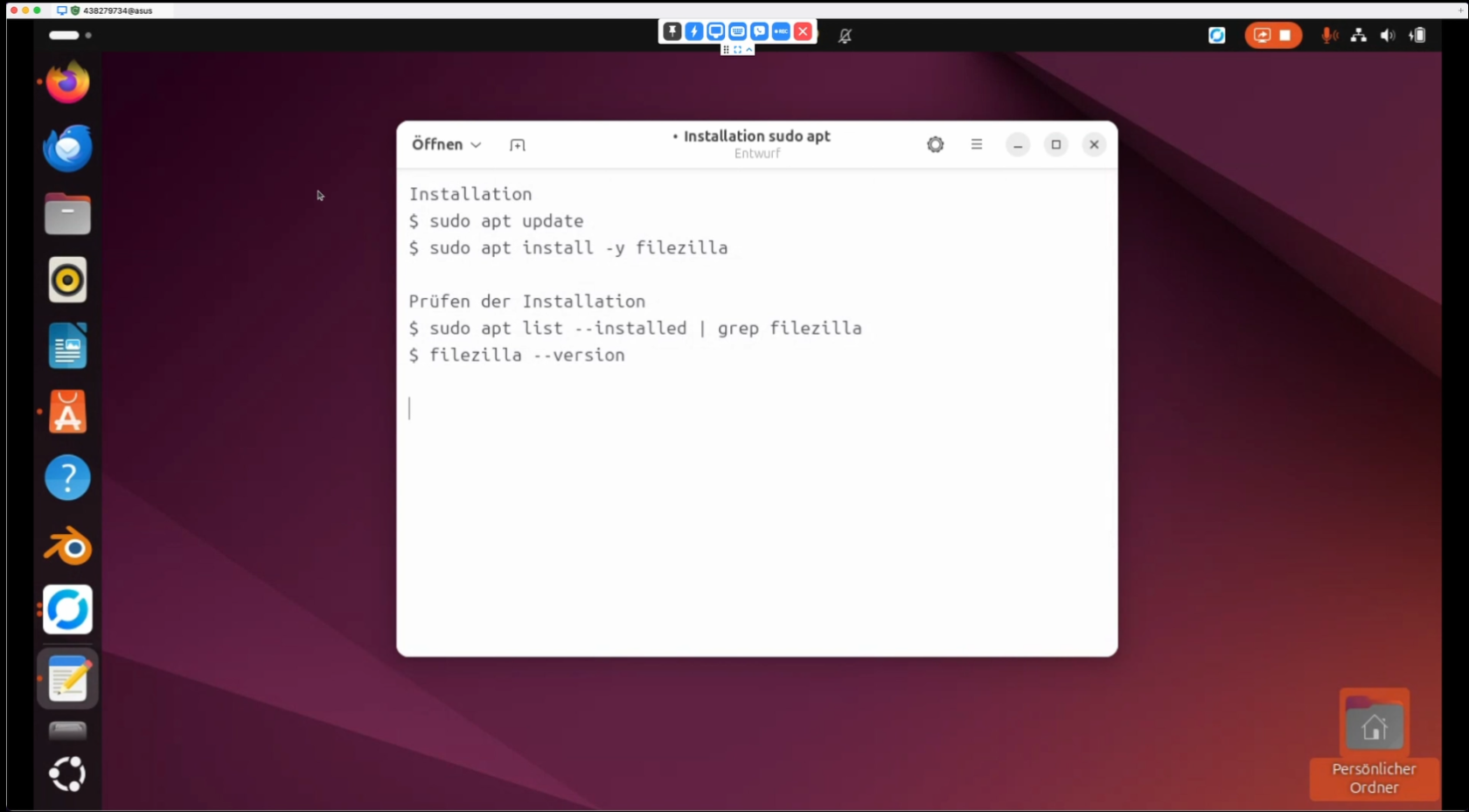
Soit tu ouvres le terminal et tu y tapes les commandes suivantes :

<p class="callout info">Installation</p>

```
$ sudo apt update
$ sudo apt install -y filezilla
```

<p class="callout info">Tester l'installation</p>

```
$ sudo apt list --installed | grep filezilla
$ filezilla --version
```

[![image.png](https://wiki.kla.tv/uploads/images/gallery/2024-11/scaled-1680-/7MGhW1g9EamixdNU-image.png)](https://wiki.kla.tv/uploads/images/gallery/2024-11/7MGhW1g9EamixdNU-image.png)

Ou tu peux aller sur le centre logiciel

[![image.png](https://wiki.kla.tv/uploads/images/gallery/2024-11/scaled-1680-/e64QXjSrpPigPsCV-image.png)](https://wiki.kla.tv/uploads/images/gallery/2024-11/e64QXjSrpPigPsCV-image.png)

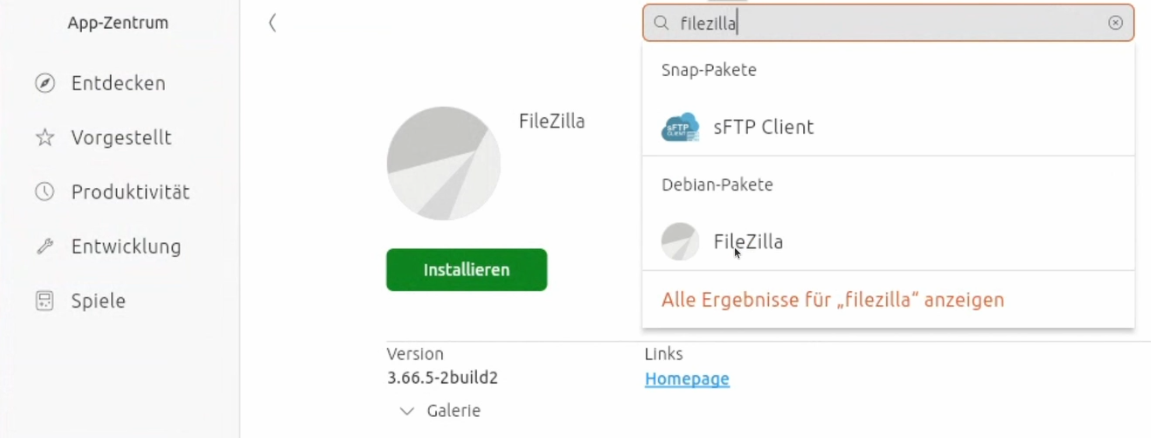
et tu tapes « filezilla » dans le champ de recherche. Ensuite, tu cliques sur "**Installer**" [![image.png](https://wiki.kla.tv/uploads/images/gallery/2024-11/scaled-1680-/dtKfYzaFKqPTru0Y-image.png):](https://wiki.kla.tv/uploads/images/gallery/2024-11/dtKfYzaFKqPTru0Y-image.png)

[![image.png](https://wiki.kla.tv/uploads/images/gallery/2024-11/scaled-1680-/lYdub7eHmTtRWSAj-image.png)](https://wiki.kla.tv/uploads/images/gallery/2024-11/lYdub7eHmTtRWSAj-image.png)

Ensuite, tu peux simplement aller sur l'application :

[![image.png](https://wiki.kla.tv/uploads/images/gallery/2024-11/scaled-1680-/JAHpJwLL32YIRT31-image.png)](https://wiki.kla.tv/uploads/images/gallery/2024-11/JAHpJwLL32YIRT31-image.png)

#### <span style="background-color: rgb(241, 196, 15);">**3.** </span><span style="background-color: rgb(241, 196, 15);">**Paramétrer FileZilla :**</span>

- Copier dans <span lang="DE" style="font-size: 11pt; line-height: 107%; font-family: 'Cambria Math', serif; color: rgb(7, 40, 230);">❶</span> **FileZilla les données du serveur** que tu trouves sur la page web <span lang="DE" style="font-size: 11pt; line-height: 107%; font-family: 'Cambria Math', serif; color: rgb(7, 40, 230);">❷</span> [**kla.tv/sichern**](https://www.kla.tv/sichern) → ensuite sur <span lang="DE" style="font-size: 11pt; line-height: 107%; font-family: 'Cambria Math', serif; color: rgb(7, 40, 230);">❸</span> cliquer sur « Connexion rapide » :  
    (Cliquer sur l'icône « copier »![copy icon.png](https://wiki.kla.tv/uploads/images/gallery/2024-11/scaled-1680-/FBgYTFlPc2gfJRTu-copy-icon.png) entourée d'un cercle et coller dans FileZilla avec ctrl + V)![image.png](https://wiki.kla.tv/uploads/images/gallery/2024-11/scaled-1680-/2uu5gLnLsLmRHnO4-image.png)
    
     [![image.png](https://wiki.kla.tv/uploads/images/gallery/2024-11/scaled-1680-/pM63WbD8vtCOQYoc-image.png)](https://wiki.kla.tv/uploads/images/gallery/2024-11/pM63WbD8vtCOQYoc-image.png)

#### <span style="background-color: rgb(241, 196, 15);">**4.** </span><span style="background-color: rgb(241, 196, 15);">**Sauvegarder les émissions :**</span>

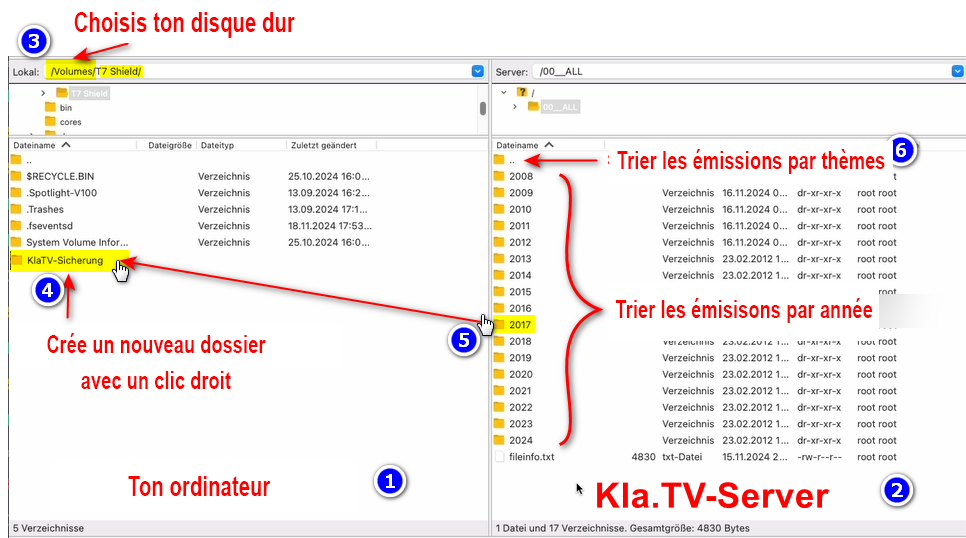
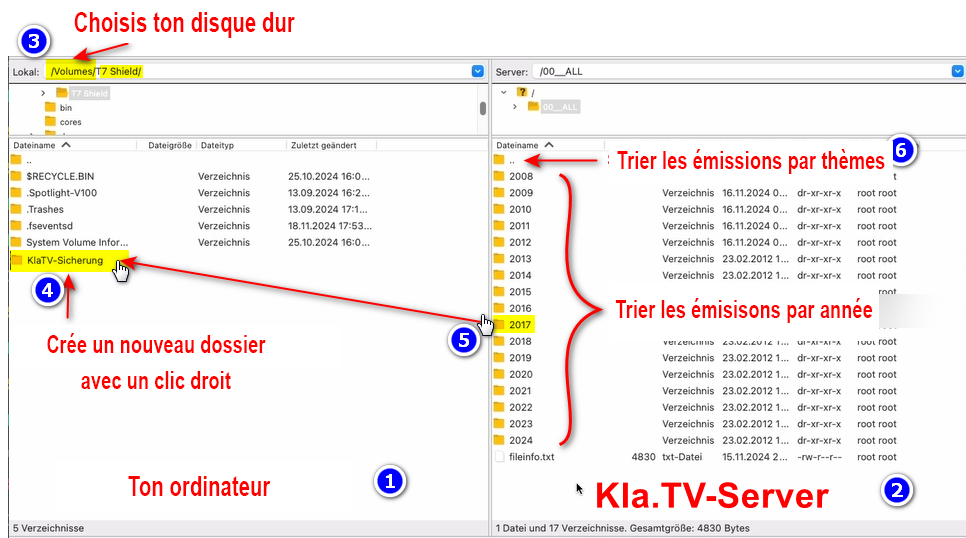
- <span lang="DE" style="font-size: 11pt; line-height: 107%; font-family: 'Cambria Math', serif; color: rgb(7, 40, 230);">❶</span> A gauche, tu vois **ton** ordinateur, <span lang="DE" style="font-size: 11pt; line-height: 107%; font-family: 'Cambria Math', serif; color: rgb(7, 40, 230);">❷</span> à droite le serveur de Kla.TV
- Navigue à gauche <span lang="DE" style="font-size: 11pt; line-height: 107%; font-family: 'Cambria Math', serif; color: rgb(7, 40, 230);">❸</span> sur **ton disque dur.** (Sélectionne ton disque dur)
- Crée **<span lang="DE" style="font-size: 11pt; line-height: 107%; font-family: 'Cambria Math', serif; color: rgb(7, 40, 230);">❹</span> un nouveau dossier** avec un clic droit « Créer un dossier » → nomme le dossier par exemple « Sauvegarde KlaTV ».
- Déplace <span lang="DE" style="font-size: 11pt; line-height: 107%; font-family: 'Cambria Math', serif; color: rgb(7, 40, 230);">❺</span> **le dossier d'émissions souhaité** sur ton disque dur en maintenant le bouton de la souris enfoncé.
- Tu peux aussi <span lang="DE" style="font-size: 11pt; line-height: 107%; font-family: 'Cambria Math', serif; color: rgb(7, 40, 230);">❻</span> télécharger **un thème particulier** (par ex. 5G, vaccination, Bill Gates, etc.). L'inconvénient est qu'avec le temps, de nouvelles vidéos sont ajoutées et stockées dans ces dossiers thématiques. Tu devras toujours faire une comparaison avec le disque dur et tu auras besoin de plus d'espace de stockage.
- <span style="color: rgb(7, 40, 230);"><span lang="DE" style="font-size: 11pt; line-height: 107%; font-family: 'Cambria Math', serif;">❼</span> </span>Ci-dessous, tu peux voir comment les vidéos sont téléchargées dans l'ordre (cela peut prendre beaucoup de temps).   
      
    *→ **ASTUCE :** Ici, tu apprendras comment limiter la vitesse d'Internet pour FileZilla, afin que tu puisses quand même travailler sur Internet à côté : clique ici → **[Limiter la vitesse de Filezilla](https://wiki.kla.tv/books/fr-sauvegarder-klatv/page/sauvegarder-klatv-avec-lacces-au-serveur-limiter-la-vitesse-de-filezilla "Limiter la vitesse de Filezilla")***

[![grafik.png](https://wiki.kla.tv/uploads/images/gallery/2024-11/scaled-1680-/uLGmaW3NtFcExaZn-grafik.png)](https://wiki.kla.tv/uploads/images/gallery/2024-11/uLGmaW3NtFcExaZn-grafik.png)
[![filezilla.png](https://wiki.kla.tv/uploads/images/gallery/2025-04/scaled-1680-/i68PLOBKKWCcR4WX-filezilla.png)](https://wiki.kla.tv/uploads/images/gallery/2025-04/i68PLOBKKWCcR4WX-filezilla.png)
#### <span style="background-color: rgb(241, 196, 15);">**5.** </span><span style="background-color: rgb(241, 196, 15);">**ALTERNATIVE - Sauvegarder les émissions sans FileZilla, directement sur le site :**</span>

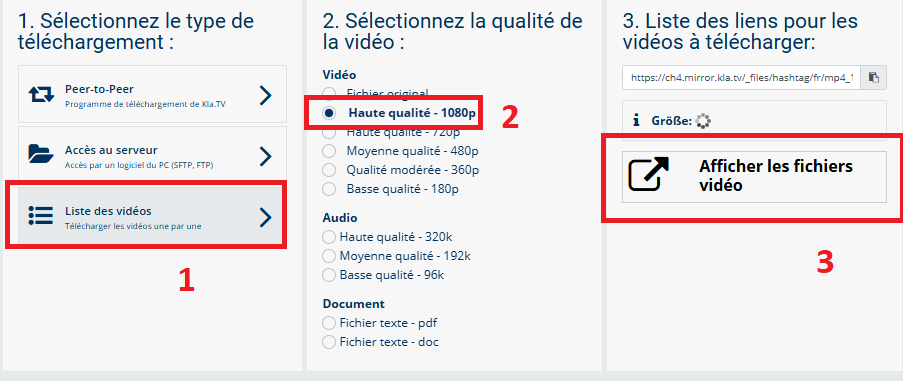
- Va sur **[kla.tv/sichern](https://www.kla.tv/sichern)** → <span lang="DE" style="font-size: 11pt; line-height: 107%; font-family: 'Cambria Math', serif; color: rgb(7, 40, 230);">❶</span> **Liste des vidéos** → choisis <span lang="DE" style="font-size: 11pt; line-height: 107%; font-family: 'Cambria Math', serif; color: rgb(7, 40, 230);">❷</span> la **qualité souhaitée** →clique <span lang="DE" style="font-size: 11pt; line-height: 107%; font-family: 'Cambria Math', serif; color: rgb(7, 40, 230);">❸</span> sur "**Afficher les fichiers vidéo"**
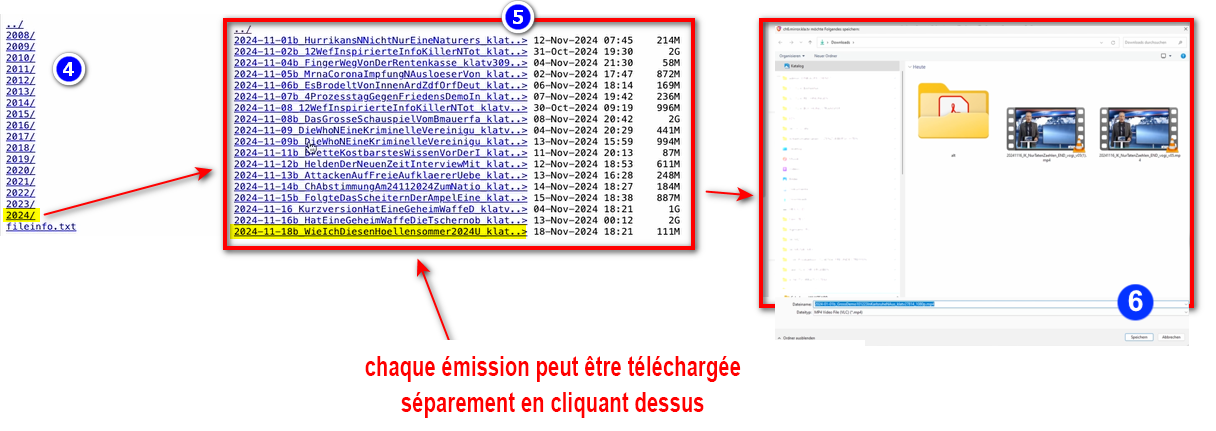
- Maintenant,<span lang="DE" style="font-size: 11pt; line-height: 107%; font-family: 'Cambria Math', serif; color: rgb(7, 40, 230);">❹</span> toutes les vidéos sont listées **par année**/mois. Clique dans l'année/mois souhaité et clique<span lang="DE" style="font-size: 11pt; line-height: 107%; font-family: 'Cambria Math', serif; color: rgb(7, 40, 230);">❺</span> sur l'émission et appuie<span lang="DE" style="font-size: 11pt; line-height: 107%; font-family: 'Cambria Math', serif; color: rgb(7, 40, 230);">❻</span> sur « **Enregistrer** ». Chaque émission peut être téléchargée individuellement.  
      
    *→ **ASTUCE :** Cela demande beaucoup de temps et d'efforts. C'est pourquoi la variante avec FileZilla est recommandée*  
    [![3.png](https://wiki.kla.tv/uploads/images/gallery/2025-04/scaled-1680-/4KgTm5XUnLiUAWEs-3.png)](https://wiki.kla.tv/uploads/images/gallery/2025-04/4KgTm5XUnLiUAWEs-3.png)
    
    [![2.png](https://wiki.kla.tv/uploads/images/gallery/2025-04/scaled-1680-/xPoAraObZCKDvuQB-2.png)](https://wiki.kla.tv/uploads/images/gallery/2025-04/xPoAraObZCKDvuQB-2.png)
<p class="callout info">Nous recommandons en outre les formations suivantes :  
  
**[Déterminer l'espace de stockage](https://wiki.kla.tv/books/fr-sauvegarder-klatv/page/sauvegarder-klatv-avec-lacces-au-serveur-determiner-lespace-de-stockage "Déterminer l'espace de stockage")  
  
[Limiter la vitesse de Filezilla](https://wiki.kla.tv/books/fr-sauvegarder-klatv/page/sauvegarder-klatv-avec-lacces-au-serveur-limiter-la-vitesse-de-filezilla "Limiter la vitesse de Filezilla")  
  
[Télécharger plusieurs qualités](https://wiki.kla.tv/books/fr-sauvegarder-klatv/page/sauvegarder-klatv-avec-lacces-au-serveur-telecharger-plusieurs-qualites "Télécharger plusieurs qualités")  
  
[Rechercher dans les archives sauvegardées](https://wiki.kla.tv/books/fr-sauvegarder-klatv/page/sauvegarder-klatv-avec-lacces-au-serveur-rechercher-dans-les-archives-sauvegardees "Rechercher dans les archives sauvegardées")**</p>

# Sauvegarder KlaTV avec l'accès au serveur - déterminer l'espace de stockage

### **Qu'apprends-tu avec cet article ?**

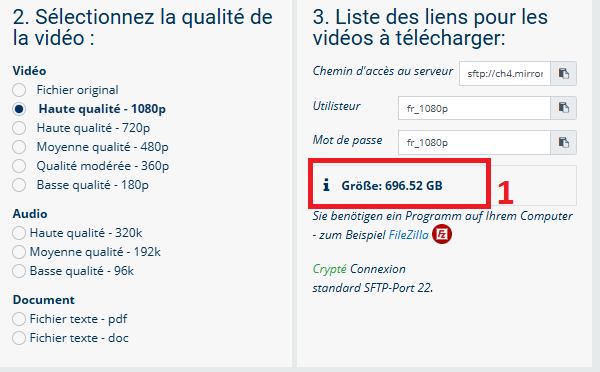
Sur kla.tv/sichern, seule la taille de l'archive complète est affichée ❶, en fonction de la qualité que tu as choisie. Comment trouver l'espace de stockage nécessaire si tu ne veux télécharger qu'une partie spécifique ? Par exemple, seulement une année ou quelques mois ? Tu le découvriras dans cet article.

[![Espace.png](https://wiki.kla.tv/uploads/images/gallery/2025-04/scaled-1680-/781F4pJkIV421uBQ-espace.png)](https://wiki.kla.tv/uploads/images/gallery/2025-04/781F4pJkIV421uBQ-espace.png)
### **Vidéo explicative : (1min)**

*- Sous-titres générés automatiquement -*

<div class="responsive-iframe" id="bkmrk--2"><iframe allowfullscreen="allowfullscreen" frameborder="0" height="332" src="https://video.elaion-verlag.ch?video_by_id=YE8YYxcH2jKh" width="590"></iframe>

</div><span lang="DE" style="font-size: 16.0pt; mso-bidi-font-size: 11.0pt; line-height: 107%; font-family: Wingdings; mso-ascii-font-family: Calibri; mso-ascii-theme-font: minor-latin; mso-fareast-font-family: Calibri; mso-fareast-theme-font: minor-latin; mso-hansi-font-family: Calibri; mso-hansi-theme-font: minor-latin; mso-bidi-font-family: 'Times New Roman'; mso-bidi-theme-font: minor-bidi; mso-ansi-language: DE; mso-fareast-language: EN-US; mso-bidi-language: AR-SA; mso-char-type: symbol; mso-symbol-font-family: Wingdings;"><span style="mso-char-type: symbol; mso-symbol-font-family: Wingdings;">&#131;</span></span><span lang="DE" style="font-size: 16.0pt; mso-bidi-font-size: 11.0pt; line-height: 107%; font-family: Wingdings; mso-ascii-font-family: Calibri; mso-ascii-theme-font: minor-latin; mso-fareast-font-family: Calibri; mso-fareast-theme-font: minor-latin; mso-hansi-font-family: Calibri; mso-hansi-theme-font: minor-latin; mso-bidi-font-family: 'Times New Roman'; mso-bidi-theme-font: minor-bidi; mso-ansi-language: DE; mso-fareast-language: EN-US; mso-bidi-language: AR-SA; mso-char-type: symbol; mso-symbol-font-family: Wingdings;"><span style="mso-char-type: symbol; mso-symbol-font-family: Wingdings;">&#132;</span></span><span lang="DE" style="font-size: 16.0pt; mso-bidi-font-size: 11.0pt; line-height: 107%; font-family: Wingdings; mso-ascii-font-family: Calibri; mso-ascii-theme-font: minor-latin; mso-fareast-font-family: Calibri; mso-fareast-theme-font: minor-latin; mso-hansi-font-family: Calibri; mso-hansi-theme-font: minor-latin; mso-bidi-font-family: 'Times New Roman'; mso-bidi-theme-font: minor-bidi; mso-ansi-language: DE; mso-fareast-language: EN-US; mso-bidi-language: AR-SA; mso-char-type: symbol; mso-symbol-font-family: Wingdings;"><span style="mso-char-type: symbol; mso-symbol-font-family: Wingdings;"> </span></span>

### **Instructions écrites :**

- Ouvre Filezilla et connecte-toi au **serveur de kla.TV** (Instructions détaillées à ce sujet : clique ici→ [**Sécuriser KlaTV : accès au serveur avec Filezilla** ](https://wiki.kla.tv/books/fr-sauvegarder-klatv/chapter/acces-au-serveur-avec-filezilla-sftp "Accès au serveur avec Filezilla (SFTP)"))
    
    [![grafik.png](https://wiki.kla.tv/uploads/images/gallery/2024-11/scaled-1680-/pxir8WbIE43Z4Kgc-grafik.png)](https://wiki.kla.tv/uploads/images/gallery/2024-11/pxir8WbIE43Z4Kgc-grafik.png)
    
    [![filezilla_1.png](https://wiki.kla.tv/uploads/images/gallery/2025-04/scaled-1680-/EGrIcJgsLoAzMNz3-filezilla-1.png)](https://wiki.kla.tv/uploads/images/gallery/2025-04/EGrIcJgsLoAzMNz3-filezilla-1.png)[![filezilla_2.png](https://wiki.kla.tv/uploads/images/gallery/2025-04/scaled-1680-/Kqd1msrwqn3N2eCx-filezilla-2.png)](https://wiki.kla.tv/uploads/images/gallery/2025-04/Kqd1msrwqn3N2eCx-filezilla-2.png)[![filezilla_3.png](https://wiki.kla.tv/uploads/images/gallery/2025-04/scaled-1680-/DihG2uZ6i7yMoZBH-filezilla-3.png)](https://wiki.kla.tv/uploads/images/gallery/2025-04/DihG2uZ6i7yMoZBH-filezilla-3.png)
    
    [![filezilla_4.png](https://wiki.kla.tv/uploads/images/gallery/2025-04/scaled-1680-/o55EWkY4Gd3IIUWD-filezilla-4.png)](https://wiki.kla.tv/uploads/images/gallery/2025-04/o55EWkY4Gd3IIUWD-filezilla-4.png)

# Sauvegarder KlaTV avec l'accès au serveur - Limiter la vitesse de Filezilla

### **Qu'apprends-tu dans cet article ?**

Si tu souhaites utiliser Internet en plus du téléchargement de Filezilla, il est conseillé de limiter la vitesse de Filezilla. Tu peux ainsi continuer à utiliser Internet en parallèle. Tu apprendras comment faire dans cet article.

### **Vidéo explicatives : (2min)**

*- Sous-titres générés automatiquement -*

<div class="responsive-iframe" id="bkmrk-"><iframe allowfullscreen="allowfullscreen" frameborder="0" height="332" src="https://video.elaion-verlag.ch?video_by_id=vTtsLFzJhkWo" width="590"></iframe>

</div><span lang="DE" style="font-size: 16.0pt; mso-bidi-font-size: 11.0pt; line-height: 107%; font-family: Wingdings; mso-ascii-font-family: Calibri; mso-ascii-theme-font: minor-latin; mso-fareast-font-family: Calibri; mso-fareast-theme-font: minor-latin; mso-hansi-font-family: Calibri; mso-hansi-theme-font: minor-latin; mso-bidi-font-family: 'Times New Roman'; mso-bidi-theme-font: minor-bidi; mso-ansi-language: DE; mso-fareast-language: EN-US; mso-bidi-language: AR-SA; mso-char-type: symbol; mso-symbol-font-family: Wingdings;"><span style="mso-char-type: symbol; mso-symbol-font-family: Wingdings;">&#131;</span></span><span lang="DE" style="font-size: 16.0pt; mso-bidi-font-size: 11.0pt; line-height: 107%; font-family: Wingdings; mso-ascii-font-family: Calibri; mso-ascii-theme-font: minor-latin; mso-fareast-font-family: Calibri; mso-fareast-theme-font: minor-latin; mso-hansi-font-family: Calibri; mso-hansi-theme-font: minor-latin; mso-bidi-font-family: 'Times New Roman'; mso-bidi-theme-font: minor-bidi; mso-ansi-language: DE; mso-fareast-language: EN-US; mso-bidi-language: AR-SA; mso-char-type: symbol; mso-symbol-font-family: Wingdings;"><span style="mso-char-type: symbol; mso-symbol-font-family: Wingdings;">&#132;</span></span><span lang="DE" style="font-size: 16.0pt; mso-bidi-font-size: 11.0pt; line-height: 107%; font-family: Wingdings; mso-ascii-font-family: Calibri; mso-ascii-theme-font: minor-latin; mso-fareast-font-family: Calibri; mso-fareast-theme-font: minor-latin; mso-hansi-font-family: Calibri; mso-hansi-theme-font: minor-latin; mso-bidi-font-family: 'Times New Roman'; mso-bidi-theme-font: minor-bidi; mso-ansi-language: DE; mso-fareast-language: EN-US; mso-bidi-language: AR-SA; mso-char-type: symbol; mso-symbol-font-family: Wingdings;"><span style="mso-char-type: symbol; mso-symbol-font-family: Wingdings;"> </span></span>

### **Instructions écrites :**

#### <span style="background-color: rgb(241, 196, 15);">**1. Déterminer la vitesse de son propre Internet :**</span>

- Ouvre le site **[speedtest.net](https://www.speedtest.net/)**
- Va sur ❶ « **Settings** » → choisis dans « **Speed** » ❷ “**Kbps**” → appuie sur ❸ « **Go** » pour démarrer la mesure  
      
    [![grafik.png](https://wiki.kla.tv/uploads/images/gallery/2024-11/scaled-1680-/sN5fJ7WQFc8atoVb-grafik.png) → ](https://wiki.kla.tv/uploads/images/gallery/2024-11/sN5fJ7WQFc8atoVb-grafik.png)![grafik.png](https://wiki.kla.tv/uploads/images/gallery/2024-11/scaled-1680-/uLHIHVN7bXrYcmO0-grafik.png) → [![grafik.png](https://wiki.kla.tv/uploads/images/gallery/2024-11/scaled-1680-/0cYEJ0ZzRX6c1Phx-grafik.png)](https://wiki.kla.tv/uploads/images/gallery/2024-11/0cYEJ0ZzRX6c1Phx-grafik.png)
- Tu vois maintenant **ta vitesse de téléchargement ❹ et ta vitesse d'envoi**. Si tu souhaites mettre à disposition de Filezilla par exemple 10% de ce transfert de données, saisis 10% de ces chiffres dans Filezilla. (voir point suivant)  
    [![grafik.png](https://wiki.kla.tv/uploads/images/gallery/2024-11/scaled-1680-/qKPHGCZYkowkrkAA-grafik.png)](https://wiki.kla.tv/uploads/images/gallery/2024-11/qKPHGCZYkowkrkAA-grafik.png)  
    → *<span style="background-color: rgb(194, 224, 244);">**ASTUCE :**</span> pour calculer 10%, il suffit de supprimer le dernier chiffre : par ex. téléchargement : 52111(0) Upload : 10534(8)*

#### <span style="background-color: rgb(241, 196, 15);">**2. Limiter la vitesse dans Filezilla :**</span>

- Limiter la vitesse dans Filezilla: Ouvrir Filezilla → Aller dans la barre de menu ❶ "**Transfert**" → ❷ "**Limitation des taux de transfert**" →❸ "**Paramètres**".  
    [![filezilla_5.png](https://wiki.kla.tv/uploads/images/gallery/2025-04/scaled-1680-/xnfj5R5dmhzdt0Ra-filezilla-5.png)](https://wiki.kla.tv/uploads/images/gallery/2025-04/xnfj5R5dmhzdt0Ra-filezilla-5.png)
- Coche→ ❹ "Activer la limitation des taux de transfert" → insère par exemple tes 10% pour ❺ vitesse de téléchargement et d'upload → ❻ OK  
      
    [![filezilla_6.png](https://wiki.kla.tv/uploads/images/gallery/2025-04/scaled-1680-/ZTRVOwOgGGJd7McV-filezilla-6.png)](https://wiki.kla.tv/uploads/images/gallery/2025-04/ZTRVOwOgGGJd7McV-filezilla-6.png)

[ ](https://wiki.kla.tv/uploads/images/gallery/2024-11/SIOBWNzuoXxGu7xU-grafik.png)

# Sauvegarder KlaTV avec l'accès au serveur - Télécharger plusieurs qualités

### **Qu'apprends-tu dans cet article ?**

Si tu souhaites télécharger différentes qualités de vidéo ou d'audio ou encore des documents, il est préférable que les fichiers associés soient également téléchargés dans la même structure de dossiers et non pas dans des dossiers différents. Cet article t'explique comment procéder.

### **Vidéo explicative : (2min)**

*- Sous-titres générés automatiquement -*

<div class="responsive-iframe" id="bkmrk-"><iframe allowfullscreen="allowfullscreen" frameborder="0" height="332" src="https://video.elaion-verlag.ch?video_by_id=BUEanAHgvN9W" width="590"></iframe>

</div><span lang="DE" style="font-size: 16.0pt; mso-bidi-font-size: 11.0pt; line-height: 107%; font-family: Wingdings; mso-ascii-font-family: Calibri; mso-ascii-theme-font: minor-latin; mso-fareast-font-family: Calibri; mso-fareast-theme-font: minor-latin; mso-hansi-font-family: Calibri; mso-hansi-theme-font: minor-latin; mso-bidi-font-family: 'Times New Roman'; mso-bidi-theme-font: minor-bidi; mso-ansi-language: DE; mso-fareast-language: EN-US; mso-bidi-language: AR-SA; mso-char-type: symbol; mso-symbol-font-family: Wingdings;"><span style="mso-char-type: symbol; mso-symbol-font-family: Wingdings;">&#131;</span></span><span lang="DE" style="font-size: 16.0pt; mso-bidi-font-size: 11.0pt; line-height: 107%; font-family: Wingdings; mso-ascii-font-family: Calibri; mso-ascii-theme-font: minor-latin; mso-fareast-font-family: Calibri; mso-fareast-theme-font: minor-latin; mso-hansi-font-family: Calibri; mso-hansi-theme-font: minor-latin; mso-bidi-font-family: 'Times New Roman'; mso-bidi-theme-font: minor-bidi; mso-ansi-language: DE; mso-fareast-language: EN-US; mso-bidi-language: AR-SA; mso-char-type: symbol; mso-symbol-font-family: Wingdings;"><span style="mso-char-type: symbol; mso-symbol-font-family: Wingdings;">&#132;</span></span><span lang="DE" style="font-size: 16.0pt; mso-bidi-font-size: 11.0pt; line-height: 107%; font-family: Wingdings; mso-ascii-font-family: Calibri; mso-ascii-theme-font: minor-latin; mso-fareast-font-family: Calibri; mso-fareast-theme-font: minor-latin; mso-hansi-font-family: Calibri; mso-hansi-theme-font: minor-latin; mso-bidi-font-family: 'Times New Roman'; mso-bidi-theme-font: minor-bidi; mso-ansi-language: DE; mso-fareast-language: EN-US; mso-bidi-language: AR-SA; mso-char-type: symbol; mso-symbol-font-family: Wingdings;"><span style="mso-char-type: symbol; mso-symbol-font-family: Wingdings;"> </span></span><span lang="DE" style="font-size: 16.0pt; mso-bidi-font-size: 11.0pt; line-height: 107%; font-family: Wingdings; mso-ascii-font-family: Calibri; mso-ascii-theme-font: minor-latin; mso-fareast-font-family: Calibri; mso-fareast-theme-font: minor-latin; mso-hansi-font-family: Calibri; mso-hansi-theme-font: minor-latin; mso-bidi-font-family: 'Times New Roman'; mso-bidi-theme-font: minor-bidi; mso-ansi-language: DE; mso-fareast-language: EN-US; mso-bidi-language: AR-SA; mso-char-type: symbol; mso-symbol-font-family: Wingdings;"><span style="mso-char-type: symbol; mso-symbol-font-family: Wingdings;">&#134;</span></span><span lang="DE" style="font-size: 16.0pt; mso-bidi-font-size: 11.0pt; line-height: 107%; font-family: Wingdings; mso-ascii-font-family: Calibri; mso-ascii-theme-font: minor-latin; mso-fareast-font-family: Calibri; mso-fareast-theme-font: minor-latin; mso-hansi-font-family: Calibri; mso-hansi-theme-font: minor-latin; mso-bidi-font-family: 'Times New Roman'; mso-bidi-theme-font: minor-bidi; mso-ansi-language: DE; mso-fareast-language: EN-US; mso-bidi-language: AR-SA; mso-char-type: symbol; mso-symbol-font-family: Wingdings;"><span style="mso-char-type: symbol; mso-symbol-font-family: Wingdings;">&#135;</span></span>

### **Instructions écrites :**

#### <span style="background-color: rgb(241, 196, 15);">**1. Informations importantes :**</span>

- La structure des fichiers sur ton disque dur doit correspondre exactement à celle de l'archive KlaTV. Il est préférable de ne pas modifier le nom ou l'ordre des dossiers sur le disque dur de tes archives, tu seras ainsi en sécurité.
- Si tu as déjà téléchargé la qualité moyenne - 360p - et que tu souhaites télécharger la haute qualité - 1080p ou les documents texte, ces fichiers seront automatiquement recopiés dans la bonne structure de dossier lors du téléchargement.

#### <span style="background-color: rgb(241, 196, 15);">**2. Télécharger d'autres qualités (Vidéo, audio, texte) :**</span>

- Va sur [**kla.tv/sichern**](https://www.kla.tv/sichern) → choisis <span lang="EN-US" style="font-size: 11.0pt; line-height: 107%; font-family: 'Cambria Math',serif; mso-fareast-font-family: Calibri; mso-fareast-theme-font: minor-latin; mso-bidi-font-family: 'Cambria Math'; mso-ansi-language: EN-US; mso-fareast-language: EN-US; mso-bidi-language: AR-SA;">❶</span> **qualité souhaitée** → <span lang="EN-US" style="font-size: 11.0pt; line-height: 107%; font-family: 'Cambria Math',serif; mso-fareast-font-family: Calibri; mso-fareast-theme-font: minor-latin; mso-bidi-font-family: 'Cambria Math'; mso-ansi-language: EN-US; mso-fareast-language: EN-US; mso-bidi-language: AR-SA;">❷</span> **connecte-toi grâce à Filezilla** au serveur de Kla.TV (*pour des instructions plus détaillées, cliquez ici→* **[Accès au serveur avec Filezilla ](https://wiki.kla.tv/books/fr-sauvegarder-klatv/chapter/acces-au-serveur-avec-filezilla-sftp "Accès au serveur avec Filezilla (SFTP)")** )  
    (copier les données entourées en rouge dans Filezilla et cliquer sur **Connexion** dans Filezilla)  
    [![grafik.png](https://wiki.kla.tv/uploads/images/gallery/2024-11/scaled-1680-/K29aQ7GL9towSizz-grafik.png)](https://wiki.kla.tv/uploads/images/gallery/2024-11/K29aQ7GL9towSizz-grafik.png)

- Navigue dans Filezilla jusqu'au ❸ dossier souhaité sur l'archive Kla.TV (par ex. 2008) et glisse-le sur ton disque dur ❹ dans le même dossier (par ex. 2008). Maintenant, il trie toutes les qualités dans la bonne sous-structure (par ex. mois).

[![grafik.png](https://wiki.kla.tv/uploads/images/gallery/2024-11/scaled-1680-/cIRjgA9mzVhGu0S9-grafik.png)](https://wiki.kla.tv/uploads/images/gallery/2024-11/cIRjgA9mzVhGu0S9-grafik.png)

- Sur ❺ ton disque dur, tu trouves maintenant les différentes qualités toutes au même endroit. Il en va de même pour les fichiers audio et les documents texte.

[![grafik.png](https://wiki.kla.tv/uploads/images/gallery/2024-11/scaled-1680-/6f6PNxo7YUmGkU8o-grafik.png)](https://wiki.kla.tv/uploads/images/gallery/2024-11/6f6PNxo7YUmGkU8o-grafik.png)

# Sauvegarder KlaTV avec l'accès au serveur - Rechercher dans les archives sauvegardées

### **Qu'apprends-tu dans cet article ?**

À quoi sert une archive si on ne peut pas y faire de recherche ? Tu apprendras dans cet article comment faire des recherches dans tes archives sauvegardées.

### **Vidéo explicative : (2min)**

*- Sous-titres générés automatiquement -*

<div class="responsive-iframe" id="bkmrk-"><iframe allowfullscreen="allowfullscreen" frameborder="0" height="332" src="https://video.elaion-verlag.ch?video_by_id=lxuvxVgjpKNp" width="590"></iframe>

</div><span lang="DE" style="font-size: 16.0pt; mso-bidi-font-size: 11.0pt; line-height: 107%; font-family: Wingdings; mso-ascii-font-family: Calibri; mso-ascii-theme-font: minor-latin; mso-fareast-font-family: Calibri; mso-fareast-theme-font: minor-latin; mso-hansi-font-family: Calibri; mso-hansi-theme-font: minor-latin; mso-bidi-font-family: 'Times New Roman'; mso-bidi-theme-font: minor-bidi; mso-ansi-language: DE; mso-fareast-language: EN-US; mso-bidi-language: AR-SA; mso-char-type: symbol; mso-symbol-font-family: Wingdings;"><span style="mso-char-type: symbol; mso-symbol-font-family: Wingdings;">&#131;</span></span><span lang="DE" style="font-size: 16.0pt; mso-bidi-font-size: 11.0pt; line-height: 107%; font-family: Wingdings; mso-ascii-font-family: Calibri; mso-ascii-theme-font: minor-latin; mso-fareast-font-family: Calibri; mso-fareast-theme-font: minor-latin; mso-hansi-font-family: Calibri; mso-hansi-theme-font: minor-latin; mso-bidi-font-family: 'Times New Roman'; mso-bidi-theme-font: minor-bidi; mso-ansi-language: DE; mso-fareast-language: EN-US; mso-bidi-language: AR-SA; mso-char-type: symbol; mso-symbol-font-family: Wingdings;"><span style="mso-char-type: symbol; mso-symbol-font-family: Wingdings;">&#132;</span></span><span lang="DE" style="font-size: 16.0pt; mso-bidi-font-size: 11.0pt; line-height: 107%; font-family: Wingdings; mso-ascii-font-family: Calibri; mso-ascii-theme-font: minor-latin; mso-fareast-font-family: Calibri; mso-fareast-theme-font: minor-latin; mso-hansi-font-family: Calibri; mso-hansi-theme-font: minor-latin; mso-bidi-font-family: 'Times New Roman'; mso-bidi-theme-font: minor-bidi; mso-ansi-language: DE; mso-fareast-language: EN-US; mso-bidi-language: AR-SA; mso-char-type: symbol; mso-symbol-font-family: Wingdings;"><span style="mso-char-type: symbol; mso-symbol-font-family: Wingdings;"> </span></span>

### **Instructions écrites :** 

#### <span style="background-color: rgb(241, 196, 15);">**1. Informations importantes :**</span>

- Assure-toi que tu as le logiciel gratuit Adobe Acrobat Reader sur ton ordinateur. Si tu ne l'as pas, tu peux le télécharger ici : [https://get.adobe.com/fr/reader/](https://get.adobe.com/fr/reader/)  
      
    [![Acrobat.png](https://wiki.kla.tv/uploads/images/gallery/2025-04/scaled-1680-/PGCEwtJA9UW6ZQLJ-acrobat.png)](https://wiki.kla.tv/uploads/images/gallery/2025-04/PGCEwtJA9UW6ZQLJ-acrobat.png)
- ***COMME ALTERNATIVE**, il est possible d'utiliser un autre lecteur PDF, par exemple le Foxit PDF-Reader (les instructions suivantes se réfèrent à Adobe Acrobat Reader. Le principe peut être transféré)*
- Pour pouvoir rechercher des mots-clés et autres dans tes archives, tu dois avoir téléchargé tous les documents PDF dans tes archives. (Pour savoir comment faire, consulte cet article : clique ici →). ***[Télécharger plusieurs qualités par ex. les PDF](https://wiki.kla.tv/books/fr-sauvegarder-klatv/page/sauvegarder-klatv-avec-lacces-au-serveur-telecharger-plusieurs-qualites)**

#### <span style="background-color: rgb(241, 196, 15);">**2. Parcourir les archives :** </span>

- Ouvre dans tes archives ❶ un fichier PDF avec un clic droit → Ouvrir avec → Adobe Acrobat

[![grafik.png](https://wiki.kla.tv/uploads/images/gallery/2024-11/scaled-1680-/oitLYbjjy1n6jU5q-grafik.png)](https://wiki.kla.tv/uploads/images/gallery/2024-11/oitLYbjjy1n6jU5q-grafik.png)

- Barre de menu → ❷ Fichier → Recherche avancée

![grafik.png](https://wiki.kla.tv/uploads/images/gallery/2024-11/scaled-1680-/VOLZlpq47UdXHnkF-grafik.png)

- ❸ « Sur quoi doit porter la recherche » → « Tous les documents PDF » → appuie sur « Tous les disques durs locaux » et va sur « Rechercher un dossier... » → sélectionne l'archive Kla.TV sur ton disque dur

 [![grafik.png](https://wiki.kla.tv/uploads/images/gallery/2024-11/scaled-1680-/g0JIlEaoDFMHIowA-grafik.png)](https://wiki.kla.tv/uploads/images/gallery/2024-11/g0JIlEaoDFMHIowA-grafik.png)

- Dans ❹ « Quel est le mot ou l'expression à rechercher ? », entre le terme de recherche souhaité (par ex. Great Reset) → va sur « Rechercher ».

[![grafik.png](https://wiki.kla.tv/uploads/images/gallery/2024-11/scaled-1680-/sroZh1eA96Hnl78R-grafik.png)](https://wiki.kla.tv/uploads/images/gallery/2024-11/sroZh1eA96Hnl78R-grafik.png)

- ❺ Tous les documents (ou émissions) contenant le terme « Great Reset », par exemple, sont affichés.

[![grafik.png](https://wiki.kla.tv/uploads/images/gallery/2024-11/scaled-1680-/zGHxtqiRYHzlHq39-grafik.png)](https://wiki.kla.tv/uploads/images/gallery/2024-11/zGHxtqiRYHzlHq39-grafik.png)

- ❻ Tu veux savoir où cette émission est sauvegardée : ouvre le document souhaité → barre de menu → fichier → propriétés du document

[![grafik.png](https://wiki.kla.tv/uploads/images/gallery/2024-11/scaled-1680-/XGWTkFr9bsAqTAbk-grafik.png)](https://wiki.kla.tv/uploads/images/gallery/2024-11/XGWTkFr9bsAqTAbk-grafik.png)

- ❼ Clique sur le chemin d'accès à l'emplacement, le dossier s'ouvre alors directement et marque l'émission souhaitée.

[![grafik.png](https://wiki.kla.tv/uploads/images/gallery/2024-11/scaled-1680-/MCKUhQgILhJGMYJg-grafik.png)](https://wiki.kla.tv/uploads/images/gallery/2024-11/MCKUhQgILhJGMYJg-grafik.png)