# WINDOWS: Installation & Connection to Filezilla (server access)

### **What will this article teach you?**

Du lernst, wie Du die **KlaTV-Sendungen über den Serverzugang auf Deiner eigenen Festplatte sichern** kannst. Geordnet nach Datum oder nach Thema und in verschiedenen Qualitäten. Du lernst auch, wie man in heruntergeladenen Dokumenten nach Stichworten bestimmte Sendungen finden kannst.

You will learn how to **save KlaTV broadcasts to your own hard disk via the server access**. Organized by date or by topic and in different qualities. You will also learn how to find specific programs in downloaded documents by keyword.

### **Video tutorial: (12min)**

<div class="responsive-iframe" id="bkmrk-"><div class="responsive-iframe"><iframe allowfullscreen="allowfullscreen" frameborder="0" height="332" src="https://video.elaion.ch?video_by_id=TUpCLkZ9fkPX" width="590"></iframe>

</div></div><div class="responsive-iframe" id="bkmrk--1"></div><p class="callout warning">Wir empfehlen, zuerst das Video anzuschauen, um die schriftliche Anleitung besser zu verstehen.</p>

### <span lang="DE" style="font-size: 16.0pt; mso-bidi-font-size: 11.0pt; line-height: 107%; font-family: Wingdings; mso-ascii-font-family: Calibri; mso-ascii-theme-font: minor-latin; mso-fareast-font-family: Calibri; mso-fareast-theme-font: minor-latin; mso-hansi-font-family: Calibri; mso-hansi-theme-font: minor-latin; mso-bidi-font-family: 'Times New Roman'; mso-bidi-theme-font: minor-bidi; mso-ansi-language: DE; mso-fareast-language: EN-US; mso-bidi-language: AR-SA; mso-char-type: symbol; mso-symbol-font-family: Wingdings;"><span style="mso-char-type: symbol; mso-symbol-font-family: Wingdings;">&#131;</span></span><span lang="DE" style="font-size: 16.0pt; mso-bidi-font-size: 11.0pt; line-height: 107%; font-family: Wingdings; mso-ascii-font-family: Calibri; mso-ascii-theme-font: minor-latin; mso-fareast-font-family: Calibri; mso-fareast-theme-font: minor-latin; mso-hansi-font-family: Calibri; mso-hansi-theme-font: minor-latin; mso-bidi-font-family: 'Times New Roman'; mso-bidi-theme-font: minor-bidi; mso-ansi-language: DE; mso-fareast-language: EN-US; mso-bidi-language: AR-SA; mso-char-type: symbol; mso-symbol-font-family: Wingdings;"><span style="mso-char-type: symbol; mso-symbol-font-family: Wingdings;">&#132;</span></span><span lang="DE" style="font-size: 16.0pt; mso-bidi-font-size: 11.0pt; line-height: 107%; font-family: Wingdings; mso-ascii-font-family: Calibri; mso-ascii-theme-font: minor-latin; mso-fareast-font-family: Calibri; mso-fareast-theme-font: minor-latin; mso-hansi-font-family: Calibri; mso-hansi-theme-font: minor-latin; mso-bidi-font-family: 'Times New Roman'; mso-bidi-theme-font: minor-bidi; mso-ansi-language: DE; mso-fareast-language: EN-US; mso-bidi-language: AR-SA; mso-char-type: symbol; mso-symbol-font-family: Wingdings;"><span style="mso-char-type: symbol; mso-symbol-font-family: Wingdings;"> </span></span><span lang="DE" style="font-size: 16.0pt; mso-bidi-font-size: 11.0pt; line-height: 107%; font-family: Wingdings; mso-ascii-font-family: Calibri; mso-ascii-theme-font: minor-latin; mso-fareast-font-family: Calibri; mso-fareast-theme-font: minor-latin; mso-hansi-font-family: Calibri; mso-hansi-theme-font: minor-latin; mso-bidi-font-family: 'Times New Roman'; mso-bidi-theme-font: minor-bidi; mso-ansi-language: DE; mso-fareast-language: EN-US; mso-bidi-language: AR-SA; mso-char-type: symbol; mso-symbol-font-family: Wingdings;"><span style="mso-char-type: symbol; mso-symbol-font-family: Wingdings;">&#134;</span></span>**Written Instructions:**

#### <span style="background-color: rgb(241, 196, 15);">**1. Server Access:**</span>

- <span style="background-color: rgb(251, 238, 184);">Go to the webpage **[kla.tv/sichern](https://www.kla.tv/sichern)** </span>
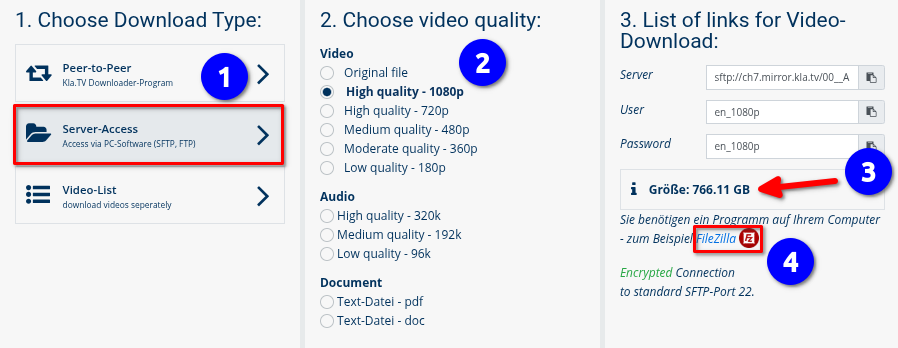
- <span style="background-color: rgb(251, 238, 184);">Go to <span lang="DE" style="font-size: 11pt; line-height: 107%; font-family: 'Cambria Math', serif; color: rgb(7, 40, 230); background-color: rgb(251, 238, 184);">❶</span> **"Server-Access"** (see picture below)→ and choose the preferred <span lang="DE" style="font-size: 11pt; line-height: 107%; font-family: 'Cambria Math', serif; color: rgb(7, 40, 230); background-color: rgb(251, 238, 184);">❷</span> **quality.** </span>
- <span style="background-color: rgb(251, 238, 184);">The <span lang="DE" style="font-size: 11pt; line-height: 107%; font-family: 'Cambria Math', serif; color: rgb(7, 40, 230); background-color: rgb(251, 238, 184);">❸</span> red arrow shows you **how much free space** you need on the hard disk. Adjust the quality accordingly.</span>
- <span style="background-color: rgb(251, 238, 184);">Next, you will need the “FileZilla” program. Click on <span lang="DE" style="font-size: 11pt; line-height: 107%; font-family: 'Cambria Math', serif; color: rgb(7, 40, 230); background-color: rgb(251, 238, 184);">❹</span></span>***<span style="background-color: rgb(251, 238, 184);"><span style="color: rgb(7, 40, 230);"> </span>"FileZilla"</span>***
    
     ***[![image.png](https://wiki.kla.tv/uploads/images/gallery/2025-04/9S7PpnikdjL8CPsl-image.png)](https://wiki.kla.tv/uploads/images/gallery/2024-11/IbjQeHpuUJz9G8bE-grafik.png)**
- ***→** <span style="background-color: rgb(194, 224, 244);">HINT:</span><span style="background-color: rgb(251, 238, 184);"> Multiple selections are not possible. In this article you will learn how to save multiple qualities in the same folder structure: click here → **Download multiple qualities**</span>*

#### <span style="background-color: rgb(241, 196, 15);">**2. Install FileZilla:** </span>

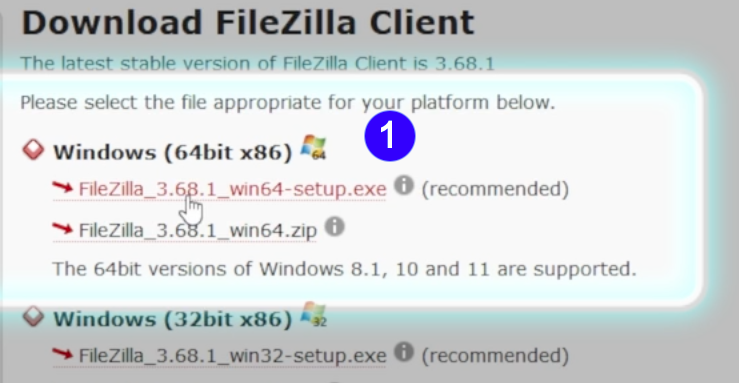
- <span style="background-color: rgb(251, 238, 184);">Choose <span lang="DE" style="font-size: 11pt; line-height: 107%; font-family: 'Cambria Math', serif; color: rgb(7, 40, 230); background-color: rgb(251, 238, 184);">❶</span> "**Windows (64bit x86)"** → The **installation file** downloads automatically.</span>

[![FileZilla_Win.png](https://wiki.kla.tv/uploads/images/gallery/2024-11/scaled-1680-/caAaduKbfa7Rs1bH-filezilla-win.png)](https://wiki.kla.tv/uploads/images/gallery/2024-11/caAaduKbfa7Rs1bH-filezilla-win.png)

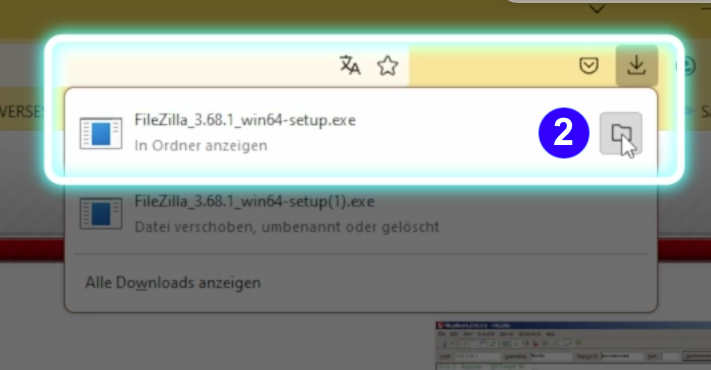
- <span style="background-color: rgb(251, 238, 184);"> <span lang="DE" style="font-size: 11pt; line-height: 107%; font-family: 'Cambria Math', serif; color: rgb(7, 40, 230); background-color: rgb(251, 238, 184);">❷</span></span>**<span style="background-color: rgb(251, 238, 184);"> Click the "Folder"-Icon </span>  
    [![FileZilla_Win12.png](https://wiki.kla.tv/uploads/images/gallery/2024-11/scaled-1680-/NGoMLwwJGP11t1ZK-filezilla-win12.png)](https://wiki.kla.tv/uploads/images/gallery/2024-11/NGoMLwwJGP11t1ZK-filezilla-win12.png)**
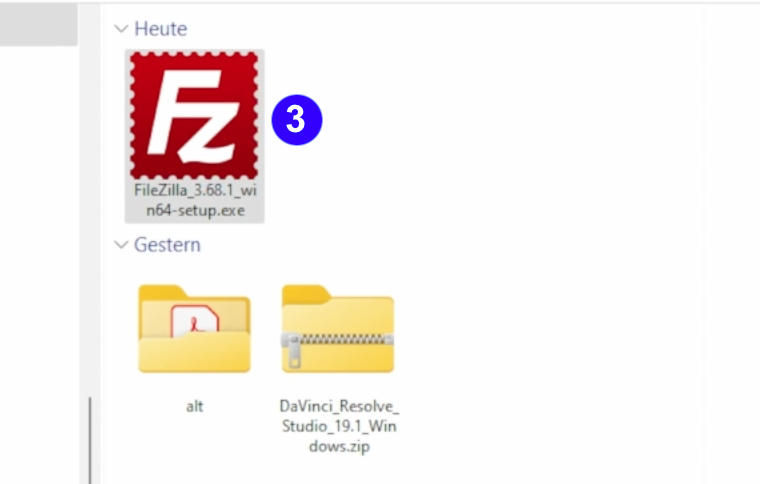
- <span style="background-color: rgb(251, 238, 184);"><span lang="DE" style="font-size: 11pt; line-height: 107%; font-family: 'Cambria Math', serif; color: rgb(7, 40, 230); background-color: rgb(251, 238, 184);">❸</span> **Double-click the FileZilla Symbol** </span>

 [![FileZilla_Win3.png](https://wiki.kla.tv/uploads/images/gallery/2024-11/scaled-1680-/CshLlTPv0loxG3xy-filezilla-win3.png)](https://wiki.kla.tv/uploads/images/gallery/2024-11/CshLlTPv0loxG3xy-filezilla-win3.png)

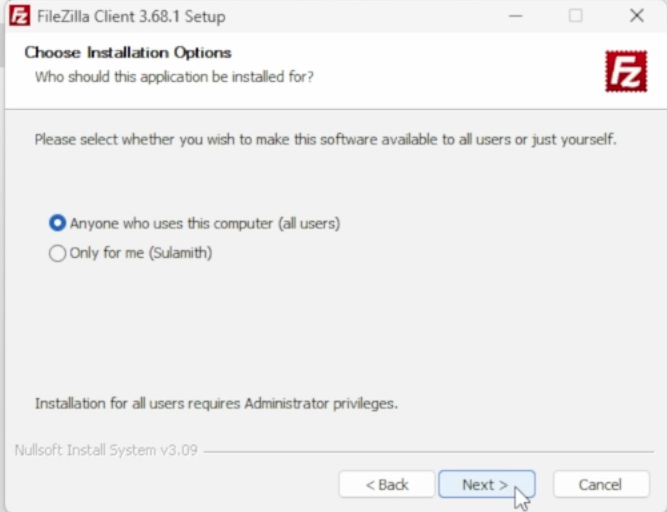
- <span style="background-color: rgb(251, 238, 184);"><span lang="DE" style="font-size: 11pt; line-height: 107%; font-family: 'Cambria Math', serif; background-color: rgb(251, 238, 184);"><span lang="DE" style="font-size: 11pt; line-height: 107%; font-family: 'Cambria Math', serif; color: rgb(7, 40, 230); background-color: rgb(251, 238, 184);">❹</span></span> **Install FileZilla** (see pictures) </span>

[![FileZilla_Win6.png](https://wiki.kla.tv/uploads/images/gallery/2024-11/scaled-1680-/wfxIztHOgkC68Alr-filezilla-win6.png)](https://wiki.kla.tv/uploads/images/gallery/2024-11/wfxIztHOgkC68Alr-filezilla-win6.png)[ ![FileZilla_Win7.png](https://wiki.kla.tv/uploads/images/gallery/2024-11/scaled-1680-/Jlv1TtbxZYYzBN4L-filezilla-win7.png)](https://wiki.kla.tv/uploads/images/gallery/2024-11/Jlv1TtbxZYYzBN4L-filezilla-win7.png)  
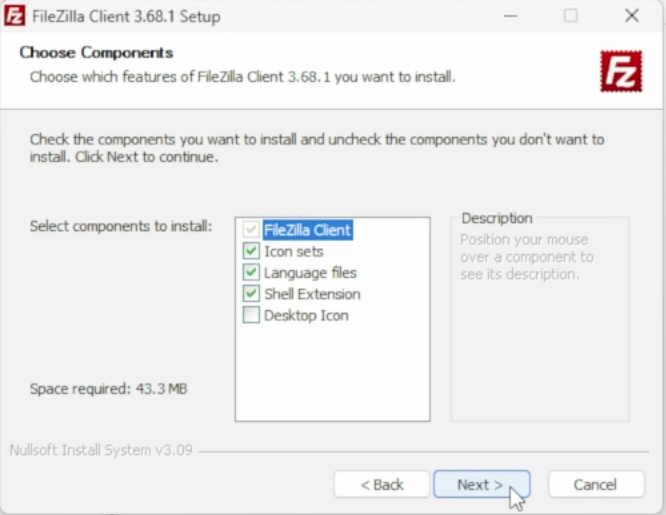
  
[![FileZilla_Win8.png](https://wiki.kla.tv/uploads/images/gallery/2024-11/scaled-1680-/vG7Ud4UODzLQkzzB-filezilla-win8.png) ](https://wiki.kla.tv/uploads/images/gallery/2024-11/vG7Ud4UODzLQkzzB-filezilla-win8.png)[![FileZilla_Win9.png](https://wiki.kla.tv/uploads/images/gallery/2024-11/scaled-1680-/ye0EQINv3v9uYJx8-filezilla-win9.png)](https://wiki.kla.tv/uploads/images/gallery/2024-11/ye0EQINv3v9uYJx8-filezilla-win9.png)
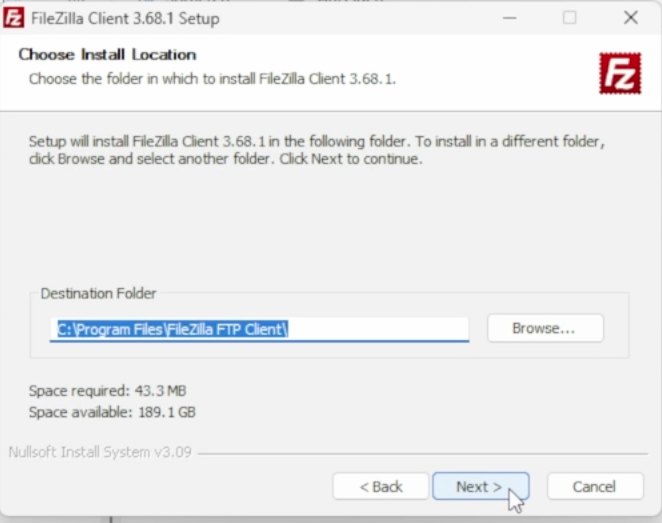
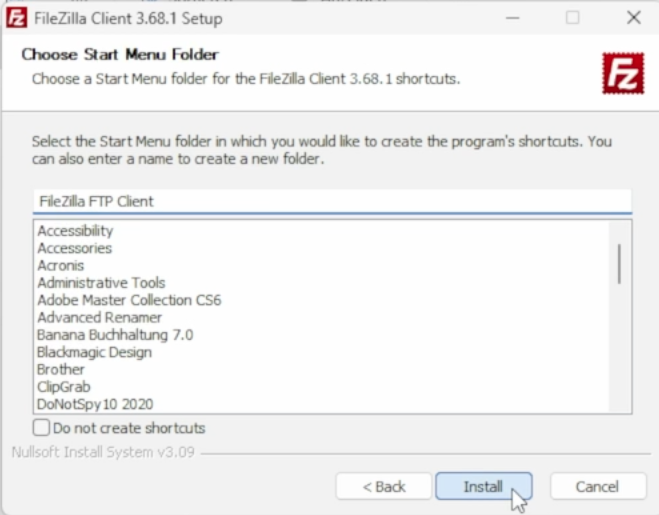
[![FileZilla_Win10.png](https://wiki.kla.tv/uploads/images/gallery/2024-11/scaled-1680-/pOcQNtHKuUS6RHl6-filezilla-win10.png)](https://wiki.kla.tv/uploads/images/gallery/2024-11/pOcQNtHKuUS6RHl6-filezilla-win10.png)
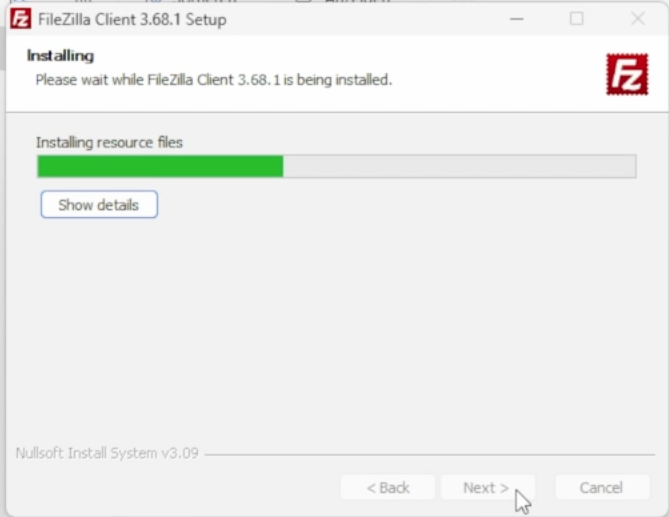
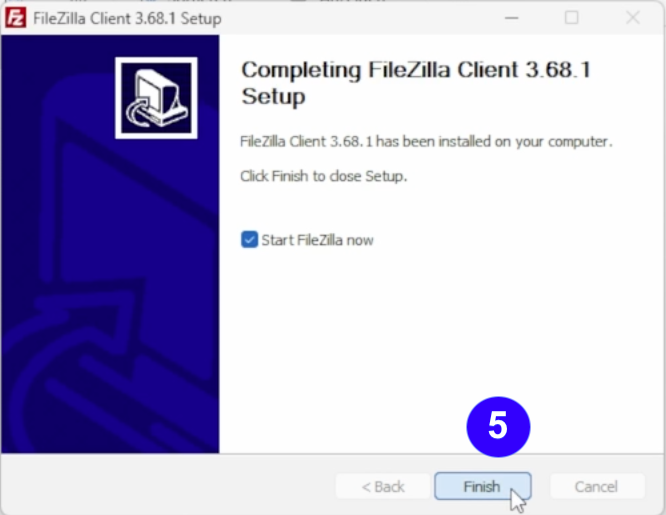
- <span style="background-color: rgb(251, 238, 184);"><span lang="DE" style="font-size: 11pt; line-height: 107%; font-family: 'Cambria Math', serif; color: rgb(7, 40, 230); background-color: rgb(251, 238, 184);">❺</span> **Starte FileZilla** durch klicken auf **"Finish"**</span>   
    [![FileZilla_Win11.png](https://wiki.kla.tv/uploads/images/gallery/2024-11/scaled-1680-/CiNjxf749VAoxFIr-filezilla-win11.png)](https://wiki.kla.tv/uploads/images/gallery/2024-11/CiNjxf749VAoxFIr-filezilla-win11.png)

#### <span style="background-color: rgb(241, 196, 15);">**3. Set up FileZilla:**</span>

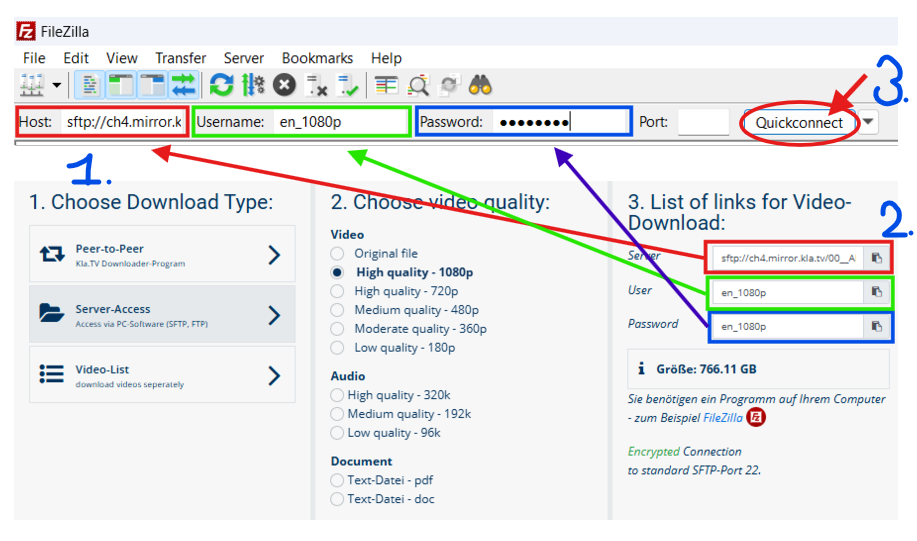
- <span style="background-color: rgb(251, 238, 184);">Copy in <span lang="DE" style="font-size: 11pt; line-height: 107%; font-family: 'Cambria Math', serif; color: rgb(7, 40, 230); background-color: rgb(251, 238, 184);">❶</span> **Server details to <span style="background-color: rgb(251, 238, 184);">FileZilla.</span>** You find them at <span lang="DE" style="font-size: 11pt; line-height: 107%; font-family: 'Cambria Math', serif; color: rgb(7, 40, 230); background-color: rgb(251, 238, 184);">❷</span> **[kla.tv/sichern](https://wiki.kla.tv/kla.tv/sichern)** → then you choose <span lang="DE" style="font-size: 11pt; line-height: 107%; font-family: 'Cambria Math', serif; color: rgb(7, 40, 230); background-color: rgb(251, 238, 184);">❸</span> "**connect**":</span>  
    <span style="background-color: rgb(251, 238, 184);">(Click on the “Copy” [![copy icon.png](https://wiki.kla.tv/uploads/images/gallery/2024-11/scaled-1680-/FBgYTFlPc2gfJRTu-copy-icon.png)](https://wiki.kla.tv/uploads/images/gallery/2024-11/FBgYTFlPc2gfJRTu-copy-icon.png) <span style="background-color: rgb(251, 238, 184);">symbol and paste into FileZilla with **ctrl + V** </span>)</span>[![Screenshot 2025-04-29 203824.png](https://wiki.kla.tv/uploads/images/gallery/2025-04/dqwOAufB339Pb1X4-screenshot-2025-04-29-203824.png)](https://wiki.kla.tv/uploads/images/gallery/2024-11/wbIHEPHXZnCa1P71-grafik.png)
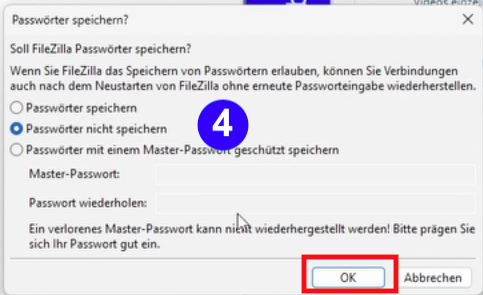
- <span style="background-color: rgb(251, 238, 184);"><span lang="DE" style="font-size: 11pt; line-height: 107%; font-family: 'Cambria Math', serif; color: rgb(7, 40, 230); background-color: rgb(251, 238, 184);">❹</span> 2 messages appear. Click **“Do not save passwords”** and then **“OK”**</span>  
      
    [![FileZilla-4.png](https://wiki.kla.tv/uploads/images/gallery/2024-11/scaled-1680-/6czE0TcJyOkquJfk-filezilla-4.png)](https://wiki.kla.tv/uploads/images/gallery/2024-11/6czE0TcJyOkquJfk-filezilla-4.png)
    
      
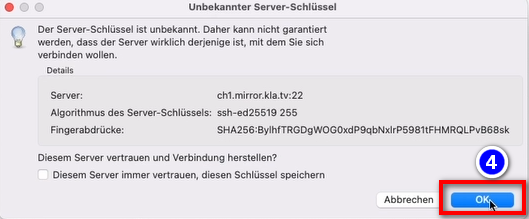
    <span style="background-color: rgb(251, 238, 184);">and for the message "Unknown Server-Key" choose **"OK"**</span>
    
      
    ![grafik.png](https://wiki.kla.tv/uploads/images/gallery/2024-11/scaled-1680-/I4RotrmPs0wSZmSf-grafik.png)

#### <span style="background-color: rgb(241, 196, 15);">**4. Save Broadcasts:**</span>

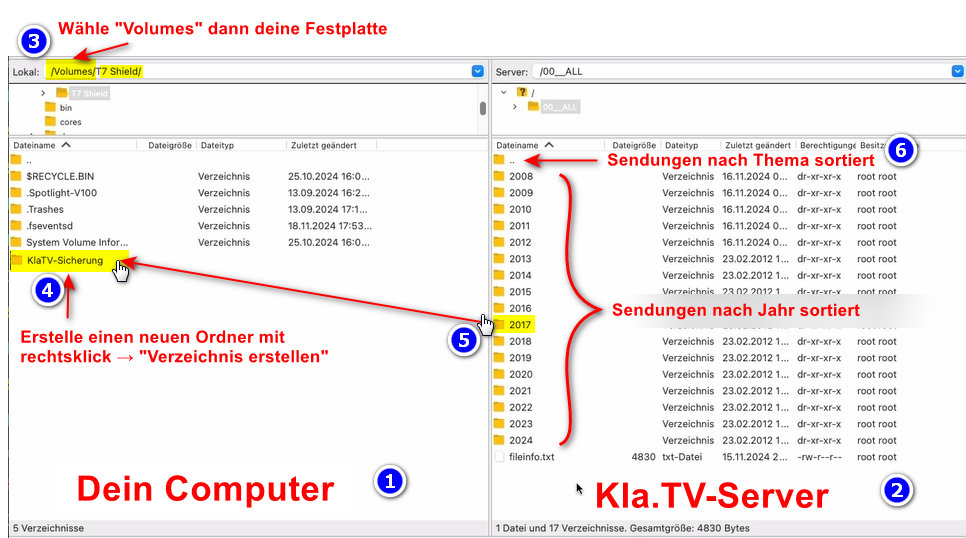
- <span style="background-color: rgb(251, 238, 184);"><span lang="DE" style="font-size: 11pt; line-height: 107%; font-family: 'Cambria Math', serif; color: rgb(7, 40, 230); background-color: rgb(251, 238, 184);">❶</span> <span style="background-color: rgb(251, 238, 184);">On the left you see **your** computer</span> and on the right <span lang="DE" style="font-size: 11pt; line-height: 107%; font-family: 'Cambria Math', serif; color: rgb(7, 40, 230); background-color: rgb(251, 238, 184);">❷</span> the **Kla.TV-Server**</span>
- <span style="background-color: rgb(251, 238, 184);">Navigate to <span style="background-color: rgb(251, 238, 184);"><span lang="DE" style="font-size: 11pt; line-height: 107%; font-family: 'Cambria Math', serif; color: rgb(7, 40, 230); background-color: rgb(251, 238, 184);">❸ </span></span>**your disk** on the left side. (Choose Volumes above and then the Hard Drive)</span>
- <span style="background-color: rgb(251, 238, 184);">Erstelle einen <span lang="DE" style="font-size: 11pt; line-height: 107%; font-family: 'Cambria Math', serif; color: rgb(7, 40, 230); background-color: rgb(251, 238, 184);">❹</span> **neuen Ordner** mit rechtsklick *"Verzeichnis erstellen"* → nenne den Ordner z.B. **"KlaTV-Sicherung"**</span>
- <span style="background-color: rgb(251, 238, 184);">Ziehe den <span lang="DE" style="font-size: 11pt; line-height: 107%; font-family: 'Cambria Math', serif; color: rgb(7, 40, 230); background-color: rgb(251, 238, 184);">❺</span> **gewünschten Sendungsordner** mit gedrückter Maustaste auf Deine Festplatte </span>
- <span style="background-color: rgb(251, 238, 184);">Du kannst auch einen <span lang="DE" style="font-size: 11pt; line-height: 107%; font-family: 'Cambria Math', serif; color: rgb(7, 40, 230); background-color: rgb(251, 238, 184);">❻</span> **ganzen Themenbereich** runterladen (z.B. 5G, Impfung, Bill Gates usw.). Nachteilig hier ist, dass mit der Zeit beständig neue Videos hinzukommen und in gleiche Sendungen in mehreren Themenordner gespeichert werden. Du müsstest immer wieder den Ablgeich mit der Festplatte machen und benötigst mehr Speicherplatz.</span>
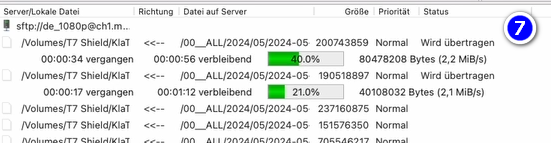
- <span style="background-color: rgb(251, 238, 184);"><span style="color: rgb(7, 40, 230);"><span lang="DE" style="font-size: 11pt; line-height: 107%; font-family: 'Cambria Math', serif; background-color: rgb(251, 238, 184);">❼</span> </span>Unten siehst du, wie die Videos der Reihe nach runtergeladen werden (kann sehr lange dauern.) </span>  
      
    *→<span style="background-color: rgb(194, 224, 244);"> **TIPP:** </span><span style="background-color: rgb(251, 238, 184);">Hier erfährst du, wie du die Internetgeschwindigkeit für FileZille begrenzen kannst, damit du nebenbei trotzdem noch im Internet arbeiten kannst: klick hier → </span>[**<span style="background-color: rgb(251, 238, 184);">Geschwindigkeit von Filezilla begrenzen</span>**](https://wiki.kla.tv/books/klatv-sichern/page/klatv-sichern-per-server-zugang-geschwindigkeit-von-filezilla-begrenzen)*

[![grafik.png](https://wiki.kla.tv/uploads/images/gallery/2024-11/scaled-1680-/HOYwHxxAZr6RLZ8D-grafik.png)](https://wiki.kla.tv/uploads/images/gallery/2024-11/HOYwHxxAZr6RLZ8D-grafik.png)[![grafik.png](https://wiki.kla.tv/uploads/images/gallery/2024-11/scaled-1680-/uLGmaW3NtFcExaZn-grafik.png)](https://wiki.kla.tv/uploads/images/gallery/2024-11/uLGmaW3NtFcExaZn-grafik.png)
#### <span style="background-color: rgb(241, 196, 15);">**5. ALTERNATIVE - Sendungen sichern <span style="text-decoration: underline;">ohne </span>FileZilla, direkt auf der Webseite:**</span>

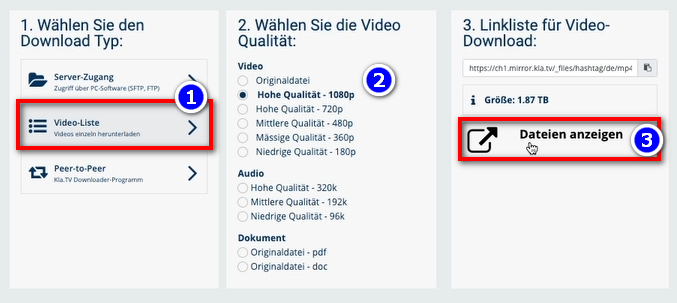
- <span style="background-color: rgb(251, 238, 184);">Gehe auf **[kla.tv/sichern](https://www.kla.tv/sichern)** → <span lang="DE" style="font-size: 11pt; line-height: 107%; font-family: 'Cambria Math', serif; color: rgb(7, 40, 230); background-color: rgb(251, 238, 184);">❶</span> **Video-Liste** → wähle die gewünschte <span lang="DE" style="font-size: 11pt; line-height: 107%; font-family: 'Cambria Math', serif; color: rgb(7, 40, 230); background-color: rgb(251, 238, 184);">❷</span> **Qualität** → klicke auf <span lang="DE" style="font-size: 11pt; line-height: 107%; font-family: 'Cambria Math', serif; color: rgb(7, 40, 230); background-color: rgb(251, 238, 184);">❸</span> "**Dateien anzeigen**"</span>  
      
    [![grafik.png](https://wiki.kla.tv/uploads/images/gallery/2024-11/scaled-1680-/hwJ3HwIF07YrZFh2-grafik.png)](https://wiki.kla.tv/uploads/images/gallery/2024-11/hwJ3HwIF07YrZFh2-grafik.png)
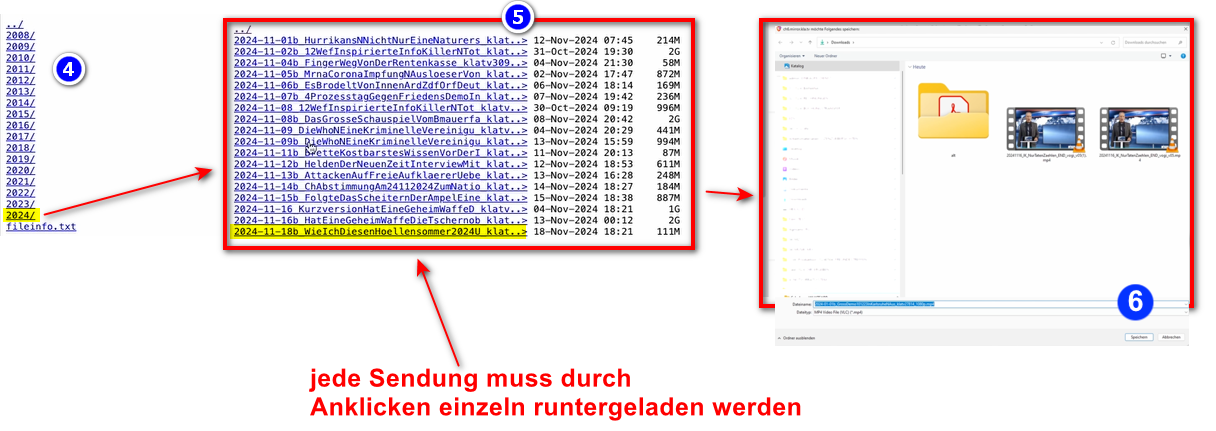
- <span style="background-color: rgb(251, 238, 184);">Nun werden alle Videos <span lang="DE" style="font-size: 11pt; line-height: 107%; font-family: 'Cambria Math', serif; color: rgb(7, 40, 230); background-color: rgb(251, 238, 184);">❹</span> **nach Jahr** / Monat aufgelistet. Klicke in das gewünschte Jahr/Monat und klicke die</span>  
    <span style="background-color: rgb(251, 238, 184);"><span lang="DE" style="font-size: 11pt; line-height: 107%; font-family: 'Cambria Math', serif; color: rgb(7, 40, 230); background-color: rgb(251, 238, 184);">❺</span> **Sendung** an und drücke <span lang="DE" style="font-size: 11pt; line-height: 107%; font-family: 'Cambria Math', serif; color: rgb(7, 40, 230); background-color: rgb(251, 238, 184);">❻</span> "**Sichern**". Jede einzelne Sendung muss einzeln runtergeladen werden.</span>  
      
      
    [![oZKkaxeiI86s51EM-grafik_WIN.png](https://wiki.kla.tv/uploads/images/gallery/2024-11/scaled-1680-/rCzaPyrQsLLn8O0N-ozkkaxeii86s51em-grafik-win.png)](https://wiki.kla.tv/uploads/images/gallery/2024-11/rCzaPyrQsLLn8O0N-ozkkaxeii86s51em-grafik-win.png)  
      
    *→ <span style="background-color: rgb(194, 224, 244);">**TIPP:** </span><span style="background-color: rgb(251, 238, 184);">Dies ist sehr aufwändig und Zeitintensiv. Daher ist die Variante mit FileZilla empfohlen</span>*   
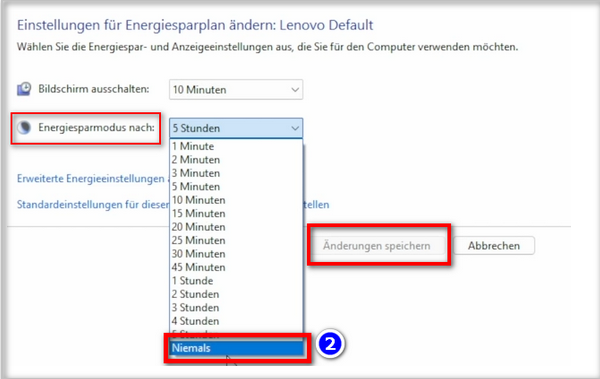
    ### <span style="background-color: rgb(241, 196, 15);">**6. Empfehlung: Energieoptionen so einstellen, dass Computer nicht automatisch runterfährt:** </span>
    
    
    - <span style="background-color: rgb(251, 238, 184);">Wird der Computer neu gestartet, musst du die Applikation wieder neu starten müssen (siehe Anleitung Punkt 8)</span>
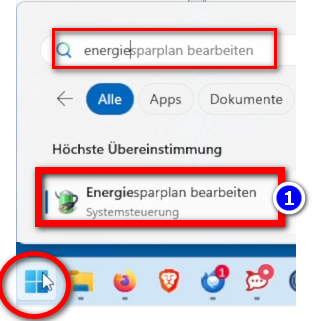
    - <span style="background-color: rgb(251, 238, 184);">Energieoptionen so ändern, dass der Computer nicht runterfährt: **Windowssymbol**→ **Suchfeld: Energiesparplan** → <span lang="DE" style="font-size: 16pt; line-height: 107%; font-family: Wingdings; background-color: rgb(251, 238, 184);"><span style="mso-char-type: symbol; mso-symbol-font-family: Wingdings;"><span lang="EN-US" style="font-size: 11pt; line-height: 107%; font-family: 'Cambria Math', serif; background-color: rgb(251, 238, 184);">❶</span></span></span> **Energiesparplan bearbeiten →** <span lang="DE" style="font-size: 16pt; line-height: 107%; font-family: Wingdings; background-color: rgb(251, 238, 184);"><span style="mso-char-type: symbol; mso-symbol-font-family: Wingdings;"><span lang="EN-US" style="font-size: 11pt; line-height: 107%; font-family: 'Cambria Math', serif; background-color: rgb(251, 238, 184);">❷</span></span></span> **Energiesparmodus nach: Niemals → Änderung speichern**</span>
    - <span style="background-color: rgb(251, 238, 184);">Computer laufen lassen, bis alle Dateien runtergeladen sind</span>
    
    ![grafik.png](https://wiki.kla.tv/uploads/images/gallery/2024-11/scaled-1680-/ONpMkNkqaQmKdYtX-grafik.png)  
      
    ![grafik.png](https://wiki.kla.tv/uploads/images/gallery/2024-11/scaled-1680-/c6InTIccNIpkCbYb-grafik.png)

<p class="callout info">Wir empfehlen zusätzlich folgende Schulungen:  
  
**[Speicherplatz ermitteln - Wie finde ich heraus, wie viel Speicherplatz ich nur für bestimmte Ordner benötige?](https://wiki.kla.tv/books/klatv-sichern/page/klatv-sichern-per-server-zugang-speicherplatz-ermitteln)  
  
[Wie kann ich die Geschwindigkeit von Filezilla begrenzen?](https://wiki.kla.tv/books/klatv-sichern/page/klatv-sichern-per-server-zugang-geschwindigkeit-von-filezilla-begrenzen)  
  
[Wie kann ich mehrere Qualitäten herunterladen?](https://wiki.kla.tv/books/klatv-sichern/page/klatv-sichern-per-server-zugang-mehrere-qualitaten-herunterladen)  
  
[Wie kann ich mein gesichertes Archiv durchsuchen?](https://wiki.kla.tv/books/klatv-sichern/page/klatv-sichern-per-server-zugang-gesichertes-archiv-durchsuchen)**  
</p>