# LINUX: Installation & Connection to Filezilla (server access)

### **What will this article teach you?**

You'll learn **how to save the KlaTV-broadcasts to your own hard drive via server access**. They'll be organized by date or topic, and in various qualities. You'll also learn how to search for specific programs in downloaded documents using keywords.

### **Video tutorial: (13min)**

<div class="responsive-iframe" id="bkmrk-"><div class="responsive-iframe"><iframe allowfullscreen="allowfullscreen" frameborder="0" height="332" src="https://video.elaion.ch?video_by_id=cr84iso75XyE" width="590"></iframe>

</div></div><div class="responsive-iframe" id="bkmrk--1"></div><p class="callout warning">We recommend watching the video first to better understand the written instructions.</p>

### **Written instructions:**

#### <span style="background-color: rgb(241, 196, 15);">**1. Access to the server:**</span>

- Go to the site **[kla.tv/downloader](https://www.kla.tv/sichern)[ ](https://www.kla.tv/sichern)**
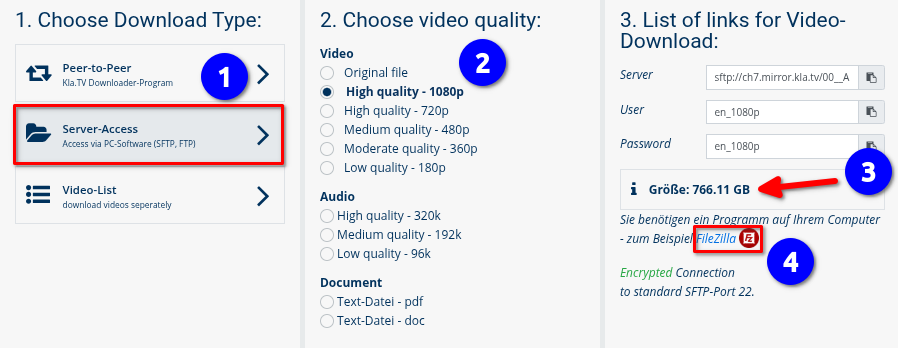
- Go to <span lang="DE" style="font-size: 11.0pt; line-height: 107%; font-family: 'Cambria Math',serif; mso-fareast-font-family: Calibri; mso-fareast-theme-font: minor-latin; mso-bidi-font-family: 'Cambria Math'; mso-ansi-language: DE; mso-fareast-language: EN-US; mso-bidi-language: AR-SA;">❶</span> **"Server-Access"** (See image down below)→ and choose the preferred <span lang="DE" style="font-size: 11.0pt; line-height: 107%; font-family: 'Cambria Math',serif; mso-fareast-font-family: Calibri; mso-fareast-theme-font: minor-latin; mso-bidi-font-family: 'Cambria Math'; mso-ansi-language: DE; mso-fareast-language: EN-US; mso-bidi-language: AR-SA;">❷</span> **Quality.**

 **→ *<span style="background-color: rgb(194, 224, 244);">TIP:</span>*** *Multiple selections are not possible. This article explains how to save multiple qualities in the same folder structure: click here → **[Download multiple qualities](https://wiki.kla.tv/books/klatv-sichern/page/klatv-sichern-per-server-zugang-mehrere-qualitaten-herunterladen)***

- The red arrow <span lang="DE" style="font-size: 11.0pt; line-height: 107%; font-family: 'Cambria Math',serif; mso-fareast-font-family: Calibri; mso-fareast-theme-font: minor-latin; mso-bidi-font-family: 'Cambria Math'; mso-ansi-language: DE; mso-fareast-language: EN-US; mso-bidi-language: AR-SA;">❸</span> shows you how much free space you need on your hard drive. Adjust the quality accordingly.
- Next, you need the program "FileZilla". <span lang="DE" style="font-size: 11.0pt; line-height: 107%; font-family: 'Cambria Math',serif; mso-fareast-font-family: Calibri; mso-fareast-theme-font: minor-latin; mso-bidi-font-family: 'Cambria Math'; mso-ansi-language: DE; mso-fareast-language: EN-US; mso-bidi-language: AR-SA;">❹</span>  
      
    [![image.png](https://wiki.kla.tv/uploads/images/gallery/2025-04/scaled-1680-/9S7PpnikdjL8CPsl-image.png)](https://wiki.kla.tv/uploads/images/gallery/2025-04/9S7PpnikdjL8CPsl-image.png)

#### <span style="background-color: rgb(241, 196, 15);">**2. Installing FileZilla:** </span>

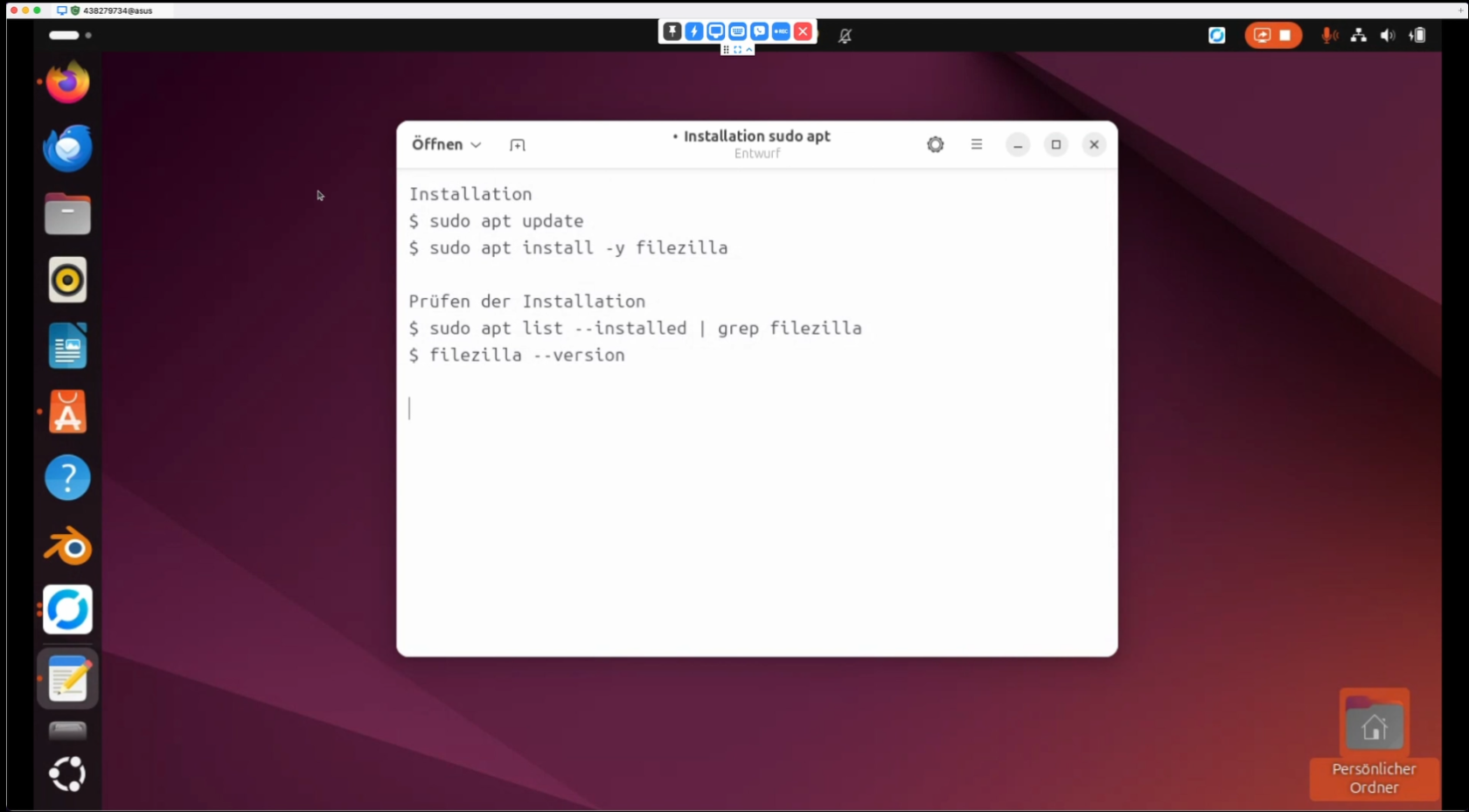
Depending on your Linux version, there are different ways to do this. Here are two ways to do it with Ubuntu:

Open the terminal (Ctrl + Alt + T) and enter the following commands:

<p class="callout info">Installation</p>

```
$ sudo apt update
$ sudo apt install -y filezilla
```

<p class="callout info">Checking the installation  
</p>

```
$ sudo apt list --installed | grep filezilla
$ filezilla --version
```

[![image.png](https://wiki.kla.tv/uploads/images/gallery/2024-11/scaled-1680-/7MGhW1g9EamixdNU-image.png)](https://wiki.kla.tv/uploads/images/gallery/2024-11/7MGhW1g9EamixdNU-image.png)
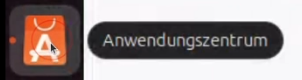
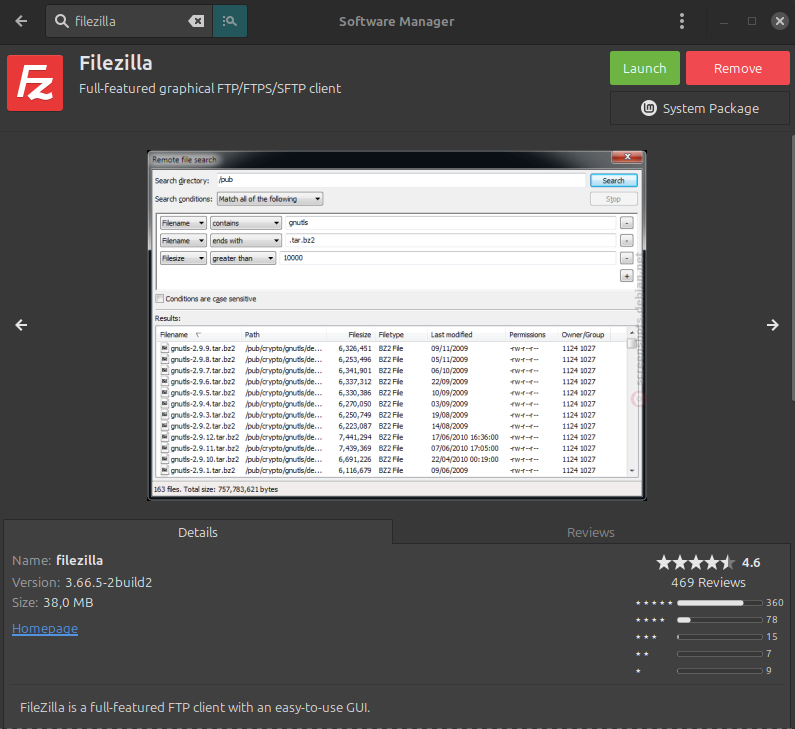
Or you go to the **Application Center** (or **Software Manager** if you're on Linux Mint)

[![image.png](https://wiki.kla.tv/uploads/images/gallery/2024-11/scaled-1680-/e64QXjSrpPigPsCV-image.png)](https://wiki.kla.tv/uploads/images/gallery/2024-11/e64QXjSrpPigPsCV-image.png)
and enter "filezilla" in the search field. Then click on Install/Launch.

[![image.png](https://wiki.kla.tv/uploads/images/gallery/2025-04/scaled-1680-/6EqFfToQipTuBxAa-image.png)](https://wiki.kla.tv/uploads/images/gallery/2025-04/6EqFfToQipTuBxAa-image.png)
After that you can simply go to the application:

[![image.png](https://wiki.kla.tv/uploads/images/gallery/2024-11/scaled-1680-/JAHpJwLL32YIRT31-image.png)](https://wiki.kla.tv/uploads/images/gallery/2024-11/JAHpJwLL32YIRT31-image.png)
#### <span style="background-color: rgb(241, 196, 15);">**3. Setting up FileZilla:**</span>

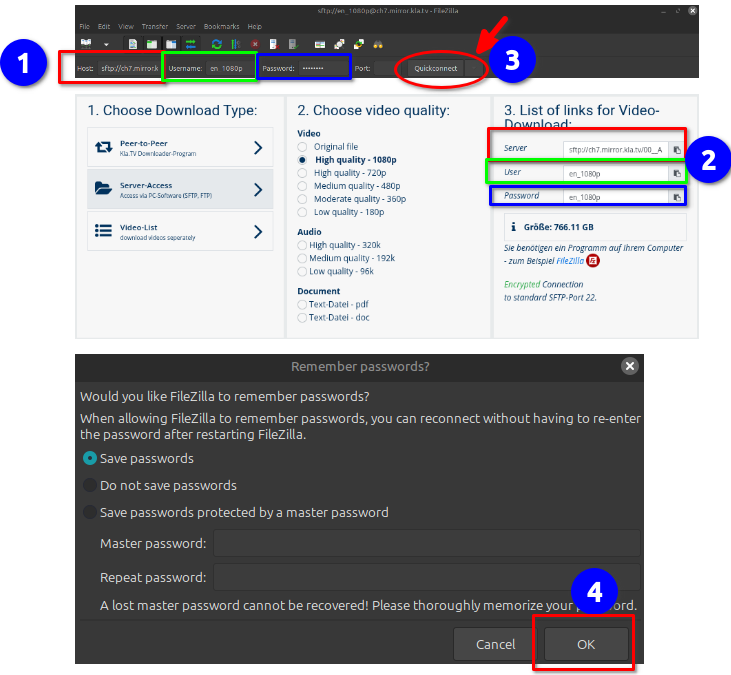
- Copy the server information you find on the ❷ **[kla.tv/downloader](https://www.kla.tv/downloader) website** shown in ❶ FileZilla → then click ❸ "**Quickconnect**": (Click on the "Copy" icon and paste it into FileZilla \["Ctrl" + "V"\]
- A ❹ message appears, click OK
- [![image.png](https://wiki.kla.tv/uploads/images/gallery/2025-04/scaled-1680-/4PDZe3qPGUPBjKhT-image.png)](https://wiki.kla.tv/uploads/images/gallery/2025-04/4PDZe3qPGUPBjKhT-image.png)
#### <span style="background-color: rgb(241, 196, 15);">**4. Downloading the broadcasts:**</span>

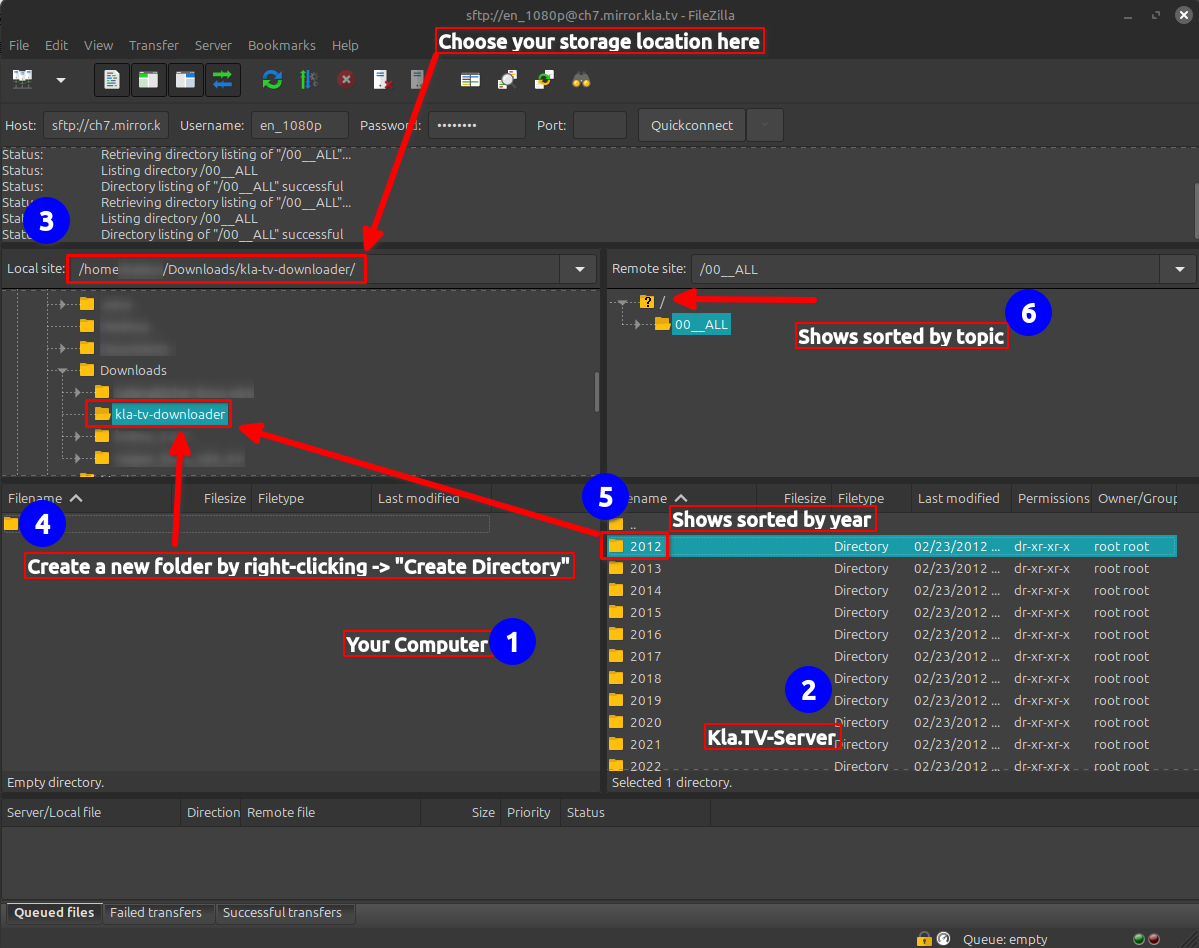
- ❶ On the left you see your computer, on the right the ❷ Kla.TV server.
    
    Navigate to ❸ your hard drive on the left. (Select Volumes at the top and then the hard drive)  
    Create a ❹ new folder by right-clicking "Create Directory" → name the folder, for example, "KlaTV Backup"  
    Drag the ❺ desired program folder to your hard drive while holding down the mouse button.
    
    You can also download an ❻ entire topic area (e.g., 5G, vaccination, Bill Gates, etc.). The disadvantage here is that new videos are constantly being added over time and saved in multiple topic folders for the same programs. You would have to constantly synchronize with your hard drive, which requires more storage space.
    
    ❼ Below you can see how the videos are downloaded one after the other (this can take a very long time).


    *→<span style="background-color: rgb(194, 224, 244);"> **TIP:** </span>Here you can learn how to limit the internet speed for FileZilla so that you can still work on the internet: click here → [Limit FileZilla speed](https://wiki.kla.tv/books/klatv-sichern/page/klatv-sichern-per-server-zugang-geschwindigkeit-von-filezilla-begrenzen)*

[![image.png](https://wiki.kla.tv/uploads/images/gallery/2025-04/scaled-1680-/TpU2IJTlwmH5r7Iu-image.png)](https://wiki.kla.tv/uploads/images/gallery/2025-04/TpU2IJTlwmH5r7Iu-image.png)
#### <span style="background-color: rgb(241, 196, 15);">**5. ALTERNATIVE - Sendungen sichern <span style="text-decoration: underline;">ohne </span>FileZilla:**</span>

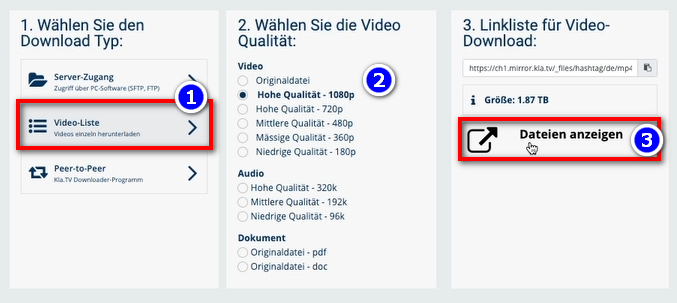
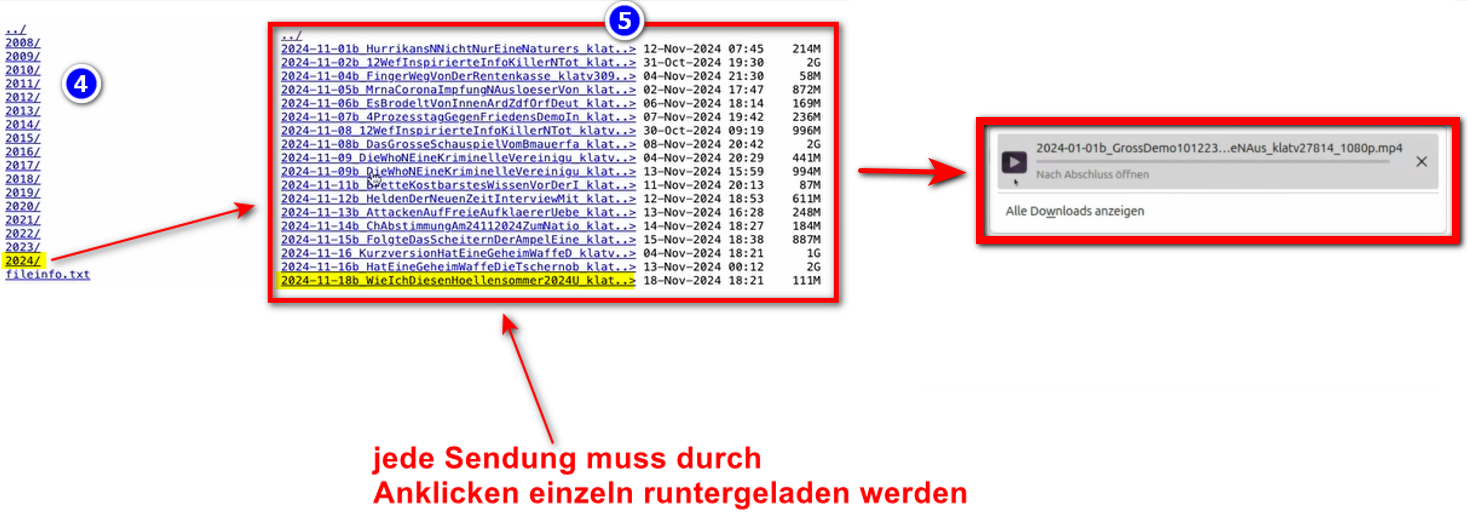
- Gehe auf **[kla.tv/sichern](https://www.kla.tv/sichern)** → <span lang="DE" style="font-size: 11.0pt; line-height: 107%; font-family: 'Cambria Math',serif; mso-fareast-font-family: Calibri; mso-fareast-theme-font: minor-latin; mso-bidi-font-family: 'Cambria Math'; mso-ansi-language: DE; mso-fareast-language: EN-US; mso-bidi-language: AR-SA;">❶</span> **Video-Liste** → wähle die gewünschte <span lang="DE" style="font-size: 11.0pt; line-height: 107%; font-family: 'Cambria Math',serif; mso-fareast-font-family: Calibri; mso-fareast-theme-font: minor-latin; mso-bidi-font-family: 'Cambria Math'; mso-ansi-language: DE; mso-fareast-language: EN-US; mso-bidi-language: AR-SA;">❷</span> **Qualität** → klicke auf <span lang="DE" style="font-size: 11.0pt; line-height: 107%; font-family: 'Cambria Math',serif; mso-fareast-font-family: Calibri; mso-fareast-theme-font: minor-latin; mso-bidi-font-family: 'Cambria Math'; mso-ansi-language: DE; mso-fareast-language: EN-US; mso-bidi-language: AR-SA;">❸</span> "**Dateien anzeigen**"
- Nun werden alle Videos <span lang="DE" style="font-size: 11.0pt; line-height: 107%; font-family: 'Cambria Math',serif; mso-fareast-font-family: Calibri; mso-fareast-theme-font: minor-latin; mso-bidi-font-family: 'Cambria Math'; mso-ansi-language: DE; mso-fareast-language: EN-US; mso-bidi-language: AR-SA;">❹</span> **nach Jahr** / Monat aufgelistet. Klicke in das gewünschte Jahr/Monat und klicke die  
    <span lang="DE" style="font-size: 11.0pt; line-height: 107%; font-family: 'Cambria Math',serif; mso-fareast-font-family: Calibri; mso-fareast-theme-font: minor-latin; mso-bidi-font-family: 'Cambria Math'; mso-ansi-language: DE; mso-fareast-language: EN-US; mso-bidi-language: AR-SA;">❺</span> **Sendung** an. Jede einzelne Sendung muss einzeln runtergeladen werden.
- Go to kla.tv/secure → ❶ Video List → select the desired ❷ quality → click ❸ "Show Files"  
    Now all videos ❹ will be listed by year/month. Click on the desired year/month and click on the  
    ❺ program. Each individual program must be downloaded separately.  
      
    *→ <span style="background-color: rgb(194, 224, 244);">**TIPP:** </span>Dies ist sehr aufwändig und Zeitintensiv. Daher ist die Variante mit FileZilla empfohlen*   
    [![grafik.png](https://wiki.kla.tv/uploads/images/gallery/2024-11/scaled-1680-/hwJ3HwIF07YrZFh2-grafik.png)](https://wiki.kla.tv/uploads/images/gallery/2024-11/hwJ3HwIF07YrZFh2-grafik.png)
    
    [![image.png](https://wiki.kla.tv/uploads/images/gallery/2024-11/scaled-1680-/4693kILle0mf4fut-image.png)](https://wiki.kla.tv/uploads/images/gallery/2024-11/4693kILle0mf4fut-image.png)
<p class="callout info">Wir empfehlen zusätzlich folgende Schulungen:  
  
[Speicherplatz ermitteln - Wie finde ich heraus, wie viel Speicherplatz ich nur für bestimmte Ordner benötige?](https://wiki.kla.tv/books/klatv-sichern/page/klatv-sichern-per-server-zugang-speicherplatz-ermitteln)  
  
[**Wie kann ich die Geschwindigkeit** <span style="color: #444444;">von Filezilla begrenzen?</span>](https://wiki.kla.tv/books/klatv-sichern/page/klatv-sichern-per-server-zugang-geschwindigkeit-von-filezilla-begrenzen)<span style="color: #444444;">  
  
[Wie kann ich mehrere Qualitäten herunterladen?](https://wiki.kla.tv/books/klatv-sichern/page/klatv-sichern-per-server-zugang-mehrere-qualitaten-herunterladen)  
  
[Wie kann ich mein gesichertes Archiv durchsuchen?](https://wiki.kla.tv/books/klatv-sichern/page/klatv-sichern-per-server-zugang-gesichertes-archiv-durchsuchen)</span></p>