# EN_Save Kla.TV-archive

👉 https://www.kla.tv/sichern?lang=en

# Server access with Filezilla (SFTP)

# WINDOWS: Installation & Connection to Filezilla (server access)

### **What will this article teach you?**

Du lernst, wie Du die **KlaTV-Sendungen über den Serverzugang auf Deiner eigenen Festplatte sichern** kannst. Geordnet nach Datum oder nach Thema und in verschiedenen Qualitäten. Du lernst auch, wie man in heruntergeladenen Dokumenten nach Stichworten bestimmte Sendungen finden kannst.

You will learn how to **save KlaTV broadcasts to your own hard disk via the server access**. Organized by date or by topic and in different qualities. You will also learn how to find specific programs in downloaded documents by keyword.

### **Video tutorial: (12min)**

<div class="responsive-iframe" id="bkmrk-"><div class="responsive-iframe"><iframe allowfullscreen="allowfullscreen" frameborder="0" height="332" src="https://video.elaion.ch?video_by_id=TUpCLkZ9fkPX" width="590"></iframe>

</div></div><div class="responsive-iframe" id="bkmrk--1"></div><p class="callout warning">Wir empfehlen, zuerst das Video anzuschauen, um die schriftliche Anleitung besser zu verstehen.</p>

### <span lang="DE" style="font-size: 16.0pt; mso-bidi-font-size: 11.0pt; line-height: 107%; font-family: Wingdings; mso-ascii-font-family: Calibri; mso-ascii-theme-font: minor-latin; mso-fareast-font-family: Calibri; mso-fareast-theme-font: minor-latin; mso-hansi-font-family: Calibri; mso-hansi-theme-font: minor-latin; mso-bidi-font-family: 'Times New Roman'; mso-bidi-theme-font: minor-bidi; mso-ansi-language: DE; mso-fareast-language: EN-US; mso-bidi-language: AR-SA; mso-char-type: symbol; mso-symbol-font-family: Wingdings;"><span style="mso-char-type: symbol; mso-symbol-font-family: Wingdings;">&#131;</span></span><span lang="DE" style="font-size: 16.0pt; mso-bidi-font-size: 11.0pt; line-height: 107%; font-family: Wingdings; mso-ascii-font-family: Calibri; mso-ascii-theme-font: minor-latin; mso-fareast-font-family: Calibri; mso-fareast-theme-font: minor-latin; mso-hansi-font-family: Calibri; mso-hansi-theme-font: minor-latin; mso-bidi-font-family: 'Times New Roman'; mso-bidi-theme-font: minor-bidi; mso-ansi-language: DE; mso-fareast-language: EN-US; mso-bidi-language: AR-SA; mso-char-type: symbol; mso-symbol-font-family: Wingdings;"><span style="mso-char-type: symbol; mso-symbol-font-family: Wingdings;">&#132;</span></span><span lang="DE" style="font-size: 16.0pt; mso-bidi-font-size: 11.0pt; line-height: 107%; font-family: Wingdings; mso-ascii-font-family: Calibri; mso-ascii-theme-font: minor-latin; mso-fareast-font-family: Calibri; mso-fareast-theme-font: minor-latin; mso-hansi-font-family: Calibri; mso-hansi-theme-font: minor-latin; mso-bidi-font-family: 'Times New Roman'; mso-bidi-theme-font: minor-bidi; mso-ansi-language: DE; mso-fareast-language: EN-US; mso-bidi-language: AR-SA; mso-char-type: symbol; mso-symbol-font-family: Wingdings;"><span style="mso-char-type: symbol; mso-symbol-font-family: Wingdings;"> </span></span><span lang="DE" style="font-size: 16.0pt; mso-bidi-font-size: 11.0pt; line-height: 107%; font-family: Wingdings; mso-ascii-font-family: Calibri; mso-ascii-theme-font: minor-latin; mso-fareast-font-family: Calibri; mso-fareast-theme-font: minor-latin; mso-hansi-font-family: Calibri; mso-hansi-theme-font: minor-latin; mso-bidi-font-family: 'Times New Roman'; mso-bidi-theme-font: minor-bidi; mso-ansi-language: DE; mso-fareast-language: EN-US; mso-bidi-language: AR-SA; mso-char-type: symbol; mso-symbol-font-family: Wingdings;"><span style="mso-char-type: symbol; mso-symbol-font-family: Wingdings;">&#134;</span></span>**Written Instructions:**

#### <span style="background-color: rgb(241, 196, 15);">**1. Server Access:**</span>

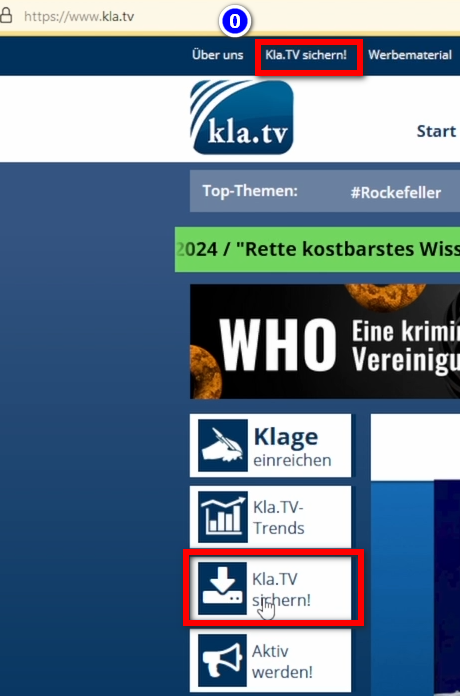
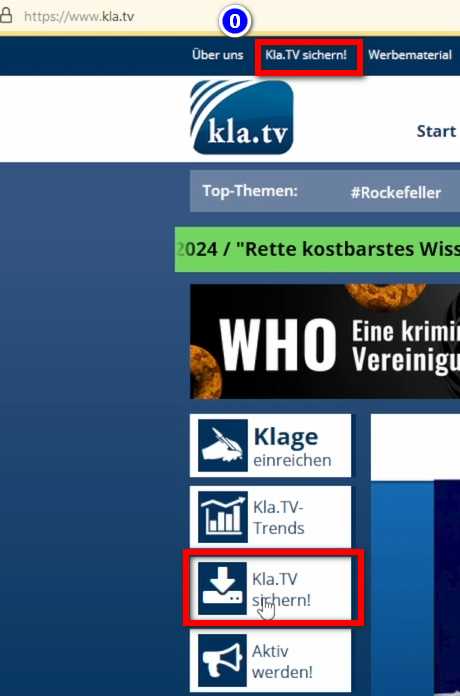
- <span style="background-color: rgb(251, 238, 184);">Go to the webpage **[kla.tv/sichern](https://www.kla.tv/sichern)** </span>
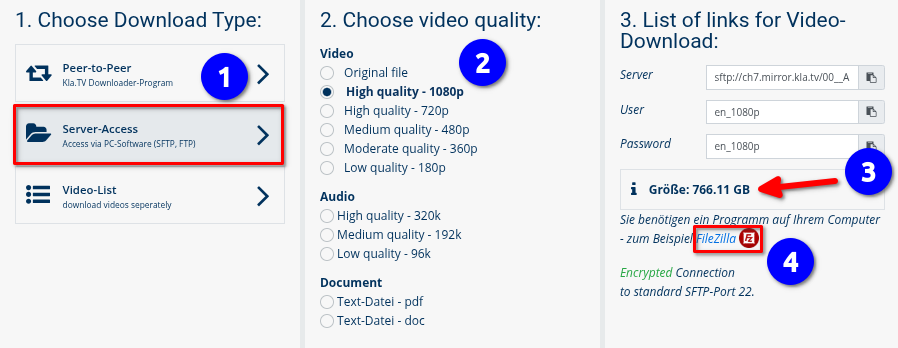
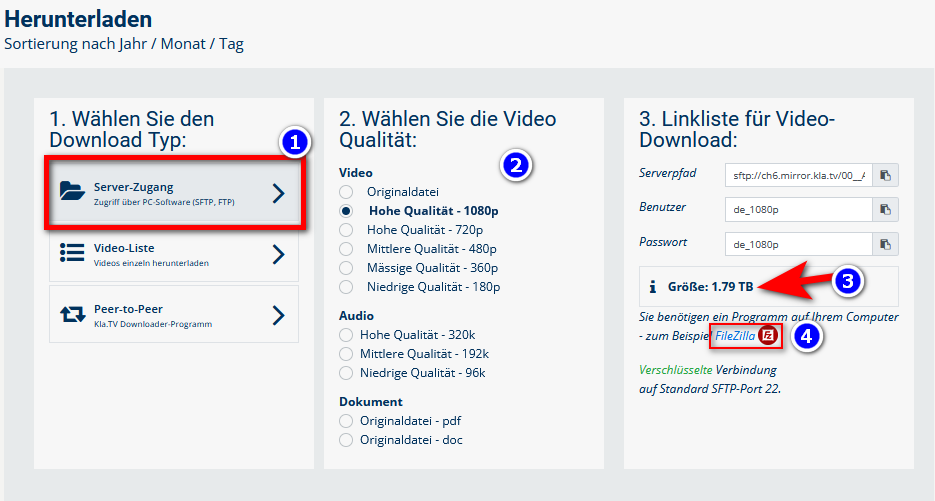
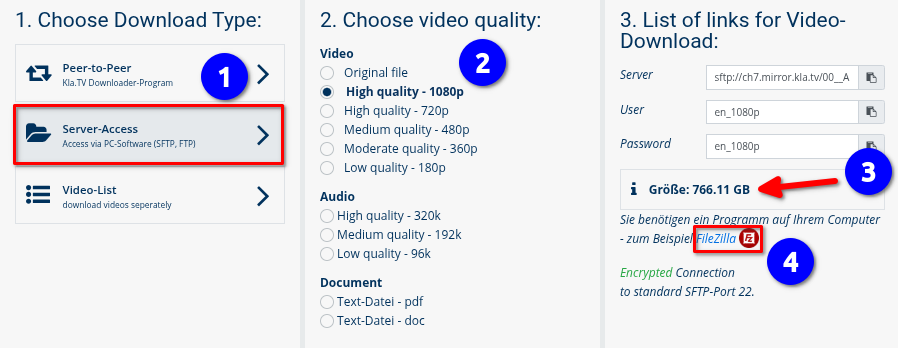
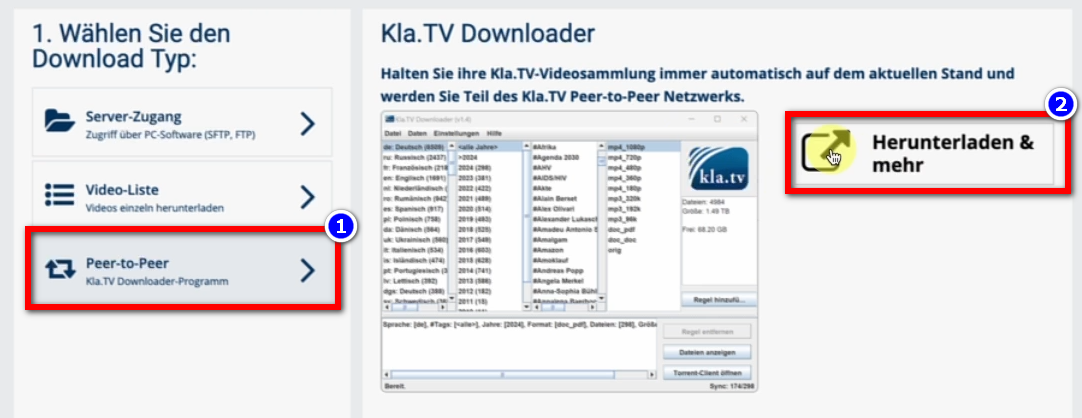
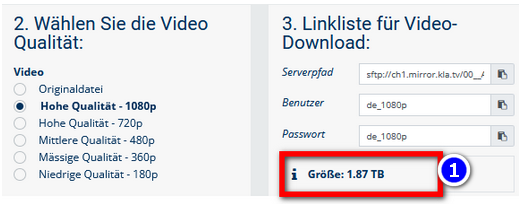
- <span style="background-color: rgb(251, 238, 184);">Go to <span lang="DE" style="font-size: 11pt; line-height: 107%; font-family: 'Cambria Math', serif; color: rgb(7, 40, 230); background-color: rgb(251, 238, 184);">❶</span> **"Server-Access"** (see picture below)→ and choose the preferred <span lang="DE" style="font-size: 11pt; line-height: 107%; font-family: 'Cambria Math', serif; color: rgb(7, 40, 230); background-color: rgb(251, 238, 184);">❷</span> **quality.** </span>
- <span style="background-color: rgb(251, 238, 184);">The <span lang="DE" style="font-size: 11pt; line-height: 107%; font-family: 'Cambria Math', serif; color: rgb(7, 40, 230); background-color: rgb(251, 238, 184);">❸</span> red arrow shows you **how much free space** you need on the hard disk. Adjust the quality accordingly.</span>
- <span style="background-color: rgb(251, 238, 184);">Next, you will need the “FileZilla” program. Click on <span lang="DE" style="font-size: 11pt; line-height: 107%; font-family: 'Cambria Math', serif; color: rgb(7, 40, 230); background-color: rgb(251, 238, 184);">❹</span></span>***<span style="background-color: rgb(251, 238, 184);"><span style="color: rgb(7, 40, 230);"> </span>"FileZilla"</span>***
    
     ***[![image.png](https://wiki.kla.tv/uploads/images/gallery/2025-04/9S7PpnikdjL8CPsl-image.png)](https://wiki.kla.tv/uploads/images/gallery/2024-11/IbjQeHpuUJz9G8bE-grafik.png)**
- ***→** <span style="background-color: rgb(194, 224, 244);">HINT:</span><span style="background-color: rgb(251, 238, 184);"> Multiple selections are not possible. In this article you will learn how to save multiple qualities in the same folder structure: click here → **Download multiple qualities**</span>*

#### <span style="background-color: rgb(241, 196, 15);">**2. Install FileZilla:** </span>

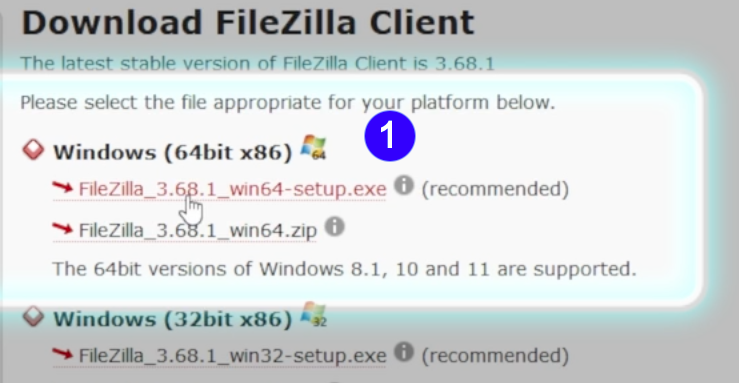
- <span style="background-color: rgb(251, 238, 184);">Choose <span lang="DE" style="font-size: 11pt; line-height: 107%; font-family: 'Cambria Math', serif; color: rgb(7, 40, 230); background-color: rgb(251, 238, 184);">❶</span> "**Windows (64bit x86)"** → The **installation file** downloads automatically.</span>

[![FileZilla_Win.png](https://wiki.kla.tv/uploads/images/gallery/2024-11/scaled-1680-/caAaduKbfa7Rs1bH-filezilla-win.png)](https://wiki.kla.tv/uploads/images/gallery/2024-11/caAaduKbfa7Rs1bH-filezilla-win.png)

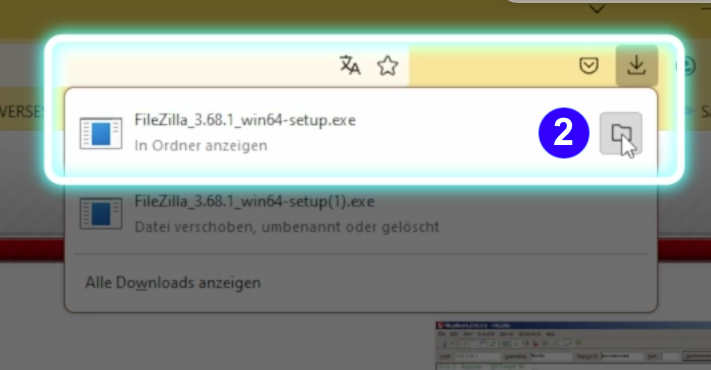
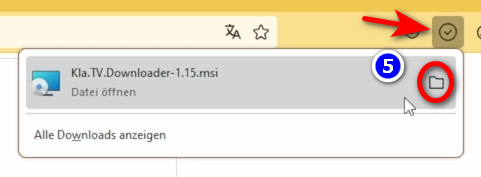
- <span style="background-color: rgb(251, 238, 184);"> <span lang="DE" style="font-size: 11pt; line-height: 107%; font-family: 'Cambria Math', serif; color: rgb(7, 40, 230); background-color: rgb(251, 238, 184);">❷</span></span>**<span style="background-color: rgb(251, 238, 184);"> Click the "Folder"-Icon </span>  
    [![FileZilla_Win12.png](https://wiki.kla.tv/uploads/images/gallery/2024-11/scaled-1680-/NGoMLwwJGP11t1ZK-filezilla-win12.png)](https://wiki.kla.tv/uploads/images/gallery/2024-11/NGoMLwwJGP11t1ZK-filezilla-win12.png)**
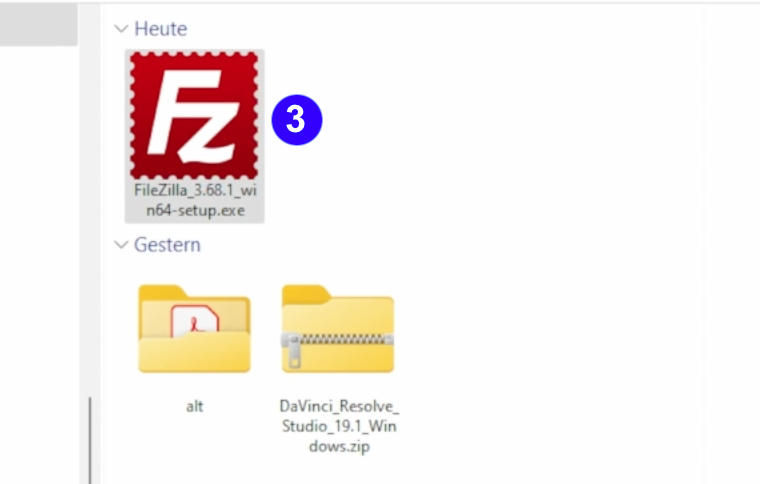
- <span style="background-color: rgb(251, 238, 184);"><span lang="DE" style="font-size: 11pt; line-height: 107%; font-family: 'Cambria Math', serif; color: rgb(7, 40, 230); background-color: rgb(251, 238, 184);">❸</span> **Double-click the FileZilla Symbol** </span>

 [![FileZilla_Win3.png](https://wiki.kla.tv/uploads/images/gallery/2024-11/scaled-1680-/CshLlTPv0loxG3xy-filezilla-win3.png)](https://wiki.kla.tv/uploads/images/gallery/2024-11/CshLlTPv0loxG3xy-filezilla-win3.png)

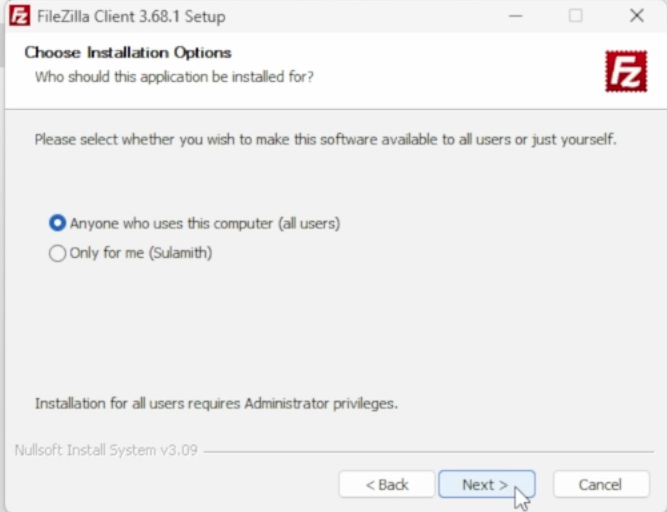
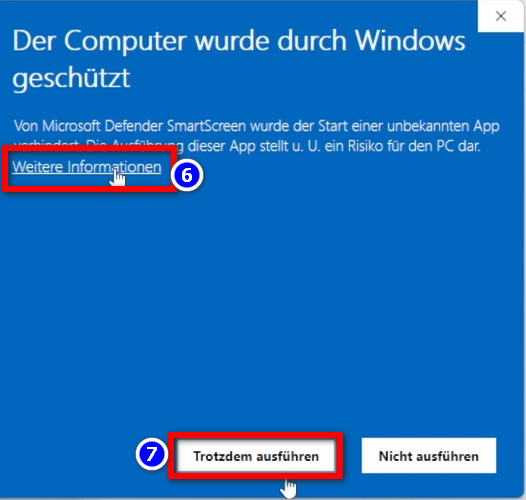
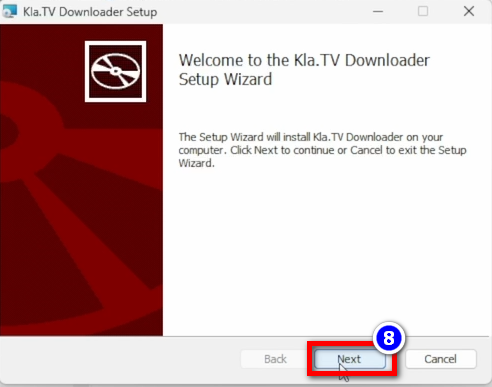
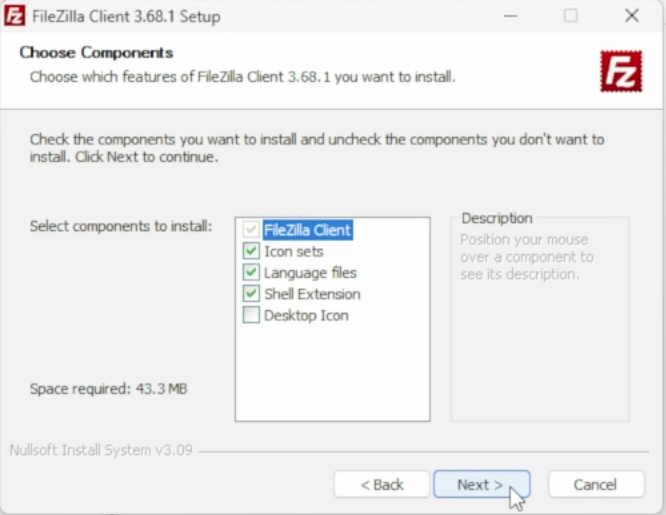
- <span style="background-color: rgb(251, 238, 184);"><span lang="DE" style="font-size: 11pt; line-height: 107%; font-family: 'Cambria Math', serif; background-color: rgb(251, 238, 184);"><span lang="DE" style="font-size: 11pt; line-height: 107%; font-family: 'Cambria Math', serif; color: rgb(7, 40, 230); background-color: rgb(251, 238, 184);">❹</span></span> **Install FileZilla** (see pictures) </span>

[![FileZilla_Win6.png](https://wiki.kla.tv/uploads/images/gallery/2024-11/scaled-1680-/wfxIztHOgkC68Alr-filezilla-win6.png)](https://wiki.kla.tv/uploads/images/gallery/2024-11/wfxIztHOgkC68Alr-filezilla-win6.png)[ ![FileZilla_Win7.png](https://wiki.kla.tv/uploads/images/gallery/2024-11/scaled-1680-/Jlv1TtbxZYYzBN4L-filezilla-win7.png)](https://wiki.kla.tv/uploads/images/gallery/2024-11/Jlv1TtbxZYYzBN4L-filezilla-win7.png)  
  
[![FileZilla_Win8.png](https://wiki.kla.tv/uploads/images/gallery/2024-11/scaled-1680-/vG7Ud4UODzLQkzzB-filezilla-win8.png) ](https://wiki.kla.tv/uploads/images/gallery/2024-11/vG7Ud4UODzLQkzzB-filezilla-win8.png)[![FileZilla_Win9.png](https://wiki.kla.tv/uploads/images/gallery/2024-11/scaled-1680-/ye0EQINv3v9uYJx8-filezilla-win9.png)](https://wiki.kla.tv/uploads/images/gallery/2024-11/ye0EQINv3v9uYJx8-filezilla-win9.png)
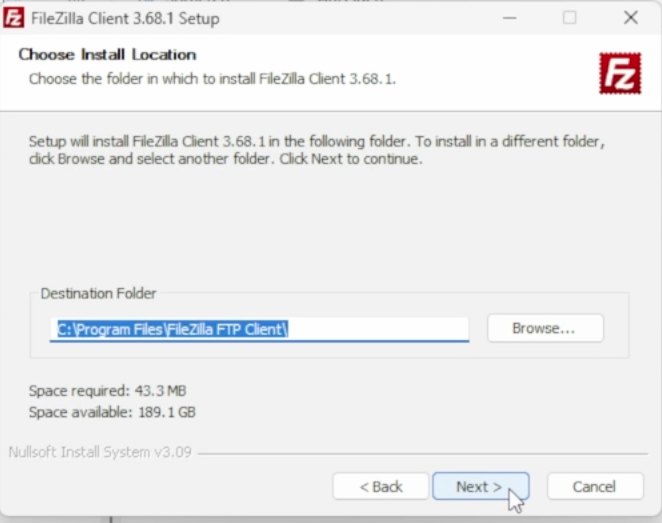
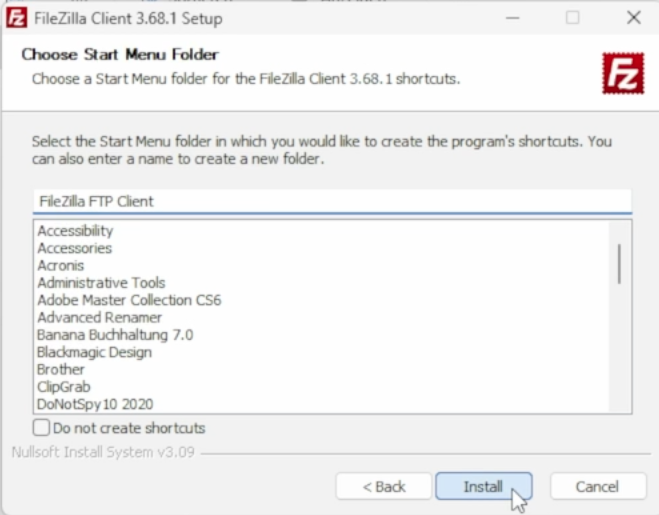
[![FileZilla_Win10.png](https://wiki.kla.tv/uploads/images/gallery/2024-11/scaled-1680-/pOcQNtHKuUS6RHl6-filezilla-win10.png)](https://wiki.kla.tv/uploads/images/gallery/2024-11/pOcQNtHKuUS6RHl6-filezilla-win10.png)
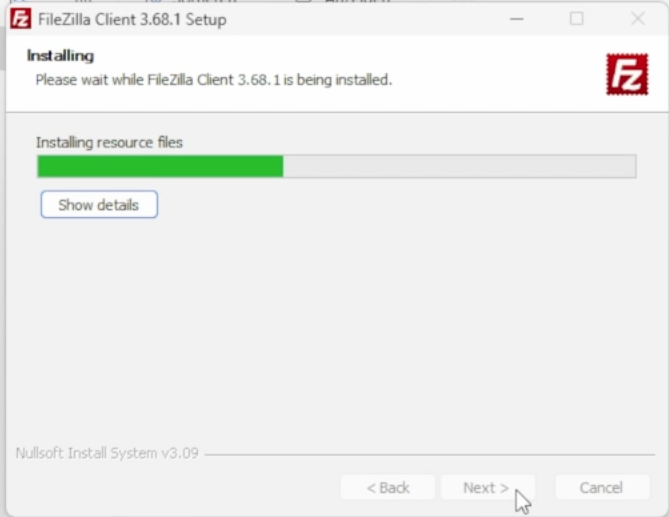
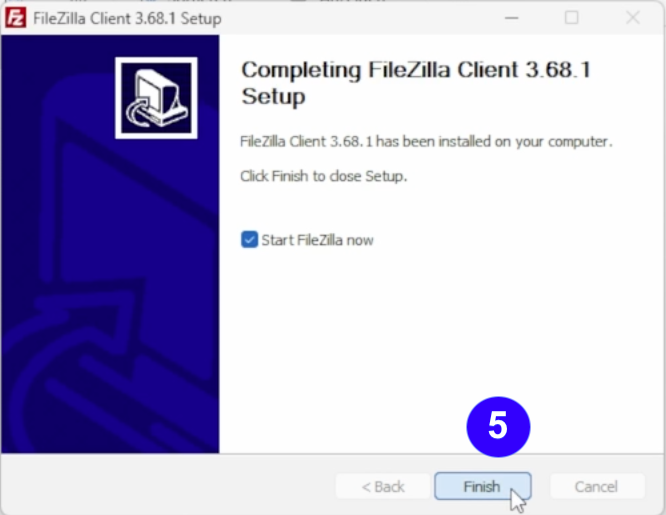
- <span style="background-color: rgb(251, 238, 184);"><span lang="DE" style="font-size: 11pt; line-height: 107%; font-family: 'Cambria Math', serif; color: rgb(7, 40, 230); background-color: rgb(251, 238, 184);">❺</span> **Starte FileZilla** durch klicken auf **"Finish"**</span>   
    [![FileZilla_Win11.png](https://wiki.kla.tv/uploads/images/gallery/2024-11/scaled-1680-/CiNjxf749VAoxFIr-filezilla-win11.png)](https://wiki.kla.tv/uploads/images/gallery/2024-11/CiNjxf749VAoxFIr-filezilla-win11.png)

#### <span style="background-color: rgb(241, 196, 15);">**3. Set up FileZilla:**</span>

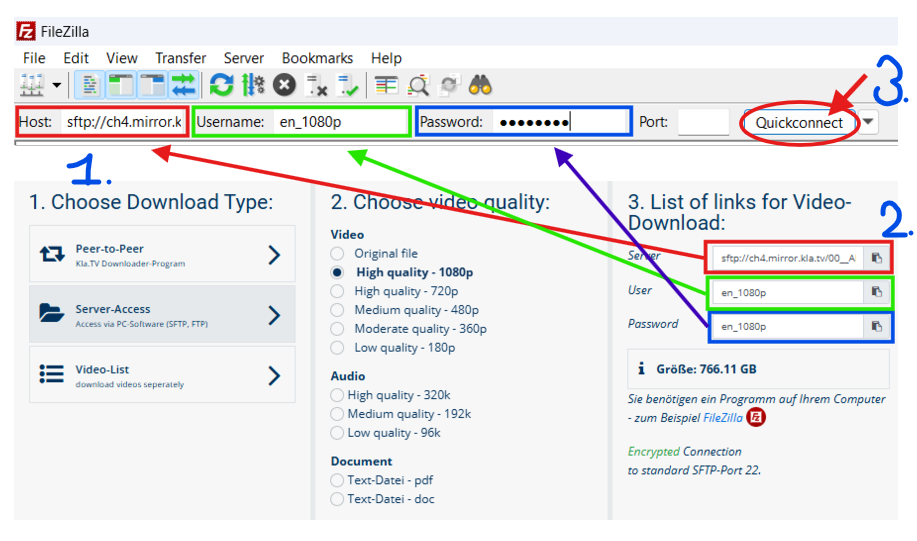
- <span style="background-color: rgb(251, 238, 184);">Copy in <span lang="DE" style="font-size: 11pt; line-height: 107%; font-family: 'Cambria Math', serif; color: rgb(7, 40, 230); background-color: rgb(251, 238, 184);">❶</span> **Server details to <span style="background-color: rgb(251, 238, 184);">FileZilla.</span>** You find them at <span lang="DE" style="font-size: 11pt; line-height: 107%; font-family: 'Cambria Math', serif; color: rgb(7, 40, 230); background-color: rgb(251, 238, 184);">❷</span> **[kla.tv/sichern](https://wiki.kla.tv/kla.tv/sichern)** → then you choose <span lang="DE" style="font-size: 11pt; line-height: 107%; font-family: 'Cambria Math', serif; color: rgb(7, 40, 230); background-color: rgb(251, 238, 184);">❸</span> "**connect**":</span>  
    <span style="background-color: rgb(251, 238, 184);">(Click on the “Copy” [![copy icon.png](https://wiki.kla.tv/uploads/images/gallery/2024-11/scaled-1680-/FBgYTFlPc2gfJRTu-copy-icon.png)](https://wiki.kla.tv/uploads/images/gallery/2024-11/FBgYTFlPc2gfJRTu-copy-icon.png) <span style="background-color: rgb(251, 238, 184);">symbol and paste into FileZilla with **ctrl + V** </span>)</span>[![Screenshot 2025-04-29 203824.png](https://wiki.kla.tv/uploads/images/gallery/2025-04/dqwOAufB339Pb1X4-screenshot-2025-04-29-203824.png)](https://wiki.kla.tv/uploads/images/gallery/2024-11/wbIHEPHXZnCa1P71-grafik.png)
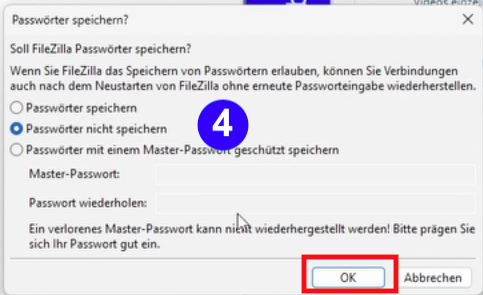
- <span style="background-color: rgb(251, 238, 184);"><span lang="DE" style="font-size: 11pt; line-height: 107%; font-family: 'Cambria Math', serif; color: rgb(7, 40, 230); background-color: rgb(251, 238, 184);">❹</span> 2 messages appear. Click **“Do not save passwords”** and then **“OK”**</span>  
      
    [![FileZilla-4.png](https://wiki.kla.tv/uploads/images/gallery/2024-11/scaled-1680-/6czE0TcJyOkquJfk-filezilla-4.png)](https://wiki.kla.tv/uploads/images/gallery/2024-11/6czE0TcJyOkquJfk-filezilla-4.png)
    
      
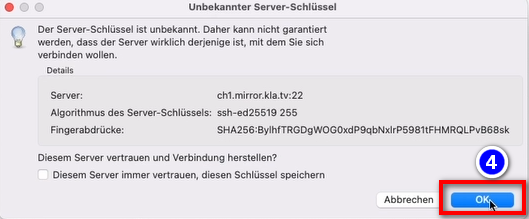
    <span style="background-color: rgb(251, 238, 184);">and for the message "Unknown Server-Key" choose **"OK"**</span>
    
      
    ![grafik.png](https://wiki.kla.tv/uploads/images/gallery/2024-11/scaled-1680-/I4RotrmPs0wSZmSf-grafik.png)

#### <span style="background-color: rgb(241, 196, 15);">**4. Save Broadcasts:**</span>

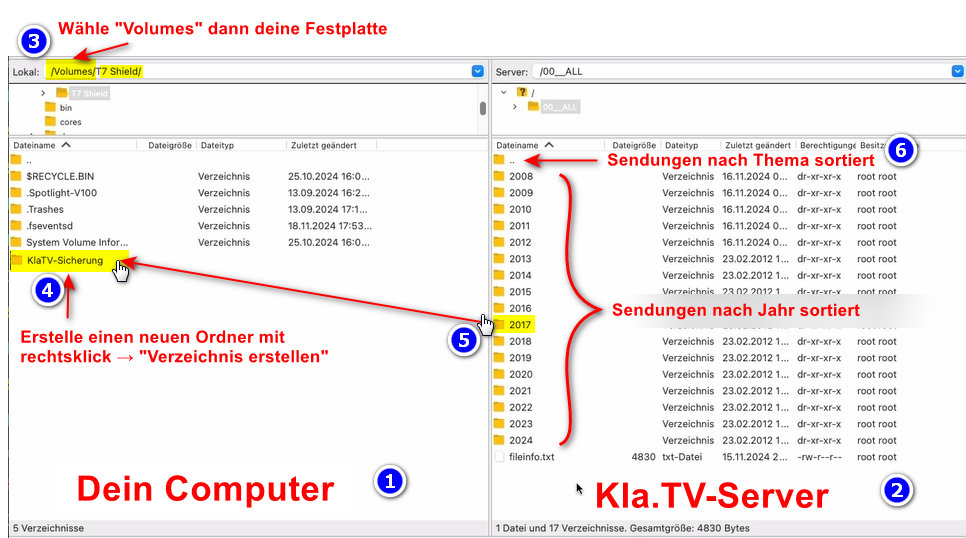
- <span style="background-color: rgb(251, 238, 184);"><span lang="DE" style="font-size: 11pt; line-height: 107%; font-family: 'Cambria Math', serif; color: rgb(7, 40, 230); background-color: rgb(251, 238, 184);">❶</span> <span style="background-color: rgb(251, 238, 184);">On the left you see **your** computer</span> and on the right <span lang="DE" style="font-size: 11pt; line-height: 107%; font-family: 'Cambria Math', serif; color: rgb(7, 40, 230); background-color: rgb(251, 238, 184);">❷</span> the **Kla.TV-Server**</span>
- <span style="background-color: rgb(251, 238, 184);">Navigate to <span style="background-color: rgb(251, 238, 184);"><span lang="DE" style="font-size: 11pt; line-height: 107%; font-family: 'Cambria Math', serif; color: rgb(7, 40, 230); background-color: rgb(251, 238, 184);">❸ </span></span>**your disk** on the left side. (Choose Volumes above and then the Hard Drive)</span>
- <span style="background-color: rgb(251, 238, 184);">Erstelle einen <span lang="DE" style="font-size: 11pt; line-height: 107%; font-family: 'Cambria Math', serif; color: rgb(7, 40, 230); background-color: rgb(251, 238, 184);">❹</span> **neuen Ordner** mit rechtsklick *"Verzeichnis erstellen"* → nenne den Ordner z.B. **"KlaTV-Sicherung"**</span>
- <span style="background-color: rgb(251, 238, 184);">Ziehe den <span lang="DE" style="font-size: 11pt; line-height: 107%; font-family: 'Cambria Math', serif; color: rgb(7, 40, 230); background-color: rgb(251, 238, 184);">❺</span> **gewünschten Sendungsordner** mit gedrückter Maustaste auf Deine Festplatte </span>
- <span style="background-color: rgb(251, 238, 184);">Du kannst auch einen <span lang="DE" style="font-size: 11pt; line-height: 107%; font-family: 'Cambria Math', serif; color: rgb(7, 40, 230); background-color: rgb(251, 238, 184);">❻</span> **ganzen Themenbereich** runterladen (z.B. 5G, Impfung, Bill Gates usw.). Nachteilig hier ist, dass mit der Zeit beständig neue Videos hinzukommen und in gleiche Sendungen in mehreren Themenordner gespeichert werden. Du müsstest immer wieder den Ablgeich mit der Festplatte machen und benötigst mehr Speicherplatz.</span>
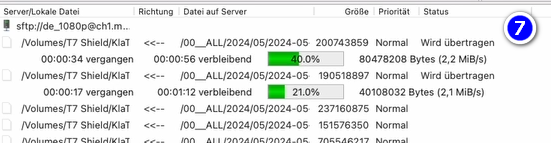
- <span style="background-color: rgb(251, 238, 184);"><span style="color: rgb(7, 40, 230);"><span lang="DE" style="font-size: 11pt; line-height: 107%; font-family: 'Cambria Math', serif; background-color: rgb(251, 238, 184);">❼</span> </span>Unten siehst du, wie die Videos der Reihe nach runtergeladen werden (kann sehr lange dauern.) </span>  
      
    *→<span style="background-color: rgb(194, 224, 244);"> **TIPP:** </span><span style="background-color: rgb(251, 238, 184);">Hier erfährst du, wie du die Internetgeschwindigkeit für FileZille begrenzen kannst, damit du nebenbei trotzdem noch im Internet arbeiten kannst: klick hier → </span>[**<span style="background-color: rgb(251, 238, 184);">Geschwindigkeit von Filezilla begrenzen</span>**](https://wiki.kla.tv/books/klatv-sichern/page/klatv-sichern-per-server-zugang-geschwindigkeit-von-filezilla-begrenzen)*

[![grafik.png](https://wiki.kla.tv/uploads/images/gallery/2024-11/scaled-1680-/HOYwHxxAZr6RLZ8D-grafik.png)](https://wiki.kla.tv/uploads/images/gallery/2024-11/HOYwHxxAZr6RLZ8D-grafik.png)[![grafik.png](https://wiki.kla.tv/uploads/images/gallery/2024-11/scaled-1680-/uLGmaW3NtFcExaZn-grafik.png)](https://wiki.kla.tv/uploads/images/gallery/2024-11/uLGmaW3NtFcExaZn-grafik.png)
#### <span style="background-color: rgb(241, 196, 15);">**5. ALTERNATIVE - Sendungen sichern <span style="text-decoration: underline;">ohne </span>FileZilla, direkt auf der Webseite:**</span>

- <span style="background-color: rgb(251, 238, 184);">Gehe auf **[kla.tv/sichern](https://www.kla.tv/sichern)** → <span lang="DE" style="font-size: 11pt; line-height: 107%; font-family: 'Cambria Math', serif; color: rgb(7, 40, 230); background-color: rgb(251, 238, 184);">❶</span> **Video-Liste** → wähle die gewünschte <span lang="DE" style="font-size: 11pt; line-height: 107%; font-family: 'Cambria Math', serif; color: rgb(7, 40, 230); background-color: rgb(251, 238, 184);">❷</span> **Qualität** → klicke auf <span lang="DE" style="font-size: 11pt; line-height: 107%; font-family: 'Cambria Math', serif; color: rgb(7, 40, 230); background-color: rgb(251, 238, 184);">❸</span> "**Dateien anzeigen**"</span>  
      
    [![grafik.png](https://wiki.kla.tv/uploads/images/gallery/2024-11/scaled-1680-/hwJ3HwIF07YrZFh2-grafik.png)](https://wiki.kla.tv/uploads/images/gallery/2024-11/hwJ3HwIF07YrZFh2-grafik.png)
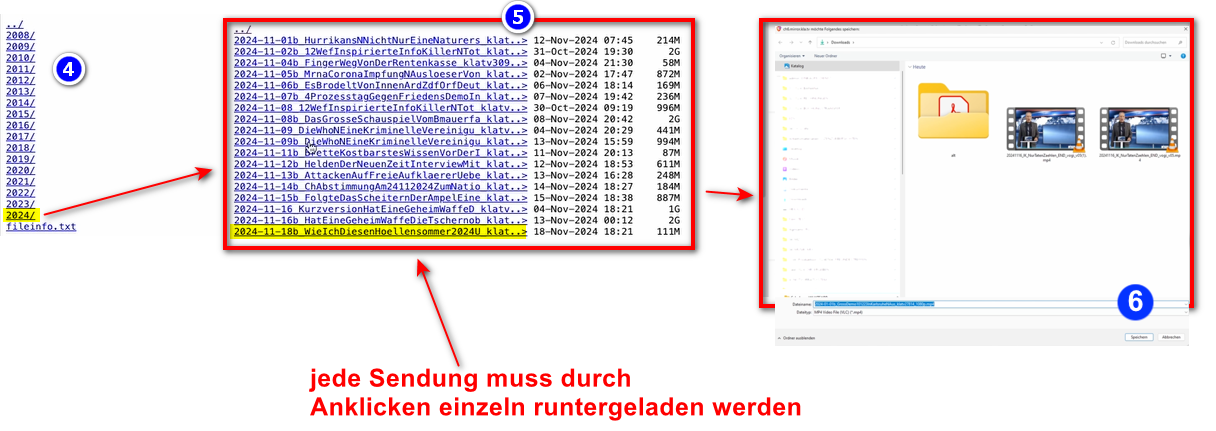
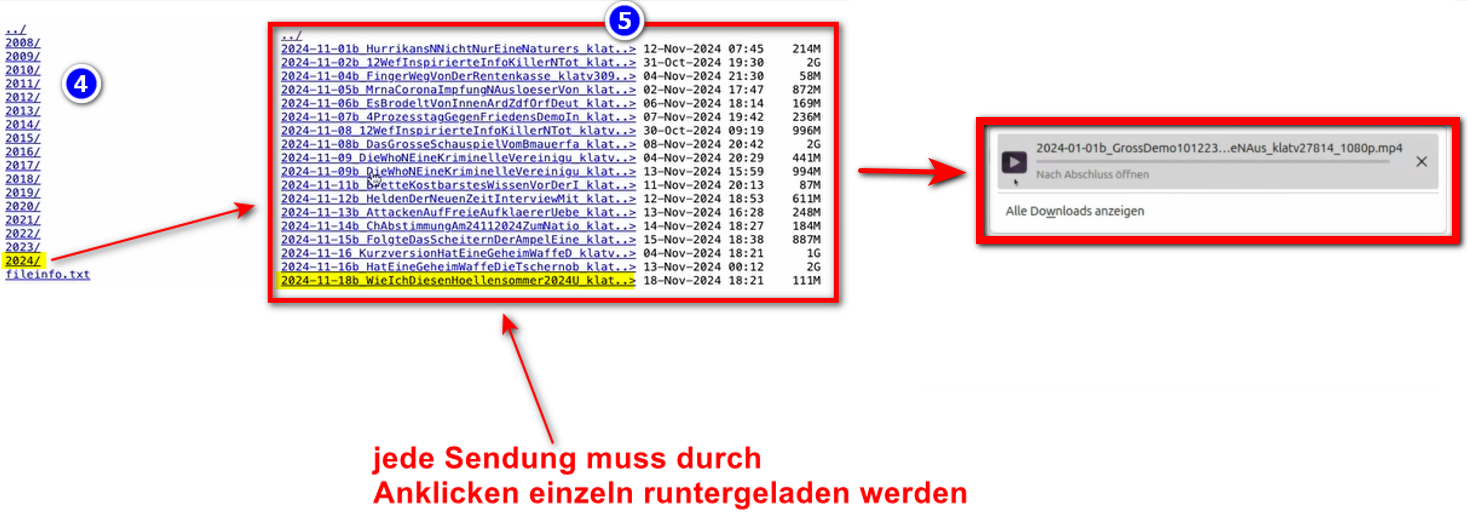
- <span style="background-color: rgb(251, 238, 184);">Nun werden alle Videos <span lang="DE" style="font-size: 11pt; line-height: 107%; font-family: 'Cambria Math', serif; color: rgb(7, 40, 230); background-color: rgb(251, 238, 184);">❹</span> **nach Jahr** / Monat aufgelistet. Klicke in das gewünschte Jahr/Monat und klicke die</span>  
    <span style="background-color: rgb(251, 238, 184);"><span lang="DE" style="font-size: 11pt; line-height: 107%; font-family: 'Cambria Math', serif; color: rgb(7, 40, 230); background-color: rgb(251, 238, 184);">❺</span> **Sendung** an und drücke <span lang="DE" style="font-size: 11pt; line-height: 107%; font-family: 'Cambria Math', serif; color: rgb(7, 40, 230); background-color: rgb(251, 238, 184);">❻</span> "**Sichern**". Jede einzelne Sendung muss einzeln runtergeladen werden.</span>  
      
      
    [![oZKkaxeiI86s51EM-grafik_WIN.png](https://wiki.kla.tv/uploads/images/gallery/2024-11/scaled-1680-/rCzaPyrQsLLn8O0N-ozkkaxeii86s51em-grafik-win.png)](https://wiki.kla.tv/uploads/images/gallery/2024-11/rCzaPyrQsLLn8O0N-ozkkaxeii86s51em-grafik-win.png)  
      
    *→ <span style="background-color: rgb(194, 224, 244);">**TIPP:** </span><span style="background-color: rgb(251, 238, 184);">Dies ist sehr aufwändig und Zeitintensiv. Daher ist die Variante mit FileZilla empfohlen</span>*   
    ### <span style="background-color: rgb(241, 196, 15);">**6. Empfehlung: Energieoptionen so einstellen, dass Computer nicht automatisch runterfährt:** </span>
    
    
    - <span style="background-color: rgb(251, 238, 184);">Wird der Computer neu gestartet, musst du die Applikation wieder neu starten müssen (siehe Anleitung Punkt 8)</span>
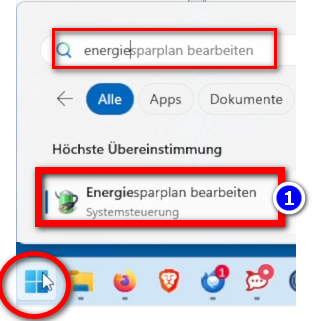
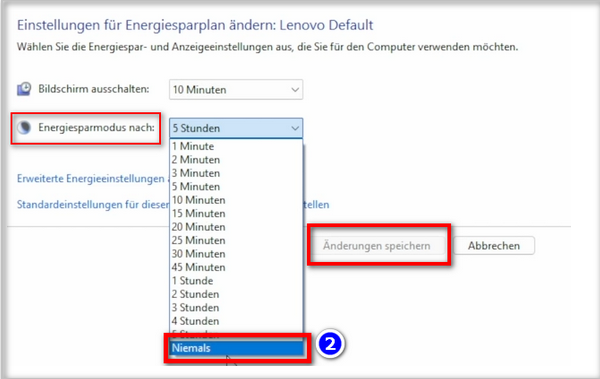
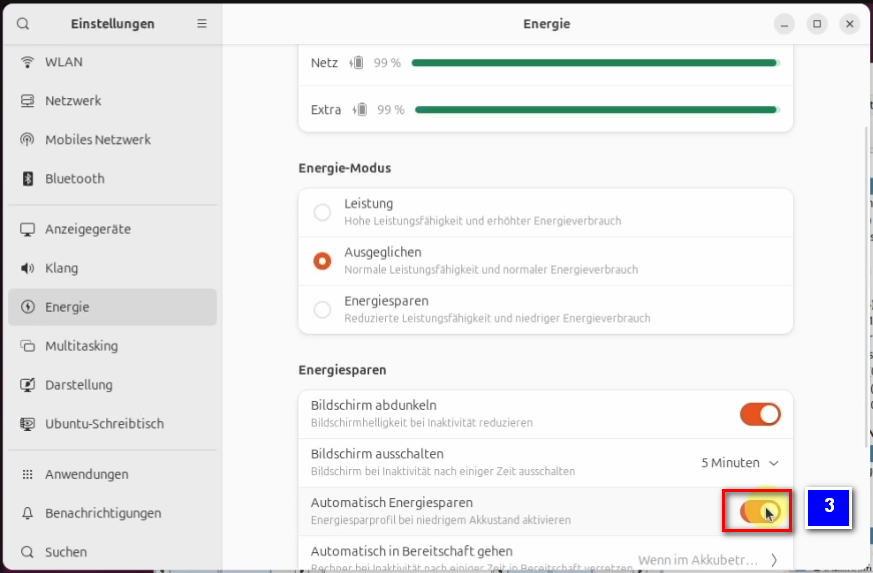
    - <span style="background-color: rgb(251, 238, 184);">Energieoptionen so ändern, dass der Computer nicht runterfährt: **Windowssymbol**→ **Suchfeld: Energiesparplan** → <span lang="DE" style="font-size: 16pt; line-height: 107%; font-family: Wingdings; background-color: rgb(251, 238, 184);"><span style="mso-char-type: symbol; mso-symbol-font-family: Wingdings;"><span lang="EN-US" style="font-size: 11pt; line-height: 107%; font-family: 'Cambria Math', serif; background-color: rgb(251, 238, 184);">❶</span></span></span> **Energiesparplan bearbeiten →** <span lang="DE" style="font-size: 16pt; line-height: 107%; font-family: Wingdings; background-color: rgb(251, 238, 184);"><span style="mso-char-type: symbol; mso-symbol-font-family: Wingdings;"><span lang="EN-US" style="font-size: 11pt; line-height: 107%; font-family: 'Cambria Math', serif; background-color: rgb(251, 238, 184);">❷</span></span></span> **Energiesparmodus nach: Niemals → Änderung speichern**</span>
    - <span style="background-color: rgb(251, 238, 184);">Computer laufen lassen, bis alle Dateien runtergeladen sind</span>
    
    ![grafik.png](https://wiki.kla.tv/uploads/images/gallery/2024-11/scaled-1680-/ONpMkNkqaQmKdYtX-grafik.png)  
      
    ![grafik.png](https://wiki.kla.tv/uploads/images/gallery/2024-11/scaled-1680-/c6InTIccNIpkCbYb-grafik.png)

<p class="callout info">Wir empfehlen zusätzlich folgende Schulungen:  
  
**[Speicherplatz ermitteln - Wie finde ich heraus, wie viel Speicherplatz ich nur für bestimmte Ordner benötige?](https://wiki.kla.tv/books/klatv-sichern/page/klatv-sichern-per-server-zugang-speicherplatz-ermitteln)  
  
[Wie kann ich die Geschwindigkeit von Filezilla begrenzen?](https://wiki.kla.tv/books/klatv-sichern/page/klatv-sichern-per-server-zugang-geschwindigkeit-von-filezilla-begrenzen)  
  
[Wie kann ich mehrere Qualitäten herunterladen?](https://wiki.kla.tv/books/klatv-sichern/page/klatv-sichern-per-server-zugang-mehrere-qualitaten-herunterladen)  
  
[Wie kann ich mein gesichertes Archiv durchsuchen?](https://wiki.kla.tv/books/klatv-sichern/page/klatv-sichern-per-server-zugang-gesichertes-archiv-durchsuchen)**  
</p>

# MAC: Installation & Connection to Filezilla (server access)

### **What will this article teach you?**

You learn, how to **save KlaTV- broadcasts via Server access to Your own hard drive** kannst. Geordnet nach Datum oder nach Thema und in verschiedenen Qualitäten. Du lernst auch, wie man in heruntergeladenen Dokumenten nach Stichworten bestimmte Sendungen finden kannst.

### **Video tutorial: (13min)**

<div class="responsive-iframe" id="bkmrk-"></div><div class="responsive-iframe" id="bkmrk--1"><div class="responsive-iframe"><div class="responsive-iframe"><iframe allowfullscreen="allowfullscreen" frameborder="0" height="332" src="https://video.elaion.ch?video_by_id=PCTgAUkispKc" width="590"></iframe>

</div></div><div class="responsive-iframe">  
</div></div><p class="callout warning">Wir empfehlen, zuerst das Video anzuschauen, um die schriftliche Anleitung besser zu verstehen.</p>

### <span lang="DE" style="font-size: 16.0pt; mso-bidi-font-size: 11.0pt; line-height: 107%; font-family: Wingdings; mso-ascii-font-family: Calibri; mso-ascii-theme-font: minor-latin; mso-fareast-font-family: Calibri; mso-fareast-theme-font: minor-latin; mso-hansi-font-family: Calibri; mso-hansi-theme-font: minor-latin; mso-bidi-font-family: 'Times New Roman'; mso-bidi-theme-font: minor-bidi; mso-ansi-language: DE; mso-fareast-language: EN-US; mso-bidi-language: AR-SA; mso-char-type: symbol; mso-symbol-font-family: Wingdings;"><span style="mso-char-type: symbol; mso-symbol-font-family: Wingdings;">&#131;</span></span><span lang="DE" style="font-size: 16.0pt; mso-bidi-font-size: 11.0pt; line-height: 107%; font-family: Wingdings; mso-ascii-font-family: Calibri; mso-ascii-theme-font: minor-latin; mso-fareast-font-family: Calibri; mso-fareast-theme-font: minor-latin; mso-hansi-font-family: Calibri; mso-hansi-theme-font: minor-latin; mso-bidi-font-family: 'Times New Roman'; mso-bidi-theme-font: minor-bidi; mso-ansi-language: DE; mso-fareast-language: EN-US; mso-bidi-language: AR-SA; mso-char-type: symbol; mso-symbol-font-family: Wingdings;"><span style="mso-char-type: symbol; mso-symbol-font-family: Wingdings;">&#132;</span></span><span lang="DE" style="font-size: 16.0pt; mso-bidi-font-size: 11.0pt; line-height: 107%; font-family: Wingdings; mso-ascii-font-family: Calibri; mso-ascii-theme-font: minor-latin; mso-fareast-font-family: Calibri; mso-fareast-theme-font: minor-latin; mso-hansi-font-family: Calibri; mso-hansi-theme-font: minor-latin; mso-bidi-font-family: 'Times New Roman'; mso-bidi-theme-font: minor-bidi; mso-ansi-language: DE; mso-fareast-language: EN-US; mso-bidi-language: AR-SA; mso-char-type: symbol; mso-symbol-font-family: Wingdings;"><span style="mso-char-type: symbol; mso-symbol-font-family: Wingdings;"> </span></span><span lang="DE" style="font-size: 16.0pt; mso-bidi-font-size: 11.0pt; line-height: 107%; font-family: Wingdings; mso-ascii-font-family: Calibri; mso-ascii-theme-font: minor-latin; mso-fareast-font-family: Calibri; mso-fareast-theme-font: minor-latin; mso-hansi-font-family: Calibri; mso-hansi-theme-font: minor-latin; mso-bidi-font-family: 'Times New Roman'; mso-bidi-theme-font: minor-bidi; mso-ansi-language: DE; mso-fareast-language: EN-US; mso-bidi-language: AR-SA; mso-char-type: symbol; mso-symbol-font-family: Wingdings;"><span style="mso-char-type: symbol; mso-symbol-font-family: Wingdings;">&#134;</span></span>**Schriftliche Anleitung:**

#### <span style="background-color: rgb(241, 196, 15);">**1. Zugang zum Server:**</span>

- <span style="background-color: rgb(251, 238, 184);">Gehe auf die Seite **[kla.tv/sichern](https://www.kla.tv/sichern)** </span>
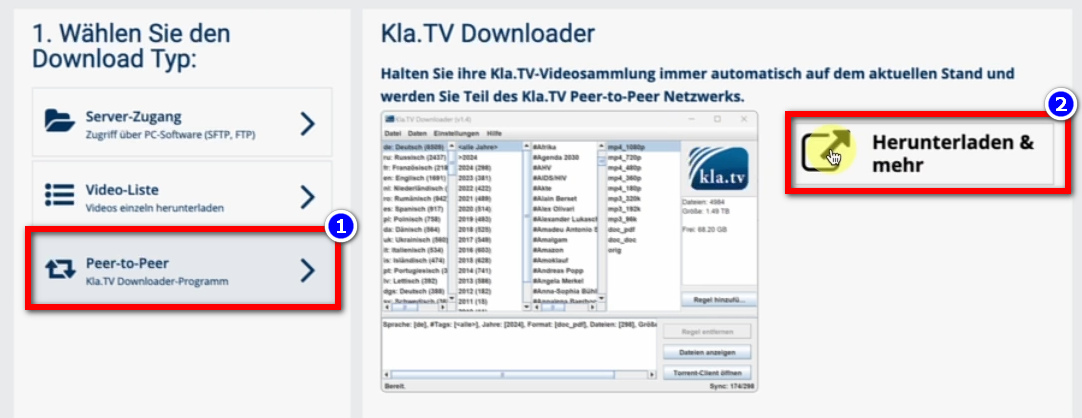
- <span style="background-color: rgb(251, 238, 184);">Gehe auf <span lang="DE" style="font-size: 11pt; line-height: 107%; font-family: 'Cambria Math', serif; background-color: rgb(251, 238, 184);">❶</span> **"Server-Zugang"** (siehe Bild unterhalb)→ und wähle die gewünschte <span lang="DE" style="font-size: 11pt; line-height: 107%; font-family: 'Cambria Math', serif; background-color: rgb(251, 238, 184);">❷</span> **Qualität.** </span><span style="background-color: rgb(251, 238, 184);">  
      
    </span>***→** <span style="background-color: rgb(194, 224, 244);">TIPP:</span> Mehrere Auswahlen sind nicht möglich. In diesem Artikel erfährst du, wie du mehrere Qualitäten in derselben Ordnerstruktur speichern kannst: klick hier → [**Mehrere Qualitäten herunterladen**](https://wiki.kla.tv/books/klatv-sichern/page/klatv-sichern-per-server-zugang-mehrere-qualitaten-herunterladen)*
- <span style="background-color: rgb(251, 238, 184);">Beim <span lang="DE" style="font-size: 11pt; line-height: 107%; font-family: 'Cambria Math', serif; background-color: rgb(251, 238, 184);">❸</span> roten Pfeil siehst du, wie viel freien Platz du auf der Festplatte benötigst. Passe die Qulität dementsprechend an.  
      
    </span>
- <span style="background-color: rgb(251, 238, 184);">Als nächstest benötigst du das Programm "FileZilla". Klicke dazu auf <span lang="DE" style="font-size: 11pt; line-height: 107%; font-family: 'Cambria Math', serif; background-color: rgb(251, 238, 184);">❹</span></span>***<span style="background-color: rgb(251, 238, 184);"> "FileZilla"</span>  
      
    [![grafik.png](https://wiki.kla.tv/uploads/images/gallery/2024-11/scaled-1680-/IbjQeHpuUJz9G8bE-grafik.png)](https://wiki.kla.tv/uploads/images/gallery/2024-11/IbjQeHpuUJz9G8bE-grafik.png)***

#### <span style="background-color: rgb(241, 196, 15);">**2. FileZilla installieren:** </span>

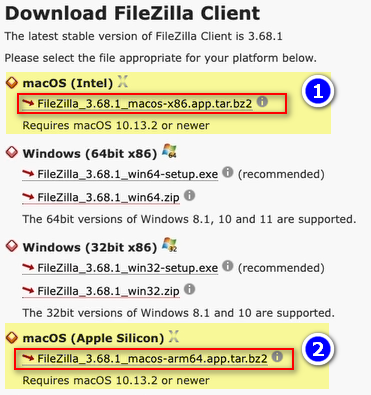
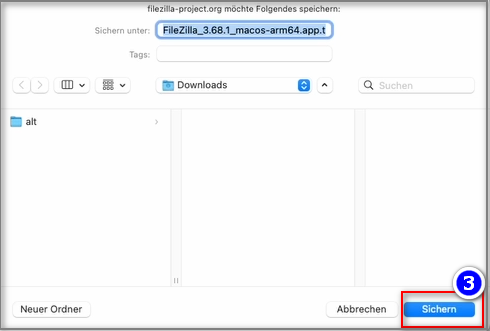
- <span style="background-color: rgb(251, 238, 184);">Je nachdem welche Mac-Version du hast (siehe TIPP), wähle <span lang="DE" style="font-size: 11pt; line-height: 107%; font-family: 'Cambria Math', serif; background-color: rgb(251, 238, 184);">❶</span> "**macOS (Intel)"** oder <span lang="DE" style="font-size: 11pt; line-height: 107%; font-family: 'Cambria Math', serif; background-color: rgb(251, 238, 184);">❷</span> "**macOS (Apple Silicon)**" → drücke <span lang="DE" style="font-size: 11pt; line-height: 107%; font-family: 'Cambria Math', serif; background-color: rgb(251, 238, 184);">❸</span> **"Sichern"   
      
    [![grafik.png](https://wiki.kla.tv/uploads/images/gallery/2024-11/scaled-1680-/VLN2CL32WZpwxfLX-grafik.png)](https://wiki.kla.tv/uploads/images/gallery/2024-11/VLN2CL32WZpwxfLX-grafik.png)**</span>![grafik.png](https://wiki.kla.tv/uploads/images/gallery/2024-11/scaled-1680-/WJTEKpNL5oe30lCx-grafik.png)
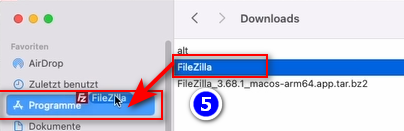
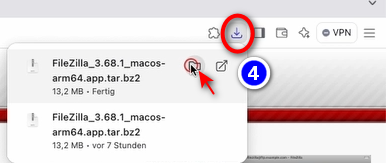
- <span style="background-color: rgb(251, 238, 184);"><span lang="DE" style="font-size: 11pt; line-height: 107%; font-family: 'Cambria Math', serif; background-color: rgb(251, 238, 184);">❹</span> **Öffne das Programm → entpacke das Programm** mit Doppelklick **→ schiebe** das entpackte FileZilla **in** <span lang="DE" style="font-size: 11pt; line-height: 107%; font-family: 'Cambria Math', serif; background-color: rgb(251, 238, 184);">❺</span> **Programme → öffne FileZilla** in deinen Programmen  
      
    </span>  
    ![grafik.png](https://wiki.kla.tv/uploads/images/gallery/2024-11/scaled-1680-/VPNuuUPWGJRzrbtr-grafik.png) ![grafik.png](https://wiki.kla.tv/uploads/images/gallery/2024-11/scaled-1680-/N7MuRCCZvue6JAoZ-grafik.png)  
     *→ <span style="background-color: rgb(194, 224, 244);">**TIPP:** </span>Wenn du nicht weisst, welche Version dein Mac hat: <span class="ILfuVd" lang="de"><span class="hgKElc">Wähle dazu oben links im Apple-Menü (</span></span>![icons8-mac-os-50.png](https://wiki.kla.tv/uploads/images/gallery/2024-11/scaled-1680-/sy6Ed2uwA1TrzLIR-icons8-mac-os-50.png)*<span class="ILfuVd" lang="de"><span class="hgKElc">*) die   
     Option „Über diesen Mac" → "Chip/Prozessor" → <span class="ct-span              oxy-stock-content-styles             " id="bkmrk-wenn-dort-%22apple-m1%22">Wenn dort "Apple M1", "M2" oder "M3" steht, hast du einen   
     Apple Silicon Mac</span> // <span class="ct-span              oxy-stock-content-styles             " id="bkmrk-steht-dort-%22intel%22-%28">Steht dort "Intel" (z.B. "Intel Core i5"), handelt es sich um einen Intel Mac</span>*</span></span>

#### <span style="background-color: rgb(241, 196, 15);">**3. FileZilla einrichten:**</span>

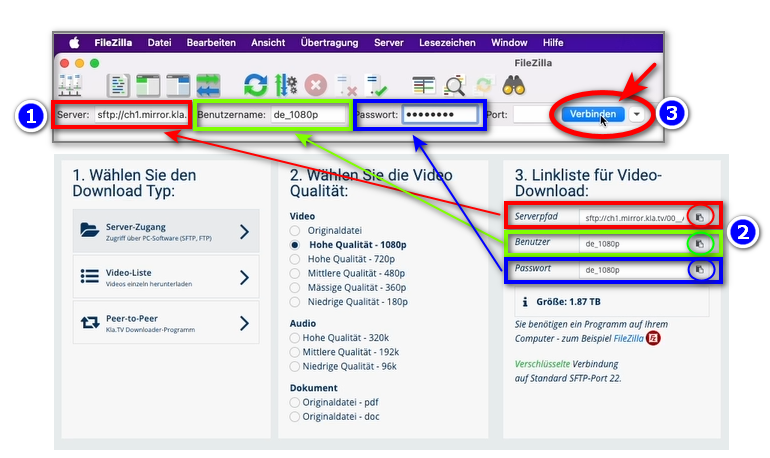
- <span style="background-color: rgb(251, 238, 184);">Kopiere in <span lang="DE" style="font-size: 11pt; line-height: 107%; font-family: 'Cambria Math', serif; background-color: rgb(251, 238, 184);">❶</span> **FileZilla die Serverangaben** ein, die du auf der gezeigten <span lang="DE" style="font-size: 11pt; line-height: 107%; font-family: 'Cambria Math', serif; background-color: rgb(251, 238, 184);">❷</span> **[kla.tv/sichern](https://www.kla.tv/sichern) - Webseite** findest → danach auf <span lang="DE" style="font-size: 11pt; line-height: 107%; font-family: 'Cambria Math', serif; background-color: rgb(251, 238, 184);">❸</span> "**Verbinden**":</span>  
    (Auf das eingekreiste "Kopieren"-Symbol klicken und in FileZilla ![grafik.png](https://wiki.kla.tv/uploads/images/gallery/2024-11/scaled-1680-/K7m9M4cml0Nk3bPx-grafik.png))  

    [![grafik.png](https://wiki.kla.tv/uploads/images/gallery/2024-11/scaled-1680-/wbIHEPHXZnCa1P71-grafik.png)](https://wiki.kla.tv/uploads/images/gallery/2024-11/wbIHEPHXZnCa1P71-grafik.png)
- <span style="background-color: rgb(251, 238, 184);">Eine <span lang="DE" style="font-size: 11pt; line-height: 107%; font-family: 'Cambria Math', serif; background-color: rgb(251, 238, 184);">❹</span> Meldung erscheint, klicke OK </span>  
    ![grafik.png](https://wiki.kla.tv/uploads/images/gallery/2024-11/scaled-1680-/I4RotrmPs0wSZmSf-grafik.png)

#### <span style="background-color: rgb(241, 196, 15);">**4. Sendungen sichern:**</span>

- <span style="background-color: rgb(251, 238, 184);"><span lang="DE" style="font-size: 11pt; line-height: 107%; font-family: 'Cambria Math', serif; background-color: rgb(251, 238, 184);">❶</span> Links siehst du **deinen** Computer, rechts den <span lang="DE" style="font-size: 11pt; line-height: 107%; font-family: 'Cambria Math', serif; background-color: rgb(251, 238, 184);">❷</span> **Kla.TV-Server**</span>
- <span style="background-color: rgb(251, 238, 184);">Navigiere links auf <span lang="DE" style="font-size: 11pt; line-height: 107%; font-family: 'Cambria Math', serif; background-color: rgb(251, 238, 184);">❸</span> **deine Festplatte**. (Wähle oben Volumes und dann die Festplatte)</span>
- <span style="background-color: rgb(251, 238, 184);">Erstelle einen <span lang="DE" style="font-size: 11pt; line-height: 107%; font-family: 'Cambria Math', serif; background-color: rgb(251, 238, 184);">❹</span> **neuen Ordner** mit rechtsklick "Verzeichnis erstellen" → nenne den Ordner z.B. "KlaTV-Sicherung"</span>
- <span style="background-color: rgb(251, 238, 184);">Ziehe den <span lang="DE" style="font-size: 11pt; line-height: 107%; font-family: 'Cambria Math', serif; background-color: rgb(251, 238, 184);">❺</span> **gewünschten Sendungsordner** mit gedrückter Maustaste auf Deine Festplatte </span>
- <span style="background-color: rgb(251, 238, 184);">Du kannst auch einen <span lang="DE" style="font-size: 11pt; line-height: 107%; font-family: 'Cambria Math', serif; background-color: rgb(251, 238, 184);">❻</span> **ganzen Themenbereich** runterladen (z.B. 5G, Impfung, Bill Gates usw.). Nachteilig hier ist, dass mit der Zeit beständig neue Videos hinzukommen und in gleiche Sendungen in mehreren Themenordner gespeichert werden. Du müsstest immer wieder den Ablgeich mit der Festplatte machen und benötigst mehr Speicherplatz.</span>
- <span style="background-color: rgb(251, 238, 184);"><span lang="DE" style="font-size: 11pt; line-height: 107%; font-family: 'Cambria Math', serif; background-color: rgb(251, 238, 184);">❼</span> Unten siehst du, wie die Videos der Reihe nach runtergeladen werden (kann sehr lange dauern.) </span>  
      
    *→<span style="background-color: rgb(194, 224, 244);"> **TIPP:** </span>Hier erfährst du, wie du die Internetgeschwindigkeit für FileZille begrenzen kannst, damit du nebenbei trotzdem noch im Internet arbeiten kannst: klick hier → [**Geschwindigkeit von Filezilla begrenzen**](https://wiki.kla.tv/books/klatv-sichern/page/klatv-sichern-per-server-zugang-geschwindigkeit-von-filezilla-begrenzen)*

[![grafik.png](https://wiki.kla.tv/uploads/images/gallery/2024-11/scaled-1680-/HOYwHxxAZr6RLZ8D-grafik.png)](https://wiki.kla.tv/uploads/images/gallery/2024-11/HOYwHxxAZr6RLZ8D-grafik.png)[![grafik.png](https://wiki.kla.tv/uploads/images/gallery/2024-11/scaled-1680-/uLGmaW3NtFcExaZn-grafik.png)](https://wiki.kla.tv/uploads/images/gallery/2024-11/uLGmaW3NtFcExaZn-grafik.png)


#### <span style="background-color: rgb(241, 196, 15);">**5. ALTERNATIVE - Sendungen sichern <span style="text-decoration: underline;">ohne </span>FileZilla:**</span>

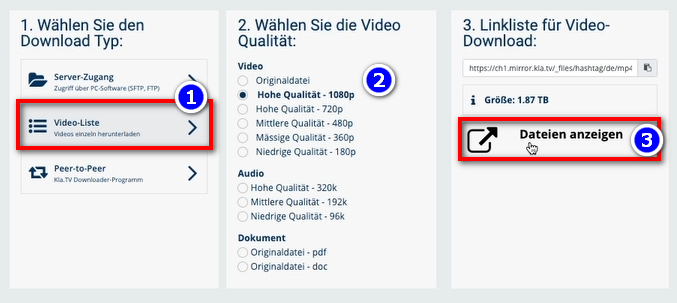
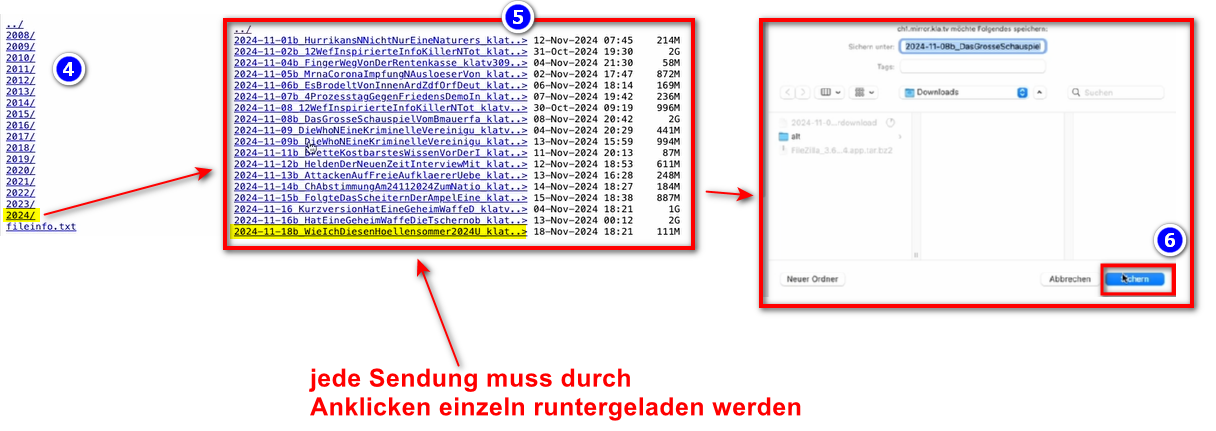
- <span style="background-color: rgb(251, 238, 184);">Gehe auf **[kla.tv/sichern](https://www.kla.tv/sichern)** → <span lang="DE" style="font-size: 11pt; line-height: 107%; font-family: 'Cambria Math', serif; background-color: rgb(251, 238, 184);">❶</span> **Video-Liste** → wähle die gewünschte <span lang="DE" style="font-size: 11pt; line-height: 107%; font-family: 'Cambria Math', serif; background-color: rgb(251, 238, 184);">❷</span> **Qualität** → klicke auf <span lang="DE" style="font-size: 11pt; line-height: 107%; font-family: 'Cambria Math', serif; background-color: rgb(251, 238, 184);">❸</span> "**Dateien anzeigen**"</span>
- <span style="background-color: rgb(251, 238, 184);">Nun werden alle Videos <span lang="DE" style="font-size: 11pt; line-height: 107%; font-family: 'Cambria Math', serif; background-color: rgb(251, 238, 184);">❹</span> **nach Jahr** / Monat aufgelistet. Klicke in das gewünschte Jahr/Monat und klicke die</span>  
    <span style="background-color: rgb(251, 238, 184);"><span lang="DE" style="font-size: 11pt; line-height: 107%; font-family: 'Cambria Math', serif; background-color: rgb(251, 238, 184);">❺</span> **Sendung** an und drücke <span lang="DE" style="font-size: 11pt; line-height: 107%; font-family: 'Cambria Math', serif; background-color: rgb(251, 238, 184);">❻</span> "**Sichern**". Jede einzelne Sendung muss einzeln runtergeladen werden.</span>  
      
    *→ <span style="background-color: rgb(194, 224, 244);">**TIPP:** </span>Dies ist sehr aufwändig und Zeitintensiv. Daher ist die Variante mit FileZilla empfohlen*   
    [![grafik.png](https://wiki.kla.tv/uploads/images/gallery/2024-11/scaled-1680-/hwJ3HwIF07YrZFh2-grafik.png)](https://wiki.kla.tv/uploads/images/gallery/2024-11/hwJ3HwIF07YrZFh2-grafik.png)
    
    [![grafik.png](https://wiki.kla.tv/uploads/images/gallery/2024-11/scaled-1680-/oZKkaxeiI86s51EM-grafik.png)](https://wiki.kla.tv/uploads/images/gallery/2024-11/oZKkaxeiI86s51EM-grafik.png)
### <span style="background-color: rgb(241, 196, 15);">**6. Empfehlung: Energieoptionen so einstellen, dass Computer nicht automatisch runterfährt:** </span>

- <span style="background-color: rgb(251, 238, 184);">Wird der Computer neu gestartet, musst du die Applikation wieder neu starten müssen (siehe Anleitung Punkt 8)</span>
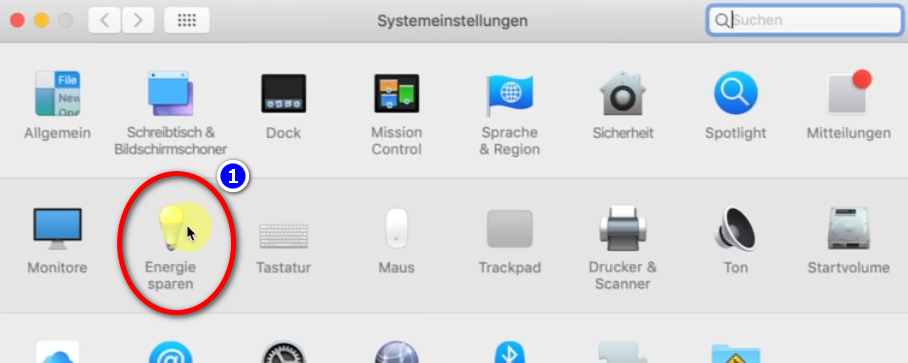
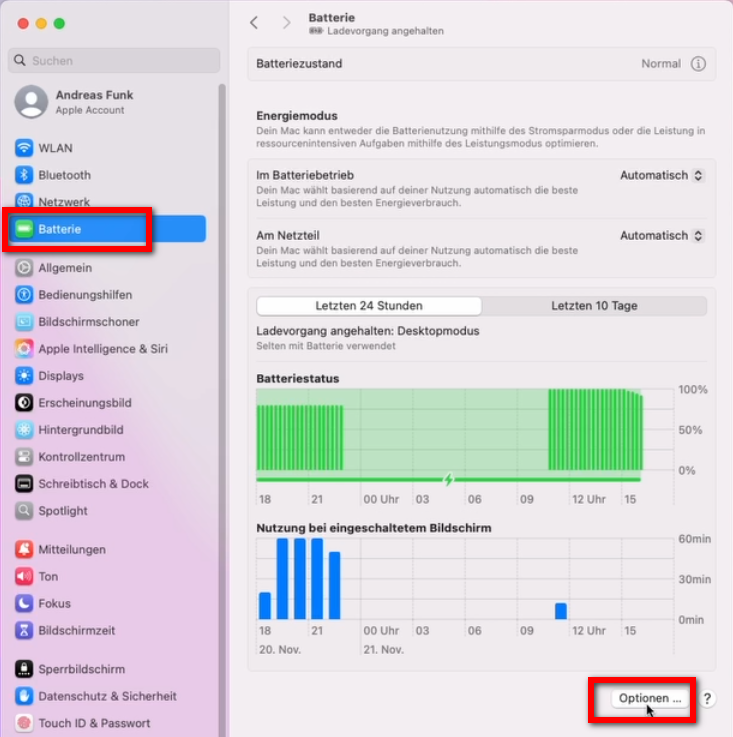
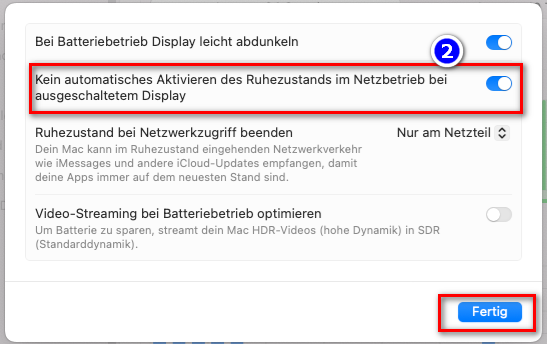
- <span style="background-color: rgb(251, 238, 184);">Damit der Mac nicht automatisch runtergefahren wird: Mac → <span lang="DE" style="font-size: 16pt; line-height: 107%; font-family: Wingdings; background-color: rgb(251, 238, 184);"><span style="mso-char-type: symbol; mso-symbol-font-family: Wingdings;"><span lang="EN-US" style="font-size: 11pt; line-height: 107%; font-family: 'Cambria Math', serif; background-color: rgb(251, 238, 184);">❶</span></span></span> **Systemeinstellungen** → **Energie sparen** → </span>  
    <span style="background-color: rgb(251, 238, 184);"><span lang="DE" style="font-size: 16pt; line-height: 107%; font-family: Wingdings; background-color: rgb(251, 238, 184);"><span style="mso-char-type: symbol; mso-symbol-font-family: Wingdings;"><span lang="EN-US" style="font-size: 11pt; line-height: 107%; font-family: 'Cambria Math', serif; background-color: rgb(251, 238, 184);">❷</span></span></span> **Kein automatisches Aktivieren des Ruhezustands ... → aktivieren**</span>
- <span style="background-color: rgb(251, 238, 184);">Computer laufen lassen, bis alle Dateien runtergeladen sind</span>
- [![grafik.png](https://wiki.kla.tv/uploads/images/gallery/2024-11/scaled-1680-/23U7rqFWbWlhJ5Uv-grafik.png)](https://wiki.kla.tv/uploads/images/gallery/2024-11/23U7rqFWbWlhJ5Uv-grafik.png)
    
    [![grafik.png](https://wiki.kla.tv/uploads/images/gallery/2024-11/scaled-1680-/PGDWa65L7V1hj21V-grafik.png)](https://wiki.kla.tv/uploads/images/gallery/2024-11/PGDWa65L7V1hj21V-grafik.png)
<p class="callout info">Wir empfehlen zusätzlich folgende Schulungen:  
  
**[Speicherplatz ermitteln - Wie finde ich heraus, wie viel Speicherplatz ich nur für bestimmte Ordner benötige?](https://wiki.kla.tv/books/klatv-sichern/page/klatv-sichern-per-server-zugang-speicherplatz-ermitteln)  
  
[Wie kann ich die Geschwindigkeit von Filezilla begrenzen?](https://wiki.kla.tv/books/klatv-sichern/page/klatv-sichern-per-server-zugang-geschwindigkeit-von-filezilla-begrenzen)  
  
[Wie kann ich mehrere Qualitäten herunterladen?](https://wiki.kla.tv/books/klatv-sichern/page/klatv-sichern-per-server-zugang-mehrere-qualitaten-herunterladen)  
  
[Wie kann ich mein gesichertes Archiv durchsuchen?](https://wiki.kla.tv/books/klatv-sichern/page/klatv-sichern-per-server-zugang-gesichertes-archiv-durchsuchen)**</p>

# LINUX: Installation & Connection to Filezilla (server access)

### **What will this article teach you?**

You'll learn **how to save the KlaTV-broadcasts to your own hard drive via server access**. They'll be organized by date or topic, and in various qualities. You'll also learn how to search for specific programs in downloaded documents using keywords.

### **Video tutorial: (13min)**

<div class="responsive-iframe" id="bkmrk-"><div class="responsive-iframe"><iframe allowfullscreen="allowfullscreen" frameborder="0" height="332" src="https://video.elaion.ch?video_by_id=cr84iso75XyE" width="590"></iframe>

</div></div><div class="responsive-iframe" id="bkmrk--1"></div><p class="callout warning">We recommend watching the video first to better understand the written instructions.</p>

### **Written instructions:**

#### <span style="background-color: rgb(241, 196, 15);">**1. Access to the server:**</span>

- Go to the site **[kla.tv/downloader](https://www.kla.tv/sichern)[ ](https://www.kla.tv/sichern)**
- Go to <span lang="DE" style="font-size: 11.0pt; line-height: 107%; font-family: 'Cambria Math',serif; mso-fareast-font-family: Calibri; mso-fareast-theme-font: minor-latin; mso-bidi-font-family: 'Cambria Math'; mso-ansi-language: DE; mso-fareast-language: EN-US; mso-bidi-language: AR-SA;">❶</span> **"Server-Access"** (See image down below)→ and choose the preferred <span lang="DE" style="font-size: 11.0pt; line-height: 107%; font-family: 'Cambria Math',serif; mso-fareast-font-family: Calibri; mso-fareast-theme-font: minor-latin; mso-bidi-font-family: 'Cambria Math'; mso-ansi-language: DE; mso-fareast-language: EN-US; mso-bidi-language: AR-SA;">❷</span> **Quality.**

 **→ *<span style="background-color: rgb(194, 224, 244);">TIP:</span>*** *Multiple selections are not possible. This article explains how to save multiple qualities in the same folder structure: click here → **[Download multiple qualities](https://wiki.kla.tv/books/klatv-sichern/page/klatv-sichern-per-server-zugang-mehrere-qualitaten-herunterladen)***

- The red arrow <span lang="DE" style="font-size: 11.0pt; line-height: 107%; font-family: 'Cambria Math',serif; mso-fareast-font-family: Calibri; mso-fareast-theme-font: minor-latin; mso-bidi-font-family: 'Cambria Math'; mso-ansi-language: DE; mso-fareast-language: EN-US; mso-bidi-language: AR-SA;">❸</span> shows you how much free space you need on your hard drive. Adjust the quality accordingly.
- Next, you need the program "FileZilla". <span lang="DE" style="font-size: 11.0pt; line-height: 107%; font-family: 'Cambria Math',serif; mso-fareast-font-family: Calibri; mso-fareast-theme-font: minor-latin; mso-bidi-font-family: 'Cambria Math'; mso-ansi-language: DE; mso-fareast-language: EN-US; mso-bidi-language: AR-SA;">❹</span>  
      
    [![image.png](https://wiki.kla.tv/uploads/images/gallery/2025-04/scaled-1680-/9S7PpnikdjL8CPsl-image.png)](https://wiki.kla.tv/uploads/images/gallery/2025-04/9S7PpnikdjL8CPsl-image.png)

#### <span style="background-color: rgb(241, 196, 15);">**2. Installing FileZilla:** </span>

Depending on your Linux version, there are different ways to do this. Here are two ways to do it with Ubuntu:

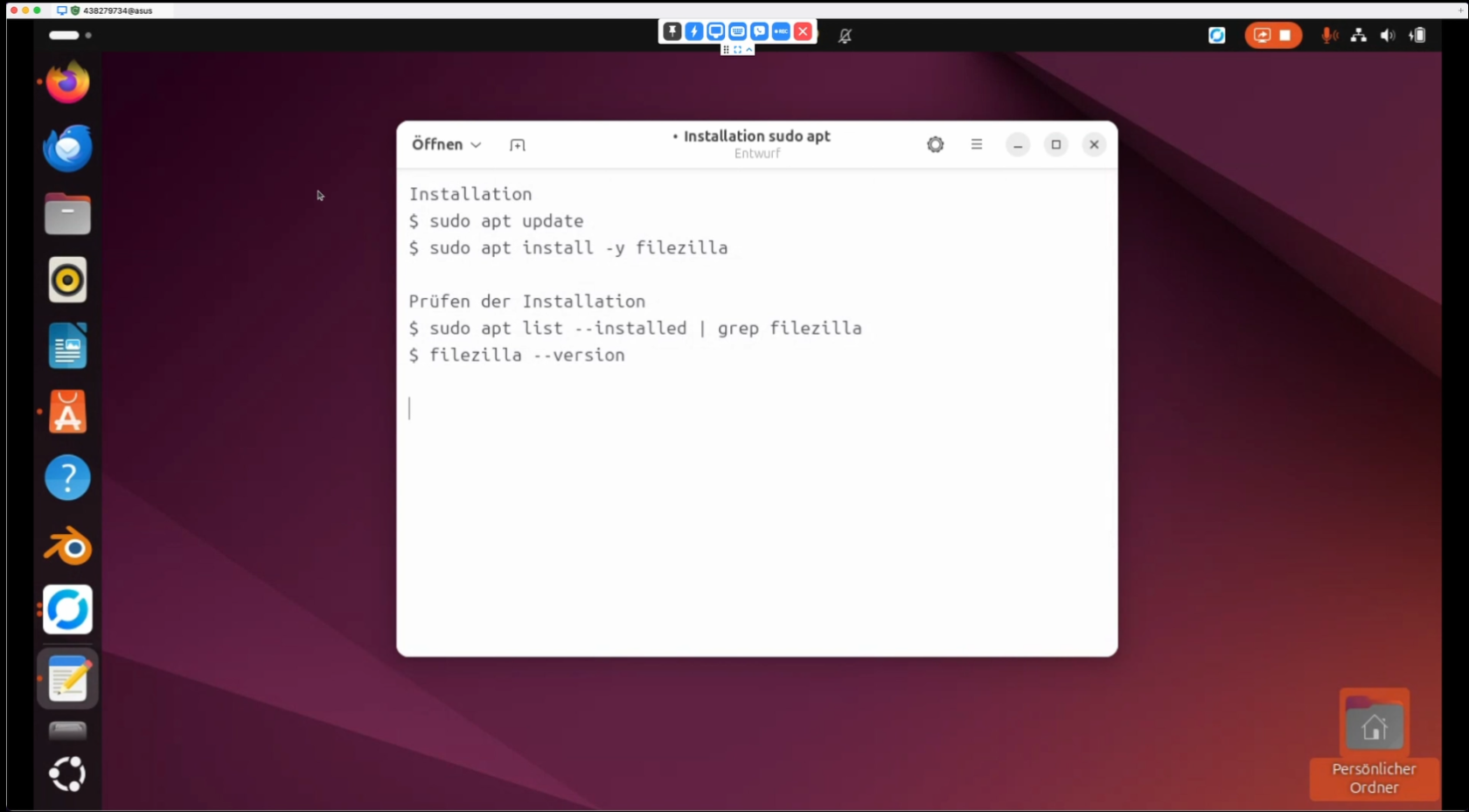
Open the terminal (Ctrl + Alt + T) and enter the following commands:

<p class="callout info">Installation</p>

```
$ sudo apt update
$ sudo apt install -y filezilla
```

<p class="callout info">Checking the installation  
</p>

```
$ sudo apt list --installed | grep filezilla
$ filezilla --version
```

[![image.png](https://wiki.kla.tv/uploads/images/gallery/2024-11/scaled-1680-/7MGhW1g9EamixdNU-image.png)](https://wiki.kla.tv/uploads/images/gallery/2024-11/7MGhW1g9EamixdNU-image.png)
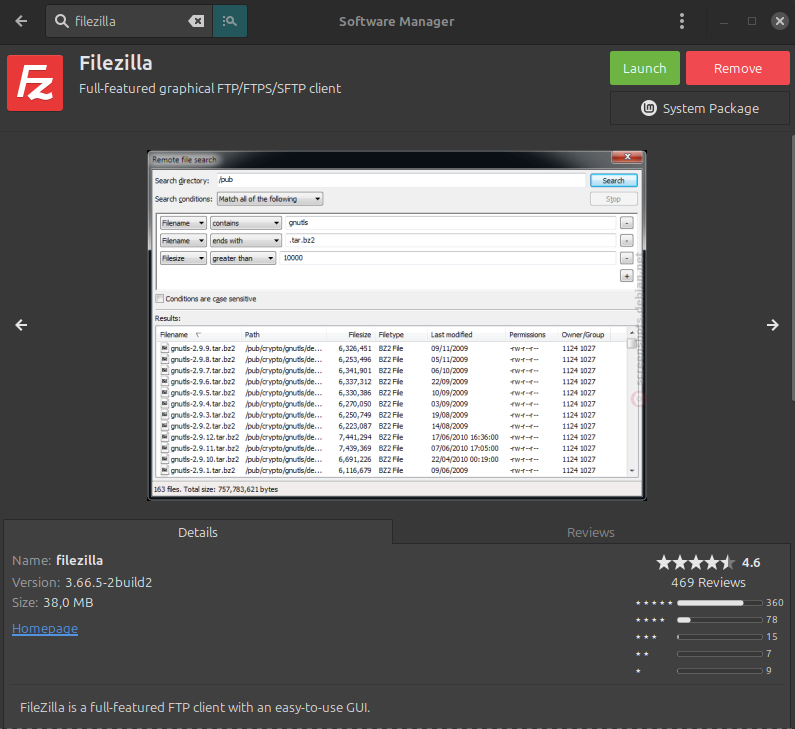
Or you go to the **Application Center** (or **Software Manager** if you're on Linux Mint)

[![image.png](https://wiki.kla.tv/uploads/images/gallery/2024-11/scaled-1680-/e64QXjSrpPigPsCV-image.png)](https://wiki.kla.tv/uploads/images/gallery/2024-11/e64QXjSrpPigPsCV-image.png)
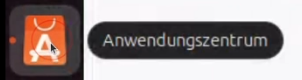
and enter "filezilla" in the search field. Then click on Install/Launch.

[![image.png](https://wiki.kla.tv/uploads/images/gallery/2025-04/scaled-1680-/6EqFfToQipTuBxAa-image.png)](https://wiki.kla.tv/uploads/images/gallery/2025-04/6EqFfToQipTuBxAa-image.png)
After that you can simply go to the application:

[![image.png](https://wiki.kla.tv/uploads/images/gallery/2024-11/scaled-1680-/JAHpJwLL32YIRT31-image.png)](https://wiki.kla.tv/uploads/images/gallery/2024-11/JAHpJwLL32YIRT31-image.png)
#### <span style="background-color: rgb(241, 196, 15);">**3. Setting up FileZilla:**</span>

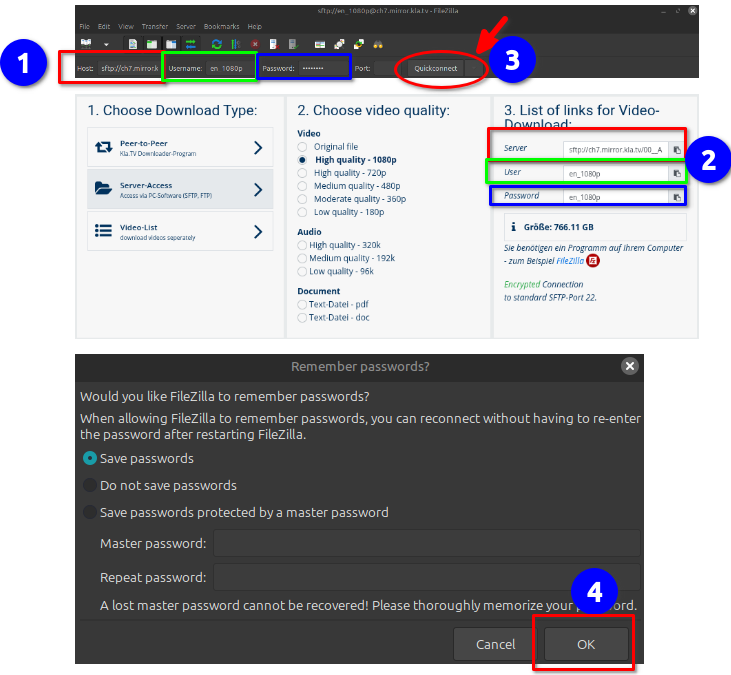
- Copy the server information you find on the ❷ **[kla.tv/downloader](https://www.kla.tv/downloader) website** shown in ❶ FileZilla → then click ❸ "**Quickconnect**": (Click on the "Copy" icon and paste it into FileZilla \["Ctrl" + "V"\]
- A ❹ message appears, click OK
- [![image.png](https://wiki.kla.tv/uploads/images/gallery/2025-04/scaled-1680-/4PDZe3qPGUPBjKhT-image.png)](https://wiki.kla.tv/uploads/images/gallery/2025-04/4PDZe3qPGUPBjKhT-image.png)
#### <span style="background-color: rgb(241, 196, 15);">**4. Downloading the broadcasts:**</span>

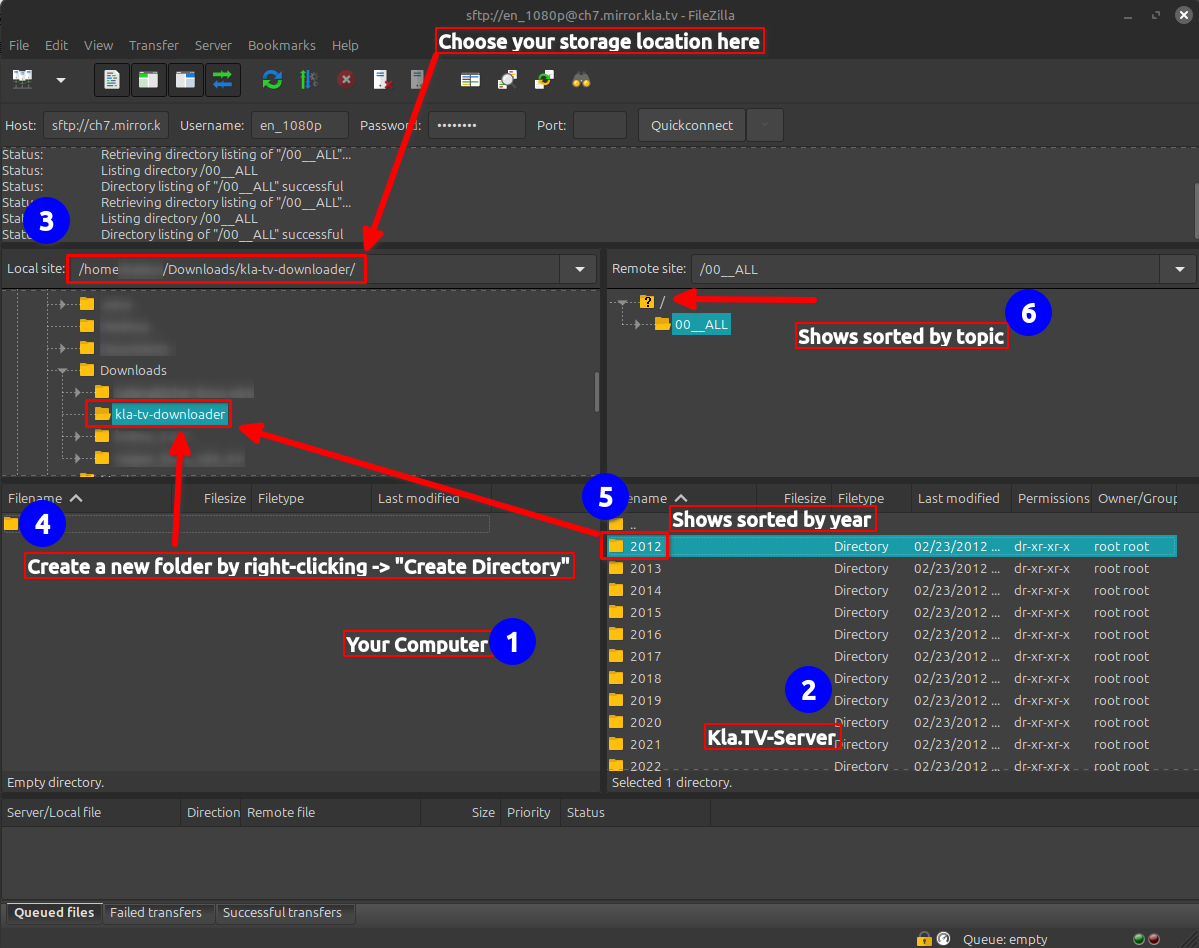
- ❶ On the left you see your computer, on the right the ❷ Kla.TV server.
    
    Navigate to ❸ your hard drive on the left. (Select Volumes at the top and then the hard drive)  
    Create a ❹ new folder by right-clicking "Create Directory" → name the folder, for example, "KlaTV Backup"  
    Drag the ❺ desired program folder to your hard drive while holding down the mouse button.
    
    You can also download an ❻ entire topic area (e.g., 5G, vaccination, Bill Gates, etc.). The disadvantage here is that new videos are constantly being added over time and saved in multiple topic folders for the same programs. You would have to constantly synchronize with your hard drive, which requires more storage space.
    
    ❼ Below you can see how the videos are downloaded one after the other (this can take a very long time).


    *→<span style="background-color: rgb(194, 224, 244);"> **TIP:** </span>Here you can learn how to limit the internet speed for FileZilla so that you can still work on the internet: click here → [Limit FileZilla speed](https://wiki.kla.tv/books/klatv-sichern/page/klatv-sichern-per-server-zugang-geschwindigkeit-von-filezilla-begrenzen)*

[![image.png](https://wiki.kla.tv/uploads/images/gallery/2025-04/scaled-1680-/TpU2IJTlwmH5r7Iu-image.png)](https://wiki.kla.tv/uploads/images/gallery/2025-04/TpU2IJTlwmH5r7Iu-image.png)
#### <span style="background-color: rgb(241, 196, 15);">**5. ALTERNATIVE - Sendungen sichern <span style="text-decoration: underline;">ohne </span>FileZilla:**</span>

- Gehe auf **[kla.tv/sichern](https://www.kla.tv/sichern)** → <span lang="DE" style="font-size: 11.0pt; line-height: 107%; font-family: 'Cambria Math',serif; mso-fareast-font-family: Calibri; mso-fareast-theme-font: minor-latin; mso-bidi-font-family: 'Cambria Math'; mso-ansi-language: DE; mso-fareast-language: EN-US; mso-bidi-language: AR-SA;">❶</span> **Video-Liste** → wähle die gewünschte <span lang="DE" style="font-size: 11.0pt; line-height: 107%; font-family: 'Cambria Math',serif; mso-fareast-font-family: Calibri; mso-fareast-theme-font: minor-latin; mso-bidi-font-family: 'Cambria Math'; mso-ansi-language: DE; mso-fareast-language: EN-US; mso-bidi-language: AR-SA;">❷</span> **Qualität** → klicke auf <span lang="DE" style="font-size: 11.0pt; line-height: 107%; font-family: 'Cambria Math',serif; mso-fareast-font-family: Calibri; mso-fareast-theme-font: minor-latin; mso-bidi-font-family: 'Cambria Math'; mso-ansi-language: DE; mso-fareast-language: EN-US; mso-bidi-language: AR-SA;">❸</span> "**Dateien anzeigen**"
- Nun werden alle Videos <span lang="DE" style="font-size: 11.0pt; line-height: 107%; font-family: 'Cambria Math',serif; mso-fareast-font-family: Calibri; mso-fareast-theme-font: minor-latin; mso-bidi-font-family: 'Cambria Math'; mso-ansi-language: DE; mso-fareast-language: EN-US; mso-bidi-language: AR-SA;">❹</span> **nach Jahr** / Monat aufgelistet. Klicke in das gewünschte Jahr/Monat und klicke die  
    <span lang="DE" style="font-size: 11.0pt; line-height: 107%; font-family: 'Cambria Math',serif; mso-fareast-font-family: Calibri; mso-fareast-theme-font: minor-latin; mso-bidi-font-family: 'Cambria Math'; mso-ansi-language: DE; mso-fareast-language: EN-US; mso-bidi-language: AR-SA;">❺</span> **Sendung** an. Jede einzelne Sendung muss einzeln runtergeladen werden.
- Go to kla.tv/secure → ❶ Video List → select the desired ❷ quality → click ❸ "Show Files"  
    Now all videos ❹ will be listed by year/month. Click on the desired year/month and click on the  
    ❺ program. Each individual program must be downloaded separately.  
      
    *→ <span style="background-color: rgb(194, 224, 244);">**TIPP:** </span>Dies ist sehr aufwändig und Zeitintensiv. Daher ist die Variante mit FileZilla empfohlen*   
    [![grafik.png](https://wiki.kla.tv/uploads/images/gallery/2024-11/scaled-1680-/hwJ3HwIF07YrZFh2-grafik.png)](https://wiki.kla.tv/uploads/images/gallery/2024-11/hwJ3HwIF07YrZFh2-grafik.png)

    
    [![image.png](https://wiki.kla.tv/uploads/images/gallery/2024-11/scaled-1680-/4693kILle0mf4fut-image.png)](https://wiki.kla.tv/uploads/images/gallery/2024-11/4693kILle0mf4fut-image.png)
<p class="callout info">Wir empfehlen zusätzlich folgende Schulungen:  
  
[Speicherplatz ermitteln - Wie finde ich heraus, wie viel Speicherplatz ich nur für bestimmte Ordner benötige?](https://wiki.kla.tv/books/klatv-sichern/page/klatv-sichern-per-server-zugang-speicherplatz-ermitteln)  
  
[**Wie kann ich die Geschwindigkeit** <span style="color: #444444;">von Filezilla begrenzen?</span>](https://wiki.kla.tv/books/klatv-sichern/page/klatv-sichern-per-server-zugang-geschwindigkeit-von-filezilla-begrenzen)<span style="color: #444444;">  
  
[Wie kann ich mehrere Qualitäten herunterladen?](https://wiki.kla.tv/books/klatv-sichern/page/klatv-sichern-per-server-zugang-mehrere-qualitaten-herunterladen)  
  
[Wie kann ich mein gesichertes Archiv durchsuchen?](https://wiki.kla.tv/books/klatv-sichern/page/klatv-sichern-per-server-zugang-gesichertes-archiv-durchsuchen)</span></p>

# Save KlaTV via server access - determine storage space

### **What will this article teach you?**

Auf kla.tv/sichern wird nur <span lang="EN-US" style="font-size: 11.0pt; line-height: 107%; font-family: 'Cambria Math',serif; mso-fareast-font-family: Calibri; mso-fareast-theme-font: minor-latin; mso-bidi-font-family: 'Cambria Math'; mso-ansi-language: EN-US; mso-fareast-language: EN-US; mso-bidi-language: AR-SA;">❶</span> **die Größe des gesamten Archives** angezeigt, jenachdem welche Qualität du wählst. Wie findest du den benötigten Speicherplatz heraus, wenn du nur einen bestimmten Teil herunterladen möchtest? Z.B. nur ein Jahr oder ein paar Monate? Das erfährst du in diesem Artikel.

[![grafik.png](https://wiki.kla.tv/uploads/images/gallery/2024-11/scaled-1680-/4eYTGylmoiFyT85d-grafik.png)](https://wiki.kla.tv/uploads/images/gallery/2024-11/4eYTGylmoiFyT85d-grafik.png)
### **Videoanleitung: (1min)**

<div class="responsive-iframe" id="bkmrk--1"><iframe allowfullscreen="allowfullscreen" frameborder="0" height="332" src="https://video.elaion.ch?video_by_id=rJ5lj1LbOHLA" width="590"></iframe>

</div><span lang="DE" style="font-size: 16.0pt; mso-bidi-font-size: 11.0pt; line-height: 107%; font-family: Wingdings; mso-ascii-font-family: Calibri; mso-ascii-theme-font: minor-latin; mso-fareast-font-family: Calibri; mso-fareast-theme-font: minor-latin; mso-hansi-font-family: Calibri; mso-hansi-theme-font: minor-latin; mso-bidi-font-family: 'Times New Roman'; mso-bidi-theme-font: minor-bidi; mso-ansi-language: DE; mso-fareast-language: EN-US; mso-bidi-language: AR-SA; mso-char-type: symbol; mso-symbol-font-family: Wingdings;"><span style="mso-char-type: symbol; mso-symbol-font-family: Wingdings;">&#131;</span></span><span lang="DE" style="font-size: 16.0pt; mso-bidi-font-size: 11.0pt; line-height: 107%; font-family: Wingdings; mso-ascii-font-family: Calibri; mso-ascii-theme-font: minor-latin; mso-fareast-font-family: Calibri; mso-fareast-theme-font: minor-latin; mso-hansi-font-family: Calibri; mso-hansi-theme-font: minor-latin; mso-bidi-font-family: 'Times New Roman'; mso-bidi-theme-font: minor-bidi; mso-ansi-language: DE; mso-fareast-language: EN-US; mso-bidi-language: AR-SA; mso-char-type: symbol; mso-symbol-font-family: Wingdings;"><span style="mso-char-type: symbol; mso-symbol-font-family: Wingdings;">&#132;</span></span><span lang="DE" style="font-size: 16.0pt; mso-bidi-font-size: 11.0pt; line-height: 107%; font-family: Wingdings; mso-ascii-font-family: Calibri; mso-ascii-theme-font: minor-latin; mso-fareast-font-family: Calibri; mso-fareast-theme-font: minor-latin; mso-hansi-font-family: Calibri; mso-hansi-theme-font: minor-latin; mso-bidi-font-family: 'Times New Roman'; mso-bidi-theme-font: minor-bidi; mso-ansi-language: DE; mso-fareast-language: EN-US; mso-bidi-language: AR-SA; mso-char-type: symbol; mso-symbol-font-family: Wingdings;"><span style="mso-char-type: symbol; mso-symbol-font-family: Wingdings;"> </span></span><span lang="DE" style="font-size: 16.0pt; mso-bidi-font-size: 11.0pt; line-height: 107%; font-family: Wingdings; mso-ascii-font-family: Calibri; mso-ascii-theme-font: minor-latin; mso-fareast-font-family: Calibri; mso-fareast-theme-font: minor-latin; mso-hansi-font-family: Calibri; mso-hansi-theme-font: minor-latin; mso-bidi-font-family: 'Times New Roman'; mso-bidi-theme-font: minor-bidi; mso-ansi-language: DE; mso-fareast-language: EN-US; mso-bidi-language: AR-SA; mso-char-type: symbol; mso-symbol-font-family: Wingdings;"><span style="mso-char-type: symbol; mso-symbol-font-family: Wingdings;">&#134;</span></span><span lang="DE" style="font-size: 16.0pt; mso-bidi-font-size: 11.0pt; line-height: 107%; font-family: Wingdings; mso-ascii-font-family: Calibri; mso-ascii-theme-font: minor-latin; mso-fareast-font-family: Calibri; mso-fareast-theme-font: minor-latin; mso-hansi-font-family: Calibri; mso-hansi-theme-font: minor-latin; mso-bidi-font-family: 'Times New Roman'; mso-bidi-theme-font: minor-bidi; mso-ansi-language: DE; mso-fareast-language: EN-US; mso-bidi-language: AR-SA; mso-char-type: symbol; mso-symbol-font-family: Wingdings;"><span style="mso-char-type: symbol; mso-symbol-font-family: Wingdings;">&#135;</span></span><span lang="DE" style="font-size: 16.0pt; mso-bidi-font-size: 11.0pt; line-height: 107%; font-family: Wingdings; mso-ascii-font-family: Calibri; mso-ascii-theme-font: minor-latin; mso-fareast-font-family: Calibri; mso-fareast-theme-font: minor-latin; mso-hansi-font-family: Calibri; mso-hansi-theme-font: minor-latin; mso-bidi-font-family: 'Times New Roman'; mso-bidi-theme-font: minor-bidi; mso-ansi-language: DE; mso-fareast-language: EN-US; mso-bidi-language: AR-SA; mso-char-type: symbol; mso-symbol-font-family: Wingdings;"><span style="mso-char-type: symbol; mso-symbol-font-family: Wingdings;">&#136;</span></span>

### **Schriftliche Anleitung:**

- **Öffne Filezilla** und verbinde dich mit dem **kla.TV-Server** (genaue Anleitung hierzu: *klick hier→* **[KlaTV sichern: Server-Zugang mit Filezilla ](https://wiki.kla.tv/books/klatv-sichern/chapter/server-zugang-mit-filezilla-sftp)** )
    
    [![grafik.png](https://wiki.kla.tv/uploads/images/gallery/2024-11/scaled-1680-/pxir8WbIE43Z4Kgc-grafik.png)](https://wiki.kla.tv/uploads/images/gallery/2024-11/pxir8WbIE43Z4Kgc-grafik.png)
- Navigiere in Filezilla auf dem KlaTV-Archiv zum gewünschten <span lang="DE" style="font-size: 16.0pt; mso-bidi-font-size: 11.0pt; line-height: 107%; font-family: Wingdings; mso-ascii-font-family: Calibri; mso-ascii-theme-font: minor-latin; mso-fareast-font-family: Calibri; mso-fareast-theme-font: minor-latin; mso-hansi-font-family: Calibri; mso-hansi-theme-font: minor-latin; mso-bidi-font-family: 'Times New Roman'; mso-bidi-theme-font: minor-bidi; mso-ansi-language: DE; mso-fareast-language: EN-US; mso-bidi-language: AR-SA; mso-char-type: symbol; mso-symbol-font-family: Wingdings;"><span style="mso-char-type: symbol; mso-symbol-font-family: Wingdings;">&#137;<span lang="EN-US" style="font-size: 11.0pt; line-height: 107%; font-family: 'Cambria Math',serif; mso-fareast-font-family: Calibri; mso-fareast-theme-font: minor-latin; mso-bidi-font-family: 'Cambria Math'; mso-ansi-language: EN-US; mso-fareast-language: EN-US; mso-bidi-language: AR-SA;">❶</span></span></span> **Jahr / Monat oder in den gewünschten Themenordner**.
- In jedem Ordner findest du unten ein Dokument namens <span lang="DE" style="font-size: 16.0pt; mso-bidi-font-size: 11.0pt; line-height: 107%; font-family: Wingdings; mso-ascii-font-family: Calibri; mso-ascii-theme-font: minor-latin; mso-fareast-font-family: Calibri; mso-fareast-theme-font: minor-latin; mso-hansi-font-family: Calibri; mso-hansi-theme-font: minor-latin; mso-bidi-font-family: 'Times New Roman'; mso-bidi-theme-font: minor-bidi; mso-ansi-language: DE; mso-fareast-language: EN-US; mso-bidi-language: AR-SA; mso-char-type: symbol; mso-symbol-font-family: Wingdings;"><span style="mso-char-type: symbol; mso-symbol-font-family: Wingdings;"><span lang="EN-US" style="font-size: 11.0pt; line-height: 107%; font-family: 'Cambria Math',serif; mso-fareast-font-family: Calibri; mso-fareast-theme-font: minor-latin; mso-bidi-font-family: 'Cambria Math'; mso-ansi-language: EN-US; mso-fareast-language: EN-US; mso-bidi-language: AR-SA;">❷</span></span></span> "**fileinfo.txt**".
- Öffne die Datei mit rechtsklick → <span lang="DE" style="font-size: 16.0pt; mso-bidi-font-size: 11.0pt; line-height: 107%; font-family: Wingdings; mso-ascii-font-family: Calibri; mso-ascii-theme-font: minor-latin; mso-fareast-font-family: Calibri; mso-fareast-theme-font: minor-latin; mso-hansi-font-family: Calibri; mso-hansi-theme-font: minor-latin; mso-bidi-font-family: 'Times New Roman'; mso-bidi-theme-font: minor-bidi; mso-ansi-language: DE; mso-fareast-language: EN-US; mso-bidi-language: AR-SA; mso-char-type: symbol; mso-symbol-font-family: Wingdings;"><span style="mso-char-type: symbol; mso-symbol-font-family: Wingdings;"><span lang="EN-US" style="font-size: 11.0pt; line-height: 107%; font-family: 'Cambria Math',serif; mso-fareast-font-family: Calibri; mso-fareast-theme-font: minor-latin; mso-bidi-font-family: 'Cambria Math'; mso-ansi-language: EN-US; mso-fareast-language: EN-US; mso-bidi-language: AR-SA;">❸</span></span></span> "**Ansehen/Bearbeiten**" → <span lang="DE" style="font-size: 16.0pt; mso-bidi-font-size: 11.0pt; line-height: 107%; font-family: Wingdings; mso-ascii-font-family: Calibri; mso-ascii-theme-font: minor-latin; mso-fareast-font-family: Calibri; mso-fareast-theme-font: minor-latin; mso-hansi-font-family: Calibri; mso-hansi-theme-font: minor-latin; mso-bidi-font-family: 'Times New Roman'; mso-bidi-theme-font: minor-bidi; mso-ansi-language: DE; mso-fareast-language: EN-US; mso-bidi-language: AR-SA; mso-char-type: symbol; mso-symbol-font-family: Wingdings;"><span style="mso-char-type: symbol; mso-symbol-font-family: Wingdings;"><span lang="EN-US" style="font-size: 11.0pt; line-height: 107%; font-family: 'Cambria Math',serif; mso-fareast-font-family: Calibri; mso-fareast-theme-font: minor-latin; mso-bidi-font-family: 'Cambria Math'; mso-ansi-language: EN-US; mso-fareast-language: EN-US; mso-bidi-language: AR-SA;">❹</span></span></span> **OK** (Meldung kommt nicht immer)
- Nun siehst du im Dokument die <span lang="DE" style="font-size: 16.0pt; mso-bidi-font-size: 11.0pt; line-height: 107%; font-family: Wingdings; mso-ascii-font-family: Calibri; mso-ascii-theme-font: minor-latin; mso-fareast-font-family: Calibri; mso-fareast-theme-font: minor-latin; mso-hansi-font-family: Calibri; mso-hansi-theme-font: minor-latin; mso-bidi-font-family: 'Times New Roman'; mso-bidi-theme-font: minor-bidi; mso-ansi-language: DE; mso-fareast-language: EN-US; mso-bidi-language: AR-SA; mso-char-type: symbol; mso-symbol-font-family: Wingdings;"><span style="mso-char-type: symbol; mso-symbol-font-family: Wingdings;"><span lang="EN-US" style="font-size: 11.0pt; line-height: 107%; font-family: 'Cambria Math',serif; mso-fareast-font-family: Calibri; mso-fareast-theme-font: minor-latin; mso-bidi-font-family: 'Cambria Math'; mso-ansi-language: EN-US; mso-fareast-language: EN-US; mso-bidi-language: AR-SA;">❺</span></span></span> **Größe aller einzelnen Ordner** und kannst abschätzen, wie viel Speicherplatz du benötigst
    
    ![grafik.png](https://wiki.kla.tv/uploads/images/gallery/2024-11/scaled-1680-/sYSQQ3bHFY18AbVL-grafik.png)→ [![grafik.png](https://wiki.kla.tv/uploads/images/gallery/2024-11/scaled-1680-/CXEDNd5Rad7IyCIy-grafik.png)](https://wiki.kla.tv/uploads/images/gallery/2024-11/CXEDNd5Rad7IyCIy-grafik.png)
    
    [![grafik.png](https://wiki.kla.tv/uploads/images/gallery/2024-11/scaled-1680-/Z6Jtf181w8QsaMRX-grafik.png)](https://wiki.kla.tv/uploads/images/gallery/2024-11/Z6Jtf181w8QsaMRX-grafik.png)

# Save KlaTV via server access - limit speed on Filezilla

### **What will this article teach you?**

Möchtest du neben dem Download von Filezilla das Internet noch nutzen, ist es ratsam, die Geschwindigkeit für Filezilla zu begrenzen. So kannst du nebenbei das Internet weiter nutzen. Wie das geht, lernst du in diesem Artikel.

### **Videoanleitung: (2min)**

<div class="responsive-iframe" id="bkmrk-"><iframe allowfullscreen="allowfullscreen" frameborder="0" height="332" src="https://video.elaion.ch?video_by_id=8qcEK77lig2Z" width="590"></iframe>

</div><span lang="DE" style="font-size: 16.0pt; mso-bidi-font-size: 11.0pt; line-height: 107%; font-family: Wingdings; mso-ascii-font-family: Calibri; mso-ascii-theme-font: minor-latin; mso-fareast-font-family: Calibri; mso-fareast-theme-font: minor-latin; mso-hansi-font-family: Calibri; mso-hansi-theme-font: minor-latin; mso-bidi-font-family: 'Times New Roman'; mso-bidi-theme-font: minor-bidi; mso-ansi-language: DE; mso-fareast-language: EN-US; mso-bidi-language: AR-SA; mso-char-type: symbol; mso-symbol-font-family: Wingdings;"><span style="mso-char-type: symbol; mso-symbol-font-family: Wingdings;">&#131;</span></span><span lang="DE" style="font-size: 16.0pt; mso-bidi-font-size: 11.0pt; line-height: 107%; font-family: Wingdings; mso-ascii-font-family: Calibri; mso-ascii-theme-font: minor-latin; mso-fareast-font-family: Calibri; mso-fareast-theme-font: minor-latin; mso-hansi-font-family: Calibri; mso-hansi-theme-font: minor-latin; mso-bidi-font-family: 'Times New Roman'; mso-bidi-theme-font: minor-bidi; mso-ansi-language: DE; mso-fareast-language: EN-US; mso-bidi-language: AR-SA; mso-char-type: symbol; mso-symbol-font-family: Wingdings;"><span style="mso-char-type: symbol; mso-symbol-font-family: Wingdings;">&#132;</span></span><span lang="DE" style="font-size: 16.0pt; mso-bidi-font-size: 11.0pt; line-height: 107%; font-family: Wingdings; mso-ascii-font-family: Calibri; mso-ascii-theme-font: minor-latin; mso-fareast-font-family: Calibri; mso-fareast-theme-font: minor-latin; mso-hansi-font-family: Calibri; mso-hansi-theme-font: minor-latin; mso-bidi-font-family: 'Times New Roman'; mso-bidi-theme-font: minor-bidi; mso-ansi-language: DE; mso-fareast-language: EN-US; mso-bidi-language: AR-SA; mso-char-type: symbol; mso-symbol-font-family: Wingdings;"><span style="mso-char-type: symbol; mso-symbol-font-family: Wingdings;"> </span></span><span lang="DE" style="font-size: 16.0pt; mso-bidi-font-size: 11.0pt; line-height: 107%; font-family: Wingdings; mso-ascii-font-family: Calibri; mso-ascii-theme-font: minor-latin; mso-fareast-font-family: Calibri; mso-fareast-theme-font: minor-latin; mso-hansi-font-family: Calibri; mso-hansi-theme-font: minor-latin; mso-bidi-font-family: 'Times New Roman'; mso-bidi-theme-font: minor-bidi; mso-ansi-language: DE; mso-fareast-language: EN-US; mso-bidi-language: AR-SA; mso-char-type: symbol; mso-symbol-font-family: Wingdings;"><span style="mso-char-type: symbol; mso-symbol-font-family: Wingdings;">&#134;</span></span><span lang="DE" style="font-size: 16.0pt; mso-bidi-font-size: 11.0pt; line-height: 107%; font-family: Wingdings; mso-ascii-font-family: Calibri; mso-ascii-theme-font: minor-latin; mso-fareast-font-family: Calibri; mso-fareast-theme-font: minor-latin; mso-hansi-font-family: Calibri; mso-hansi-theme-font: minor-latin; mso-bidi-font-family: 'Times New Roman'; mso-bidi-theme-font: minor-bidi; mso-ansi-language: DE; mso-fareast-language: EN-US; mso-bidi-language: AR-SA; mso-char-type: symbol; mso-symbol-font-family: Wingdings;"><span style="mso-char-type: symbol; mso-symbol-font-family: Wingdings;">&#135;</span></span><span lang="DE" style="font-size: 16.0pt; mso-bidi-font-size: 11.0pt; line-height: 107%; font-family: Wingdings; mso-ascii-font-family: Calibri; mso-ascii-theme-font: minor-latin; mso-fareast-font-family: Calibri; mso-fareast-theme-font: minor-latin; mso-hansi-font-family: Calibri; mso-hansi-theme-font: minor-latin; mso-bidi-font-family: 'Times New Roman'; mso-bidi-theme-font: minor-bidi; mso-ansi-language: DE; mso-fareast-language: EN-US; mso-bidi-language: AR-SA; mso-char-type: symbol; mso-symbol-font-family: Wingdings;"><span style="mso-char-type: symbol; mso-symbol-font-family: Wingdings;">&#136;</span></span>

### **Schriftliche Anleitung:**

#### <span style="background-color: rgb(241, 196, 15);">**1. Geschwindigkeit des eigenen Internets ermitteln:**</span>

- Öffne die Webseite **[speedtest.net](https://www.speedtest.net/)**
- Gehe auf <span lang="DE" style="font-size: 16.0pt; mso-bidi-font-size: 11.0pt; line-height: 107%; font-family: Wingdings; mso-ascii-font-family: Calibri; mso-ascii-theme-font: minor-latin; mso-fareast-font-family: Calibri; mso-fareast-theme-font: minor-latin; mso-hansi-font-family: Calibri; mso-hansi-theme-font: minor-latin; mso-bidi-font-family: 'Times New Roman'; mso-bidi-theme-font: minor-bidi; mso-ansi-language: DE; mso-fareast-language: EN-US; mso-bidi-language: AR-SA; mso-char-type: symbol; mso-symbol-font-family: Wingdings;"><span style="mso-char-type: symbol; mso-symbol-font-family: Wingdings;"><span lang="EN-US" style="font-size: 11.0pt; line-height: 107%; font-family: 'Cambria Math',serif; mso-fareast-font-family: Calibri; mso-fareast-theme-font: minor-latin; mso-bidi-font-family: 'Cambria Math'; mso-ansi-language: EN-US; mso-fareast-language: EN-US; mso-bidi-language: AR-SA;">❶</span><span lang="EN-US" style="font-size: 11.0pt; line-height: 107%; font-family: 'Calibri',sans-serif; mso-ascii-theme-font: minor-latin; mso-fareast-font-family: Calibri; mso-fareast-theme-font: minor-latin; mso-hansi-theme-font: minor-latin; mso-bidi-font-family: 'Times New Roman'; mso-bidi-theme-font: minor-bidi; mso-ansi-language: EN-US; mso-fareast-language: EN-US; mso-bidi-language: AR-SA;"> </span></span></span> "**Settings**" → Wähle bei "Speed" <span lang="DE" style="font-size: 16.0pt; mso-bidi-font-size: 11.0pt; line-height: 107%; font-family: Wingdings; mso-ascii-font-family: Calibri; mso-ascii-theme-font: minor-latin; mso-fareast-font-family: Calibri; mso-fareast-theme-font: minor-latin; mso-hansi-font-family: Calibri; mso-hansi-theme-font: minor-latin; mso-bidi-font-family: 'Times New Roman'; mso-bidi-theme-font: minor-bidi; mso-ansi-language: DE; mso-fareast-language: EN-US; mso-bidi-language: AR-SA; mso-char-type: symbol; mso-symbol-font-family: Wingdings;"><span style="mso-char-type: symbol; mso-symbol-font-family: Wingdings;"><span lang="EN-US" style="font-size: 11.0pt; line-height: 107%; font-family: 'Cambria Math',serif; mso-fareast-font-family: Calibri; mso-fareast-theme-font: minor-latin; mso-bidi-font-family: 'Cambria Math'; mso-ansi-language: EN-US; mso-fareast-language: EN-US; mso-bidi-language: AR-SA;">❷</span></span></span> "**Kbps**" → Drücke <span lang="DE" style="font-size: 16.0pt; mso-bidi-font-size: 11.0pt; line-height: 107%; font-family: Wingdings; mso-ascii-font-family: Calibri; mso-ascii-theme-font: minor-latin; mso-fareast-font-family: Calibri; mso-fareast-theme-font: minor-latin; mso-hansi-font-family: Calibri; mso-hansi-theme-font: minor-latin; mso-bidi-font-family: 'Times New Roman'; mso-bidi-theme-font: minor-bidi; mso-ansi-language: DE; mso-fareast-language: EN-US; mso-bidi-language: AR-SA; mso-char-type: symbol; mso-symbol-font-family: Wingdings;"><span style="mso-char-type: symbol; mso-symbol-font-family: Wingdings;"><span lang="EN-US" style="font-size: 11.0pt; line-height: 107%; font-family: 'Cambria Math',serif; mso-fareast-font-family: Calibri; mso-fareast-theme-font: minor-latin; mso-bidi-font-family: 'Cambria Math'; mso-ansi-language: EN-US; mso-fareast-language: EN-US; mso-bidi-language: AR-SA;">❸</span></span></span> "**Go**" um die Messung zu starten  
      
    [![grafik.png](https://wiki.kla.tv/uploads/images/gallery/2024-11/scaled-1680-/sN5fJ7WQFc8atoVb-grafik.png) → ](https://wiki.kla.tv/uploads/images/gallery/2024-11/sN5fJ7WQFc8atoVb-grafik.png)![grafik.png](https://wiki.kla.tv/uploads/images/gallery/2024-11/scaled-1680-/uLHIHVN7bXrYcmO0-grafik.png) → [![grafik.png](https://wiki.kla.tv/uploads/images/gallery/2024-11/scaled-1680-/0cYEJ0ZzRX6c1Phx-grafik.png)](https://wiki.kla.tv/uploads/images/gallery/2024-11/0cYEJ0ZzRX6c1Phx-grafik.png)
- Nun siehst du deine <span lang="DE" style="font-size: 16.0pt; mso-bidi-font-size: 11.0pt; line-height: 107%; font-family: Wingdings; mso-ascii-font-family: Calibri; mso-ascii-theme-font: minor-latin; mso-fareast-font-family: Calibri; mso-fareast-theme-font: minor-latin; mso-hansi-font-family: Calibri; mso-hansi-theme-font: minor-latin; mso-bidi-font-family: 'Times New Roman'; mso-bidi-theme-font: minor-bidi; mso-ansi-language: DE; mso-fareast-language: EN-US; mso-bidi-language: AR-SA; mso-char-type: symbol; mso-symbol-font-family: Wingdings;"><span style="mso-char-type: symbol; mso-symbol-font-family: Wingdings;"><span lang="EN-US" style="font-size: 11.0pt; line-height: 107%; font-family: 'Cambria Math',serif; mso-fareast-font-family: Calibri; mso-fareast-theme-font: minor-latin; mso-bidi-font-family: 'Cambria Math'; mso-ansi-language: EN-US; mso-fareast-language: EN-US; mso-bidi-language: AR-SA;">❹</span></span></span> **Download- und deine Upload-Geschwindigkeit**. Möchtest du Filezilla z.B. 10% dieser Datenübertragung zur Verfügung stellen, dann trage 10% von diesen Zahlen bei Filezilla ein. (Siehe nächster Punkt)  
    [![grafik.png](https://wiki.kla.tv/uploads/images/gallery/2024-11/scaled-1680-/qKPHGCZYkowkrkAA-grafik.png)](https://wiki.kla.tv/uploads/images/gallery/2024-11/qKPHGCZYkowkrkAA-grafik.png)  
    → *<span style="background-color: rgb(194, 224, 244);">**TIPP:**</span> um 10% auszurechnen, streiche einfach die letzte Zahl: z.B. **Download**: **52111**<span style="color: rgb(224, 62, 45);">(0) </span>**Upload**: **10534**<span style="color: rgb(224, 62, 45);">(8)</span>*

#### <span style="background-color: rgb(241, 196, 15);">**2. Geschwindigkeit in Filezilla begrenzen:**</span>

- Öffne **Filezilla** → Gehe in der Menüleiste auf <span lang="DE" style="font-size: 16.0pt; mso-bidi-font-size: 11.0pt; line-height: 107%; font-family: Wingdings; mso-ascii-font-family: Calibri; mso-ascii-theme-font: minor-latin; mso-fareast-font-family: Calibri; mso-fareast-theme-font: minor-latin; mso-hansi-font-family: Calibri; mso-hansi-theme-font: minor-latin; mso-bidi-font-family: 'Times New Roman'; mso-bidi-theme-font: minor-bidi; mso-ansi-language: DE; mso-fareast-language: EN-US; mso-bidi-language: AR-SA; mso-char-type: symbol; mso-symbol-font-family: Wingdings;"><span style="mso-char-type: symbol; mso-symbol-font-family: Wingdings;"><span lang="EN-US" style="font-size: 11.0pt; line-height: 107%; font-family: 'Cambria Math',serif; mso-fareast-font-family: Calibri; mso-fareast-theme-font: minor-latin; mso-bidi-font-family: 'Cambria Math'; mso-ansi-language: EN-US; mso-fareast-language: EN-US; mso-bidi-language: AR-SA;">❶</span></span></span> "**Übertragung**" → <span lang="DE" style="font-size: 16.0pt; mso-bidi-font-size: 11.0pt; line-height: 107%; font-family: Wingdings; mso-ascii-font-family: Calibri; mso-ascii-theme-font: minor-latin; mso-fareast-font-family: Calibri; mso-fareast-theme-font: minor-latin; mso-hansi-font-family: Calibri; mso-hansi-theme-font: minor-latin; mso-bidi-font-family: 'Times New Roman'; mso-bidi-theme-font: minor-bidi; mso-ansi-language: DE; mso-fareast-language: EN-US; mso-bidi-language: AR-SA; mso-char-type: symbol; mso-symbol-font-family: Wingdings;"><span style="mso-char-type: symbol; mso-symbol-font-family: Wingdings;"><span lang="EN-US" style="font-size: 11.0pt; line-height: 107%; font-family: 'Cambria Math',serif; mso-fareast-font-family: Calibri; mso-fareast-theme-font: minor-latin; mso-bidi-font-family: 'Cambria Math'; mso-ansi-language: EN-US; mso-fareast-language: EN-US; mso-bidi-language: AR-SA;">❷</span></span></span> "**Geschwindigkeitsbegrenzung**" →  
    <span lang="DE" style="font-size: 16.0pt; mso-bidi-font-size: 11.0pt; line-height: 107%; font-family: Wingdings; mso-ascii-font-family: Calibri; mso-ascii-theme-font: minor-latin; mso-fareast-font-family: Calibri; mso-fareast-theme-font: minor-latin; mso-hansi-font-family: Calibri; mso-hansi-theme-font: minor-latin; mso-bidi-font-family: 'Times New Roman'; mso-bidi-theme-font: minor-bidi; mso-ansi-language: DE; mso-fareast-language: EN-US; mso-bidi-language: AR-SA; mso-char-type: symbol; mso-symbol-font-family: Wingdings;"><span style="mso-char-type: symbol; mso-symbol-font-family: Wingdings;"><span lang="EN-US" style="font-size: 11.0pt; line-height: 107%; font-family: 'Cambria Math',serif; mso-fareast-font-family: Calibri; mso-fareast-theme-font: minor-latin; mso-bidi-font-family: 'Cambria Math'; mso-ansi-language: EN-US; mso-fareast-language: EN-US; mso-bidi-language: AR-SA;">❸</span></span></span> "**Einstellen**"  
    [![grafik.png](https://wiki.kla.tv/uploads/images/gallery/2024-11/scaled-1680-/SIOBWNzuoXxGu7xU-grafik.png)](https://wiki.kla.tv/uploads/images/gallery/2024-11/SIOBWNzuoXxGu7xU-grafik.png)
- Aktiviere den Hacken → <span lang="DE" style="font-size: 16.0pt; mso-bidi-font-size: 11.0pt; line-height: 107%; font-family: Wingdings; mso-ascii-font-family: Calibri; mso-ascii-theme-font: minor-latin; mso-fareast-font-family: Calibri; mso-fareast-theme-font: minor-latin; mso-hansi-font-family: Calibri; mso-hansi-theme-font: minor-latin; mso-bidi-font-family: 'Times New Roman'; mso-bidi-theme-font: minor-bidi; mso-ansi-language: DE; mso-fareast-language: EN-US; mso-bidi-language: AR-SA; mso-char-type: symbol; mso-symbol-font-family: Wingdings;"><span style="mso-char-type: symbol; mso-symbol-font-family: Wingdings;"><span lang="EN-US" style="font-size: 11.0pt; line-height: 107%; font-family: 'Cambria Math',serif; mso-fareast-font-family: Calibri; mso-fareast-theme-font: minor-latin; mso-bidi-font-family: 'Cambria Math'; mso-ansi-language: EN-US; mso-fareast-language: EN-US; mso-bidi-language: AR-SA;">❹</span></span></span> "**Geschwindigkeitsbegrenzungen aktivieren**" → trage bei <span lang="DE" style="font-size: 16.0pt; mso-bidi-font-size: 11.0pt; line-height: 107%; font-family: Wingdings; mso-ascii-font-family: Calibri; mso-ascii-theme-font: minor-latin; mso-fareast-font-family: Calibri; mso-fareast-theme-font: minor-latin; mso-hansi-font-family: Calibri; mso-hansi-theme-font: minor-latin; mso-bidi-font-family: 'Times New Roman'; mso-bidi-theme-font: minor-bidi; mso-ansi-language: DE; mso-fareast-language: EN-US; mso-bidi-language: AR-SA; mso-char-type: symbol; mso-symbol-font-family: Wingdings;"><span style="mso-char-type: symbol; mso-symbol-font-family: Wingdings;"><span lang="EN-US" style="font-size: 11.0pt; line-height: 107%; font-family: 'Cambria Math',serif; mso-fareast-font-family: Calibri; mso-fareast-theme-font: minor-latin; mso-bidi-font-family: 'Cambria Math'; mso-ansi-language: EN-US; mso-fareast-language: EN-US; mso-bidi-language: AR-SA;">❺</span></span></span> **Download- und Uploadgeschwindigkeit** z.B. die 10% ein → <span lang="DE" style="font-size: 16.0pt; mso-bidi-font-size: 11.0pt; line-height: 107%; font-family: Wingdings; mso-ascii-font-family: Calibri; mso-ascii-theme-font: minor-latin; mso-fareast-font-family: Calibri; mso-fareast-theme-font: minor-latin; mso-hansi-font-family: Calibri; mso-hansi-theme-font: minor-latin; mso-bidi-font-family: 'Times New Roman'; mso-bidi-theme-font: minor-bidi; mso-ansi-language: DE; mso-fareast-language: EN-US; mso-bidi-language: AR-SA; mso-char-type: symbol; mso-symbol-font-family: Wingdings;"><span style="mso-char-type: symbol; mso-symbol-font-family: Wingdings;"><span lang="EN-US" style="font-size: 11.0pt; line-height: 107%; font-family: 'Cambria Math',serif; mso-fareast-font-family: Calibri; mso-fareast-theme-font: minor-latin; mso-bidi-font-family: 'Cambria Math'; mso-ansi-language: EN-US; mso-fareast-language: EN-US; mso-bidi-language: AR-SA;">❻</span></span></span> **OK  
      
    [![grafik.png](https://wiki.kla.tv/uploads/images/gallery/2024-11/scaled-1680-/BKcRwgD2g69lME2N-grafik.png)](https://wiki.kla.tv/uploads/images/gallery/2024-11/BKcRwgD2g69lME2N-grafik.png)**

[ ](https://wiki.kla.tv/uploads/images/gallery/2024-11/SIOBWNzuoXxGu7xU-grafik.png)

# Save KlaTV via server access - download multiple qualities

### **What will this article teach you?**

Möchtest du verschiedene Video- oder Audioqualitäten oder auch Dokumente herunterladen, dann ist es vorteilhaft, wenn die zusammengehörenden Dateien auch in die gleiche Ordnerstruktur runtergeladen werden und nicht in verschiedenen Ordnern landen. Wie das geht, erfährst du in diesem Artikel.

### **Videoanleitung: (2min)**

<div class="responsive-iframe" id="bkmrk-"><iframe allowfullscreen="allowfullscreen" frameborder="0" height="332" src="https://video.elaion.ch?video_by_id=N3U0k7SStioF" width="590"></iframe>

</div><span lang="DE" style="font-size: 16.0pt; mso-bidi-font-size: 11.0pt; line-height: 107%; font-family: Wingdings; mso-ascii-font-family: Calibri; mso-ascii-theme-font: minor-latin; mso-fareast-font-family: Calibri; mso-fareast-theme-font: minor-latin; mso-hansi-font-family: Calibri; mso-hansi-theme-font: minor-latin; mso-bidi-font-family: 'Times New Roman'; mso-bidi-theme-font: minor-bidi; mso-ansi-language: DE; mso-fareast-language: EN-US; mso-bidi-language: AR-SA; mso-char-type: symbol; mso-symbol-font-family: Wingdings;"><span style="mso-char-type: symbol; mso-symbol-font-family: Wingdings;">&#131;</span></span><span lang="DE" style="font-size: 16.0pt; mso-bidi-font-size: 11.0pt; line-height: 107%; font-family: Wingdings; mso-ascii-font-family: Calibri; mso-ascii-theme-font: minor-latin; mso-fareast-font-family: Calibri; mso-fareast-theme-font: minor-latin; mso-hansi-font-family: Calibri; mso-hansi-theme-font: minor-latin; mso-bidi-font-family: 'Times New Roman'; mso-bidi-theme-font: minor-bidi; mso-ansi-language: DE; mso-fareast-language: EN-US; mso-bidi-language: AR-SA; mso-char-type: symbol; mso-symbol-font-family: Wingdings;"><span style="mso-char-type: symbol; mso-symbol-font-family: Wingdings;">&#132;</span></span><span lang="DE" style="font-size: 16.0pt; mso-bidi-font-size: 11.0pt; line-height: 107%; font-family: Wingdings; mso-ascii-font-family: Calibri; mso-ascii-theme-font: minor-latin; mso-fareast-font-family: Calibri; mso-fareast-theme-font: minor-latin; mso-hansi-font-family: Calibri; mso-hansi-theme-font: minor-latin; mso-bidi-font-family: 'Times New Roman'; mso-bidi-theme-font: minor-bidi; mso-ansi-language: DE; mso-fareast-language: EN-US; mso-bidi-language: AR-SA; mso-char-type: symbol; mso-symbol-font-family: Wingdings;"><span style="mso-char-type: symbol; mso-symbol-font-family: Wingdings;"> </span></span><span lang="DE" style="font-size: 16.0pt; mso-bidi-font-size: 11.0pt; line-height: 107%; font-family: Wingdings; mso-ascii-font-family: Calibri; mso-ascii-theme-font: minor-latin; mso-fareast-font-family: Calibri; mso-fareast-theme-font: minor-latin; mso-hansi-font-family: Calibri; mso-hansi-theme-font: minor-latin; mso-bidi-font-family: 'Times New Roman'; mso-bidi-theme-font: minor-bidi; mso-ansi-language: DE; mso-fareast-language: EN-US; mso-bidi-language: AR-SA; mso-char-type: symbol; mso-symbol-font-family: Wingdings;"><span style="mso-char-type: symbol; mso-symbol-font-family: Wingdings;">&#134;</span></span><span lang="DE" style="font-size: 16.0pt; mso-bidi-font-size: 11.0pt; line-height: 107%; font-family: Wingdings; mso-ascii-font-family: Calibri; mso-ascii-theme-font: minor-latin; mso-fareast-font-family: Calibri; mso-fareast-theme-font: minor-latin; mso-hansi-font-family: Calibri; mso-hansi-theme-font: minor-latin; mso-bidi-font-family: 'Times New Roman'; mso-bidi-theme-font: minor-bidi; mso-ansi-language: DE; mso-fareast-language: EN-US; mso-bidi-language: AR-SA; mso-char-type: symbol; mso-symbol-font-family: Wingdings;"><span style="mso-char-type: symbol; mso-symbol-font-family: Wingdings;">&#135;</span></span>

### **Schriftliche Anleitung:**

#### <span style="background-color: rgb(241, 196, 15);">**1. Wichtige Info:** </span>

- Die Dateistruktur auf deiner Festplatte muss genau derjenigen auf dem KlaTV-Archiv entsprechen. Ändere am besten keine Ordnernamen oder Reihenfolge auf deiner Archiv-Festplatte, dann bist du auf der sicheren Seite.
- Wenn du nun z.B. die *mässige Qualität - 360p* bereits runtergeladen hast und du möchtest nun noch die *Hohe Qualität - 1080p* oder die *Textdokumente* dazu runterladen, dann werden diese Dateien beim Runterladen automatisch in die richtige Ordnerstruktur reinkopiert.

#### <span style="background-color: rgb(241, 196, 15);">**2. Zusätzliche Qualität (Video, Audio, Textdokumente) runterladen:**</span>

- Gehe auf [**kla.tv/sichern**](https://www.kla.tv/sichern) → wähle die <span lang="EN-US" style="font-size: 11.0pt; line-height: 107%; font-family: 'Cambria Math',serif; mso-fareast-font-family: Calibri; mso-fareast-theme-font: minor-latin; mso-bidi-font-family: 'Cambria Math'; mso-ansi-language: EN-US; mso-fareast-language: EN-US; mso-bidi-language: AR-SA;">❶</span> **gewünschte Qulität** → <span lang="EN-US" style="font-size: 11.0pt; line-height: 107%; font-family: 'Cambria Math',serif; mso-fareast-font-family: Calibri; mso-fareast-theme-font: minor-latin; mso-bidi-font-family: 'Cambria Math'; mso-ansi-language: EN-US; mso-fareast-language: EN-US; mso-bidi-language: AR-SA;">❷</span> **Verbinde dich auf Filezilla** mit dem Kla.TV Server (für genauere Anleitung *klick hier→* **[KlaTV sichern: Server-Zugang mit Filezilla ](https://wiki.kla.tv/books/klatv-sichern/chapter/server-zugang-mit-filezilla-sftp)** )  
      
    [![grafik.png](https://wiki.kla.tv/uploads/images/gallery/2024-11/scaled-1680-/K29aQ7GL9towSizz-grafik.png)](https://wiki.kla.tv/uploads/images/gallery/2024-11/K29aQ7GL9towSizz-grafik.png)

- Navigiere in Filezilla zum <span lang="DE" style="font-size: 16.0pt; mso-bidi-font-size: 11.0pt; line-height: 107%; font-family: Wingdings; mso-ascii-font-family: Calibri; mso-ascii-theme-font: minor-latin; mso-fareast-font-family: Calibri; mso-fareast-theme-font: minor-latin; mso-hansi-font-family: Calibri; mso-hansi-theme-font: minor-latin; mso-bidi-font-family: 'Times New Roman'; mso-bidi-theme-font: minor-bidi; mso-ansi-language: DE; mso-fareast-language: EN-US; mso-bidi-language: AR-SA; mso-char-type: symbol; mso-symbol-font-family: Wingdings;"><span style="mso-char-type: symbol; mso-symbol-font-family: Wingdings;">&#136;<span lang="EN-US" style="font-size: 11.0pt; line-height: 107%; font-family: 'Cambria Math',serif; mso-fareast-font-family: Calibri; mso-fareast-theme-font: minor-latin; mso-bidi-font-family: 'Cambria Math'; mso-ansi-language: EN-US; mso-fareast-language: EN-US; mso-bidi-language: AR-SA;">❸</span></span></span> **gewünschten Ordner auf dem Kla.TV-Archiv** (z.B. 2008) und ziehe ihn auf <span lang="EN-US" style="font-size: 11.0pt; line-height: 107%; font-family: 'Cambria Math',serif; mso-fareast-font-family: Calibri; mso-fareast-theme-font: minor-latin; mso-bidi-font-family: 'Cambria Math'; mso-ansi-language: EN-US; mso-fareast-language: EN-US; mso-bidi-language: AR-SA;">❹</span> **deine Festplatte in den selben Ordner** (z.B. 2008). Nun sortiert es alle Qualitäten in die richtige Unterstruktur (z.B. Monate).

[![grafik.png](https://wiki.kla.tv/uploads/images/gallery/2024-11/scaled-1680-/cIRjgA9mzVhGu0S9-grafik.png)](https://wiki.kla.tv/uploads/images/gallery/2024-11/cIRjgA9mzVhGu0S9-grafik.png)

- Auf <span lang="EN-US" style="font-size: 11.0pt; line-height: 107%; font-family: 'Cambria Math',serif; mso-fareast-font-family: Calibri; mso-fareast-theme-font: minor-latin; mso-bidi-font-family: 'Cambria Math'; mso-ansi-language: EN-US; mso-fareast-language: EN-US; mso-bidi-language: AR-SA;">❺</span> deiner Festplatte findest du nun die verschiedenen Qualitäten alle an einem Ort. Dasselbe geht auch für Audiodateien und Textdokumente.

[![grafik.png](https://wiki.kla.tv/uploads/images/gallery/2024-11/scaled-1680-/6f6PNxo7YUmGkU8o-grafik.png)](https://wiki.kla.tv/uploads/images/gallery/2024-11/6f6PNxo7YUmGkU8o-grafik.png)

# Save KlaTV via server access - search saved archive

### **What will this article teach you?**

What use is an archive, if you're not able to search in it? This article shows you, how to search your saved archive.

### **Video Tutorial: (2min)**

<div class="responsive-iframe" id="bkmrk-"><iframe allowfullscreen="allowfullscreen" frameborder="0" height="332" src="https://video.elaion.ch?video_by_id=AuYhrKbR3qF4" width="590"></iframe>

</div><span lang="DE" style="font-size: 16.0pt; mso-bidi-font-size: 11.0pt; line-height: 107%; font-family: Wingdings; mso-ascii-font-family: Calibri; mso-ascii-theme-font: minor-latin; mso-fareast-font-family: Calibri; mso-fareast-theme-font: minor-latin; mso-hansi-font-family: Calibri; mso-hansi-theme-font: minor-latin; mso-bidi-font-family: 'Times New Roman'; mso-bidi-theme-font: minor-bidi; mso-ansi-language: DE; mso-fareast-language: EN-US; mso-bidi-language: AR-SA; mso-char-type: symbol; mso-symbol-font-family: Wingdings;"><span style="mso-char-type: symbol; mso-symbol-font-family: Wingdings;">&#131;</span></span><span lang="DE" style="font-size: 16.0pt; mso-bidi-font-size: 11.0pt; line-height: 107%; font-family: Wingdings; mso-ascii-font-family: Calibri; mso-ascii-theme-font: minor-latin; mso-fareast-font-family: Calibri; mso-fareast-theme-font: minor-latin; mso-hansi-font-family: Calibri; mso-hansi-theme-font: minor-latin; mso-bidi-font-family: 'Times New Roman'; mso-bidi-theme-font: minor-bidi; mso-ansi-language: DE; mso-fareast-language: EN-US; mso-bidi-language: AR-SA; mso-char-type: symbol; mso-symbol-font-family: Wingdings;"><span style="mso-char-type: symbol; mso-symbol-font-family: Wingdings;">&#132;</span></span><span lang="DE" style="font-size: 16.0pt; mso-bidi-font-size: 11.0pt; line-height: 107%; font-family: Wingdings; mso-ascii-font-family: Calibri; mso-ascii-theme-font: minor-latin; mso-fareast-font-family: Calibri; mso-fareast-theme-font: minor-latin; mso-hansi-font-family: Calibri; mso-hansi-theme-font: minor-latin; mso-bidi-font-family: 'Times New Roman'; mso-bidi-theme-font: minor-bidi; mso-ansi-language: DE; mso-fareast-language: EN-US; mso-bidi-language: AR-SA; mso-char-type: symbol; mso-symbol-font-family: Wingdings;"><span style="mso-char-type: symbol; mso-symbol-font-family: Wingdings;"> </span></span>

### **Written Instructions:** 

#### <span style="background-color: rgb(241, 196, 15);">**1. Important Info:**</span>

- Make sure that you have the free **Adobe Acrobat Reader** on your computer. If you don't have it you can download it here: [https://get.adobe.com/de/reader/](https://get.adobe.com/de/reader/)  
      
    [![grafik.png](https://wiki.kla.tv/uploads/images/gallery/2024-11/scaled-1680-/QcmtGfJr8RyyHAil-grafik.png)](https://get.adobe.com/de/reader/)
- ***ALTERNATIVELY** another PDF reader can be used as well, e.g. the **[Foxit PDF-Reader](https://www.foxit.com/de/downloads/#Foxit-Reader)** (following Instructions apply to the Adobe Acrobat Reader. The principle is transferable.)*
- To search your archive for keywords, all **PDF-Documents** should be downloaded in your archive. (Find out how this works in this article: *click here →* ***[Mehrere Qualitäten z.B. PDF herunterladen](https://wiki.kla.tv/books/klatv-sichern/page/klatv-sichern-per-server-zugang-mehrere-qualitaten-herunterladen)**

#### <span style="background-color: rgb(241, 196, 15);">**2. Search the Archive:** </span>

- Open a <span lang="DE" style="font-size: 16.0pt; mso-bidi-font-size: 11.0pt; line-height: 107%; font-family: Wingdings; mso-ascii-font-family: Calibri; mso-ascii-theme-font: minor-latin; mso-fareast-font-family: Calibri; mso-fareast-theme-font: minor-latin; mso-hansi-font-family: Calibri; mso-hansi-theme-font: minor-latin; mso-bidi-font-family: 'Times New Roman'; mso-bidi-theme-font: minor-bidi; mso-ansi-language: DE; mso-fareast-language: EN-US; mso-bidi-language: AR-SA; mso-char-type: symbol; mso-symbol-font-family: Wingdings;"><span style="mso-char-type: symbol; mso-symbol-font-family: Wingdings;">&#135;<span lang="EN-US" style="font-size: 11.0pt; line-height: 107%; font-family: 'Cambria Math',serif; mso-fareast-font-family: Calibri; mso-fareast-theme-font: minor-latin; mso-bidi-font-family: 'Cambria Math'; mso-ansi-language: EN-US; mso-fareast-language: EN-US; mso-bidi-language: AR-SA;">❶</span></span></span> PDF-file in your archive via right click → **Öffnen mit → Adobe Acrobat**

[![grafik.png](https://wiki.kla.tv/uploads/images/gallery/2024-11/scaled-1680-/oitLYbjjy1n6jU5q-grafik.png)](https://wiki.kla.tv/uploads/images/gallery/2024-11/oitLYbjjy1n6jU5q-grafik.png)

- Menu bar → <span lang="DE" style="font-size: 16.0pt; mso-bidi-font-size: 11.0pt; line-height: 107%; font-family: Wingdings; mso-ascii-font-family: Calibri; mso-ascii-theme-font: minor-latin; mso-fareast-font-family: Calibri; mso-fareast-theme-font: minor-latin; mso-hansi-font-family: Calibri; mso-hansi-theme-font: minor-latin; mso-bidi-font-family: 'Times New Roman'; mso-bidi-theme-font: minor-bidi; mso-ansi-language: DE; mso-fareast-language: EN-US; mso-bidi-language: AR-SA; mso-char-type: symbol; mso-symbol-font-family: Wingdings;"><span style="mso-char-type: symbol; mso-symbol-font-family: Wingdings;"><span lang="EN-US" style="font-size: 11.0pt; line-height: 107%; font-family: 'Cambria Math',serif; mso-fareast-font-family: Calibri; mso-fareast-theme-font: minor-latin; mso-bidi-font-family: 'Cambria Math'; mso-ansi-language: EN-US; mso-fareast-language: EN-US; mso-bidi-language: AR-SA;">❷ </span></span></span>file →  **Erweiterte Suche**

![grafik.png](https://wiki.kla.tv/uploads/images/gallery/2024-11/scaled-1680-/VOLZlpq47UdXHnkF-grafik.png)

- <span lang="DE" style="font-size: 16.0pt; mso-bidi-font-size: 11.0pt; line-height: 107%; font-family: Wingdings; mso-ascii-font-family: Calibri; mso-ascii-theme-font: minor-latin; mso-fareast-font-family: Calibri; mso-fareast-theme-font: minor-latin; mso-hansi-font-family: Calibri; mso-hansi-theme-font: minor-latin; mso-bidi-font-family: 'Times New Roman'; mso-bidi-theme-font: minor-bidi; mso-ansi-language: DE; mso-fareast-language: EN-US; mso-bidi-language: AR-SA; mso-char-type: symbol; mso-symbol-font-family: Wingdings;"><span style="mso-char-type: symbol; mso-symbol-font-family: Wingdings;"><span lang="EN-US" style="font-size: 11.0pt; line-height: 107%; font-family: 'Cambria Math',serif; mso-fareast-font-family: Calibri; mso-fareast-theme-font: minor-latin; mso-bidi-font-family: 'Cambria Math'; mso-ansi-language: EN-US; mso-fareast-language: EN-US; mso-bidi-language: AR-SA;">❸</span></span></span> "**Was soll durchsucht werden**" → "Alle PDF-Dokumente" → press "Alle lokalen Festplatten" and go to "Ordner suchen..." → choose the Kla.TV-archive

 [![grafik.png](https://wiki.kla.tv/uploads/images/gallery/2024-11/scaled-1680-/g0JIlEaoDFMHIowA-grafik.png)](https://wiki.kla.tv/uploads/images/gallery/2024-11/g0JIlEaoDFMHIowA-grafik.png)

- Gebe bei <span lang="DE" style="font-size: 16.0pt; mso-bidi-font-size: 11.0pt; line-height: 107%; font-family: Wingdings; mso-ascii-font-family: Calibri; mso-ascii-theme-font: minor-latin; mso-fareast-font-family: Calibri; mso-fareast-theme-font: minor-latin; mso-hansi-font-family: Calibri; mso-hansi-theme-font: minor-latin; mso-bidi-font-family: 'Times New Roman'; mso-bidi-theme-font: minor-bidi; mso-ansi-language: DE; mso-fareast-language: EN-US; mso-bidi-language: AR-SA; mso-char-type: symbol; mso-symbol-font-family: Wingdings;"><span style="mso-char-type: symbol; mso-symbol-font-family: Wingdings;"><span lang="EN-US" style="font-size: 11.0pt; line-height: 107%; font-family: 'Cambria Math',serif; mso-fareast-font-family: Calibri; mso-fareast-theme-font: minor-latin; mso-bidi-font-family: 'Cambria Math'; mso-ansi-language: EN-US; mso-fareast-language: EN-US; mso-bidi-language: AR-SA;">❹</span></span></span> "**Nach welchem Wort oder Ausdruck soll gesucht werden?**" deinen gewünschten Suchbegriff ein (z.B. Great Reset) → gehe auf "Suchen"

[![grafik.png](https://wiki.kla.tv/uploads/images/gallery/2024-11/scaled-1680-/sroZh1eA96Hnl78R-grafik.png)](https://wiki.kla.tv/uploads/images/gallery/2024-11/sroZh1eA96Hnl78R-grafik.png)

- <span lang="DE" style="font-size: 16.0pt; mso-bidi-font-size: 11.0pt; line-height: 107%; font-family: Wingdings; mso-ascii-font-family: Calibri; mso-ascii-theme-font: minor-latin; mso-fareast-font-family: Calibri; mso-fareast-theme-font: minor-latin; mso-hansi-font-family: Calibri; mso-hansi-theme-font: minor-latin; mso-bidi-font-family: 'Times New Roman'; mso-bidi-theme-font: minor-bidi; mso-ansi-language: DE; mso-fareast-language: EN-US; mso-bidi-language: AR-SA; mso-char-type: symbol; mso-symbol-font-family: Wingdings;"><span style="mso-char-type: symbol; mso-symbol-font-family: Wingdings;"><span lang="EN-US" style="font-size: 11.0pt; line-height: 107%; font-family: 'Cambria Math',serif; mso-fareast-font-family: Calibri; mso-fareast-theme-font: minor-latin; mso-bidi-font-family: 'Cambria Math'; mso-ansi-language: EN-US; mso-fareast-language: EN-US; mso-bidi-language: AR-SA;">❺</span></span></span> Alle Dokumente (bzw. Sendungen) mit dem Begriff z.B. "Great Reset" werden angezeigt.

[![grafik.png](https://wiki.kla.tv/uploads/images/gallery/2024-11/scaled-1680-/zGHxtqiRYHzlHq39-grafik.png)](https://wiki.kla.tv/uploads/images/gallery/2024-11/zGHxtqiRYHzlHq39-grafik.png)

- <span lang="DE" style="font-size: 16.0pt; mso-bidi-font-size: 11.0pt; line-height: 107%; font-family: Wingdings; mso-ascii-font-family: Calibri; mso-ascii-theme-font: minor-latin; mso-fareast-font-family: Calibri; mso-fareast-theme-font: minor-latin; mso-hansi-font-family: Calibri; mso-hansi-theme-font: minor-latin; mso-bidi-font-family: 'Times New Roman'; mso-bidi-theme-font: minor-bidi; mso-ansi-language: DE; mso-fareast-language: EN-US; mso-bidi-language: AR-SA; mso-char-type: symbol; mso-symbol-font-family: Wingdings;"><span style="mso-char-type: symbol; mso-symbol-font-family: Wingdings;"><span lang="EN-US" style="font-size: 11.0pt; line-height: 107%; font-family: 'Cambria Math',serif; mso-fareast-font-family: Calibri; mso-fareast-theme-font: minor-latin; mso-bidi-font-family: 'Cambria Math'; mso-ansi-language: EN-US; mso-fareast-language: EN-US; mso-bidi-language: AR-SA;">❻</span></span></span> Möchtest du herausfinden, **wo diese Sendung abgespeichert ist**: Öffne das gewünschte Dokument → Menüleiste → Datei → **Dokumenteigenschaften**

[![grafik.png](https://wiki.kla.tv/uploads/images/gallery/2024-11/scaled-1680-/XGWTkFr9bsAqTAbk-grafik.png)](https://wiki.kla.tv/uploads/images/gallery/2024-11/XGWTkFr9bsAqTAbk-grafik.png)

- <span lang="DE" style="font-size: 16.0pt; mso-bidi-font-size: 11.0pt; line-height: 107%; font-family: Wingdings; mso-ascii-font-family: Calibri; mso-ascii-theme-font: minor-latin; mso-fareast-font-family: Calibri; mso-fareast-theme-font: minor-latin; mso-hansi-font-family: Calibri; mso-hansi-theme-font: minor-latin; mso-bidi-font-family: 'Times New Roman'; mso-bidi-theme-font: minor-bidi; mso-ansi-language: DE; mso-fareast-language: EN-US; mso-bidi-language: AR-SA; mso-char-type: symbol; mso-symbol-font-family: Wingdings;"><span style="mso-char-type: symbol; mso-symbol-font-family: Wingdings;"><span lang="EN-US" style="font-size: 11.0pt; line-height: 107%; font-family: 'Cambria Math',serif; mso-fareast-font-family: Calibri; mso-fareast-theme-font: minor-latin; mso-bidi-font-family: 'Cambria Math'; mso-ansi-language: EN-US; mso-fareast-language: EN-US; mso-bidi-language: AR-SA;">❼</span></span></span> Klicke auf den **Speicherort-Pfad**, so öffnet sich direkt der Ordner und markiert dir die gewünschte Sendung

[![grafik.png](https://wiki.kla.tv/uploads/images/gallery/2024-11/scaled-1680-/MCKUhQgILhJGMYJg-grafik.png)](https://wiki.kla.tv/uploads/images/gallery/2024-11/MCKUhQgILhJGMYJg-grafik.png)

# Kla.TV Downloader program (P2P)

# WINDOWS: Installation und Nutzung von "Kla.TV Downloader"

### **Was lernst Du in diesem Artikel?**

Du lernst, wie du den Kla.TV-Downloader auf Windows installieren kannst. Der Kla.TV-Downloader hält dein Archiv automatisch immer auf dem aktuellen Stand. Gleichzeitig kannst du mit deinem Videoanschluss anderen Nutzern den Upload zur Verfügung stellen. Los gehts:

<p class="callout info">Diese Anleitung ist für Windows 10 und höher. Du hast noch Windows 7? Ganz unten in dieser Anleitung findest du Wegeleitung für Windows 7.</p>

### **Videoanleitung: (8min)**

<div class="responsive-iframe" id="bkmrk--1"></div><iframe allowfullscreen="allowfullscreen" frameborder="0" height="332" src="https://www.kla.tv/index.php?a=showembed&vidid=31127&lang=de" width="590"></iframe>

<p class="callout warning">Wir empfehlen, zuerst das Video anzuschauen, um die schriftliche Anleitung besser zu verstehen.</p>

<span lang="DE" style="font-size: 16.0pt; mso-bidi-font-size: 11.0pt; line-height: 107%; font-family: Wingdings; mso-ascii-font-family: Calibri; mso-ascii-theme-font: minor-latin; mso-fareast-font-family: Calibri; mso-fareast-theme-font: minor-latin; mso-hansi-font-family: Calibri; mso-hansi-theme-font: minor-latin; mso-bidi-font-family: 'Times New Roman'; mso-bidi-theme-font: minor-bidi; mso-ansi-language: DE; mso-fareast-language: EN-US; mso-bidi-language: AR-SA; mso-char-type: symbol; mso-symbol-font-family: Wingdings;"><span style="mso-char-type: symbol; mso-symbol-font-family: Wingdings;">&#131;</span></span><span lang="DE" style="font-size: 16.0pt; mso-bidi-font-size: 11.0pt; line-height: 107%; font-family: Wingdings; mso-ascii-font-family: Calibri; mso-ascii-theme-font: minor-latin; mso-fareast-font-family: Calibri; mso-fareast-theme-font: minor-latin; mso-hansi-font-family: Calibri; mso-hansi-theme-font: minor-latin; mso-bidi-font-family: 'Times New Roman'; mso-bidi-theme-font: minor-bidi; mso-ansi-language: DE; mso-fareast-language: EN-US; mso-bidi-language: AR-SA; mso-char-type: symbol; mso-symbol-font-family: Wingdings;"><span style="mso-char-type: symbol; mso-symbol-font-family: Wingdings;">&#132;</span></span><span lang="DE" style="font-size: 16.0pt; mso-bidi-font-size: 11.0pt; line-height: 107%; font-family: Wingdings; mso-ascii-font-family: Calibri; mso-ascii-theme-font: minor-latin; mso-fareast-font-family: Calibri; mso-fareast-theme-font: minor-latin; mso-hansi-font-family: Calibri; mso-hansi-theme-font: minor-latin; mso-bidi-font-family: 'Times New Roman'; mso-bidi-theme-font: minor-bidi; mso-ansi-language: DE; mso-fareast-language: EN-US; mso-bidi-language: AR-SA; mso-char-type: symbol; mso-symbol-font-family: Wingdings;"><span style="mso-char-type: symbol; mso-symbol-font-family: Wingdings;"> </span></span><span lang="DE" style="font-size: 16.0pt; mso-bidi-font-size: 11.0pt; line-height: 107%; font-family: Wingdings; mso-ascii-font-family: Calibri; mso-ascii-theme-font: minor-latin; mso-fareast-font-family: Calibri; mso-fareast-theme-font: minor-latin; mso-hansi-font-family: Calibri; mso-hansi-theme-font: minor-latin; mso-bidi-font-family: 'Times New Roman'; mso-bidi-theme-font: minor-bidi; mso-ansi-language: DE; mso-fareast-language: EN-US; mso-bidi-language: AR-SA; mso-char-type: symbol; mso-symbol-font-family: Wingdings;"><span style="mso-char-type: symbol; mso-symbol-font-family: Wingdings;">&#134;</span></span><span lang="DE" style="font-size: 16.0pt; mso-bidi-font-size: 11.0pt; line-height: 107%; font-family: Wingdings; mso-ascii-font-family: Calibri; mso-ascii-theme-font: minor-latin; mso-fareast-font-family: Calibri; mso-fareast-theme-font: minor-latin; mso-hansi-font-family: Calibri; mso-hansi-theme-font: minor-latin; mso-bidi-font-family: 'Times New Roman'; mso-bidi-theme-font: minor-bidi; mso-ansi-language: DE; mso-fareast-language: EN-US; mso-bidi-language: AR-SA; mso-char-type: symbol; mso-symbol-font-family: Wingdings;"><span style="mso-char-type: symbol; mso-symbol-font-family: Wingdings;">&#135;</span></span><span lang="DE" style="font-size: 16.0pt; mso-bidi-font-size: 11.0pt; line-height: 107%; font-family: Wingdings; mso-ascii-font-family: Calibri; mso-ascii-theme-font: minor-latin; mso-fareast-font-family: Calibri; mso-fareast-theme-font: minor-latin; mso-hansi-font-family: Calibri; mso-hansi-theme-font: minor-latin; mso-bidi-font-family: 'Times New Roman'; mso-bidi-theme-font: minor-bidi; mso-ansi-language: DE; mso-fareast-language: EN-US; mso-bidi-language: AR-SA; mso-char-type: symbol; mso-symbol-font-family: Wingdings;"><span style="mso-char-type: symbol; mso-symbol-font-family: Wingdings;">&#136;</span></span><span lang="DE" style="font-size: 16.0pt; mso-bidi-font-size: 11.0pt; line-height: 107%; font-family: Wingdings; mso-ascii-font-family: Calibri; mso-ascii-theme-font: minor-latin; mso-fareast-font-family: Calibri; mso-fareast-theme-font: minor-latin; mso-hansi-font-family: Calibri; mso-hansi-theme-font: minor-latin; mso-bidi-font-family: 'Times New Roman'; mso-bidi-theme-font: minor-bidi; mso-ansi-language: DE; mso-fareast-language: EN-US; mso-bidi-language: AR-SA; mso-char-type: symbol; mso-symbol-font-family: Wingdings;"><span style="mso-char-type: symbol; mso-symbol-font-family: Wingdings;">&#137;</span></span>

### **Schriftliche Anleitung:**

### <span data-darkreader-inline-bgcolor="" style="background-color: rgb(241, 196, 15);">**1. Grundlegendes:**</span>

- Was ist der **Unterschied** vom Kla.TV-Downloader zum Download über Serverzugang (über FileZilla)? 
    - **Über den Server-Zugang** ladest du mit FileZilla einmalig das Archiv runter und musst es "per Hand" immer aktuell behalten und die neusten Sendungen immer wieder runterladen
    - **Über das Downloader-Programm** kannst du dein Archiv stetig automatisch auf dem aktuellen Stand halten und synchronisieren, mit dem Datenbestand des Servers. Du stellst es einmalig ein und es wird automatisch aktuell behalten. Zusätzlich kannst die die Videos von deinem Videoanschluss anderen Nutzern zum Upload zur Verfügung stellen
- Zwei Programme musst du dazu neu installieren. 1. den Kla.TV Downloader und 2. den qBittorrent. Dazu die Anleitung:

### <span data-darkreader-inline-bgcolor="" style="background-color: rgb(241, 196, 15);">**2. Installation des Kla.TV-Downloader:**</span>

- <span data-darkreader-inline-bgcolor="" style="background-color: rgb(251, 238, 184);">Gehe auf die Seite </span>**<span data-darkreader-inline-bgcolor="" style="background-color: rgb(251, 238, 184);">[kla.tv/sichern](https://www.kla.tv/sichern)</span> <span data-darkreader-inline-bgcolor="" data-darkreader-inline-color="" style="background-color: rgb(52, 73, 94); color: rgb(236, 240, 241);">(0)</span>   
      
    [![grafik.png](https://wiki.kla.tv/uploads/images/gallery/2024-11/scaled-1680-/Dv7hI2hEiWQk8ey8-grafik.png)](https://wiki.kla.tv/uploads/images/gallery/2024-11/Dv7hI2hEiWQk8ey8-grafik.png)**
- <span data-darkreader-inline-bgcolor="" style="background-color: rgb(251, 238, 184);">Gehe zum Download-Typ <span data-darkreader-inline-bgcolor="" lang="DE" style="font-size: 16pt; line-height: 107%; font-family: Wingdings; background-color: rgb(251, 238, 184);"><span style="mso-char-type: symbol; mso-symbol-font-family: Wingdings;"><span data-darkreader-inline-bgcolor="" lang="EN-US" style="font-size: 11pt; line-height: 107%; font-family: 'Cambria Math', serif; background-color: rgb(251, 238, 184);">❶</span></span></span> "**Peer-to-Peer**" → <span data-darkreader-inline-bgcolor="" lang="DE" style="font-size: 16pt; line-height: 107%; font-family: Wingdings; background-color: rgb(251, 238, 184);"><span style="mso-char-type: symbol; mso-symbol-font-family: Wingdings;"><span data-darkreader-inline-bgcolor="" lang="EN-US" style="font-size: 11pt; line-height: 107%; font-family: 'Cambria Math', serif; background-color: rgb(251, 238, 184);">❷</span></span></span> "**Herunterladen &amp; mehr**"</span>  
      
    [![grafik.png](https://wiki.kla.tv/uploads/images/gallery/2024-11/scaled-1680-/nuXM0H06k643OGNZ-grafik.png)](https://wiki.kla.tv/uploads/images/gallery/2024-11/nuXM0H06k643OGNZ-grafik.png)
- <span data-darkreader-inline-bgcolor="" style="background-color: rgb(251, 238, 184);">Kicke auf den <span data-darkreader-inline-bgcolor="" lang="DE" style="font-size: 16pt; line-height: 107%; font-family: Wingdings; background-color: rgb(251, 238, 184);"><span style="mso-char-type: symbol; mso-symbol-font-family: Wingdings;"><span data-darkreader-inline-bgcolor="" lang="EN-US" style="font-size: 11pt; line-height: 107%; font-family: 'Cambria Math', serif; background-color: rgb(251, 238, 184);">❸</span></span></span> **Kla-TV-Downloader** → lade das aktuellste Programm herunter (immer zu oberst) indem du bei "Assets" → auf <span data-darkreader-inline-bgcolor="" lang="DE" style="font-size: 16pt; line-height: 107%; font-family: Wingdings; background-color: rgb(251, 238, 184);"><span style="mso-char-type: symbol; mso-symbol-font-family: Wingdings;"><span data-darkreader-inline-bgcolor="" lang="EN-US" style="font-size: 11pt; line-height: 107%; font-family: 'Cambria Math', serif; background-color: rgb(251, 238, 184);">❹</span></span></span> "**Kla.TV.Downloader-\*.\*\*msi**" klickst</span>  
      
    [![grafik.png](https://wiki.kla.tv/uploads/images/gallery/2024-11/scaled-1680-/KGwQNxlWLAf2jJke-grafik.png)](https://wiki.kla.tv/uploads/images/gallery/2024-11/KGwQNxlWLAf2jJke-grafik.png)[![grafik.png](https://wiki.kla.tv/uploads/images/gallery/2024-11/scaled-1680-/qqNVAJNRTBLvbUcO-grafik.png)](https://wiki.kla.tv/uploads/images/gallery/2024-11/qqNVAJNRTBLvbUcO-grafik.png)
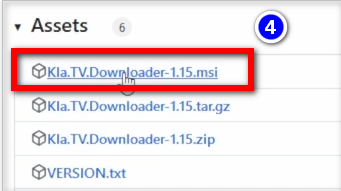
- <span data-darkreader-inline-bgcolor="" style="background-color: rgb(251, 238, 184);"><span data-darkreader-inline-bgcolor="" lang="DE" style="font-size: 16pt; line-height: 107%; font-family: Wingdings; background-color: rgb(251, 238, 184);"><span style="mso-char-type: symbol; mso-symbol-font-family: Wingdings;"><span data-darkreader-inline-bgcolor="" lang="EN-US" style="font-size: 11pt; line-height: 107%; font-family: 'Cambria Math', serif; background-color: rgb(251, 238, 184);">❺</span></span></span> Öffne das Programm mit einem Doppelklick</span>  
      
    [![grafik.png](https://wiki.kla.tv/uploads/images/gallery/2024-11/scaled-1680-/qnzVxcqoXLWrBM1l-grafik.png)](https://wiki.kla.tv/uploads/images/gallery/2024-11/qnzVxcqoXLWrBM1l-grafik.png)[![grafik.png](https://wiki.kla.tv/uploads/images/gallery/2024-11/scaled-1680-/GXplVmJvudLRCH8Y-grafik.png)](https://wiki.kla.tv/uploads/images/gallery/2024-11/GXplVmJvudLRCH8Y-grafik.png)
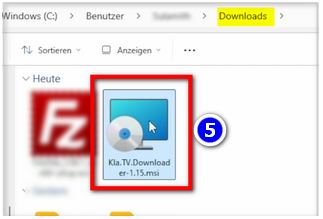
- <span data-darkreader-inline-bgcolor="" style="background-color: rgb(251, 238, 184);">Eine **Warnmeldung** erscheint → klicke auf <span data-darkreader-inline-bgcolor="" lang="EN-US" style="font-size: 11pt; line-height: 107%; font-family: 'Cambria Math', serif; background-color: rgb(251, 238, 184);">❻</span> "**Weitere Informationen**" → dann auf <span data-darkreader-inline-bgcolor="" lang="EN-US" style="font-size: 11pt; line-height: 107%; font-family: 'Cambria Math', serif; background-color: rgb(251, 238, 184);">❼</span> "**Trotzdem ausführen**"</span>  
      
    [![grafik.png](https://wiki.kla.tv/uploads/images/gallery/2024-11/scaled-1680-/8KGYRLXv6yY7SAwp-grafik.png)](https://wiki.kla.tv/uploads/images/gallery/2024-11/8KGYRLXv6yY7SAwp-grafik.png)  
    <span data-darkreader-inline-bgcolor="" style="background-color: rgb(230, 94, 34);">HINWEIS:</span> In wenigen Fällen verweigert Windows die Installation oder den Start des kla.tv-Downloaders mit einer Virus/Trojaner-Meldung (z.B. Wacatac.B!ml), ohne eine Möglichkeit eine Ausnahme zu erreichen. Da Microsoft allgemein zunehmend mehr Kontrolle über das Windows-System für sich beansprucht, empfehlen wir den eigenen PC mit Hilfe der Anleitung von [https://anti-control.info/](https://anti-control.info/) davon zu befreien!

- <span data-darkreader-inline-bgcolor="" style="background-color: rgb(251, 238, 184);">**Installationsfenster** öffnet sich: Gehe auf <span data-darkreader-inline-bgcolor="" lang="EN-US" style="font-size: 11pt; line-height: 107%; font-family: 'Cambria Math', serif; background-color: rgb(251, 238, 184);">❽</span> **Next** → **Next** → **Install** → **Finish** → das Programm ist fertig installiert</span>  
      
    [![grafik.png](https://wiki.kla.tv/uploads/images/gallery/2024-11/scaled-1680-/GOVLl0dO2RnwiPvj-grafik.png)](https://wiki.kla.tv/uploads/images/gallery/2024-11/GOVLl0dO2RnwiPvj-grafik.png)
- <span data-darkreader-inline-bgcolor="" style="background-color: rgb(251, 238, 184);">Öffne es unter <span data-darkreader-inline-bgcolor="" lang="EN-US" style="font-size: 11pt; line-height: 107%; font-family: 'Cambria Math', serif; background-color: rgb(251, 238, 184);">❾</span> "**Windows**" → **Suchfeld: Downloader** → </span>**<span data-darkreader-inline-bgcolor="" style="background-color: rgb(251, 238, 184);">Kla.TV Downloader</span>  
      
    [![grafik.png](https://wiki.kla.tv/uploads/images/gallery/2024-11/scaled-1680-/xRnmM3IsrlAKyUx4-grafik.png)](https://wiki.kla.tv/uploads/images/gallery/2024-11/xRnmM3IsrlAKyUx4-grafik.png)**
- <span data-darkreader-inline-bgcolor="" style="background-color: rgb(251, 238, 184);">Warnhinweis: <span data-darkreader-inline-bgcolor="" lang="EN-US" style="font-size: 11pt; line-height: 107%; font-family: 'Cambria Math', serif; background-color: rgb(251, 238, 184);">❿</span> </span>**<span data-darkreader-inline-bgcolor="" style="background-color: rgb(251, 238, 184);">Zulassen</span>  
      
    [![grafik.png](https://wiki.kla.tv/uploads/images/gallery/2024-11/scaled-1680-/oJRW5KcKLYoOBexb-grafik.png)](https://wiki.kla.tv/uploads/images/gallery/2024-11/oJRW5KcKLYoOBexb-grafik.png)**

### <span data-darkreader-inline-bgcolor="" style="background-color: rgb(241, 196, 15);">**3. Kla.TV Downloader einrichten:**</span>


- <span data-darkreader-inline-bgcolor="" style="background-color: rgb(251, 238, 184);">Im geöffneten Programm erscheint ein Fenster. Gebe an, <span data-darkreader-inline-bgcolor="" lang="DE" style="font-size: 16pt; line-height: 107%; font-family: Wingdings; background-color: rgb(251, 238, 184);"><span style="mso-char-type: symbol; mso-symbol-font-family: Wingdings;"><span data-darkreader-inline-bgcolor="" lang="EN-US" style="font-size: 11pt; line-height: 107%; font-family: 'Cambria Math', serif; background-color: rgb(251, 238, 184);">❶</span></span></span> **wo die heruntergeladenen Dateien gespeichert** werden sollen (am besten eine externe Festplatte benutzen) → erstelle einen <span data-darkreader-inline-bgcolor="" lang="DE" style="font-size: 16pt; line-height: 107%; font-family: Wingdings; background-color: rgb(251, 238, 184);"><span style="mso-char-type: symbol; mso-symbol-font-family: Wingdings;"><span data-darkreader-inline-bgcolor="" lang="EN-US" style="font-size: 11pt; line-height: 107%; font-family: 'Cambria Math', serif; background-color: rgb(251, 238, 184);"><span data-darkreader-inline-bgcolor="" lang="DE" style="font-size: 16pt; line-height: 107%; font-family: Wingdings; background-color: rgb(251, 238, 184);"><span data-darkreader-inline-bgcolor="" lang="EN-US" style="font-size: 11pt; line-height: 107%; font-family: 'Cambria Math', serif; background-color: rgb(251, 238, 184);">❷</span></span></span></span></span> **neuen Ordner** mit dem Namen "Kla.TV-Sicherung" und wähle diesen Ordner an</span>[![grafik.png](https://wiki.kla.tv/uploads/images/gallery/2024-11/scaled-1680-/TfuSlhBJnOQuvPWb-grafik.png)](https://wiki.kla.tv/uploads/images/gallery/2024-11/TfuSlhBJnOQuvPWb-grafik.png)
- <span data-darkreader-inline-bgcolor="" style="background-color: rgb(251, 238, 184);">Meldung erscheint, drücke <span data-darkreader-inline-bgcolor="" lang="DE" style="font-size: 16pt; line-height: 107%; font-family: Wingdings; background-color: rgb(251, 238, 184);"><span style="mso-char-type: symbol; mso-symbol-font-family: Wingdings;"><span data-darkreader-inline-bgcolor="" lang="EN-US" style="font-size: 11pt; line-height: 107%; font-family: 'Cambria Math', serif; background-color: rgb(251, 238, 184);">❸</span></span></span> "**Zulassen**"</span>  
      
     ![grafik.png](https://wiki.kla.tv/uploads/images/gallery/2024-11/scaled-1680-/Wi99hXuOIyuQbbPN-grafik.png)  
      
    
    - <span data-darkreader-inline-bgcolor="" style="background-color: rgb(194, 224, 244);">***► TIPP:***</span> *Möchtest du im Nachhinein den Festplatten-Speicherort ändern, gehe im Kla.TV-Downloader-Programm auf die Menüleiste "Einstellugen" → "Download-Verzeichnis auswählen"*

### <span data-darkreader-inline-bgcolor="" style="background-color: rgb(241, 196, 15);">**4. qBittorrent (Torrent-Client):** </span>

- <span data-darkreader-inline-bgcolor="" style="background-color: rgb(251, 238, 184);">Klicke im Kla.TV Downloader-Programm auf <span data-darkreader-inline-bgcolor="" lang="DE" style="font-size: 16pt; line-height: 107%; font-family: Wingdings; background-color: rgb(251, 238, 184);"><span style="mso-char-type: symbol; mso-symbol-font-family: Wingdings;"><span data-darkreader-inline-bgcolor="" lang="EN-US" style="font-size: 11pt; line-height: 107%; font-family: 'Cambria Math', serif; background-color: rgb(251, 238, 184);">❶</span></span></span> "**Torrent-Client öffnen**" und Torrent Client wird geöffnet (Torrent Client ist die ausführende Instanz von allem was du im Kla.TV-Downloader einträgst)</span>  
      
    [![grafik.png](https://wiki.kla.tv/uploads/images/gallery/2024-11/scaled-1680-/yvJAJsW6fwrGdqym-grafik.png)](https://wiki.kla.tv/uploads/images/gallery/2024-11/yvJAJsW6fwrGdqym-grafik.png)
- <span data-darkreader-inline-bgcolor="" style="background-color: rgb(251, 238, 184);">In der <span data-darkreader-inline-bgcolor="" lang="DE" style="font-size: 16pt; line-height: 107%; font-family: Wingdings; background-color: rgb(251, 238, 184);"><span style="mso-char-type: symbol; mso-symbol-font-family: Wingdings;"><span data-darkreader-inline-bgcolor="" lang="EN-US" style="font-size: 11pt; line-height: 107%; font-family: 'Cambria Math', serif; background-color: rgb(251, 238, 184);">❷</span></span></span> **Menüleiste** siehst du zwei Symbole der beiden Programme. Auch wenn die Programme geschlossen sind, sind sie im Hintergrund aktiv (wenn du die Symbole siehst). Wenn nicht, Programm erneut öffnen.</span>  
      
    ![grafik.png](https://wiki.kla.tv/uploads/images/gallery/2024-11/scaled-1680-/8UeMJP1mxxT6OrQI-grafik.png) *(TIPP: die zwei Symbole können mit gehaltener Maustaste nach unten in die Tray-Menüleiste zu den anderen Symbolen gezogen werden. So hast du immer im Überblick, ob die Programme gestartet sind).*
- *Weitere Erklärung zur Oberfläche von Torrent-Client kannst du **im Video oben nachsehen** (man muss dort aber nichts speziell einstellen)*


### <span data-darkreader-inline-bgcolor="" style="background-color: rgb(241, 196, 15);">**5. Synchronisieren:** </span>

<p class="callout info">Der Kla.TV-Downloader fügt Synchronisierungsregeln hinzu und schickt diese an den qBittorrent, der daraufhin die Sendungen herunterlädt und sie immer auf den aktuellsten Stand hält. Das bedeutet: Der Kla.TV-Downloader definiert lediglich nur wie und was heruntergeladen werden soll, während qBittorrent die Arbeit vom herunterladen übernimmt.</p>

- <span data-darkreader-inline-bgcolor="" style="background-color: rgb(251, 238, 184);">Öffne den **kla.TV-Downloader** → wähle deine <span data-darkreader-inline-bgcolor="" lang="DE" style="font-size: 16pt; line-height: 107%; font-family: Wingdings; background-color: rgb(251, 238, 184);"><span style="mso-char-type: symbol; mso-symbol-font-family: Wingdings;"><span data-darkreader-inline-bgcolor="" lang="EN-US" style="font-size: 11pt; line-height: 107%; font-family: 'Cambria Math', serif; background-color: rgb(251, 238, 184);">❶</span></span></span> **gewünschten Regeln**. (Siehe Erklärungen im Bild)</span>  
      
    [![grafik.png](https://wiki.kla.tv/uploads/images/gallery/2024-11/scaled-1680-/Q9Op8e0KGpDAFHm6-grafik.png)](https://wiki.kla.tv/uploads/images/gallery/2024-11/Q9Op8e0KGpDAFHm6-grafik.png)[![grafik.png](https://wiki.kla.tv/uploads/images/gallery/2024-11/scaled-1680-/9Ok8odRA6beoyTpF-grafik.png)](https://wiki.kla.tv/uploads/images/gallery/2024-11/9Ok8odRA6beoyTpF-grafik.png)
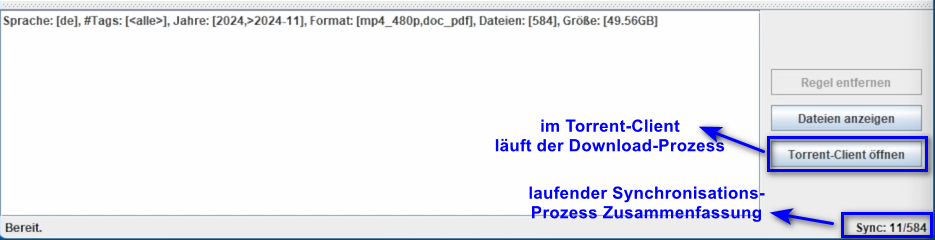
- <span data-darkreader-inline-bgcolor="" style="background-color: rgb(251, 238, 184);">Möchtest du **mehrere Qualiltäten** auswählen, musst du mehrmals eine "Regel hinzufügen". Dann wird dieser Auftrag an den Torrent-Client geschickt und dort runtergeladen. </span>  
      
    
    - <span data-darkreader-inline-bgcolor="" style="background-color: rgb(251, 238, 184);">Hier ein <span data-darkreader-inline-bgcolor="" lang="DE" style="font-size: 16pt; line-height: 107%; font-family: Wingdings; background-color: rgb(251, 238, 184);"><span style="mso-char-type: symbol; mso-symbol-font-family: Wingdings;"><span data-darkreader-inline-bgcolor="" lang="EN-US" style="font-size: 11pt; line-height: 107%; font-family: 'Calibri', sans-serif; background-color: rgb(251, 238, 184);"> </span><span data-darkreader-inline-bgcolor="" lang="EN-US" style="font-size: 11pt; line-height: 107%; font-family: 'Cambria Math', serif; background-color: rgb(251, 238, 184);">❷</span></span></span> **Beispiel**, wenn du eine neue Regel erfassen möchtest, mit z.B. **NUR Word-Dateien**. Dann deaktiviere Video und Audio, wähle die gewünschten Jahre und füge die Regel hinzu. (Bei Video ist Audio dabei;)</span>[![grafik.png](https://wiki.kla.tv/uploads/images/gallery/2024-11/scaled-1680-/MyrlhWDMHW4eBhyZ-grafik.png)](https://wiki.kla.tv/uploads/images/gallery/2024-11/MyrlhWDMHW4eBhyZ-grafik.png)
- <span data-darkreader-inline-bgcolor="" style="background-color: rgb(251, 238, 184);">**Programme können geschlossen werden** und es ladet im Hintergrund weiter</span>

#### **<span data-darkreader-inline-bgcolor="" lang="DE" style="background-color: rgb(241, 196, 15);"><span lang="EN-US"> 5.1 Was wenn</span></span><span data-darkreader-inline-bgcolor="" lang="DE" style="background-color: rgb(241, 196, 15);"><span lang="EN-US"> die Downloads nicht starten und die Synchronisation nicht funktioniert? </span></span>**

<p class="callout warning">Falls die Downloads im Torrent-Client QBittorrent nicht starten kann es an einem Problem mit der Synchronisation zwischen dem Kla.TV-Downloader und dem Torrent-Client liegen. Um das Problem zu beheben befolgen Sie bitte die nächste Anweisung.</p>

- <span data-darkreader-inline-bgcolor="" lang="DE" style="background-color: rgb(251, 238, 184);"><span lang="EN-US">Im Menü des Kla.TV-Downloaders <span data-darkreader-inline-bgcolor="" style="background-color: rgb(251, 238, 184);"><span data-darkreader-inline-bgcolor="" lang="DE" style="font-size: 16pt; line-height: 107%; font-family: Wingdings; background-color: rgb(251, 238, 184);"><span style="mso-char-type: symbol; mso-symbol-font-family: Wingdings;"><span data-darkreader-inline-bgcolor="" lang="EN-US" style="font-size: 11pt; line-height: 107%; font-family: 'Cambria Math', serif; background-color: rgb(251, 238, 184);">❶ </span></span></span></span>**Einstellungen** wählen und dann die unterste Option <span data-darkreader-inline-bgcolor="" style="background-color: rgb(251, 238, 184);"><span data-darkreader-inline-bgcolor="" lang="DE" style="font-size: 16pt; line-height: 107%; font-family: Wingdings; background-color: rgb(251, 238, 184);"><span style="mso-char-type: symbol; mso-symbol-font-family: Wingdings;"><span data-darkreader-inline-bgcolor="" lang="EN-US" style="font-size: 11pt; line-height: 107%; font-family: 'Cambria Math', serif; background-color: rgb(251, 238, 184);">❷</span></span></span> **Empfohlene Torrent-Client-Einstellungen setzen** anklicken. </span></span></span>

[![image.png](https://wiki.kla.tv/uploads/images/gallery/2025-02/scaled-1680-/0BDg5wfSZUeFQk56-image.png)](https://wiki.kla.tv/uploads/images/gallery/2025-02/0BDg5wfSZUeFQk56-image.png)

- Unten links im Fenster des Kla.TV-Downloaders sollte im Anschluss folgende Meldung erscheinen:

[![EmpfohleneEinstellungenGesetzt.png](https://wiki.kla.tv/uploads/images/gallery/2025-02/scaled-1680-/LornpXWtrJ7B7lkB-empfohleneeinstellungengesetzt.png)](https://wiki.kla.tv/uploads/images/gallery/2025-02/LornpXWtrJ7B7lkB-empfohleneeinstellungengesetzt.png)

### <span data-darkreader-inline-bgcolor="" style="background-color: rgb(241, 196, 15);">**6. Upload für andere Leute zur Verfügung stellen:** </span>

- <span data-darkreader-inline-bgcolor="" style="background-color: rgb(251, 238, 184);">Der qBittorrent stellt standardmässig alle Dateien die man runterlädt anderen Leuten zur Verfügung. <span style="text-decoration: underline;">Möchte man das aus irgendwelchen Gründen nicht</span>, dann kann es deaktiviert werden:</span>
- <span data-darkreader-inline-bgcolor="" style="background-color: rgb(251, 238, 184);">Öffne <span data-darkreader-inline-bgcolor="" lang="DE" style="font-size: 16pt; line-height: 107%; font-family: Wingdings; background-color: rgb(251, 238, 184);"><span style="mso-char-type: symbol; mso-symbol-font-family: Wingdings;"><span data-darkreader-inline-bgcolor="" lang="EN-US" style="font-size: 11pt; line-height: 107%; font-family: 'Cambria Math', serif; background-color: rgb(251, 238, 184);">❶</span></span></span> **qBittorrent** → **Einstellungen** → </span>**<span data-darkreader-inline-bgcolor="" style="background-color: rgb(251, 238, 184);">Nur herunterladen (kein Torrent-Upload)  
      
    [![grafik.png](https://wiki.kla.tv/uploads/images/gallery/2024-11/scaled-1680-/TTyJJDELOuYYB7pb-grafik.png)](https://wiki.kla.tv/uploads/images/gallery/2024-11/TTyJJDELOuYYB7pb-grafik.png)  
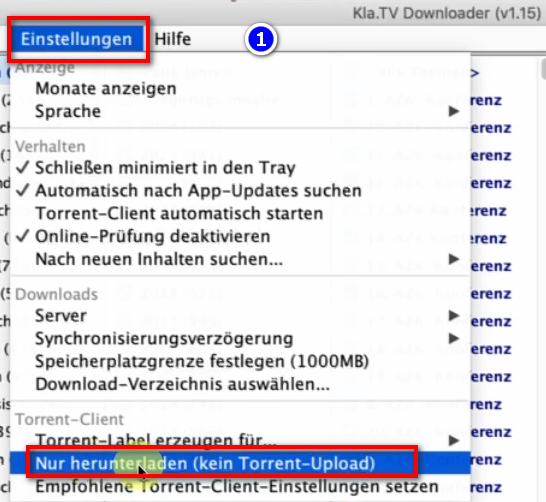
    </span>**

### <span data-darkreader-inline-bgcolor="" style="background-color: rgb(241, 196, 15);">**7. Empfehlung: Energieoptionen so einstellen, dass Computer nicht automatisch runterfährt:** </span>

<p class="callout info">Dieses Programm kann schnell mehrere Tage brauche, bis alles synchronisiert ist. Um diesen Vorgang zu verschnellern, empfielt es sich, den Energiesparmodus auszuschalten</p>

- <span data-darkreader-inline-bgcolor="" style="background-color: rgb(251, 238, 184);">Wird der Computer neu gestartet, musst du die Applikation wieder neu starten müssen (siehe Anleitung Punkt 8)</span>
- <span data-darkreader-inline-bgcolor="" style="background-color: rgb(251, 238, 184);">Energieoptionen so ändern, dass der Computer nicht runterfährt: **Windowssymbol**→ **Suchfeld: Energiesparplan** → <span data-darkreader-inline-bgcolor="" lang="DE" style="font-size: 16pt; line-height: 107%; font-family: Wingdings; background-color: rgb(251, 238, 184);"><span style="mso-char-type: symbol; mso-symbol-font-family: Wingdings;"><span data-darkreader-inline-bgcolor="" lang="EN-US" style="font-size: 11pt; line-height: 107%; font-family: 'Cambria Math', serif; background-color: rgb(251, 238, 184);">❶</span></span></span> **Energiesparplan bearbeiten →** <span data-darkreader-inline-bgcolor="" lang="DE" style="font-size: 16pt; line-height: 107%; font-family: Wingdings; background-color: rgb(251, 238, 184);"><span style="mso-char-type: symbol; mso-symbol-font-family: Wingdings;"><span data-darkreader-inline-bgcolor="" lang="EN-US" style="font-size: 11pt; line-height: 107%; font-family: 'Cambria Math', serif; background-color: rgb(251, 238, 184);">❷</span></span></span> **Energiesparmodus nach: Niemals → Änderung speichern**</span>

![grafik.png](https://wiki.kla.tv/uploads/images/gallery/2024-11/scaled-1680-/ONpMkNkqaQmKdYtX-grafik.png)  
  
![grafik.png](https://wiki.kla.tv/uploads/images/gallery/2024-11/scaled-1680-/c6InTIccNIpkCbYb-grafik.png)

Eventuell noch bei "Erweiterte Energieeinstellungen" den Ruhezustand deaktivieren:

[![image.png](https://wiki.kla.tv/uploads/images/gallery/2025-02/scaled-1680-/um89TApH5tJcHwLM-image.png)](https://wiki.kla.tv/uploads/images/gallery/2025-02/um89TApH5tJcHwLM-image.png)
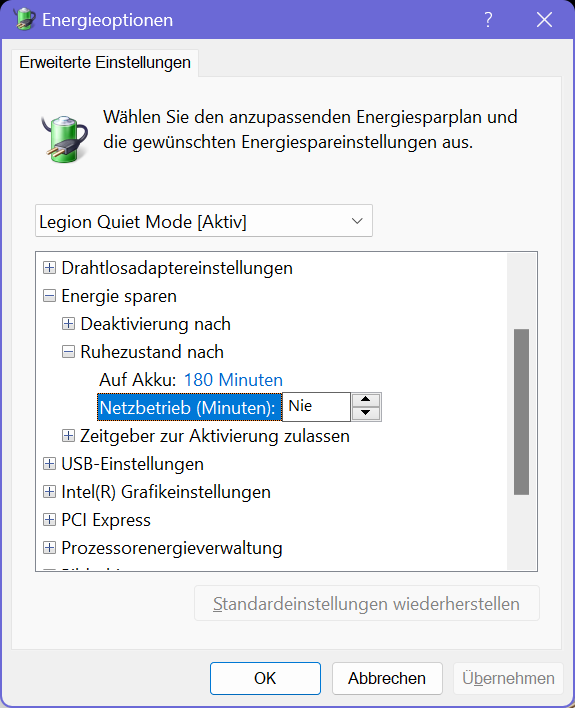
- <span data-darkreader-inline-bgcolor="" style="background-color: rgb(251, 238, 184);">Computer laufen lassen, bis alle Dateien runtergeladen sind</span>

### <span data-darkreader-inline-bgcolor="" style="background-color: rgb(241, 196, 15);">**8. Programm neu starten, nach Computerneustart / Archiv aktuell behalten:** </span>

- <span data-darkreader-inline-bgcolor="" style="background-color: rgb(251, 238, 184);">Wenn du deinen Computer neu startest, sind deine Downloadprogramm geschlossen. Damit der Downloadprozess weiterlaufen kann, solltest du den <span data-darkreader-inline-bgcolor="" lang="DE" style="font-size: 16pt; line-height: 107%; font-family: Wingdings; background-color: rgb(251, 238, 184);"><span style="mso-char-type: symbol; mso-symbol-font-family: Wingdings;"><span data-darkreader-inline-bgcolor="" lang="EN-US" style="font-size: 11pt; line-height: 107%; font-family: 'Cambria Math', serif; background-color: rgb(251, 238, 184);">❶</span></span></span> **Kla.TV-Downloader** **neu öffnen**. (Programmverknüpfung auf dem Desktop). Somit wird der Downloadprozess automatisch fortgesetzt.</span> **[![grafik.png](https://wiki.kla.tv/uploads/images/gallery/2024-11/scaled-1680-/eNjNTP3E3Q1DowMV-grafik.png)](https://wiki.kla.tv/uploads/images/gallery/2024-11/eNjNTP3E3Q1DowMV-grafik.png)**
- <span data-darkreader-inline-bgcolor="" style="background-color: rgb(251, 238, 184);">**Achte darauf, dass du von Zeit zu Zeit dieses Programm öffnest, dass die aktuellen Sendungen automatisch auf deine Festplatte runtergeladen werden** (du musst nur öffnen und nichts weiter machen).</span>

### <span data-darkreader-inline-bgcolor="" style="background-color: rgb(241, 196, 15);">**9. Update installieren:** </span>

- **<span data-darkreader-inline-bgcolor="" style="background-color: rgb(251, 238, 184);">Von Zeit zu Zeit wird der Kla.TV-Downloader optimiert und du solltest das Update installieren. So funktioniert es:  
    </span>**
- <span data-darkreader-inline-bgcolor="" style="background-color: rgb(251, 238, 184);">Öffne den Kla.TV Downloader</span>
- <span data-darkreader-inline-bgcolor="" style="background-color: rgb(251, 238, 184);">Diese Meldung erscheint: (Wenn nicht, dann gehe im Kla.TV Downloader auf → Hilfe → Nach Updates suchen</span>  
    [![grafik.png](https://wiki.kla.tv/uploads/images/gallery/2024-12/scaled-1680-/CPxIwgY3Aw6GYURU-grafik.png)](https://wiki.kla.tv/uploads/images/gallery/2024-12/CPxIwgY3Aw6GYURU-grafik.png)
    
    [![grafik.png](https://wiki.kla.tv/uploads/images/gallery/2024-12/scaled-1680-/YaiCj1fp8YsCOMGW-grafik.png)](https://wiki.kla.tv/uploads/images/gallery/2024-12/YaiCj1fp8YsCOMGW-grafik.png)
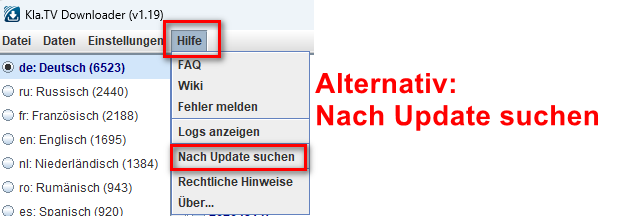
- <span data-darkreader-inline-bgcolor="" style="background-color: rgb(251, 238, 184);">Das Internet öffnet sich, scrolle runter zu "Assets" → wähle die .msi-Datei:</span>  
    [![grafik.png](https://wiki.kla.tv/uploads/images/gallery/2024-12/scaled-1680-/023Us4MTkHQ8u2Xi-grafik.png)](https://wiki.kla.tv/uploads/images/gallery/2024-12/023Us4MTkHQ8u2Xi-grafik.png)
- <span data-darkreader-inline-bgcolor="" style="background-color: rgb(251, 238, 184);">Klicke auf die runtergeladene Installations-Datei:</span>  
    [![grafik.png](https://wiki.kla.tv/uploads/images/gallery/2024-12/scaled-1680-/STuGjeNRy39lXwMZ-grafik.png)](https://wiki.kla.tv/uploads/images/gallery/2024-12/STuGjeNRy39lXwMZ-grafik.png)
- <span data-darkreader-inline-bgcolor="" style="background-color: rgb(251, 238, 184);">Folge den Anweisungen:  
    </span>  
    [![grafik.png](https://wiki.kla.tv/uploads/images/gallery/2024-12/scaled-1680-/lDrsbwRT7NhCIHT5-grafik.png)](https://wiki.kla.tv/uploads/images/gallery/2024-12/lDrsbwRT7NhCIHT5-grafik.png)
    
    [![grafik.png](https://wiki.kla.tv/uploads/images/gallery/2024-12/scaled-1680-/DuS62hqvtDiwriHK-grafik.png)](https://wiki.kla.tv/uploads/images/gallery/2024-12/DuS62hqvtDiwriHK-grafik.png)
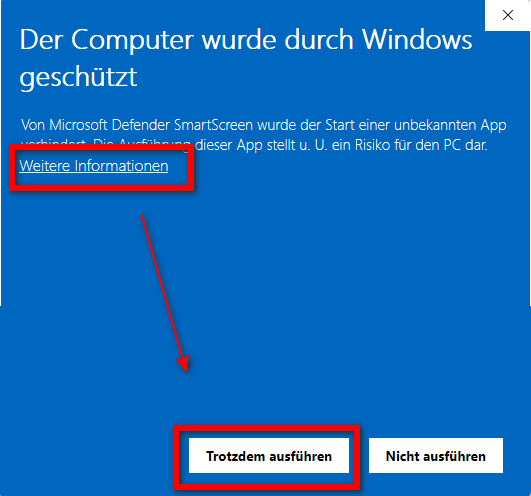
    
    [![grafik.png](https://wiki.kla.tv/uploads/images/gallery/2024-12/scaled-1680-/SDWAQqrIkcX2Z0sl-grafik.png)](https://wiki.kla.tv/uploads/images/gallery/2024-12/SDWAQqrIkcX2Z0sl-grafik.png)[![grafik.png](https://wiki.kla.tv/uploads/images/gallery/2024-12/scaled-1680-/TWYrM2csZQSt1XwL-grafik.png)](https://wiki.kla.tv/uploads/images/gallery/2024-12/TWYrM2csZQSt1XwL-grafik.png)
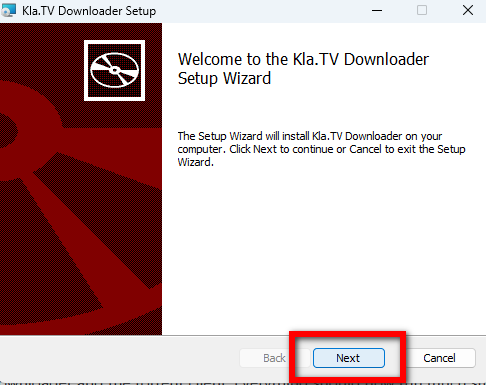
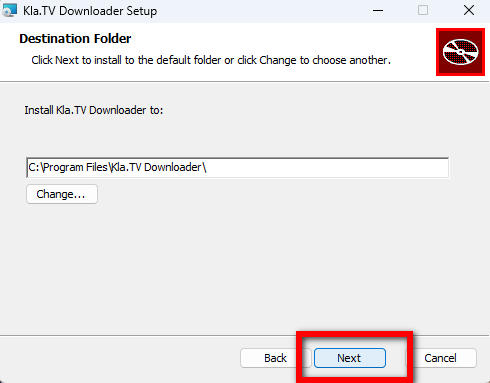
    
    [![grafik.png](https://wiki.kla.tv/uploads/images/gallery/2024-12/scaled-1680-/hEzR11mnRudFoalG-grafik.png)](https://wiki.kla.tv/uploads/images/gallery/2024-12/hEzR11mnRudFoalG-grafik.png)
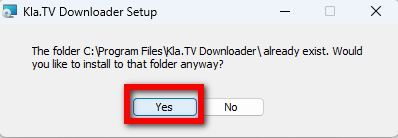
    
    [![grafik.png](https://wiki.kla.tv/uploads/images/gallery/2024-12/scaled-1680-/n8sRInnKKiM5K9SM-grafik.png)](https://wiki.kla.tv/uploads/images/gallery/2024-12/n8sRInnKKiM5K9SM-grafik.png)[![grafik.png](https://wiki.kla.tv/uploads/images/gallery/2024-12/scaled-1680-/FiZnOi5QIPfaKSkS-grafik.png)](https://wiki.kla.tv/uploads/images/gallery/2024-12/FiZnOi5QIPfaKSkS-grafik.png)
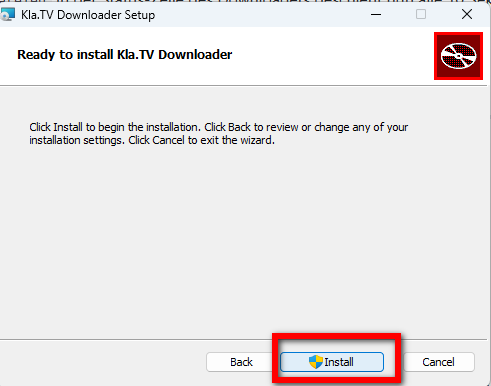
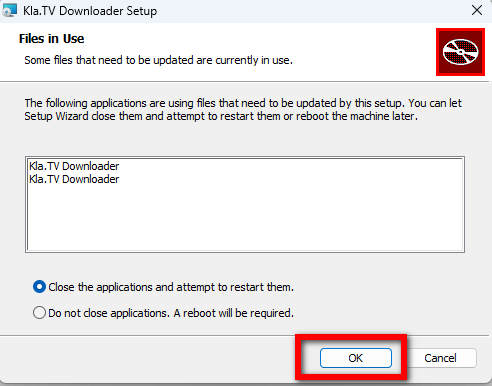
    
    [![grafik.png](https://wiki.kla.tv/uploads/images/gallery/2024-12/scaled-1680-/soHtgJxJGYlBuKpm-grafik.png)](https://wiki.kla.tv/uploads/images/gallery/2024-12/soHtgJxJGYlBuKpm-grafik.png)
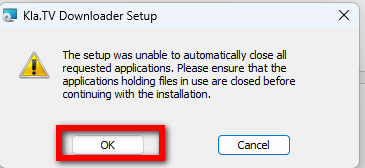
    
    [![grafik.png](https://wiki.kla.tv/uploads/images/gallery/2024-12/scaled-1680-/xa2mDeOnwfUW7BmE-grafik.png)](https://wiki.kla.tv/uploads/images/gallery/2024-12/xa2mDeOnwfUW7BmE-grafik.png)[![grafik.png](https://wiki.kla.tv/uploads/images/gallery/2024-12/scaled-1680-/u3XvGrOTW4sCrsBz-grafik.png)](https://wiki.kla.tv/uploads/images/gallery/2024-12/u3XvGrOTW4sCrsBz-grafik.png)
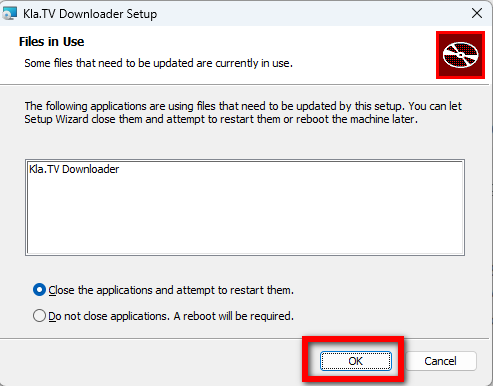
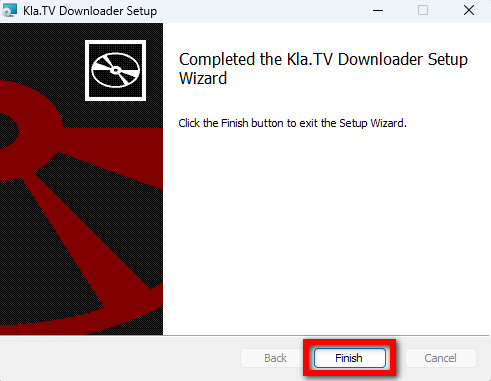
    
    [![grafik.png](https://wiki.kla.tv/uploads/images/gallery/2024-12/scaled-1680-/H216sMMqwgNrDH1M-grafik.png)](https://wiki.kla.tv/uploads/images/gallery/2024-12/H216sMMqwgNrDH1M-grafik.png)
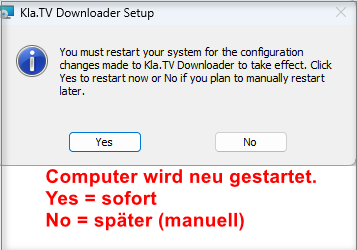
- <span data-darkreader-inline-bgcolor="" style="background-color: rgb(251, 238, 184);">Öffne erneut den Kla.TV-Downloader und geniesse die optimierte Version 😊</span>

##### **Tipp für HDD-Laufwerke (Festplatten):**  
Es kann sein, dass schneller heruntergeladen wird, wenn man nur 1 Download zulässt: [![image.png](https://wiki.kla.tv/uploads/images/gallery/2025-02/scaled-1680-/PnHtxIQofqtusdRM-image.png)](https://wiki.kla.tv/uploads/images/gallery/2025-02/PnHtxIQofqtusdRM-image.png)   
[![Screenshot 2025-01-19_KlaTV-Download_QBT.png](https://wiki.kla.tv/uploads/images/gallery/2025-01/scaled-1680-/A6QSunlWubAyiqfg-screenshot-2025-01-19-klatv-download-qbt.png)](https://wiki.kla.tv/uploads/images/gallery/2025-01/A6QSunlWubAyiqfg-screenshot-2025-01-19-klatv-download-qbt.png)  
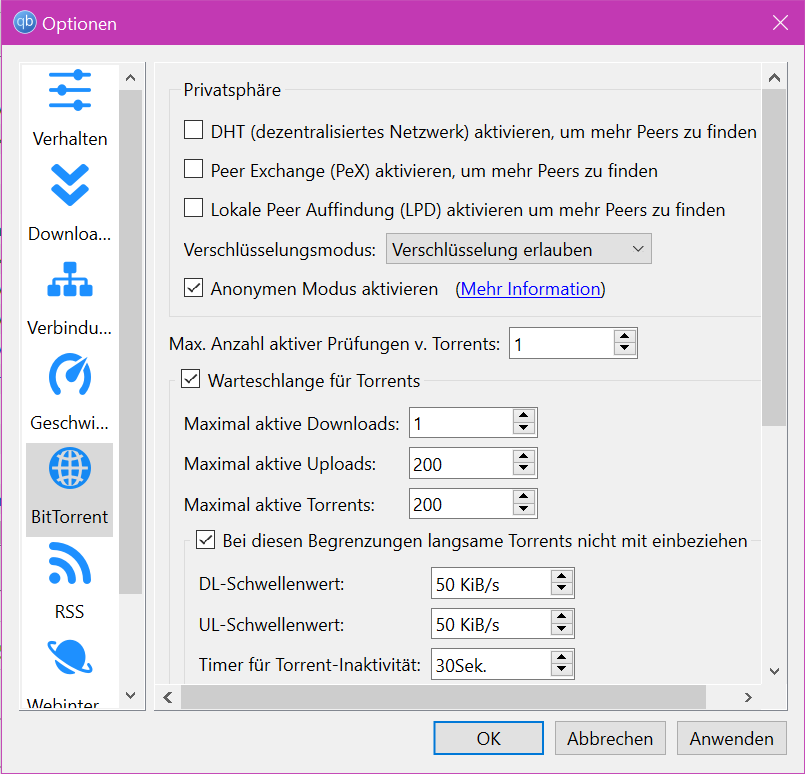
[![Screenshot_2025-01-18_1812_KlaTV-Download+.png](https://wiki.kla.tv/uploads/images/gallery/2025-01/scaled-1680-/7MCPADbx0LfClgeA-screenshot-2025-01-18-1812-klatv-download.png)](https://wiki.kla.tv/uploads/images/gallery/2025-01/7MCPADbx0LfClgeA-screenshot-2025-01-18-1812-klatv-download.png)  
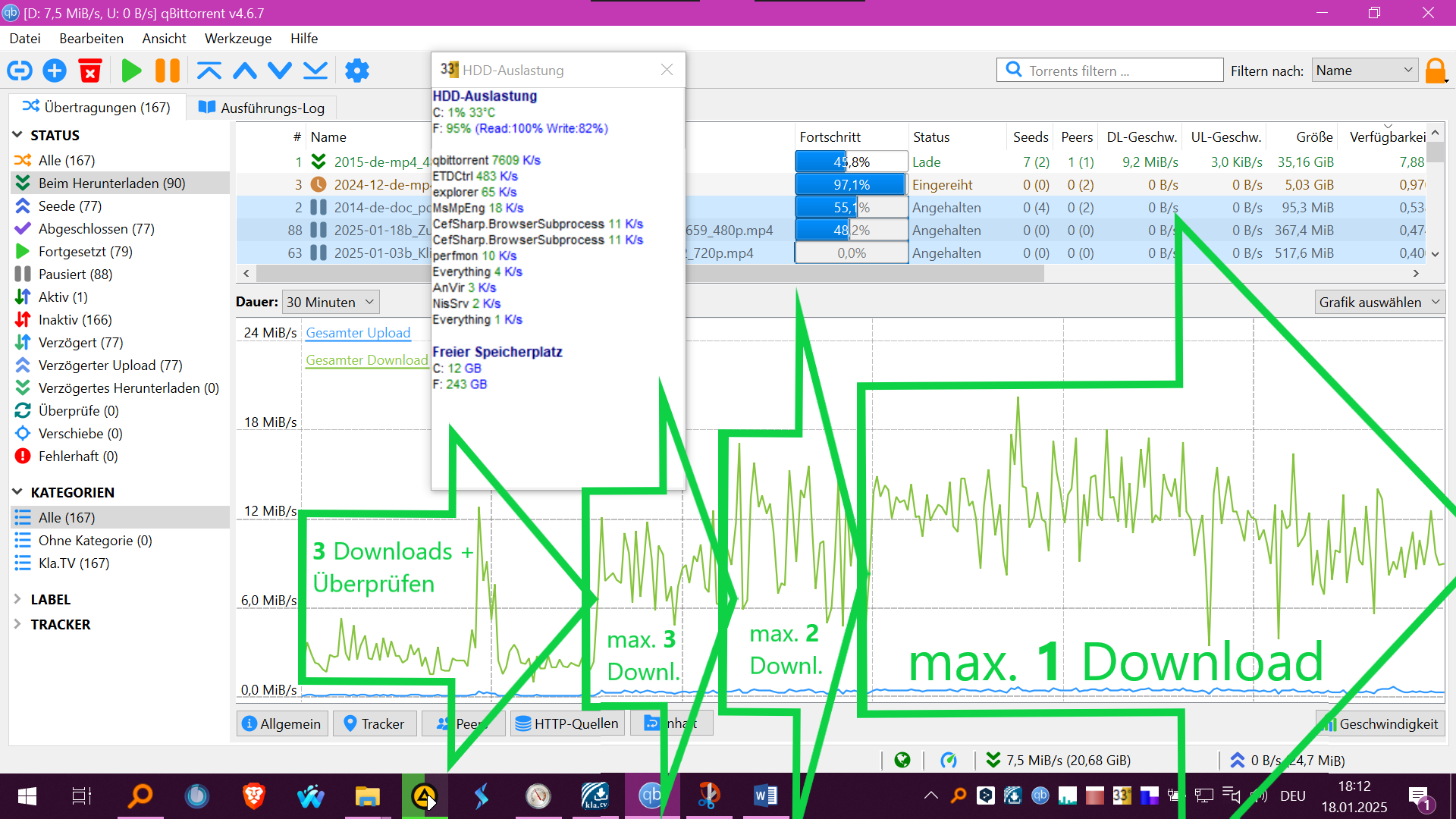
  
'Nach Wiederaufnahme der Downloads wurden gleichzeitig die vorhanden Dateien auf Vollständigkeit überprüft, was die HDD auch auslasten kann. Das kann man über "Max. Anzahl aktiver Prüfungen v. Torrents: 0" manuell pausieren und später fortsetzen:  
  
[![image.png](https://wiki.kla.tv/uploads/images/gallery/2025-02/scaled-1680-/WTF0Ochfl3T83MQ4-image.png)](https://wiki.kla.tv/uploads/images/gallery/2025-02/WTF0Ochfl3T83MQ4-image.png)  

##### Weitere Artikel, die dich interessieren könnten:  
  
[**Gesichertes Archiv durchsuchen**](https://wiki.kla.tv/books/klatv-sichern/page/gesichertes-archiv-durchsuchen)

### Anleitung für Windows 7:

Grundsätzlich ist der Installations-Prozess gleich wie bei Windows 10. Leider kann aber die im Installationsscript enthaltende portalbe Version vom qBittorrent 5 und grösser nicht ausgeführt werden und gibt eine entsprechende Fehlermeldung aus..

*Du kannst wie folgt vorgehen:*

1. Lade dir qBittorrent in der Version v4.4.5 von diesem Link herunter: [https://sourceforge.net/projects/qbittorrent/files/qbittorrent-win32/qbittorrent-4.4.5/](https://sourceforge.net/projects/qbittorrent/files/qbittorrent-win32/qbittorrent-4.4.5/) und installiere das Programm
2. Konfiguriere den qBittorrent manuell mit Hilfe dieser Instruktion: [https://github.com/Kla-TV/downloader/wiki/Torrent%E2%80%90Client-manuell-einrichten](https://github.com/Kla-TV/downloader/wiki/Torrent%E2%80%90Client-manuell-einrichten)

Tipp: Um ein Gefühl zu bekommen wie der "Kla.TV Downloader" und qBittorrent zusammenarbeitet, schaue dir auch die Anleitungen von [Linux](https://wiki.kla.tv/books/klatv-sichern/page/linux-installation-und-nutzung-von-klatv-downloader) oder [MAC](https://wiki.kla.tv/books/klatv-sichern/page/mac-installation-und-nutzung-von-klatv-downloader) an. Dort gibt es vertieften Einblick.

# MAC: Installation und Nutzung von "Kla.TV Downloader"

### **Was lernst du in diesem Artikel?**

Du lernst, wie du den Kla.TV-Downloader auf Mac installieren kannst. Der Kla.TV-Downloader hält dein Archiv automatisch immer auf dem aktuellen Stand. Gleichzeitig kannst du mit deinem Videoanschluss anderen Nutzern den Upload zur Verfügung stellen. Los gehts:

### **Videoanleitung: (13min)**

<iframe allowfullscreen="allowfullscreen" frameborder="0" height="332" src="https://www.kla.tv/index.php?a=showembed&vidid=31128&lang=de" width="590"></iframe>

<div class="responsive-iframe" id="bkmrk--1"></div><p class="callout warning">Wir empfehlen, zuerst das Video anzuschauen, um die schriftliche Anleitung besser zu verstehen.</p>

### <span lang="DE" style="font-size: 16.0pt; mso-bidi-font-size: 11.0pt; line-height: 107%; font-family: Wingdings; mso-ascii-font-family: Calibri; mso-ascii-theme-font: minor-latin; mso-fareast-font-family: Calibri; mso-fareast-theme-font: minor-latin; mso-hansi-font-family: Calibri; mso-hansi-theme-font: minor-latin; mso-bidi-font-family: 'Times New Roman'; mso-bidi-theme-font: minor-bidi; mso-ansi-language: DE; mso-fareast-language: EN-US; mso-bidi-language: AR-SA; mso-char-type: symbol; mso-symbol-font-family: Wingdings;"><span style="mso-char-type: symbol; mso-symbol-font-family: Wingdings;">&#131;</span></span><span lang="DE" style="font-size: 16.0pt; mso-bidi-font-size: 11.0pt; line-height: 107%; font-family: Wingdings; mso-ascii-font-family: Calibri; mso-ascii-theme-font: minor-latin; mso-fareast-font-family: Calibri; mso-fareast-theme-font: minor-latin; mso-hansi-font-family: Calibri; mso-hansi-theme-font: minor-latin; mso-bidi-font-family: 'Times New Roman'; mso-bidi-theme-font: minor-bidi; mso-ansi-language: DE; mso-fareast-language: EN-US; mso-bidi-language: AR-SA; mso-char-type: symbol; mso-symbol-font-family: Wingdings;"><span style="mso-char-type: symbol; mso-symbol-font-family: Wingdings;">&#132;</span></span><span lang="DE" style="font-size: 16.0pt; mso-bidi-font-size: 11.0pt; line-height: 107%; font-family: Wingdings; mso-ascii-font-family: Calibri; mso-ascii-theme-font: minor-latin; mso-fareast-font-family: Calibri; mso-fareast-theme-font: minor-latin; mso-hansi-font-family: Calibri; mso-hansi-theme-font: minor-latin; mso-bidi-font-family: 'Times New Roman'; mso-bidi-theme-font: minor-bidi; mso-ansi-language: DE; mso-fareast-language: EN-US; mso-bidi-language: AR-SA; mso-char-type: symbol; mso-symbol-font-family: Wingdings;"><span style="mso-char-type: symbol; mso-symbol-font-family: Wingdings;"> </span></span>**Schriftliche Anleitung:**

### <span style="background-color: rgb(241, 196, 15);">**1. Grundlegendes:**</span>

- Was ist der **Unterschied** vom Kla.TV-Downloader zum Download über Serverzugang (über FileZilla)? 
    - **Über den Server-Zugang** ladest du mit FileZilla einmalig das Archiv runter und musst es "per Hand" immer aktuell behalten und die neusten Sendungen immer wieder runterladen
    - **Über das Downloader-Programm** kannst du dein Archiv stetig automatisch auf dem aktuellen Stand behalten und synchronisieren, mit dem Datenbestand des Servers. Du stellst es einmalig ein und es wird automatisch aktuell behalten. Zusätzlich kannst die die Videos von deinem Videoanschluss anderen Nutzern zum Upload zur Verfügung stellen
- Zwei Programme musst du dazu neu installieren. 1. den Kla.TV Downloader und 2. den qBittorrent. Dazu die Anleitung:

### <span style="background-color: rgb(241, 196, 15);">**2. Installation des Kla.TV-Downloader:**</span>

- <span style="background-color: rgb(251, 238, 184);">Gehe auf die Seite </span>**<span style="background-color: rgb(251, 238, 184);">[kla.tv/sichern](https://www.kla.tv/sichern)</span> <span style="background-color: rgb(52, 73, 94); color: rgb(236, 240, 241);">(0)</span>   
      
    [![grafik.png](https://wiki.kla.tv/uploads/images/gallery/2024-11/scaled-1680-/Dv7hI2hEiWQk8ey8-grafik.png)](https://wiki.kla.tv/uploads/images/gallery/2024-11/Dv7hI2hEiWQk8ey8-grafik.png)**<span style="background-color: rgb(251, 238, 184);">  
      
    </span>
- <span style="background-color: rgb(251, 238, 184);">Gehe zum Download-Typ <span lang="DE" style="font-size: 16pt; line-height: 107%; font-family: Wingdings; background-color: rgb(251, 238, 184);"><span style="mso-char-type: symbol; mso-symbol-font-family: Wingdings;"><span lang="EN-US" style="font-size: 11pt; line-height: 107%; font-family: 'Cambria Math', serif; background-color: rgb(251, 238, 184);">❶</span></span></span> "**Peer-to-Peer**" → <span lang="DE" style="font-size: 16pt; line-height: 107%; font-family: Wingdings; background-color: rgb(251, 238, 184);"><span style="mso-char-type: symbol; mso-symbol-font-family: Wingdings;"><span lang="EN-US" style="font-size: 11pt; line-height: 107%; font-family: 'Cambria Math', serif; background-color: rgb(251, 238, 184);">❷</span></span></span> "**Herunterladen &amp; mehr**"</span>  
      
    [![grafik.png](https://wiki.kla.tv/uploads/images/gallery/2024-11/scaled-1680-/nuXM0H06k643OGNZ-grafik.png)](https://wiki.kla.tv/uploads/images/gallery/2024-11/nuXM0H06k643OGNZ-grafik.png)
- <span style="background-color: rgb(251, 238, 184);">Kicke auf den <span lang="DE" style="font-size: 16pt; line-height: 107%; font-family: Wingdings; background-color: rgb(251, 238, 184);"><span style="mso-char-type: symbol; mso-symbol-font-family: Wingdings;"><span lang="EN-US" style="font-size: 11pt; line-height: 107%; font-family: 'Cambria Math', serif; background-color: rgb(251, 238, 184);">❸</span></span></span> **Kla-TV-Downloader** → lade das aktuellste Programm herunter (immer zu oberst) indem du bei "Assets" → auf <span lang="DE" style="font-size: 16pt; line-height: 107%; font-family: Wingdings; background-color: rgb(251, 238, 184);"><span style="mso-char-type: symbol; mso-symbol-font-family: Wingdings;"><span lang="EN-US" style="font-size: 11pt; line-height: 107%; font-family: 'Cambria Math', serif; background-color: rgb(251, 238, 184);">❹</span></span></span> "**Kla.TV.Downloader-\*.\*\*.tar.gz**" klickst</span>  
      
    [![grafik.png](https://wiki.kla.tv/uploads/images/gallery/2024-11/scaled-1680-/ZHJIXNQOHy6dYlte-grafik.png)](https://wiki.kla.tv/uploads/images/gallery/2024-11/ZHJIXNQOHy6dYlte-grafik.png)
    
    [![grafik.png](https://wiki.kla.tv/uploads/images/gallery/2024-11/scaled-1680-/xKO8pwvIyzzKFFa6-grafik.png)](https://wiki.kla.tv/uploads/images/gallery/2024-11/xKO8pwvIyzzKFFa6-grafik.png)
- <span style="background-color: rgb(251, 238, 184);"><span lang="DE" style="font-size: 16pt; line-height: 107%; font-family: Wingdings; background-color: rgb(251, 238, 184);"><span style="mso-char-type: symbol; mso-symbol-font-family: Wingdings;"><span lang="EN-US" style="font-size: 11pt; line-height: 107%; font-family: 'Cambria Math', serif; background-color: rgb(251, 238, 184);">❺</span></span></span> **Öffne** und **entzippe** das Programm → ziehe es z.B. auf den <span lang="EN-US" style="font-size: 11pt; line-height: 107%; font-family: 'Cambria Math', serif; background-color: rgb(251, 238, 184);">❻</span> </span>**<span style="background-color: rgb(251, 238, 184);">Schreibtisch</span>** ![grafik.png](https://wiki.kla.tv/uploads/images/gallery/2024-11/scaled-1680-/fqkvJohFv6e5fZeD-grafik.png)[![grafik.png](https://wiki.kla.tv/uploads/images/gallery/2024-11/scaled-1680-/fgT1bYzgnnG9BTgh-grafik.png)](https://wiki.kla.tv/uploads/images/gallery/2024-11/fgT1bYzgnnG9BTgh-grafik.png)

<span lang="DE" style="font-size: 16.0pt; mso-bidi-font-size: 11.0pt; line-height: 107%; font-family: Wingdings; mso-ascii-font-family: Calibri; mso-ascii-theme-font: minor-latin; mso-fareast-font-family: Calibri; mso-fareast-theme-font: minor-latin; mso-hansi-font-family: Calibri; mso-hansi-theme-font: minor-latin; mso-bidi-font-family: 'Times New Roman'; mso-bidi-theme-font: minor-bidi; mso-ansi-language: DE; mso-fareast-language: EN-US; mso-bidi-language: AR-SA; mso-char-type: symbol; mso-symbol-font-family: Wingdings;"><span style="mso-char-type: symbol; mso-symbol-font-family: Wingdings;">  
</span></span>

### <span style="background-color: rgb(241, 196, 15);">**3. Installation von JAVA (damit der Kla.TV-Downloader funktioniert):**</span>

- <span style="background-color: rgb(251, 238, 184);">Gehe auf die Webseite [**adoptium.net/**](https://adoptium.net/)</span>
- <span style="background-color: rgb(251, 238, 184);">Hier wird das richtige Programm <span lang="DE" style="font-size: 16pt; line-height: 107%; font-family: Wingdings; background-color: rgb(251, 238, 184);"><span style="mso-char-type: symbol; mso-symbol-font-family: Wingdings;"><span lang="EN-US" style="font-size: 11pt; line-height: 107%; font-family: 'Cambria Math', serif; background-color: rgb(251, 238, 184);">❶</span></span></span> **"Aktuelles LTS-Release"** für deinen Mac angezeigt. Lade es runter durch anklicken</span>  
      
    [![grafik.png](https://wiki.kla.tv/uploads/images/gallery/2024-11/scaled-1680-/EmWazYFln77srf5R-grafik.png)](https://wiki.kla.tv/uploads/images/gallery/2024-11/EmWazYFln77srf5R-grafik.png)
- <span style="background-color: rgb(251, 238, 184);"><span lang="DE" style="font-size: 16pt; line-height: 107%; font-family: Wingdings; background-color: rgb(251, 238, 184);"><span style="mso-char-type: symbol; mso-symbol-font-family: Wingdings;"><span lang="EN-US" style="font-size: 11pt; line-height: 107%; font-family: 'Cambria Math', serif; background-color: rgb(251, 238, 184);">❷</span></span></span> **Installiere** das Programm durch einen Doppelklick → **Fortfahren** → **Akzeptieren** → **Fortfahren** → **Installieren** (gebe Benutzername und Passwort deines Macs ein) → **Software installieren** → **Schließen** → **In den Papierkorb legen** (Installationsdatei)</span>  
      
    [![grafik.png](https://wiki.kla.tv/uploads/images/gallery/2024-11/scaled-1680-/H7DQOnAAE3ZeBUmo-grafik.png)](https://wiki.kla.tv/uploads/images/gallery/2024-11/H7DQOnAAE3ZeBUmo-grafik.png)

### <span style="background-color: rgb(241, 196, 15);">**4. Sicherheitseinstellungen vornehmen und Downloader einrichten:**</span>

- <span style="background-color: rgb(251, 238, 184);">Gehe auf dem Schreibtisch zum Kla.TV-Downloader-Ordner und öffne <span lang="DE" style="font-size: 16pt; line-height: 107%; font-family: Wingdings; background-color: rgb(251, 238, 184);"><span style="mso-char-type: symbol; mso-symbol-font-family: Wingdings;"><span lang="EN-US" style="font-size: 11pt; line-height: 107%; font-family: 'Cambria Math', serif; background-color: rgb(251, 238, 184);">❶</span></span></span> </span>**<span style="background-color: rgb(251, 238, 184);">kla-tv-downloader-.jar</span>**  ![grafik.png](https://wiki.kla.tv/uploads/images/gallery/2024-11/scaled-1680-/xmXsOy2llxi8ItL3-grafik.png)
- Klicke auf der<span lang="DE" style="font-size: 16.0pt; mso-bidi-font-size: 11.0pt; line-height: 107%; font-family: Wingdings; mso-ascii-font-family: Calibri; mso-ascii-theme-font: minor-latin; mso-fareast-font-family: Calibri; mso-fareast-theme-font: minor-latin; mso-hansi-font-family: Calibri; mso-hansi-theme-font: minor-latin; mso-bidi-font-family: 'Times New Roman'; mso-bidi-theme-font: minor-bidi; mso-ansi-language: DE; mso-fareast-language: EN-US; mso-bidi-language: AR-SA; mso-char-type: symbol; mso-symbol-font-family: Wingdings;"><span style="mso-char-type: symbol; mso-symbol-font-family: Wingdings;"><span lang="EN-US" style="font-size: 11.0pt; line-height: 107%; font-family: 'Calibri',sans-serif; mso-ascii-theme-font: minor-latin; mso-fareast-font-family: Calibri; mso-fareast-theme-font: minor-latin; mso-hansi-theme-font: minor-latin; mso-bidi-font-family: 'Times New Roman'; mso-bidi-theme-font: minor-bidi; mso-ansi-language: EN-US; mso-fareast-language: EN-US; mso-bidi-language: AR-SA;"> </span><span lang="EN-US" style="font-size: 11.0pt; line-height: 107%; font-family: 'Cambria Math',serif; mso-fareast-font-family: Calibri; mso-fareast-theme-font: minor-latin; mso-bidi-font-family: 'Cambria Math'; mso-ansi-language: EN-US; mso-fareast-language: EN-US; mso-bidi-language: AR-SA;">❷</span></span></span> **Warnmeldung auf "OK**"  
    [![grafik.png](https://wiki.kla.tv/uploads/images/gallery/2024-11/scaled-1680-/ctWjfFgcE6oNtDZi-grafik.png)](https://wiki.kla.tv/uploads/images/gallery/2024-11/ctWjfFgcE6oNtDZi-grafik.png)

<p class="callout warning">Ältere MAC-Versionen z.B. Mac OS 10.7 können die .jar-Datei nicht mit einem Doppelklick öffnen. Starte dazu die Datei **"start-downloader-mac.command"** die sich ebenfalls im Ordner befindet. Du findest die Datei nicht? Dann lade das Release NEU herunter und entpacke nochmals: [https://github.com/Kla-TV/downloader/releases/](https://github.com/Kla-TV/downloader/releases/). (Die Datei wurde erst am Sa, 23. Nov / 15:12 Uhr hinzugefügt)</p>

- <span style="background-color: rgb(251, 238, 184);">Öffne die **Systemeinstellungen deines Mac** → gebe <span lang="DE" style="font-size: 16pt; line-height: 107%; font-family: Wingdings; background-color: rgb(251, 238, 184);"><span style="mso-char-type: symbol; mso-symbol-font-family: Wingdings;"><span lang="EN-US" style="font-size: 11pt; line-height: 107%; font-family: 'Cambria Math', serif; background-color: rgb(251, 238, 184);">❸</span></span></span> "**Sicherheitseinstellungen**" ein (neuere Macs gehen auf: Datenschutz und Sicherheit)→ bei "Apps-Download erlauben von" auf <span lang="DE" style="font-size: 16pt; line-height: 107%; font-family: Wingdings; background-color: rgb(251, 238, 184);"><span style="mso-char-type: symbol; mso-symbol-font-family: Wingdings;"><span lang="EN-US" style="font-size: 11pt; line-height: 107%; font-family: 'Cambria Math', serif; background-color: rgb(251, 238, 184);">❹</span></span></span> "**Dennoch öffnen**" klicken → <span lang="DE" style="font-size: 16pt; line-height: 107%; font-family: Wingdings; background-color: rgb(251, 238, 184);"><span style="mso-char-type: symbol; mso-symbol-font-family: Wingdings;"><span lang="EN-US" style="font-size: 11pt; line-height: 107%; font-family: 'Cambria Math', serif; background-color: rgb(251, 238, 184);">❺</span></span></span> </span>**<span style="background-color: rgb(251, 238, 184);">Öffnen </span>  
      
    [![grafik.png](https://wiki.kla.tv/uploads/images/gallery/2024-11/scaled-1680-/4QHcwAGwlXxVJpfH-grafik.png)](https://wiki.kla.tv/uploads/images/gallery/2024-11/4QHcwAGwlXxVJpfH-grafik.png)[![grafik.png](https://wiki.kla.tv/uploads/images/gallery/2024-11/scaled-1680-/7PJo5iZ9CpX9xGP4-grafik.png)](https://wiki.kla.tv/uploads/images/gallery/2024-11/7PJo5iZ9CpX9xGP4-grafik.png)[![grafik.png](https://wiki.kla.tv/uploads/images/gallery/2024-11/scaled-1680-/8DkrZiRyz2KlOO2K-grafik.png)](https://wiki.kla.tv/uploads/images/gallery/2024-11/8DkrZiRyz2KlOO2K-grafik.png)**
- <span style="background-color: rgb(251, 238, 184);">Wähle im geöffneten Programm, <span lang="DE" style="font-size: 16pt; line-height: 107%; font-family: Wingdings; background-color: rgb(251, 238, 184);"><span style="mso-char-type: symbol; mso-symbol-font-family: Wingdings;"><span lang="EN-US" style="font-size: 11pt; line-height: 107%; font-family: 'Cambria Math', serif; background-color: rgb(251, 238, 184);">❻</span></span></span> **wo die heruntergeladenen Dateien gespeichert** werden sollen (am besten eine geeignete externe Festplatte benutzen) → erstelle einen <span lang="DE" style="font-size: 16pt; line-height: 107%; font-family: Wingdings; background-color: rgb(251, 238, 184);"><span style="mso-char-type: symbol; mso-symbol-font-family: Wingdings;"><span lang="EN-US" style="font-size: 11pt; line-height: 107%; font-family: 'Cambria Math', serif; background-color: rgb(251, 238, 184);">❼</span></span></span> **neuen Ordner** mit dem Namen "KlaTV-Sicherung" und wähle diesen Ordner an</span>  
      
    [![grafik.png](https://wiki.kla.tv/uploads/images/gallery/2024-11/scaled-1680-/2gnwZlKS1YbJ22AJ-grafik.png)](https://wiki.kla.tv/uploads/images/gallery/2024-11/2gnwZlKS1YbJ22AJ-grafik.png)
- <span style="background-color: rgb(251, 238, 184);">Meldung erscheint, dass kein Torrent-Client gefunden wurde (weil es noch den qBittorrent dazu braucht) → klicke auf <span lang="DE" style="font-size: 16pt; line-height: 107%; font-family: Wingdings; background-color: rgb(251, 238, 184);"><span style="mso-char-type: symbol; mso-symbol-font-family: Wingdings;"><span lang="EN-US" style="font-size: 11pt; line-height: 107%; font-family: 'Cambria Math', serif; background-color: rgb(251, 238, 184);">❽</span></span></span> </span>**<span style="background-color: rgb(251, 238, 184);">Einrichten</span>** [![grafik.png](https://wiki.kla.tv/uploads/images/gallery/2024-11/scaled-1680-/zhpiLXdRyXCGj3Pj-grafik.png)](https://wiki.kla.tv/uploads/images/gallery/2024-11/zhpiLXdRyXCGj3Pj-grafik.png)

### <span style="background-color: rgb(241, 196, 15);">**5. qBittorrent einrichten:**</span>

- <span style="background-color: rgb(251, 238, 184);">Nachdem du oben in Schritt <span lang="DE" style="font-size: 16pt; line-height: 107%; font-family: Wingdings; background-color: rgb(251, 238, 184);"><span style="mso-char-type: symbol; mso-symbol-font-family: Wingdings;"><span lang="EN-US" style="font-size: 11pt; line-height: 107%; font-family: 'Cambria Math', serif; background-color: rgb(251, 238, 184);">8 </span></span></span> auf Einrichten gedrückt hast, öffnet sich eine Internetseite. Lass die Seite geöffnet</span>
- <span style="background-color: rgb(251, 238, 184);">Wechsle ins **KlaTV-Downloader-Programm** und wenn unten in rot steht: <span lang="DE" style="font-size: 16pt; line-height: 107%; font-family: Wingdings; background-color: rgb(251, 238, 184);"><span style="mso-char-type: symbol; mso-symbol-font-family: Wingdings;"><span lang="EN-US" style="font-size: 11pt; line-height: 107%; font-family: 'Cambria Math', serif; background-color: rgb(251, 238, 184);">❶</span></span></span> "**keine Internetverbindung**" dann gehe in der <span lang="DE" style="font-size: 16pt; line-height: 107%; font-family: Wingdings; background-color: rgb(251, 238, 184);"><span style="mso-char-type: symbol; mso-symbol-font-family: Wingdings;"><span lang="EN-US" style="font-size: 11pt; line-height: 107%; font-family: 'Cambria Math', serif; background-color: rgb(251, 238, 184);">❷</span></span></span> **Menüleiste** auf → **Einstellungen** → </span>**<span style="background-color: rgb(251, 238, 184);">Online-Prüfung deaktivieren</span>  
      
    [![grafik.png](https://wiki.kla.tv/uploads/images/gallery/2024-11/scaled-1680-/lBx9ws8cG2ode0kv-grafik.png)](https://wiki.kla.tv/uploads/images/gallery/2024-11/lBx9ws8cG2ode0kv-grafik.png)**
- <span style="background-color: rgb(251, 238, 184);">Wechsle wieder auf die Internetseite (Torrent-Client...) und scrolle zu "Installation" → wähle das <span lang="DE" style="font-size: 16pt; line-height: 107%; font-family: Wingdings; background-color: rgb(251, 238, 184);"><span style="mso-char-type: symbol; mso-symbol-font-family: Wingdings;"><span lang="EN-US" style="font-size: 11pt; line-height: 107%; font-family: 'Cambria Math', serif; background-color: rgb(251, 238, 184);">❸</span></span></span> </span>**<span style="background-color: rgb(251, 238, 184);">Download-Programm   
      
    [https://github.com/Kla-TV/downloader/wiki/Torrent%E2%80%90Client-manuell-einrichten#installation](https://github.com/Kla-TV/downloader/wiki/Torrent%E2%80%90Client-manuell-einrichten#installation) </span>** [![image.png](https://wiki.kla.tv/uploads/images/gallery/2024-12/scaled-1680-/Xlt4zxUN0Vaj36Lb-image.png)](https://wiki.kla.tv/uploads/images/gallery/2024-12/Xlt4zxUN0Vaj36Lb-image.png)
- <span style="background-color: rgb(251, 238, 184);">Der Download startet automatisch, sobald auf den Mac-Link geklickt wurde.</span>
- <span style="background-color: rgb(251, 238, 184);">Das Installationsfenster öffnet sich. Ziehe das <span lang="DE" style="font-size: 16pt; line-height: 107%; font-family: Wingdings; background-color: rgb(251, 238, 184);"><span style="mso-char-type: symbol; mso-symbol-font-family: Wingdings;"><span lang="EN-US" style="font-size: 11pt; line-height: 107%; font-family: 'Cambria Math', serif; background-color: rgb(251, 238, 184);">❺</span></span></span> **Programm in die Applications** → Authentifizieren (Mac-PW eingeben)  
    </span>  
    [![grafik.png](https://wiki.kla.tv/uploads/images/gallery/2024-11/scaled-1680-/OtnZFeOV0e12B3va-grafik.png)](https://wiki.kla.tv/uploads/images/gallery/2024-11/OtnZFeOV0e12B3va-grafik.png)
- <span style="background-color: rgb(251, 238, 184);">Gehe zu deinen Programmen und öffne <span lang="DE" style="font-size: 16pt; line-height: 107%; font-family: Wingdings; background-color: rgb(251, 238, 184);"><span style="mso-char-type: symbol; mso-symbol-font-family: Wingdings;"><span lang="EN-US" style="font-size: 11pt; line-height: 107%; font-family: 'Cambria Math', serif; background-color: rgb(251, 238, 184);">❻</span></span></span> "**qBittorent**"</span>  
      
    ![grafik.png](https://wiki.kla.tv/uploads/images/gallery/2024-11/scaled-1680-/R6s026HMTWcaSmzq-grafik.png)
- <span style="background-color: rgb(251, 238, 184);">Gehe im Programm "qBittorent" auf das <span lang="DE" style="font-size: 16pt; line-height: 107%; font-family: Wingdings; background-color: rgb(251, 238, 184);"><span style="mso-char-type: symbol; mso-symbol-font-family: Wingdings;"><span lang="EN-US" style="font-size: 11pt; line-height: 107%; font-family: 'Cambria Math', serif; background-color: rgb(251, 238, 184);">❼</span></span></span> </span>**<span style="background-color: rgb(251, 238, 184);">Zahnrad </span>  
      
    [![grafik.png](https://wiki.kla.tv/uploads/images/gallery/2024-11/scaled-1680-/JZfeWVhWlOmQeUQm-grafik.png)](https://wiki.kla.tv/uploads/images/gallery/2024-11/JZfeWVhWlOmQeUQm-grafik.png)**
- <span style="background-color: rgb(251, 238, 184);"><span lang="DE" style="font-size: 16pt; line-height: 107%; font-family: Wingdings; background-color: rgb(251, 238, 184);"><span style="mso-char-type: symbol; mso-symbol-font-family: Wingdings;"><span lang="EN-US" style="font-size: 11pt; line-height: 107%; font-family: 'Cambria Math', serif; background-color: rgb(251, 238, 184);">❽</span></span></span>→ **Web UI** → aktiviere: "**Web User Intercace**" → Port: **4242** → Hacken bei "**Bypass authentication for clients on localhost**" → **Passwort**: irgendetwas eintragen, man muss es sich nicht merken</span>  
      
    [![grafik.png](https://wiki.kla.tv/uploads/images/gallery/2024-11/scaled-1680-/Q9GO0locW3FdJvQ2-grafik.png)](https://wiki.kla.tv/uploads/images/gallery/2024-11/Q9GO0locW3FdJvQ2-grafik.png)
- <span style="background-color: rgb(251, 238, 184);"><span lang="DE" style="font-size: 16pt; line-height: 107%; font-family: Wingdings; background-color: rgb(251, 238, 184);"><span style="mso-char-type: symbol; mso-symbol-font-family: Wingdings;"><span lang="EN-US" style="font-size: 11pt; line-height: 107%; font-family: 'Cambria Math', serif; background-color: rgb(251, 238, 184);">❾</span></span></span>→ Behavior → Sprache: **deutsch** → </span>**<span style="background-color: rgb(251, 238, 184);">OK</span>  
      
    [![grafik.png](https://wiki.kla.tv/uploads/images/gallery/2024-11/scaled-1680-/55rNMIdKK7U0mTje-grafik.png)](https://wiki.kla.tv/uploads/images/gallery/2024-11/55rNMIdKK7U0mTje-grafik.png)**
- <span style="background-color: rgb(251, 238, 184);">Schließe das Programm "Kla.TV-Downloader" und öffne es erneut → unten rechts steht nun <span lang="DE" style="font-size: 16pt; line-height: 107%; font-family: Wingdings; background-color: rgb(251, 238, 184);"><span style="mso-char-type: symbol; mso-symbol-font-family: Wingdings;"><span lang="EN-US" style="font-size: 11pt; line-height: 107%; font-family: 'Cambria Math', serif; background-color: rgb(251, 238, 184);">❿</span></span></span> "**Fertig**"</span>  
      
    [![grafik.png](https://wiki.kla.tv/uploads/images/gallery/2024-11/scaled-1680-/84bPGOJXwVAXo7fR-grafik.png)](https://wiki.kla.tv/uploads/images/gallery/2024-11/84bPGOJXwVAXo7fR-grafik.png)
- <span style="background-color: rgb(251, 238, 184);">Gehe im <span lang="DE" style="font-size: 16pt; line-height: 107%; font-family: Wingdings; background-color: rgb(251, 238, 184);"><span style="mso-char-type: symbol; mso-symbol-font-family: Wingdings;"><span lang="EN-US" style="font-size: 11pt; line-height: 107%; font-family: 'Cambria Math', serif; background-color: rgb(251, 238, 184);">❿</span></span></span><span lang="DE" style="font-size: 16pt; line-height: 107%; font-family: Wingdings; background-color: rgb(251, 238, 184);"><span style="mso-char-type: symbol; mso-symbol-font-family: Wingdings;"><span lang="EN-US" style="font-size: 11pt; line-height: 107%; font-family: 'Cambria Math', serif; background-color: rgb(251, 238, 184);">❶</span></span></span> **Programm <span style="text-decoration: underline;">KlaTV-Downloader</span>** auf die **Menüleiste** → **Einstellungen** → **Empfohlene Torrent-Client-Einstellungen setzen** (alle richtigen Einstellungen werden automatisch eingetragen)</span>  
      
    [![grafik.png](https://wiki.kla.tv/uploads/images/gallery/2024-11/scaled-1680-/gqloWaqFD8o7LbNg-grafik.png)](https://wiki.kla.tv/uploads/images/gallery/2024-11/gqloWaqFD8o7LbNg-grafik.png)


### <span style="background-color: rgb(241, 196, 15);">**6. Synchronisieren:**</span>

<p class="callout info">Der KlaTV-Downloader fügt Synchronisierungsregeln hinzu und schickt diese an den qBittorrent, der daraufhin die Sendungen herunterlädt und sie immer auf den aktuellsten Stand hält. Das bedeutet: Der KlaTV-Downloader definiert lediglich nur wie und was heruntergeladen werden soll, während qBittorrent die Arbeit vom herunterladen übernimmt.</p>

- <span style="background-color: rgb(251, 238, 184);">Öffne den **kla.TV-Downloader** → wähle deine <span lang="DE" style="font-size: 16pt; line-height: 107%; font-family: Wingdings; background-color: rgb(251, 238, 184);"><span style="mso-char-type: symbol; mso-symbol-font-family: Wingdings;"><span lang="EN-US" style="font-size: 11pt; line-height: 107%; font-family: 'Cambria Math', serif; background-color: rgb(251, 238, 184);">❶</span></span></span> **gewünschten Regeln**. (Erklärung dazu, siehe im Bild)</span>  
    [![grafik.png](https://wiki.kla.tv/uploads/images/gallery/2024-11/scaled-1680-/Q9Op8e0KGpDAFHm6-grafik.png)](https://wiki.kla.tv/uploads/images/gallery/2024-11/Q9Op8e0KGpDAFHm6-grafik.png)
- <span style="background-color: rgb(251, 238, 184);">Möchtest du **mehrere Qualiltäten** auswählen, musst du mehrmals nacheinander eine "Regel hinzufügen". Dann wird dieser Auftrag an den qBittorrent geschickt und dort runtergeladen. </span>  
    
    - <span style="background-color: rgb(251, 238, 184);">Hier ein <span lang="DE" style="font-size: 16pt; line-height: 107%; font-family: Wingdings; background-color: rgb(251, 238, 184);"><span style="mso-char-type: symbol; mso-symbol-font-family: Wingdings;"><span lang="EN-US" style="font-size: 11pt; line-height: 107%; font-family: 'Calibri', sans-serif; background-color: rgb(251, 238, 184);"> </span><span lang="EN-US" style="font-size: 11pt; line-height: 107%; font-family: 'Cambria Math', serif; background-color: rgb(251, 238, 184);">❷</span></span></span> **Beispiel**, wenn du eine neue Regel erfassen möchtest, mit z.B. **NUR Word-Dateien**. Dann deaktiviere Video/Audio, wähle die gewünschten Jahre und füge die Regel hinzu. </span>  
        [![grafik.png](https://wiki.kla.tv/uploads/images/gallery/2024-11/scaled-1680-/MyrlhWDMHW4eBhyZ-grafik.png)](https://wiki.kla.tv/uploads/images/gallery/2024-11/MyrlhWDMHW4eBhyZ-grafik.png)
- <span style="background-color: rgb(251, 238, 184);">Damit nicht für jedes runtergeladene Video eine **Popup**-**Meldung** erscheint → gehe in den <span lang="DE" style="font-size: 16pt; line-height: 107%; font-family: Wingdings; background-color: rgb(251, 238, 184);"><span style="mso-char-type: symbol; mso-symbol-font-family: Wingdings;"><span lang="EN-US" style="font-size: 11pt; line-height: 107%; font-family: 'Cambria Math', serif; background-color: rgb(251, 238, 184);">❸ </span></span></span>**qBittorrent** → **Zahnrad** → **Erweitert** → **Benachrichtigungen anzeigen** → **deaktivieren** → </span>**<span style="background-color: rgb(251, 238, 184);">OK</span>  
      
    [![grafik.png](https://wiki.kla.tv/uploads/images/gallery/2024-11/scaled-1680-/6G1eB56aGCy3ji5X-grafik.png)](https://wiki.kla.tv/uploads/images/gallery/2024-11/6G1eB56aGCy3ji5X-grafik.png)**
- <span style="background-color: rgb(251, 238, 184);">**Programme können geschlossen werden** und es ladet im Hintergrund weiter</span>
- <span style="background-color: rgb(251, 238, 184);">Im <span lang="DE" style="font-size: 16pt; line-height: 107%; font-family: Wingdings; background-color: rgb(251, 238, 184);"><span style="mso-char-type: symbol; mso-symbol-font-family: Wingdings;"><span lang="EN-US" style="font-size: 11pt; line-height: 107%; font-family: 'Cambria Math', serif; background-color: rgb(251, 238, 184);">❹</span></span></span> **Header** kannst du das </span>**<span style="background-color: rgb(251, 238, 184);">Programmw wieder öffnen</span>  
      
    [![grafik.png](https://wiki.kla.tv/uploads/images/gallery/2024-11/scaled-1680-/H0S0ZQ0639Lk5hWA-grafik.png)](https://wiki.kla.tv/uploads/images/gallery/2024-11/H0S0ZQ0639Lk5hWA-grafik.png)**


### <span style="background-color: rgb(241, 196, 15);">**6. Upload für andere Leute zur Verfügung stellen:**</span>

- <span style="background-color: rgb(251, 238, 184);">Der qBittorrent stellt standardmässig alle Dateien die man runterlädt anderen Leuten zur Verfügung. <span style="text-decoration: underline;">Möchte man das aus irgendwelchen Gründen nicht</span>, dann kann es deaktiviert werden:  
    </span>
- <span style="background-color: rgb(251, 238, 184);">Öffne <span lang="DE" style="font-size: 16pt; line-height: 107%; font-family: Wingdings; background-color: rgb(251, 238, 184);"><span style="mso-char-type: symbol; mso-symbol-font-family: Wingdings;"><span lang="EN-US" style="font-size: 11pt; line-height: 107%; font-family: 'Cambria Math', serif; background-color: rgb(251, 238, 184);">❶</span></span></span> **qBittorrent** → **Einstellungen** → </span>**<span style="background-color: rgb(251, 238, 184);">Nur herunterladen (kein Torrent-Upload)</span>  
      
      
    [![grafik.png](https://wiki.kla.tv/uploads/images/gallery/2024-11/scaled-1680-/TTyJJDELOuYYB7pb-grafik.png)](https://wiki.kla.tv/uploads/images/gallery/2024-11/TTyJJDELOuYYB7pb-grafik.png)**

### <span style="background-color: rgb(241, 196, 15);">**7. Empfehlung: Energieoptionen so einstellen, dass Computer nicht automatisch runterfährt:**   
</span>

<p class="callout info">Dieses Programm kann schnell mehrere Tage brauche, bis alles synchronisiert ist. Um diesen Vorgang zu verschnellern, empfielt es sich, den Energiesparmodus auszuschalten</p>

- <span style="background-color: rgb(251, 238, 184);">Wird der Computer neu gestartet, musst du die Applikation wieder neu starten müssen (siehe Anleitung Punkt 8)</span>
- <span style="background-color: rgb(251, 238, 184);">Damit der Mac nicht automatisch runtergefahren wird: Mac → <span lang="DE" style="font-size: 16pt; line-height: 107%; font-family: Wingdings; background-color: rgb(251, 238, 184);"><span style="mso-char-type: symbol; mso-symbol-font-family: Wingdings;"><span lang="EN-US" style="font-size: 11pt; line-height: 107%; font-family: 'Cambria Math', serif; background-color: rgb(251, 238, 184);">❶</span></span></span> **Systemeinstellungen** → **Energie sparen** → </span>  
    <span style="background-color: rgb(251, 238, 184);"><span lang="DE" style="font-size: 16pt; line-height: 107%; font-family: Wingdings; background-color: rgb(251, 238, 184);"><span style="mso-char-type: symbol; mso-symbol-font-family: Wingdings;"><span lang="EN-US" style="font-size: 11pt; line-height: 107%; font-family: 'Cambria Math', serif; background-color: rgb(251, 238, 184);">❷</span></span></span> **Kein automatisches Aktivieren des Ruhezustands ... → aktivieren**</span>
- <span style="background-color: rgb(251, 238, 184);">Computer laufen lassen, bis alle Dateien runtergeladen sind</span>
- [![grafik.png](https://wiki.kla.tv/uploads/images/gallery/2024-11/scaled-1680-/23U7rqFWbWlhJ5Uv-grafik.png)](https://wiki.kla.tv/uploads/images/gallery/2024-11/23U7rqFWbWlhJ5Uv-grafik.png)  
    <span style="background-color: rgb(251, 238, 184);">bei neueren Macs:</span>
    
    [![grafik.png](https://wiki.kla.tv/uploads/images/gallery/2024-11/scaled-1680-/gmOpiNFU9gKHn9B0-grafik.png)](https://wiki.kla.tv/uploads/images/gallery/2024-11/gmOpiNFU9gKHn9B0-grafik.png)
    
    [![grafik.png](https://wiki.kla.tv/uploads/images/gallery/2024-11/scaled-1680-/PGDWa65L7V1hj21V-grafik.png)](https://wiki.kla.tv/uploads/images/gallery/2024-11/PGDWa65L7V1hj21V-grafik.png)

### <span style="background-color: rgb(241, 196, 15);">**8. Programm neu starten, nach Computerneustart / Archiv aktuell behalten** </span>

- <span style="background-color: rgb(251, 238, 184);">Wenn du deinen Computer neu startest, sind deine Downloadprogramm geschlossen. Damit der Downloadprozess weiterlaufen kann, solltest du beide Proramme (<span lang="DE" style="font-size: 16pt; line-height: 107%; font-family: Wingdings; background-color: rgb(251, 238, 184);"><span style="mso-char-type: symbol; mso-symbol-font-family: Wingdings;"><span lang="EN-US" style="font-size: 11pt; line-height: 107%; font-family: 'Cambria Math', serif; background-color: rgb(251, 238, 184);">❶</span></span></span> **KlaTV-Downloader** und <span lang="DE" style="font-size: 16pt; line-height: 107%; font-family: Wingdings; background-color: rgb(251, 238, 184);"><span style="mso-char-type: symbol; mso-symbol-font-family: Wingdings;"><span lang="EN-US" style="font-size: 11pt; line-height: 107%; font-family: 'Cambria Math', serif; background-color: rgb(251, 238, 184);">❷</span></span></span> **qBittorrent**) **neu öffnen**. Somit wird der Downloadprozess automatisch fortgesetzt.</span>  
      
    **[![grafik.png](https://wiki.kla.tv/uploads/images/gallery/2024-11/scaled-1680-/IjhxA7jMF7QCHpDT-grafik.png)](https://wiki.kla.tv/uploads/images/gallery/2024-11/IjhxA7jMF7QCHpDT-grafik.png)[![grafik.png](https://wiki.kla.tv/uploads/images/gallery/2024-11/scaled-1680-/DPiy0yNoIIVHuK7d-grafik.png)](https://wiki.kla.tv/uploads/images/gallery/2024-11/DPiy0yNoIIVHuK7d-grafik.png)**
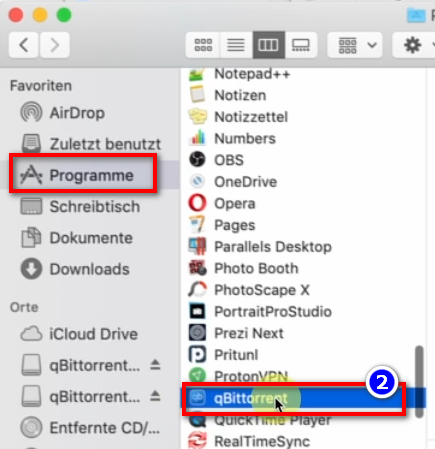
- <span style="background-color: rgb(251, 238, 184);">**Achte darauf, dass du von Zeit zu Zeit diese beiden Programme öffnest, dass die aktuellen Sendungen automatisch auf deine Festplatte runtergeladen werden**</span>

### <span style="background-color: rgb(241, 196, 15);">**9. Update installieren:** </span>

- **<span style="background-color: rgb(251, 238, 184);">Von Zeit zu Zeit wird der KlaTV-Downloader optimiert und du solltest das Update installieren. So funktioniert es:  
    </span>**
- <span style="background-color: rgb(251, 238, 184);">Öffne den Kla.TV Downloader</span>
- <span style="background-color: rgb(251, 238, 184);">Diese Meldung erscheint: (Wenn nicht, dann gehe im Kla.TV Downloader auf → Hilfe → Nach Updates suchen</span>  
    [![grafik.png](https://wiki.kla.tv/uploads/images/gallery/2024-12/scaled-1680-/CPxIwgY3Aw6GYURU-grafik.png)](https://wiki.kla.tv/uploads/images/gallery/2024-12/CPxIwgY3Aw6GYURU-grafik.png)
    
    [![grafik.png](https://wiki.kla.tv/uploads/images/gallery/2024-12/scaled-1680-/YaiCj1fp8YsCOMGW-grafik.png)](https://wiki.kla.tv/uploads/images/gallery/2024-12/YaiCj1fp8YsCOMGW-grafik.png)

- <span style="background-color: rgb(251, 238, 184);">Das Internet öffnet sich, scrolle runter zu "Assets" </span><span style="background-color: rgb(251, 238, 184);">→ klicke auf <span lang="DE" style="font-size: 16pt; line-height: 107%; font-family: Wingdings; background-color: rgb(251, 238, 184);"><span style="mso-char-type: symbol; mso-symbol-font-family: Wingdings;"><span lang="EN-US" style="font-size: 11pt; line-height: 107%; font-family: 'Cambria Math', serif; background-color: rgb(251, 238, 184);">❹</span></span></span> "**Kla.TV.Downloader-\*.\*\*.tar.gz**"</span>
    - [![grafik.png](https://wiki.kla.tv/uploads/images/gallery/2024-11/scaled-1680-/xKO8pwvIyzzKFFa6-grafik.png)](https://wiki.kla.tv/uploads/images/gallery/2024-11/xKO8pwvIyzzKFFa6-grafik.png)
    - <span style="background-color: rgb(251, 238, 184);"><span lang="DE" style="font-size: 16pt; line-height: 107%; font-family: Wingdings; background-color: rgb(251, 238, 184);"><span style="mso-char-type: symbol; mso-symbol-font-family: Wingdings;"><span lang="EN-US" style="font-size: 11pt; line-height: 107%; font-family: 'Cambria Math', serif; background-color: rgb(251, 238, 184);">❺</span></span></span> **Öffne** und **entzippe** das Programm → ziehe es z.B. auf den <span lang="EN-US" style="font-size: 11pt; line-height: 107%; font-family: 'Cambria Math', serif; background-color: rgb(251, 238, 184);">❻</span> </span>**<span style="background-color: rgb(251, 238, 184);">Schreibtisch</span>** ![grafik.png](https://wiki.kla.tv/uploads/images/gallery/2024-11/scaled-1680-/fqkvJohFv6e5fZeD-grafik.png)[![grafik.png](https://wiki.kla.tv/uploads/images/gallery/2024-11/scaled-1680-/fgT1bYzgnnG9BTgh-grafik.png)](https://wiki.kla.tv/uploads/images/gallery/2024-11/fgT1bYzgnnG9BTgh-grafik.png)
    
    
    - <span style="background-color: rgb(251, 238, 184);">Gehe auf dem Schreibtisch zum Kla.TV-Downloader-Ordner und öffne </span>**<span style="background-color: rgb(251, 238, 184);">start-downlaoder-mac.command</span>**[![grafik.png](https://wiki.kla.tv/uploads/images/gallery/2024-12/scaled-1680-/vZn1x5u9UzFI8eE7-grafik.png)](https://wiki.kla.tv/uploads/images/gallery/2024-12/vZn1x5u9UzFI8eE7-grafik.png)
    - Klicke auf der<span lang="DE" style="font-size: 16.0pt; mso-bidi-font-size: 11.0pt; line-height: 107%; font-family: Wingdings; mso-ascii-font-family: Calibri; mso-ascii-theme-font: minor-latin; mso-fareast-font-family: Calibri; mso-fareast-theme-font: minor-latin; mso-hansi-font-family: Calibri; mso-hansi-theme-font: minor-latin; mso-bidi-font-family: 'Times New Roman'; mso-bidi-theme-font: minor-bidi; mso-ansi-language: DE; mso-fareast-language: EN-US; mso-bidi-language: AR-SA; mso-char-type: symbol; mso-symbol-font-family: Wingdings;"><span style="mso-char-type: symbol; mso-symbol-font-family: Wingdings;"><span lang="EN-US" style="font-size: 11.0pt; line-height: 107%; font-family: 'Calibri',sans-serif; mso-ascii-theme-font: minor-latin; mso-fareast-font-family: Calibri; mso-fareast-theme-font: minor-latin; mso-hansi-theme-font: minor-latin; mso-bidi-font-family: 'Times New Roman'; mso-bidi-theme-font: minor-bidi; mso-ansi-language: EN-US; mso-fareast-language: EN-US; mso-bidi-language: AR-SA;"> </span><span lang="EN-US" style="font-size: 11.0pt; line-height: 107%; font-family: 'Cambria Math',serif; mso-fareast-font-family: Calibri; mso-fareast-theme-font: minor-latin; mso-bidi-font-family: 'Cambria Math'; mso-ansi-language: EN-US; mso-fareast-language: EN-US; mso-bidi-language: AR-SA;">❷</span></span></span> **Warnmeldung auf "OK**"  
        [![grafik.png](https://wiki.kla.tv/uploads/images/gallery/2024-11/scaled-1680-/ctWjfFgcE6oNtDZi-grafik.png)](https://wiki.kla.tv/uploads/images/gallery/2024-11/ctWjfFgcE6oNtDZi-grafik.png)
    
    
    - <span style="background-color: rgb(251, 238, 184);">Öffne die **Systemeinstellungen deines Mac** → gebe <span lang="DE" style="font-size: 16pt; line-height: 107%; font-family: Wingdings; background-color: rgb(251, 238, 184);"><span style="mso-char-type: symbol; mso-symbol-font-family: Wingdings;"><span lang="EN-US" style="font-size: 11pt; line-height: 107%; font-family: 'Cambria Math', serif; background-color: rgb(251, 238, 184);">❸</span></span></span> "**Sicherheitseinstellungen**" ein (neuere Macs gehen auf: Datenschutz und Sicherheit)→ bei "Apps-Download erlauben von" auf <span lang="DE" style="font-size: 16pt; line-height: 107%; font-family: Wingdings; background-color: rgb(251, 238, 184);"><span style="mso-char-type: symbol; mso-symbol-font-family: Wingdings;"><span lang="EN-US" style="font-size: 11pt; line-height: 107%; font-family: 'Cambria Math', serif; background-color: rgb(251, 238, 184);">❹</span></span></span> "**Dennoch öffnen**" klicken → <span lang="DE" style="font-size: 16pt; line-height: 107%; font-family: Wingdings; background-color: rgb(251, 238, 184);"><span style="mso-char-type: symbol; mso-symbol-font-family: Wingdings;"><span lang="EN-US" style="font-size: 11pt; line-height: 107%; font-family: 'Cambria Math', serif; background-color: rgb(251, 238, 184);">❺</span></span></span> </span>**<span style="background-color: rgb(251, 238, 184);">Öffnen </span>  
          
        [![grafik.png](https://wiki.kla.tv/uploads/images/gallery/2024-11/scaled-1680-/4QHcwAGwlXxVJpfH-grafik.png)](https://wiki.kla.tv/uploads/images/gallery/2024-11/4QHcwAGwlXxVJpfH-grafik.png)[![grafik.png](https://wiki.kla.tv/uploads/images/gallery/2024-11/scaled-1680-/7PJo5iZ9CpX9xGP4-grafik.png)](https://wiki.kla.tv/uploads/images/gallery/2024-11/7PJo5iZ9CpX9xGP4-grafik.png)[![grafik.png](https://wiki.kla.tv/uploads/images/gallery/2024-11/scaled-1680-/8DkrZiRyz2KlOO2K-grafik.png)](https://wiki.kla.tv/uploads/images/gallery/2024-11/8DkrZiRyz2KlOO2K-grafik.png)**


- <span style="background-color: rgb(251, 238, 184);">Lösche die alte Version und öffne erneut den aktuellen Kla.TV-Downloader und geniesse die optimierte Version 😊</span>

##### Weitere Artikel, die dich interessieren könnten:  
  
[**Gesichertes Archiv durchsuchen**](https://wiki.kla.tv/books/klatv-sichern/page/gesichertes-archiv-durchsuchen)  

# LINUX: Installation und Nutzung von "Kla.TV Downloader"

<p class="callout info">Die schriftliche Anleitung ist noch im Aufbau</p>

### **Was lernst Du in diesem Artikel?**

Du lernst, wie du den Kla.TV-Downloader auf Linux installieren kannst. Der Kla.TV-Downloader hält dein Archiv automatisch immer auf dem aktuellen Stand. Gleichzeitig kannst du mit deinem Videoanschluss anderen Nutzern den Upload zur Verfügung stellen. Los gehts:

### **Videoanleitung: (14min)**

<iframe allowfullscreen="allowfullscreen" frameborder="0" height="332" src="https://www.kla.tv/index.php?a=showembed&vidid=31126&lang=de" width="590"></iframe>

<p class="callout warning">Wir empfehlen, zuerst das Video anzuschauen, um die schriftliche Anleitung besser zu verstehen.</p>

###  **Schriftliche Anleitung:**

### <span style="background-color: rgb(241, 196, 15);"> **1. Grundlegendes:** </span>

- Was ist der **Unterschied** vom Kla.TV-Downloader zum Download über Serverzugang (über FileZilla)? 
    - **Über den Server-Zugang** ladest du mit FileZilla einmalig das Archiv runter und musst es "per Hand" immer aktuell behalten und die neusten Sendungen immer wieder runterladen
    - **Über das Downloader-Programm** kannst du dein Archiv stetig automatisch auf dem aktuellen Stand behalten und synchronisieren, mit dem Datenbestand des Servers. Du stellst es einmalig ein und es wird automatisch aktuell behalten. Zusätzlich kannst die die Videos von deinem Videoanschluss anderen Nutzern zum Upload zur Verfügung stellen
- Zwei Programme musst du dazu neu installieren. 1. den Kla.TV Downloader und 2. den qBittorrent. Dazu die Anleitung:

### <span style="background-color: rgb(241, 196, 15);"> **2. Installation des Kla.TV-Downloader:** </span>

- <span style="background-color: rgb(251, 238, 184);">Gehe auf die Seite </span>**<span style="background-color: rgb(251, 238, 184);">[kla.tv/sichern](https://www.kla.tv/sichern) <span style="color: rgb(0, 0, 0);">(0)</span></span>**

**<span style="background-color: rgb(52, 73, 94); color: rgb(255, 255, 255);">[![image.png](https://wiki.kla.tv/uploads/images/gallery/2024-11/scaled-1680-/KxmCDnQQzOrOT1s8-image.png)](https://wiki.kla.tv/uploads/images/gallery/2024-11/KxmCDnQQzOrOT1s8-image.png)</span>**

- <span style="background-color: rgb(251, 238, 184);">Gehe zum Download-Typ <span lang="DE"><span lang="EN-US">❶</span></span> "**Peer-to-Peer**" → <span lang="DE"><span lang="EN-US">❷</span></span> "**Herunterladen &amp; mehr**"</span>
- <span style="background-color: rgb(251, 238, 184);">Kicke auf den <span lang="DE"><span lang="EN-US">❸</span></span> Kla-TV-Downloader → lade das aktuellste Programm herunter (immer zu oberst) indem du bei "Assets"</span>

[![image.png](https://wiki.kla.tv/uploads/images/gallery/2024-11/scaled-1680-/DwW0At2IsmKMHp65-image.png)](https://wiki.kla.tv/uploads/images/gallery/2024-11/DwW0At2IsmKMHp65-image.png)

[![image.png](https://wiki.kla.tv/uploads/images/gallery/2024-11/scaled-1680-/qq15Fp4P7xqdCug0-image.png)](https://wiki.kla.tv/uploads/images/gallery/2024-11/qq15Fp4P7xqdCug0-image.png)

- <span style="background-color: rgb(251, 238, 184);"> → auf <span lang="DE"><span lang="EN-US">❹</span></span> "Kla.TV.Downloader-\*.\*\*.tar.gz" klickst</span>
- <span style="background-color: rgb(251, 238, 184);"><span lang="DE"><span lang="EN-US">❺</span></span> Öffne den Downlodordner</span>
- <span style="background-color: rgb(251, 238, 184);">Entpacke die Datei auf bspw. deinen Schreibtisch ❻ </span>

[![image.png](https://wiki.kla.tv/uploads/images/gallery/2024-11/scaled-1680-/qSErpIgwXlzwbwW8-image.png)](https://wiki.kla.tv/uploads/images/gallery/2024-11/qSErpIgwXlzwbwW8-image.png)[![image.png](https://wiki.kla.tv/uploads/images/gallery/2024-11/scaled-1680-/TlW6Qfw6MuE7VKYG-image.png)](https://wiki.kla.tv/uploads/images/gallery/2024-11/TlW6Qfw6MuE7VKYG-image.png)
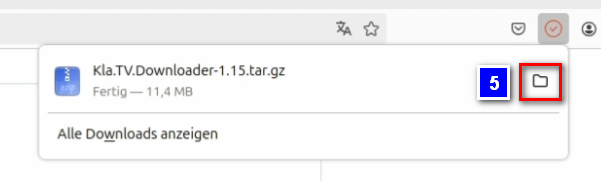
[![image.png](https://wiki.kla.tv/uploads/images/gallery/2024-11/scaled-1680-/JH6Ob0TgsrkaGS7N-image.png)](https://wiki.kla.tv/uploads/images/gallery/2024-11/JH6Ob0TgsrkaGS7N-image.png)
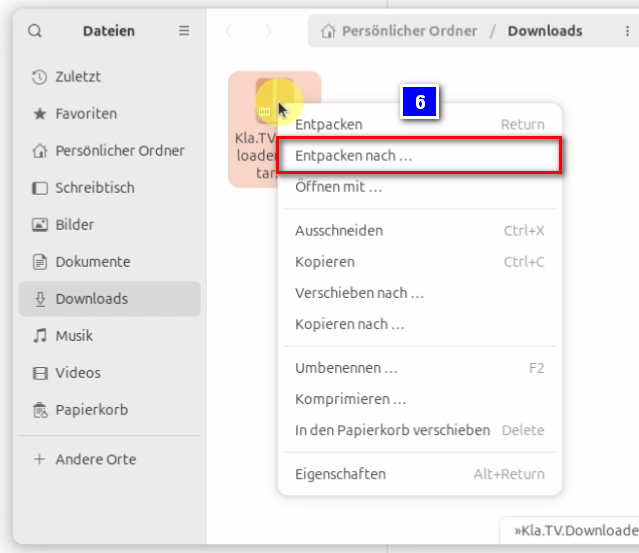
### <span style="background-color: rgb(241, 196, 15);"> **3. Installation von JAWA (damit Kla.TV-Downloader funktioniert):** </span>

<div aria-label="Abschnittsoptionen der Seite" class="pointer-container" id="bkmrk-%C2%A0-4" refs="pointer@pointer" tabindex="-1"><div class="pointer flex-container-row items-center justify-space-between p-s anim is-page-editable"><div class="flex-container-row items-center gap-s" refs="pointer@mode-section"><button class="text-button icon px-xs" title="Permalink-Modus, Drücken, um Include-Tag anzuzeigen"><svg class="svg-icon" data-icon="link" role="presentation" viewbox="0 0 24 24" xmlns="http://www.w3.org/2000/svg"></svg></button><div class="input-group"> <button class="button outline icon" title="Link kopieren" type="button"><svg class="svg-icon" data-icon="copy" role="presentation" viewbox="0 0 24 24" xmlns="http://www.w3.org/2000/svg"></svg></button></div></div><svg class="svg-icon" data-icon="edit" role="presentation" viewbox="0 0 24 24" xmlns="http://www.w3.org/2000/svg"></svg></div></div>- <span style="background-color: rgb(251, 238, 184);">Öffne das Terminal <span lang="DE"><span lang="EN-US">❶ und gebe diesen Befehl ein ❷ und bestätigst mit Enter: </span></span></span>```bash
    sudo apt install default-jre
    ```

[![image.png](https://wiki.kla.tv/uploads/images/gallery/2024-11/scaled-1680-/kZ69MgwY8HLhbXlM-image.png)](https://wiki.kla.tv/uploads/images/gallery/2024-11/kZ69MgwY8HLhbXlM-image.png)

[![image.png](https://wiki.kla.tv/uploads/images/gallery/2024-11/scaled-1680-/mfcrMMjPQdU3n1ph-image.png)](https://wiki.kla.tv/uploads/images/gallery/2024-11/mfcrMMjPQdU3n1ph-image.png)

- <span style="background-color: rgb(251, 238, 184);">Gebe das Kennwort deines Computers ein und bestätige erneut mit Enter</span>
- <span style="background-color: rgb(251, 238, 184);">Schreibe ein einzelnes "***J***" um die Installation zu starten ❸ und bestätige mit Enter</span>

[![image.png](https://wiki.kla.tv/uploads/images/gallery/2024-11/scaled-1680-/AXa4dynm8x0l3tpL-image.png)](https://wiki.kla.tv/uploads/images/gallery/2024-11/AXa4dynm8x0l3tpL-image.png)

- <span style="background-color: rgb(251, 238, 184);">Gehe zu dem entpackten Ordner und klicke mit einem Rechtsklick auf die Datei: "**start-downloader-linux.sh**" ❹ </span>
- <span style="background-color: rgb(251, 238, 184);">Unter Eigenschaften ❺ überprüfst du ob der Schalter bei "**Als Programm ausführbar**" ❻ aktiviert ist, nur dann kannst du die Datei ausführen. </span>

[![image.png](https://wiki.kla.tv/uploads/images/gallery/2024-11/scaled-1680-/kJCMidObyli2Jhlh-image.png)](https://wiki.kla.tv/uploads/images/gallery/2024-11/kJCMidObyli2Jhlh-image.png)

[![image.png](https://wiki.kla.tv/uploads/images/gallery/2024-11/scaled-1680-/kZboiz14dfxwRP5N-image.png)](https://wiki.kla.tv/uploads/images/gallery/2024-11/kZboiz14dfxwRP5N-image.png) [![image.png](https://wiki.kla.tv/uploads/images/gallery/2024-11/scaled-1680-/EgEhKCmtxLZ0IDvt-image.png)](https://wiki.kla.tv/uploads/images/gallery/2024-11/EgEhKCmtxLZ0IDvt-image.png)

- <span style="background-color: rgb(251, 238, 184);">Mit einem Rechtsklick auf die Datei und dem anklicken der Option :"**Als Anwendung ausführen**" ❼ führst du nun die Datei aus</span>

[![image.png](https://wiki.kla.tv/uploads/images/gallery/2024-11/scaled-1680-/Oo8pi4NnoNHMGqiY-image.png)](https://wiki.kla.tv/uploads/images/gallery/2024-11/Oo8pi4NnoNHMGqiY-image.png)

- <span style="background-color: rgb(251, 238, 184);">Es öffnet sich ein Fenster ❽, in welchem du gefragt wirst, wohin die Dateien vom Kla.TV-Downloader abgelegt werden sollen. Es empfiehlt sich eine externe Festplatte dort zu verwenden und diese als Ablageort festzulegen. </span>
- <span style="background-color: rgb(251, 238, 184);">Auf der Festplatte erstellst du einen neuen Ordner ❾ und nennst diesen "**Kla.TV-Sicherung**" und bestätigst mit "**Auswählen**" ❿</span>
- <span style="background-color: rgb(251, 238, 184);">Es erscheint die Meldung ❿<span lang="DE"><span lang="EN-US">❶ das noch kein Torrent-Client installiert ist</span></span></span>

[![image.png](https://wiki.kla.tv/uploads/images/gallery/2024-11/scaled-1680-/vIsGKiaCCe8Ho0io-image.png)](https://wiki.kla.tv/uploads/images/gallery/2024-11/vIsGKiaCCe8Ho0io-image.png)[![image.png](https://wiki.kla.tv/uploads/images/gallery/2024-11/scaled-1680-/Y0e1DUaQV7tzWdoN-image.png)](https://wiki.kla.tv/uploads/images/gallery/2024-11/Y0e1DUaQV7tzWdoN-image.png)

[![image.png](https://wiki.kla.tv/uploads/images/gallery/2024-11/scaled-1680-/r2Rvsy3ubx6LO5lZ-image.png)](https://wiki.kla.tv/uploads/images/gallery/2024-11/r2Rvsy3ubx6LO5lZ-image.png)

#### **<span lang="DE" style="background-color: rgb(241, 196, 15);"><span lang="EN-US"> 3.1 Was wenn das Programm nicht stabil startet? </span></span>**

<p class="callout warning">Falls Das Programm abstürzt, da es aktuell noch nicht stabil auf Linux läuft, musst du die folgenden Arbeitsschritte durchführen:</p>

- <span lang="DE" style="background-color: rgb(251, 238, 184);"><span lang="EN-US">In der oberen rechten Ecke deines Bildschirms sollte nun das Symbol des Kla.TV-Downloaders zu sehen sein ❶ über das du den Kla.TV-Downloader öffnen kannst (Rechtsklick darauf)</span></span>

<span lang="DE"><span lang="EN-US">[![image.png](https://wiki.kla.tv/uploads/images/gallery/2024-11/scaled-1680-/GCaEPt9UrqxpHsyi-image.png)](https://wiki.kla.tv/uploads/images/gallery/2024-11/GCaEPt9UrqxpHsyi-image.png)</span></span>

- <span lang="DE" style="background-color: rgb(251, 238, 184);"><span lang="EN-US">Falls sich das Programm nicht starten lässt, liegt das dran, dass dieses Programm auf Linux noch nicht stabil genug läuft. In diesem Fall klickst du das Symbol an und beendest das Programm *❷* </span></span>
- <span lang="DE" style="background-color: rgb(251, 238, 184);"><span lang="EN-US">Jetzt wirst du gefragt, ob du den Torrent-Client beenden willst, was du mit "**Ja**" ❸ bestätigst</span></span>

<span lang="DE"><span lang="EN-US">[![image.png](https://wiki.kla.tv/uploads/images/gallery/2024-11/scaled-1680-/ThGUwAUubdq3ZxSQ-image.png)](https://wiki.kla.tv/uploads/images/gallery/2024-11/ThGUwAUubdq3ZxSQ-image.png)[ ![image.png](https://wiki.kla.tv/uploads/images/gallery/2024-11/scaled-1680-/XFRYJm6Oa5RINlIP-image.png)](https://wiki.kla.tv/uploads/images/gallery/2024-11/XFRYJm6Oa5RINlIP-image.png)</span></span>
- <span lang="DE" style="background-color: rgb(251, 238, 184);"><span lang="EN-US">Gehe nun erneut in den Ordner mit der Datei "**start-downloader-linux.sh**". Diese Datei führst du jetzt nochmals aus, mit einem Rechtsklick und "**Als Anwendung ausführen**" ❹</span></span>
- <span lang="DE" style="background-color: rgb(251, 238, 184);"><span lang="EN-US">Das Fenster des Terminals, welches sich automatisch öffnet, kannst du schließen</span></span>

<span lang="DE"><span lang="EN-US">[![image.png](https://wiki.kla.tv/uploads/images/gallery/2024-11/scaled-1680-/04y9XoeOJsHDaLH5-image.png)](https://wiki.kla.tv/uploads/images/gallery/2024-11/04y9XoeOJsHDaLH5-image.png)</span></span>

<p class="callout success">**<span lang="DE"><span lang="EN-US">Nun sollte der Downloader korrekt installiert sein</span></span>**</p>

- <span lang="DE" style="background-color: rgb(251, 238, 184);"><span lang="EN-US">Öffne den Kla.TV-Downloader mit dem Klick auf das Symbol in der oberen rechten Bildschirmecke ❺</span></span>

<span lang="DE"><span lang="EN-US">[![image.png](https://wiki.kla.tv/uploads/images/gallery/2024-11/scaled-1680-/8ykTwHoKNlh1HewA-image.png)](https://wiki.kla.tv/uploads/images/gallery/2024-11/8ykTwHoKNlh1HewA-image.png)</span></span>

- <span lang="DE" style="background-color: rgb(251, 238, 184);"><span lang="EN-US">Unter dem Reiter "**Einstellungen**" ❻ setzt du den Haken bei der Option: "**Online-Prüfung deaktivieren**" ❼. Da dieser Internetcheck auf Linux nicht wirklich funktioniert und der Downloader so keine Internetverbindung bekommt. </span></span>

[![image.png](https://wiki.kla.tv/uploads/images/gallery/2024-11/scaled-1680-/QEPCV2g7g5NfXGwY-image.png)](https://wiki.kla.tv/uploads/images/gallery/2024-11/QEPCV2g7g5NfXGwY-image.png)

### <span style="background-color: rgb(241, 196, 15);"> **4. Torrent-Client einrichten:** </span>

- <span style="background-color: rgb(251, 238, 184);">Es erscheint die Meldung, dass kein Torrent-Client gefunden wurde. Klicke auf "**Einrichten**" ❶ um diesen zu intsallieren</span>

[![image.png](https://wiki.kla.tv/uploads/images/gallery/2024-11/scaled-1680-/d5LIcdSURiVaV8yl-image.png)](https://wiki.kla.tv/uploads/images/gallery/2024-11/d5LIcdSURiVaV8yl-image.png)

- <span style="background-color: rgb(251, 238, 184);">Es öffnet sich eine Website in welcher erklärt wird wie der Torrent-Client manuell eingerichtet werden kann, auf welcher du beim Unterpunkt "**Installation**" auf den blauen Link klickst  
    </span>**<span style="background-color: rgb(251, 238, 184);">[https://github.com/Kla-TV/downloader/wiki/Torrent%E2%80%90Client-manuell-einrichten#installation](https://github.com/Kla-TV/downloader/wiki/Torrent%E2%80%90Client-manuell-einrichten#installation) </span>**

[![image.png](https://wiki.kla.tv/uploads/images/gallery/2024-12/scaled-1680-/udhsogFEkkjHYEZ8-image.png)](https://wiki.kla.tv/uploads/images/gallery/2024-12/udhsogFEkkjHYEZ8-image.png)

- <span style="background-color: rgb(251, 238, 184);">Der Download startet automatisch, sobald auf den Linux Link angeklickt wurde.</span>

#### **<span lang="DE" style="background-color: rgb(241, 196, 15);"><span lang="EN-US"> 4.1 Libfuse installieren (Grundlage für Torrent-Client): </span></span>**

- <span style="background-color: rgb(251, 238, 184);">Öffne das Terminal und gebe diesen Befehl ein ❶ und bestätige mit Enter:</span>

```bash
sudo apt install libfuse2t64
```

[![image.png](https://wiki.kla.tv/uploads/images/gallery/2024-11/scaled-1680-/DXbGEbQf9MqSdvPP-image.png)](https://wiki.kla.tv/uploads/images/gallery/2024-11/DXbGEbQf9MqSdvPP-image.png)

- <span style="background-color: rgb(251, 238, 184);">Gebe nun dein PC Passwort ein und bestätige erneut mit Enter. Jetzt kannst du das Terminal wieder schließen</span>
- <span style="background-color: rgb(251, 238, 184);">Gehe wieder in den Ordner in dem die Datei "**qbittorrent-5.02.2\_x86\_64.AppImage**" abgelegt ist. Mit einem Rechtsklick und dort wiederum ein Klick auf "**Eigenschaften**" <span lang="DE"><span lang="EN-US">*❷* öffnest du die Dateieigenschaften. In diesen aktivierst du den Schalter: "**Als Programm ausführbar**" ❸</span></span></span>

<span lang="DE"><span lang="EN-US">[![image.png](https://wiki.kla.tv/uploads/images/gallery/2024-11/scaled-1680-/jANZvk8d2PRJL5B1-image.png)](https://wiki.kla.tv/uploads/images/gallery/2024-11/jANZvk8d2PRJL5B1-image.png)[![image.png](https://wiki.kla.tv/uploads/images/gallery/2024-11/scaled-1680-/oB9jZDaQChMi50Pm-image.png)](https://wiki.kla.tv/uploads/images/gallery/2024-11/oB9jZDaQChMi50Pm-image.png)</span></span>
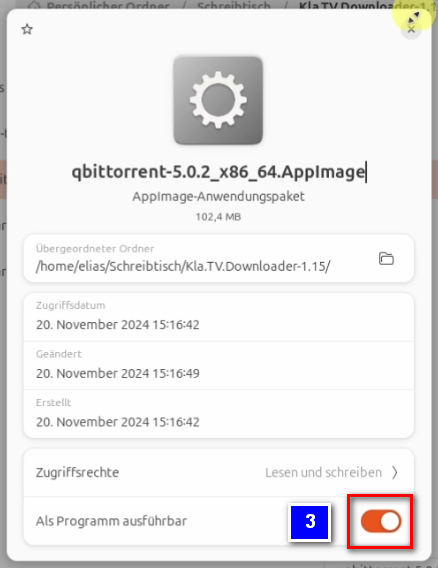
- <span lang="DE" style="background-color: rgb(251, 238, 184);"><span lang="EN-US">Jetzt ist es möglich per Rechtsklick und "**Ausführen**" ❹ das Programm auszuführen</span></span>
- <span lang="DE" style="background-color: rgb(251, 238, 184);"><span lang="EN-US">Es öffnet sich ein Rechtshinweis, welchen du mit "**OK**" bestätigen kannst und das Programm öffnet sich</span></span>

[![image.png](https://wiki.kla.tv/uploads/images/gallery/2024-11/scaled-1680-/gKJCw3huqAkajqgB-image.png)](https://wiki.kla.tv/uploads/images/gallery/2024-11/gKJCw3huqAkajqgB-image.png)

#### **<span lang="DE" style="background-color: rgb(241, 196, 15);"><span lang="EN-US"> 4.2 qBittorrent einrichten: </span></span>**

<p class="callout info"><span lang="DE"><span lang="EN-US">Beide benötigten Programme sind nun erfolgreich installiert. Jetzt müssen sie nur noch richtig eingerichtet werden.</span></span></p>

- <span style="background-color: rgb(251, 238, 184);">Klicke nun auf das Zahnrad in qBittorrent ❶ um die Einstellungen zu öffnen</span>

[![image.png](https://wiki.kla.tv/uploads/images/gallery/2024-11/scaled-1680-/VBMaqKF5ozph0wtK-image.png)](https://wiki.kla.tv/uploads/images/gallery/2024-11/VBMaqKF5ozph0wtK-image.png)

- <span style="background-color: rgb(251, 238, 184);">In den Einstellungen gehst du zuerst auf "**Webinterface**" <span lang="DE"><span lang="EN-US">*❷*</span></span>. Dort setzt du den Haken bei "**Webuser-Interface (Fernbedienung)**" ❸, als nächstes gibst du bei "**Port**" die Nummer: "**4242**" ❹ ein. Setze den Haken bei "**Authentifizierung für Clients auf dem Localhost umgehen**" ❺ und lege ein Passwort fest ❻, welches du dir aber nicht merken musst. Bestätige zum Schluss deine Eintsellungen mit einem Klick auf den Button "**OK**" ❼</span>

[![image.png](https://wiki.kla.tv/uploads/images/gallery/2024-11/scaled-1680-/oD4FLPUJAwctKhmI-image.png)](https://wiki.kla.tv/uploads/images/gallery/2024-11/oD4FLPUJAwctKhmI-image.png)

- <span style="background-color: rgb(251, 238, 184);">Um zu testen ob die Einstellungen funktioniert haben gehe nun wieder per Rechtsklick auf das Symbol des Kla.TV-Downloaders und beende das Programm ❽ und bestätige im sich öffnenden Fenster mit "Ja" ❾</span>

[![image.png](https://wiki.kla.tv/uploads/images/gallery/2024-11/scaled-1680-/qVEZuuzmydUUgf1b-image.png)](https://wiki.kla.tv/uploads/images/gallery/2024-11/qVEZuuzmydUUgf1b-image.png)[ ![image.png](https://wiki.kla.tv/uploads/images/gallery/2024-11/scaled-1680-/umMckXlersPuq70t-image.png)](https://wiki.kla.tv/uploads/images/gallery/2024-11/umMckXlersPuq70t-image.png)
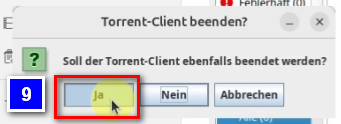
- <span style="background-color: rgb(251, 238, 184);">Per Rechtsklick auf die Kla.TV-Downloader Datei "**start-downloader-linux.sh**" ❿ und dem anklicken von "**Als Anwendung ausführen**" ❿❶ startest du den Kla.TV-Downloader erneut</span>

[![image.png](https://wiki.kla.tv/uploads/images/gallery/2024-11/scaled-1680-/46zu3ZCzYmFAIDIr-image.png)](https://wiki.kla.tv/uploads/images/gallery/2024-11/46zu3ZCzYmFAIDIr-image.png)

[![image.png](https://wiki.kla.tv/uploads/images/gallery/2024-11/scaled-1680-/d9oQNFYVgNKHquhJ-image.png)](https://wiki.kla.tv/uploads/images/gallery/2024-11/d9oQNFYVgNKHquhJ-image.png)
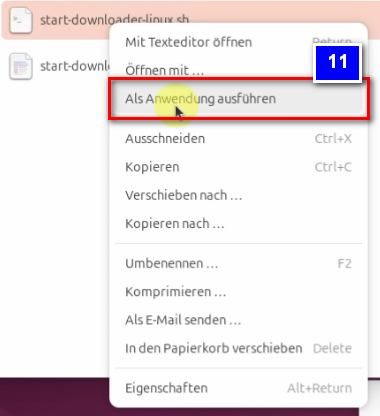
- <span style="background-color: rgb(251, 238, 184);">Hat das Einrichten erfolgreich geklappt, sollte nun im Kla.TV-Downloader am unteren Rand "**Bereit**." ❿<span lang="DE"><span lang="EN-US">❷ und "**Fertig.**" ❿❸ stehen</span></span></span>

[![image.png](https://wiki.kla.tv/uploads/images/gallery/2024-11/scaled-1680-/DXRX18cLkahBYV6L-image.png)](https://wiki.kla.tv/uploads/images/gallery/2024-11/DXRX18cLkahBYV6L-image.png)

<p class="callout info">Um nicht noch viel mehr manuelle Einstellungen im qBittorrent einstellen zu müssen, springen wir nun zu den Einstellungen vom Kla.TV-Downloader</p>


#### **<span lang="DE" style="background-color: rgb(241, 196, 15);"><span lang="EN-US"> 4.3 Kla.TV-Downloader einstellen: </span></span>**

- <span style="background-color: rgb(251, 238, 184);">Gehe zum geöffneten Kla.TV-Downloader und klicke dort auf den Reiter "**Einstellungen**" <span style="background-color: rgb(251, 238, 184);">❶ Dort klickst du auf die unterste Option "**Empfohlene Torrent-Client-Einstellungen setzen**" <span style="background-color: rgb(251, 238, 184);"><span lang="DE"><span lang="EN-US">*❷*</span></span></span></span></span>

[![image.png](https://wiki.kla.tv/uploads/images/gallery/2024-11/scaled-1680-/KQbjwWn8mRcOpqFL-image.png)](https://wiki.kla.tv/uploads/images/gallery/2024-11/KQbjwWn8mRcOpqFL-image.png)

- <span style="background-color: rgb(251, 238, 184);">Nun schließt sich das Fenster direkt wieder und in der unteren linken Ecke deines Kla.TV-Downloaders sollte nun die grüne Meldung: "**Empfohlende Torrent-Client-Einstellungen wurden gesetzt.**"</span>

[![image.png](https://wiki.kla.tv/uploads/images/gallery/2024-11/scaled-1680-/PH93mpYw4HgB9VOs-image.png)](https://wiki.kla.tv/uploads/images/gallery/2024-11/PH93mpYw4HgB9VOs-image.png)

- <span style="background-color: rgb(251, 238, 184);">Um zu überprüfen ob diese Einstellungen nun im Torrent-Clienten "angekommen" sind, gehe wieder zu qBittorrent und öffne die Einstellungen durch einen Klick auf das blaue Zahnrad <span style="background-color: rgb(251, 238, 184);"><span lang="DE"><span lang="EN-US">❸</span></span></span></span>

[![image.png](https://wiki.kla.tv/uploads/images/gallery/2024-11/scaled-1680-/n2CruvSI8nlMYq1l-image.png)](https://wiki.kla.tv/uploads/images/gallery/2024-11/n2CruvSI8nlMYq1l-image.png)

- <span style="background-color: rgb(251, 238, 184);">Unter "**BitTorrent**" <span style="background-color: rgb(251, 238, 184);">❹ kannst du nun schauen ob die Zahlen bei: "**Maximal aktive Downloads**", "**Maximal aktive Uploads**" und "**Maximal aktive Torrents**" korrekt übernommen wurde ("**5**", "**100**" und "**100**") <span style="background-color: rgb(251, 238, 184);">❺. Ist das der Fall hat das einwandfrei funktioniert :) Du kannst mit "**OK**" bestätigen <span style="background-color: rgb(251, 238, 184);">❻</span></span></span></span>

[![image.png](https://wiki.kla.tv/uploads/images/gallery/2024-11/scaled-1680-/J0GMSxNGKHgSE1mJ-image.png)](https://wiki.kla.tv/uploads/images/gallery/2024-11/J0GMSxNGKHgSE1mJ-image.png)


### <span style="background-color: rgb(241, 196, 15);"> **5. Synchronisieren:** </span>

<p class="callout info">Der Kla.TV-Downloader fügt Synchronisierungsregeln hinzu und schickt diese an den qBittorrent, der daraufhin die Sendungen herunterlädt und sie immer auf den aktuellsten Stand hält. Das bedeutet: Der Kla.TV-Downloader definiert lediglich nur wie und was heruntergeladen werden soll, während qBittorrent die Arbeit vom herunterladen übernimmt.</p>

<p class="callout info">**Damit die Synchronisation zwischen qBittorrent und Kla.TV-Downloader reibungslos funktioniert sollte immer zuerst der qBittorrent-Client <span style="text-decoration: underline;">vor</span> dem Kla.TV-Downloader gestartet werden.**</p>

- <span style="background-color: rgb(251, 238, 184);">Öffne den K**la.TV-Downloader** → wähle deine <span lang="DE"><span lang="EN-US">❶</span></span> **gewünschten Regeln**. (Erklärung dazu, siehe im Bild)</span>  
    [![grafik.png](https://wiki.kla.tv/uploads/images/gallery/2024-11/scaled-1680-/Q9Op8e0KGpDAFHm6-grafik.png)](https://wiki.kla.tv/uploads/images/gallery/2024-11/Q9Op8e0KGpDAFHm6-grafik.png)
- <span style="background-color: rgb(251, 238, 184);">Möchtest du **mehrere Qualiltäten** auswählen, musst du mehrmals nacheinander eine "Regel hinzufügen". Dann wird dieser Auftrag an den qBittorrent geschickt und dort runtergeladen. </span>  
    
    - <span style="background-color: rgb(251, 238, 184);">Hier ein <span lang="DE"><span lang="EN-US"> </span><span lang="EN-US">❷</span></span> **Beispiel**, wenn du eine neue Regel erfassen möchtest, mit z.B. **NUR Word-Dateien**. Dann deaktiviere Video/Audio, wähle die gewünschten Jahre und füge die Regel hinzu. </span>  
        [![grafik.png](https://wiki.kla.tv/uploads/images/gallery/2024-11/scaled-1680-/MyrlhWDMHW4eBhyZ-grafik.png)](https://wiki.kla.tv/uploads/images/gallery/2024-11/MyrlhWDMHW4eBhyZ-grafik.png)
- <span style="background-color: rgb(251, 238, 184);">**Programme können geschlossen werden** und es ladet im Hintergrund weiter</span>
- <span style="background-color: rgb(251, 238, 184);">Im <span lang="DE"><span lang="EN-US">❹</span></span> **Header** kannst du das </span>**<span style="background-color: rgb(251, 238, 184);">Programmw wieder öffnen</span>** [![image.png](https://wiki.kla.tv/uploads/images/gallery/2024-11/scaled-1680-/UruJZRnksnPBNcI5-image.png)](https://wiki.kla.tv/uploads/images/gallery/2024-11/UruJZRnksnPBNcI5-image.png)

<p class="callout danger">Möchtest du kein Upload anbieten, kannst du den folgenden Haken setzen</p>

- <span style="background-color: rgb(251, 238, 184);"> Gehe zum Kla.TV-Downloader. Unter dem Reiter "**Einstellungen**" <span style="background-color: rgb(251, 238, 184);"><span lang="DE"><span lang="EN-US">❶</span></span></span> kannst du nun den Haken bei: "**Nur herunterladen kein Torrent-Upload**" <span style="background-color: rgb(251, 238, 184);"><span lang="DE"><span lang="EN-US">❷ </span></span></span>setzen</span>

[![image.png](https://wiki.kla.tv/uploads/images/gallery/2024-11/scaled-1680-/xzxqAu5lwevSgcUN-image.png)](https://wiki.kla.tv/uploads/images/gallery/2024-11/xzxqAu5lwevSgcUN-image.png)

#### **<span style="background-color: rgb(241, 196, 15);"> 5.1 Systembenachrichtigung ausschalten: </span>** 

- <span style="background-color: rgb(251, 238, 184);">Damit nicht für jedes runtergeladene Video eine Popup-Meldung erscheint → gehe in den <span style="background-color: rgb(251, 238, 184);"><span style="background-color: rgb(251, 238, 184);"><span lang="DE"><span lang="EN-US">❶</span></span></span></span><span lang="DE"><span lang="EN-US"> </span></span>qBittorrent → Zahnrad → Erweitert → Benachrichtigungen anzeigen → deaktivieren → OK</span>  
      
    [![image.png](https://wiki.kla.tv/uploads/images/gallery/2024-11/scaled-1680-/vnYOCBGCZDg63nhu-image.png)](https://wiki.kla.tv/uploads/images/gallery/2024-11/vnYOCBGCZDg63nhu-image.png)

### <span style="background-color: rgb(241, 196, 15);"> **6. Empfehlung: Energieoptionen so einstellen, dass Computer nicht automatisch runterfährt:** </span>

<p class="callout info">Dieses Programm kann schnell mehrere Tage brauche, bis alles synchronisiert ist. Um diesen Vorgang zu verschnellern, empfielt es sich, den Energiesparmodus auszuschalten</p>

- <span style="background-color: rgb(251, 238, 184);">Öffne <span style="background-color: rgb(251, 238, 184);"><span style="background-color: rgb(251, 238, 184);"><span style="background-color: rgb(251, 238, 184);"><span lang="DE"><span lang="EN-US">❶</span></span></span></span></span> dazu die Energieeinstellungen auf deinem PC <span style="background-color: rgb(251, 238, 184);"><span style="background-color: rgb(251, 238, 184);"><span style="background-color: rgb(251, 238, 184);"><span lang="DE"><span lang="EN-US">*❷*</span></span></span></span></span></span>

[![image.png](https://wiki.kla.tv/uploads/images/gallery/2024-11/scaled-1680-/zxB0f4nBuYDGphI1-image.png)](https://wiki.kla.tv/uploads/images/gallery/2024-11/zxB0f4nBuYDGphI1-image.png)

- <span style="background-color: rgb(251, 238, 184);">Dort legst du nun den Schalter "Automatisch Energiesparen" <span lang="DE"><span lang="EN-US">❸ </span></span>auf aus, so dass er grau wird</span>

[![image.png](https://wiki.kla.tv/uploads/images/gallery/2024-11/scaled-1680-/AzEJbaL4glY3rLhP-image.png)](https://wiki.kla.tv/uploads/images/gallery/2024-11/AzEJbaL4glY3rLhP-image.png)

### <span style="background-color: rgb(241, 196, 15);">**7. Update installieren:** </span>

- **<span style="background-color: rgb(251, 238, 184);">Von Zeit zu Zeit wird der Kla.TV-Downloader optimiert und du solltest das Update installieren. So funktioniert es:  
    </span>**
- <span style="background-color: rgb(251, 238, 184);">Öffne den Kla.TV Downloader</span>
- <span style="background-color: rgb(251, 238, 184);">Diese Meldung erscheint: (Wenn nicht, dann gehe im Kla.TV Downloader auf → Hilfe → Nach Updates suchen</span>  
    [![grafik.png](https://wiki.kla.tv/uploads/images/gallery/2024-12/scaled-1680-/CPxIwgY3Aw6GYURU-grafik.png)](https://wiki.kla.tv/uploads/images/gallery/2024-12/CPxIwgY3Aw6GYURU-grafik.png)
    
    [![grafik.png](https://wiki.kla.tv/uploads/images/gallery/2024-12/scaled-1680-/YaiCj1fp8YsCOMGW-grafik.png)](https://wiki.kla.tv/uploads/images/gallery/2024-12/YaiCj1fp8YsCOMGW-grafik.png)

- <span style="background-color: rgb(251, 238, 184);">Das Internet öffnet sich, scrolle runter zu "Assets" </span>
    - - <span style="background-color: rgb(251, 238, 184);"> → auf <span lang="DE"><span lang="EN-US">❹</span></span> "Kla.TV.Downloader-\*.\*\*.tar.gz" klicken</span>
        - <span style="background-color: rgb(251, 238, 184);"><span lang="DE"><span lang="EN-US">❺</span></span> Öffne den Downlodordner</span>
        - <span style="background-color: rgb(251, 238, 184);">Entpacke die Datei auf bspw. deinen Schreibtisch ❻ </span>
        
        [![image.png](https://wiki.kla.tv/uploads/images/gallery/2024-11/scaled-1680-/qSErpIgwXlzwbwW8-image.png)](https://wiki.kla.tv/uploads/images/gallery/2024-11/qSErpIgwXlzwbwW8-image.png)[![image.png](https://wiki.kla.tv/uploads/images/gallery/2024-11/scaled-1680-/TlW6Qfw6MuE7VKYG-image.png)](https://wiki.kla.tv/uploads/images/gallery/2024-11/TlW6Qfw6MuE7VKYG-image.png)

        
        [![image.png](https://wiki.kla.tv/uploads/images/gallery/2024-11/scaled-1680-/JH6Ob0TgsrkaGS7N-image.png)](https://wiki.kla.tv/uploads/images/gallery/2024-11/JH6Ob0TgsrkaGS7N-image.png)

- <span style="background-color: rgb(251, 238, 184);">Gehe zu dem entpackten Ordner und klicke mit einem Rechtsklick auf die Datei: "**start-downloader-linux.sh**" ❹ </span>
- <span style="background-color: rgb(251, 238, 184);">Unter Eigenschaften ❺ überprüfst du ob der Schalter bei "**Als Programm ausführbar**" ❻ aktiviert ist, nur dann kannst du die Datei ausführen. </span>

[![image.png](https://wiki.kla.tv/uploads/images/gallery/2024-11/scaled-1680-/kJCMidObyli2Jhlh-image.png)](https://wiki.kla.tv/uploads/images/gallery/2024-11/kJCMidObyli2Jhlh-image.png)

[![image.png](https://wiki.kla.tv/uploads/images/gallery/2024-11/scaled-1680-/kZboiz14dfxwRP5N-image.png)](https://wiki.kla.tv/uploads/images/gallery/2024-11/kZboiz14dfxwRP5N-image.png) [![image.png](https://wiki.kla.tv/uploads/images/gallery/2024-11/scaled-1680-/EgEhKCmtxLZ0IDvt-image.png)](https://wiki.kla.tv/uploads/images/gallery/2024-11/EgEhKCmtxLZ0IDvt-image.png)
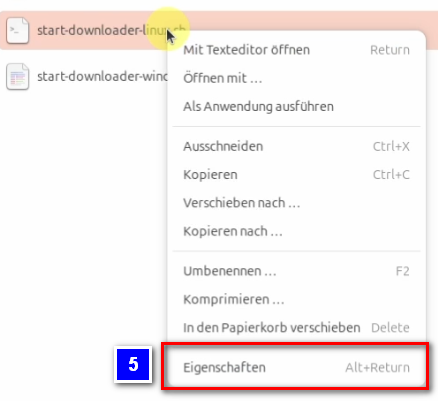
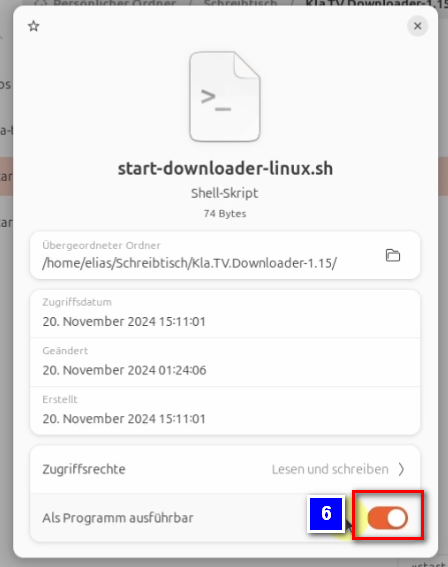
- <span style="background-color: rgb(251, 238, 184);">Mit einem Rechtsklick auf die Datei und dem anklicken der Option :"**Als Anwendung ausführen**" ❼ führst du nun die Datei aus</span>

[![image.png](https://wiki.kla.tv/uploads/images/gallery/2024-11/scaled-1680-/Oo8pi4NnoNHMGqiY-image.png)](https://wiki.kla.tv/uploads/images/gallery/2024-11/Oo8pi4NnoNHMGqiY-image.png)

- <span style="background-color: rgb(251, 238, 184);">Lösche die alte Version und öffne erneut den aktuellen Kla.TV-Downloader und geniesse die optimierte Version 😊</span>

##### Weitere Artikel, die dich interessieren könnten:  
  
[**Gesichertes Archiv durchsuchen**](https://wiki.kla.tv/books/klatv-sichern/page/gesichertes-archiv-durchsuchen)

# Gesichertes Archiv durchsuchen

### **Was lernst Du in diesem Artikel?**

Was nützt ein Archiv, wenn man nicht darin suchen kann? Wie du dein gesichertes Archiv durchsuchen kannst, lernst du in diesem Artikel.

### **Videoanleitung: (2min)**

<div class="responsive-iframe" id="bkmrk-"><iframe allowfullscreen="allowfullscreen" frameborder="0" height="332" src="https://video.elaion.ch?video_by_id=AuYhrKbR3qF4" width="590"></iframe>

</div><span lang="DE" style="font-size: 16.0pt; mso-bidi-font-size: 11.0pt; line-height: 107%; font-family: Wingdings; mso-ascii-font-family: Calibri; mso-ascii-theme-font: minor-latin; mso-fareast-font-family: Calibri; mso-fareast-theme-font: minor-latin; mso-hansi-font-family: Calibri; mso-hansi-theme-font: minor-latin; mso-bidi-font-family: 'Times New Roman'; mso-bidi-theme-font: minor-bidi; mso-ansi-language: DE; mso-fareast-language: EN-US; mso-bidi-language: AR-SA; mso-char-type: symbol; mso-symbol-font-family: Wingdings;"><span style="mso-char-type: symbol; mso-symbol-font-family: Wingdings;">&#131;</span></span><span lang="DE" style="font-size: 16.0pt; mso-bidi-font-size: 11.0pt; line-height: 107%; font-family: Wingdings; mso-ascii-font-family: Calibri; mso-ascii-theme-font: minor-latin; mso-fareast-font-family: Calibri; mso-fareast-theme-font: minor-latin; mso-hansi-font-family: Calibri; mso-hansi-theme-font: minor-latin; mso-bidi-font-family: 'Times New Roman'; mso-bidi-theme-font: minor-bidi; mso-ansi-language: DE; mso-fareast-language: EN-US; mso-bidi-language: AR-SA; mso-char-type: symbol; mso-symbol-font-family: Wingdings;"><span style="mso-char-type: symbol; mso-symbol-font-family: Wingdings;">&#132;</span></span><span lang="DE" style="font-size: 16.0pt; mso-bidi-font-size: 11.0pt; line-height: 107%; font-family: Wingdings; mso-ascii-font-family: Calibri; mso-ascii-theme-font: minor-latin; mso-fareast-font-family: Calibri; mso-fareast-theme-font: minor-latin; mso-hansi-font-family: Calibri; mso-hansi-theme-font: minor-latin; mso-bidi-font-family: 'Times New Roman'; mso-bidi-theme-font: minor-bidi; mso-ansi-language: DE; mso-fareast-language: EN-US; mso-bidi-language: AR-SA; mso-char-type: symbol; mso-symbol-font-family: Wingdings;"><span style="mso-char-type: symbol; mso-symbol-font-family: Wingdings;"> </span></span>

### **Schriftliche Anleitung:**

#### <span style="background-color: rgb(241, 196, 15);">**1. Wichtige Info:**</span>

- <span style="background-color: rgb(251, 238, 184);">Stelle sicher, dass du den kostenlosten **Adobe Acrobat Reader** auf deinem Computer hast. Wenn du ihn nicht hast, dann kannst du ihn hier runterladen: </span>[<span style="background-color: rgb(251, 238, 184);">https://get.adobe.com/de/reader/</span>](https://get.adobe.com/de/reader/)[![grafik.png](https://wiki.kla.tv/uploads/images/gallery/2024-11/scaled-1680-/yNLIiFDzypdCJmPm-grafik.png)](https://get.adobe.com/de/reader/)
    
    
    - ***ALTERNATIV** kann auch ein anderer PDF-Reader benutzt werden, z.B. der **[Foxit PDF-Reader](https://www.foxit.com/de/downloads/#Foxit-Reader)** (folgende Anleitung bezieht sich auf den Adobe Acrobat Reader. Das Prinzip kann übertragen werden)*
- <span style="background-color: rgb(251, 238, 184);">WICHTIG: Um dein Archiv nach Stichworten u.co. zu durchsuchen, solltest du auch alle **PDF-Dokumente** in dein Archiv runtergeladen haben. (Wie das geht, erfährst du in diesem Artikel: </span>[***<span style="background-color: rgb(251, 238, 184);">Installation und Nutzung von "Kla.TV Downloader"</span>***](https://wiki.kla.tv/books/klatv-sichern/chapter/klatv-downloader-programm-p2p)

#### <span style="background-color: rgb(241, 196, 15);">**2. Archiv durchsuchen:** </span>

- <span style="background-color: rgb(251, 238, 184);">Öffne in deinem Archiv eine <span lang="DE" style="font-size: 16pt; line-height: 107%; font-family: Wingdings; background-color: rgb(251, 238, 184);"><span style="mso-char-type: symbol; mso-symbol-font-family: Wingdings;">&#135;<span lang="EN-US" style="font-size: 11pt; line-height: 107%; font-family: 'Cambria Math', serif; background-color: rgb(251, 238, 184);">❶</span></span></span> PDF-Datei mit rechtsklick → **Öffnen mit → Adobe Acrobat** </span>

[![grafik.png](https://wiki.kla.tv/uploads/images/gallery/2024-11/scaled-1680-/oitLYbjjy1n6jU5q-grafik.png)](https://wiki.kla.tv/uploads/images/gallery/2024-11/oitLYbjjy1n6jU5q-grafik.png)

- <span style="background-color: rgb(251, 238, 184);">Menüleiste → <span lang="DE" style="font-size: 16pt; line-height: 107%; font-family: Wingdings; background-color: rgb(251, 238, 184);"><span style="mso-char-type: symbol; mso-symbol-font-family: Wingdings;"><span lang="EN-US" style="font-size: 11pt; line-height: 107%; font-family: 'Cambria Math', serif; background-color: rgb(251, 238, 184);">❷ </span></span></span>Datei →  **Erweiterte Suche**</span>

![grafik.png](https://wiki.kla.tv/uploads/images/gallery/2024-11/scaled-1680-/VOLZlpq47UdXHnkF-grafik.png)

- <span style="background-color: rgb(251, 238, 184);"><span lang="DE" style="font-size: 16pt; line-height: 107%; font-family: Wingdings; background-color: rgb(251, 238, 184);"><span style="mso-char-type: symbol; mso-symbol-font-family: Wingdings;"><span lang="EN-US" style="font-size: 11pt; line-height: 107%; font-family: 'Cambria Math', serif; background-color: rgb(251, 238, 184);">❸</span></span></span> "**Was soll durchsucht werden**" → "Alle PDF-Dokumente" → drücke auf "Alle lokalen Festplatten" und gehe auf "Ordner suchen..." → wähle das Kla.TV-Archiv</span>

 [![grafik.png](https://wiki.kla.tv/uploads/images/gallery/2024-11/scaled-1680-/g0JIlEaoDFMHIowA-grafik.png)](https://wiki.kla.tv/uploads/images/gallery/2024-11/g0JIlEaoDFMHIowA-grafik.png)

- <span style="background-color: rgb(251, 238, 184);">Gebe bei <span lang="DE" style="font-size: 16pt; line-height: 107%; font-family: Wingdings; background-color: rgb(251, 238, 184);"><span style="mso-char-type: symbol; mso-symbol-font-family: Wingdings;"><span lang="EN-US" style="font-size: 11pt; line-height: 107%; font-family: 'Cambria Math', serif; background-color: rgb(251, 238, 184);">❹</span></span></span> "**Nach welchem Wort oder Ausdruck soll gesucht werden?**" deinen gewünschten Suchbegriff ein (z.B. Great Reset) → gehe auf "Suchen"</span>

[![grafik.png](https://wiki.kla.tv/uploads/images/gallery/2024-11/scaled-1680-/sroZh1eA96Hnl78R-grafik.png)](https://wiki.kla.tv/uploads/images/gallery/2024-11/sroZh1eA96Hnl78R-grafik.png)

- <span style="background-color: rgb(251, 238, 184);"><span lang="DE" style="font-size: 16pt; line-height: 107%; font-family: Wingdings; background-color: rgb(251, 238, 184);"><span style="mso-char-type: symbol; mso-symbol-font-family: Wingdings;"><span lang="EN-US" style="font-size: 11pt; line-height: 107%; font-family: 'Cambria Math', serif; background-color: rgb(251, 238, 184);">❺</span></span></span> Alle Dokumente (bzw. Sendungen) mit dem Begriff z.B. "Great Reset" werden angezeigt. </span>

[![grafik.png](https://wiki.kla.tv/uploads/images/gallery/2024-11/scaled-1680-/zGHxtqiRYHzlHq39-grafik.png)](https://wiki.kla.tv/uploads/images/gallery/2024-11/zGHxtqiRYHzlHq39-grafik.png)

- <span style="background-color: rgb(251, 238, 184);"><span lang="DE" style="font-size: 16pt; line-height: 107%; font-family: Wingdings; background-color: rgb(251, 238, 184);"><span style="mso-char-type: symbol; mso-symbol-font-family: Wingdings;"><span lang="EN-US" style="font-size: 11pt; line-height: 107%; font-family: 'Cambria Math', serif; background-color: rgb(251, 238, 184);">❻</span></span></span> Möchtest du herausfinden, **wo diese Sendung abgespeichert ist**: Öffne das gewünschte Dokument → Menüleiste → Datei → **Dokumenteigenschaften** </span>

[![grafik.png](https://wiki.kla.tv/uploads/images/gallery/2024-11/scaled-1680-/XGWTkFr9bsAqTAbk-grafik.png)](https://wiki.kla.tv/uploads/images/gallery/2024-11/XGWTkFr9bsAqTAbk-grafik.png)

- <span style="background-color: rgb(251, 238, 184);"><span lang="DE" style="font-size: 16pt; line-height: 107%; font-family: Wingdings; background-color: rgb(251, 238, 184);"><span style="mso-char-type: symbol; mso-symbol-font-family: Wingdings;"><span lang="EN-US" style="font-size: 11pt; line-height: 107%; font-family: 'Cambria Math', serif; background-color: rgb(251, 238, 184);">❼</span></span></span> Klicke auf den **Speicherort-Pfad**, so öffnet sich direkt der Ordner und markiert dir die gewünschte Sendung</span>

[![grafik.png](https://wiki.kla.tv/uploads/images/gallery/2024-11/scaled-1680-/MCKUhQgILhJGMYJg-grafik.png)](https://wiki.kla.tv/uploads/images/gallery/2024-11/MCKUhQgILhJGMYJg-grafik.png)

# Kla.TV Downloader - Update auf v1.29 oder höher

<p class="callout info">Das **Kla.TV Downloader Programm** wurde in der v1.29 grundlegend überarbeitet. Die aktuelle Version des Programms kannst du hier herunterladen: [https://github.com/Kla-TV/downloader/releases](https://github.com/Kla-TV/downloader/releases)</p>

Das nachfolgende Video zeigt die wichtigsten Neuerungen und hilft den Update-Prozess möglichst reibungslos durchzuführen:

<iframe allowfullscreen="allowfullscreen" frameborder="0" height="332" src="https://www.kla.tv/index.php?a=showembed&vidid=31559&lang=de" width="590"></iframe>

 **Die wichtigsten Neuerungen:**

- Der Download-Vorgang verwendet nun gruppierte Torrents, wodurch alles deutlich besser funktioniert und weniger Computer-Leistung gebraucht wird.
- Die heruntergeladenen Videos/Audios/Docs bleiben unberührt und müssen NICHT neu heruntergeladen werden.

**Weitere Infos wie man das Programm aktualisieren kann:**  
  
Windows: [https://wiki.kla.tv/link/4#bkmrk-9.-update-installier  ](https://wiki.kla.tv/link/4#bkmrk-9.-update-installier)Mac: [https://wiki.kla.tv/link/5#bkmrk-9.-update-installier  ](https://wiki.kla.tv/link/5#bkmrk-9.-update-installier)Linux: [https://wiki.kla.tv/link/6#bkmrk-9.-update-installier](https://wiki.kla.tv/link/6#bkmrk-9.-update-installier)

Und nicht vergessen: «Kla.TV sichern» ist kein Sprint, sondern ein Marathon. 😉 Wem es mit dem «Kla.TV-Downloader» zu viel wird, wechsle freimütig auf die bewährte Sicherungsmethode «Serverzugang». Mehr dazu:[ www.kla.tv/sichern](http://www.kla.tv/sichern)