# Technical Instructions

# How long does it take to download “Kla.TV-Offline” to a hard disk via the Internet?

## <span data-syno-text="true">1. Speedtest</span>

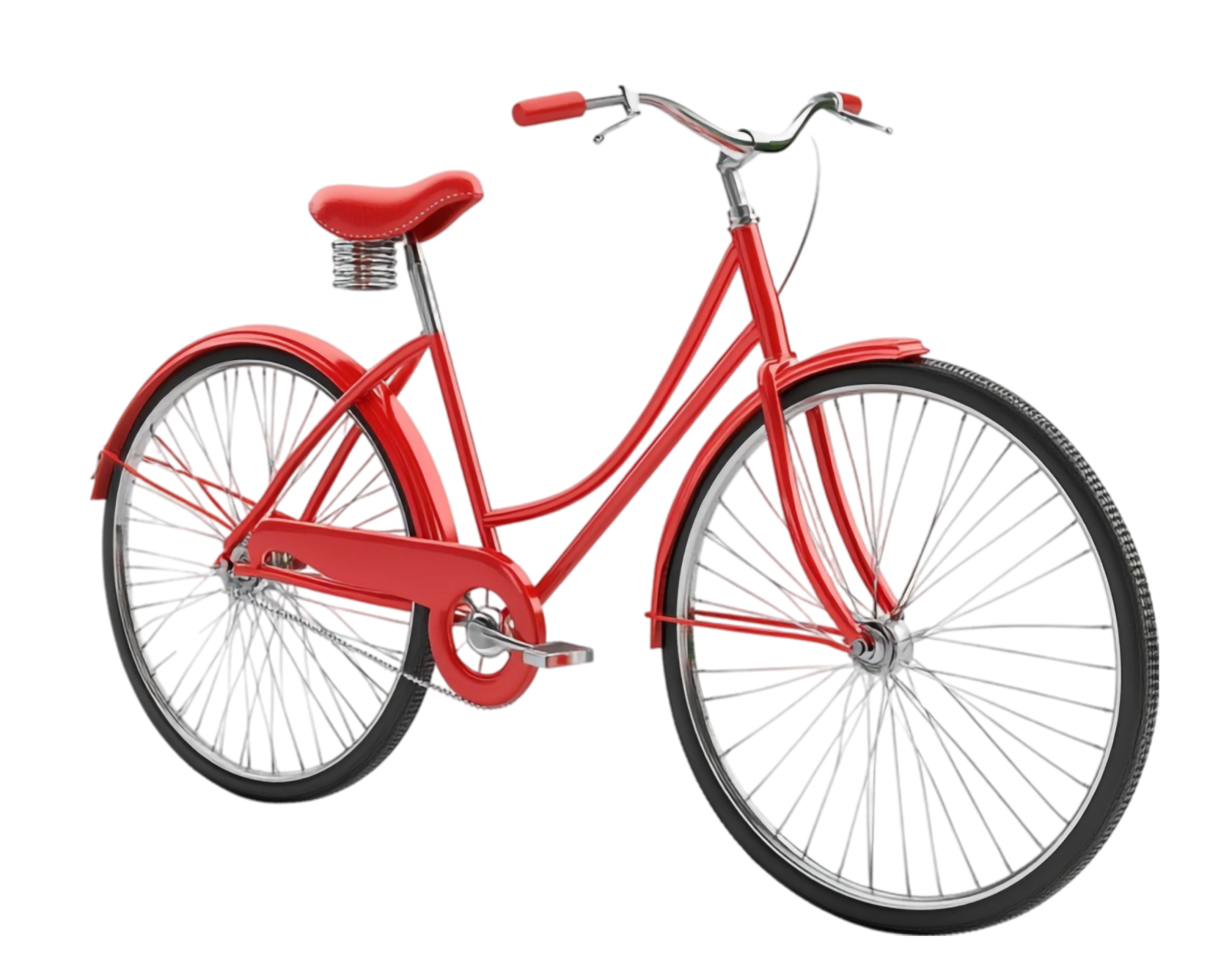
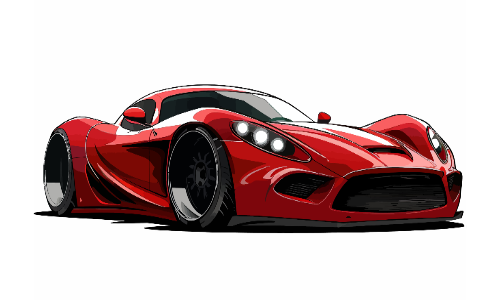
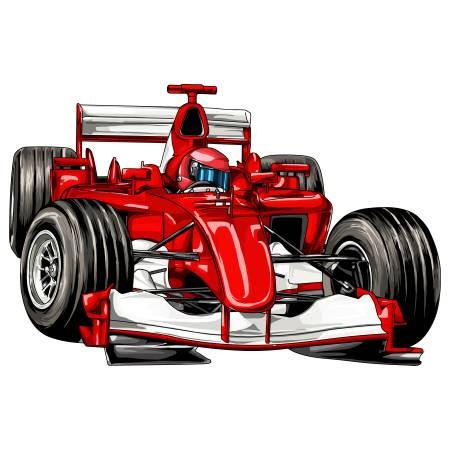
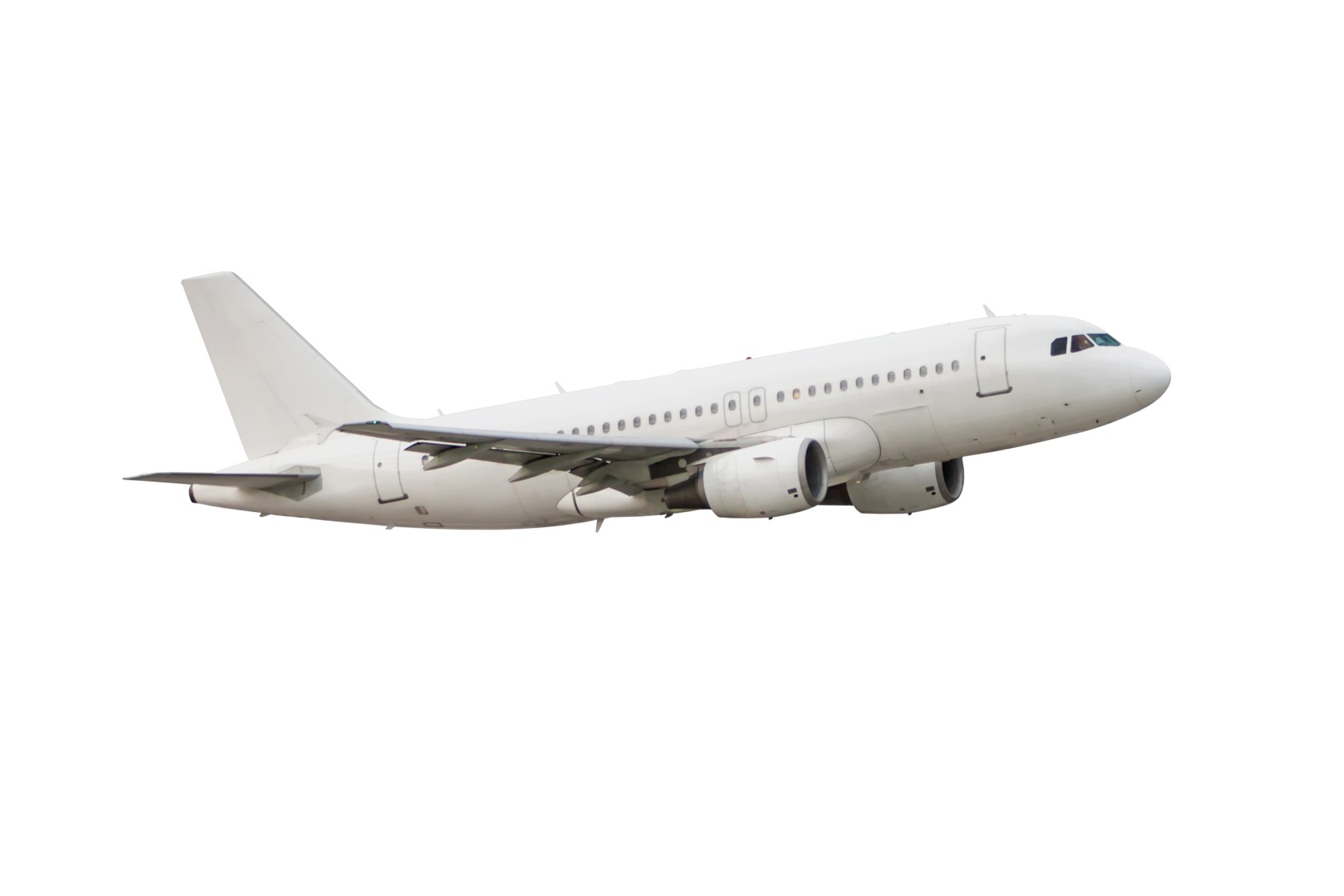
First do a speed test (see link below) and find out which “vehicle” (Internet speed) you have. In the table (under 2.) you can see how long it will take you to download Kla.TV-Offline at this speed.

##### <span data-syno-text="true">[https://www.speedtest.net/](https://www.speedtest.net/)</span>

On the page you press GO, the test takes a short time and then the results are displayed, e.g. as follows:

[![image.png](https://wiki.kla.tv/uploads/images/gallery/2025-03/scaled-1680-/bUhCVcS7daJjskC6-image.png)](https://www.speedtest.net)

Take the first two numbers under “Download”. This is your download speed in Mbps.

## 2. Download duration of “Kla.TV-Offline”

<table border="1" id="bkmrk-fahrzeug-download-ge" style="border-collapse: collapse; width: 100%; height: 389.563px;"><colgroup><col style="width: 33.3745%;"></col><col style="width: 33.3745%;"></col><col style="width: 33.3745%;"></col></colgroup><tbody><tr style="height: 61.5938px;"><td style="height: 61.5938px;">##### <span style="background-color: rgb(251, 238, 184);">**Vehicle**</span>

</td><td style="height: 61.5938px;">##### <span style="background-color: rgb(251, 238, 184);">**Your download speed**</span>

</td><td style="height: 61.5938px;">##### <span style="background-color: rgb(251, 238, 184);">**Download duration (1.7TB)**</span>

</td></tr><tr style="height: 119.391px;"><td style="height: 119.391px;">![7932775.jpg](https://wiki.kla.tv/uploads/images/gallery/2025-03/scaled-1680-/cwLni4x4o3nTziDr-7932775.jpg)  
Tricycle

</td><td style="height: 119.391px;">#### **0.25 - 1 Mbps**

</td><td style="height: 119.391px;">##### <span style="background-color: rgb(191, 237, 210);">approx. 300 days</span>

</td></tr><tr style="height: 29.7969px;"><td style="height: 29.7969px;">![InlineSkates.jpg](https://wiki.kla.tv/uploads/images/gallery/2025-03/scaled-1680-/qN1WpSWShoxB6Fl9-inlineskates.jpg)  
Inline skates

</td><td style="height: 29.7969px;">#### **2 - 4 Mbps**

</td><td style="height: 29.7969px;">##### <span style="background-color: rgb(191, 237, 210);">approx. 50 days</span>

</td></tr><tr style="height: 29.7969px;"><td style="height: 29.7969px;">![Velo01.png](https://wiki.kla.tv/uploads/images/gallery/2025-03/scaled-1680-/DYwmfTklIE5Hr0qS-velo01.png)  
Bike

</td><td style="height: 29.7969px;">#### **5 - 9 Mbps**

</td><td style="height: 29.7969px;">##### <span style="background-color: rgb(191, 237, 210);">approx. 25 days</span>

</td></tr><tr style="height: 29.7969px;"><td style="height: 29.7969px;">![Car.jpg](https://wiki.kla.tv/uploads/images/gallery/2025-03/scaled-1680-/zA0nL14GpyVwLGgT-car.jpg)  
Car

</td><td style="height: 29.7969px;">#### **10 - 20 Mbps**

</td><td style="height: 29.7969px;">##### <span style="background-color: rgb(191, 237, 210);">approx. 10 days</span>

</td></tr><tr style="height: 29.7969px;"><td style="height: 29.7969px;">![Sportcar.png](https://wiki.kla.tv/uploads/images/gallery/2025-03/scaled-1680-/2rwcYTxGJZOP0D2V-sportcar.png)  
Sports car

</td><td style="height: 29.7969px;">#### **30 - 50 Mbps**

</td><td style="height: 29.7969px;">##### <span style="background-color: rgb(191, 237, 210);">approx. 3 days</span>

</td></tr><tr style="height: 29.7969px;"><td style="height: 29.7969px;">![RacingCar.jpg](https://wiki.kla.tv/uploads/images/gallery/2025-03/scaled-1680-/4tjCRXDXPRUTV5CO-racingcar.jpg)  
Racing car

</td><td style="height: 29.7969px;">#### **100 Mbps**

</td><td style="height: 29.7969px;">##### <span style="background-color: rgb(191, 237, 210);">approx. 2 days</span>

</td></tr><tr style="height: 29.7969px;"><td style="height: 29.7969px;">![passenger-aircraft-flying-isolated-white-background.jpg](https://wiki.kla.tv/uploads/images/gallery/2025-03/scaled-1680-/gJapWDLH2PoceOk4-passenger-aircraft-flying-isolated-white-background.jpg)  
Airplane

</td><td style="height: 29.7969px;">#### **200 Mbps**

</td><td style="height: 29.7969px;">##### <span style="background-color: rgb(191, 237, 210);">approx. 24 h</span>

</td></tr><tr style="height: 29.7969px;"><td style="height: 29.7969px;">![Fighter.jpg](https://wiki.kla.tv/uploads/images/gallery/2025-03/scaled-1680-/9O1RrWtYUtV54dPn-fighter.jpg)Jet plane

</td><td style="height: 29.7969px;">#### **500 Mbps and more**

</td><td style="height: 29.7969px;">##### <span style="background-color: rgb(191, 237, 210);">&lt; 24 h </span>

</td></tr></tbody></table>

# How much time does it take to copy "Kla.TV-Offline" from one harddisk to one or two others??

##### <span style="background-color: rgb(251, 238, 184);">Expect copying ,Kla.TV-Offline‘ (1.7 TB) to ONE harddisk, to take 12 hours</span>

[![image.png](https://wiki.kla.tv/uploads/images/gallery/2025-03/scaled-1680-/pLe2vYlTz5WgM04h-image.png)](https://wiki.kla.tv/uploads/images/gallery/2025-03/pLe2vYlTz5WgM04h-image.png)

##### <span style="background-color: rgb(251, 238, 184);">Expect copying ,Kla.TV-Offline‘ (1.7 TB) to 2 harddisks simultaneously to take 16 hours</span>

[![image.png](https://wiki.kla.tv/uploads/images/gallery/2025-03/scaled-1680-/DUIVgr377ndYmNL2-image.png)](https://wiki.kla.tv/uploads/images/gallery/2025-03/DUIVgr377ndYmNL2-image.png)

##### <span style="background-color: rgb(251, 238, 184);">These calculations apply to the cheapest available harddisks in the market, each costing around 70$. More expensive harddisks typically are faster.</span>

 ![image.png](https://wiki.kla.tv/uploads/images/gallery/2025-03/scaled-1680-/cuDOUeRItuj6tREF-image.png)

# How do I format my hard disk correctly for “Kla.TV-Offline”? (exFAT)

##### To ensure that the hard disk can be read on any system, it is important that it is formatted correctly. It can then be read and written to on Mac, Windows and Linux.

<p class="callout danger">**Attention:** all data on the hard disk will be irrevocably deleted after this process! Carry out this step <span style="text-decoration: underline;">before</span> you have copied anything to the hard disk!</p>


## [![grafik.png](https://support.elaion.ch/uploads/images/gallery/2023-05/scaled-1680-/OQzkqjRNBQBbZ3N4-grafik.png) ](https://support.elaion.ch/uploads/images/gallery/2023-05/OQzkqjRNBQBbZ3N4-grafik.png)**Instructions for Windows**

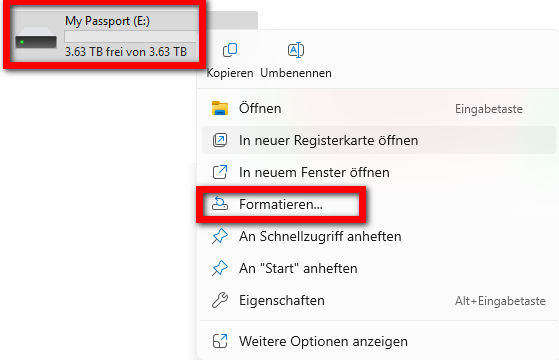
- <span style="background-color: rgb(236, 202, 250);"><span style="background-color: rgb(191, 237, 210);">Right-click on the hard disk &gt; select “Format”</span>  
      
    </span>[![image.png](https://wiki.kla.tv/uploads/images/gallery/2025-03/scaled-1680-/S2J6SAs5mI66IZ2M-image.png)](https://wiki.kla.tv/uploads/images/gallery/2025-03/S2J6SAs5mI66IZ2M-image.png)
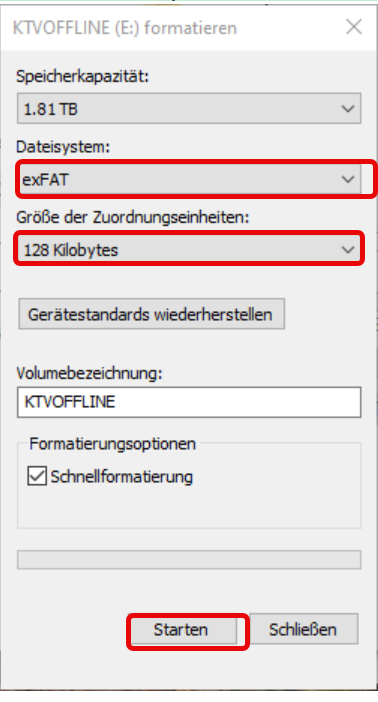
- <span style="background-color: rgb(191, 237, 210);">Select “exFAT” for the file system and press “Start”</span>  
    [![grafik.png](https://wiki.kla.tv/uploads/images/gallery/2025-03/scaled-1680-/8snRkUL8vzYZGtQf-grafik.png)](https://wiki.kla.tv/uploads/images/gallery/2025-03/8snRkUL8vzYZGtQf-grafik.png)

## ![image.png](https://support.elaion.ch/uploads/images/gallery/2022-08/scaled-1680-/n6YA4MHBcekCfTEp-image.png)**Instructions for MacOS**  


- <span style="background-color: rgb(251, 238, 184);">Navigate to the magnifying glass in the Mac's menu bar and enter “Disk Utility” in the search field:</span>[![image.png](https://wiki.kla.tv/uploads/images/gallery/2025-03/scaled-1680-/5ZgzTFAPl9gc1nPO-image.png)](https://wiki.kla.tv/uploads/images/gallery/2025-03/5ZgzTFAPl9gc1nPO-image.png)<span style="background-color: rgb(251, 238, 184);">  
    </span>[![Screenshot 2025-04-24 at 20.15.53.png](https://wiki.kla.tv/uploads/images/gallery/2025-04/scaled-1680-/bIPVnfgeQbIX3YPp-screenshot-2025-04-24-at-20-15-53.png)](https://wiki.kla.tv/uploads/images/gallery/2025-04/bIPVnfgeQbIX3YPp-screenshot-2025-04-24-at-20-15-53.png)
    
    <span style="background-color: rgb(251, 238, 184);">  
      
    </span>
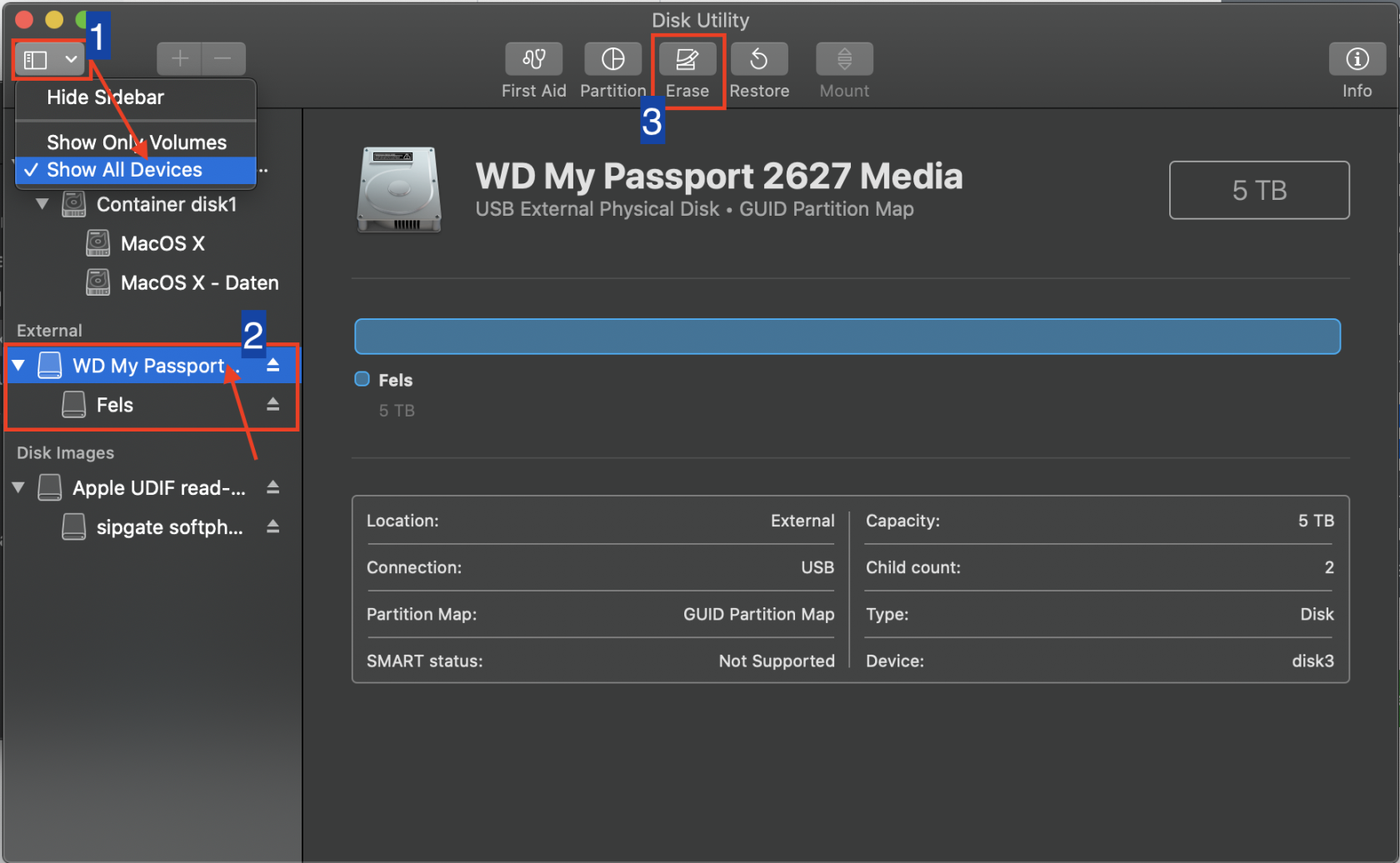
- <span style="background-color: rgb(251, 238, 184);">Select ❶ “View” &gt; “Show all devices”  
    </span>
- <span style="background-color: rgb(251, 238, 184);">Select the storage medium you want to format in the ❷ sidebar. ATTENTION: make sure you have selected the correct hard disk. (Click on it above the hard disk name)</span>
- <span style="background-color: rgb(251, 238, 184);">Click on ❸ “Delete”</span>[![Screenshot 2025-04-24 at 20.18.25.png](https://wiki.kla.tv/uploads/images/gallery/2025-04/scaled-1680-/089I6oU4DInax02F-screenshot-2025-04-24-at-20-18-25.png)](https://wiki.kla.tv/uploads/images/gallery/2025-04/089I6oU4DInax02F-screenshot-2025-04-24-at-20-18-25.png)
    
      
    <span style="background-color: rgb(251, 238, 184);">  
    </span>
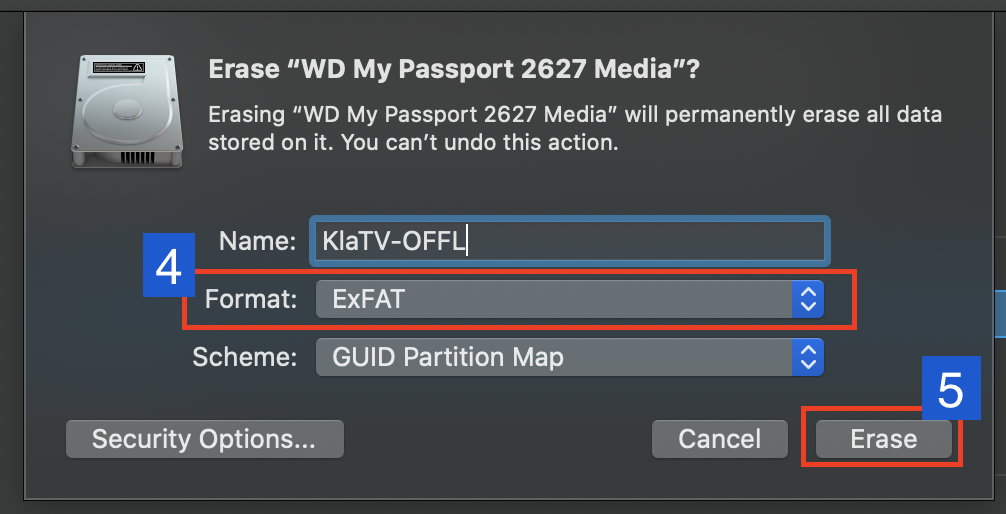
- <span style="background-color: rgb(251, 238, 184);">Select “ExFAT” for ❹ Format and then click on ❺ “Delete”</span>  
    [![Screenshot 2025-04-24 at 20.23.25.png](https://wiki.kla.tv/uploads/images/gallery/2025-04/scaled-1680-/j8vL1xNxEb3Uddrn-screenshot-2025-04-24-at-20-23-25.png)](https://wiki.kla.tv/uploads/images/gallery/2025-04/j8vL1xNxEb3Uddrn-screenshot-2025-04-24-at-20-23-25.png)

## [![grafik.png](https://support.elaion.ch/uploads/images/gallery/2023-05/scaled-1680-/HAfquWaq0hyk9mn0-grafik.png) ](https://support.elaion.ch/uploads/images/gallery/2023-05/HAfquWaq0hyk9mn0-grafik.png)**Instructions for Linux**

<div class="Article__Chapter fb-col-md-10 fb-col-lg-10  fb-direction-column-mu fb-order-5" id="bkmrk-starten-den-linux-re"><div class="mt-sm">1. Start the Linux computer and connect the external hard disk.
2. Now you need the “GParted” program, which is already pre-installed on most Linux versions.
3. Open GParted and enter your user password.
4. Click on the selection field at the top right and select the hard disk to be formatted.
5. Again, select the appropriate partitions, right-click on them and go to “unmount”.
6. Right-click again and select “Format as” and the desired file system (exFAT).
7. Click on the green tick above and confirm again. The hard disk will now be formatted.

</div></div><figure class="Article__Image mt-md fb-col-md-10 fb-col-lg-10 fb-order-5" id="bkmrk-">[<div class="Article__ImageWrapper shadow-2dp">![Festplatte unter Linux formatieren](https://im.contentlounge.net/styles/manual_crop/s3/festplatte-unter-linux-formatieren_54788448.png?im=Resize%3D%281200%2C675%29%2Caspect%3Dfit%2CAspectCrop%2Csize%3D%281200%2C675%29%2Cgravity%3DCenter%2CallowExpansion%2CBackgroundColor%2Ccolor%3Dtransparent&hash=e2a4445da618598921abfb480028c35ee50e7b8026f94e750ff7419c805f2d31)</div>](https://im.contentlounge.net/styles/manual_crop/s3/festplatte-unter-linux-formatieren_54788448.png?im=AspectCrop%2Csize%3D%2816%2C9%29%2Cgravity%3DCenter%2CallowExpansion%2CBackgroundColor%2Ccolor%3Dtransparent&hash=a34a2958e207df09cfc6e665d8377bb0e6ae3951c03e44aca726736eacc0b769)</figure>

# How does the “Kla.TV-Offline” counter work?

##### So that you and we can follow the distribution of “Kla.TV-Offline” in real terms, we have installed a counter at [www.kla.tv/offline.](https://www.kla.tv/offline) Please share your distribution there!

[![grafik.png](https://wiki.kla.tv/uploads/images/gallery/2025-04/scaled-1680-/cnyrIh8s2eIvNEpM-grafik.png)](https://wiki.kla.tv/uploads/images/gallery/2025-04/cnyrIh8s2eIvNEpM-grafik.png)

##### **How does the counting work?**

### a)

##### If you indicate in the form that you have *<span style="text-decoration: underline;">downloaded the archive yourself</span>*,  
then the counter counts for this information: **+1** If you indicate that you have *<span style="text-decoration: underline;">received it</span>*, it does not count you, because we assume that the person who gave you the hard disk has already recorded it in the counter. *It is best to ask if this is the case!*

[![Bildschirmfoto 2025-04-24 um 20.18.09.png](https://wiki.kla.tv/uploads/images/gallery/2025-04/scaled-1680-/uI1lcNGzpl4s5Hav-bildschirmfoto-2025-04-24-um-20-18-09.png)](https://wiki.kla.tv/uploads/images/gallery/2025-04/uI1lcNGzpl4s5Hav-bildschirmfoto-2025-04-24-um-20-18-09.png)

## b)

##### The number of transfers is always added exactly to the counter. If you enter 3 there, for example, the counter counts **+3**

[![Bildschirmfoto 2025-04-24 um 20.18.52.png](https://wiki.kla.tv/uploads/images/gallery/2025-04/scaled-1680-/glRkt2W4TS2Ns1eE-bildschirmfoto-2025-04-24-um-20-18-52.png)](https://wiki.kla.tv/uploads/images/gallery/2025-04/glRkt2W4TS2Ns1eE-bildschirmfoto-2025-04-24-um-20-18-52.png)

## c)

##### If you indicate in the form that you have already filled in the counter once and select that you have *<span style="text-decoration: underline;">downloaded the archive yourself,</span>* then the information in point a) will NO longer count. However, it will still add the number of transfers from point b) to the counter.

[![Bildschirmfoto 2025-04-24 um 20.19.53.png](https://wiki.kla.tv/uploads/images/gallery/2025-04/scaled-1680-/eV9g2QXbYUZ0qQMK-bildschirmfoto-2025-04-24-um-20-19-53.png)](https://wiki.kla.tv/uploads/images/gallery/2025-04/eV9g2QXbYUZ0qQMK-bildschirmfoto-2025-04-24-um-20-19-53.png)


##### *Practical examples:*

- If someone has received the archive from someone else and **has not** passed it on, the counter is not increased.
- If someone has downloaded the archive themselves and passed it on to two people, the counter adds +3
- If someone has already completed the form, they should only record these transfers that have not yet been recorded at an earlier point in time. They themselves are no longer counted.

# Print the “Kla.TV-Offline” logo as a label with Avery Zweckform 3490

##### To cover several hard disks with the “Kla.TV-Offline” logo, the print sheet in Avery 3490 format can help!

![grafik.png](https://wiki.kla.tv/uploads/images/gallery/2025-04/scaled-1680-/gbKYCbCDXUkjG0gX-grafik.png)

*Download here:*

**Word:** [https://wiki.kla.tv/attachments/1](https://wiki.kla.tv/attachments/1)

**PDF:** [https://wiki.kla.tv/attachments/2](https://wiki.kla.tv/attachments/2)