# Πρόγραμμα λήψης Kla.TV (P2P)

# WINDOWS: Εγκατάσταση και χρήση του «Kla.TV Downloader»

### **Τι θα μάθετε σε αυτό το άρθρο;**

Θα μάθετε πώς να εγκαταστήσετε το Kla.TV Downloader σε Windows. Το Kla.TV downloader διατηρεί αυτόματα το αρχείο σας ενημερωμένο. Ταυτόχρονα, μπορείτε να κάνετε τη μεταφόρτωση διαθέσιμη σε άλλους χρήστες με τη σύνδεση βίντεο σας. Ξεκινάμε:

<p class="callout info">Αυτές οι οδηγίες αφορούν τα Windows 10 και νεότερες εκδόσεις. Έχετε ακόμα Windows 7; Στο κάτω μέρος αυτού του οδηγού θα βρείτε οδηγίες για τα Windows 7.</p>

### **Οδηγίες βίντεο: (8min)**

<div class="responsive-iframe" id="bkmrk--1"></div><iframe allowfullscreen="allowfullscreen" frameborder="0" height="332" src="https://www.kla.tv/index.php?a=showembed&vidid=31127&lang=de" width="590"></iframe>

<p class="callout warning">Συνιστούμε να παρακολουθήσετε πρώτα το βίντεο για να κατανοήσετε καλύτερα τις γραπτές οδηγίες. </p>

<span lang="DE" style="font-size: 16.0pt; mso-bidi-font-size: 11.0pt; line-height: 107%; font-family: Wingdings; mso-ascii-font-family: Calibri; mso-ascii-theme-font: minor-latin; mso-fareast-font-family: Calibri; mso-fareast-theme-font: minor-latin; mso-hansi-font-family: Calibri; mso-hansi-theme-font: minor-latin; mso-bidi-font-family: 'Times New Roman'; mso-bidi-theme-font: minor-bidi; mso-ansi-language: DE; mso-fareast-language: EN-US; mso-bidi-language: AR-SA; mso-char-type: symbol; mso-symbol-font-family: Wingdings;"><span style="mso-char-type: symbol; mso-symbol-font-family: Wingdings;">&#131;</span></span><span lang="DE" style="font-size: 16.0pt; mso-bidi-font-size: 11.0pt; line-height: 107%; font-family: Wingdings; mso-ascii-font-family: Calibri; mso-ascii-theme-font: minor-latin; mso-fareast-font-family: Calibri; mso-fareast-theme-font: minor-latin; mso-hansi-font-family: Calibri; mso-hansi-theme-font: minor-latin; mso-bidi-font-family: 'Times New Roman'; mso-bidi-theme-font: minor-bidi; mso-ansi-language: DE; mso-fareast-language: EN-US; mso-bidi-language: AR-SA; mso-char-type: symbol; mso-symbol-font-family: Wingdings;"><span style="mso-char-type: symbol; mso-symbol-font-family: Wingdings;">&#132;</span></span><span lang="DE" style="font-size: 16.0pt; mso-bidi-font-size: 11.0pt; line-height: 107%; font-family: Wingdings; mso-ascii-font-family: Calibri; mso-ascii-theme-font: minor-latin; mso-fareast-font-family: Calibri; mso-fareast-theme-font: minor-latin; mso-hansi-font-family: Calibri; mso-hansi-theme-font: minor-latin; mso-bidi-font-family: 'Times New Roman'; mso-bidi-theme-font: minor-bidi; mso-ansi-language: DE; mso-fareast-language: EN-US; mso-bidi-language: AR-SA; mso-char-type: symbol; mso-symbol-font-family: Wingdings;"><span style="mso-char-type: symbol; mso-symbol-font-family: Wingdings;"> </span></span><span lang="DE" style="font-size: 16.0pt; mso-bidi-font-size: 11.0pt; line-height: 107%; font-family: Wingdings; mso-ascii-font-family: Calibri; mso-ascii-theme-font: minor-latin; mso-fareast-font-family: Calibri; mso-fareast-theme-font: minor-latin; mso-hansi-font-family: Calibri; mso-hansi-theme-font: minor-latin; mso-bidi-font-family: 'Times New Roman'; mso-bidi-theme-font: minor-bidi; mso-ansi-language: DE; mso-fareast-language: EN-US; mso-bidi-language: AR-SA; mso-char-type: symbol; mso-symbol-font-family: Wingdings;"><span style="mso-char-type: symbol; mso-symbol-font-family: Wingdings;">&#134;</span></span><span lang="DE" style="font-size: 16.0pt; mso-bidi-font-size: 11.0pt; line-height: 107%; font-family: Wingdings; mso-ascii-font-family: Calibri; mso-ascii-theme-font: minor-latin; mso-fareast-font-family: Calibri; mso-fareast-theme-font: minor-latin; mso-hansi-font-family: Calibri; mso-hansi-theme-font: minor-latin; mso-bidi-font-family: 'Times New Roman'; mso-bidi-theme-font: minor-bidi; mso-ansi-language: DE; mso-fareast-language: EN-US; mso-bidi-language: AR-SA; mso-char-type: symbol; mso-symbol-font-family: Wingdings;"><span style="mso-char-type: symbol; mso-symbol-font-family: Wingdings;">&#135;</span></span><span lang="DE" style="font-size: 16.0pt; mso-bidi-font-size: 11.0pt; line-height: 107%; font-family: Wingdings; mso-ascii-font-family: Calibri; mso-ascii-theme-font: minor-latin; mso-fareast-font-family: Calibri; mso-fareast-theme-font: minor-latin; mso-hansi-font-family: Calibri; mso-hansi-theme-font: minor-latin; mso-bidi-font-family: 'Times New Roman'; mso-bidi-theme-font: minor-bidi; mso-ansi-language: DE; mso-fareast-language: EN-US; mso-bidi-language: AR-SA; mso-char-type: symbol; mso-symbol-font-family: Wingdings;"><span style="mso-char-type: symbol; mso-symbol-font-family: Wingdings;">&#136;</span></span><span lang="DE" style="font-size: 16.0pt; mso-bidi-font-size: 11.0pt; line-height: 107%; font-family: Wingdings; mso-ascii-font-family: Calibri; mso-ascii-theme-font: minor-latin; mso-fareast-font-family: Calibri; mso-fareast-theme-font: minor-latin; mso-hansi-font-family: Calibri; mso-hansi-theme-font: minor-latin; mso-bidi-font-family: 'Times New Roman'; mso-bidi-theme-font: minor-bidi; mso-ansi-language: DE; mso-fareast-language: EN-US; mso-bidi-language: AR-SA; mso-char-type: symbol; mso-symbol-font-family: Wingdings;"><span style="mso-char-type: symbol; mso-symbol-font-family: Wingdings;">&#137;</span></span>

### **Γραπτές οδηγίες:**

### <span data-darkreader-inline-bgcolor="" style="background-color: rgb(241, 196, 15);">**1. Βασικά στοιχεία:**</span>

- Ποια είναι η **διαφορά** μεταξύ του Kla.TV downloader και της λήψης μέσω πρόσβασης σε διακομιστή (μέσω FileZilla); 
    - **Μέσω της πρόσβασης στο διακομιστή** κατεβάζετε το αρχείο μία φορά με το FileZilla και πρέπει να το διατηρείτε ενημερωμένο “χειροκίνητα” και να κατεβάζετε τα τελευταία προγράμματα ξανά και ξανά.
    - Μπορείτε να χρησιμοποιήσετε το **πρόγραμμα λήψης** για να ενημερώνετε αυτόματα το αρχείο σας και να το συγχρονίζετε με τη βάση δεδομένων του διακομιστή. Το ρυθμίζετε μία φορά και διατηρείται αυτόματα ενημερωμένο. Μπορείτε επίσης να καταστήσετε τα βίντεο από τη σύνδεση βίντεο σας διαθέσιμα για να τα ανεβάσουν άλλοι χρήστες
- Θα χρειαστεί να επανεγκαταστήσετε δύο προγράμματα. 1. το Kla.TV Downloader και 2. το qBittorrent. Ακολουθούν οι οδηγίες:

### <span data-darkreader-inline-bgcolor="" style="background-color: rgb(241, 196, 15);">**2.<span style="background-color: rgb(241, 196, 15);"> </span>**</span><span style="background-color: rgb(241, 196, 15);">**Εγκατάσταση του Kla.TV downloader:**</span>

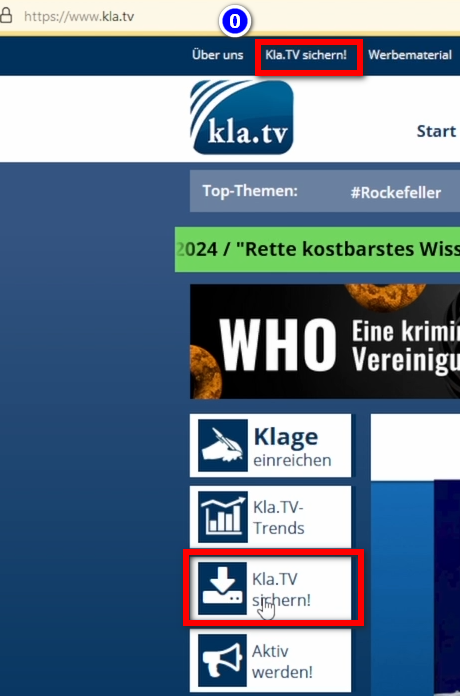
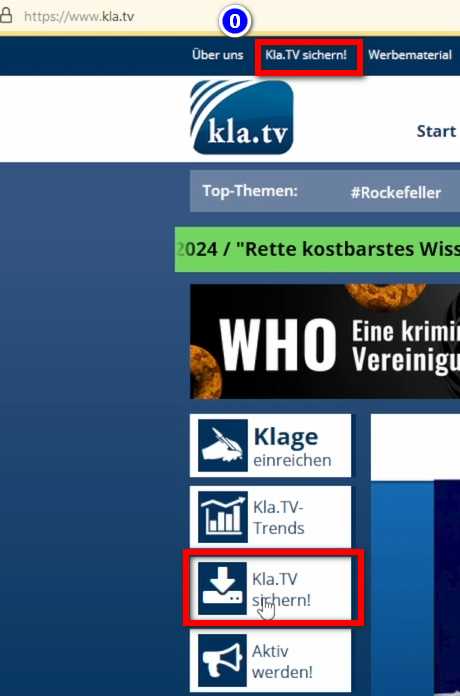
- <span data-darkreader-inline-bgcolor="" style="background-color: rgb(251, 238, 184);">Μεταβείτε στη σελίδα </span>**<span data-darkreader-inline-bgcolor="" style="background-color: rgb(251, 238, 184);">[https://www.kla.tv/sichern?lang=el](https://www.kla.tv/sichern?lang=el)</span> <span data-darkreader-inline-bgcolor="" data-darkreader-inline-color="" style="background-color: rgb(52, 73, 94); color: rgb(236, 240, 241);">(0)</span>   
      
    [![grafik.png](https://wiki.kla.tv/uploads/images/gallery/2024-11/scaled-1680-/Dv7hI2hEiWQk8ey8-grafik.png)](https://wiki.kla.tv/uploads/images/gallery/2024-11/Dv7hI2hEiWQk8ey8-grafik.png)**
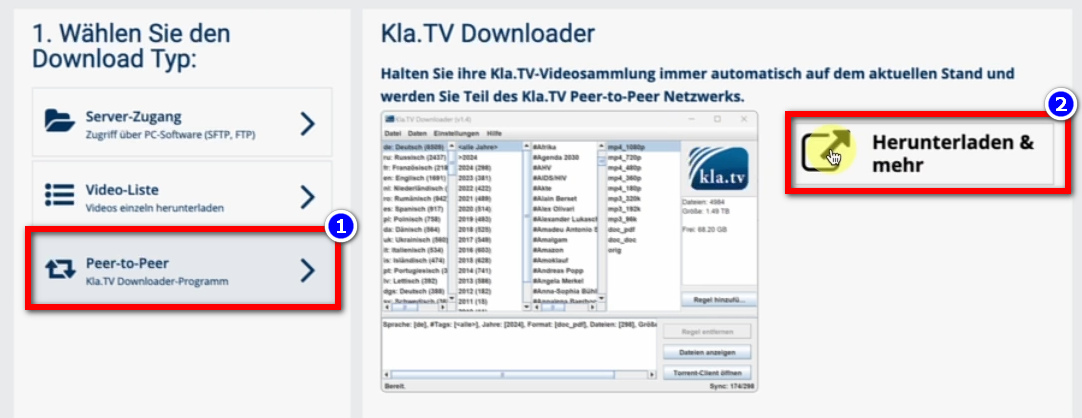
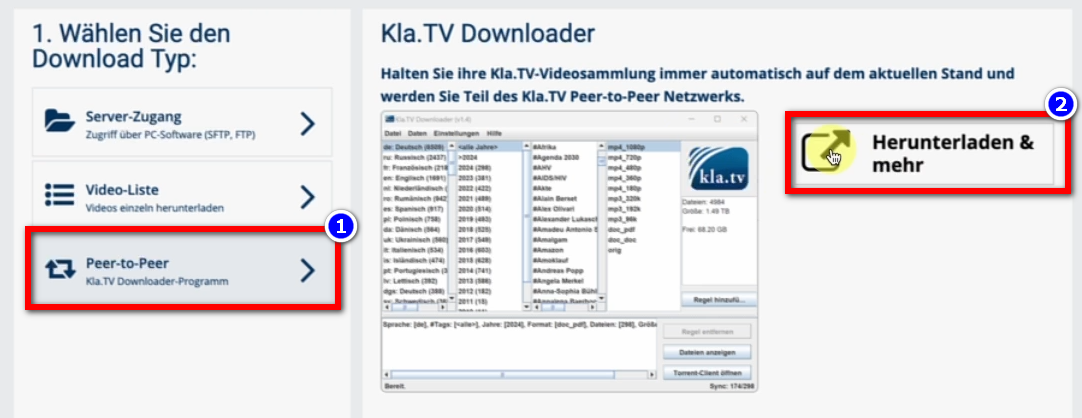
- <span data-darkreader-inline-bgcolor="" style="background-color: rgb(251, 238, 184);">Πηγαίνετε στον τύπο λήψης ❶ «**Peer-to-peer**» → ❷ «**Λήψη και άλλα**» </span>  
      
    [![grafik.png](https://wiki.kla.tv/uploads/images/gallery/2024-11/scaled-1680-/nuXM0H06k643OGNZ-grafik.png)](https://wiki.kla.tv/uploads/images/gallery/2024-11/nuXM0H06k643OGNZ-grafik.png)
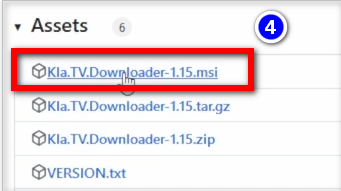
- <span data-darkreader-inline-bgcolor="" style="background-color: rgb(251, 238, 184);"> Κάντε κλικ στο ❸ **Kla-TV-Downloader** → κατεβάστε το τελευταίο πρόγραμμα (πάντα στην κορυφή) κάνοντας κλικ στο «Assets» → στο ❹ «**Kla.TV.Downloader-\*.\*\*msi**» </span>  
      
    [![grafik.png](https://wiki.kla.tv/uploads/images/gallery/2024-11/scaled-1680-/KGwQNxlWLAf2jJke-grafik.png)](https://wiki.kla.tv/uploads/images/gallery/2024-11/KGwQNxlWLAf2jJke-grafik.png)[![grafik.png](https://wiki.kla.tv/uploads/images/gallery/2024-11/scaled-1680-/qqNVAJNRTBLvbUcO-grafik.png)](https://wiki.kla.tv/uploads/images/gallery/2024-11/qqNVAJNRTBLvbUcO-grafik.png)
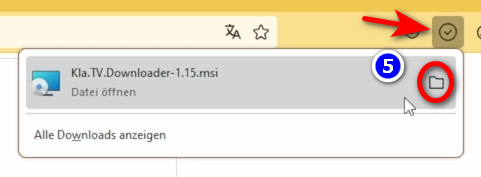
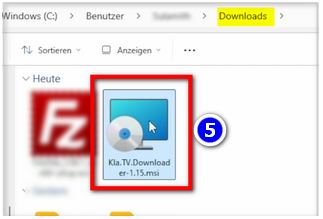
- <span data-darkreader-inline-bgcolor="" style="background-color: rgb(251, 238, 184);"><span data-darkreader-inline-bgcolor="" lang="DE" style="font-size: 16pt; line-height: 107%; font-family: Wingdings; background-color: rgb(251, 238, 184);"><span style="mso-char-type: symbol; mso-symbol-font-family: Wingdings;"><span data-darkreader-inline-bgcolor="" lang="EN-US" style="font-size: 11pt; line-height: 107%; font-family: 'Cambria Math', serif; background-color: rgb(251, 238, 184);">❺</span></span></span> Ανοίξτε το πρόγραμμα με διπλό κλικ </span>  
      
    [![grafik.png](https://wiki.kla.tv/uploads/images/gallery/2024-11/scaled-1680-/qnzVxcqoXLWrBM1l-grafik.png)](https://wiki.kla.tv/uploads/images/gallery/2024-11/qnzVxcqoXLWrBM1l-grafik.png)[![grafik.png](https://wiki.kla.tv/uploads/images/gallery/2024-11/scaled-1680-/GXplVmJvudLRCH8Y-grafik.png)](https://wiki.kla.tv/uploads/images/gallery/2024-11/GXplVmJvudLRCH8Y-grafik.png)
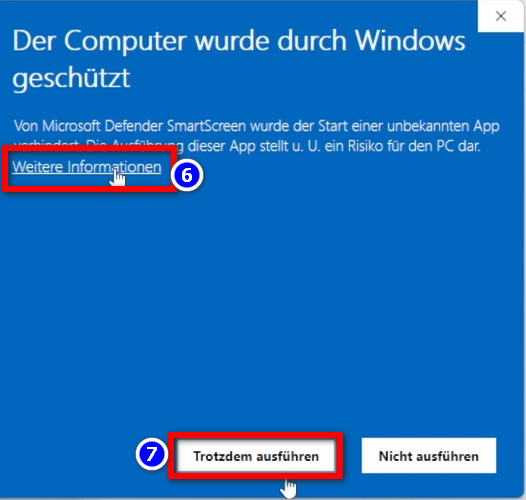
- <span data-darkreader-inline-bgcolor="" style="background-color: rgb(251, 238, 184);">Εμφανίζεται ένα **προειδοποιητικό μήνυμα** → κάντε κλικ στο ❻ «**Περισσότερες πληροφορίες**» → στη συνέχεια στο ❼ «**Εκτέλεση ούτως ή άλλως**». </span>  
      
    [![grafik.png](https://wiki.kla.tv/uploads/images/gallery/2024-11/scaled-1680-/8KGYRLXv6yY7SAwp-grafik.png)](https://wiki.kla.tv/uploads/images/gallery/2024-11/8KGYRLXv6yY7SAwp-grafik.png)  
    <span style="background-color: rgb(186, 55, 42);"><span style="background-color: rgb(224, 62, 45);">ΣΗΜΕΙΩΣΗ</span>:</span> Σε μερικές περιπτώσεις, τα Windows αρνούνται να εγκαταστήσουν ή να εκκινήσουν το πρόγραμμα λήψης kla.tv με ένα μήνυμα ιού/τροϊκού (π.χ. Wacatac.B!ml), χωρίς καμία δυνατότητα επίτευξης εξαίρεσης. Καθώς η Microsoft διεκδικεί γενικά όλο και περισσότερο έλεγχο στο σύστημα των Windows, σας συνιστούμε να απελευθερώσετε τον δικό σας υπολογιστή από αυτό με τη βοήθεια των οδηγιών στη διεύθυνση https://anti-control.info/!

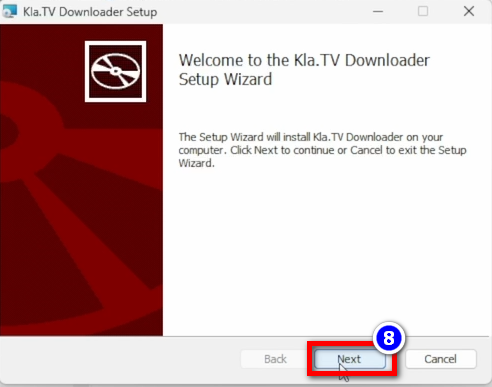
- <span data-darkreader-inline-bgcolor="" style="background-color: rgb(251, 238, 184);">Ανοίγει το **παράθυρο εγκατάστασης**: Μεταβείτε στο ❽ **Επόμενο** → **Επόμενο** → **Εγκατάσταση** → **Τέλος** → το πρόγραμμα έχει εγκατασταθεί </span>  
      
    [![grafik.png](https://wiki.kla.tv/uploads/images/gallery/2024-11/scaled-1680-/GOVLl0dO2RnwiPvj-grafik.png)](https://wiki.kla.tv/uploads/images/gallery/2024-11/GOVLl0dO2RnwiPvj-grafik.png)
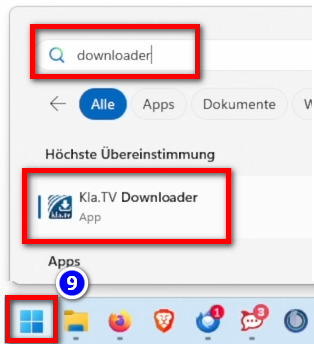
- <span data-darkreader-inline-bgcolor="" style="background-color: rgb(251, 238, 184);">Ανοίξτε το στο ❾ «**Windows**» → **πεδίο αναζήτησης:** **Downloader** → **Kla.TV Downloader** </span> **[![grafik.png](https://wiki.kla.tv/uploads/images/gallery/2024-11/scaled-1680-/xRnmM3IsrlAKyUx4-grafik.png)](https://wiki.kla.tv/uploads/images/gallery/2024-11/xRnmM3IsrlAKyUx4-grafik.png)**
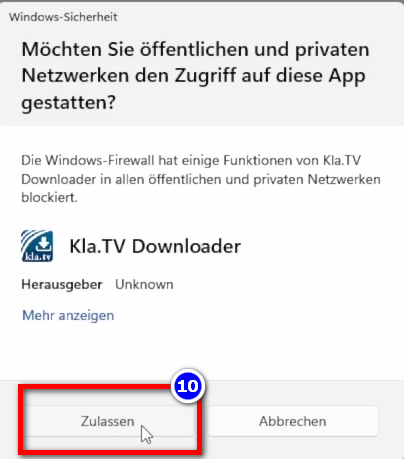
- <span data-darkreader-inline-bgcolor="" style="background-color: rgb(251, 238, 184);">Warnhinweis: <span data-darkreader-inline-bgcolor="" lang="EN-US" style="font-size: 11pt; line-height: 107%; font-family: 'Cambria Math', serif; background-color: rgb(251, 238, 184);">❿</span> </span>**<span data-darkreader-inline-bgcolor="" style="background-color: rgb(251, 238, 184);">Zulassen</span>  
      
    [![grafik.png](https://wiki.kla.tv/uploads/images/gallery/2024-11/scaled-1680-/oJRW5KcKLYoOBexb-grafik.png)](https://wiki.kla.tv/uploads/images/gallery/2024-11/oJRW5KcKLYoOBexb-grafik.png)**

### <span data-darkreader-inline-bgcolor="" style="background-color: rgb(241, 196, 15);">**3. Kla.TV Downloader einrichten:**</span>


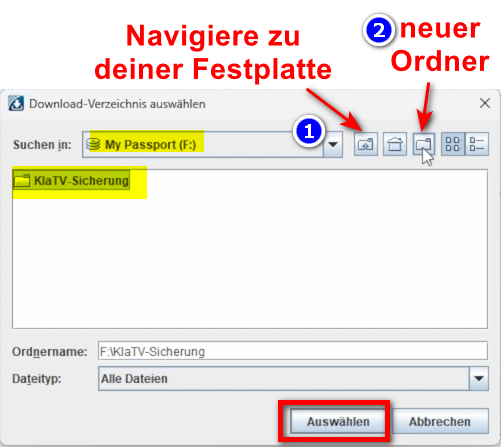
- <span data-darkreader-inline-bgcolor="" style="background-color: rgb(251, 238, 184);">Im geöffneten Programm erscheint ein Fenster. Gebe an, <span data-darkreader-inline-bgcolor="" lang="DE" style="font-size: 16pt; line-height: 107%; font-family: Wingdings; background-color: rgb(251, 238, 184);"><span style="mso-char-type: symbol; mso-symbol-font-family: Wingdings;"><span data-darkreader-inline-bgcolor="" lang="EN-US" style="font-size: 11pt; line-height: 107%; font-family: 'Cambria Math', serif; background-color: rgb(251, 238, 184);">❶</span></span></span> **wo die heruntergeladenen Dateien gespeichert** werden sollen (am besten eine externe Festplatte benutzen) → erstelle einen <span data-darkreader-inline-bgcolor="" lang="DE" style="font-size: 16pt; line-height: 107%; font-family: Wingdings; background-color: rgb(251, 238, 184);"><span style="mso-char-type: symbol; mso-symbol-font-family: Wingdings;"><span data-darkreader-inline-bgcolor="" lang="EN-US" style="font-size: 11pt; line-height: 107%; font-family: 'Cambria Math', serif; background-color: rgb(251, 238, 184);"><span data-darkreader-inline-bgcolor="" lang="DE" style="font-size: 16pt; line-height: 107%; font-family: Wingdings; background-color: rgb(251, 238, 184);"><span data-darkreader-inline-bgcolor="" lang="EN-US" style="font-size: 11pt; line-height: 107%; font-family: 'Cambria Math', serif; background-color: rgb(251, 238, 184);">❷</span></span></span></span></span> **neuen Ordner** mit dem Namen "Kla.TV-Sicherung" und wähle diesen Ordner an</span>[![grafik.png](https://wiki.kla.tv/uploads/images/gallery/2024-11/scaled-1680-/TfuSlhBJnOQuvPWb-grafik.png)](https://wiki.kla.tv/uploads/images/gallery/2024-11/TfuSlhBJnOQuvPWb-grafik.png)
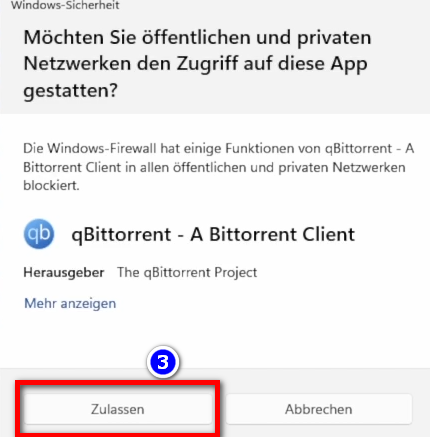
- <span data-darkreader-inline-bgcolor="" style="background-color: rgb(251, 238, 184);">Meldung erscheint, drücke <span data-darkreader-inline-bgcolor="" lang="DE" style="font-size: 16pt; line-height: 107%; font-family: Wingdings; background-color: rgb(251, 238, 184);"><span style="mso-char-type: symbol; mso-symbol-font-family: Wingdings;"><span data-darkreader-inline-bgcolor="" lang="EN-US" style="font-size: 11pt; line-height: 107%; font-family: 'Cambria Math', serif; background-color: rgb(251, 238, 184);">❸</span></span></span> "**Zulassen**"</span>  
      
     ![grafik.png](https://wiki.kla.tv/uploads/images/gallery/2024-11/scaled-1680-/Wi99hXuOIyuQbbPN-grafik.png)  
      
    
    - <span data-darkreader-inline-bgcolor="" style="background-color: rgb(194, 224, 244);">***► TIPP:***</span> *Möchtest du im Nachhinein den Festplatten-Speicherort ändern, gehe im Kla.TV-Downloader-Programm auf die Menüleiste "Einstellugen" → "Download-Verzeichnis auswählen"*

### <span data-darkreader-inline-bgcolor="" style="background-color: rgb(241, 196, 15);">**4. qBittorrent (Torrent-Client):** </span>

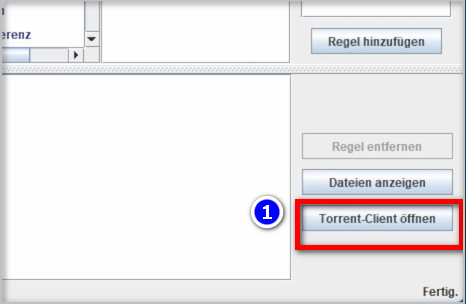
- <span data-darkreader-inline-bgcolor="" style="background-color: rgb(251, 238, 184);">Klicke im Kla.TV Downloader-Programm auf <span data-darkreader-inline-bgcolor="" lang="DE" style="font-size: 16pt; line-height: 107%; font-family: Wingdings; background-color: rgb(251, 238, 184);"><span style="mso-char-type: symbol; mso-symbol-font-family: Wingdings;"><span data-darkreader-inline-bgcolor="" lang="EN-US" style="font-size: 11pt; line-height: 107%; font-family: 'Cambria Math', serif; background-color: rgb(251, 238, 184);">❶</span></span></span> "**Torrent-Client öffnen**" und Torrent Client wird geöffnet (Torrent Client ist die ausführende Instanz von allem was du im Kla.TV-Downloader einträgst)</span>  
      
    [![grafik.png](https://wiki.kla.tv/uploads/images/gallery/2024-11/scaled-1680-/yvJAJsW6fwrGdqym-grafik.png)](https://wiki.kla.tv/uploads/images/gallery/2024-11/yvJAJsW6fwrGdqym-grafik.png)
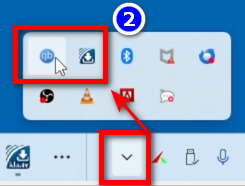
- <span data-darkreader-inline-bgcolor="" style="background-color: rgb(251, 238, 184);">In der <span data-darkreader-inline-bgcolor="" lang="DE" style="font-size: 16pt; line-height: 107%; font-family: Wingdings; background-color: rgb(251, 238, 184);"><span style="mso-char-type: symbol; mso-symbol-font-family: Wingdings;"><span data-darkreader-inline-bgcolor="" lang="EN-US" style="font-size: 11pt; line-height: 107%; font-family: 'Cambria Math', serif; background-color: rgb(251, 238, 184);">❷</span></span></span> **Menüleiste** siehst du zwei Symbole der beiden Programme. Auch wenn die Programme geschlossen sind, sind sie im Hintergrund aktiv (wenn du die Symbole siehst). Wenn nicht, Programm erneut öffnen.</span>  
      
    ![grafik.png](https://wiki.kla.tv/uploads/images/gallery/2024-11/scaled-1680-/8UeMJP1mxxT6OrQI-grafik.png) *(TIPP: die zwei Symbole können mit gehaltener Maustaste nach unten in die Tray-Menüleiste zu den anderen Symbolen gezogen werden. So hast du immer im Überblick, ob die Programme gestartet sind).*
- *Weitere Erklärung zur Oberfläche von Torrent-Client kannst du **im Video oben nachsehen** (man muss dort aber nichts speziell einstellen)*


### <span data-darkreader-inline-bgcolor="" style="background-color: rgb(241, 196, 15);">**5. Synchronisieren:** </span>

<p class="callout info">Der Kla.TV-Downloader fügt Synchronisierungsregeln hinzu und schickt diese an den qBittorrent, der daraufhin die Sendungen herunterlädt und sie immer auf den aktuellsten Stand hält. Das bedeutet: Der Kla.TV-Downloader definiert lediglich nur wie und was heruntergeladen werden soll, während qBittorrent die Arbeit vom herunterladen übernimmt.</p>

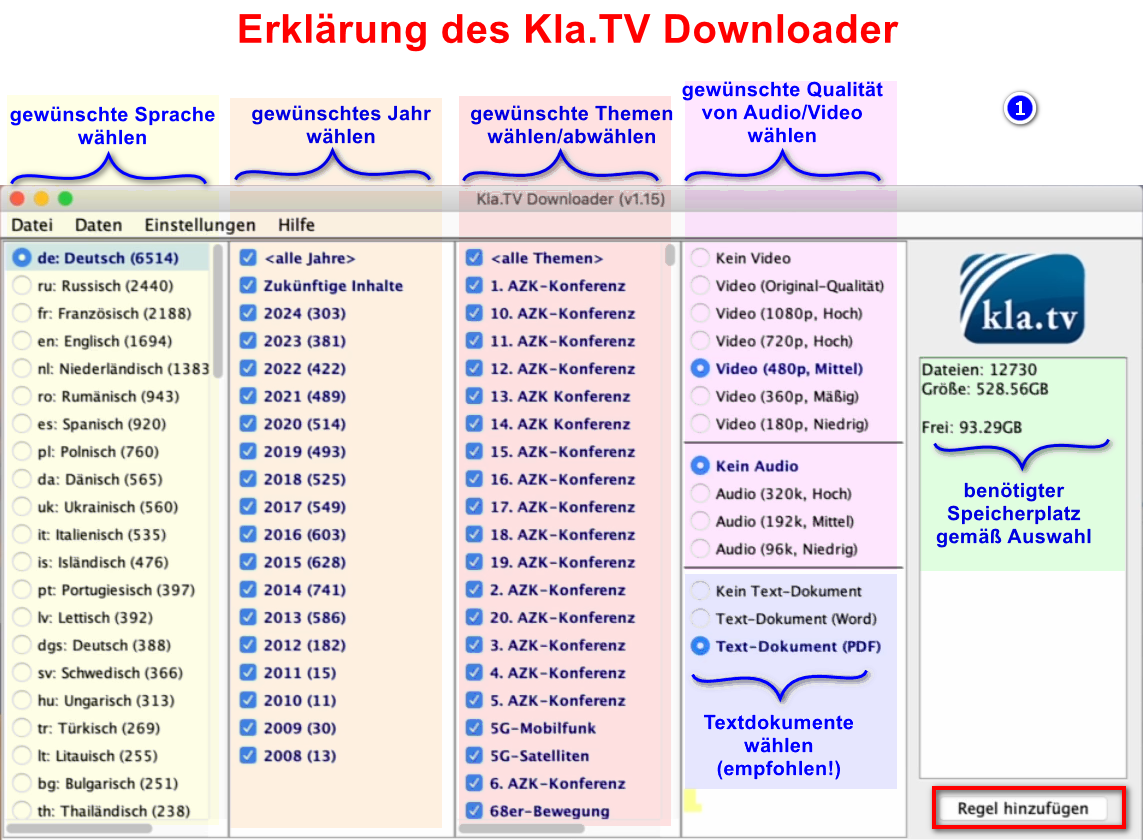
- <span data-darkreader-inline-bgcolor="" style="background-color: rgb(251, 238, 184);">Öffne den **kla.TV-Downloader** → wähle deine <span data-darkreader-inline-bgcolor="" lang="DE" style="font-size: 16pt; line-height: 107%; font-family: Wingdings; background-color: rgb(251, 238, 184);"><span style="mso-char-type: symbol; mso-symbol-font-family: Wingdings;"><span data-darkreader-inline-bgcolor="" lang="EN-US" style="font-size: 11pt; line-height: 107%; font-family: 'Cambria Math', serif; background-color: rgb(251, 238, 184);">❶</span></span></span> **gewünschten Regeln**. (Siehe Erklärungen im Bild)</span>  
      
    [![grafik.png](https://wiki.kla.tv/uploads/images/gallery/2024-11/scaled-1680-/Q9Op8e0KGpDAFHm6-grafik.png)](https://wiki.kla.tv/uploads/images/gallery/2024-11/Q9Op8e0KGpDAFHm6-grafik.png)[![grafik.png](https://wiki.kla.tv/uploads/images/gallery/2024-11/scaled-1680-/9Ok8odRA6beoyTpF-grafik.png)](https://wiki.kla.tv/uploads/images/gallery/2024-11/9Ok8odRA6beoyTpF-grafik.png)
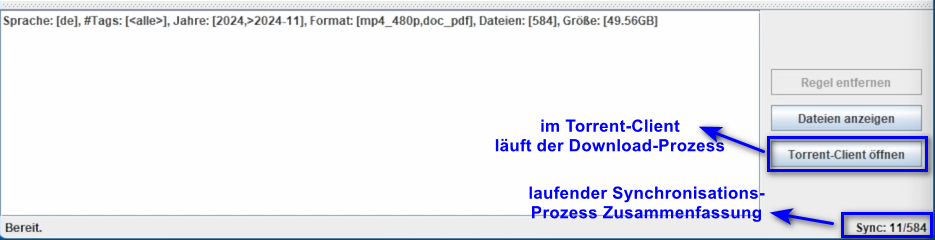
- <span data-darkreader-inline-bgcolor="" style="background-color: rgb(251, 238, 184);">Möchtest du **mehrere Qualiltäten** auswählen, musst du mehrmals eine "Regel hinzufügen". Dann wird dieser Auftrag an den Torrent-Client geschickt und dort runtergeladen. </span>  
      
    
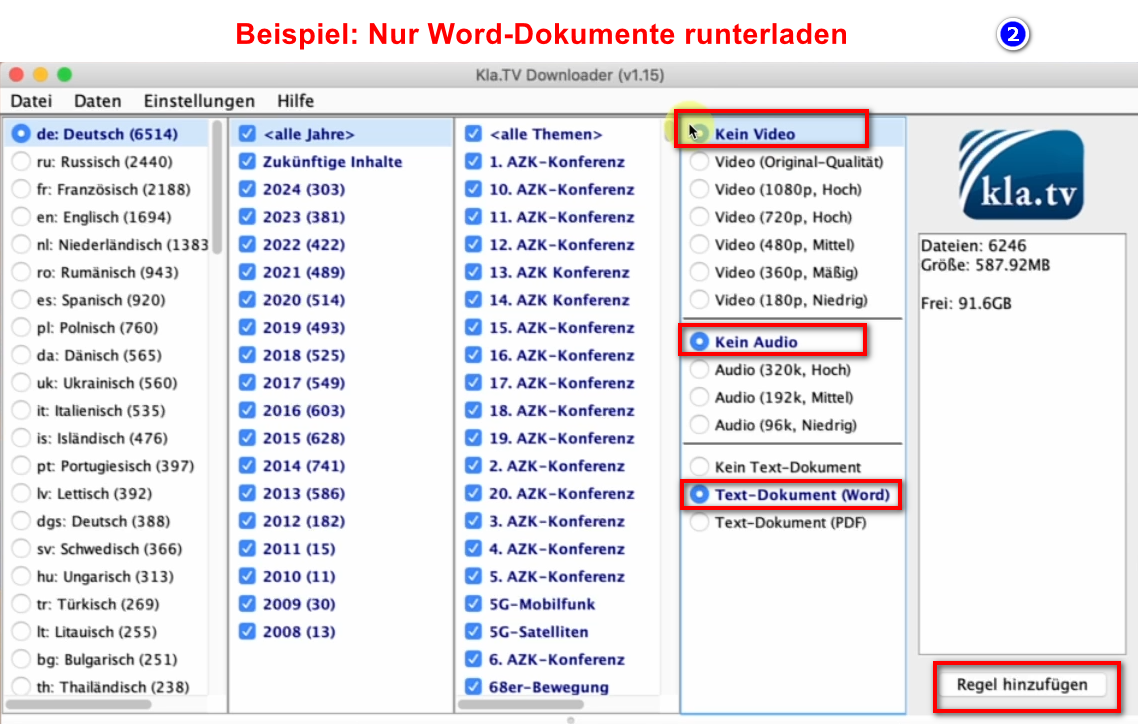
    - <span data-darkreader-inline-bgcolor="" style="background-color: rgb(251, 238, 184);">Hier ein <span data-darkreader-inline-bgcolor="" lang="DE" style="font-size: 16pt; line-height: 107%; font-family: Wingdings; background-color: rgb(251, 238, 184);"><span style="mso-char-type: symbol; mso-symbol-font-family: Wingdings;"><span data-darkreader-inline-bgcolor="" lang="EN-US" style="font-size: 11pt; line-height: 107%; font-family: 'Calibri', sans-serif; background-color: rgb(251, 238, 184);"> </span><span data-darkreader-inline-bgcolor="" lang="EN-US" style="font-size: 11pt; line-height: 107%; font-family: 'Cambria Math', serif; background-color: rgb(251, 238, 184);">❷</span></span></span> **Beispiel**, wenn du eine neue Regel erfassen möchtest, mit z.B. **NUR Word-Dateien**. Dann deaktiviere Video und Audio, wähle die gewünschten Jahre und füge die Regel hinzu. (Bei Video ist Audio dabei;)</span>[![grafik.png](https://wiki.kla.tv/uploads/images/gallery/2024-11/scaled-1680-/MyrlhWDMHW4eBhyZ-grafik.png)](https://wiki.kla.tv/uploads/images/gallery/2024-11/MyrlhWDMHW4eBhyZ-grafik.png)
- <span data-darkreader-inline-bgcolor="" style="background-color: rgb(251, 238, 184);">**Programme können geschlossen werden** und es ladet im Hintergrund weiter</span>

#### **<span data-darkreader-inline-bgcolor="" lang="DE" style="background-color: rgb(241, 196, 15);"><span lang="EN-US"> 5.1 Was wenn</span></span><span data-darkreader-inline-bgcolor="" lang="DE" style="background-color: rgb(241, 196, 15);"><span lang="EN-US"> die Downloads nicht starten und die Synchronisation nicht funktioniert? </span></span>**

<p class="callout warning">Falls die Downloads im Torrent-Client QBittorrent nicht starten kann es an einem Problem mit der Synchronisation zwischen dem Kla.TV-Downloader und dem Torrent-Client liegen. Um das Problem zu beheben befolgen Sie bitte die nächste Anweisung.</p>

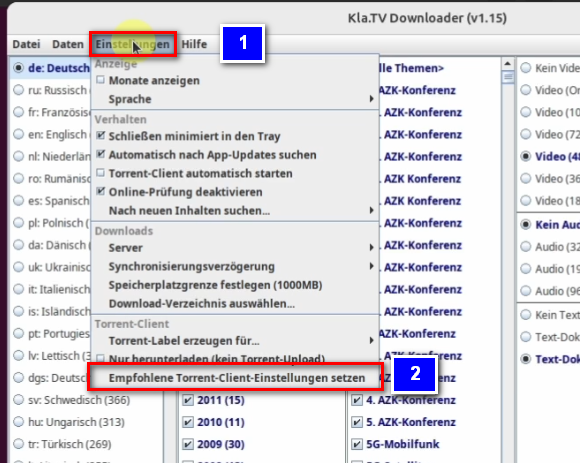
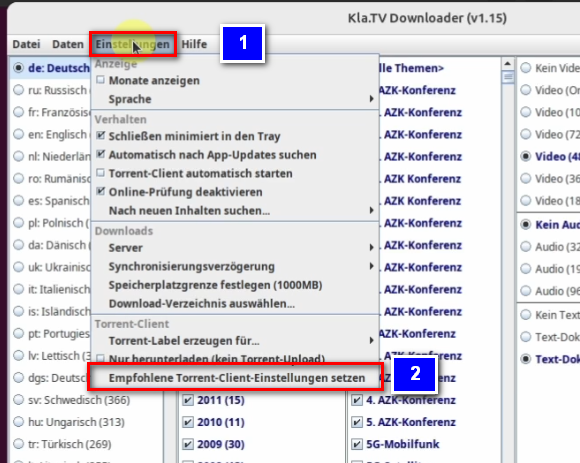
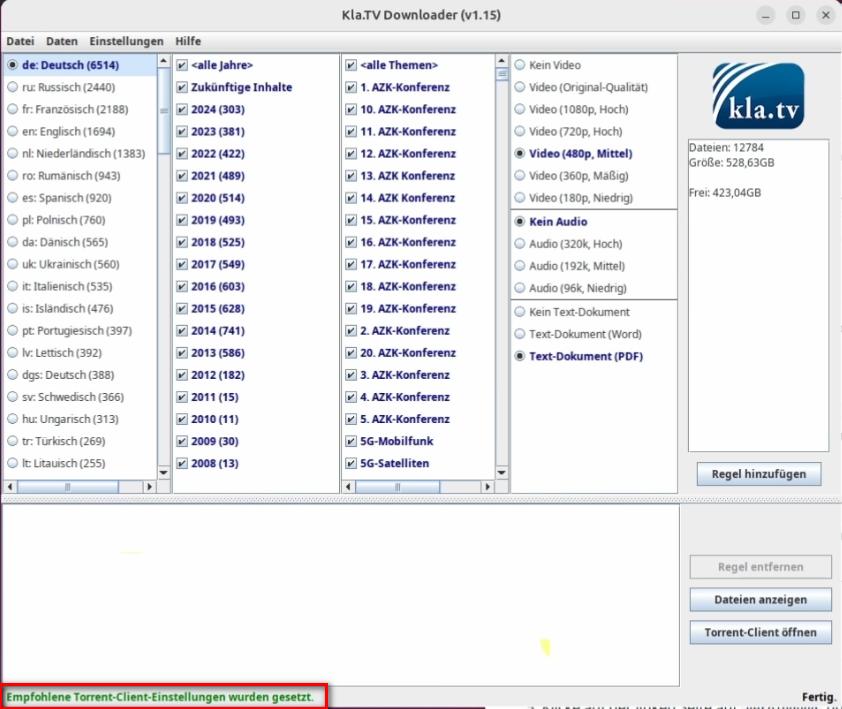
- <span data-darkreader-inline-bgcolor="" lang="DE" style="background-color: rgb(251, 238, 184);"><span lang="EN-US">Im Menü des Kla.TV-Downloaders <span data-darkreader-inline-bgcolor="" style="background-color: rgb(251, 238, 184);"><span data-darkreader-inline-bgcolor="" lang="DE" style="font-size: 16pt; line-height: 107%; font-family: Wingdings; background-color: rgb(251, 238, 184);"><span style="mso-char-type: symbol; mso-symbol-font-family: Wingdings;"><span data-darkreader-inline-bgcolor="" lang="EN-US" style="font-size: 11pt; line-height: 107%; font-family: 'Cambria Math', serif; background-color: rgb(251, 238, 184);">❶ </span></span></span></span>**Einstellungen** wählen und dann die unterste Option <span data-darkreader-inline-bgcolor="" style="background-color: rgb(251, 238, 184);"><span data-darkreader-inline-bgcolor="" lang="DE" style="font-size: 16pt; line-height: 107%; font-family: Wingdings; background-color: rgb(251, 238, 184);"><span style="mso-char-type: symbol; mso-symbol-font-family: Wingdings;"><span data-darkreader-inline-bgcolor="" lang="EN-US" style="font-size: 11pt; line-height: 107%; font-family: 'Cambria Math', serif; background-color: rgb(251, 238, 184);">❷</span></span></span> **Empfohlene Torrent-Client-Einstellungen setzen** anklicken. </span></span></span>

[![image.png](https://wiki.kla.tv/uploads/images/gallery/2025-02/scaled-1680-/0BDg5wfSZUeFQk56-image.png)](https://wiki.kla.tv/uploads/images/gallery/2025-02/0BDg5wfSZUeFQk56-image.png)

- Unten links im Fenster des Kla.TV-Downloaders sollte im Anschluss folgende Meldung erscheinen:

[![EmpfohleneEinstellungenGesetzt.png](https://wiki.kla.tv/uploads/images/gallery/2025-02/scaled-1680-/LornpXWtrJ7B7lkB-empfohleneeinstellungengesetzt.png)](https://wiki.kla.tv/uploads/images/gallery/2025-02/LornpXWtrJ7B7lkB-empfohleneeinstellungengesetzt.png)

### <span data-darkreader-inline-bgcolor="" style="background-color: rgb(241, 196, 15);">**6. Upload für andere Leute zur Verfügung stellen:** </span>

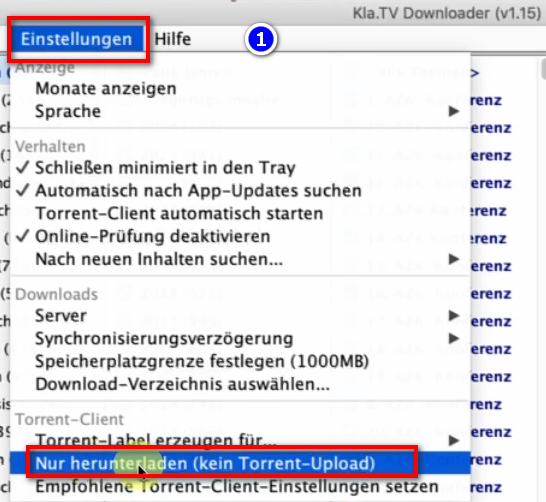
- <span data-darkreader-inline-bgcolor="" style="background-color: rgb(251, 238, 184);">Der qBittorrent stellt standardmässig alle Dateien die man runterlädt anderen Leuten zur Verfügung. <span style="text-decoration: underline;">Möchte man das aus irgendwelchen Gründen nicht</span>, dann kann es deaktiviert werden:</span>
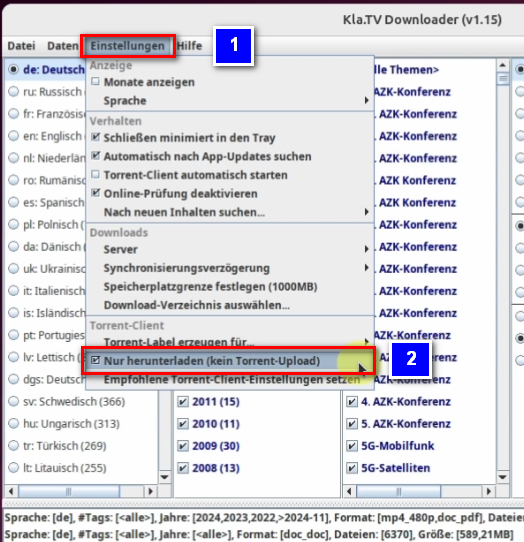
- <span data-darkreader-inline-bgcolor="" style="background-color: rgb(251, 238, 184);">Öffne <span data-darkreader-inline-bgcolor="" lang="DE" style="font-size: 16pt; line-height: 107%; font-family: Wingdings; background-color: rgb(251, 238, 184);"><span style="mso-char-type: symbol; mso-symbol-font-family: Wingdings;"><span data-darkreader-inline-bgcolor="" lang="EN-US" style="font-size: 11pt; line-height: 107%; font-family: 'Cambria Math', serif; background-color: rgb(251, 238, 184);">❶</span></span></span> **qBittorrent** → **Einstellungen** → </span>**<span data-darkreader-inline-bgcolor="" style="background-color: rgb(251, 238, 184);">Nur herunterladen (kein Torrent-Upload)  
      
    [![grafik.png](https://wiki.kla.tv/uploads/images/gallery/2024-11/scaled-1680-/TTyJJDELOuYYB7pb-grafik.png)](https://wiki.kla.tv/uploads/images/gallery/2024-11/TTyJJDELOuYYB7pb-grafik.png)  
    </span>**

### <span data-darkreader-inline-bgcolor="" style="background-color: rgb(241, 196, 15);">**7. Empfehlung: Energieoptionen so einstellen, dass Computer nicht automatisch runterfährt:** </span>

<p class="callout info">Dieses Programm kann schnell mehrere Tage brauche, bis alles synchronisiert ist. Um diesen Vorgang zu verschnellern, empfielt es sich, den Energiesparmodus auszuschalten</p>

- <span data-darkreader-inline-bgcolor="" style="background-color: rgb(251, 238, 184);">Wird der Computer neu gestartet, musst du die Applikation wieder neu starten müssen (siehe Anleitung Punkt 8)</span>
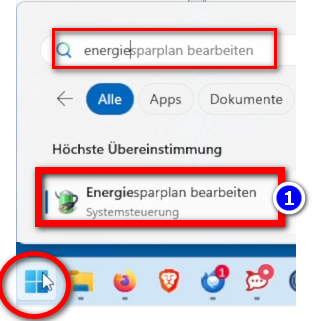
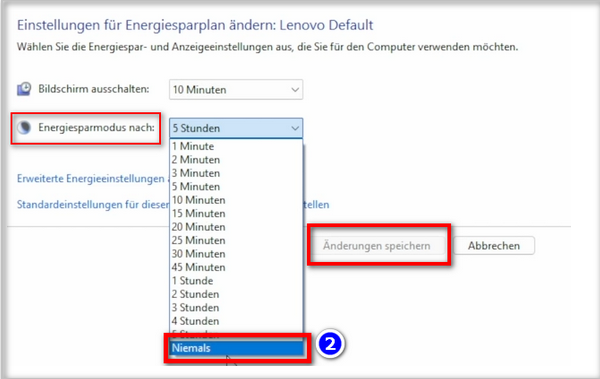
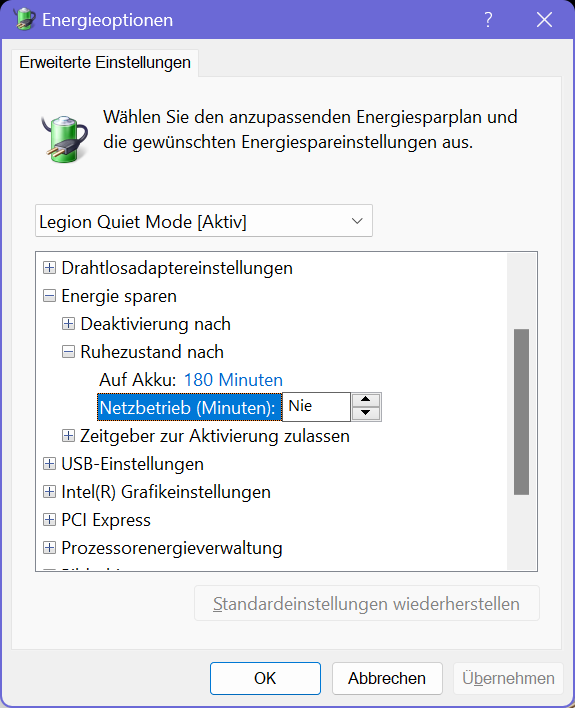
- <span data-darkreader-inline-bgcolor="" style="background-color: rgb(251, 238, 184);">Energieoptionen so ändern, dass der Computer nicht runterfährt: **Windowssymbol**→ **Suchfeld: Energiesparplan** → <span data-darkreader-inline-bgcolor="" lang="DE" style="font-size: 16pt; line-height: 107%; font-family: Wingdings; background-color: rgb(251, 238, 184);"><span style="mso-char-type: symbol; mso-symbol-font-family: Wingdings;"><span data-darkreader-inline-bgcolor="" lang="EN-US" style="font-size: 11pt; line-height: 107%; font-family: 'Cambria Math', serif; background-color: rgb(251, 238, 184);">❶</span></span></span> **Energiesparplan bearbeiten →** <span data-darkreader-inline-bgcolor="" lang="DE" style="font-size: 16pt; line-height: 107%; font-family: Wingdings; background-color: rgb(251, 238, 184);"><span style="mso-char-type: symbol; mso-symbol-font-family: Wingdings;"><span data-darkreader-inline-bgcolor="" lang="EN-US" style="font-size: 11pt; line-height: 107%; font-family: 'Cambria Math', serif; background-color: rgb(251, 238, 184);">❷</span></span></span> **Energiesparmodus nach: Niemals → Änderung speichern**</span>

![grafik.png](https://wiki.kla.tv/uploads/images/gallery/2024-11/scaled-1680-/ONpMkNkqaQmKdYtX-grafik.png)  
  
![grafik.png](https://wiki.kla.tv/uploads/images/gallery/2024-11/scaled-1680-/c6InTIccNIpkCbYb-grafik.png)

Eventuell noch bei "Erweiterte Energieeinstellungen" den Ruhezustand deaktivieren:

[![image.png](https://wiki.kla.tv/uploads/images/gallery/2025-02/scaled-1680-/um89TApH5tJcHwLM-image.png)](https://wiki.kla.tv/uploads/images/gallery/2025-02/um89TApH5tJcHwLM-image.png)
- <span data-darkreader-inline-bgcolor="" style="background-color: rgb(251, 238, 184);">Computer laufen lassen, bis alle Dateien runtergeladen sind</span>

### <span data-darkreader-inline-bgcolor="" style="background-color: rgb(241, 196, 15);">**8. Programm neu starten, nach Computerneustart / Archiv aktuell behalten:** </span>

- <span data-darkreader-inline-bgcolor="" style="background-color: rgb(251, 238, 184);">Wenn du deinen Computer neu startest, sind deine Downloadprogramm geschlossen. Damit der Downloadprozess weiterlaufen kann, solltest du den <span data-darkreader-inline-bgcolor="" lang="DE" style="font-size: 16pt; line-height: 107%; font-family: Wingdings; background-color: rgb(251, 238, 184);"><span style="mso-char-type: symbol; mso-symbol-font-family: Wingdings;"><span data-darkreader-inline-bgcolor="" lang="EN-US" style="font-size: 11pt; line-height: 107%; font-family: 'Cambria Math', serif; background-color: rgb(251, 238, 184);">❶</span></span></span> **Kla.TV-Downloader** **neu öffnen**. (Programmverknüpfung auf dem Desktop). Somit wird der Downloadprozess automatisch fortgesetzt.</span> **[![grafik.png](https://wiki.kla.tv/uploads/images/gallery/2024-11/scaled-1680-/eNjNTP3E3Q1DowMV-grafik.png)](https://wiki.kla.tv/uploads/images/gallery/2024-11/eNjNTP3E3Q1DowMV-grafik.png)**
- <span data-darkreader-inline-bgcolor="" style="background-color: rgb(251, 238, 184);">**Achte darauf, dass du von Zeit zu Zeit dieses Programm öffnest, dass die aktuellen Sendungen automatisch auf deine Festplatte runtergeladen werden** (du musst nur öffnen und nichts weiter machen).</span>

### <span data-darkreader-inline-bgcolor="" style="background-color: rgb(241, 196, 15);">**9. Update installieren:** </span>

- **<span data-darkreader-inline-bgcolor="" style="background-color: rgb(251, 238, 184);">Von Zeit zu Zeit wird der Kla.TV-Downloader optimiert und du solltest das Update installieren. So funktioniert es:  
    </span>**
- <span data-darkreader-inline-bgcolor="" style="background-color: rgb(251, 238, 184);">Öffne den Kla.TV Downloader</span>
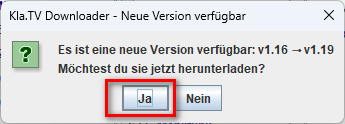
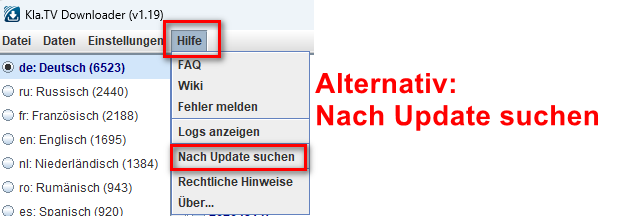
- <span data-darkreader-inline-bgcolor="" style="background-color: rgb(251, 238, 184);">Diese Meldung erscheint: (Wenn nicht, dann gehe im Kla.TV Downloader auf → Hilfe → Nach Updates suchen</span>  
    [![grafik.png](https://wiki.kla.tv/uploads/images/gallery/2024-12/scaled-1680-/CPxIwgY3Aw6GYURU-grafik.png)](https://wiki.kla.tv/uploads/images/gallery/2024-12/CPxIwgY3Aw6GYURU-grafik.png)
    
    [![grafik.png](https://wiki.kla.tv/uploads/images/gallery/2024-12/scaled-1680-/YaiCj1fp8YsCOMGW-grafik.png)](https://wiki.kla.tv/uploads/images/gallery/2024-12/YaiCj1fp8YsCOMGW-grafik.png)
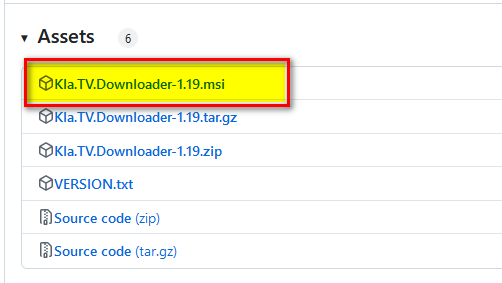
- <span data-darkreader-inline-bgcolor="" style="background-color: rgb(251, 238, 184);">Das Internet öffnet sich, scrolle runter zu "Assets" → wähle die .msi-Datei:</span>  
    [![grafik.png](https://wiki.kla.tv/uploads/images/gallery/2024-12/scaled-1680-/023Us4MTkHQ8u2Xi-grafik.png)](https://wiki.kla.tv/uploads/images/gallery/2024-12/023Us4MTkHQ8u2Xi-grafik.png)
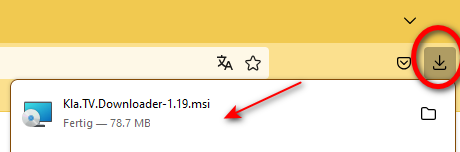
- <span data-darkreader-inline-bgcolor="" style="background-color: rgb(251, 238, 184);">Klicke auf die runtergeladene Installations-Datei:</span>  
    [![grafik.png](https://wiki.kla.tv/uploads/images/gallery/2024-12/scaled-1680-/STuGjeNRy39lXwMZ-grafik.png)](https://wiki.kla.tv/uploads/images/gallery/2024-12/STuGjeNRy39lXwMZ-grafik.png)
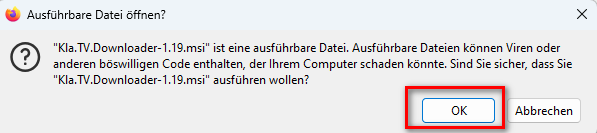
- <span data-darkreader-inline-bgcolor="" style="background-color: rgb(251, 238, 184);">Folge den Anweisungen:  
    </span>  
    [![grafik.png](https://wiki.kla.tv/uploads/images/gallery/2024-12/scaled-1680-/lDrsbwRT7NhCIHT5-grafik.png)](https://wiki.kla.tv/uploads/images/gallery/2024-12/lDrsbwRT7NhCIHT5-grafik.png)
    
    [![grafik.png](https://wiki.kla.tv/uploads/images/gallery/2024-12/scaled-1680-/DuS62hqvtDiwriHK-grafik.png)](https://wiki.kla.tv/uploads/images/gallery/2024-12/DuS62hqvtDiwriHK-grafik.png)
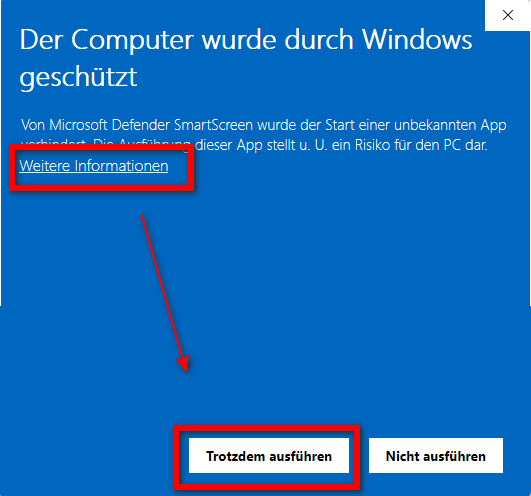
    
    [![grafik.png](https://wiki.kla.tv/uploads/images/gallery/2024-12/scaled-1680-/SDWAQqrIkcX2Z0sl-grafik.png)](https://wiki.kla.tv/uploads/images/gallery/2024-12/SDWAQqrIkcX2Z0sl-grafik.png)[![grafik.png](https://wiki.kla.tv/uploads/images/gallery/2024-12/scaled-1680-/TWYrM2csZQSt1XwL-grafik.png)](https://wiki.kla.tv/uploads/images/gallery/2024-12/TWYrM2csZQSt1XwL-grafik.png)
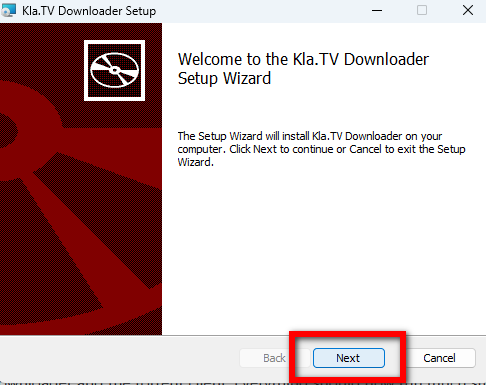
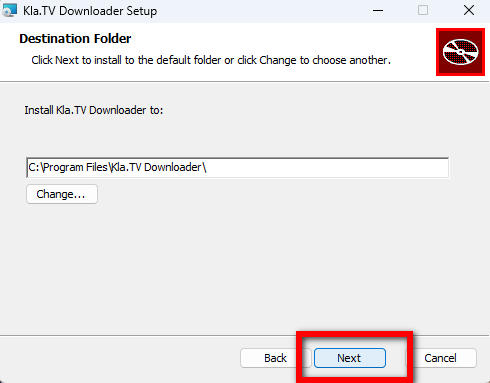
    
    [![grafik.png](https://wiki.kla.tv/uploads/images/gallery/2024-12/scaled-1680-/hEzR11mnRudFoalG-grafik.png)](https://wiki.kla.tv/uploads/images/gallery/2024-12/hEzR11mnRudFoalG-grafik.png)
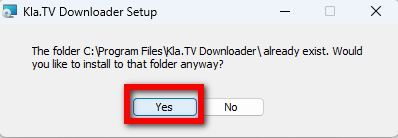
    
    [![grafik.png](https://wiki.kla.tv/uploads/images/gallery/2024-12/scaled-1680-/n8sRInnKKiM5K9SM-grafik.png)](https://wiki.kla.tv/uploads/images/gallery/2024-12/n8sRInnKKiM5K9SM-grafik.png)[![grafik.png](https://wiki.kla.tv/uploads/images/gallery/2024-12/scaled-1680-/FiZnOi5QIPfaKSkS-grafik.png)](https://wiki.kla.tv/uploads/images/gallery/2024-12/FiZnOi5QIPfaKSkS-grafik.png)
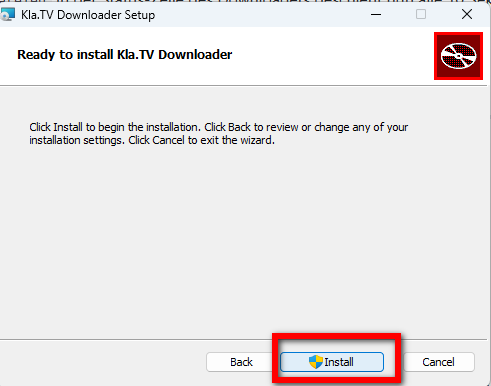
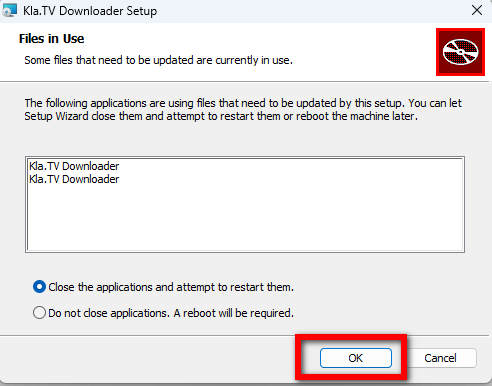
    
    [![grafik.png](https://wiki.kla.tv/uploads/images/gallery/2024-12/scaled-1680-/soHtgJxJGYlBuKpm-grafik.png)](https://wiki.kla.tv/uploads/images/gallery/2024-12/soHtgJxJGYlBuKpm-grafik.png)
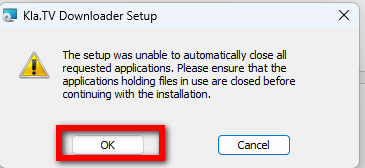
    
    [![grafik.png](https://wiki.kla.tv/uploads/images/gallery/2024-12/scaled-1680-/xa2mDeOnwfUW7BmE-grafik.png)](https://wiki.kla.tv/uploads/images/gallery/2024-12/xa2mDeOnwfUW7BmE-grafik.png)[![grafik.png](https://wiki.kla.tv/uploads/images/gallery/2024-12/scaled-1680-/u3XvGrOTW4sCrsBz-grafik.png)](https://wiki.kla.tv/uploads/images/gallery/2024-12/u3XvGrOTW4sCrsBz-grafik.png)
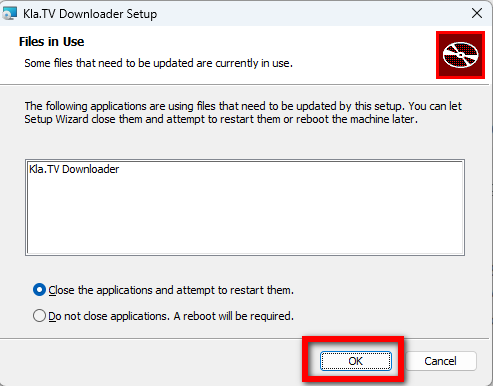
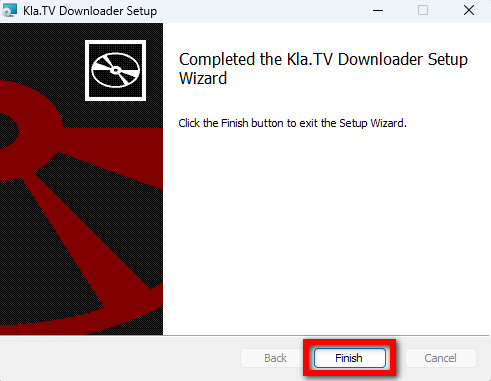
    
    [![grafik.png](https://wiki.kla.tv/uploads/images/gallery/2024-12/scaled-1680-/H216sMMqwgNrDH1M-grafik.png)](https://wiki.kla.tv/uploads/images/gallery/2024-12/H216sMMqwgNrDH1M-grafik.png)
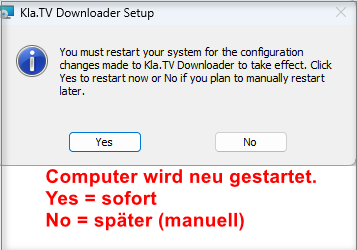
- <span data-darkreader-inline-bgcolor="" style="background-color: rgb(251, 238, 184);">Öffne erneut den Kla.TV-Downloader und geniesse die optimierte Version 😊</span>

##### **Tipp für HDD-Laufwerke (Festplatten):**  
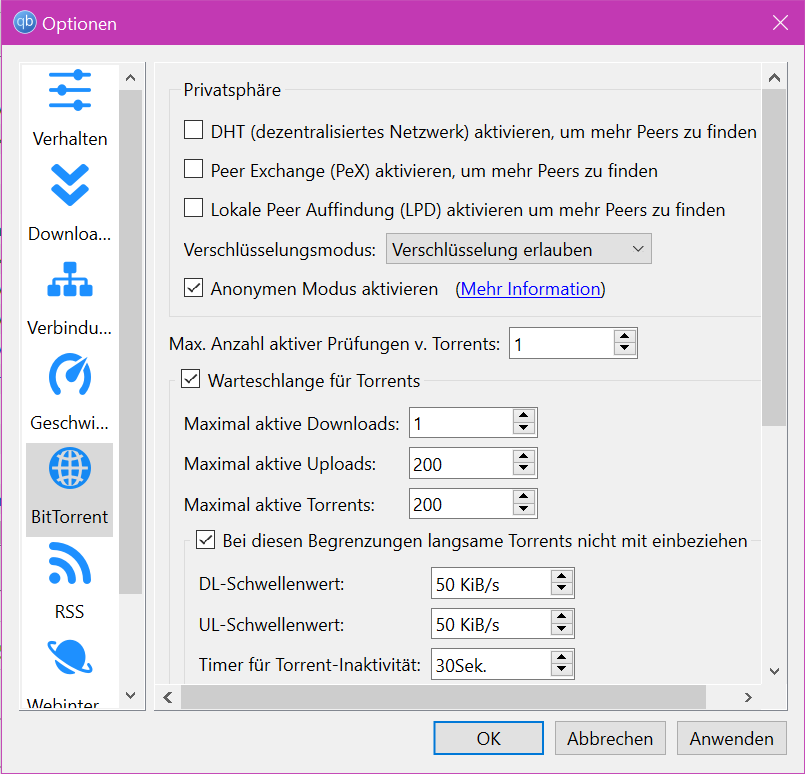
Es kann sein, dass schneller heruntergeladen wird, wenn man nur 1 Download zulässt: [![image.png](https://wiki.kla.tv/uploads/images/gallery/2025-02/scaled-1680-/PnHtxIQofqtusdRM-image.png)](https://wiki.kla.tv/uploads/images/gallery/2025-02/PnHtxIQofqtusdRM-image.png)   
[![Screenshot 2025-01-19_KlaTV-Download_QBT.png](https://wiki.kla.tv/uploads/images/gallery/2025-01/scaled-1680-/A6QSunlWubAyiqfg-screenshot-2025-01-19-klatv-download-qbt.png)](https://wiki.kla.tv/uploads/images/gallery/2025-01/A6QSunlWubAyiqfg-screenshot-2025-01-19-klatv-download-qbt.png)  
[![Screenshot_2025-01-18_1812_KlaTV-Download+.png](https://wiki.kla.tv/uploads/images/gallery/2025-01/scaled-1680-/7MCPADbx0LfClgeA-screenshot-2025-01-18-1812-klatv-download.png)](https://wiki.kla.tv/uploads/images/gallery/2025-01/7MCPADbx0LfClgeA-screenshot-2025-01-18-1812-klatv-download.png)  
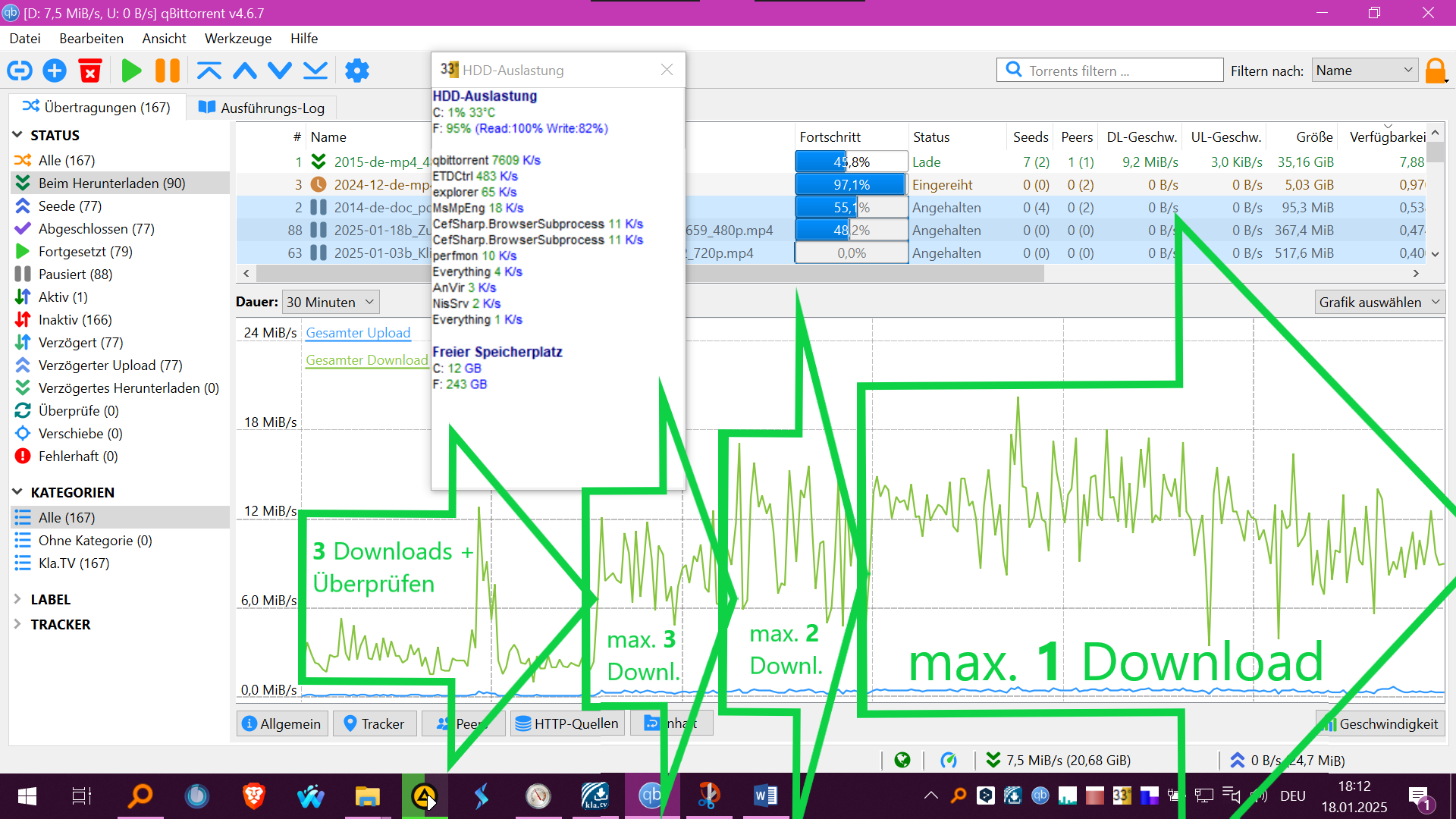
  
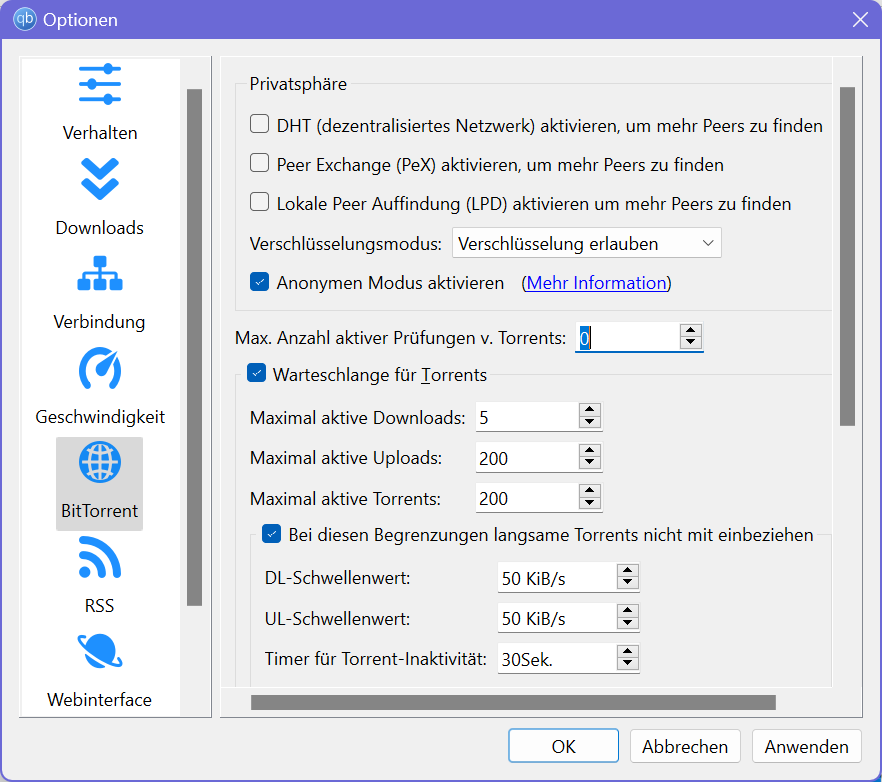
'Nach Wiederaufnahme der Downloads wurden gleichzeitig die vorhanden Dateien auf Vollständigkeit überprüft, was die HDD auch auslasten kann. Das kann man über "Max. Anzahl aktiver Prüfungen v. Torrents: 0" manuell pausieren und später fortsetzen:  
  
[![image.png](https://wiki.kla.tv/uploads/images/gallery/2025-02/scaled-1680-/WTF0Ochfl3T83MQ4-image.png)](https://wiki.kla.tv/uploads/images/gallery/2025-02/WTF0Ochfl3T83MQ4-image.png)  

##### Weitere Artikel, die dich interessieren könnten:  
  
[**Gesichertes Archiv durchsuchen**](https://wiki.kla.tv/books/klatv-sichern/page/gesichertes-archiv-durchsuchen)

### Anleitung für Windows 7:

Grundsätzlich ist der Installations-Prozess gleich wie bei Windows 10. Leider kann aber die im Installationsscript enthaltende portalbe Version vom qBittorrent 5 und grösser nicht ausgeführt werden und gibt eine entsprechende Fehlermeldung aus..

*Du kannst wie folgt vorgehen:*

1. Lade dir qBittorrent in der Version v4.4.5 von diesem Link herunter: [https://sourceforge.net/projects/qbittorrent/files/qbittorrent-win32/qbittorrent-4.4.5/](https://sourceforge.net/projects/qbittorrent/files/qbittorrent-win32/qbittorrent-4.4.5/) und installiere das Programm
2. Konfiguriere den qBittorrent manuell mit Hilfe dieser Instruktion: [https://github.com/Kla-TV/downloader/wiki/Torrent%E2%80%90Client-manuell-einrichten](https://github.com/Kla-TV/downloader/wiki/Torrent%E2%80%90Client-manuell-einrichten)

Tipp: Um ein Gefühl zu bekommen wie der "Kla.TV Downloader" und qBittorrent zusammenarbeitet, schaue dir auch die Anleitungen von [Linux](https://wiki.kla.tv/books/klatv-sichern/page/linux-installation-und-nutzung-von-klatv-downloader) oder [MAC](https://wiki.kla.tv/books/klatv-sichern/page/mac-installation-und-nutzung-von-klatv-downloader) an. Dort gibt es vertieften Einblick.

# MAC: Εγκατάσταση και χρήση του «Kla.TV Downloader»

### **Τι θα μάθετε σε αυτό το άρθρο;**

Θα μάθετε πώς να εγκαταστήσετε το Kla.TV Downloader σε Mac. Το Kla.TV downloader διατηρεί αυτόματα το αρχείο σας ενημερωμένο. Ταυτόχρονα, μπορείτε να κάνετε τη μεταφόρτωση διαθέσιμη σε άλλους χρήστες με τη σύνδεση βίντεο σας. Ξεκινάμε:

### **Οδηγίες βίντεο: (13min)**

<iframe allowfullscreen="allowfullscreen" frameborder="0" height="332" src="https://www.kla.tv/index.php?a=showembed&vidid=31128&lang=de" width="590"></iframe>

<div class="responsive-iframe" id="bkmrk--1"></div><p class="callout warning">Συνιστούμε να παρακολουθήσετε πρώτα το βίντεο για να κατανοήσετε καλύτερα τις γραπτές οδηγίες. </p>

### <span lang="DE" style="font-size: 16.0pt; mso-bidi-font-size: 11.0pt; line-height: 107%; font-family: Wingdings; mso-ascii-font-family: Calibri; mso-ascii-theme-font: minor-latin; mso-fareast-font-family: Calibri; mso-fareast-theme-font: minor-latin; mso-hansi-font-family: Calibri; mso-hansi-theme-font: minor-latin; mso-bidi-font-family: 'Times New Roman'; mso-bidi-theme-font: minor-bidi; mso-ansi-language: DE; mso-fareast-language: EN-US; mso-bidi-language: AR-SA; mso-char-type: symbol; mso-symbol-font-family: Wingdings;"><span style="mso-char-type: symbol; mso-symbol-font-family: Wingdings;">&#131;</span></span><span lang="DE" style="font-size: 16.0pt; mso-bidi-font-size: 11.0pt; line-height: 107%; font-family: Wingdings; mso-ascii-font-family: Calibri; mso-ascii-theme-font: minor-latin; mso-fareast-font-family: Calibri; mso-fareast-theme-font: minor-latin; mso-hansi-font-family: Calibri; mso-hansi-theme-font: minor-latin; mso-bidi-font-family: 'Times New Roman'; mso-bidi-theme-font: minor-bidi; mso-ansi-language: DE; mso-fareast-language: EN-US; mso-bidi-language: AR-SA; mso-char-type: symbol; mso-symbol-font-family: Wingdings;"><span style="mso-char-type: symbol; mso-symbol-font-family: Wingdings;">&#132;</span></span><span lang="DE" style="font-size: 16.0pt; mso-bidi-font-size: 11.0pt; line-height: 107%; font-family: Wingdings; mso-ascii-font-family: Calibri; mso-ascii-theme-font: minor-latin; mso-fareast-font-family: Calibri; mso-fareast-theme-font: minor-latin; mso-hansi-font-family: Calibri; mso-hansi-theme-font: minor-latin; mso-bidi-font-family: 'Times New Roman'; mso-bidi-theme-font: minor-bidi; mso-ansi-language: DE; mso-fareast-language: EN-US; mso-bidi-language: AR-SA; mso-char-type: symbol; mso-symbol-font-family: Wingdings;"><span style="mso-char-type: symbol; mso-symbol-font-family: Wingdings;"> </span></span>**Γραπτές οδηγίες:**

### <span style="background-color: rgb(241, 196, 15);">**1. Βασικά στοιχεία:**</span>

- Ποια είναι η **διαφορά** μεταξύ του Kla.TV downloader και της λήψης μέσω πρόσβασης σε διακομιστή (μέσω FileZilla); 
    - **Μέσω της πρόσβασης στο διακομιστή** κατεβάζετε το αρχείο μία φορά με το FileZilla και πρέπει να το διατηρείτε ενημερωμένο “χειροκίνητα” και να κατεβάζετε τα τελευταία προγράμματα ξανά και ξανά.
    - Μπορείτε να χρησιμοποιήσετε το **πρόγραμμα λήψης** για να ενημερώνετε αυτόματα το αρχείο σας και να το συγχρονίζετε με τη βάση δεδομένων του διακομιστή. Το ρυθμίζετε μία φορά και διατηρείται αυτόματα ενημερωμένο. Μπορείτε επίσης να καταστήσετε τα βίντεο από τη σύνδεση βίντεο σας διαθέσιμα για να τα ανεβάσουν άλλοι χρήστες
- Θα χρειαστεί να επανεγκαταστήσετε δύο προγράμματα. 1. το Kla.TV Downloader και 2. το qBittorrent. Ακολουθούν οι οδηγίες:

### <span style="background-color: rgb(241, 196, 15);">**2. Εγκατάσταση του Kla.TV downloader:**</span>

- <span style="background-color: rgb(251, 238, 184);">Μεταβείτε στη σελίδα </span>**<span style="background-color: rgb(251, 238, 184);">[https://www.kla.tv/sichern?lang=el](https://www.kla.tv/sichern?lang=el "Αποθηκεύστε το αρχείο Kla.TV στον υπολογιστή σας!")</span> <span style="background-color: rgb(52, 73, 94); color: rgb(236, 240, 241);">(0)</span>   
      
    [![grafik.png](https://wiki.kla.tv/uploads/images/gallery/2024-11/scaled-1680-/Dv7hI2hEiWQk8ey8-grafik.png)](https://wiki.kla.tv/uploads/images/gallery/2024-11/Dv7hI2hEiWQk8ey8-grafik.png)**<span style="background-color: rgb(251, 238, 184);">  
      
    </span>
- <span style="background-color: rgb(251, 238, 184);"> Πηγαίνετε στον τύπο λήψης ❶ «**Peer-to-peer**» → ❷ «**Λήψη και άλλα**» </span>  
      
    [![grafik.png](https://wiki.kla.tv/uploads/images/gallery/2024-11/scaled-1680-/nuXM0H06k643OGNZ-grafik.png)](https://wiki.kla.tv/uploads/images/gallery/2024-11/nuXM0H06k643OGNZ-grafik.png)
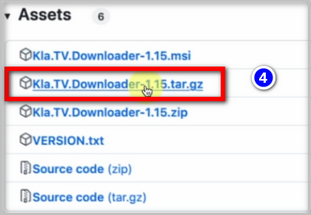
- <span style="background-color: rgb(251, 238, 184);">Κάντε κλικ στο ❸ **Kla-TV-Downloader** → κατεβάστε το τελευταίο πρόγραμμα (πάντα στην κορυφή) κάνοντας κλικ στο «Assets» → στο ❹ «**Kla.TV.Downloader-\*.\*\*.tar.gz**»</span>  
      
    [![grafik.png](https://wiki.kla.tv/uploads/images/gallery/2024-11/scaled-1680-/ZHJIXNQOHy6dYlte-grafik.png)](https://wiki.kla.tv/uploads/images/gallery/2024-11/ZHJIXNQOHy6dYlte-grafik.png)
    
    [![grafik.png](https://wiki.kla.tv/uploads/images/gallery/2024-11/scaled-1680-/xKO8pwvIyzzKFFa6-grafik.png)](https://wiki.kla.tv/uploads/images/gallery/2024-11/xKO8pwvIyzzKFFa6-grafik.png)
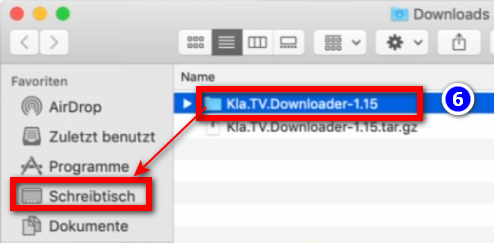
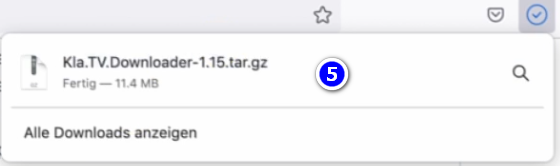
- <span style="background-color: rgb(251, 238, 184);"><span lang="DE" style="font-size: 16pt; line-height: 107%; font-family: Wingdings; background-color: rgb(251, 238, 184);"><span style="mso-char-type: symbol; mso-symbol-font-family: Wingdings;"><span lang="EN-US" style="font-size: 11pt; line-height: 107%; font-family: 'Cambria Math', serif; background-color: rgb(251, 238, 184);">❺</span></span></span> **Ανοίξτε** και **αποσυμπιέστε** το πρόγραμμα → σύρετέ το στην **επιφάνεια εργασίας** ❻, για παράδειγμα </span>  
      
    ![grafik.png](https://wiki.kla.tv/uploads/images/gallery/2024-11/scaled-1680-/fqkvJohFv6e5fZeD-grafik.png)[![grafik.png](https://wiki.kla.tv/uploads/images/gallery/2024-11/scaled-1680-/fgT1bYzgnnG9BTgh-grafik.png)](https://wiki.kla.tv/uploads/images/gallery/2024-11/fgT1bYzgnnG9BTgh-grafik.png)

<span lang="DE" style="font-size: 16.0pt; mso-bidi-font-size: 11.0pt; line-height: 107%; font-family: Wingdings; mso-ascii-font-family: Calibri; mso-ascii-theme-font: minor-latin; mso-fareast-font-family: Calibri; mso-fareast-theme-font: minor-latin; mso-hansi-font-family: Calibri; mso-hansi-theme-font: minor-latin; mso-bidi-font-family: 'Times New Roman'; mso-bidi-theme-font: minor-bidi; mso-ansi-language: DE; mso-fareast-language: EN-US; mso-bidi-language: AR-SA; mso-char-type: symbol; mso-symbol-font-family: Wingdings;"><span style="mso-char-type: symbol; mso-symbol-font-family: Wingdings;">  
</span></span>

### <span style="background-color: rgb(241, 196, 15);">**3. Εγκατάσταση της JAVA (ώστε να λειτουργεί το Kla.TV-Downloader):**</span>

- <span style="background-color: rgb(251, 238, 184);">Μεταβείτε στην ιστοσελίδα [**adoptium.net/**](https://adoptium.net/)</span>
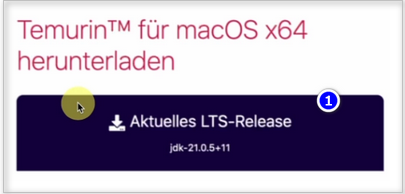
- <span style="background-color: rgb(251, 238, 184);"> Εδώ εμφανίζεται το σωστό πρόγραμμα ❶ «**Current LTS release**» για τον Mac σας. Κατεβάστε το κάνοντας κλικ σε αυτό </span>  
      
    [![grafik.png](https://wiki.kla.tv/uploads/images/gallery/2024-11/scaled-1680-/EmWazYFln77srf5R-grafik.png)](https://wiki.kla.tv/uploads/images/gallery/2024-11/EmWazYFln77srf5R-grafik.png)
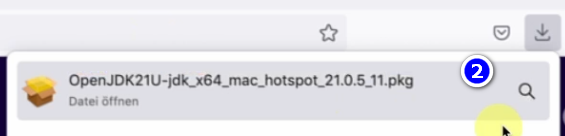
- <span style="background-color: rgb(251, 238, 184);"><span lang="DE" style="font-size: 16pt; line-height: 107%; font-family: Wingdings; background-color: rgb(251, 238, 184);"><span style="mso-char-type: symbol; mso-symbol-font-family: Wingdings;"><span lang="EN-US" style="font-size: 11pt; line-height: 107%; font-family: 'Cambria Math', serif; background-color: rgb(251, 238, 184);">❷ **Εγκαταστήστε** το πρόγραμμα κάνοντας διπλό κλικ → **Συνέχεια** → **Αποδοχή** → **Συνέχεια** → **Εγκατάσταση** (πληκτρολογήστε το όνομα χρήστη και τον κωδικό πρόσβασης του Mac σας) → **Εγκατάσταση λογισμικού** → **Κλείσιμο** → **Τοποθετήστε στα σκουπίδια** (αρχείο εγκατάστασης)</span></span></span></span>  
      
    [![grafik.png](https://wiki.kla.tv/uploads/images/gallery/2024-11/scaled-1680-/H7DQOnAAE3ZeBUmo-grafik.png)](https://wiki.kla.tv/uploads/images/gallery/2024-11/H7DQOnAAE3ZeBUmo-grafik.png)

### <span style="background-color: rgb(241, 196, 15);">**4. Πραγματοποιήστε ρυθμίσεις ασφαλείας και ρυθμίστε το downloader:**</span>

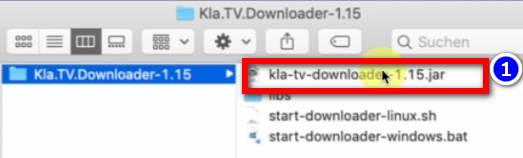
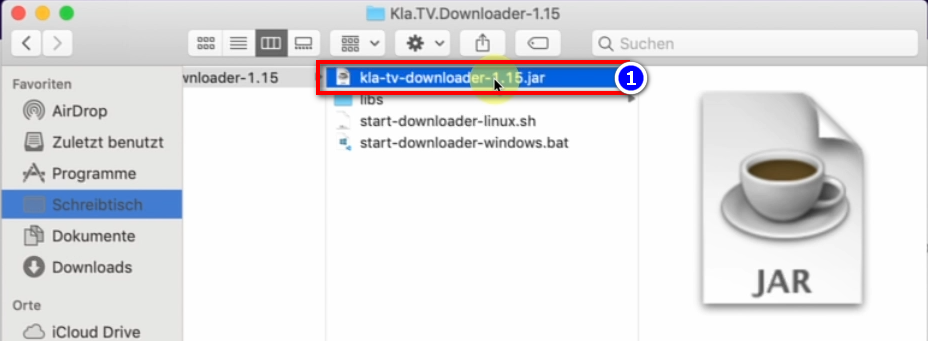
- <span style="background-color: rgb(251, 238, 184);">Μεταβείτε στο φάκελο Kla.TV downloader στην επιφάνεια εργασίας και ανοίξτε το ❶ **kla-tv-downloader-.jar**</span>  
      
     ![grafik.png](https://wiki.kla.tv/uploads/images/gallery/2024-11/scaled-1680-/xmXsOy2llxi8ItL3-grafik.png)
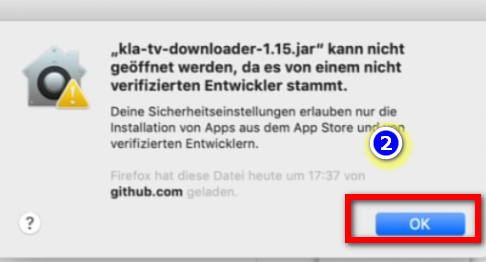
- <span style="background-color: rgb(251, 238, 184);">Κάντε κλικ στο «OK» στο ❷ **Προειδοποιητικό μήνυμα**. </span>   
    [![grafik.png](https://wiki.kla.tv/uploads/images/gallery/2024-11/scaled-1680-/ctWjfFgcE6oNtDZi-grafik.png)](https://wiki.kla.tv/uploads/images/gallery/2024-11/ctWjfFgcE6oNtDZi-grafik.png)

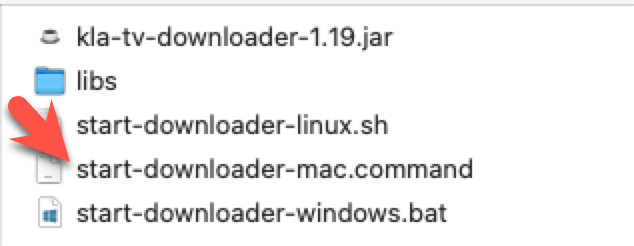
<p class="callout warning">Οι παλαιότερες εκδόσεις MAC, π.χ. Mac OS 10.7, δεν μπορούν να ανοίξουν το αρχείο .jar με διπλό κλικ. Για να το κάνετε αυτό, εκκινήστε το αρχείο «**start-downloader-mac.command**» που βρίσκεται επίσης στο φάκελο. Δεν μπορείτε να βρείτε το αρχείο; Στη συνέχεια, κατεβάστε το «Release» ΞΑΝΑ και αποσυμπιέστε το ξανά: <span style="text-decoration: underline;">https://github.com/Kla-TV/downloader/releases/</span>. (Το αρχείο προστέθηκε μόνο στις Σάββατο, 23 Νοεμβρίου / 15:12) </p>

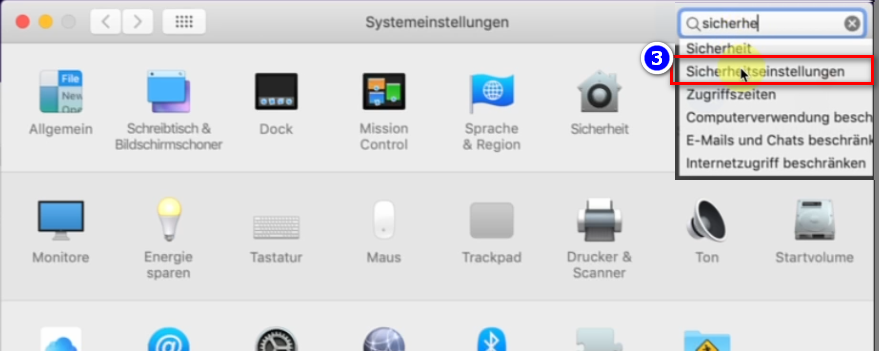
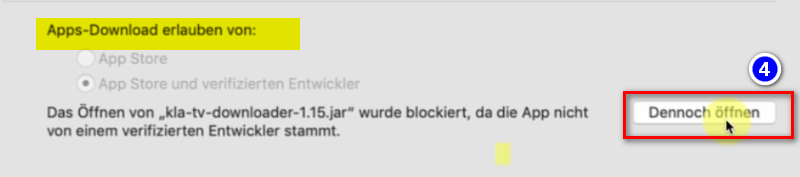
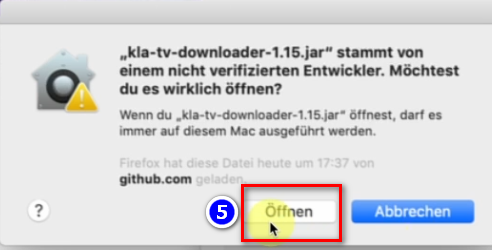
- <span style="background-color: rgb(251, 238, 184);"> Ανοίξτε τις **ρυθμίσεις συστήματος** του Mac σας → εισέλθετε στο ❸ «**Ρυθμίσεις ασφαλείας**» (οι νεότεροι Mac πηγαίνουν στο: Απόρρητο και ασφάλεια) → κάντε κλικ στο ❹ «**Open anyway**» (Άνοιγμα ούτως ή άλλως) στο πεδίο «Allow apps download from» (Επιτρέπεται η λήψη εφαρμογών από) → ❺ **Άνοιγμα** </span> **[![grafik.png](https://wiki.kla.tv/uploads/images/gallery/2024-11/scaled-1680-/4QHcwAGwlXxVJpfH-grafik.png)](https://wiki.kla.tv/uploads/images/gallery/2024-11/4QHcwAGwlXxVJpfH-grafik.png)[![grafik.png](https://wiki.kla.tv/uploads/images/gallery/2024-11/scaled-1680-/7PJo5iZ9CpX9xGP4-grafik.png)](https://wiki.kla.tv/uploads/images/gallery/2024-11/7PJo5iZ9CpX9xGP4-grafik.png)[![grafik.png](https://wiki.kla.tv/uploads/images/gallery/2024-11/scaled-1680-/8DkrZiRyz2KlOO2K-grafik.png)](https://wiki.kla.tv/uploads/images/gallery/2024-11/8DkrZiRyz2KlOO2K-grafik.png)**
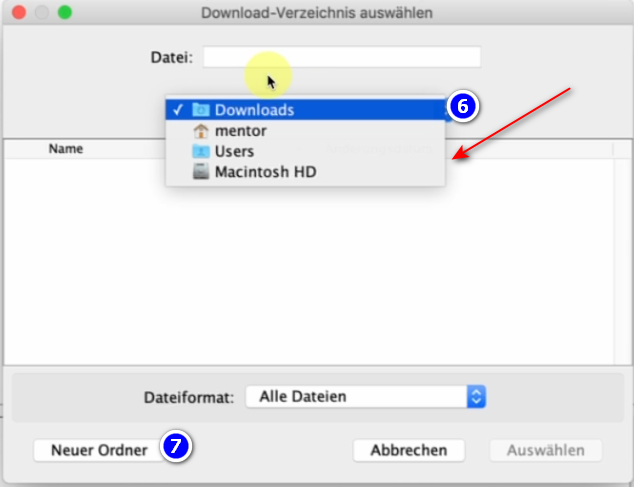
- <span style="background-color: rgb(251, 238, 184);"> Στο ανοιχτό πρόγραμμα, επιλέξτε ❻ **όπου θα πρέπει να αποθηκευτούν τα κατεβασμένα αρχεία** (είναι καλύτερο να χρησιμοποιήσετε έναν κατάλληλο εξωτερικό σκληρό δίσκο) → δημιουργήστε έναν **νέο φάκελο** ❼ με το όνομα «KlaTV backup» και επιλέξτε αυτόν το φάκελο</span>  
      
    [![grafik.png](https://wiki.kla.tv/uploads/images/gallery/2024-11/scaled-1680-/2gnwZlKS1YbJ22AJ-grafik.png)](https://wiki.kla.tv/uploads/images/gallery/2024-11/2gnwZlKS1YbJ22AJ-grafik.png)
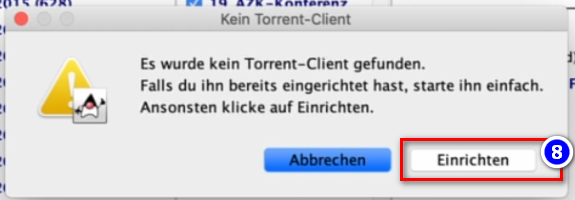
- <span style="background-color: rgb(251, 238, 184);">Εμφανίζεται μήνυμα ότι δεν βρέθηκε torrent client (επειδή χρειάζεται ακόμα το qBittorrent) → κάντε κλικ στο ❽ **Set up** </span>  
      
    [![grafik.png](https://wiki.kla.tv/uploads/images/gallery/2024-11/scaled-1680-/zhpiLXdRyXCGj3Pj-grafik.png)](https://wiki.kla.tv/uploads/images/gallery/2024-11/zhpiLXdRyXCGj3Pj-grafik.png)

### <span style="background-color: rgb(241, 196, 15);">**5. Ρυθμίστε το qBittorrent:**</span>

- <span style="background-color: rgb(251, 238, 184);">Αφού κάνετε κλικ στο « Set up » (Ρύθμιση) στο βήμα 8 παραπάνω, θα ανοίξει ένας ιστότοπος. Αφήστε τη σελίδα ανοιχτή </span>
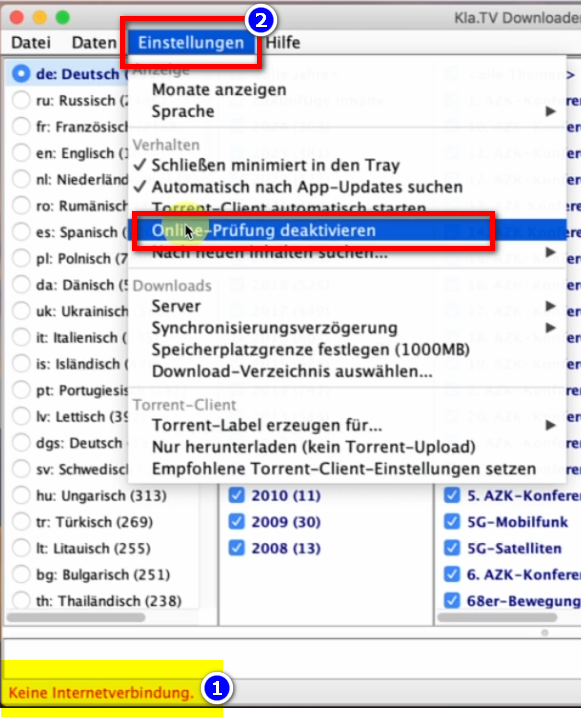
- <span style="background-color: rgb(251, 238, 184);">Μεταβείτε στο **πρόγραμμα KlaTV downloader** και αν στο κάτω μέρος του προγράμματος αναγράφεται με κόκκινο χρώμα: ❶ «**Δεν υπάρχει σύνδεση στο διαδίκτυο**», τότε μεταβείτε στη **γραμμή μενού** ❷ → **Ρυθμίσεις** → **Απενεργοποίηση online ελέγχου** </span> **[![grafik.png](https://wiki.kla.tv/uploads/images/gallery/2024-11/scaled-1680-/lBx9ws8cG2ode0kv-grafik.png)](https://wiki.kla.tv/uploads/images/gallery/2024-11/lBx9ws8cG2ode0kv-grafik.png)**
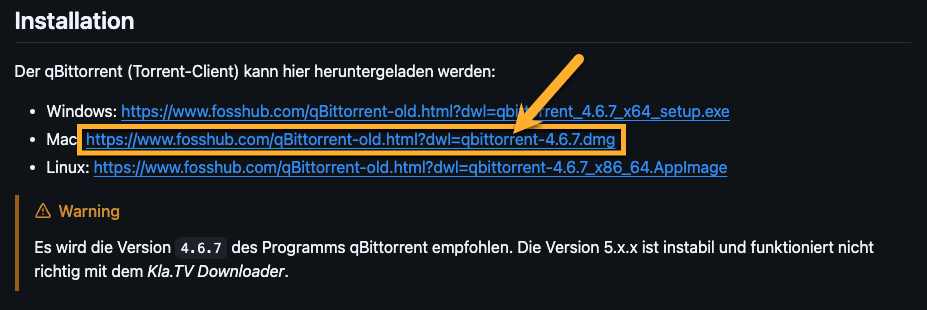
- <span style="background-color: rgb(251, 238, 184);">Επιστρέψτε στον ιστότοπο (torrent client...) και μετακινηθείτε στην ενότητα «Εγκατάσταση» → επιλέξτε το ❸ **πρόγραμμα download.** </span>**<span style="background-color: rgb(251, 238, 184);">   
      
    [https://github.com/Kla-TV/downloader/wiki/Torrent%E2%80%90Client-manuell-einrichten#installation](https://github.com/Kla-TV/downloader/wiki/Torrent%E2%80%90Client-manuell-einrichten#installation) </span>** [![image.png](https://wiki.kla.tv/uploads/images/gallery/2024-12/scaled-1680-/Xlt4zxUN0Vaj36Lb-image.png)](https://wiki.kla.tv/uploads/images/gallery/2024-12/Xlt4zxUN0Vaj36Lb-image.png)
- <span style="background-color: rgb(251, 238, 184);"> Η Download ξεκινάει αυτόματα όταν κάνετε κλικ στο σύνδεσμο Mac. </span>
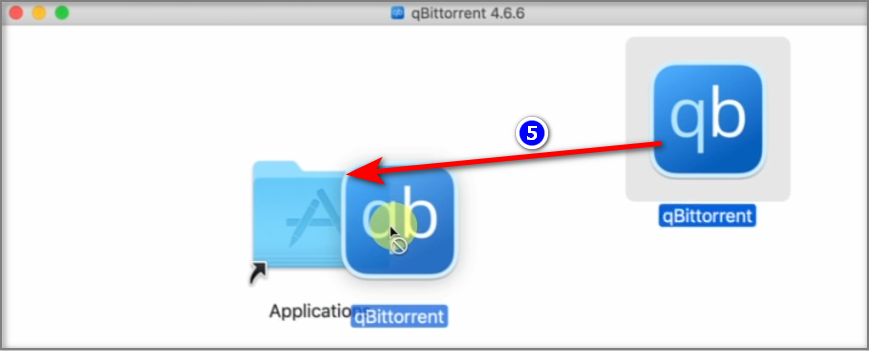
- <span style="background-color: rgb(251, 238, 184);"> Θα ανοίξει το παράθυρο εγκατάστασης. Σύρετε το ❺ **πρόγραμμα στις <span style="background-color: rgb(251, 238, 184);">Applications</span>** → Έλεγχος ταυτότητας (Εισαγωγή κωδικού πρόσβασης Mac)   
    </span>  
    [![grafik.png](https://wiki.kla.tv/uploads/images/gallery/2024-11/scaled-1680-/OtnZFeOV0e12B3va-grafik.png)](https://wiki.kla.tv/uploads/images/gallery/2024-11/OtnZFeOV0e12B3va-grafik.png)
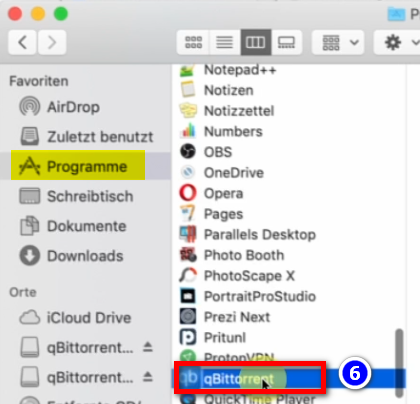
- <span style="background-color: rgb(251, 238, 184);">Πηγαίνετε στα προγράμματά σας και ανοίξτε το ❻ «**qBittorent**» </span>  
      
    ![grafik.png](https://wiki.kla.tv/uploads/images/gallery/2024-11/scaled-1680-/R6s026HMTWcaSmzq-grafik.png)
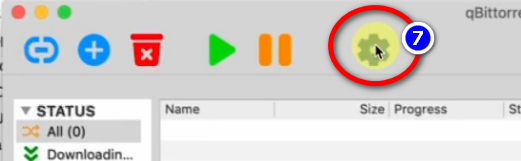
- <span style="background-color: rgb(251, 238, 184);">Στο πρόγραμμα "qBittorent" πηγαίνετε στο ❼ **γρανάζι** </span> **[![grafik.png](https://wiki.kla.tv/uploads/images/gallery/2024-11/scaled-1680-/JZfeWVhWlOmQeUQm-grafik.png)](https://wiki.kla.tv/uploads/images/gallery/2024-11/JZfeWVhWlOmQeUQm-grafik.png)**
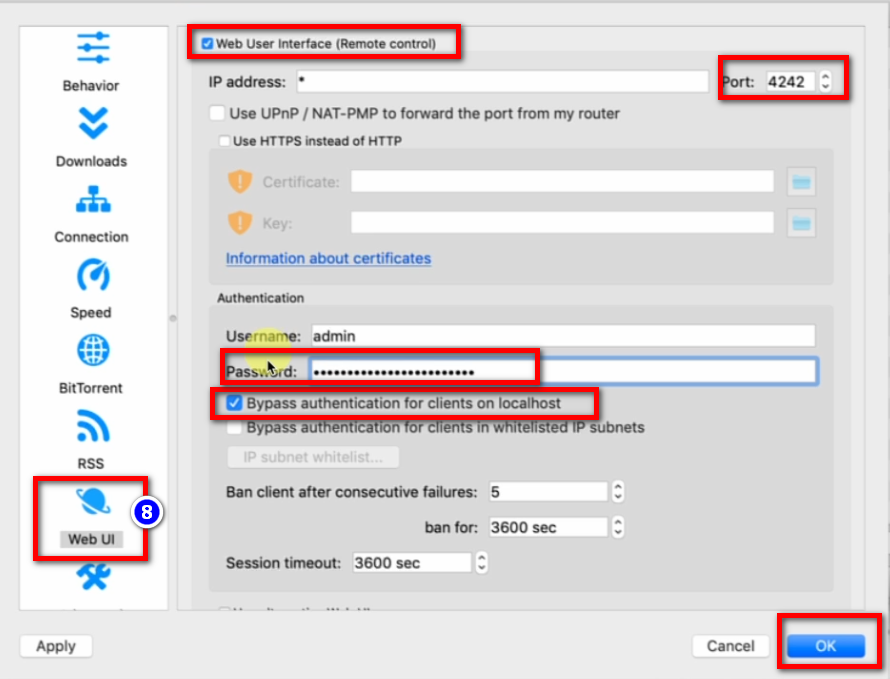
- <span style="background-color: rgb(251, 238, 184);"><span lang="DE" style="font-size: 16pt; line-height: 107%; font-family: Wingdings; background-color: rgb(251, 238, 184);"><span style="mso-char-type: symbol; mso-symbol-font-family: Wingdings;"><span lang="EN-US" style="font-size: 11pt; line-height: 107%; font-family: 'Cambria Math', serif; background-color: rgb(251, 238, 184);">❽</span></span></span>→ **Web UI** → ενεργοποιήστε: «**Web User Intercace**» → θύρα: **4242** → τσεκάρετε το «**Bypass authentication for clients on localhost**» → **κωδικός πρόσβασης:** πληκτρολογήστε οτιδήποτε, δεν χρειάζεται να το θυμάστε. </span>  
      
    [![grafik.png](https://wiki.kla.tv/uploads/images/gallery/2024-11/scaled-1680-/Q9GO0locW3FdJvQ2-grafik.png)](https://wiki.kla.tv/uploads/images/gallery/2024-11/Q9GO0locW3FdJvQ2-grafik.png)
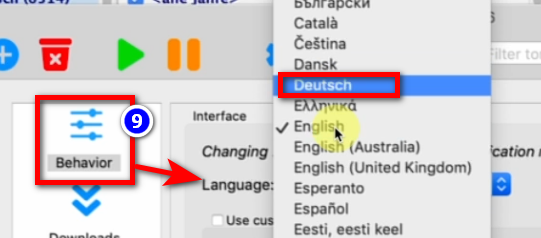
- <span style="background-color: rgb(251, 238, 184);"><span lang="DE" style="font-size: 16pt; line-height: 107%; font-family: Wingdings; background-color: rgb(251, 238, 184);"><span style="mso-char-type: symbol; mso-symbol-font-family: Wingdings;"><span lang="EN-US" style="font-size: 11pt; line-height: 107%; font-family: 'Cambria Math', serif; background-color: rgb(251, 238, 184);">❾</span></span></span>→ Behavior → Γλώσσα: **Ελληνικά** → </span>**<span style="background-color: rgb(251, 238, 184);">OK</span>  
      
    [![grafik.png](https://wiki.kla.tv/uploads/images/gallery/2024-11/scaled-1680-/55rNMIdKK7U0mTje-grafik.png)](https://wiki.kla.tv/uploads/images/gallery/2024-11/55rNMIdKK7U0mTje-grafik.png)**
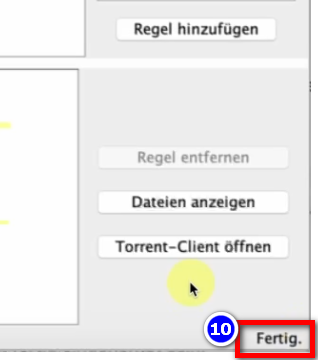
- <span style="background-color: rgb(251, 238, 184);">Κλείστε το πρόγραμμα «Kla.TV-Downloader» και ανοίξτε το ξανά → Η ένδειξη ❿ «**Done**» εμφανίζεται τώρα κάτω δεξιά</span>  
      
    [![grafik.png](https://wiki.kla.tv/uploads/images/gallery/2024-11/scaled-1680-/84bPGOJXwVAXo7fR-grafik.png)](https://wiki.kla.tv/uploads/images/gallery/2024-11/84bPGOJXwVAXo7fR-grafik.png)
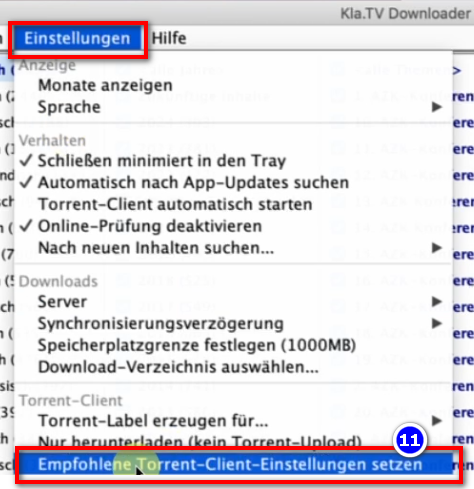
- <span style="background-color: rgb(251, 238, 184);">Στο ❿❶ **πρόγραμμα** <span style="text-decoration: underline;">**KlaTV Downloader**</span>, μεταβείτε στη **γραμμή μενού** → **Ρυθμίσεις** → **Ορισμός συνιστώμενων ρυθμίσεων torrent client** (όλες οι σωστές ρυθμίσεις εισάγονται αυτόματα). </span>  
      
    [![grafik.png](https://wiki.kla.tv/uploads/images/gallery/2024-11/scaled-1680-/gqloWaqFD8o7LbNg-grafik.png)](https://wiki.kla.tv/uploads/images/gallery/2024-11/gqloWaqFD8o7LbNg-grafik.png)


### <span style="background-color: rgb(241, 196, 15);">**6. Συγχρονισμός:**</span>

<p class="callout info">Το KlaTV-Downloader προσθέτει κανόνες συγχρονισμού και τους στέλνει στο qBittorrent, το οποίο στη συνέχεια κατεβάζει τα προγράμματα και τα διατηρεί πάντα ενημερωμένα. Αυτό σημαίνει ότι: Το KlaTV-Downloader ορίζει μόνο πώς και τι πρέπει να μεταφορτωθεί, ενώ το qBittorrent κάνει τη δουλειά της μεταφόρτωσης. </p>

- <span style="background-color: rgb(251, 238, 184);"> Ανοίξτε το **kla.TV Downloader** → επιλέξτε τους ❶ **επιθυμητούς κανόνες σας.** (Δείτε την εικόνα για επεξήγηση) </span>  
    [![grafik.png](https://wiki.kla.tv/uploads/images/gallery/2024-11/scaled-1680-/Q9Op8e0KGpDAFHm6-grafik.png)](https://wiki.kla.tv/uploads/images/gallery/2024-11/Q9Op8e0KGpDAFHm6-grafik.png)
- <span style="background-color: rgb(251, 238, 184);"> Εάν θέλετε να επιλέξετε **πολλές ιδιότητες**, πρέπει να «προσθέσετε έναν κανόνα» πολλές φορές διαδοχικά. Αυτή η σειρά θα σταλεί στη συνέχεια στο qBittorrent και θα ληφθεί από εκεί. </span>  
    
    - <span style="background-color: rgb(251, 238, 184);">Ακολουθεί ένα ❷ **παράδειγμα** αν θέλετε να δημιουργήσετε έναν νέο κανόνα π.χ. **μόνο για αρχεία Word**. Στη συνέχεια, απενεργοποιήστε το Video/Audio, επιλέξτε τα επιθυμητά έτη και προσθέστε τον κανόνα.</span>  
        [![grafik.png](https://wiki.kla.tv/uploads/images/gallery/2024-11/scaled-1680-/MyrlhWDMHW4eBhyZ-grafik.png)](https://wiki.kla.tv/uploads/images/gallery/2024-11/MyrlhWDMHW4eBhyZ-grafik.png)
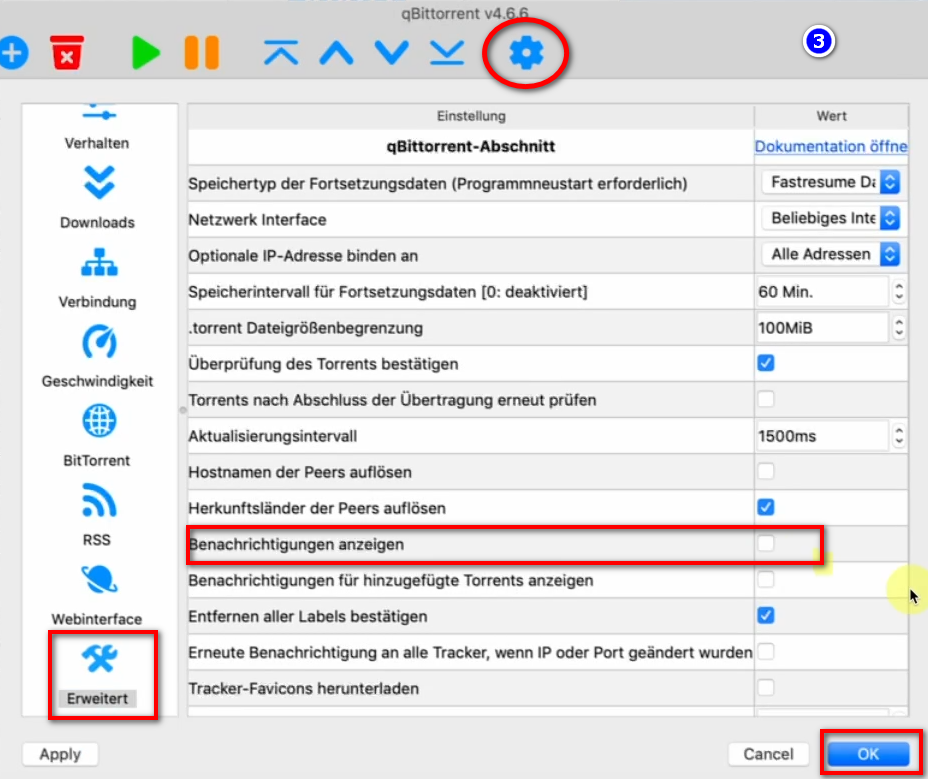
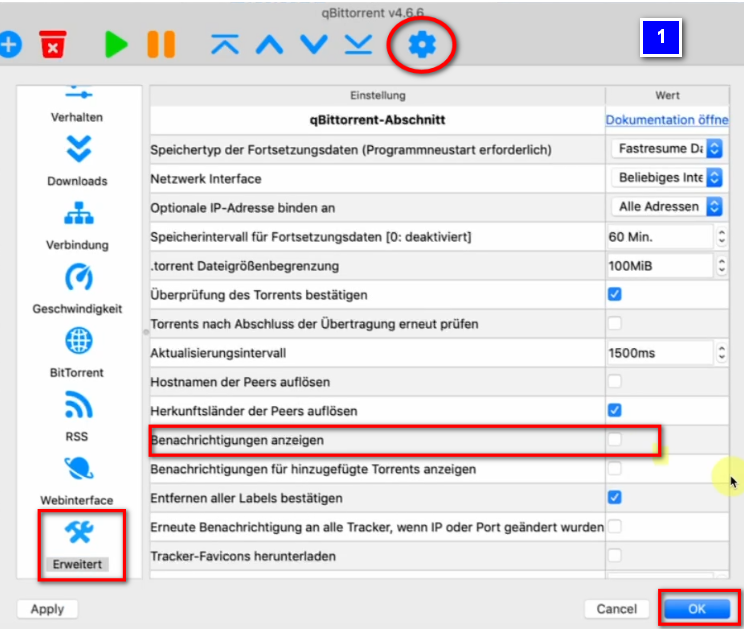
- <span style="background-color: rgb(251, 238, 184);">Για να μην εμφανίζεται **αναδυόμενο μήνυμα** για κάθε βίντεο που κατεβάζετε → μεταβείτε στο ❸ **qBittorrent** → **Τροχός ταχυτήτων** → **Για προχωρημένους → Εμφάνιση ειδοποιήσεων → Απενεργοποίηση → OK** </span>

 **[![grafik.png](https://wiki.kla.tv/uploads/images/gallery/2024-11/scaled-1680-/6G1eB56aGCy3ji5X-grafik.png)](https://wiki.kla.tv/uploads/images/gallery/2024-11/6G1eB56aGCy3ji5X-grafik.png)**

- <span style="background-color: rgb(251, 238, 184);">Τα **προγράμματα μπορούν να κλείσουν** και να συνεχίσουν να φορτώνονται στο παρασκήνιο </span>
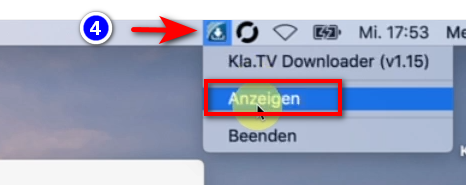
- <span style="background-color: rgb(251, 238, 184);">Μπορείτε να **ανοίξετε** ξανά το **πρόγραμμα** στο ❹ **Header** </span> **[![grafik.png](https://wiki.kla.tv/uploads/images/gallery/2024-11/scaled-1680-/H0S0ZQ0639Lk5hWA-grafik.png)](https://wiki.kla.tv/uploads/images/gallery/2024-11/H0S0ZQ0639Lk5hWA-grafik.png)**


### <span style="background-color: rgb(241, 196, 15);">**6. Ανέβασμα για χρήση από άλλους:**</span>

- <span style="background-color: rgb(251, 238, 184);">Από προεπιλογή, το qBittorrent καθιστά όλα τα αρχεία που κατεβάζετε διαθέσιμα σε άλλους χρήστες. <span style="text-decoration: underline;"><span style="color: rgb(0, 0, 0); text-decoration: underline;">Αν δεν το θέλετε αυτό για οποιονδήποτε λόγο,</span></span> μπορείτε να το απενεργοποιήσετε:   
    </span>
- <span style="background-color: rgb(251, 238, 184);">Άνοιγμα ❶ **qBittorrent** → **Ρυθμίσεις** → **Μόνο λήψη (όχι μεταφόρτωση torrent)** </span> **[![grafik.png](https://wiki.kla.tv/uploads/images/gallery/2024-11/scaled-1680-/TTyJJDELOuYYB7pb-grafik.png)](https://wiki.kla.tv/uploads/images/gallery/2024-11/TTyJJDELOuYYB7pb-grafik.png)**

### <span style="background-color: rgb(241, 196, 15);">**7. Σύσταση: Ρυθμίστε τις επιλογές λειτουργίας έτσι ώστε ο υπολογιστής να μην κλείνει αυτόματα:**   
</span>

<p class="callout info">Αυτό το πρόγραμμα μπορεί να πάρει γρήγορα αρκετές ημέρες για να συγχρονίσει τα πάντα. Για να επιταχύνετε αυτή τη διαδικασία, συνιστάται να απενεργοποιήσετε τη λειτουργία εξοικονόμησης ενέργειας</p>

- <span style="background-color: rgb(251, 238, 184);">Εάν ο υπολογιστής επανεκκινηθεί, πρέπει να επανεκκινήσετε ξανά την εφαρμογή (βλ. οδηγίες σημείο 8). </span>
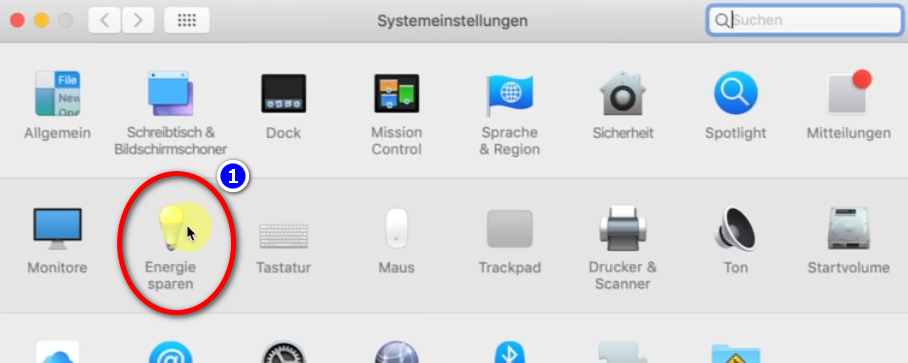
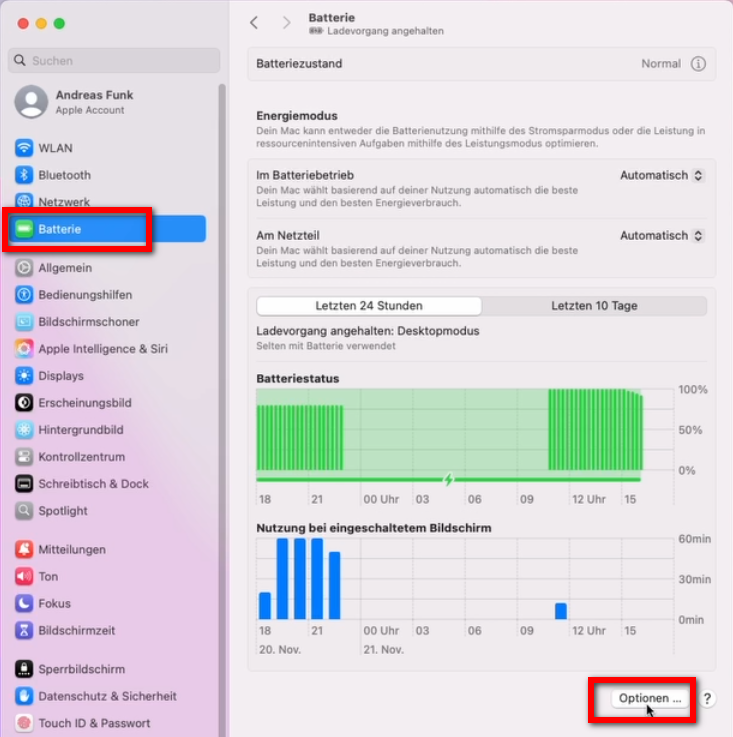
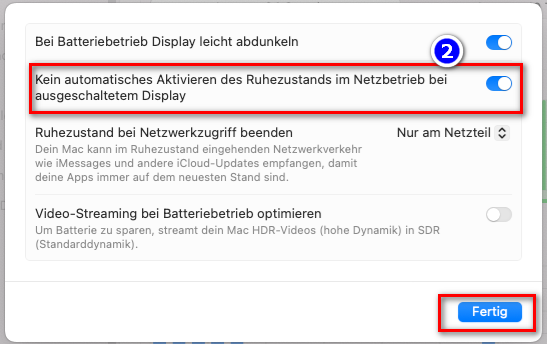
- <span style="background-color: rgb(251, 238, 184);">Για να αποτρέψετε τον αυτόματο τερματισμό λειτουργίας του Mac: Mac → ❶ **Προτιμήσεις συστήματος** → **Εξοικονόμηση ενέργειας** → ❷ **Δεν επιτρέπεται η αυτόματη ενεργοποίηση της κατάστασης αναστολής λειτουργίας** ... → **Ενεργοποίηση** </span>
- <span style="background-color: rgb(251, 238, 184);">Αφήστε τον υπολογιστή σε λειτουργία έως ότου γίνει λήψη όλων των αρχείων</span>  
    [![grafik.png](https://wiki.kla.tv/uploads/images/gallery/2024-11/scaled-1680-/23U7rqFWbWlhJ5Uv-grafik.png)](https://wiki.kla.tv/uploads/images/gallery/2024-11/23U7rqFWbWlhJ5Uv-grafik.png)
- <span style="background-color: rgb(251, 238, 184);">σε νεότερους Mac: </span>
    
    [![grafik.png](https://wiki.kla.tv/uploads/images/gallery/2024-11/scaled-1680-/gmOpiNFU9gKHn9B0-grafik.png)](https://wiki.kla.tv/uploads/images/gallery/2024-11/gmOpiNFU9gKHn9B0-grafik.png)
    
    [![grafik.png](https://wiki.kla.tv/uploads/images/gallery/2024-11/scaled-1680-/PGDWa65L7V1hj21V-grafik.png)](https://wiki.kla.tv/uploads/images/gallery/2024-11/PGDWa65L7V1hj21V-grafik.png)
### <span style="background-color: rgb(241, 196, 15);">**8. Επανεκκίνηση του προγράμματος, διατήρηση της τρέχουσας κατάστασης μετά την επανεκκίνηση / αρχειοθέτηση του υπολογιστή** </span>

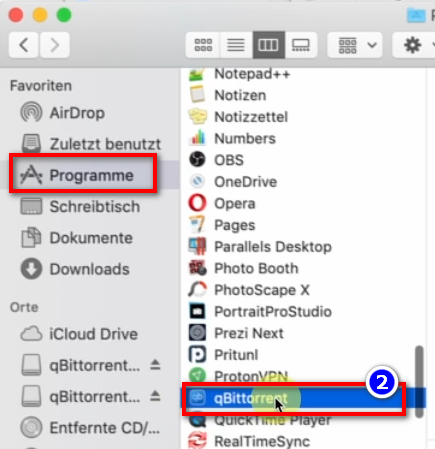
- <span style="background-color: rgb(251, 238, 184);">Όταν επανεκκινήσετε τον υπολογιστή σας, τα προγράμματα λήψης θα κλείσουν. Θα πρέπει να **ανοίξετε** ξανά και τα δύο προγράμματα (❶ **KlaTV-Downloader** και ❷ **qBittorrent)**, ώστε να συνεχιστεί η διαδικασία λήψης. Στη συνέχεια, η διαδικασία λήψης θα συνεχιστεί αυτόματα. </span>  
      
    **[![grafik.png](https://wiki.kla.tv/uploads/images/gallery/2024-11/scaled-1680-/IjhxA7jMF7QCHpDT-grafik.png)](https://wiki.kla.tv/uploads/images/gallery/2024-11/IjhxA7jMF7QCHpDT-grafik.png)[![grafik.png](https://wiki.kla.tv/uploads/images/gallery/2024-11/scaled-1680-/DPiy0yNoIIVHuK7d-grafik.png)](https://wiki.kla.tv/uploads/images/gallery/2024-11/DPiy0yNoIIVHuK7d-grafik.png)**
- <span style="background-color: rgb(251, 238, 184);">**Βεβαιωθείτε ότι ανοίγετε αυτά τα δύο προγράμματα από καιρό σε καιρό, έτσι ώστε τα τρέχοντα προγράμματα να μεταφορτώνονται αυτόματα στον σκληρό σας δίσκο.** </span>

### <span style="background-color: rgb(241, 196, 15);">**9. Εγκαταστήστε την ενημέρωση:** </span>

- **<span style="background-color: rgb(251, 238, 184);">Από καιρό σε καιρό το KlaTV-Downloader βελτιστοποιείται και θα πρέπει να εγκαταστήσετε την ενημέρωση. Αυτό είναι το πώς λειτουργεί:   
    </span>**
- <span style="background-color: rgb(251, 238, 184);">Ανοίξτε το Kla.TV Downloader</span>
- <span style="background-color: rgb(251, 238, 184);">Εμφανίζεται αυτό το μήνυμα: (Εάν όχι, μεταβείτε στο Kla.TV Downloader → Βοήθεια → Έλεγχος για ενημερώσεις) </span>  
    [![grafik.png](https://wiki.kla.tv/uploads/images/gallery/2024-12/scaled-1680-/CPxIwgY3Aw6GYURU-grafik.png)](https://wiki.kla.tv/uploads/images/gallery/2024-12/CPxIwgY3Aw6GYURU-grafik.png)
    
    [![grafik.png](https://wiki.kla.tv/uploads/images/gallery/2024-12/scaled-1680-/YaiCj1fp8YsCOMGW-grafik.png)](https://wiki.kla.tv/uploads/images/gallery/2024-12/YaiCj1fp8YsCOMGW-grafik.png)

- <span style="background-color: rgb(251, 238, 184);">Το Internet ανοίγει, μετακινηθείτε προς τα κάτω στο «Assets» → κάντε κλικ στο ❹ «**Kla.TV.Downloader-\*.\*\*.tar.gz**» </span>
    - [![grafik.png](https://wiki.kla.tv/uploads/images/gallery/2024-11/scaled-1680-/xKO8pwvIyzzKFFa6-grafik.png)](https://wiki.kla.tv/uploads/images/gallery/2024-11/xKO8pwvIyzzKFFa6-grafik.png)
    - <span style="background-color: rgb(251, 238, 184);"><span lang="DE" style="font-size: 16pt; line-height: 107%; font-family: Wingdings; background-color: rgb(251, 238, 184);"><span style="mso-char-type: symbol; mso-symbol-font-family: Wingdings;"><span lang="EN-US" style="font-size: 11pt; line-height: 107%; font-family: 'Cambria Math', serif; background-color: rgb(251, 238, 184);">❺ **Ανοίξτε** και **αποσυμπιέστε** το πρόγραμμα → σύρετέ το στην **επιφάνεια εργασίας** ❻, για παράδειγμα</span></span></span> </span>  
          
        ![grafik.png](https://wiki.kla.tv/uploads/images/gallery/2024-11/scaled-1680-/fqkvJohFv6e5fZeD-grafik.png)[![grafik.png](https://wiki.kla.tv/uploads/images/gallery/2024-11/scaled-1680-/fgT1bYzgnnG9BTgh-grafik.png)](https://wiki.kla.tv/uploads/images/gallery/2024-11/fgT1bYzgnnG9BTgh-grafik.png)
    
    
    - <span style="background-color: rgb(251, 238, 184);">Μεταβείτε στο φάκελο Kla.TV-Downloader στην επιφάνεια εργασίας και ανοίξτε την εντολή **start-downlaoder-mac.command.** </span>[![grafik.png](https://wiki.kla.tv/uploads/images/gallery/2024-12/scaled-1680-/vZn1x5u9UzFI8eE7-grafik.png)](https://wiki.kla.tv/uploads/images/gallery/2024-12/vZn1x5u9UzFI8eE7-grafik.png)
    - <span style="background-color: rgb(251, 238, 184);">Κάντε κλικ στο «**OK**» στο **προειδοποιητικό μήνυμα** ❷. </span>  
        [![grafik.png](https://wiki.kla.tv/uploads/images/gallery/2024-11/scaled-1680-/ctWjfFgcE6oNtDZi-grafik.png)](https://wiki.kla.tv/uploads/images/gallery/2024-11/ctWjfFgcE6oNtDZi-grafik.png)
    
    
    - <span style="background-color: rgb(251, 238, 184);">Ανοίξτε τις **ρυθμίσεις συστήματος του Mac σας** → εισέλθετε στο ❸ «**Ρυθμίσεις ασφαλείας**» (οι νεότεροι Mac πηγαίνουν στο: Απόρρητο και ασφάλεια)→ κάντε κλικ στο ❹ «**Ανοίξτε ούτως ή άλλως**» στο «Επιτρέψτε τη λήψη εφαρμογών από» → ❺ **Ανοίξτε** </span> **[![grafik.png](https://wiki.kla.tv/uploads/images/gallery/2024-11/scaled-1680-/4QHcwAGwlXxVJpfH-grafik.png)](https://wiki.kla.tv/uploads/images/gallery/2024-11/4QHcwAGwlXxVJpfH-grafik.png)[![grafik.png](https://wiki.kla.tv/uploads/images/gallery/2024-11/scaled-1680-/7PJo5iZ9CpX9xGP4-grafik.png)](https://wiki.kla.tv/uploads/images/gallery/2024-11/7PJo5iZ9CpX9xGP4-grafik.png)[![grafik.png](https://wiki.kla.tv/uploads/images/gallery/2024-11/scaled-1680-/8DkrZiRyz2KlOO2K-grafik.png)](https://wiki.kla.tv/uploads/images/gallery/2024-11/8DkrZiRyz2KlOO2K-grafik.png)**


- <span style="background-color: rgb(251, 238, 184);">Διαγράψτε την παλιά έκδοση και ανοίξτε ξανά το πιο πρόσφατο πρόγραμμα λήψης Kla.TV και απολαύστε τη βελτιστοποιημένη έκδοση 😊. </span>

##### Άλλα άρθρα που μπορεί να σας ενδιαφέρουν:   
  
**[https://wiki.kla.tv/books/el-eksasfalisi-klatv/page/gesichertes-archiv-durchsuchen](https://wiki.kla.tv/books/el-eksasfalisi-klatv/page/gesichertes-archiv-durchsuchen)**  

# LINUX: Installation und Nutzung von "Kla.TV Downloader"

### **Was lernst Du in diesem Artikel?**

Du lernst, wie du den Kla.TV-Downloader auf Linux installieren kannst. Der Kla.TV-Downloader hält dein Archiv automatisch immer auf dem aktuellen Stand. Gleichzeitig kannst du mit deinem Videoanschluss anderen Nutzern den Upload zur Verfügung stellen. Los gehts:

### **Videoanleitung: (14min)**

<iframe allowfullscreen="allowfullscreen" frameborder="0" height="332" src="https://www.kla.tv/index.php?a=showembed&vidid=31126&lang=de" width="590"></iframe>

<p class="callout warning">Wir empfehlen, zuerst das Video anzuschauen, um die schriftliche Anleitung besser zu verstehen.</p>

###  **Schriftliche Anleitung:**

### <span style="background-color: rgb(241, 196, 15);"> **1. Grundlegendes:** </span>

- Was ist der **Unterschied** vom Kla.TV-Downloader zum Download über Serverzugang (über FileZilla)? 
    - **Über den Server-Zugang** ladest du mit FileZilla einmalig das Archiv runter und musst es "per Hand" immer aktuell behalten und die neusten Sendungen immer wieder runterladen
    - **Über das Downloader-Programm** kannst du dein Archiv stetig automatisch auf dem aktuellen Stand behalten und synchronisieren, mit dem Datenbestand des Servers. Du stellst es einmalig ein und es wird automatisch aktuell behalten. Zusätzlich kannst die die Videos von deinem Videoanschluss anderen Nutzern zum Upload zur Verfügung stellen
- Zwei Programme musst du dazu neu installieren. 1. den Kla.TV Downloader und 2. den qBittorrent. Dazu die Anleitung:

### <span style="background-color: rgb(241, 196, 15);"> **2. Installation des Kla.TV-Downloader:** </span>

- <span style="background-color: rgb(251, 238, 184);">Gehe auf die Seite </span>**<span style="background-color: rgb(251, 238, 184);">[kla.tv/sichern](https://www.kla.tv/sichern) <span style="color: rgb(0, 0, 0);">(0)</span></span>**

**<span style="background-color: rgb(52, 73, 94); color: rgb(255, 255, 255);">[![image.png](https://wiki.kla.tv/uploads/images/gallery/2024-11/scaled-1680-/KxmCDnQQzOrOT1s8-image.png)](https://wiki.kla.tv/uploads/images/gallery/2024-11/KxmCDnQQzOrOT1s8-image.png)</span>**

- <span style="background-color: rgb(251, 238, 184);">Gehe zum Download-Typ <span lang="DE"><span lang="EN-US">❶</span></span> "**Peer-to-Peer**" → <span lang="DE"><span lang="EN-US">❷</span></span> "**Herunterladen &amp; mehr**"</span>
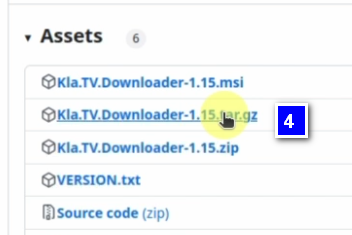
- <span style="background-color: rgb(251, 238, 184);">Kicke auf den <span lang="DE"><span lang="EN-US">❸</span></span> Kla-TV-Downloader → lade das aktuellste Programm herunter (immer zu oberst) indem du bei "Assets"</span>

[![image.png](https://wiki.kla.tv/uploads/images/gallery/2024-11/scaled-1680-/DwW0At2IsmKMHp65-image.png)](https://wiki.kla.tv/uploads/images/gallery/2024-11/DwW0At2IsmKMHp65-image.png)

[![image.png](https://wiki.kla.tv/uploads/images/gallery/2024-11/scaled-1680-/qq15Fp4P7xqdCug0-image.png)](https://wiki.kla.tv/uploads/images/gallery/2024-11/qq15Fp4P7xqdCug0-image.png)

- <span style="background-color: rgb(251, 238, 184);"> → auf <span lang="DE"><span lang="EN-US">❹</span></span> "Kla.TV.Downloader-\*.\*\*.tar.gz" klickst</span>
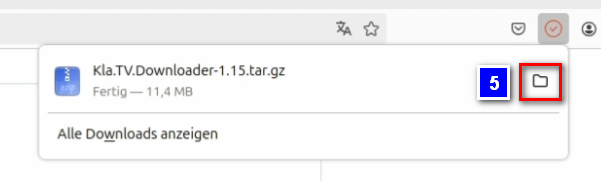
- <span style="background-color: rgb(251, 238, 184);"><span lang="DE"><span lang="EN-US">❺</span></span> Öffne den Downlodordner</span>
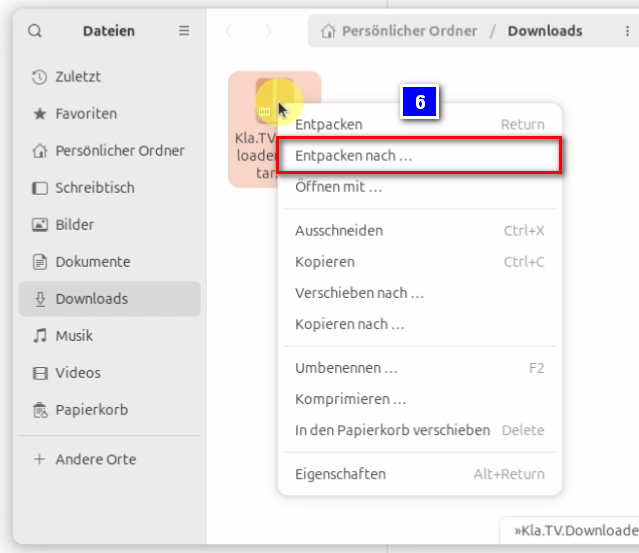
- <span style="background-color: rgb(251, 238, 184);">Entpacke die Datei auf bspw. deinen Schreibtisch ❻ </span>

[![image.png](https://wiki.kla.tv/uploads/images/gallery/2024-11/scaled-1680-/qSErpIgwXlzwbwW8-image.png)](https://wiki.kla.tv/uploads/images/gallery/2024-11/qSErpIgwXlzwbwW8-image.png)[![image.png](https://wiki.kla.tv/uploads/images/gallery/2024-11/scaled-1680-/TlW6Qfw6MuE7VKYG-image.png)](https://wiki.kla.tv/uploads/images/gallery/2024-11/TlW6Qfw6MuE7VKYG-image.png)
[![image.png](https://wiki.kla.tv/uploads/images/gallery/2024-11/scaled-1680-/JH6Ob0TgsrkaGS7N-image.png)](https://wiki.kla.tv/uploads/images/gallery/2024-11/JH6Ob0TgsrkaGS7N-image.png)
### <span style="background-color: rgb(241, 196, 15);"> **3. Installation von JAWA (damit Kla.TV-Downloader funktioniert):** </span>

<div aria-label="Abschnittsoptionen der Seite" class="pointer-container" id="bkmrk-%C2%A0-4" refs="pointer@pointer" tabindex="-1"><div class="pointer flex-container-row items-center justify-space-between p-s anim is-page-editable"><div class="flex-container-row items-center gap-s" refs="pointer@mode-section"><button class="text-button icon px-xs" title="Permalink-Modus, Drücken, um Include-Tag anzuzeigen"><svg class="svg-icon" data-icon="link" role="presentation" viewbox="0 0 24 24" xmlns="http://www.w3.org/2000/svg"></svg></button><div class="input-group"> <button class="button outline icon" title="Link kopieren" type="button"><svg class="svg-icon" data-icon="copy" role="presentation" viewbox="0 0 24 24" xmlns="http://www.w3.org/2000/svg"></svg></button></div></div><svg class="svg-icon" data-icon="edit" role="presentation" viewbox="0 0 24 24" xmlns="http://www.w3.org/2000/svg"></svg></div></div>- <span style="background-color: rgb(251, 238, 184);">Öffne das Terminal <span lang="DE"><span lang="EN-US">❶ und gebe diesen Befehl ein ❷ und bestätigst mit Enter: </span></span></span>```bash
    sudo apt install default-jre
    ```

[![image.png](https://wiki.kla.tv/uploads/images/gallery/2024-11/scaled-1680-/kZ69MgwY8HLhbXlM-image.png)](https://wiki.kla.tv/uploads/images/gallery/2024-11/kZ69MgwY8HLhbXlM-image.png)

[![image.png](https://wiki.kla.tv/uploads/images/gallery/2024-11/scaled-1680-/mfcrMMjPQdU3n1ph-image.png)](https://wiki.kla.tv/uploads/images/gallery/2024-11/mfcrMMjPQdU3n1ph-image.png)

- <span style="background-color: rgb(251, 238, 184);">Gebe das Kennwort deines Computers ein und bestätige erneut mit Enter</span>
- <span style="background-color: rgb(251, 238, 184);">Schreibe ein einzelnes "***J***" um die Installation zu starten ❸ und bestätige mit Enter</span>

[![image.png](https://wiki.kla.tv/uploads/images/gallery/2024-11/scaled-1680-/AXa4dynm8x0l3tpL-image.png)](https://wiki.kla.tv/uploads/images/gallery/2024-11/AXa4dynm8x0l3tpL-image.png)

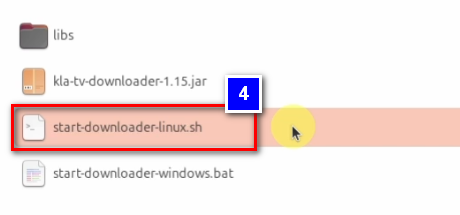
- <span style="background-color: rgb(251, 238, 184);">Gehe zu dem entpackten Ordner und klicke mit einem Rechtsklick auf die Datei: "**start-downloader-linux.sh**" ❹ </span>
- <span style="background-color: rgb(251, 238, 184);">Unter Eigenschaften ❺ überprüfst du ob der Schalter bei "**Als Programm ausführbar**" ❻ aktiviert ist, nur dann kannst du die Datei ausführen. </span>

[![image.png](https://wiki.kla.tv/uploads/images/gallery/2024-11/scaled-1680-/kJCMidObyli2Jhlh-image.png)](https://wiki.kla.tv/uploads/images/gallery/2024-11/kJCMidObyli2Jhlh-image.png)

[![image.png](https://wiki.kla.tv/uploads/images/gallery/2024-11/scaled-1680-/kZboiz14dfxwRP5N-image.png)](https://wiki.kla.tv/uploads/images/gallery/2024-11/kZboiz14dfxwRP5N-image.png) [![image.png](https://wiki.kla.tv/uploads/images/gallery/2024-11/scaled-1680-/EgEhKCmtxLZ0IDvt-image.png)](https://wiki.kla.tv/uploads/images/gallery/2024-11/EgEhKCmtxLZ0IDvt-image.png)

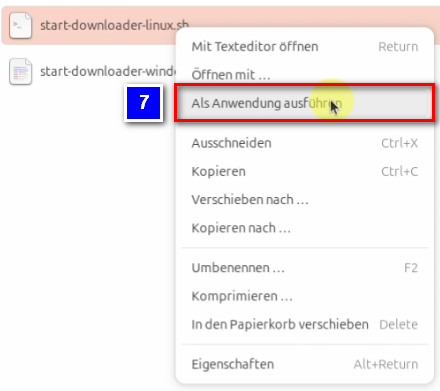
- <span style="background-color: rgb(251, 238, 184);">Mit einem Rechtsklick auf die Datei und dem anklicken der Option :"**Als Anwendung ausführen**" ❼ führst du nun die Datei aus</span>

[![image.png](https://wiki.kla.tv/uploads/images/gallery/2024-11/scaled-1680-/Oo8pi4NnoNHMGqiY-image.png)](https://wiki.kla.tv/uploads/images/gallery/2024-11/Oo8pi4NnoNHMGqiY-image.png)

- <span style="background-color: rgb(251, 238, 184);">Es öffnet sich ein Fenster ❽, in welchem du gefragt wirst, wohin die Dateien vom Kla.TV-Downloader abgelegt werden sollen. Es empfiehlt sich eine externe Festplatte dort zu verwenden und diese als Ablageort festzulegen. </span>
- <span style="background-color: rgb(251, 238, 184);">Auf der Festplatte erstellst du einen neuen Ordner ❾ und nennst diesen "**Kla.TV-Sicherung**" und bestätigst mit "**Auswählen**" ❿</span>
- <span style="background-color: rgb(251, 238, 184);">Es erscheint die Meldung ❿<span lang="DE"><span lang="EN-US">❶ das noch kein Torrent-Client installiert ist</span></span></span>

[![image.png](https://wiki.kla.tv/uploads/images/gallery/2024-11/scaled-1680-/vIsGKiaCCe8Ho0io-image.png)](https://wiki.kla.tv/uploads/images/gallery/2024-11/vIsGKiaCCe8Ho0io-image.png)[![image.png](https://wiki.kla.tv/uploads/images/gallery/2024-11/scaled-1680-/Y0e1DUaQV7tzWdoN-image.png)](https://wiki.kla.tv/uploads/images/gallery/2024-11/Y0e1DUaQV7tzWdoN-image.png)

[![image.png](https://wiki.kla.tv/uploads/images/gallery/2024-11/scaled-1680-/r2Rvsy3ubx6LO5lZ-image.png)](https://wiki.kla.tv/uploads/images/gallery/2024-11/r2Rvsy3ubx6LO5lZ-image.png)

#### **<span lang="DE" style="background-color: rgb(241, 196, 15);"><span lang="EN-US"> 3.1 Was wenn das Programm nicht stabil startet? </span></span>**

<p class="callout warning">Falls Das Programm abstürzt, da es aktuell noch nicht stabil auf Linux läuft, musst du die folgenden Arbeitsschritte durchführen:</p>

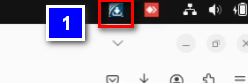
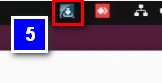
- <span lang="DE" style="background-color: rgb(251, 238, 184);"><span lang="EN-US">In der oberen rechten Ecke deines Bildschirms sollte nun das Symbol des Kla.TV-Downloaders zu sehen sein ❶ über das du den Kla.TV-Downloader öffnen kannst (Rechtsklick darauf)</span></span>

<span lang="DE"><span lang="EN-US">[![image.png](https://wiki.kla.tv/uploads/images/gallery/2024-11/scaled-1680-/GCaEPt9UrqxpHsyi-image.png)](https://wiki.kla.tv/uploads/images/gallery/2024-11/GCaEPt9UrqxpHsyi-image.png)</span></span>

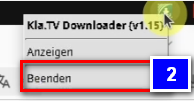
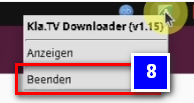
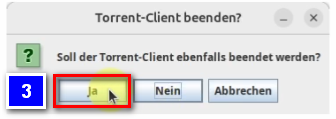
- <span lang="DE" style="background-color: rgb(251, 238, 184);"><span lang="EN-US">Falls sich das Programm nicht starten lässt, liegt das dran, dass dieses Programm auf Linux noch nicht stabil genug läuft. In diesem Fall klickst du das Symbol an und beendest das Programm *❷* </span></span>
- <span lang="DE" style="background-color: rgb(251, 238, 184);"><span lang="EN-US">Jetzt wirst du gefragt, ob du den Torrent-Client beenden willst, was du mit "**Ja**" ❸ bestätigst</span></span>

<span lang="DE"><span lang="EN-US">[![image.png](https://wiki.kla.tv/uploads/images/gallery/2024-11/scaled-1680-/ThGUwAUubdq3ZxSQ-image.png)](https://wiki.kla.tv/uploads/images/gallery/2024-11/ThGUwAUubdq3ZxSQ-image.png)[ ![image.png](https://wiki.kla.tv/uploads/images/gallery/2024-11/scaled-1680-/XFRYJm6Oa5RINlIP-image.png)](https://wiki.kla.tv/uploads/images/gallery/2024-11/XFRYJm6Oa5RINlIP-image.png)</span></span>
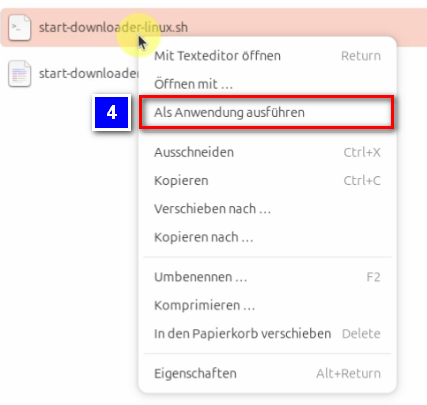
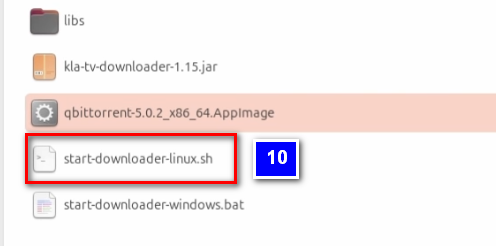
- <span lang="DE" style="background-color: rgb(251, 238, 184);"><span lang="EN-US">Gehe nun erneut in den Ordner mit der Datei "**start-downloader-linux.sh**". Diese Datei führst du jetzt nochmals aus, mit einem Rechtsklick und "**Als Anwendung ausführen**" ❹</span></span>
- <span lang="DE" style="background-color: rgb(251, 238, 184);"><span lang="EN-US">Das Fenster des Terminals, welches sich automatisch öffnet, kannst du schließen</span></span>

<span lang="DE"><span lang="EN-US">[![image.png](https://wiki.kla.tv/uploads/images/gallery/2024-11/scaled-1680-/04y9XoeOJsHDaLH5-image.png)](https://wiki.kla.tv/uploads/images/gallery/2024-11/04y9XoeOJsHDaLH5-image.png)</span></span>

<p class="callout success">**<span lang="DE"><span lang="EN-US">Nun sollte der Downloader korrekt installiert sein</span></span>**</p>

- <span lang="DE" style="background-color: rgb(251, 238, 184);"><span lang="EN-US">Öffne den Kla.TV-Downloader mit dem Klick auf das Symbol in der oberen rechten Bildschirmecke ❺</span></span>

<span lang="DE"><span lang="EN-US">[![image.png](https://wiki.kla.tv/uploads/images/gallery/2024-11/scaled-1680-/8ykTwHoKNlh1HewA-image.png)](https://wiki.kla.tv/uploads/images/gallery/2024-11/8ykTwHoKNlh1HewA-image.png)</span></span>

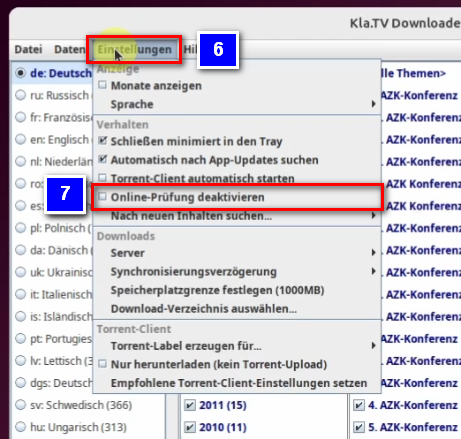
- <span lang="DE" style="background-color: rgb(251, 238, 184);"><span lang="EN-US">Unter dem Reiter "**Einstellungen**" ❻ setzt du den Haken bei der Option: "**Online-Prüfung deaktivieren**" ❼. Da dieser Internetcheck auf Linux nicht wirklich funktioniert und der Downloader so keine Internetverbindung bekommt. </span></span>

[![image.png](https://wiki.kla.tv/uploads/images/gallery/2024-11/scaled-1680-/QEPCV2g7g5NfXGwY-image.png)](https://wiki.kla.tv/uploads/images/gallery/2024-11/QEPCV2g7g5NfXGwY-image.png)

### <span style="background-color: rgb(241, 196, 15);"> **4. Torrent-Client einrichten:** </span>

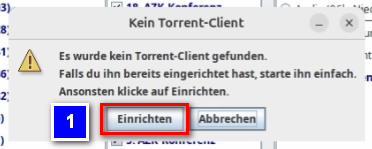
- <span style="background-color: rgb(251, 238, 184);">Es erscheint die Meldung, dass kein Torrent-Client gefunden wurde. Klicke auf "**Einrichten**" ❶ um diesen zu intsallieren</span>

[![image.png](https://wiki.kla.tv/uploads/images/gallery/2024-11/scaled-1680-/d5LIcdSURiVaV8yl-image.png)](https://wiki.kla.tv/uploads/images/gallery/2024-11/d5LIcdSURiVaV8yl-image.png)

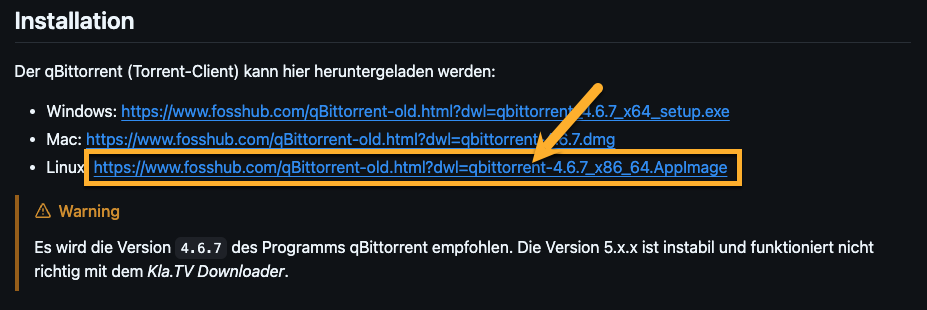
- <span style="background-color: rgb(251, 238, 184);">Es öffnet sich eine Website in welcher erklärt wird wie der Torrent-Client manuell eingerichtet werden kann, auf welcher du beim Unterpunkt "**Installation**" auf den blauen Link klickst  
    </span>**<span style="background-color: rgb(251, 238, 184);">[https://github.com/Kla-TV/downloader/wiki/Torrent%E2%80%90Client-manuell-einrichten#installation](https://github.com/Kla-TV/downloader/wiki/Torrent%E2%80%90Client-manuell-einrichten#installation) </span>**

[![image.png](https://wiki.kla.tv/uploads/images/gallery/2024-12/scaled-1680-/udhsogFEkkjHYEZ8-image.png)](https://wiki.kla.tv/uploads/images/gallery/2024-12/udhsogFEkkjHYEZ8-image.png)

- <span style="background-color: rgb(251, 238, 184);">Der Download startet automatisch, sobald auf den Linux Link angeklickt wurde.</span>

#### **<span lang="DE" style="background-color: rgb(241, 196, 15);"><span lang="EN-US"> 4.1 Libfuse installieren (Grundlage für Torrent-Client): </span></span>**

- <span style="background-color: rgb(251, 238, 184);">Öffne das Terminal und gebe diesen Befehl ein ❶ und bestätige mit Enter:</span>

```bash
sudo apt install libfuse2t64
```

[![image.png](https://wiki.kla.tv/uploads/images/gallery/2024-11/scaled-1680-/DXbGEbQf9MqSdvPP-image.png)](https://wiki.kla.tv/uploads/images/gallery/2024-11/DXbGEbQf9MqSdvPP-image.png)

- <span style="background-color: rgb(251, 238, 184);">Gebe nun dein PC Passwort ein und bestätige erneut mit Enter. Jetzt kannst du das Terminal wieder schließen</span>
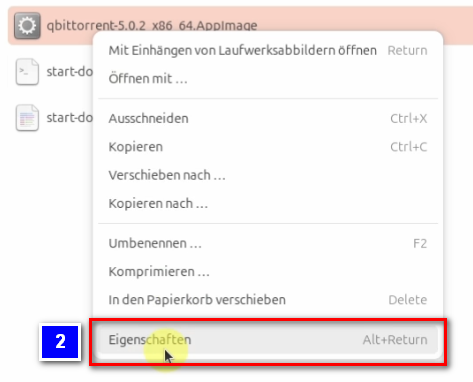
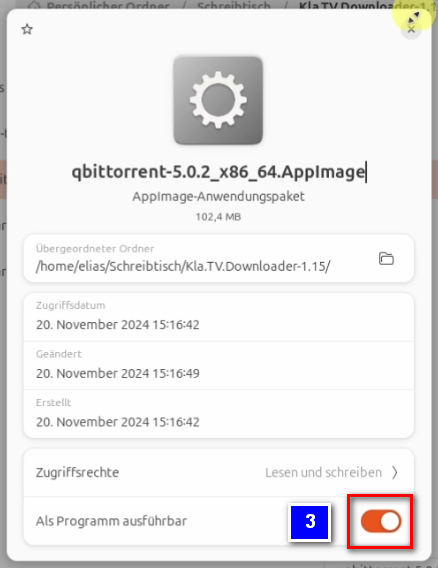
- <span style="background-color: rgb(251, 238, 184);">Gehe wieder in den Ordner in dem die Datei "**qbittorrent-5.02.2\_x86\_64.AppImage**" abgelegt ist. Mit einem Rechtsklick und dort wiederum ein Klick auf "**Eigenschaften**" <span lang="DE"><span lang="EN-US">*❷* öffnest du die Dateieigenschaften. In diesen aktivierst du den Schalter: "**Als Programm ausführbar**" ❸</span></span></span>

<span lang="DE"><span lang="EN-US">[![image.png](https://wiki.kla.tv/uploads/images/gallery/2024-11/scaled-1680-/jANZvk8d2PRJL5B1-image.png)](https://wiki.kla.tv/uploads/images/gallery/2024-11/jANZvk8d2PRJL5B1-image.png)[![image.png](https://wiki.kla.tv/uploads/images/gallery/2024-11/scaled-1680-/oB9jZDaQChMi50Pm-image.png)](https://wiki.kla.tv/uploads/images/gallery/2024-11/oB9jZDaQChMi50Pm-image.png)</span></span>
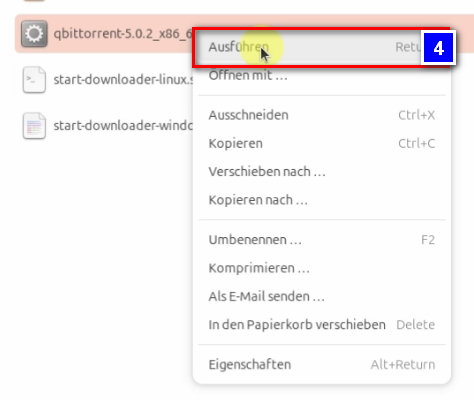
- <span lang="DE" style="background-color: rgb(251, 238, 184);"><span lang="EN-US">Jetzt ist es möglich per Rechtsklick und "**Ausführen**" ❹ das Programm auszuführen</span></span>
- <span lang="DE" style="background-color: rgb(251, 238, 184);"><span lang="EN-US">Es öffnet sich ein Rechtshinweis, welchen du mit "**OK**" bestätigen kannst und das Programm öffnet sich</span></span>

[![image.png](https://wiki.kla.tv/uploads/images/gallery/2024-11/scaled-1680-/gKJCw3huqAkajqgB-image.png)](https://wiki.kla.tv/uploads/images/gallery/2024-11/gKJCw3huqAkajqgB-image.png)

#### **<span lang="DE" style="background-color: rgb(241, 196, 15);"><span lang="EN-US"> 4.2 qBittorrent einrichten: </span></span>**

<p class="callout info"><span lang="DE"><span lang="EN-US">Beide benötigten Programme sind nun erfolgreich installiert. Jetzt müssen sie nur noch richtig eingerichtet werden.</span></span></p>

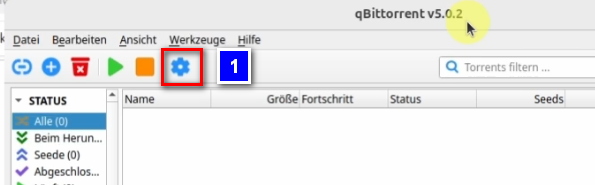
- <span style="background-color: rgb(251, 238, 184);">Klicke nun auf das Zahnrad in qBittorrent ❶ um die Einstellungen zu öffnen</span>

[![image.png](https://wiki.kla.tv/uploads/images/gallery/2024-11/scaled-1680-/VBMaqKF5ozph0wtK-image.png)](https://wiki.kla.tv/uploads/images/gallery/2024-11/VBMaqKF5ozph0wtK-image.png)

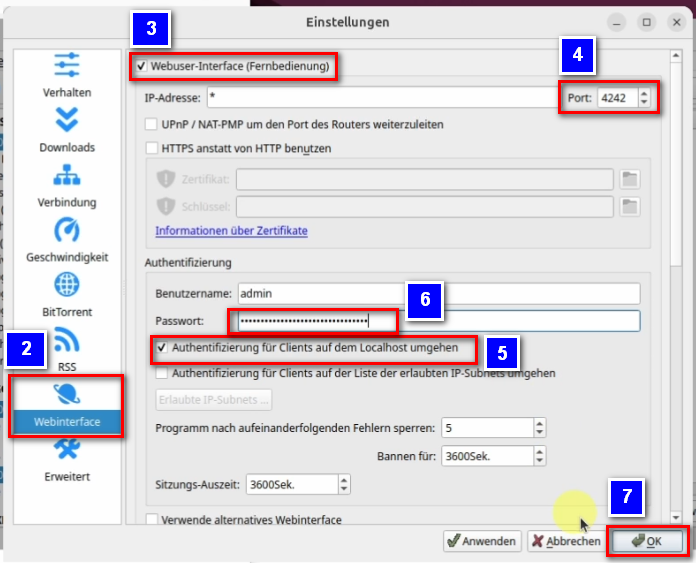
- <span style="background-color: rgb(251, 238, 184);">In den Einstellungen gehst du zuerst auf "**Webinterface**" <span lang="DE"><span lang="EN-US">*❷*</span></span>. Dort setzt du den Haken bei "**Webuser-Interface (Fernbedienung)**" ❸, als nächstes gibst du bei "**Port**" die Nummer: "**4242**" ❹ ein. Setze den Haken bei "**Authentifizierung für Clients auf dem Localhost umgehen**" ❺ und lege ein Passwort fest ❻, welches du dir aber nicht merken musst. Bestätige zum Schluss deine Eintsellungen mit einem Klick auf den Button "**OK**" ❼</span>

[![image.png](https://wiki.kla.tv/uploads/images/gallery/2024-11/scaled-1680-/oD4FLPUJAwctKhmI-image.png)](https://wiki.kla.tv/uploads/images/gallery/2024-11/oD4FLPUJAwctKhmI-image.png)

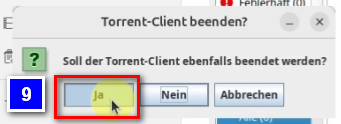
- <span style="background-color: rgb(251, 238, 184);">Um zu testen ob die Einstellungen funktioniert haben gehe nun wieder per Rechtsklick auf das Symbol des Kla.TV-Downloaders und beende das Programm ❽ und bestätige im sich öffnenden Fenster mit "Ja" ❾</span>

[![image.png](https://wiki.kla.tv/uploads/images/gallery/2024-11/scaled-1680-/qVEZuuzmydUUgf1b-image.png)](https://wiki.kla.tv/uploads/images/gallery/2024-11/qVEZuuzmydUUgf1b-image.png)[ ![image.png](https://wiki.kla.tv/uploads/images/gallery/2024-11/scaled-1680-/umMckXlersPuq70t-image.png)](https://wiki.kla.tv/uploads/images/gallery/2024-11/umMckXlersPuq70t-image.png)
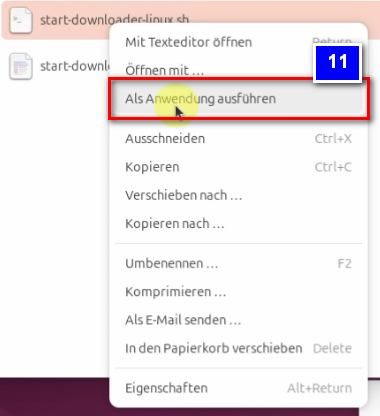
- <span style="background-color: rgb(251, 238, 184);">Per Rechtsklick auf die Kla.TV-Downloader Datei "**start-downloader-linux.sh**" ❿ und dem anklicken von "**Als Anwendung ausführen**" ❿❶ startest du den Kla.TV-Downloader erneut</span>

[![image.png](https://wiki.kla.tv/uploads/images/gallery/2024-11/scaled-1680-/46zu3ZCzYmFAIDIr-image.png)](https://wiki.kla.tv/uploads/images/gallery/2024-11/46zu3ZCzYmFAIDIr-image.png)

[![image.png](https://wiki.kla.tv/uploads/images/gallery/2024-11/scaled-1680-/d9oQNFYVgNKHquhJ-image.png)](https://wiki.kla.tv/uploads/images/gallery/2024-11/d9oQNFYVgNKHquhJ-image.png)
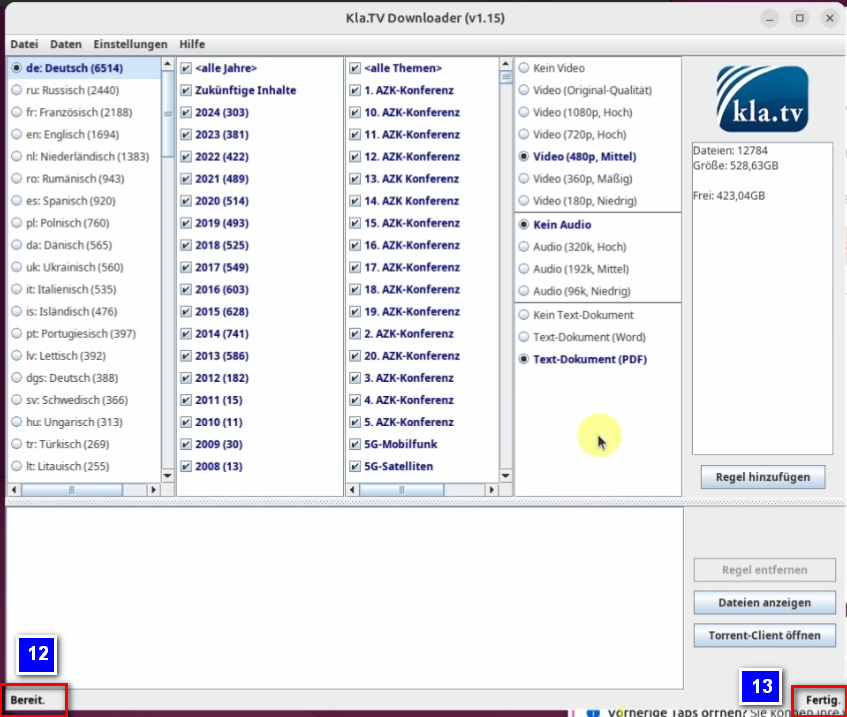
- <span style="background-color: rgb(251, 238, 184);">Hat das Einrichten erfolgreich geklappt, sollte nun im Kla.TV-Downloader am unteren Rand "**Bereit**." ❿<span lang="DE"><span lang="EN-US">❷ und "**Fertig.**" ❿❸ stehen</span></span></span>

[![image.png](https://wiki.kla.tv/uploads/images/gallery/2024-11/scaled-1680-/DXRX18cLkahBYV6L-image.png)](https://wiki.kla.tv/uploads/images/gallery/2024-11/DXRX18cLkahBYV6L-image.png)

<p class="callout info">Um nicht noch viel mehr manuelle Einstellungen im qBittorrent einstellen zu müssen, springen wir nun zu den Einstellungen vom Kla.TV-Downloader</p>


#### **<span lang="DE" style="background-color: rgb(241, 196, 15);"><span lang="EN-US"> 4.3 Kla.TV-Downloader einstellen: </span></span>**

- <span style="background-color: rgb(251, 238, 184);">Gehe zum geöffneten Kla.TV-Downloader und klicke dort auf den Reiter "**Einstellungen**" <span style="background-color: rgb(251, 238, 184);">❶ Dort klickst du auf die unterste Option "**Empfohlene Torrent-Client-Einstellungen setzen**" <span style="background-color: rgb(251, 238, 184);"><span lang="DE"><span lang="EN-US">*❷*</span></span></span></span></span>

[![image.png](https://wiki.kla.tv/uploads/images/gallery/2024-11/scaled-1680-/KQbjwWn8mRcOpqFL-image.png)](https://wiki.kla.tv/uploads/images/gallery/2024-11/KQbjwWn8mRcOpqFL-image.png)

- <span style="background-color: rgb(251, 238, 184);">Nun schließt sich das Fenster direkt wieder und in der unteren linken Ecke deines Kla.TV-Downloaders sollte nun die grüne Meldung: "**Empfohlende Torrent-Client-Einstellungen wurden gesetzt.**"</span>

[![image.png](https://wiki.kla.tv/uploads/images/gallery/2024-11/scaled-1680-/PH93mpYw4HgB9VOs-image.png)](https://wiki.kla.tv/uploads/images/gallery/2024-11/PH93mpYw4HgB9VOs-image.png)

- <span style="background-color: rgb(251, 238, 184);">Um zu überprüfen ob diese Einstellungen nun im Torrent-Clienten "angekommen" sind, gehe wieder zu qBittorrent und öffne die Einstellungen durch einen Klick auf das blaue Zahnrad <span style="background-color: rgb(251, 238, 184);"><span lang="DE"><span lang="EN-US">❸</span></span></span></span>

[![image.png](https://wiki.kla.tv/uploads/images/gallery/2024-11/scaled-1680-/n2CruvSI8nlMYq1l-image.png)](https://wiki.kla.tv/uploads/images/gallery/2024-11/n2CruvSI8nlMYq1l-image.png)

- <span style="background-color: rgb(251, 238, 184);">Unter "**BitTorrent**" <span style="background-color: rgb(251, 238, 184);">❹ kannst du nun schauen ob die Zahlen bei: "**Maximal aktive Downloads**", "**Maximal aktive Uploads**" und "**Maximal aktive Torrents**" korrekt übernommen wurde ("**5**", "**100**" und "**100**") <span style="background-color: rgb(251, 238, 184);">❺. Ist das der Fall hat das einwandfrei funktioniert :) Du kannst mit "**OK**" bestätigen <span style="background-color: rgb(251, 238, 184);">❻</span></span></span></span>

[![image.png](https://wiki.kla.tv/uploads/images/gallery/2024-11/scaled-1680-/J0GMSxNGKHgSE1mJ-image.png)](https://wiki.kla.tv/uploads/images/gallery/2024-11/J0GMSxNGKHgSE1mJ-image.png)


### <span style="background-color: rgb(241, 196, 15);"> **5. Synchronisieren:** </span>

<p class="callout info">Der Kla.TV-Downloader fügt Synchronisierungsregeln hinzu und schickt diese an den qBittorrent, der daraufhin die Sendungen herunterlädt und sie immer auf den aktuellsten Stand hält. Das bedeutet: Der Kla.TV-Downloader definiert lediglich nur wie und was heruntergeladen werden soll, während qBittorrent die Arbeit vom herunterladen übernimmt.</p>

<p class="callout info">**Damit die Synchronisation zwischen qBittorrent und Kla.TV-Downloader reibungslos funktioniert sollte immer zuerst der qBittorrent-Client <span style="text-decoration: underline;">vor</span> dem Kla.TV-Downloader gestartet werden.**</p>

- <span style="background-color: rgb(251, 238, 184);">Öffne den K**la.TV-Downloader** → wähle deine <span lang="DE"><span lang="EN-US">❶</span></span> **gewünschten Regeln**. (Erklärung dazu, siehe im Bild)</span>  
    [![grafik.png](https://wiki.kla.tv/uploads/images/gallery/2024-11/scaled-1680-/Q9Op8e0KGpDAFHm6-grafik.png)](https://wiki.kla.tv/uploads/images/gallery/2024-11/Q9Op8e0KGpDAFHm6-grafik.png)
- <span style="background-color: rgb(251, 238, 184);">Möchtest du **mehrere Qualiltäten** auswählen, musst du mehrmals nacheinander eine "Regel hinzufügen". Dann wird dieser Auftrag an den qBittorrent geschickt und dort runtergeladen. </span>  
    
    - <span style="background-color: rgb(251, 238, 184);">Hier ein <span lang="DE"><span lang="EN-US"> </span><span lang="EN-US">❷</span></span> **Beispiel**, wenn du eine neue Regel erfassen möchtest, mit z.B. **NUR Word-Dateien**. Dann deaktiviere Video/Audio, wähle die gewünschten Jahre und füge die Regel hinzu. </span>  
        [![grafik.png](https://wiki.kla.tv/uploads/images/gallery/2024-11/scaled-1680-/MyrlhWDMHW4eBhyZ-grafik.png)](https://wiki.kla.tv/uploads/images/gallery/2024-11/MyrlhWDMHW4eBhyZ-grafik.png)
- <span style="background-color: rgb(251, 238, 184);">**Programme können geschlossen werden** und es ladet im Hintergrund weiter</span>
- <span style="background-color: rgb(251, 238, 184);">Im <span lang="DE"><span lang="EN-US">❹</span></span> **Header** kannst du das </span>**<span style="background-color: rgb(251, 238, 184);">Programmw wieder öffnen</span>** [![image.png](https://wiki.kla.tv/uploads/images/gallery/2024-11/scaled-1680-/UruJZRnksnPBNcI5-image.png)](https://wiki.kla.tv/uploads/images/gallery/2024-11/UruJZRnksnPBNcI5-image.png)

<p class="callout danger">Möchtest du kein Upload anbieten, kannst du den folgenden Haken setzen</p>

- <span style="background-color: rgb(251, 238, 184);"> Gehe zum Kla.TV-Downloader. Unter dem Reiter "**Einstellungen**" <span style="background-color: rgb(251, 238, 184);"><span lang="DE"><span lang="EN-US">❶</span></span></span> kannst du nun den Haken bei: "**Nur herunterladen kein Torrent-Upload**" <span style="background-color: rgb(251, 238, 184);"><span lang="DE"><span lang="EN-US">❷ </span></span></span>setzen</span>

[![image.png](https://wiki.kla.tv/uploads/images/gallery/2024-11/scaled-1680-/xzxqAu5lwevSgcUN-image.png)](https://wiki.kla.tv/uploads/images/gallery/2024-11/xzxqAu5lwevSgcUN-image.png)

#### **<span style="background-color: rgb(241, 196, 15);"> 5.1 Systembenachrichtigung ausschalten: </span>** 

- <span style="background-color: rgb(251, 238, 184);">Damit nicht für jedes runtergeladene Video eine Popup-Meldung erscheint → gehe in den <span style="background-color: rgb(251, 238, 184);"><span style="background-color: rgb(251, 238, 184);"><span lang="DE"><span lang="EN-US">❶</span></span></span></span><span lang="DE"><span lang="EN-US"> </span></span>qBittorrent → Zahnrad → Erweitert → Benachrichtigungen anzeigen → deaktivieren → OK</span>  
      
    [![image.png](https://wiki.kla.tv/uploads/images/gallery/2024-11/scaled-1680-/vnYOCBGCZDg63nhu-image.png)](https://wiki.kla.tv/uploads/images/gallery/2024-11/vnYOCBGCZDg63nhu-image.png)

### <span style="background-color: rgb(241, 196, 15);"> **6. Empfehlung: Energieoptionen so einstellen, dass Computer nicht automatisch runterfährt:** </span>

<p class="callout info">Dieses Programm kann schnell mehrere Tage brauche, bis alles synchronisiert ist. Um diesen Vorgang zu verschnellern, empfielt es sich, den Energiesparmodus auszuschalten</p>

- <span style="background-color: rgb(251, 238, 184);">Öffne <span style="background-color: rgb(251, 238, 184);"><span style="background-color: rgb(251, 238, 184);"><span style="background-color: rgb(251, 238, 184);"><span lang="DE"><span lang="EN-US">❶</span></span></span></span></span> dazu die Energieeinstellungen auf deinem PC <span style="background-color: rgb(251, 238, 184);"><span style="background-color: rgb(251, 238, 184);"><span style="background-color: rgb(251, 238, 184);"><span lang="DE"><span lang="EN-US">*❷*</span></span></span></span></span></span>

[![image.png](https://wiki.kla.tv/uploads/images/gallery/2024-11/scaled-1680-/zxB0f4nBuYDGphI1-image.png)](https://wiki.kla.tv/uploads/images/gallery/2024-11/zxB0f4nBuYDGphI1-image.png)

- <span style="background-color: rgb(251, 238, 184);">Dort legst du nun den Schalter "Automatisch Energiesparen" <span lang="DE"><span lang="EN-US">❸ </span></span>auf aus, so dass er grau wird</span>

[![image.png](https://wiki.kla.tv/uploads/images/gallery/2024-11/scaled-1680-/AzEJbaL4glY3rLhP-image.png)](https://wiki.kla.tv/uploads/images/gallery/2024-11/AzEJbaL4glY3rLhP-image.png)

### <span style="background-color: rgb(241, 196, 15);">**7. Update installieren:** </span>

- **<span style="background-color: rgb(251, 238, 184);">Von Zeit zu Zeit wird der Kla.TV-Downloader optimiert und du solltest das Update installieren. So funktioniert es:  
    </span>**
- <span style="background-color: rgb(251, 238, 184);">Öffne den Kla.TV Downloader</span>
- <span style="background-color: rgb(251, 238, 184);">Diese Meldung erscheint: (Wenn nicht, dann gehe im Kla.TV Downloader auf → Hilfe → Nach Updates suchen</span>  
    [![grafik.png](https://wiki.kla.tv/uploads/images/gallery/2024-12/scaled-1680-/CPxIwgY3Aw6GYURU-grafik.png)](https://wiki.kla.tv/uploads/images/gallery/2024-12/CPxIwgY3Aw6GYURU-grafik.png)
    
    [![grafik.png](https://wiki.kla.tv/uploads/images/gallery/2024-12/scaled-1680-/YaiCj1fp8YsCOMGW-grafik.png)](https://wiki.kla.tv/uploads/images/gallery/2024-12/YaiCj1fp8YsCOMGW-grafik.png)

- <span style="background-color: rgb(251, 238, 184);">Das Internet öffnet sich, scrolle runter zu "Assets" </span>
    - - <span style="background-color: rgb(251, 238, 184);"> → auf <span lang="DE"><span lang="EN-US">❹</span></span> "Kla.TV.Downloader-\*.\*\*.tar.gz" klicken</span>
        - <span style="background-color: rgb(251, 238, 184);"><span lang="DE"><span lang="EN-US">❺</span></span> Öffne den Downlodordner</span>
        - <span style="background-color: rgb(251, 238, 184);">Entpacke die Datei auf bspw. deinen Schreibtisch ❻ </span>
        
        [![image.png](https://wiki.kla.tv/uploads/images/gallery/2024-11/scaled-1680-/qSErpIgwXlzwbwW8-image.png)](https://wiki.kla.tv/uploads/images/gallery/2024-11/qSErpIgwXlzwbwW8-image.png)[![image.png](https://wiki.kla.tv/uploads/images/gallery/2024-11/scaled-1680-/TlW6Qfw6MuE7VKYG-image.png)](https://wiki.kla.tv/uploads/images/gallery/2024-11/TlW6Qfw6MuE7VKYG-image.png)

        
        [![image.png](https://wiki.kla.tv/uploads/images/gallery/2024-11/scaled-1680-/JH6Ob0TgsrkaGS7N-image.png)](https://wiki.kla.tv/uploads/images/gallery/2024-11/JH6Ob0TgsrkaGS7N-image.png)

- <span style="background-color: rgb(251, 238, 184);">Gehe zu dem entpackten Ordner und klicke mit einem Rechtsklick auf die Datei: "**start-downloader-linux.sh**" ❹ </span>
- <span style="background-color: rgb(251, 238, 184);">Unter Eigenschaften ❺ überprüfst du ob der Schalter bei "**Als Programm ausführbar**" ❻ aktiviert ist, nur dann kannst du die Datei ausführen. </span>

[![image.png](https://wiki.kla.tv/uploads/images/gallery/2024-11/scaled-1680-/kJCMidObyli2Jhlh-image.png)](https://wiki.kla.tv/uploads/images/gallery/2024-11/kJCMidObyli2Jhlh-image.png)

[![image.png](https://wiki.kla.tv/uploads/images/gallery/2024-11/scaled-1680-/kZboiz14dfxwRP5N-image.png)](https://wiki.kla.tv/uploads/images/gallery/2024-11/kZboiz14dfxwRP5N-image.png) [![image.png](https://wiki.kla.tv/uploads/images/gallery/2024-11/scaled-1680-/EgEhKCmtxLZ0IDvt-image.png)](https://wiki.kla.tv/uploads/images/gallery/2024-11/EgEhKCmtxLZ0IDvt-image.png)
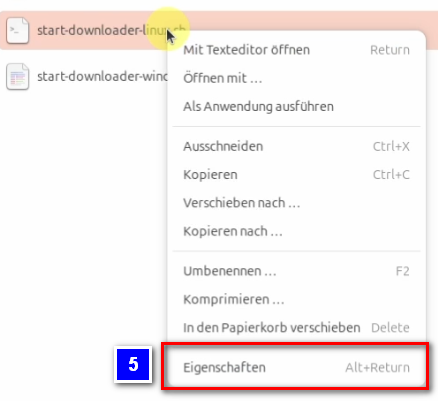
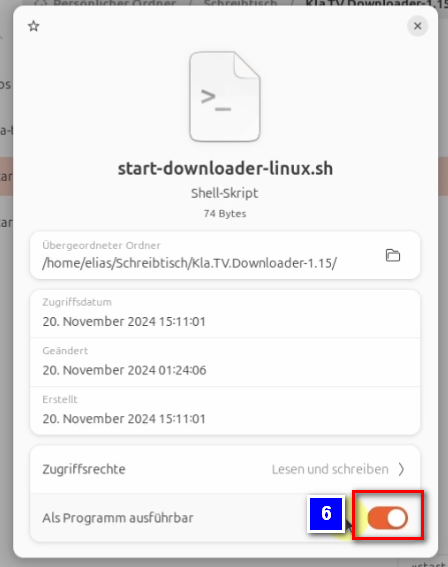
- <span style="background-color: rgb(251, 238, 184);">Mit einem Rechtsklick auf die Datei und dem anklicken der Option :"**Als Anwendung ausführen**" ❼ führst du nun die Datei aus</span>

[![image.png](https://wiki.kla.tv/uploads/images/gallery/2024-11/scaled-1680-/Oo8pi4NnoNHMGqiY-image.png)](https://wiki.kla.tv/uploads/images/gallery/2024-11/Oo8pi4NnoNHMGqiY-image.png)

- <span style="background-color: rgb(251, 238, 184);">Lösche die alte Version und öffne erneut den aktuellen Kla.TV-Downloader und geniesse die optimierte Version 😊</span>

##### Weitere Artikel, die dich interessieren könnten:  
  
[**Gesichertes Archiv durchsuchen**](https://wiki.kla.tv/books/klatv-sichern/page/gesichertes-archiv-durchsuchen)

# Gesichertes Archiv durchsuchen

### **Was lernst Du in diesem Artikel?**

Was nützt ein Archiv, wenn man nicht darin suchen kann? Wie du dein gesichertes Archiv durchsuchen kannst, lernst du in diesem Artikel.

### **Videoanleitung: (2min)**

<div class="responsive-iframe" id="bkmrk-"><iframe allowfullscreen="allowfullscreen" frameborder="0" height="332" src="https://video.elaion.ch?video_by_id=AuYhrKbR3qF4" width="590"></iframe>

</div><span lang="DE" style="font-size: 16.0pt; mso-bidi-font-size: 11.0pt; line-height: 107%; font-family: Wingdings; mso-ascii-font-family: Calibri; mso-ascii-theme-font: minor-latin; mso-fareast-font-family: Calibri; mso-fareast-theme-font: minor-latin; mso-hansi-font-family: Calibri; mso-hansi-theme-font: minor-latin; mso-bidi-font-family: 'Times New Roman'; mso-bidi-theme-font: minor-bidi; mso-ansi-language: DE; mso-fareast-language: EN-US; mso-bidi-language: AR-SA; mso-char-type: symbol; mso-symbol-font-family: Wingdings;"><span style="mso-char-type: symbol; mso-symbol-font-family: Wingdings;">&#131;</span></span><span lang="DE" style="font-size: 16.0pt; mso-bidi-font-size: 11.0pt; line-height: 107%; font-family: Wingdings; mso-ascii-font-family: Calibri; mso-ascii-theme-font: minor-latin; mso-fareast-font-family: Calibri; mso-fareast-theme-font: minor-latin; mso-hansi-font-family: Calibri; mso-hansi-theme-font: minor-latin; mso-bidi-font-family: 'Times New Roman'; mso-bidi-theme-font: minor-bidi; mso-ansi-language: DE; mso-fareast-language: EN-US; mso-bidi-language: AR-SA; mso-char-type: symbol; mso-symbol-font-family: Wingdings;"><span style="mso-char-type: symbol; mso-symbol-font-family: Wingdings;">&#132;</span></span><span lang="DE" style="font-size: 16.0pt; mso-bidi-font-size: 11.0pt; line-height: 107%; font-family: Wingdings; mso-ascii-font-family: Calibri; mso-ascii-theme-font: minor-latin; mso-fareast-font-family: Calibri; mso-fareast-theme-font: minor-latin; mso-hansi-font-family: Calibri; mso-hansi-theme-font: minor-latin; mso-bidi-font-family: 'Times New Roman'; mso-bidi-theme-font: minor-bidi; mso-ansi-language: DE; mso-fareast-language: EN-US; mso-bidi-language: AR-SA; mso-char-type: symbol; mso-symbol-font-family: Wingdings;"><span style="mso-char-type: symbol; mso-symbol-font-family: Wingdings;"> </span></span>

### **Schriftliche Anleitung:**

#### <span style="background-color: rgb(241, 196, 15);">**1. Wichtige Info:**</span>

- <span style="background-color: rgb(251, 238, 184);">Stelle sicher, dass du den kostenlosten **Adobe Acrobat Reader** auf deinem Computer hast. Wenn du ihn nicht hast, dann kannst du ihn hier runterladen: </span>[<span style="background-color: rgb(251, 238, 184);">https://get.adobe.com/de/reader/</span>](https://get.adobe.com/de/reader/)[![grafik.png](https://wiki.kla.tv/uploads/images/gallery/2024-11/scaled-1680-/yNLIiFDzypdCJmPm-grafik.png)](https://get.adobe.com/de/reader/)
    
    
    - ***ALTERNATIV** kann auch ein anderer PDF-Reader benutzt werden, z.B. der **[Foxit PDF-Reader](https://www.foxit.com/de/downloads/#Foxit-Reader)** (folgende Anleitung bezieht sich auf den Adobe Acrobat Reader. Das Prinzip kann übertragen werden)*
- <span style="background-color: rgb(251, 238, 184);">WICHTIG: Um dein Archiv nach Stichworten u.co. zu durchsuchen, solltest du auch alle **PDF-Dokumente** in dein Archiv runtergeladen haben. (Wie das geht, erfährst du in diesem Artikel: </span>[***<span style="background-color: rgb(251, 238, 184);">Installation und Nutzung von "Kla.TV Downloader"</span>***](https://wiki.kla.tv/books/klatv-sichern/chapter/klatv-downloader-programm-p2p)

#### <span style="background-color: rgb(241, 196, 15);">**2. Archiv durchsuchen:** </span>

- <span style="background-color: rgb(251, 238, 184);">Öffne in deinem Archiv eine <span lang="DE" style="font-size: 16pt; line-height: 107%; font-family: Wingdings; background-color: rgb(251, 238, 184);"><span style="mso-char-type: symbol; mso-symbol-font-family: Wingdings;">&#135;<span lang="EN-US" style="font-size: 11pt; line-height: 107%; font-family: 'Cambria Math', serif; background-color: rgb(251, 238, 184);">❶</span></span></span> PDF-Datei mit rechtsklick → **Öffnen mit → Adobe Acrobat** </span>

[![grafik.png](https://wiki.kla.tv/uploads/images/gallery/2024-11/scaled-1680-/oitLYbjjy1n6jU5q-grafik.png)](https://wiki.kla.tv/uploads/images/gallery/2024-11/oitLYbjjy1n6jU5q-grafik.png)

- <span style="background-color: rgb(251, 238, 184);">Menüleiste → <span lang="DE" style="font-size: 16pt; line-height: 107%; font-family: Wingdings; background-color: rgb(251, 238, 184);"><span style="mso-char-type: symbol; mso-symbol-font-family: Wingdings;"><span lang="EN-US" style="font-size: 11pt; line-height: 107%; font-family: 'Cambria Math', serif; background-color: rgb(251, 238, 184);">❷ </span></span></span>Datei →  **Erweiterte Suche**</span>

![grafik.png](https://wiki.kla.tv/uploads/images/gallery/2024-11/scaled-1680-/VOLZlpq47UdXHnkF-grafik.png)

- <span style="background-color: rgb(251, 238, 184);"><span lang="DE" style="font-size: 16pt; line-height: 107%; font-family: Wingdings; background-color: rgb(251, 238, 184);"><span style="mso-char-type: symbol; mso-symbol-font-family: Wingdings;"><span lang="EN-US" style="font-size: 11pt; line-height: 107%; font-family: 'Cambria Math', serif; background-color: rgb(251, 238, 184);">❸</span></span></span> "**Was soll durchsucht werden**" → "Alle PDF-Dokumente" → drücke auf "Alle lokalen Festplatten" und gehe auf "Ordner suchen..." → wähle das Kla.TV-Archiv</span>

 [![grafik.png](https://wiki.kla.tv/uploads/images/gallery/2024-11/scaled-1680-/g0JIlEaoDFMHIowA-grafik.png)](https://wiki.kla.tv/uploads/images/gallery/2024-11/g0JIlEaoDFMHIowA-grafik.png)

- <span style="background-color: rgb(251, 238, 184);">Gebe bei <span lang="DE" style="font-size: 16pt; line-height: 107%; font-family: Wingdings; background-color: rgb(251, 238, 184);"><span style="mso-char-type: symbol; mso-symbol-font-family: Wingdings;"><span lang="EN-US" style="font-size: 11pt; line-height: 107%; font-family: 'Cambria Math', serif; background-color: rgb(251, 238, 184);">❹</span></span></span> "**Nach welchem Wort oder Ausdruck soll gesucht werden?**" deinen gewünschten Suchbegriff ein (z.B. Great Reset) → gehe auf "Suchen"</span>

[![grafik.png](https://wiki.kla.tv/uploads/images/gallery/2024-11/scaled-1680-/sroZh1eA96Hnl78R-grafik.png)](https://wiki.kla.tv/uploads/images/gallery/2024-11/sroZh1eA96Hnl78R-grafik.png)

- <span style="background-color: rgb(251, 238, 184);"><span lang="DE" style="font-size: 16pt; line-height: 107%; font-family: Wingdings; background-color: rgb(251, 238, 184);"><span style="mso-char-type: symbol; mso-symbol-font-family: Wingdings;"><span lang="EN-US" style="font-size: 11pt; line-height: 107%; font-family: 'Cambria Math', serif; background-color: rgb(251, 238, 184);">❺</span></span></span> Alle Dokumente (bzw. Sendungen) mit dem Begriff z.B. "Great Reset" werden angezeigt. </span>

[![grafik.png](https://wiki.kla.tv/uploads/images/gallery/2024-11/scaled-1680-/zGHxtqiRYHzlHq39-grafik.png)](https://wiki.kla.tv/uploads/images/gallery/2024-11/zGHxtqiRYHzlHq39-grafik.png)

- <span style="background-color: rgb(251, 238, 184);"><span lang="DE" style="font-size: 16pt; line-height: 107%; font-family: Wingdings; background-color: rgb(251, 238, 184);"><span style="mso-char-type: symbol; mso-symbol-font-family: Wingdings;"><span lang="EN-US" style="font-size: 11pt; line-height: 107%; font-family: 'Cambria Math', serif; background-color: rgb(251, 238, 184);">❻</span></span></span> Möchtest du herausfinden, **wo diese Sendung abgespeichert ist**: Öffne das gewünschte Dokument → Menüleiste → Datei → **Dokumenteigenschaften** </span>

[![grafik.png](https://wiki.kla.tv/uploads/images/gallery/2024-11/scaled-1680-/XGWTkFr9bsAqTAbk-grafik.png)](https://wiki.kla.tv/uploads/images/gallery/2024-11/XGWTkFr9bsAqTAbk-grafik.png)

- <span style="background-color: rgb(251, 238, 184);"><span lang="DE" style="font-size: 16pt; line-height: 107%; font-family: Wingdings; background-color: rgb(251, 238, 184);"><span style="mso-char-type: symbol; mso-symbol-font-family: Wingdings;"><span lang="EN-US" style="font-size: 11pt; line-height: 107%; font-family: 'Cambria Math', serif; background-color: rgb(251, 238, 184);">❼</span></span></span> Klicke auf den **Speicherort-Pfad**, so öffnet sich direkt der Ordner und markiert dir die gewünschte Sendung</span>

[![grafik.png](https://wiki.kla.tv/uploads/images/gallery/2024-11/scaled-1680-/MCKUhQgILhJGMYJg-grafik.png)](https://wiki.kla.tv/uploads/images/gallery/2024-11/MCKUhQgILhJGMYJg-grafik.png)

# Kla.TV Downloader - Update auf v1.29 oder höher

<p class="callout info">Das **Kla.TV Downloader Programm** wurde in der v1.29 grundlegend überarbeitet. Die aktuelle Version des Programms kannst du hier herunterladen: [https://github.com/Kla-TV/downloader/releases](https://github.com/Kla-TV/downloader/releases)</p>

Das nachfolgende Video zeigt die wichtigsten Neuerungen und hilft den Update-Prozess möglichst reibungslos durchzuführen:

<iframe allowfullscreen="allowfullscreen" frameborder="0" height="332" src="https://www.kla.tv/index.php?a=showembed&vidid=31559&lang=de" width="590"></iframe>

 **Die wichtigsten Neuerungen:**

- Der Download-Vorgang verwendet nun gruppierte Torrents, wodurch alles deutlich besser funktioniert und weniger Computer-Leistung gebraucht wird.
- Die heruntergeladenen Videos/Audios/Docs bleiben unberührt und müssen NICHT neu heruntergeladen werden.

**Weitere Infos wie man das Programm aktualisieren kann:**  
  
Windows: [https://wiki.kla.tv/link/4#bkmrk-9.-update-installier  ](https://wiki.kla.tv/link/4#bkmrk-9.-update-installier)Mac: [https://wiki.kla.tv/link/5#bkmrk-9.-update-installier  ](https://wiki.kla.tv/link/5#bkmrk-9.-update-installier)Linux: [https://wiki.kla.tv/link/6#bkmrk-9.-update-installier](https://wiki.kla.tv/link/6#bkmrk-9.-update-installier)

Und nicht vergessen: «Kla.TV sichern» ist kein Sprint, sondern ein Marathon. 😉 Wem es mit dem «Kla.TV-Downloader» zu viel wird, wechsle freimütig auf die bewährte Sicherungsmethode «Serverzugang». Mehr dazu:[ www.kla.tv/sichern](http://www.kla.tv/sichern)